

I’ve spent years building WordPress sites the traditional way. Editing theme files, adjusting PHP functions, and writing custom CSS for the most minor design changes. It’s exhausting. And honestly? You don’t need to do any of that anymore.
No-code WordPress tools changed how I build websites. Instead of battling with code, I focus on what actually matters: creating content, growing traffic, and making sites that work. These tools handle the technical heavy lifting while I stay in control.
So what are no-code WordPress tools? They’re plugins and builders that let you handle complex tasks through visual interfaces, toggles, and simple settings. No coding required.
You can optimize for SEO, speed up your site, build custom layouts, protect content, create courses, and more without touching a single line of code.
Here’s the thing. Not all no-code tools are created equal. Some are genuinely helpful. Others just add bloat and slow your site down. I’ve spent years testing what actually works, and I’m sharing the ones that consistently deliver results.
Let’s get into it.
Table Of Contents
- What to Look for in a No-Code Tool for WordPress
- Top No-Code Tools for WordPress to Build Any Site Faster
- Rank Math SEO
- WP Rocket
- Imagify
- RocketCDN
- Elementor
- Divi Builder
- MemberPress
- JetEngine (Crocoblock)
- TutorLMS
- Ultimate Blocks
- UpdraftPlus
- Contact Form 7
- Popup Maker
- How to Choose the Right No-Code WordPress Tools
- Frequently Asked Questions
- Conclusion
1 What to Look for in No-Code Tools for WordPress
Before picking any tool, here are the key things you should always pay attention to:
- Ease of use: You want a tool you can set up quickly. If it feels confusing or overwhelming from the start, it will slow you down later.
- Smooth integration: Make sure it works well with the rest of your setup. A good tool should fit into your workflow, not create conflicts.
- Lightweight performance: A plugin should add features without dragging down your site. Look for tools that only load what you actually use.
- Beginner-friendly setup: Clear settings, clean interfaces, and simple toggles save you hours of frustration. The tool should guide you, not overwhelm you.
- Helpful documentation and support: Tutorials, guides, and responsive support matter, especially when you’re stuck or trying something new.
- Flexible pricing: Pick tools that give you value without forcing you into expensive upgrades. Free versions or affordable plans are a good sign.
- Scalability: Ensure the tool scales with your site. It should support more content, more traffic, or more features without needing a complete switch later.
2 Top No-Code Tools for WordPress to Build Any Site Faster
I’ve tested dozens of WordPress plugins over the years, and these are the ones that consistently deliver results without adding unnecessary complexity to your workflow.
2.1 Rank Math SEO
Search engine optimisation can feel complicated when you first start, especially with so many elements to configure. Rank Math removes that complexity by giving you straightforward suggestions and an organised setup, so you always know what to do next.
It handles the core SEO tasks your site needs to rank well in search engines, including titles, descriptions, URLs, and keyword optimization.
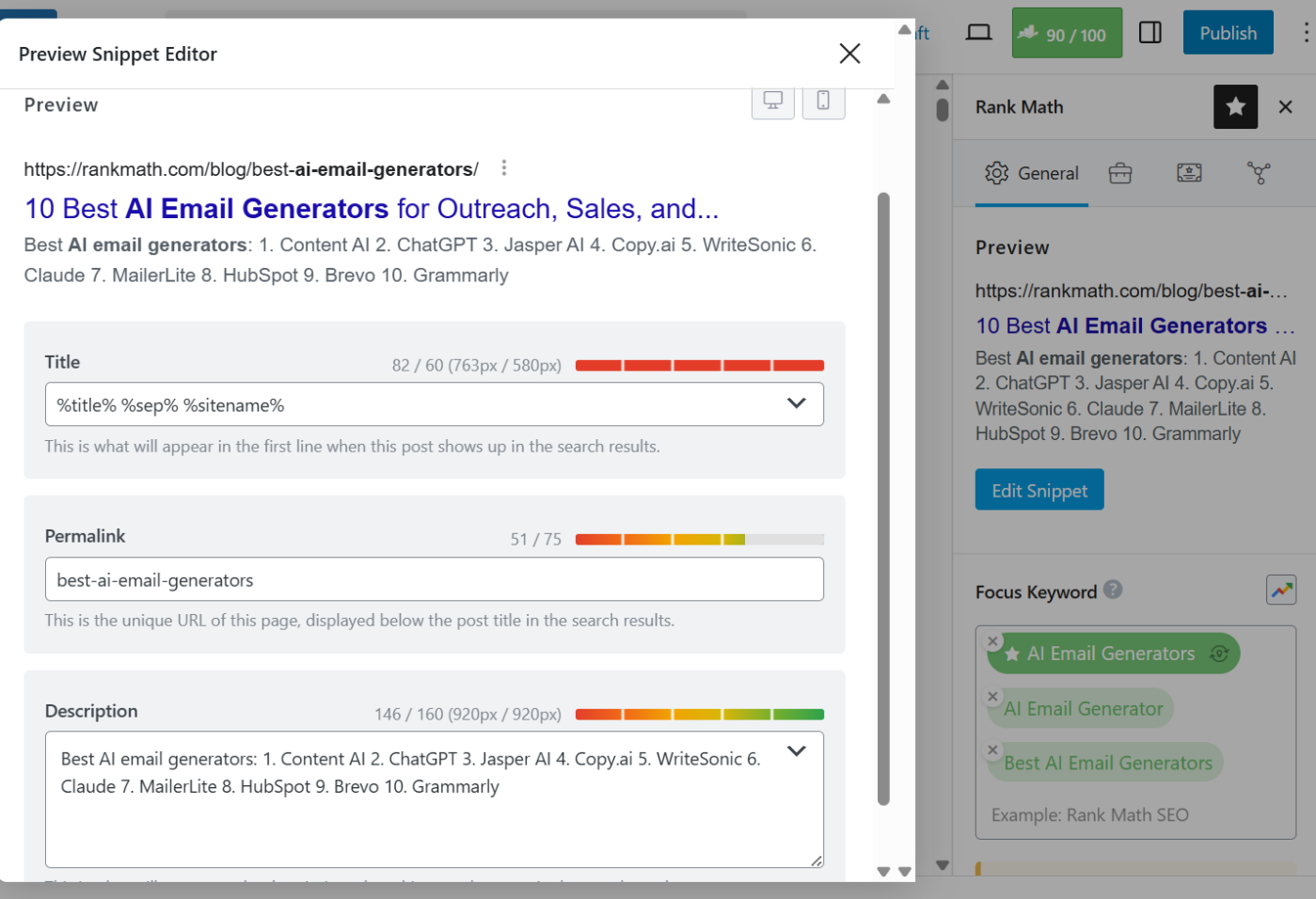
You get keyword ranking data right inside WordPress, so you can track how your pages perform and find issues before they tank your traffic.
As you write or update a post, Rank Math scores your page and gives straightforward suggestions.
You get guidance on keyword usage, readability, internal links, heading structure, and image optimization. It keeps your content aligned with search intent without making the process feel overwhelming.
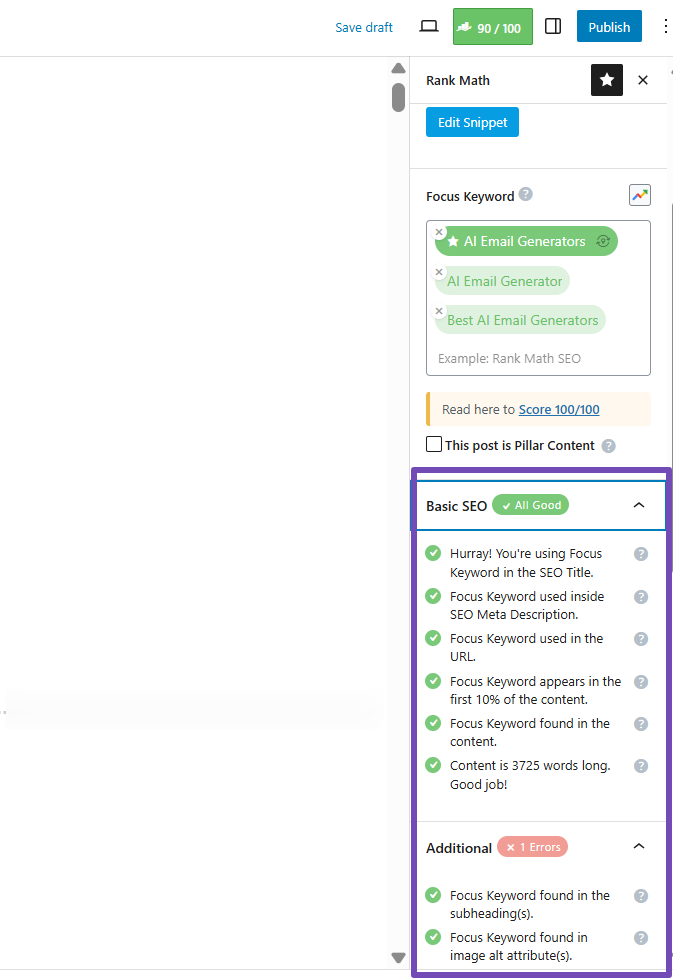
I love how truly no-code this plugin is. You don’t write JSON Schema by hand or edit .htaccess files. You just toggle what you want, and Rank Math does the rest. The setup wizard alone handles settings that most beginners get wrong.

A few features stand out. The Schema builder lets you add rich snippets like FAQ, Product, Article, or HowTo in just a few clicks. This helps your pages stand out in search results with those extra details Google loves to show.
The Rank Tracker saves me so much time because I can see my keyword positions right in WordPress, without paying for a separate SEO platform.
And Content AI gives you keyword ideas, heading suggestions, FAQs, and optimization prompts directly in the editor, which is especially helpful when you’re trying to structure content the way Google understands it.

Who should use it: Bloggers, business owners, ecommerce stores, and agencies. Anyone wanting consistent SEO growth without using different plugins. For WooCommerce sites, the product Schema and breadcrumb controls make a noticeable difference.
Limitations: The interface can feel overwhelming at first, though the setup wizard handles most of the onboarding. Advanced features like extensive rank tracking or deeper Content AI usage require a paid plan.
Pricing: The free version covers most needs. PRO plan starts at $95.88/year.
2.2 WP Rocket
If your site feels slow or you’re struggling with Core Web Vitals, WP Rocket is the fastest fix that doesn’t require touching code. You activate it, review a few settings, and your pages immediately load faster.
WP Rocket speeds up your WordPress site by caching pages, optimizing CSS and JavaScript, cleaning your database, and deferring elements that slow down load time.
Normally, you’d need multiple plugins to do all that. WP Rocket bundles it into one dashboard that anyone can understand.
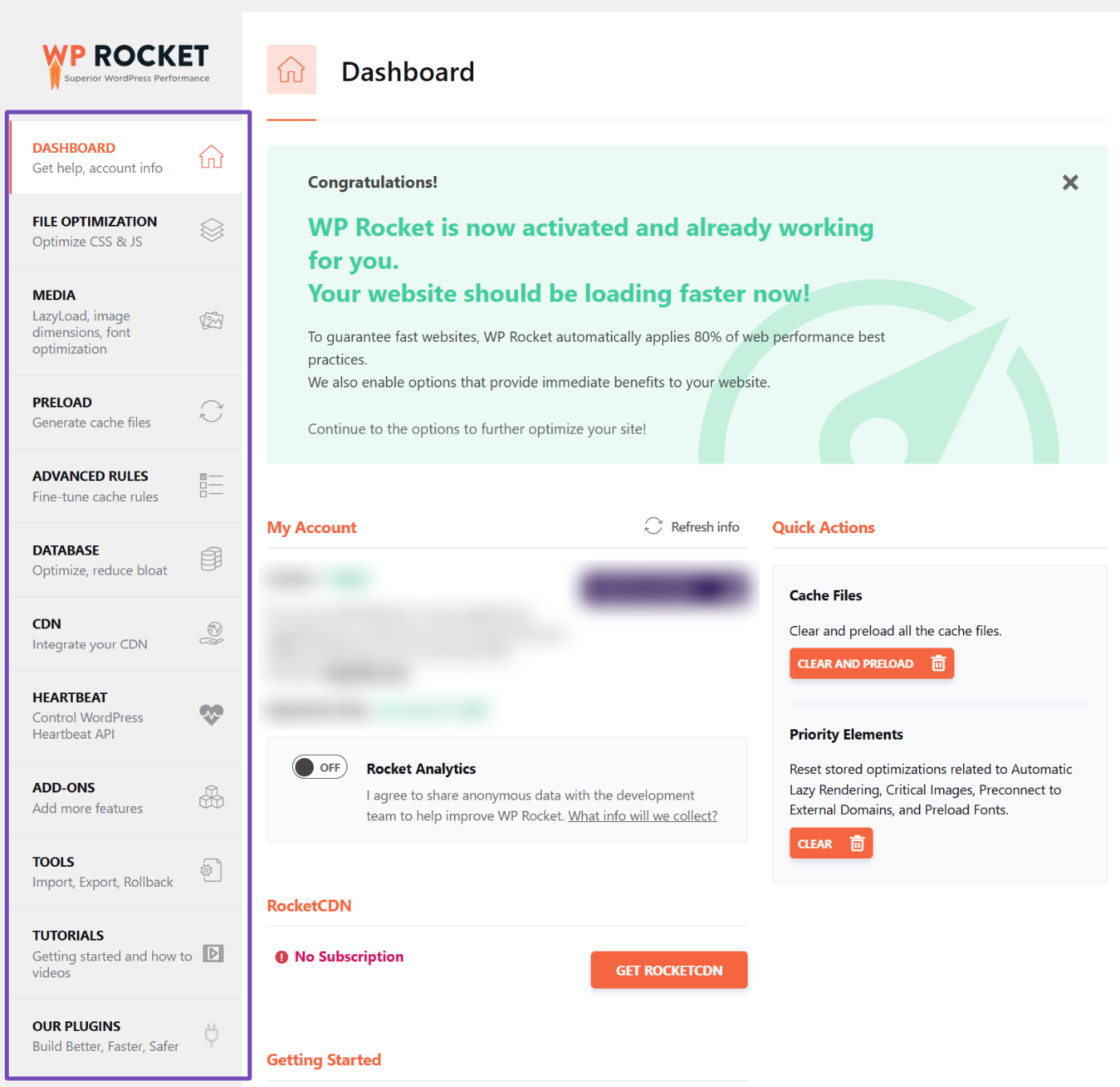
You never write a single performance rule. No configuring .htaccess files, CDN scripts, or server settings. Everything is a toggle or checkbox, which makes it perfect for beginners who want speed without becoming developers.
I like that cache preloading usually cuts several seconds off load time right away. The Remove Unused CSS option is a game-changer because it removes unnecessary styles that slow down your page.
And the lazy load setting helps images and videos load only when users scroll to them, keeping your first contentful paint clean and fast.
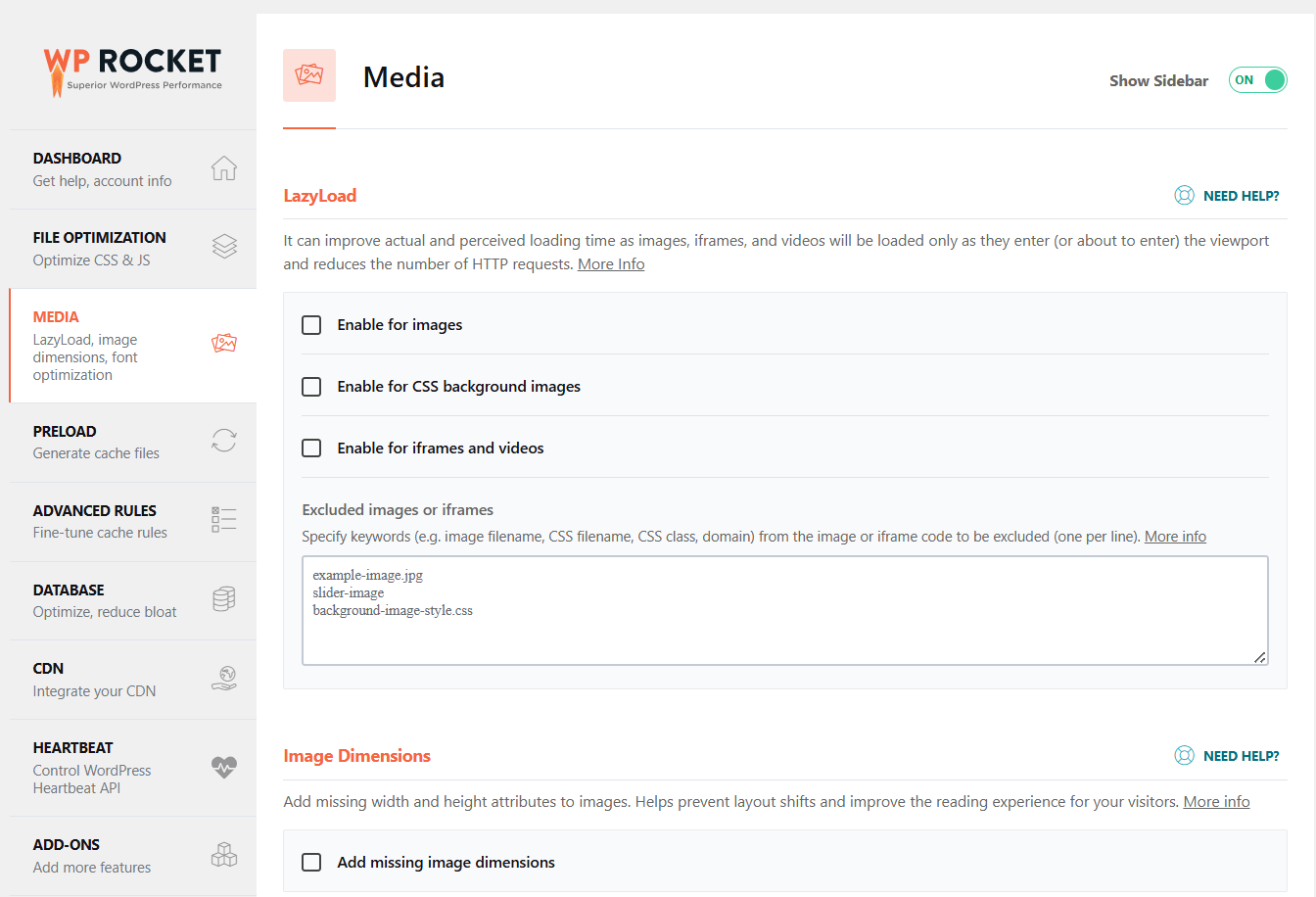
Who should use it: Bloggers, business sites, ecommerce stores, and client managers. Any website that wants better rankings, more engagement, and fewer abandoned sessions.
Limitations: WP Rocket is paid only, so there’s no free version to test.
Pricing: Starts at $59 per year for one site.
2.3 Imagify
If your pages feel heavy or your images take forever to load, Imagify fixes that without you touching Photoshop or tweaking code.
Every image you upload goes through a smart optimization process that reduces file size without ruining quality. It also automatically creates WebP or AVIF versions, helping you meet Google’s “serve images in next-gen formats” requirement.

If you already have hundreds or thousands of images, the Bulk Optimization feature cleans everything up in one go.

You never manually compress files or write logic to serve different formats to visitors. You activate the plugin, choose your compression level, and Imagify handles the rest. Even tasks like resizing oversized uploads happen automatically.
I like its Smart Compression feature, which balances file size and quality really well. Imagify also keeps backups of your original images so that you can revert changes at any time.
Who should use it: Blogs with lots of photos, ecommerce stores with product images, service sites where visuals matter. Agencies love it because it keeps client sites fast without extra work.
Limitations: The free plan covers very little. If your site uses many images, you’ll outgrow it immediately. And while Imagify helps speed things up, it only solves the image part of performance. You’ll still need caching and a good hosting provider.
Pricing: The free plan covers basic use. The Growth plan is $ 5.99/month.
2.4 RocketCDN
If your audience is spread across different countries and your site sometimes feels slow for people far from your hosting location, RocketCDN fixes that without touching server settings.
It delivers your images, CSS, and JavaScript files from a global network rather than a single server, instantly reducing load time for international visitors.
Once you activate it and add your API key, your static files are automatically routed through fast edge servers around the world. You don’t edit DNS records or set up custom CNAMEs. Everything is already configured.
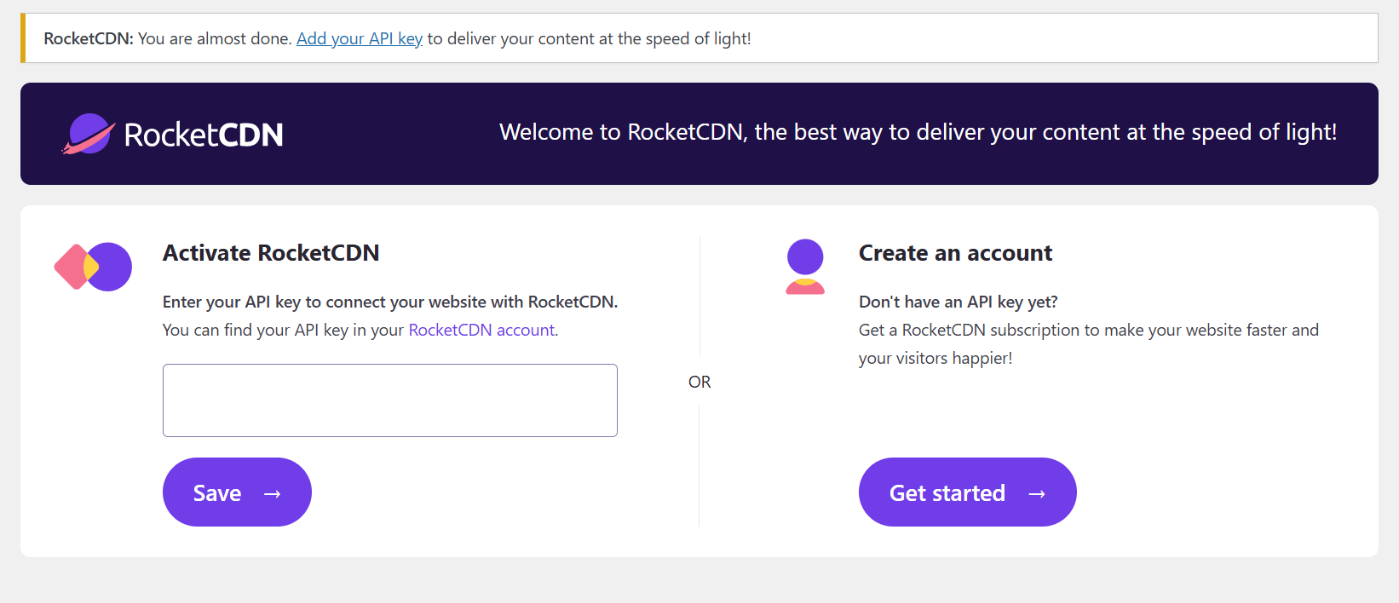
RocketCDN is so good that it uses an extensive global edge network, so your assets load closer to each visitor. Second, unlimited bandwidth means you can handle traffic spikes without worrying about extra costs.
Third, it applies important performance rules, such as GZIP compression and cache headers, out of the box.
Who should use it: Anyone whose visitors come from different regions, anyone with image-heavy content, or anyone running an ecommerce store where every second matters. It’s also a good fit if you’re already using WP Rocket, since both tools work well together.
Limitations: Each website needs its own subscription, which can add up if you manage several sites. And while a CDN helps speed, it doesn’t replace caching, image optimization, or good hosting.
Pricing: Starts at $8.99/month per site with unlimited bandwidth.
2.5 Elementor
Elementor helps you take complete control over how your WordPress site looks without writing any code. It’s a visual editor where you drag, drop, and shape pages exactly how you imagine them.

You can create homepages, landing pages, product pages, or full site templates in minutes. The editor feels like a design workspace. Move elements around, adjust spacing, change colors, and switch between desktop, tablet, and mobile views.
What I love is that tasks that require a developer, such as custom headers, unique post layouts, and product pages, can be done right in the editor. You can change a global font or color once, and the entire site updates instantly.
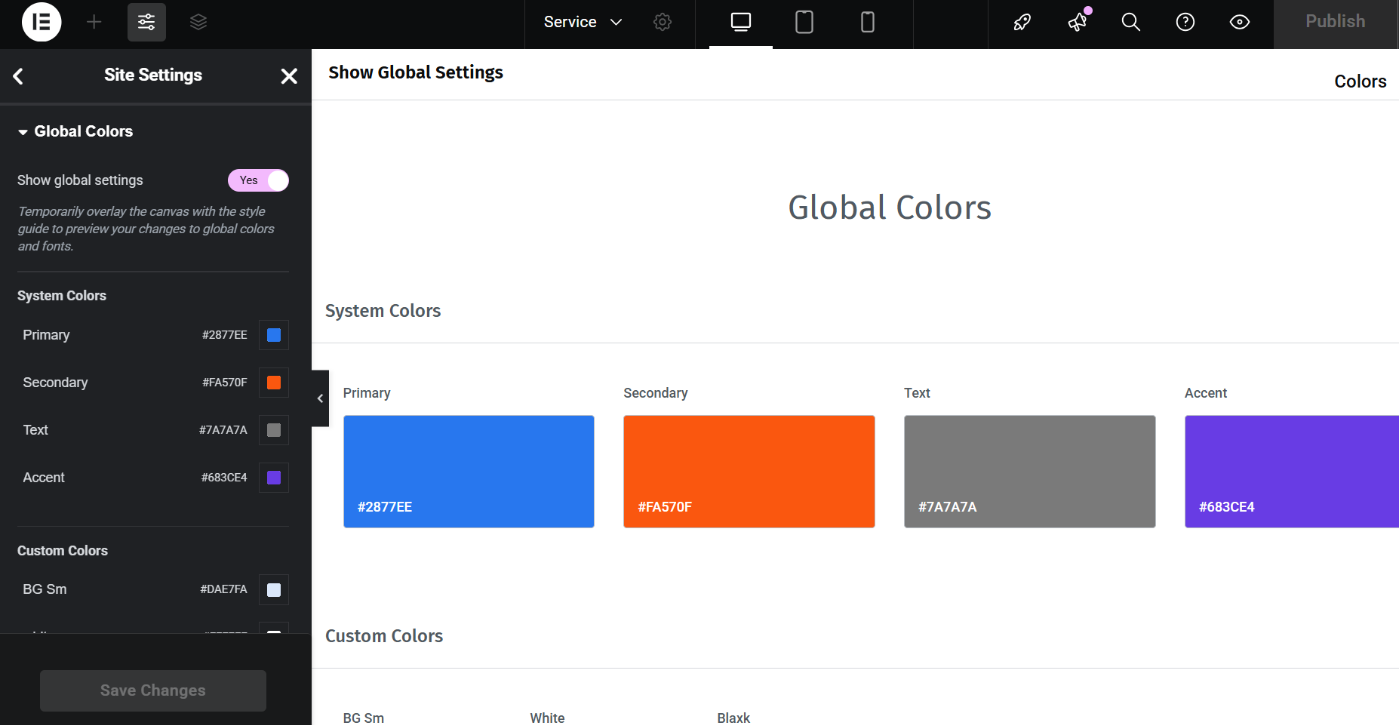
The template library provides professionally designed pages to customization. The Theme Builder in Pro lets you redesign headers, footers, and blog templates visually. The responsive controls are strong because you adjust layouts for each device without breaking anything.
Who should use it: It works well for small businesses, bloggers, ecommerce owners, and agencies. Most WordPress themes lock you into their layout structure. But Elementor removes that limitation.
Limitations: It has a steep learning curve due to the many design options. Overusing widgets or animations can slow your site, so pair it with caching and image optimization plugins. Advanced features such as the Theme Builder and WooCommerce tools are included in the Pro plan.
Pricing: A Free version is available. Pro plan starts at $60/year for one site.
2.6 Divi Builder
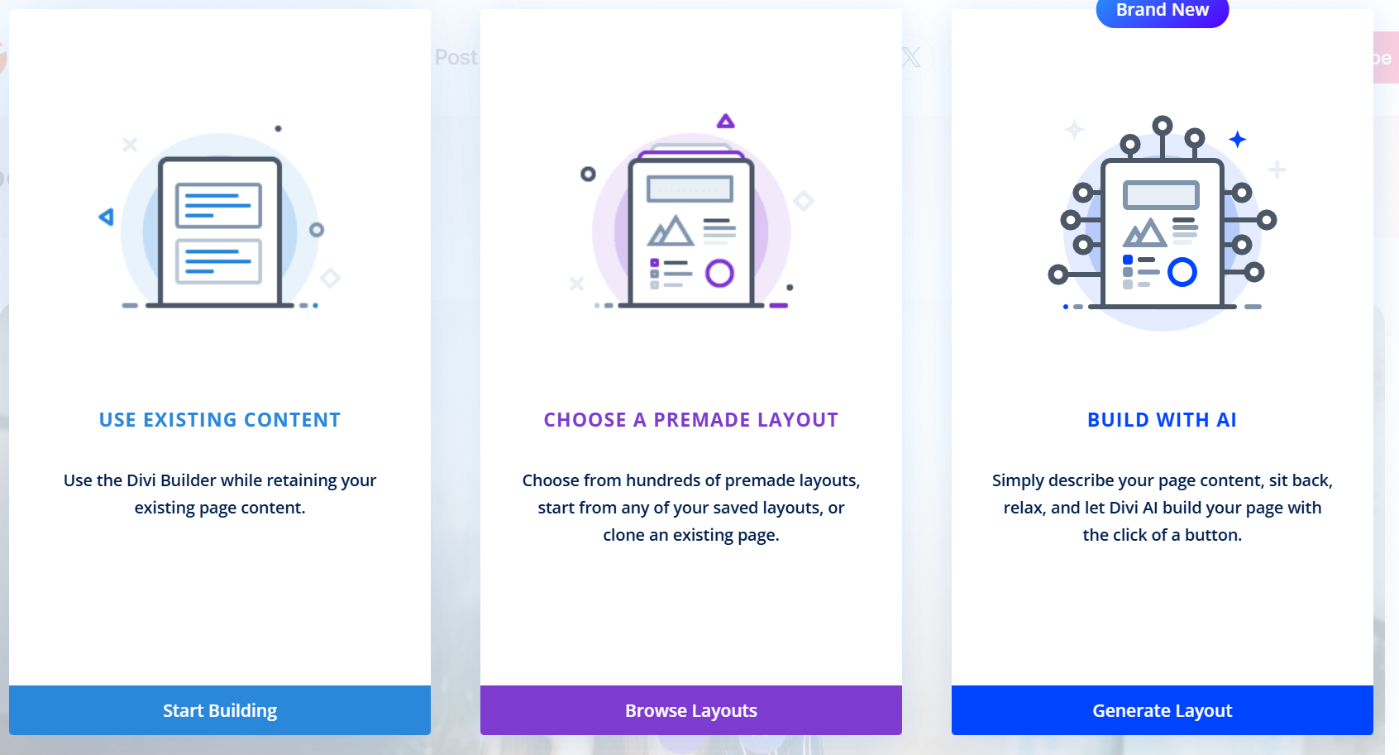
If Elementor isn’t your style, Divi Builder is another solid option that gives you complete design freedom. It works on the front end, so you design while seeing the final result in real time.
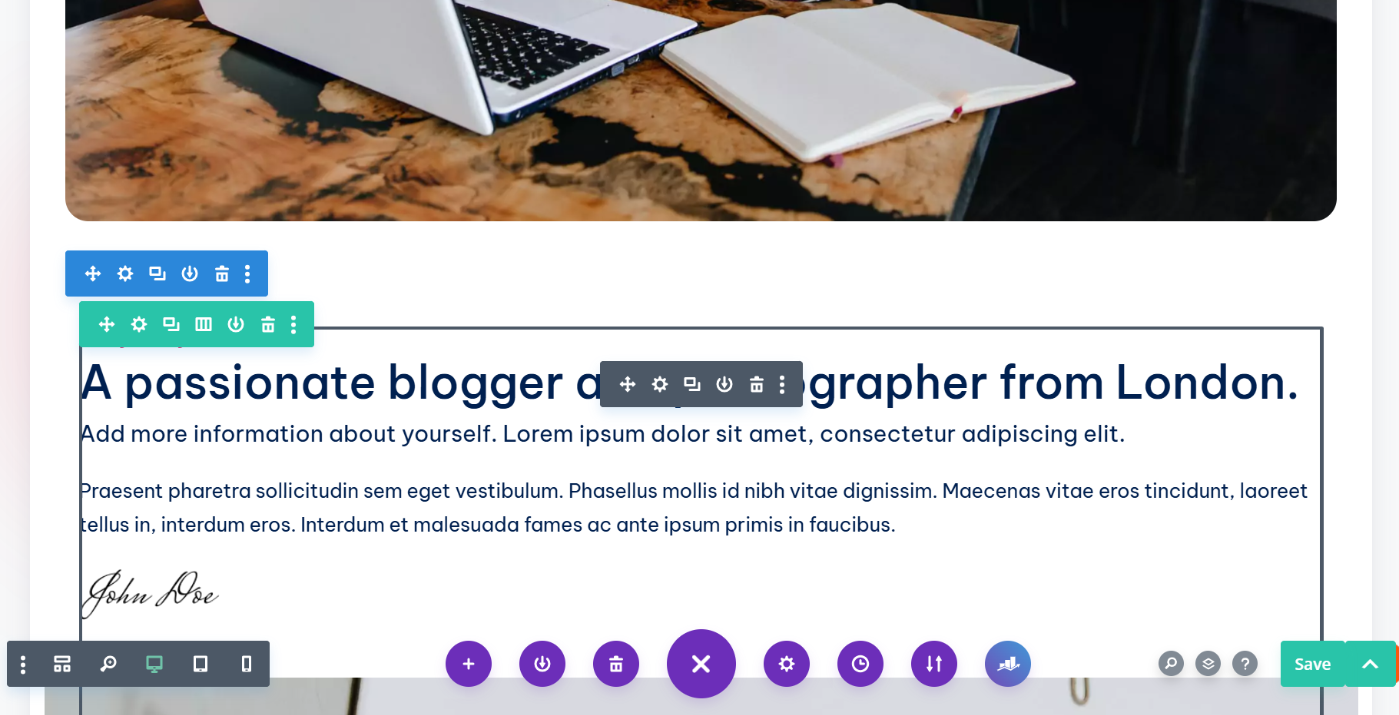
Divi lets you build entire sites, not just pages. You can customize your homepages, blog layouts, headers, footers, and product pages in one unified editor.
You start with a section, add rows, drop in modules, and shape your layout exactly as you want.
The template library gives you hundreds of ready-made designs. The Theme Builder lets you customize structural parts that normally require code. The global design system keeps your branding consistent across every page.
Who should use it: It’s powerful for businesses, creators, freelancers, and agencies. If you build client sites, Divi speeds up your workflow by letting you duplicate designs, save modules, and reuse layouts.
Limitations: Like Elementor, it has a learning curve. Add too many modules or animations without optimization, and your site can feel heavy. If you ever switch builders, you may need to clean up shortcodes.
Pricing: Annual membership at $89/year.
2.7 MemberPress
Now, if you want to turn your site into a membership business, MemberPress handles everything. Member accounts, payments, locked content, and course access; it manages the structure while you focus on creating value.
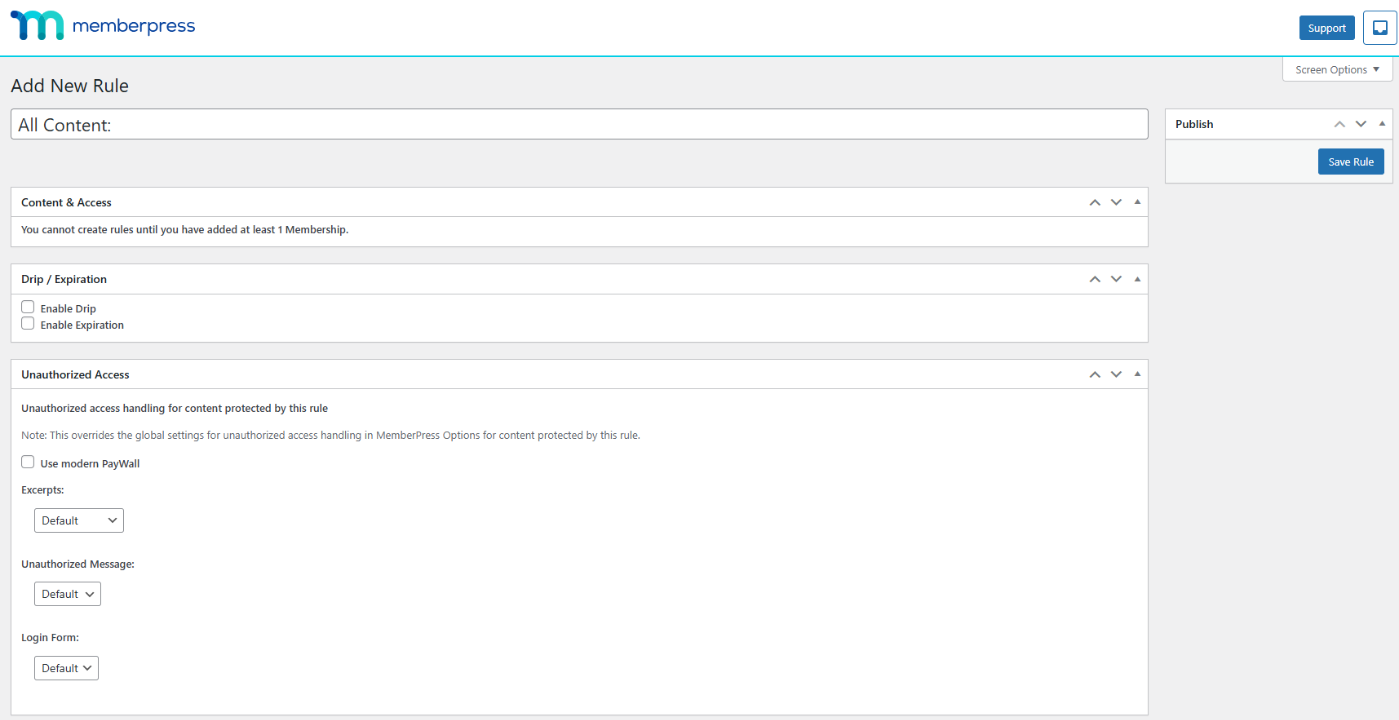
You decide what visitors can see, how much they pay, when they get access, and how long subscriptions last. The plugin sets up rules, checkout pages, and renewals automatically.
A few features make it reliable. Access Rules give you fine control over membership levels. Pricing page templates look professional out of the box.
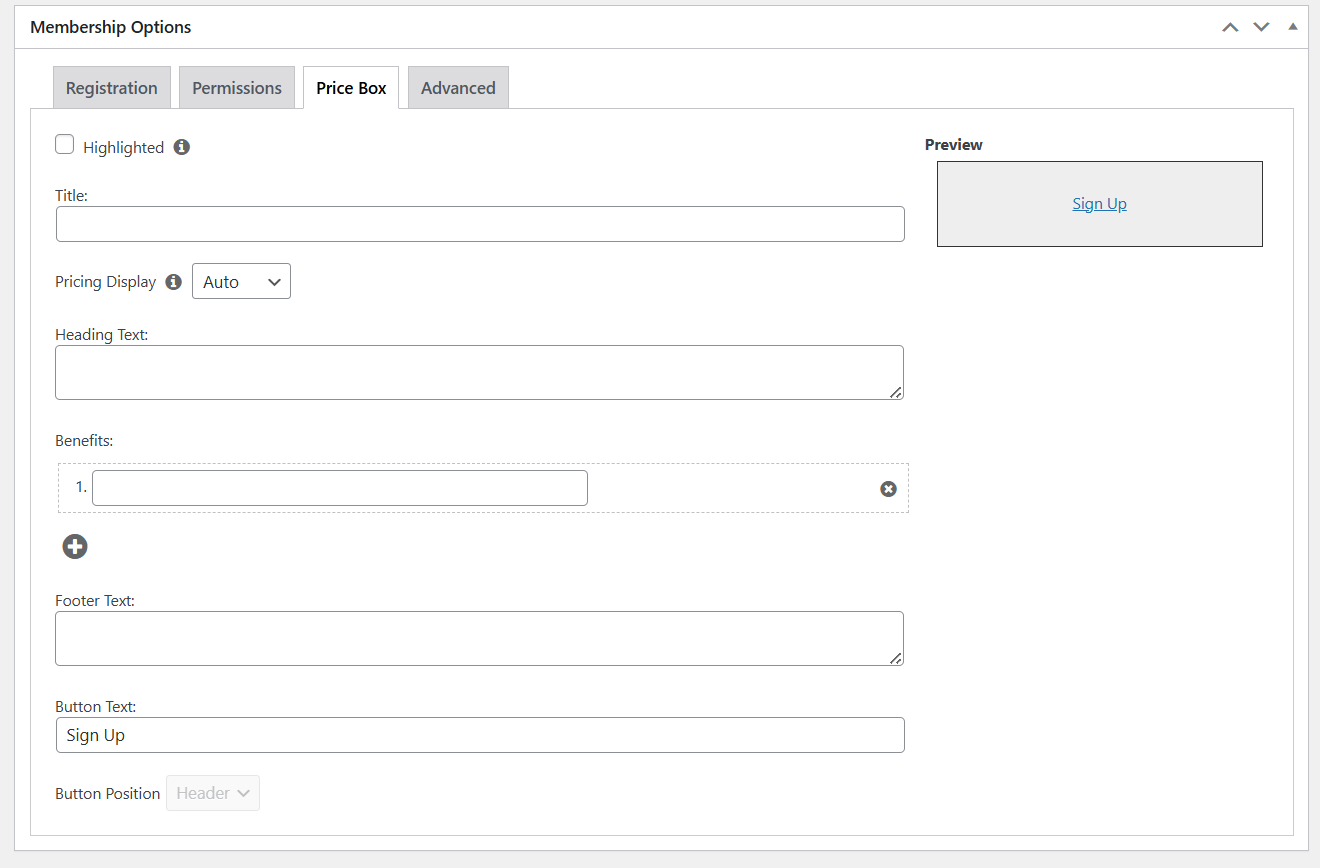
Drip content releases lessons on your schedule. The built-in course builder makes creating online learning experiences much faster.
Who should use it: I’d recommend it for creators, educators, coaches, publishers, and businesses wanting recurring revenue. A membership site involves payments, renewals, content protection, and email logic. MemberPress bundles everything into one system.
Limitations: It’s a premium tool with no free plan. There are many features, so you’ll need time to understand all the options.
Pricing: Starts at $199.50/year for the basic plan.
2.8 JetEngine (Crocoblock)
Here’s where things get interesting. If you need something more advanced than a simple blog, JetEngine removes the limitations. It lets you create custom content types, structured fields, and dynamic listings without code.
You can create custom post types, add your own fields, build relationships between items, and display everything using templates you design. Instead of writing PHP, you choose your content structure from dropdowns and drag fields where you want them.
The custom post type and field creator is straightforward and flexible. The listing builder lets you design how dynamic content appears, whether it’s a grid, slider, map, or calendar. The relationship builder links content types meaningfully, like Agents to Properties or Instructors to Courses.
Who should use it: It works well for directories, job boards, real estate listings, review sites, membership dashboards, or anything relying on structured content. Agencies use it because it creates complex architectures without custom development.
Limitations: It’s advanced, so expect a learning curve if you’re new to structured content.
Pricing: Starts at $26/year for one site.
2.9 TutorLMS
If you want to create and sell online courses, TutorLMS makes the process surprisingly smooth. It gives you a clean course builder, quiz tools, certificates, and monetization options.
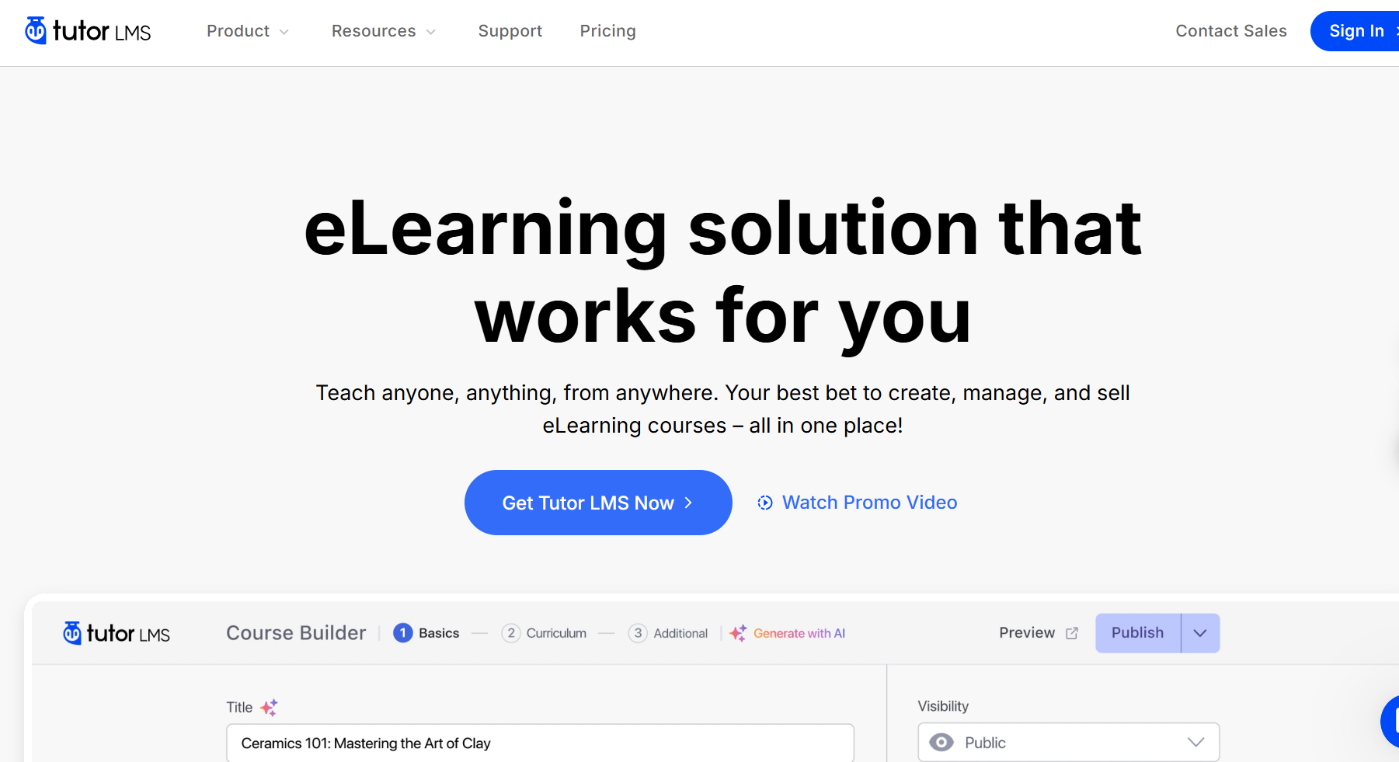
You add lessons, videos, resources, quizzes, and assignments from a drag-and-drop interface. Drip lessons over time, set prerequisites, bundle courses, or run live classes.
A few features give it an edge. The course builder feels natural even if you’ve never built a course.

The quiz system is flexible for assessments. Content drip guides students through material at a consistent pace. The AI Studio can generate outlines, quizzes, and lesson ideas, saving hours of brainstorming. You get student progress tracking and analytics.
Who should use it: It’s ideal for coaches, educators, trainers, and membership site owners offering structured learning. Without it, you’d need separate plugins for courses, quizzes, certificates, payments, and tracking. TutorLMS puts everything in one system.
Limitations: There’s a lot you can do, so you’ll need time to get comfortable. If your platform grows to include many active students, your hosting needs to be robust. Some advanced features are only in Pro.
Pricing: Free version available. Pro plan starts at $99.50/year for one site.
2.10 Ultimate Blocks
Let’s switch gears to content creation. If you write inside the Gutenberg editor and want pages to look more polished, Ultimate Blocks is one of the easiest upgrades.
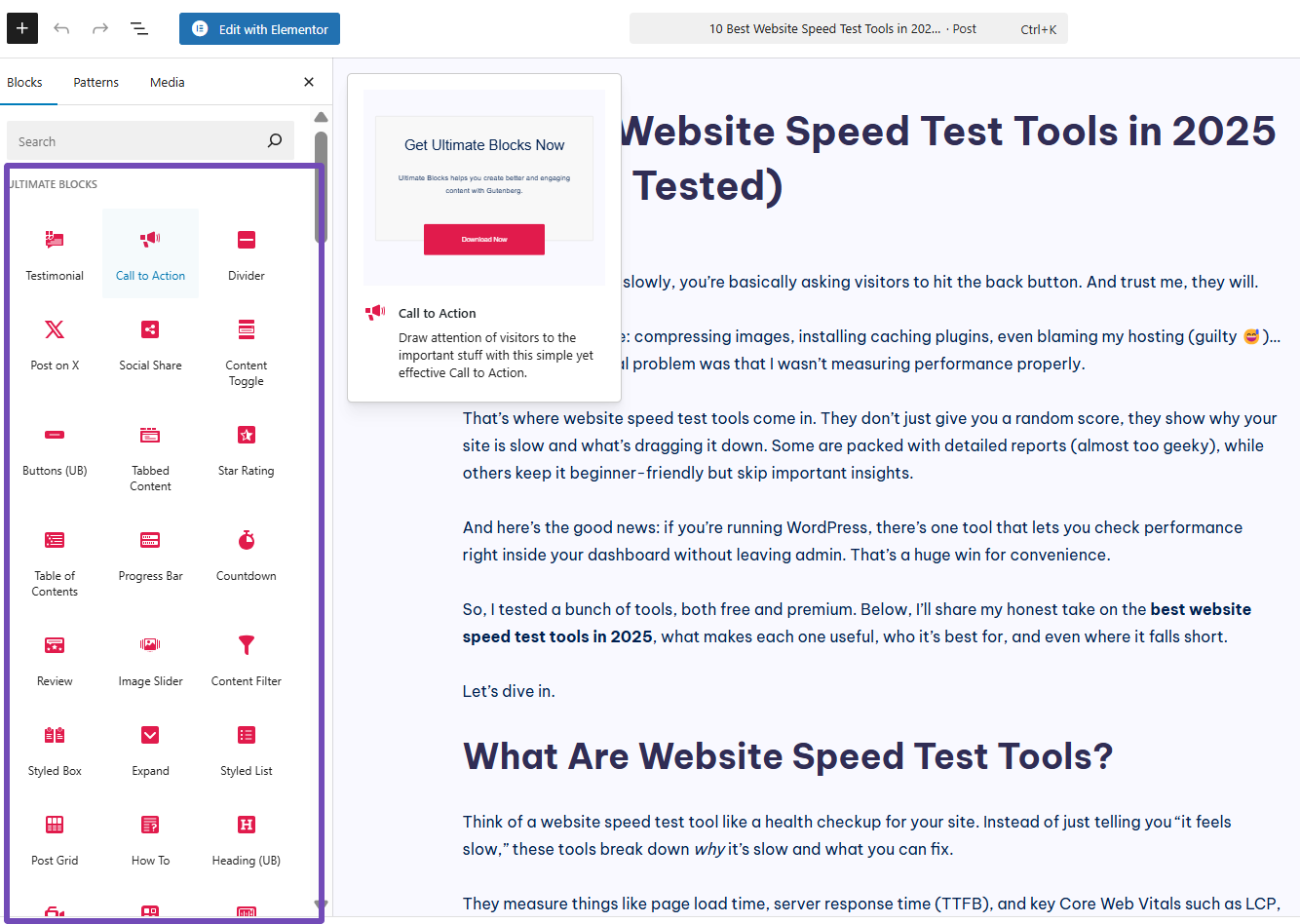
It adds review boxes, tables of contents, styled lists, accordions, call-to-action boxes, star ratings, tabs, and Schema-supported blocks. You pick what you need from the block panel, drop it in, and customize it visually.

The review block with Schema support is great for bloggers and affiliate marketers. The table of contents improves navigation and time on page. Styled lists and call-to-action blocks make content more skimmable and conversion-focused.
Who should use it: It works well for bloggers, creators, affiliate marketers, and small business owners who rely on Gutenberg. Instead of installing separate plugins for reviews, tabs, accordions, and call-to-actions, Ultimate Blocks replaces them all.
Limitations: If you rely heavily on page builders, you may not use these Gutenberg blocks as much. Some advanced styling requires CSS for custom designs.
Pricing: Free version available. Pro version starts at $49/year.
2.11 UpdraftPlus
UpdraftPlus is one of those plugins I always install early because it protects my entire WordPress site from mistakes, failed updates, or hosting issues. It handles full backups in the background and lets you restore everything with a few clicks, even if you are not technical.
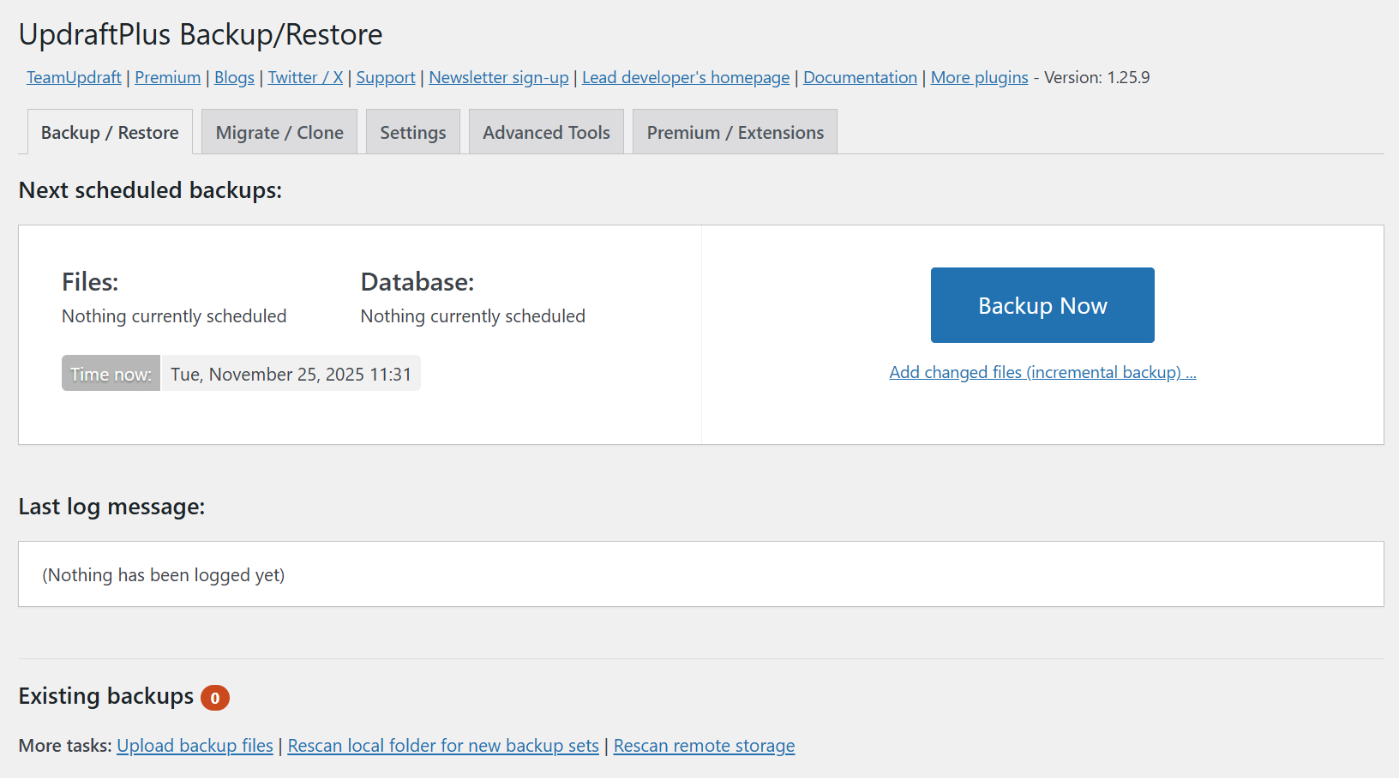
You choose your backup schedule and the cloud storage you prefer, like Google Drive, Dropbox, or Amazon S3.
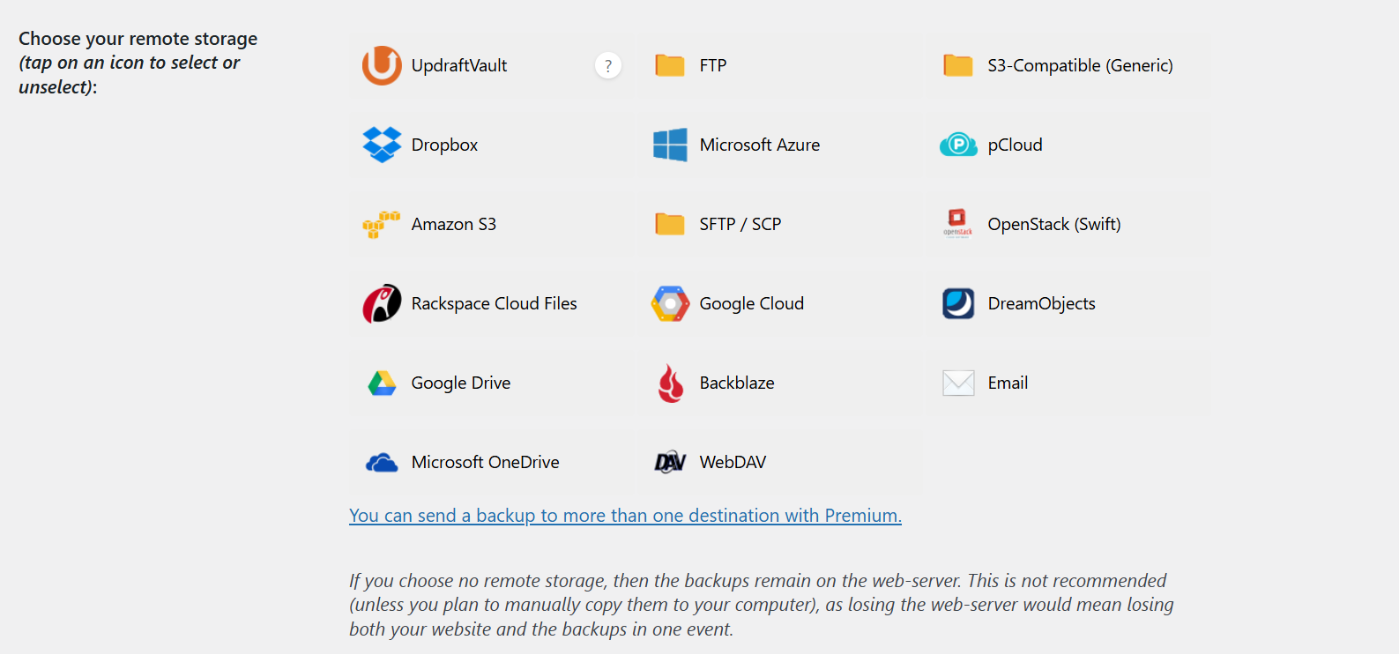
The plugin saves your database, files, uploads, themes, and plugins automatically. If something breaks, you simply hit restore, and your site comes back exactly as it was. Moving to a new host is also easy thanks to the built-in migration tool.
The automated scheduling, reliable restore process, and remote storage options are the standout features. In the premium version, incremental backups keep your server lighter by saving only what has changed.
Who should use it: UpdraftPlus fits any site that cares about safety. Blogs, business sites, ecommerce stores, membership platforms, and client sites all benefit from a solid backup system. Hosting backups aren’t enough; this plugin puts you in control.
Limitations: Note that large or complex sites require good hosting for smooth restores. Advanced features like incremental backups and multisite support are only available in the premium upgrade.
Pricing: Free version available. Premium plans start at $70/year.
2.12 Contact Form 7
If you just need a simple contact form on your WordPress site without extra setup or cost, Contact Form 7 handles it easily. It is lightweight, free, and works well with almost any theme.
You can create basic forms with fields for name, email, subject, messages, dropdowns or even file uploads. When someone submits the form, the entry goes straight to your inbox. It also connects with tools like reCAPTCHA or Akismet to reduce spam.
It works as a no-code plugin because everything happens through shortcodes and simple tags. You build your form, copy the shortcode, and paste it on any page. No PHP, no template editing and no visual builder complexity.
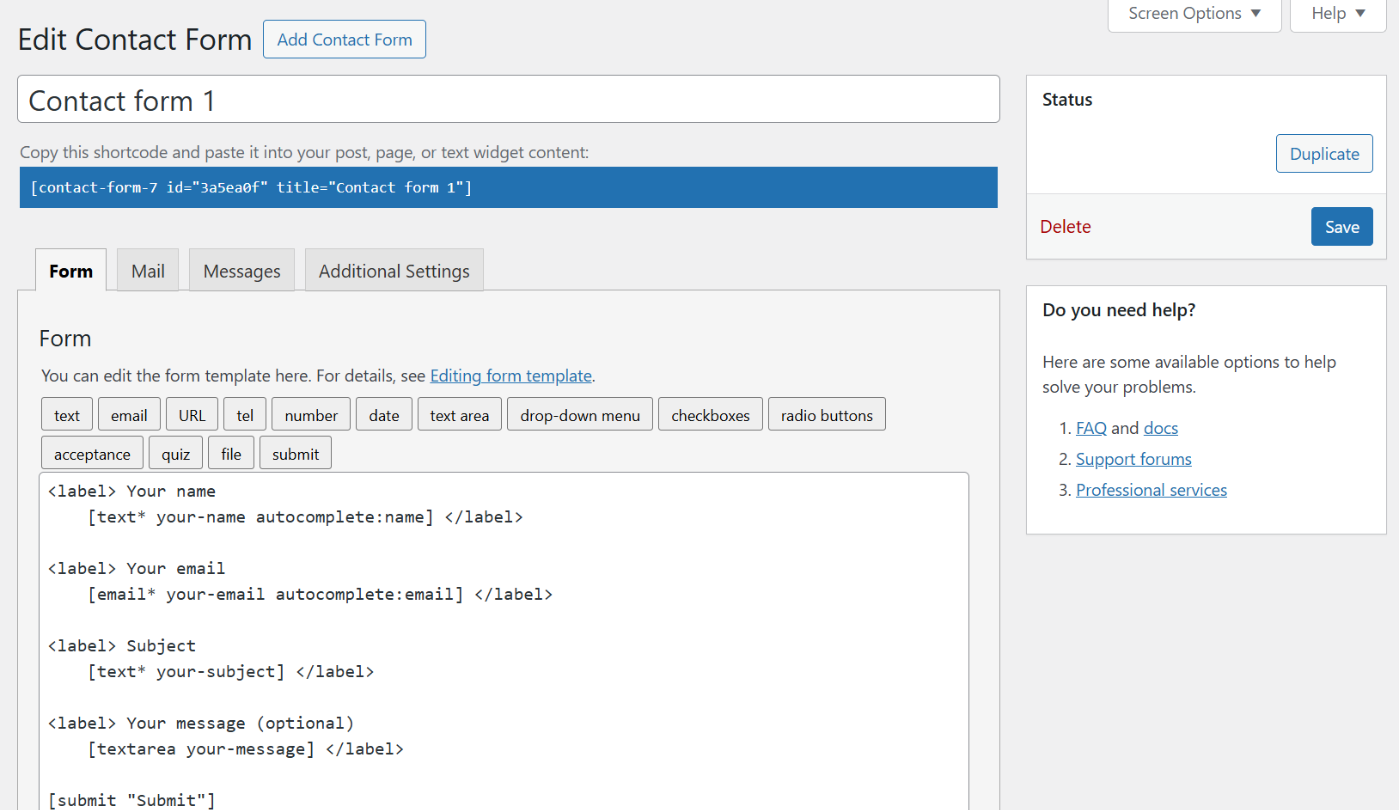
Who should use it: Bloggers, small businesses, and anyone who just needs a straightforward way for visitors to get in touch. It’s not fancy, but it works every time.
Its best qualities are its speed and compatibility. It rarely slows down a site, and because it’s been around for so long, it plays nicely with almost every plugin and theme.
Limitations: Just remember that the interface is plain. If you want conditional logic, payment forms, or more advanced styling, you will need add-ons or custom CSS. And depending on your host, you may need an SMTP plugin to improve email delivery.
Pricing: Completely free.
2.13 Popup Maker
Finally, let’s talk about converting visitors. Popup Maker helps you turn visitors into subscribers, customers, or engaged readers without writing scripts.
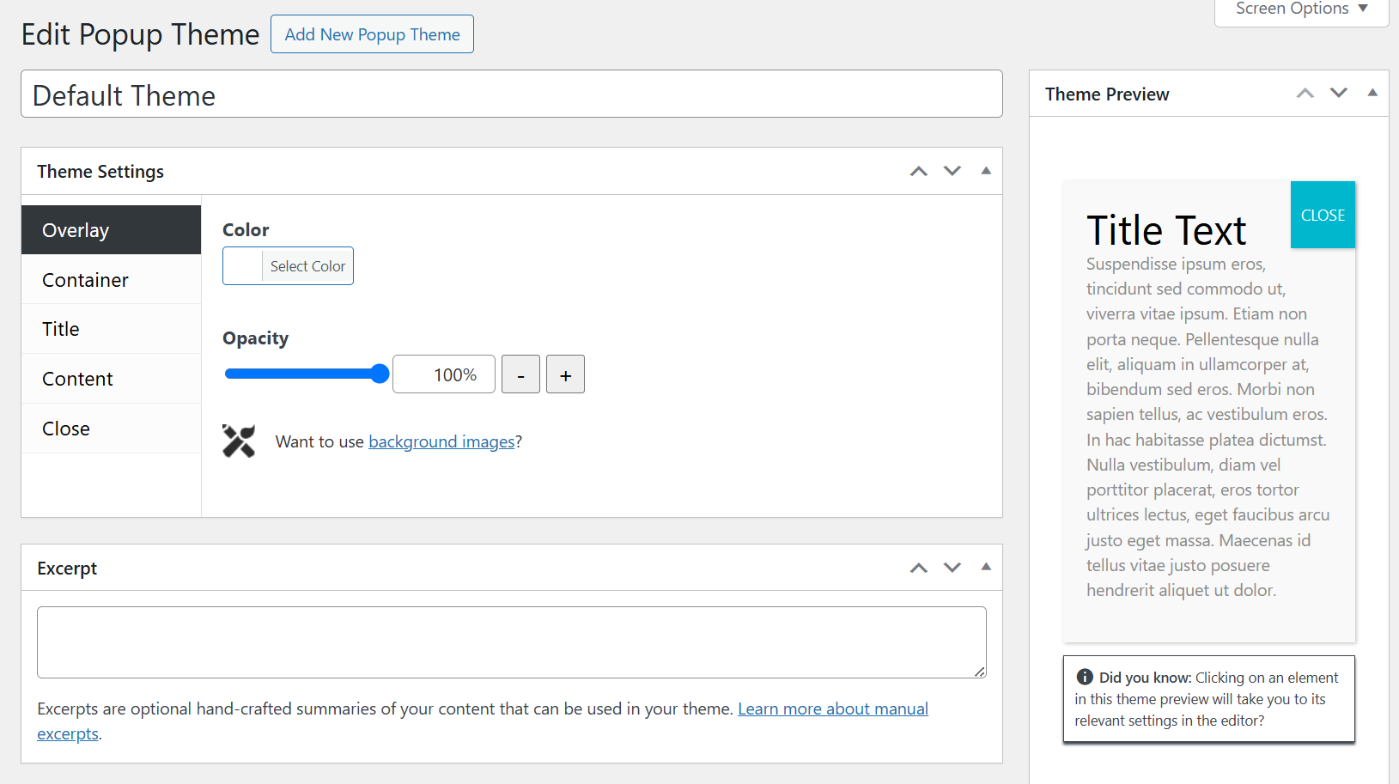
You design your popup in a visual editor, choose how it appears, and set the trigger. Show messages when someone clicks a button, scrolls halfway down, stays for a few seconds, or tries to exit.
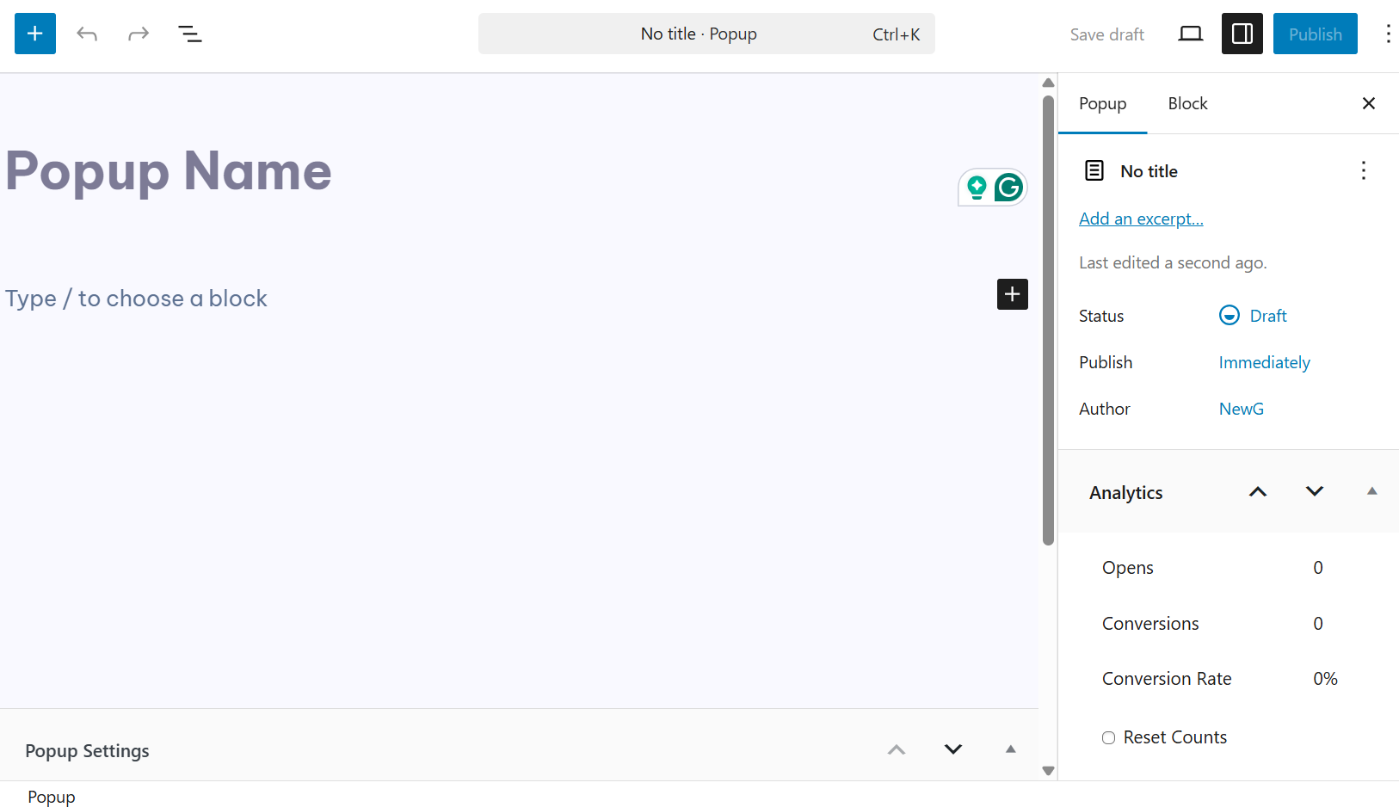
You can create unlimited popups on the free version. Targeting rules let you show specific popups on certain pages, categories, or devices. Scroll and time delay triggers catch visitors when they’re more engaged.
Who should use it: It works well for creators, ecommerce stores, bloggers, and businesses growing their email list or promoting offers. Most popups fail because they appear at the wrong moment. Popup Maker gives you precise control over timing and placement.
Limitations: Advanced triggers such as exit intent and geo-targeting are only available in premium add-ons. Too many animations or large images can slow your page or affect your user experience.
Pricing: Free version available. Premium plan starts at $59/year.
3 How to Choose the Right No-Code WordPress Tools
Choosing tools is easier when you match them to the type of site you’re building. The goal is to keep things fast and simple without adding plugins you don’t need.
Use the table below to see which tools fit each website type.
| Website Type | Recommended Tools | Why These Tools Work |
| Blog | Rank Math, Ultimate Blocks, Imagify | Improves SEO, enhances content presentation, and keeps images light so posts load fast without using heavy builders. |
| Ecommerce Store | WP Rocket, RocketCDN, Rank Math, Elementor, or Divi | Helps product pages rank, boosts speed for global visitors, and supports clean, conversion-focused product layouts. |
| Membership Site | MemberPress, WP Rocket, Imagify | Handles access, payments, and gated content while keeping logged-in areas fast and user-friendly. |
| Online Courses | TutorLMS, WP Rocket, Imagify, Rank Math | Improves course visibility on search, manages structured lessons, and keeps video and media content performing well. |
| Business Website | Rank Math, Elementor, or Divi, Popup Maker, UpdraftPlus | Enhances brand SEO, supports professional layouts, captures leads and protects site data with backups. |
4 Frequently Asked Questions
What is the easiest no-code tool for WordPress beginners?
The easiest tools offer simple settings and require almost no setup. Rank Math SEO is great because it walks beginners through everything step by step.
Are no-code tools suitable for scaling a WordPress site?
Yes, they can be. What matters most is choosing tools that are lightweight, well-maintained, and built to handle growth. As long as your hosting, caching, and optimisation are solid, no code tools can scale with you without getting in the way.
Can I build a full WordPress site without coding?
Absolutely. You can create pages, design layouts, improve SEO, build forms, add popups, run memberships or courses, and manage your entire site without writing a single line of code.
Do no-code plugins slow down WordPress?
They can if you install too many or choose heavy ones. The key is to keep your setup lean. Pick tools that only load the features you use, avoid plugin overlap, and support them with caching and image optimisation. When managed properly, no code plugins will not slow your site down.
Are no-code sites suitable for businesses?
Yes. A no-code setup is often the best choice for businesses because it helps you launch faster, update content easily, and manage your site without waiting on a developer. As long as you pair the tools with good hosting, backups, and performance practices, a no-code site is perfectly reliable.
5 Conclusion
Building a WordPress site without code isn’t just possible anymore. It’s practical. These no-code WordPress tools give you the power to create professional sites, optimize for search engines, speed up performance, protect content, and grow your business without needing a developer on speed dial.
The key is choosing tools that actually solve problems, not just add features. Start with what your site needs most.
Is it SEO? Use Rank Math. Speed? Grab WP Rocket and Imagify. Design control? Try Elementor or Divi. Building a membership or course site? Go with MemberPress or TutorLMS.
And remember, no-code doesn’t mean no strategy. These tools handle the technical work, but you still need to think about user experience, content quality, and site performance.
Don’t stack too many plugins just because you can. Keep your site lean, test what you add, and always back up your work.
If you like this post, let us know by Tweeting @rankmathseo.