
Google Gemini is commonly used by people looking to research or purchase a product. This makes it crucial for brands that want to show up where their audience is searching.
But showing up is just half the story. You also want to know what you show up for, how you show up, and how your audience perceives your brand.
That’s where Rank Math’s AI Visibility comes in. It lets you track how your brand shows up on Gemini, right from your WordPress dashboard. We will show you how to do that below.
Note: AI Visibility is a Rank Math AI feature and requires an active Rank Math AI subscription. You can view the available plans here.
How to track AI Visibility on Google Gemini:
1 Head to AI Visibility in Rank Math
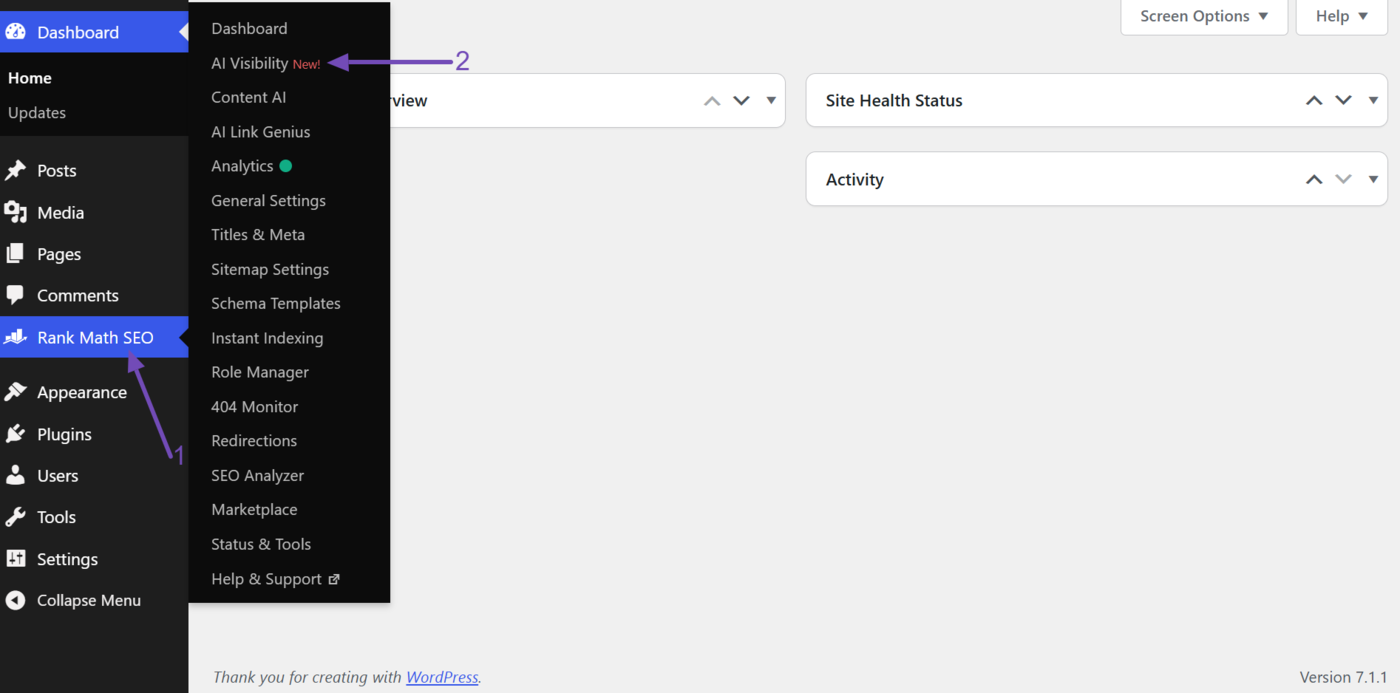
To get started, click Rank Math SEO → AI Visibility from your WordPress dashboard.
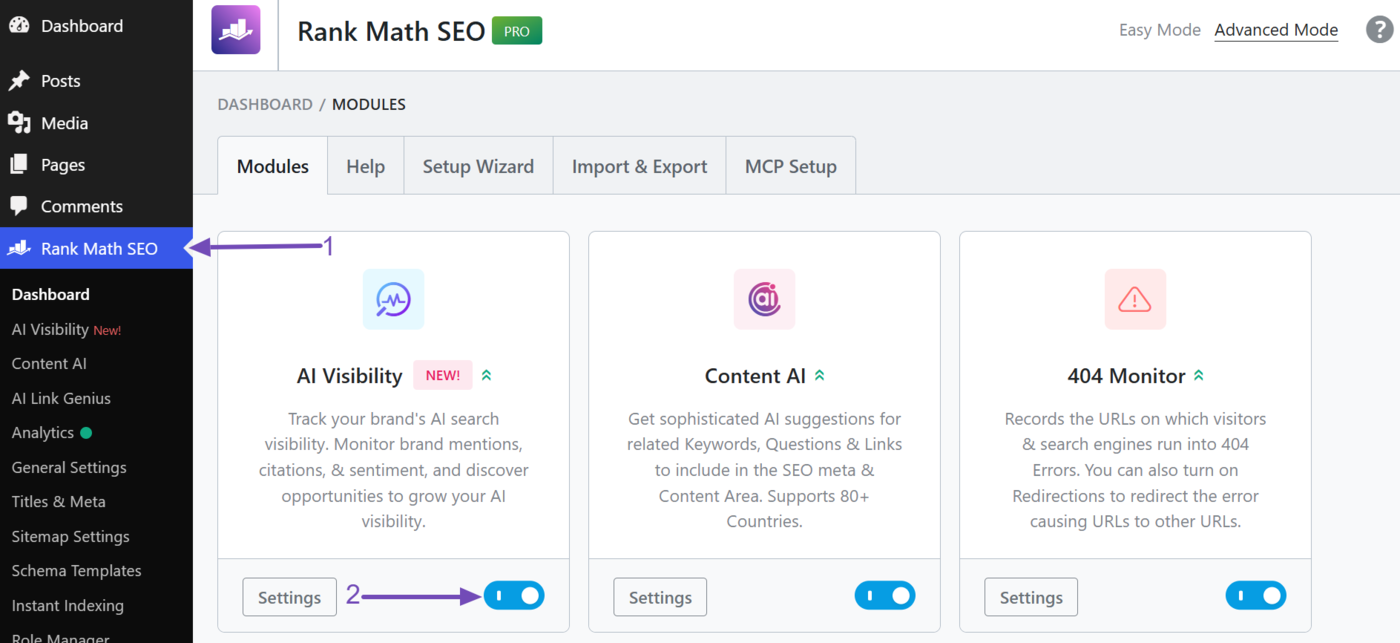
Note: If you cannot find the AI Visibility option, click Rank Math SEO and enable the AI Visibility module, as shown below.
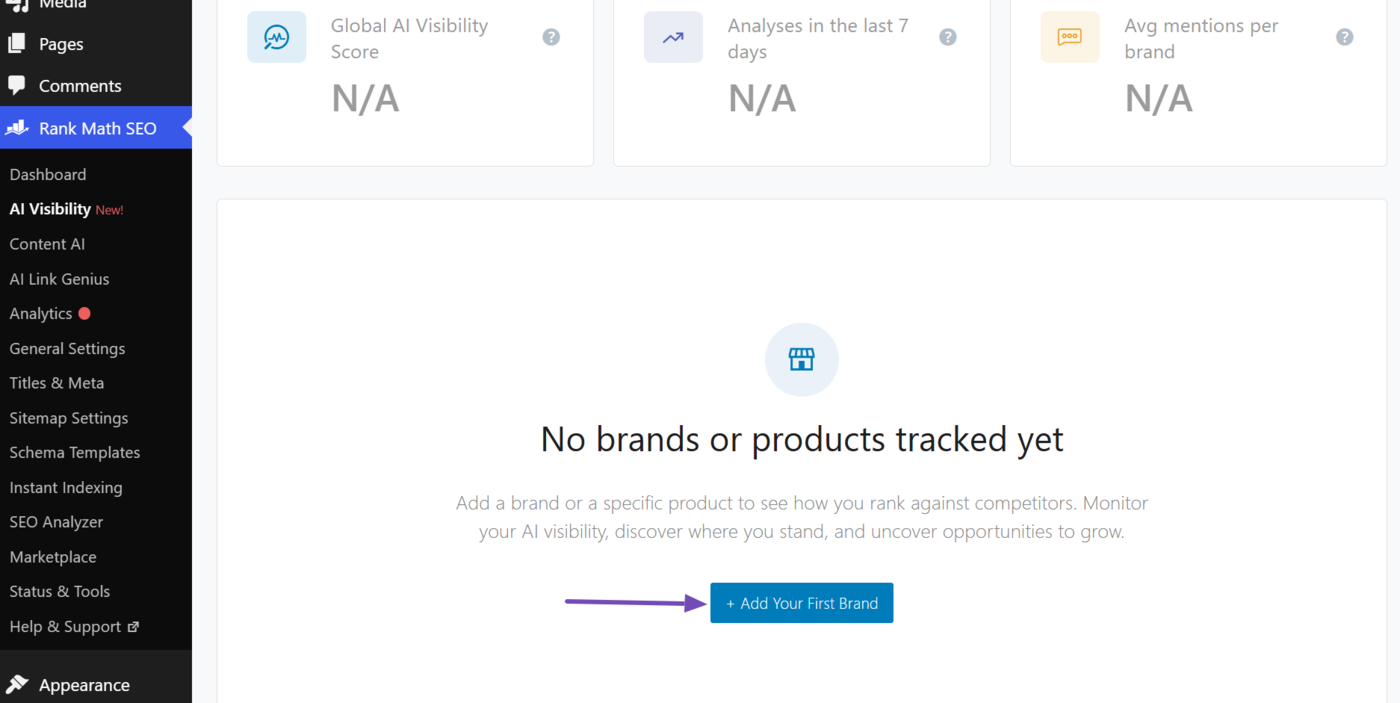
If you are tracking a brand for the first time, click Add Your First Brand.
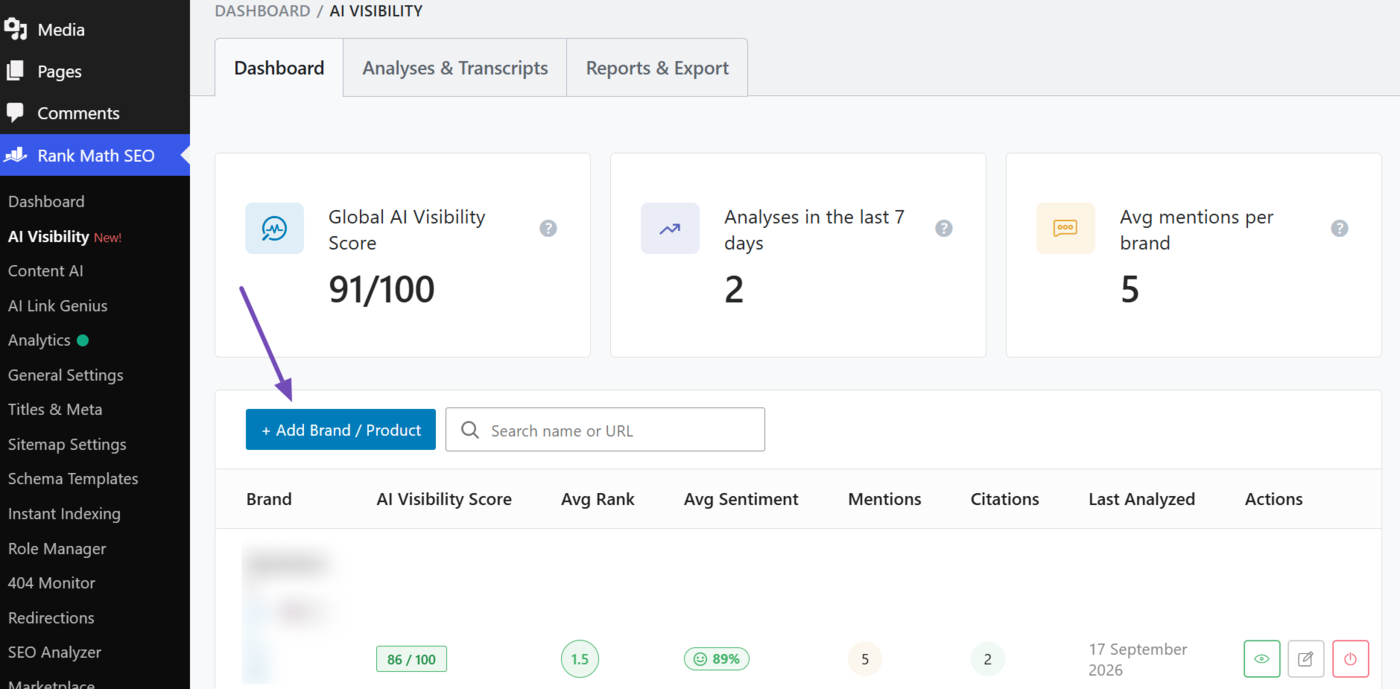
If you are already tracking one or more brands, click Add Brand / Product .
2 Fill in the AI Visibility Brand Tracking Fields
You will now fill in the required fields to begin tracking your AI Visibility on Google Gemini. We will show you how to do that below.
- Brand/product name
- Brand/product URL
- How would you describe your brand/product?
- Target country
- Output language
- Frequency of analyses
- AI platforms
2.1 Brand/Product Name
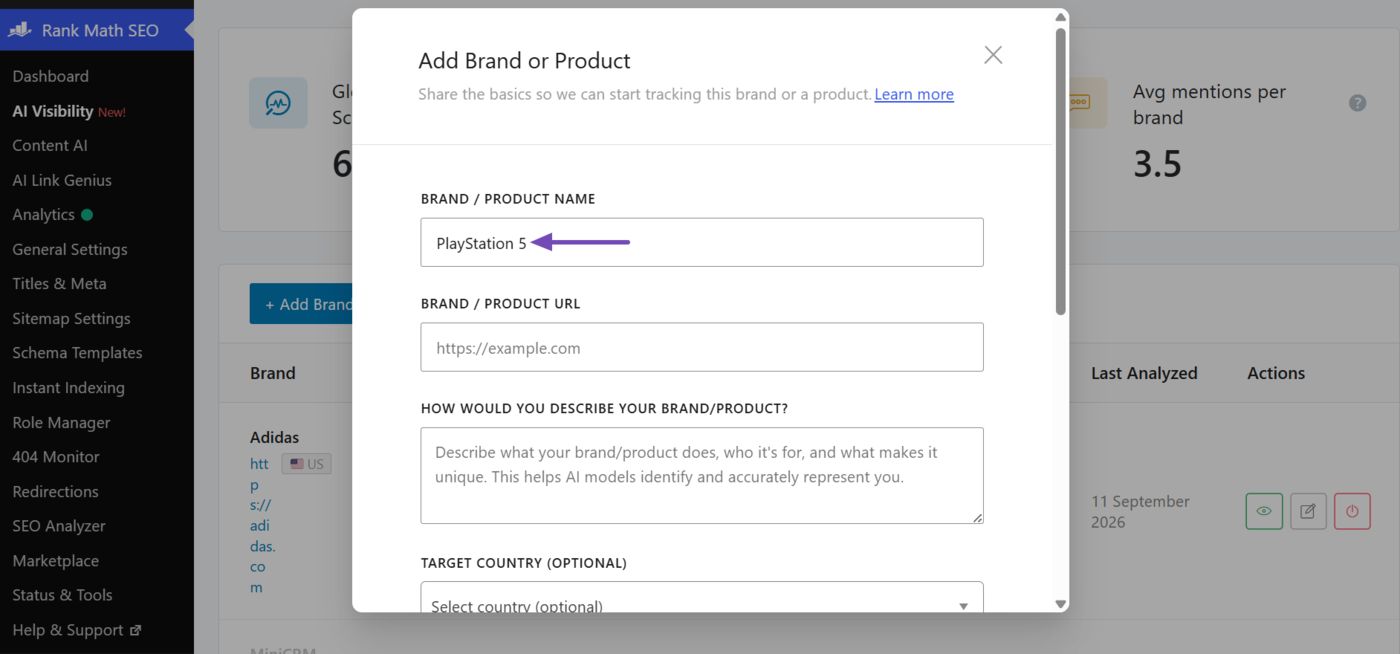
Enter the name of the brand or product you want to track on Google Gemini.
Make sure to enter the name exactly as it appears on the web. For this example, we want to track a product called PlayStation 5, so we enter it into this field.
2.2 Brand/Product URL
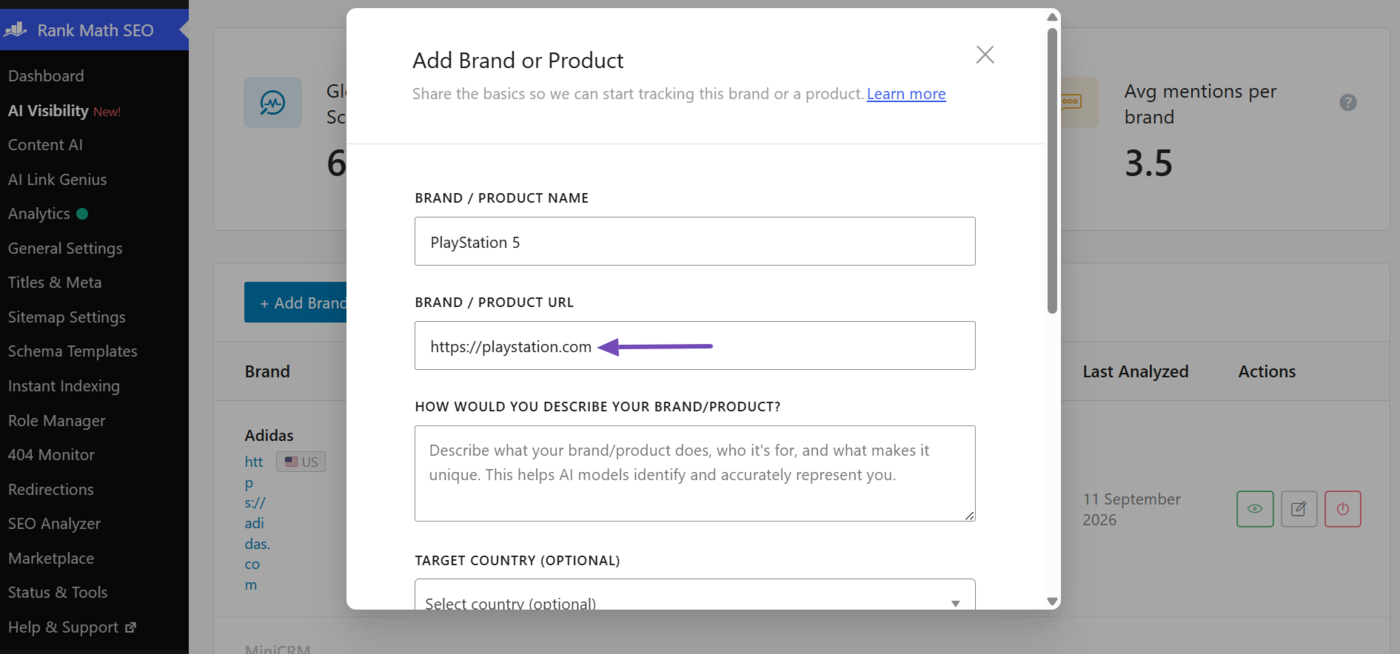
Enter the URL of the brand or product you want to track. For this example, the URL is https://playstation.com, so we enter it here.
2.3 How Would You Describe Your Brand/product?
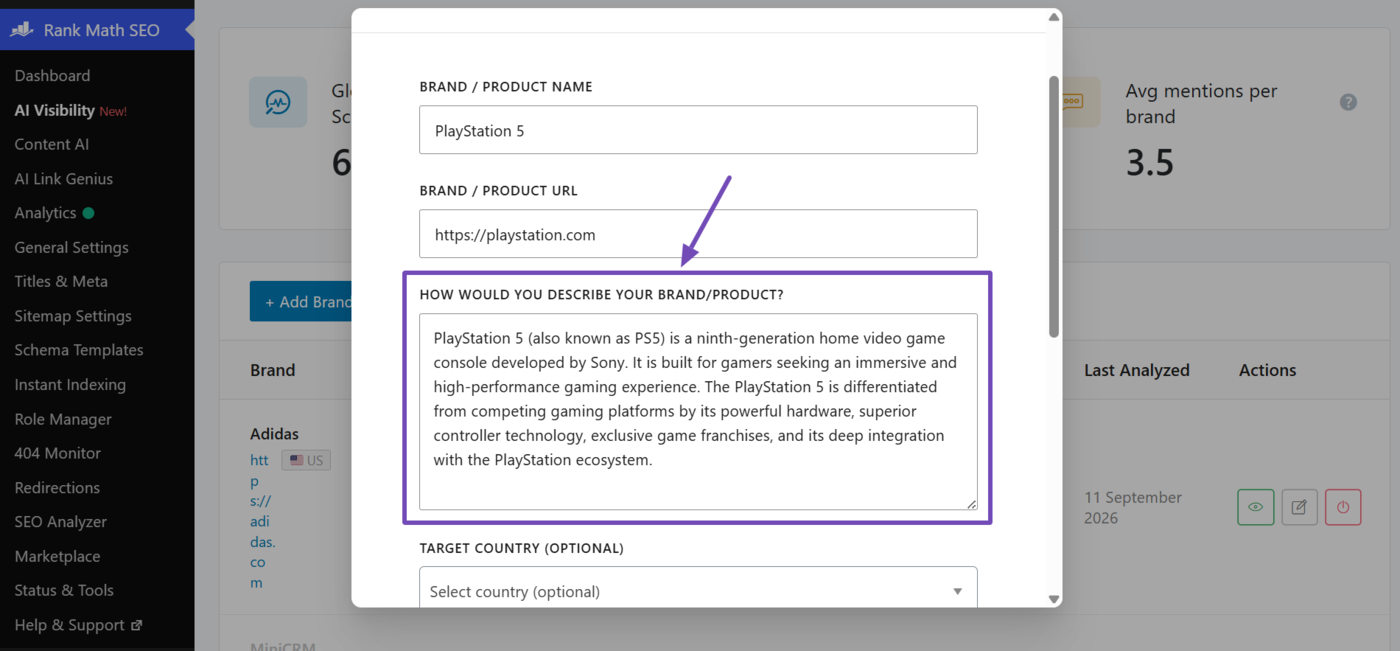
Enter a super-detailed description of your brand or product. This field is important as it lets our AI model to accurately understand, identify, and track your product and competitors. The more details you provide, the better.
For this example, the brand we are tracking is PlayStation 5, so we enter the detailed description below:
PlayStation 5 (also known as PS5) is a ninth-generation home video game console developed by Sony. It is built for gamers seeking an immersive and high-performance gaming experience. The PlayStation 5 is differentiated from competing gaming platforms by its powerful hardware, superior controller technology, exclusive game franchises, and its deep integration with the PlayStation ecosystem.
2.4 Target Country
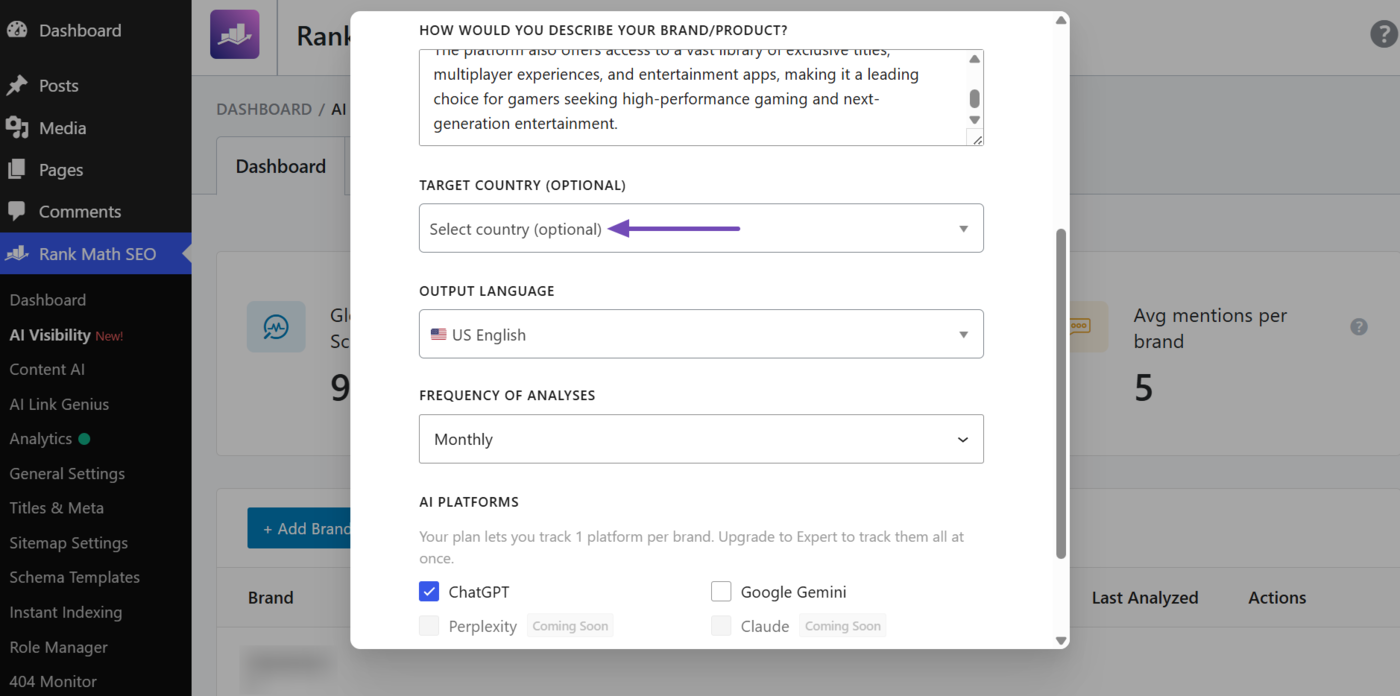
Select the country where you want to track your AI Visibility. This field is optional. To track your AI Visibility globally, leave it on “Select country (optional)”, otherwise select a country.
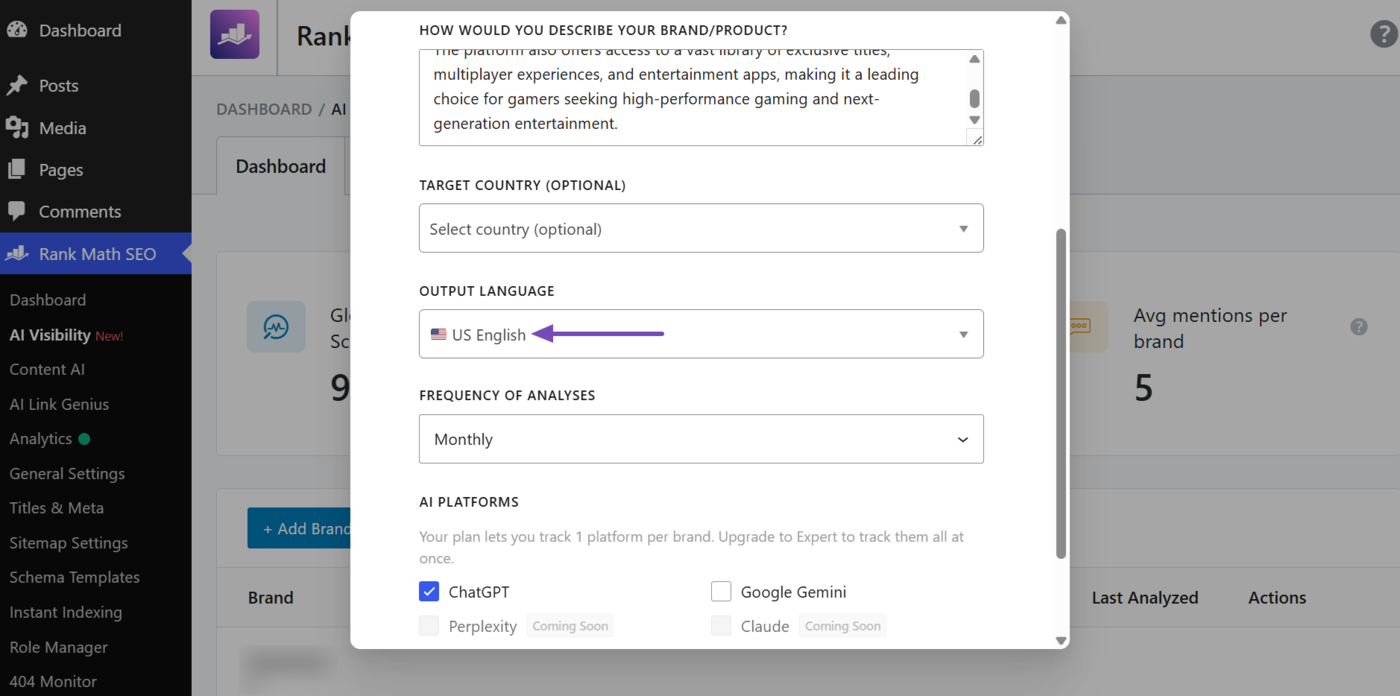
2.5 Output Language
Select the language in which to track your AI Visibility.
When you select a language, we will track your AI Visibility for queries entered in that language. There are 30+ languages available, including US English, UK English, German, French, Chinese, and Arabic.
2.6 Frequency of Analyses
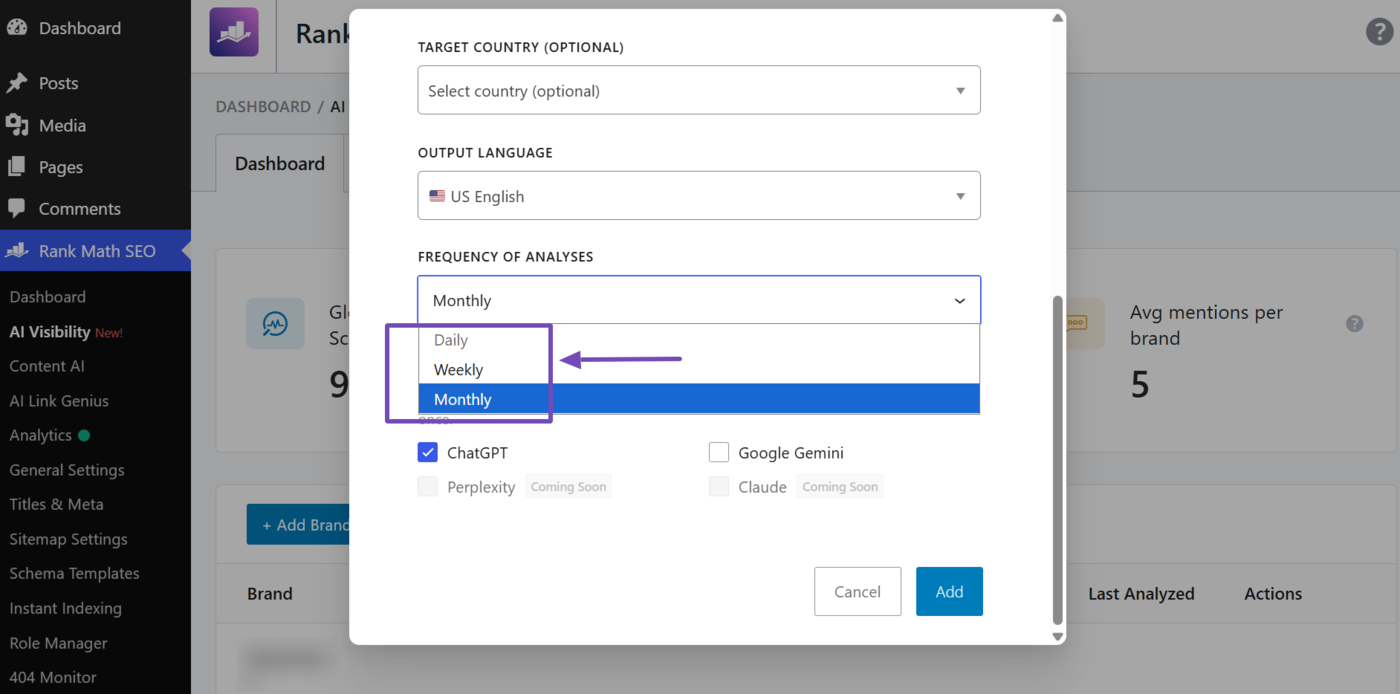
Select how frequently you want to refresh the tracking data. The available options depend on your Rank Math AI plan.
- Starter users can track Weekly or Monthly
- Creator users can track Weekly or Monthly
- Expert users can track Daily, Weekly, or Monthly
2.7 AI Platforms
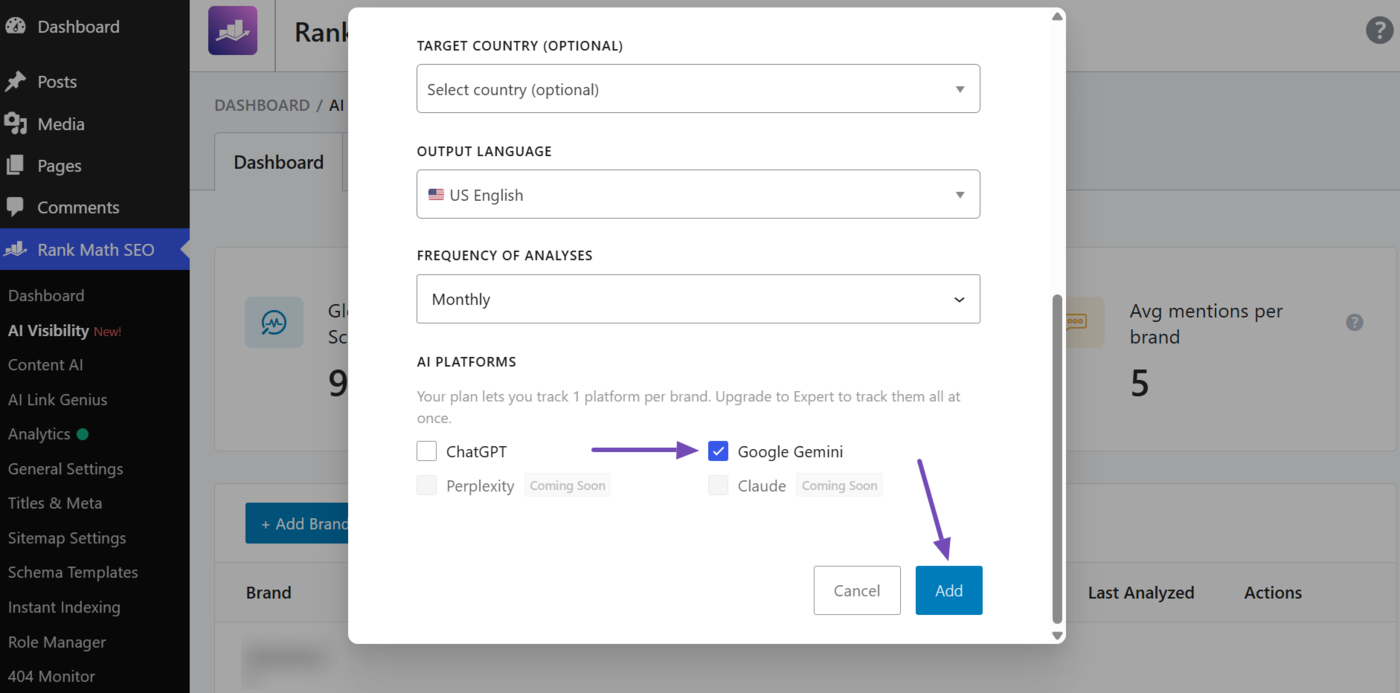
Select Google Gemini here. Then click Add. We’ll begin tracking your brand or product’s AI Visibility.
3 How to Analyze Your Brand Visibility on Gemini
Once you start tracking your brand’s visibility on Google Gemini, your first report will be ready within minutes. Here’s how to analyze it.
Head to Rank Math SEO → AI Visibility from your WordPress dashboard. You’ll see a list of the brands and products you’re currently tracking. Find the brand or product you want to analyze and click the View icon.
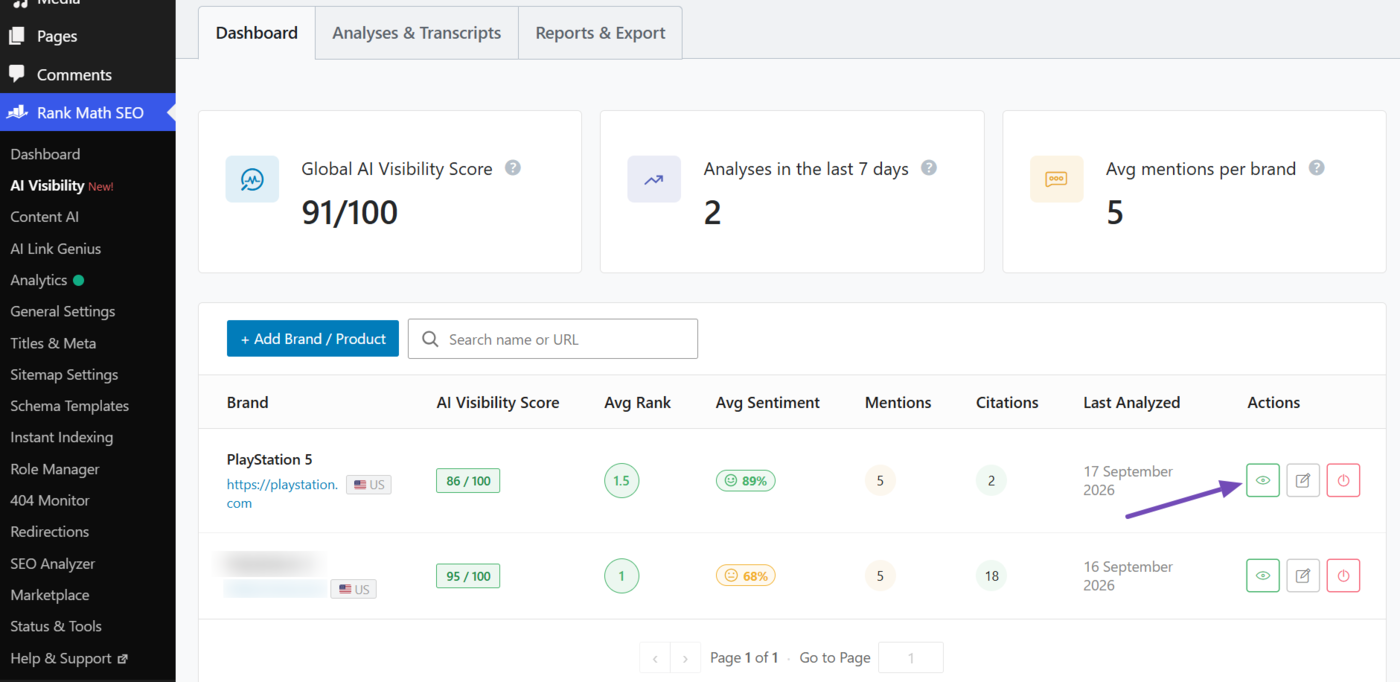
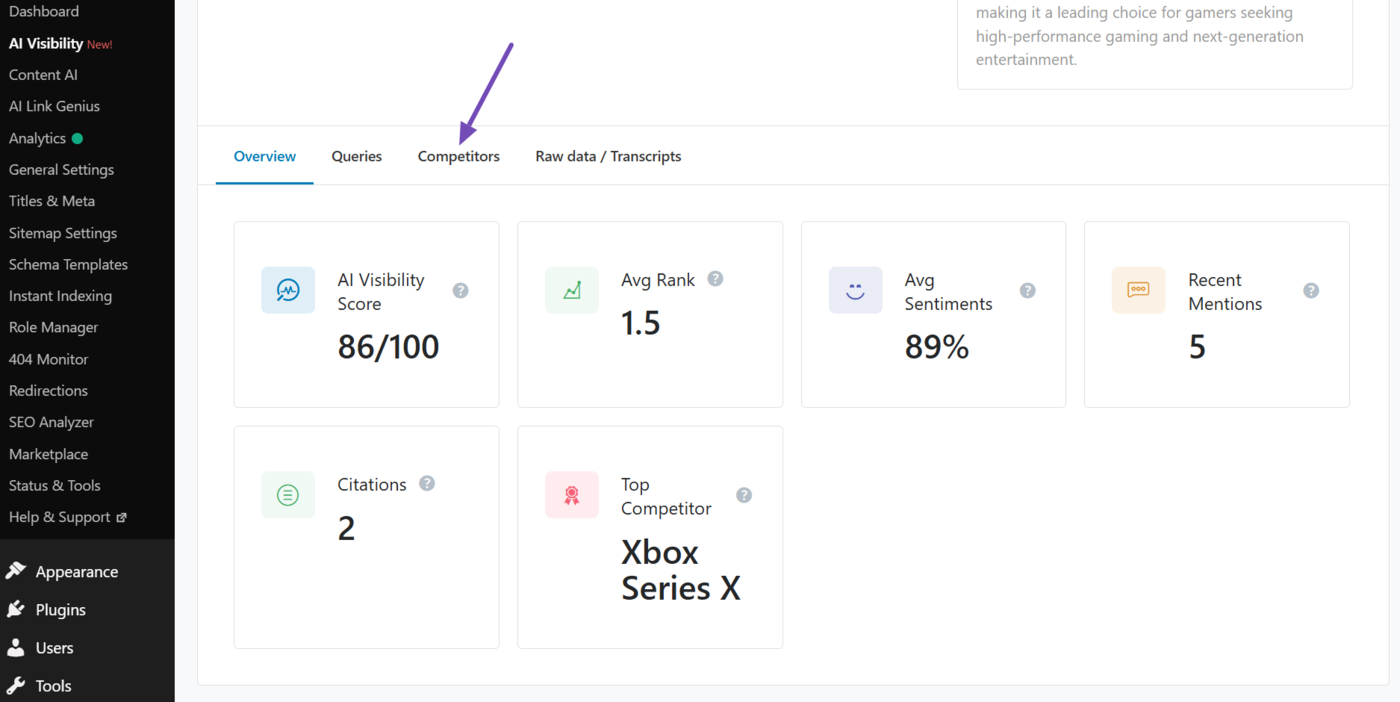
You will be presented with the details of the brand. Scroll down, and you’ll see the Overview tab containing some quick insights into the brand’s AI Visibility.
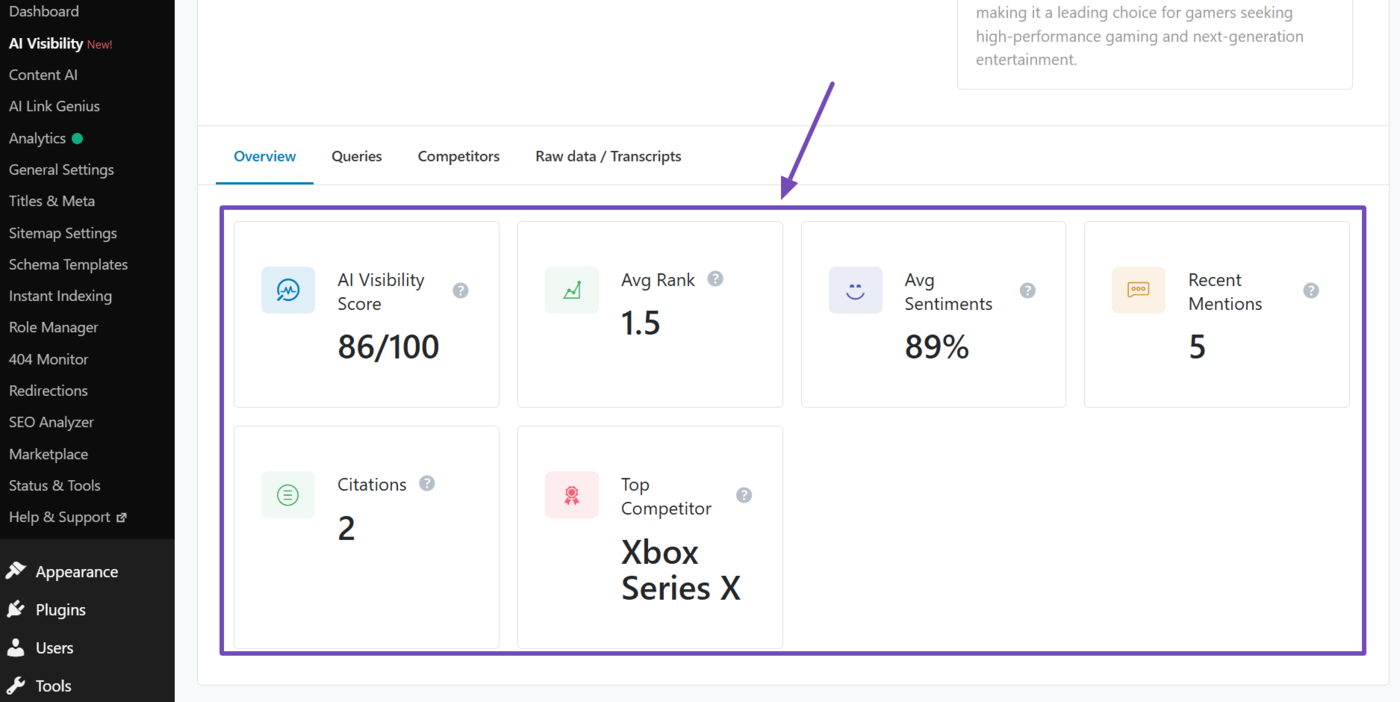
The insights in the Overview tab include:
- AI Visibility Score: The brand or product’s overall AI Visibility score
- Avg Rank: The average rank of the brand across all its mentions by Gemini
- Avg Sentiment: The average sentiment of the brand across its mentions by Gemini
- Recent Mentions: The total number of times the brand was mentioned by Gemini across monitored queries
- Citations: The total number of citations the brand received from Gemini across monitored queries
- Top Competitor: The brand most frequently mentioned alongside yours on Gemini
You will also be presented with additional tabs, including:
- Queries
- Competitors
- Raw data / Transcripts
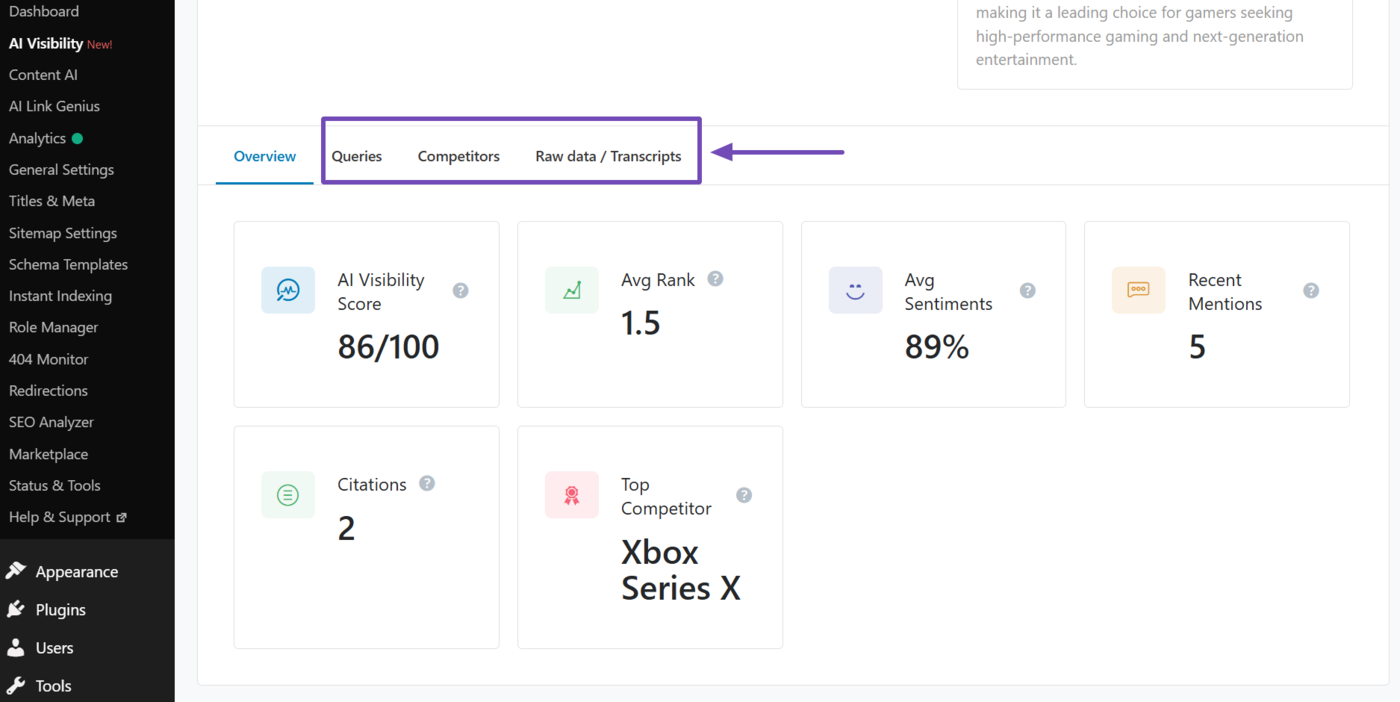
Let us show you how to use it to analyze your brand visibility on Gemini.
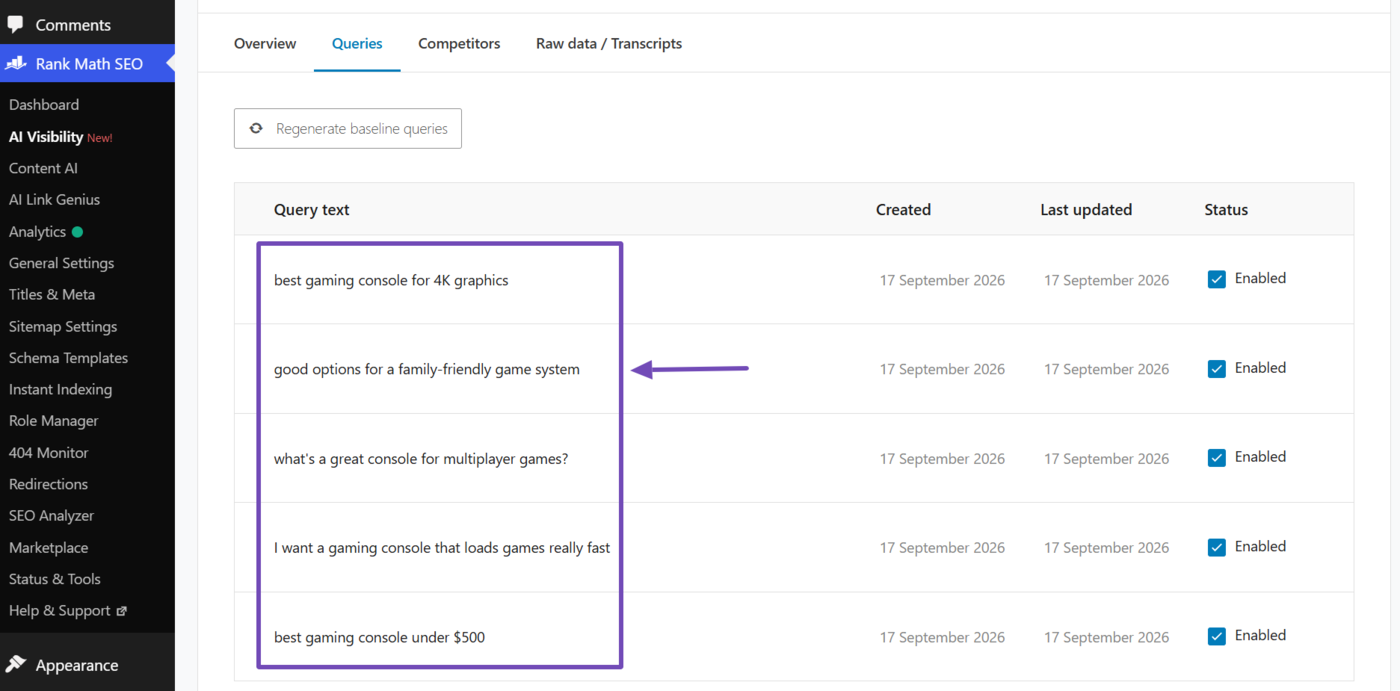
3.1 View Your Tracked Queries
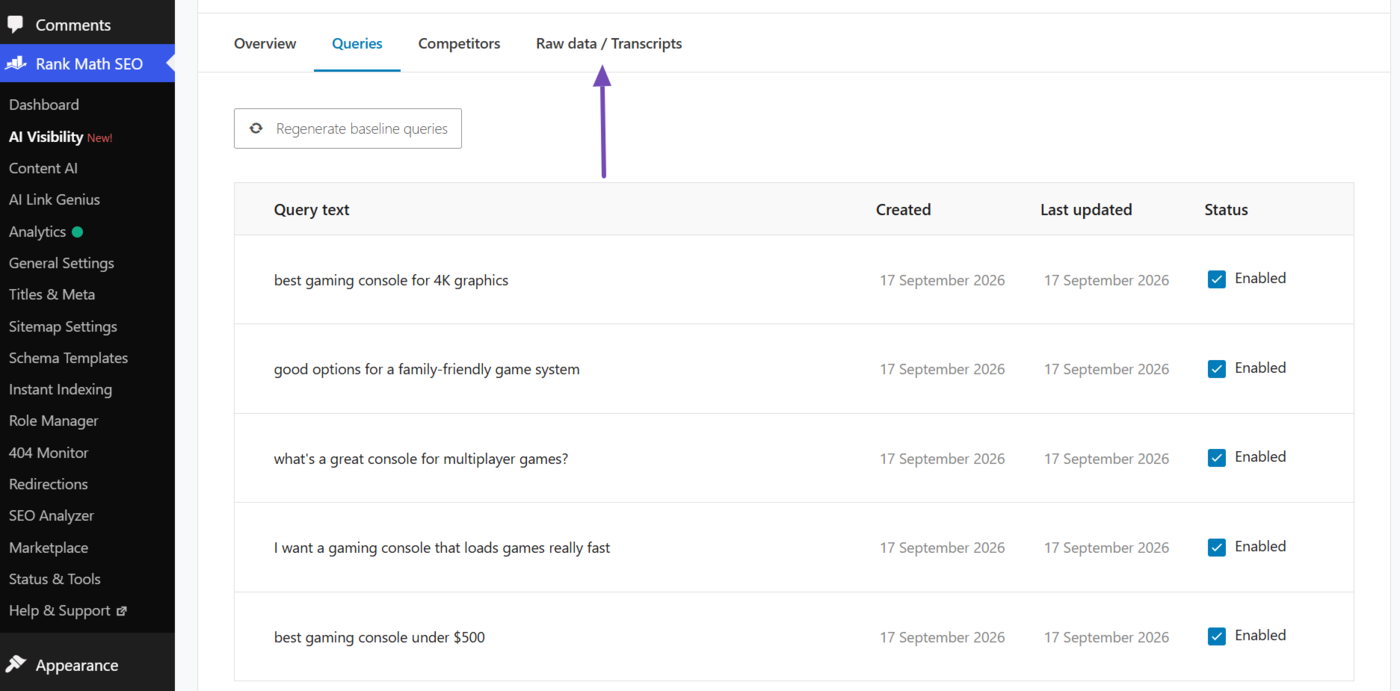
To view the queries you’re being analyzed for, click the Queries tab.
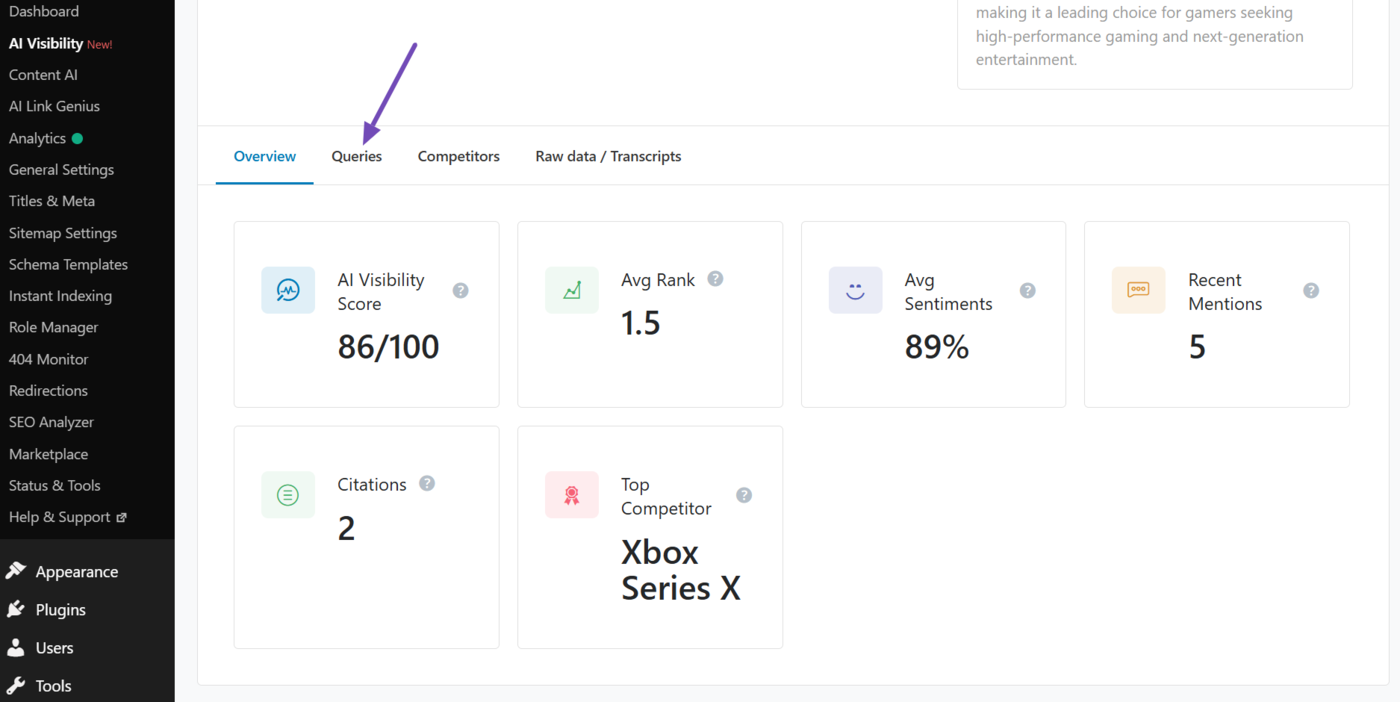
You’ll see the queries being tracked for your brand. This gives you a clear picture of the keywords and phrases people are using to find products or brands like yours.
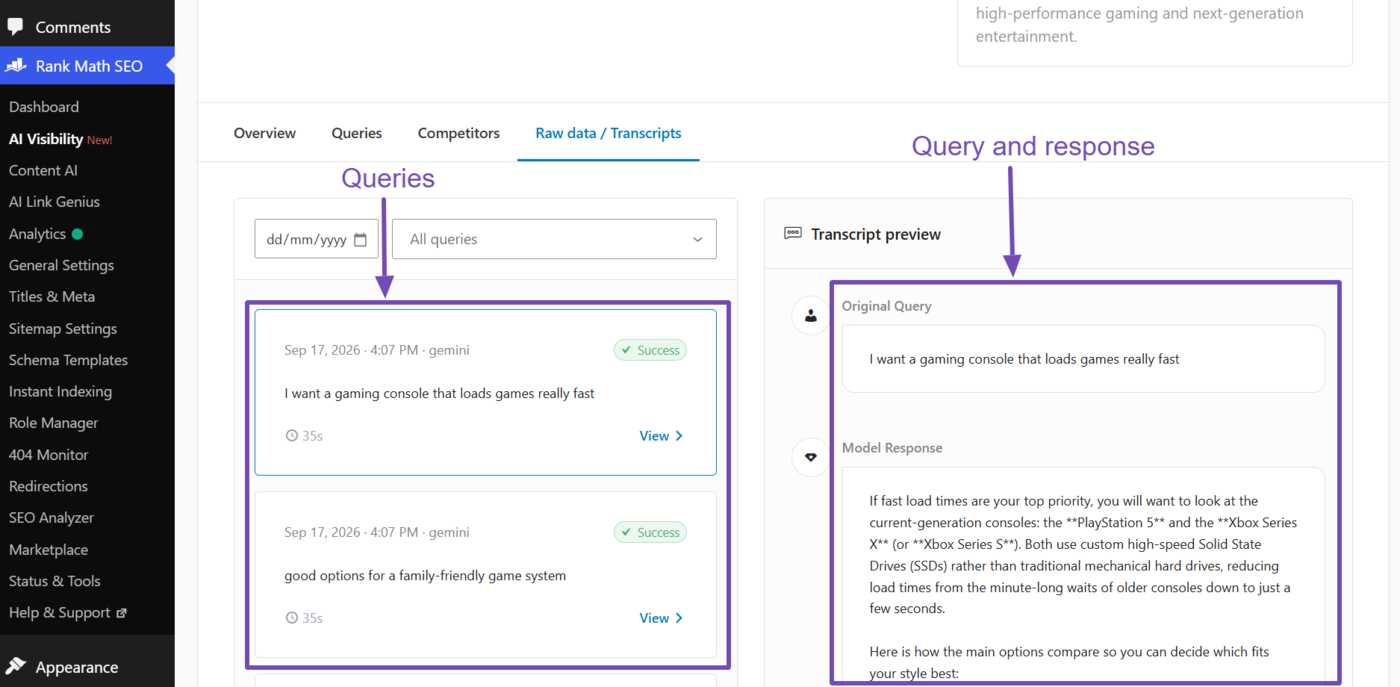
For further insights, you may also be interested in seeing the responses Gemini returned for these queries. To view them, click the Raw data / Transcripts tab.
You will be presented with the queries along with the responses returned by Google Gemini. The queries are on the left with the responses on the right.
Click on a specific query. Once done, the query and response Gemini returned will be shown to you.
3.2 Discover and Analyze Your Competitors
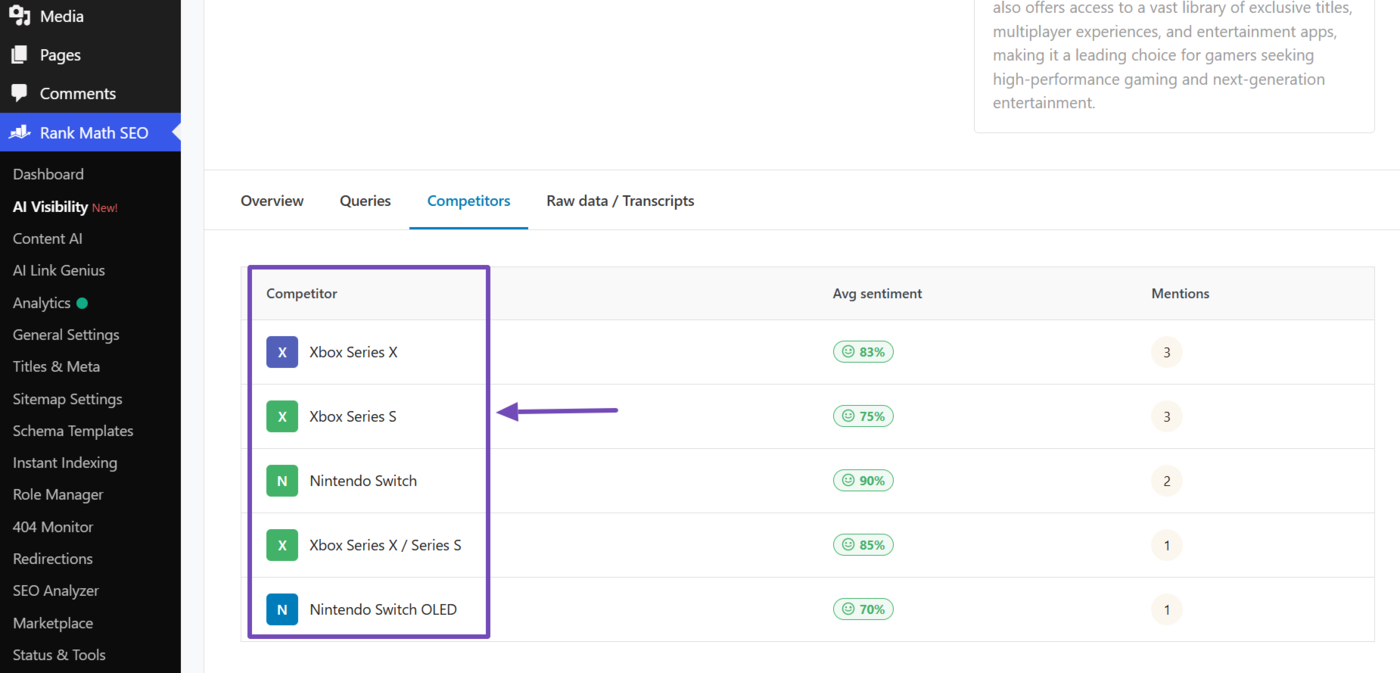
AI Visibility also tracks competitors mentioned alongside your brand or in its place. To view them, click Competitors.
Your competitors will be listed here, along with their average sentiment and number of times they were mentioned on Gemini.
3.3 Copy or Download Your AI Visibility Report
You can copy or download your AI Visibility report as a JSON file for further analysis. Here’s how to do that.
- Copy the JSON report for a specific query
- Download the JSON report for all queries
a. Copy the JSON Report for a Specific Query
To copy the JSON report for a specific query, click View next to the query.
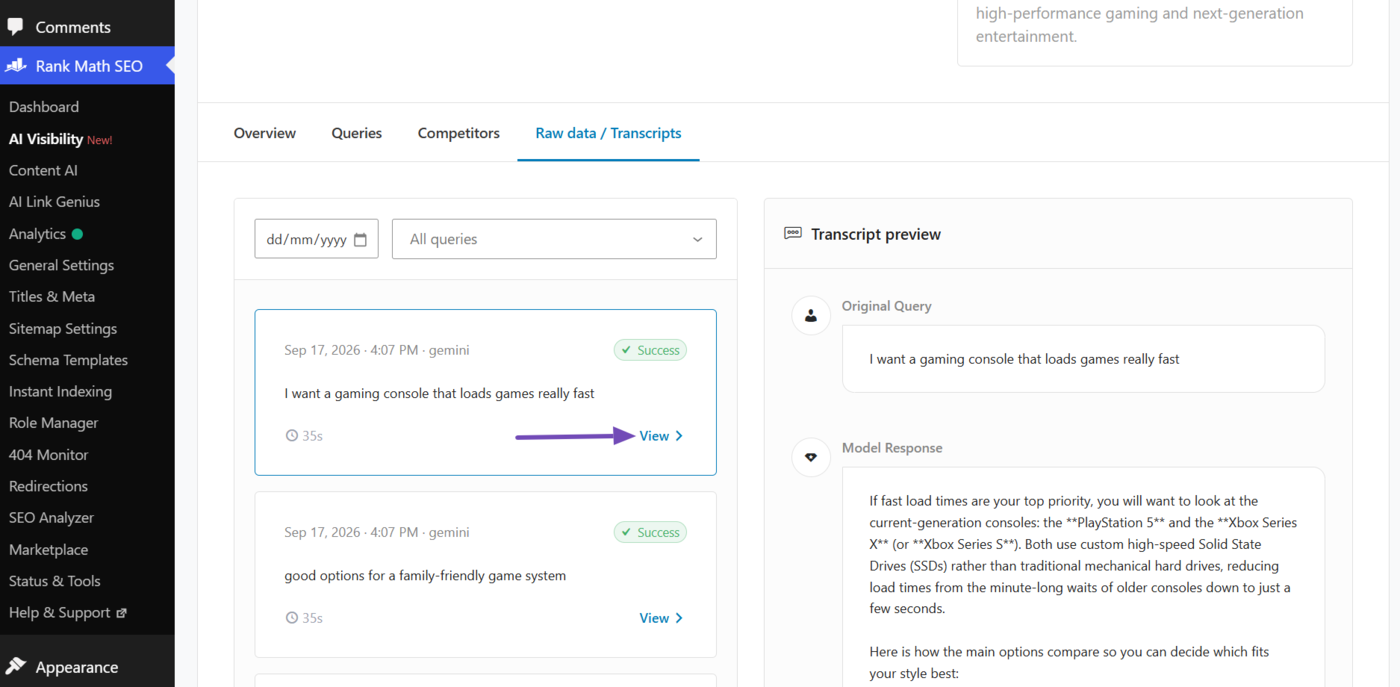
Once done, the query and response will be presented to you. Click Copy JSON to copy the report.
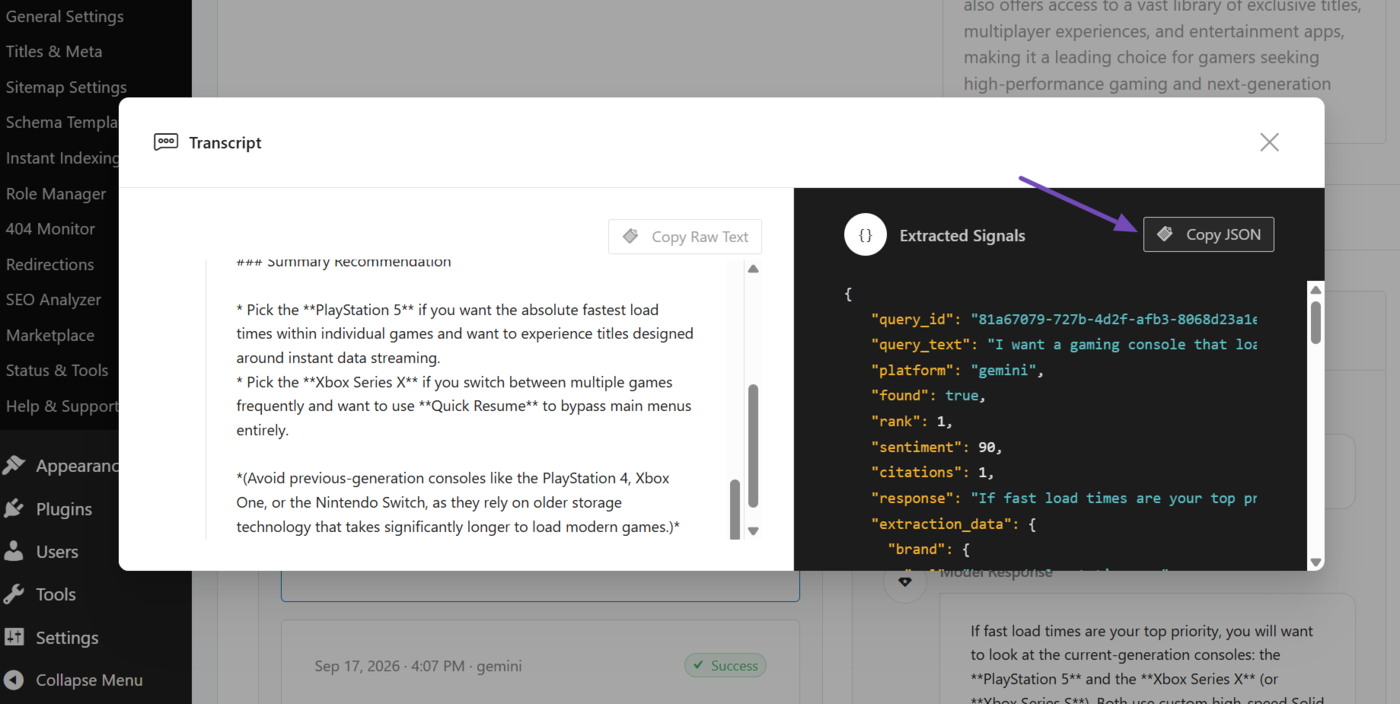
b. Download the JSON Report for All Queries
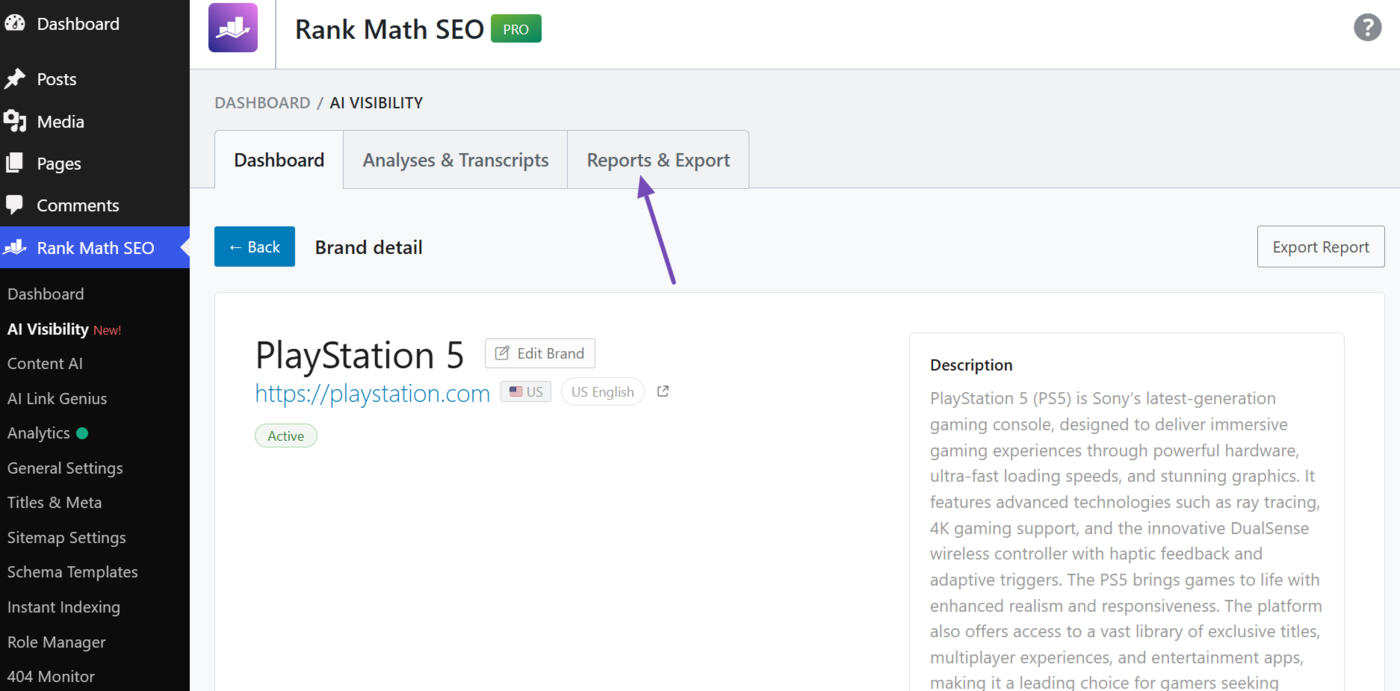
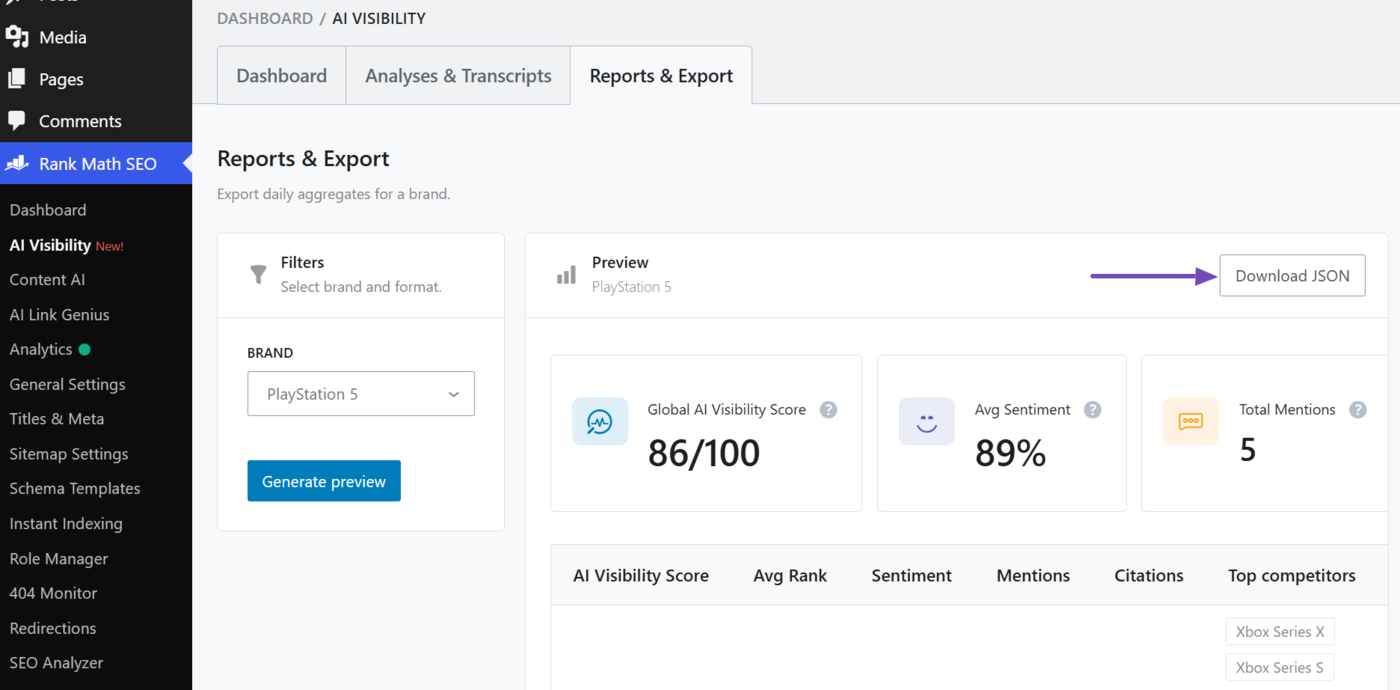
You may also want to download the JSON report of the queries being analyzed for a brand. To do that, scroll up and click Reports & Export.
Now, click on the BRAND dropdown and select the brand for which you want to download the report. Once done, click Generate preview.
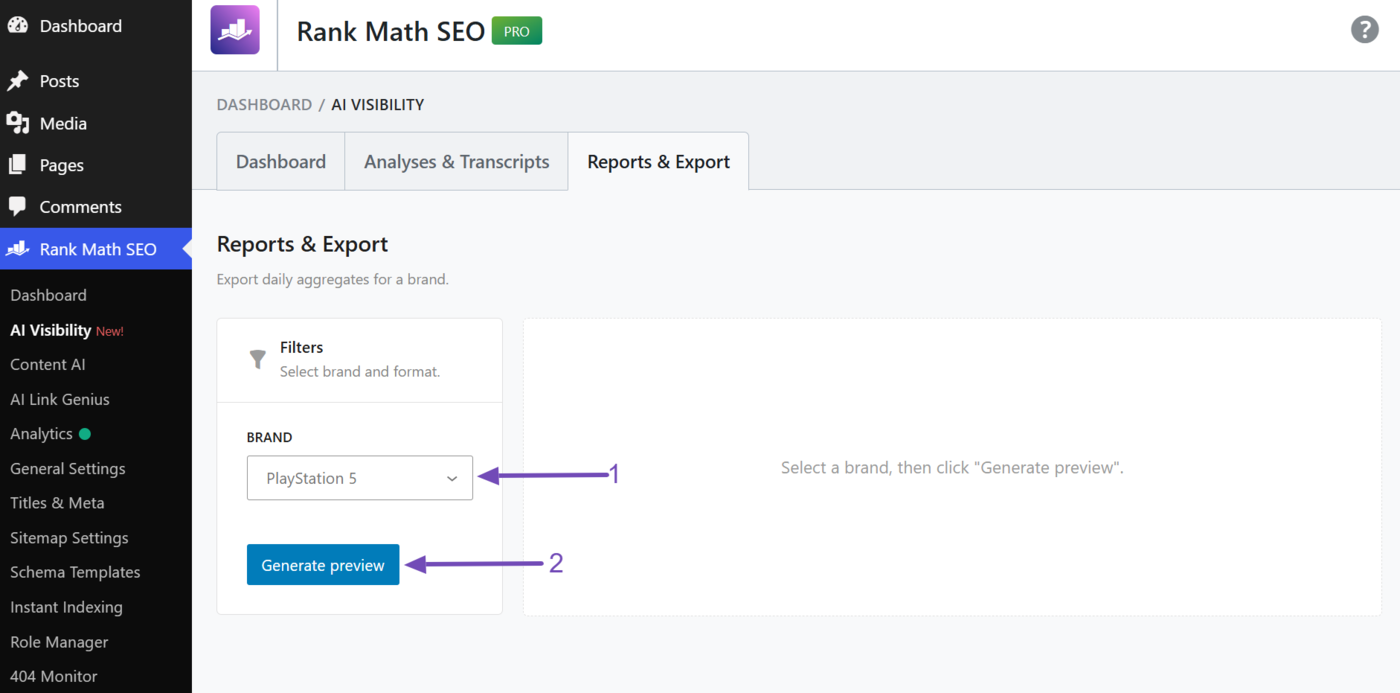
The brand’s AI Visibility report will be shown to you. Click Download JSON and save it to your device.
That is how to track and analyze your brand or product’s AI Visibility on Gemini. If you have any questions, you’re always more than welcome to contact our dedicated support team, who are available 24/7, 365 days a year.