
Knowing your brand is being tracked is one thing; seeing the full picture is another. The AI Brand Visibility report brings everything together in one place, showing you exactly how your brands are performing across AI platforms.
This report can assist you in analyzing which queries drive mentions, how AI platforms portray your brand to potential customers, and which competitors appear alongside or instead of you. These insights can in turn help inform your content management, GEO, and SEO strategies.
In this knowledgebase article, we will show you how to generate an AI Brand Visibility report using the AI Visibility tool in Rank Math.
In this article, you’ll see how to:
1 Download a Brand Visibility Report
The brand visibility report includes multiple reports and metrics that provide detailed information about your brand’s performance on AI platforms. The available metrics and reports include the tracked queries, AI’s response, and your brand’s:
- Global AI Visibility score
- AI Visibility score
- Average sentiment
- Total mentions
- Total citations
- Rank
- Sentiment
- Mentions
- Citations
- Competitors
This report is available as a downloadable JSON file.
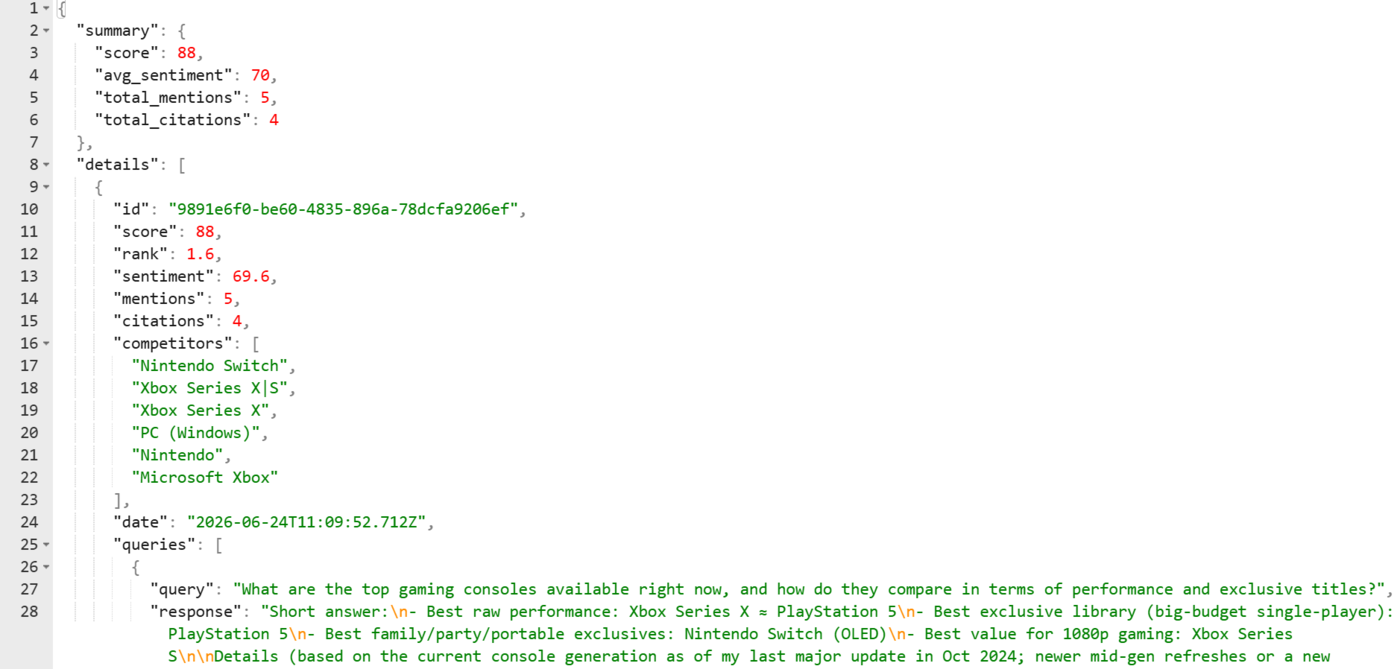
There are multiple ways to download a brand visibility report. We will now show you how to download it using the:
- Dashboard tab
- Reports & Export tab
Note: AI Visibility requires a Rank Math AI subscription. You can view the available plans here.
1.1 Using the Dashboard Tab
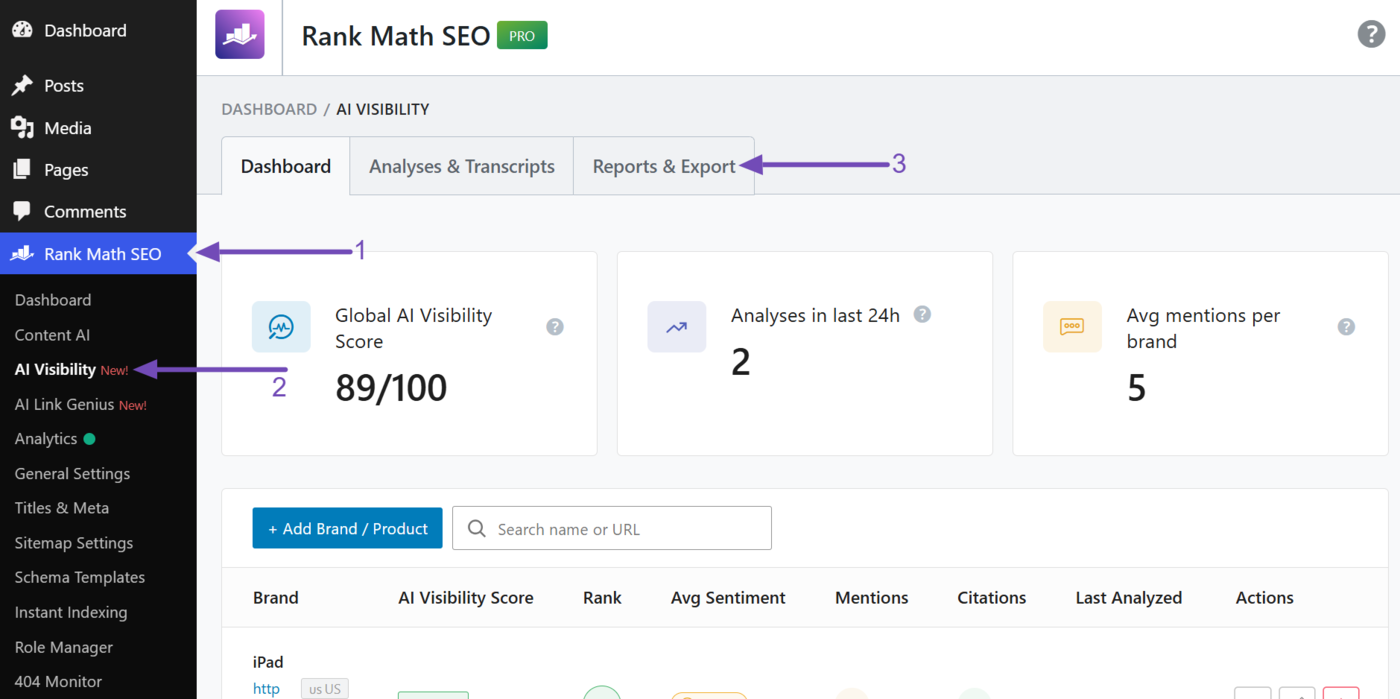
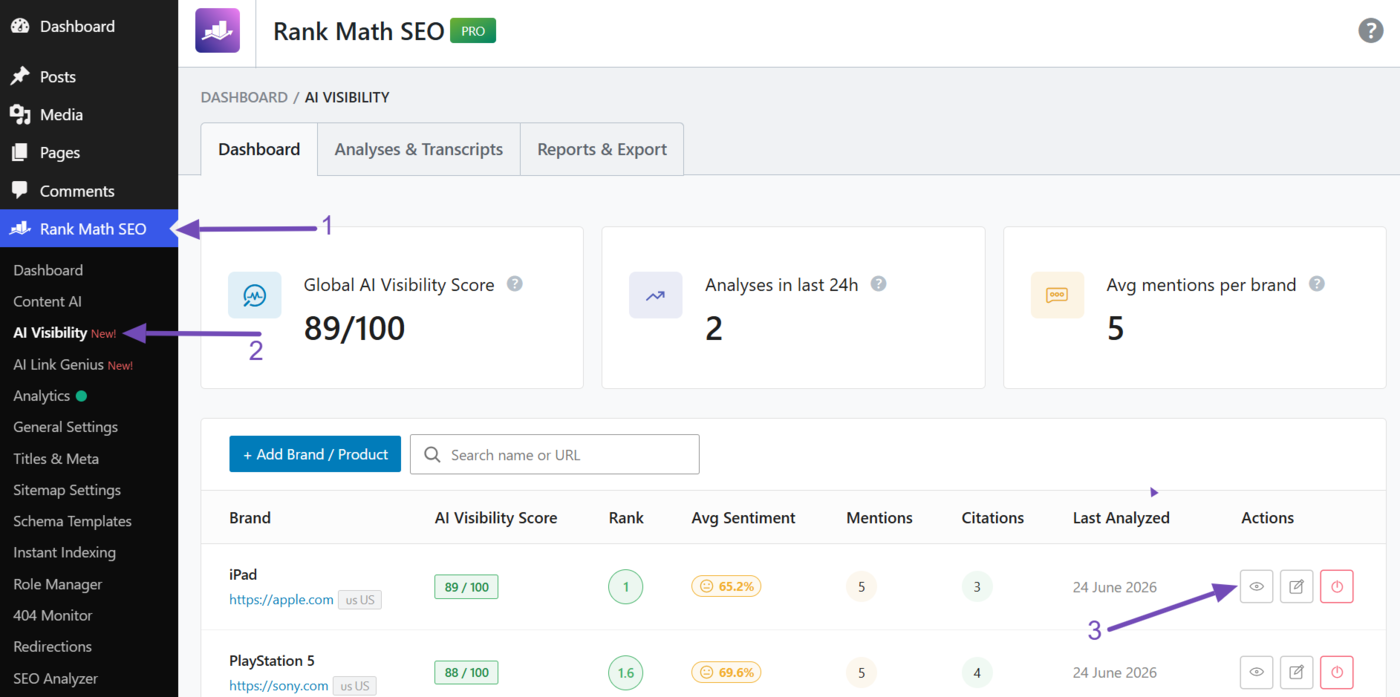
Head to Rank Math SEO → AI Visibility from your WordPress dashboard. You will be presented with the AI Visibility dashboard. Now, head to the brand or product for which you want to generate the report, and click the View icon.
For example, to generate a report for PlayStation 5, we will head to it and click the View icon, as shown below.
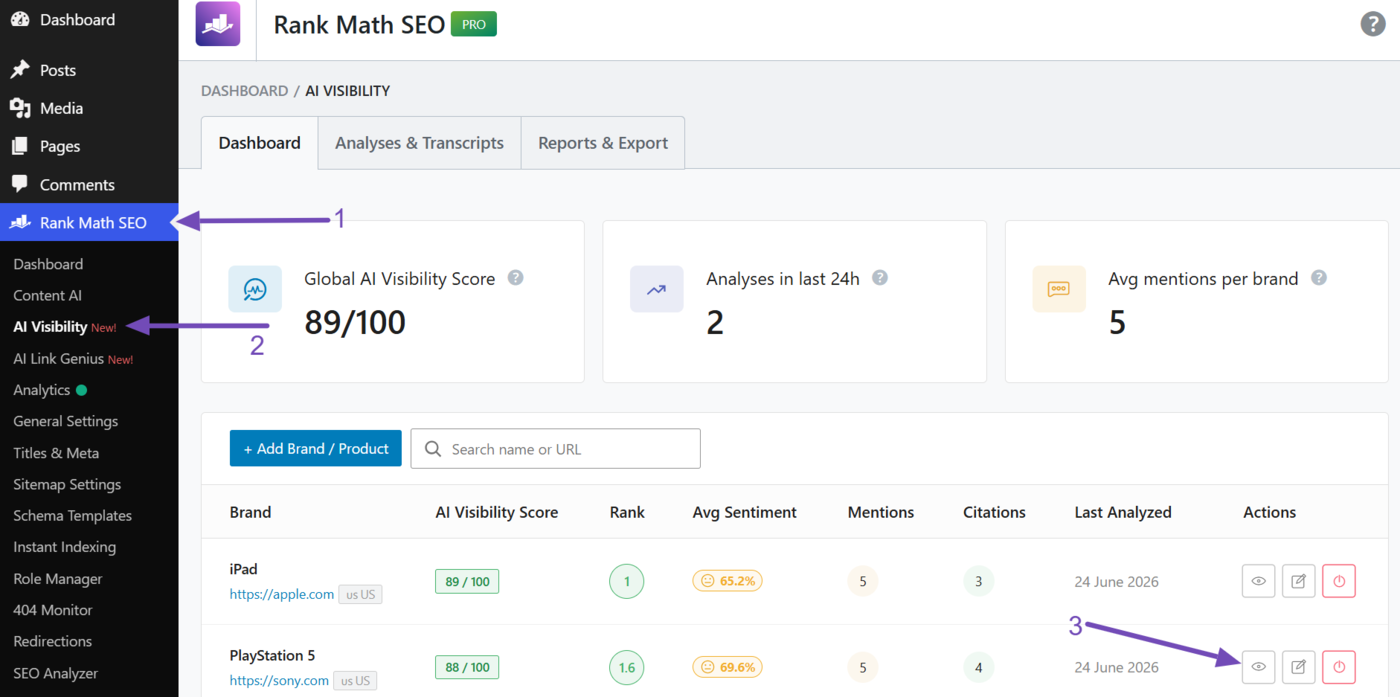
Once done, click Export Report.
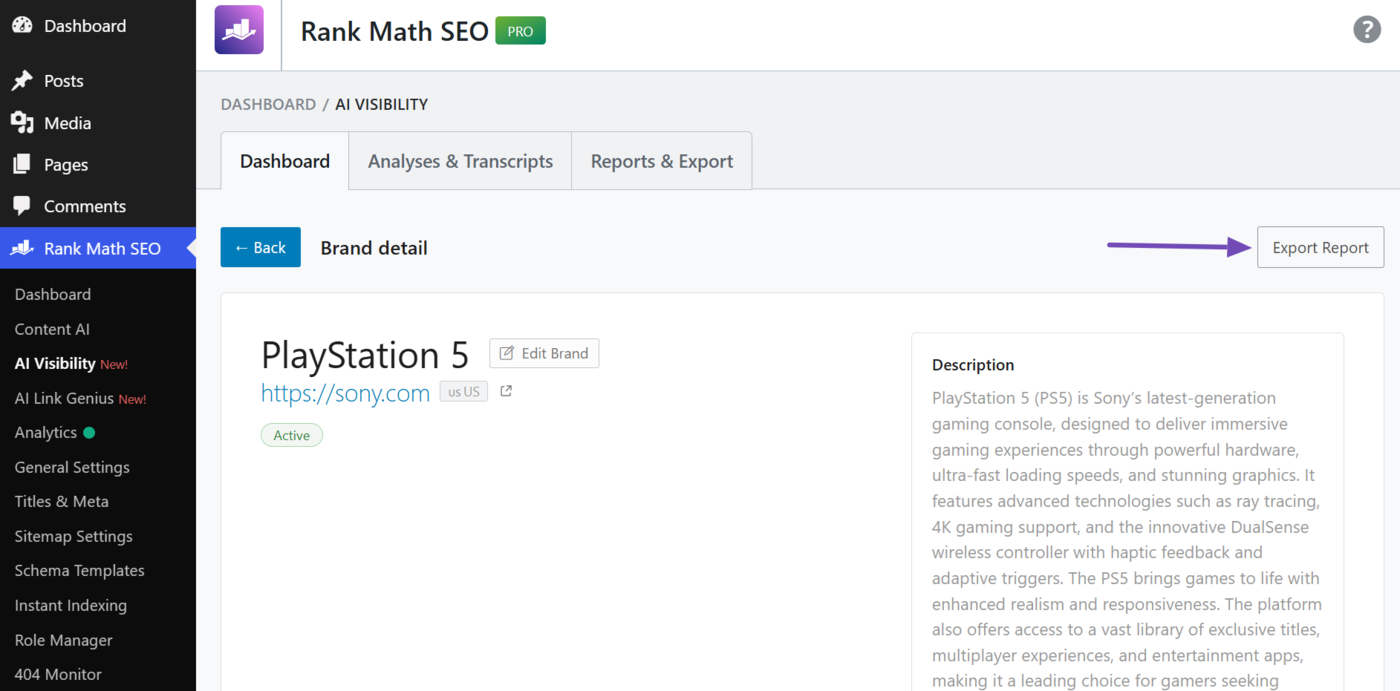
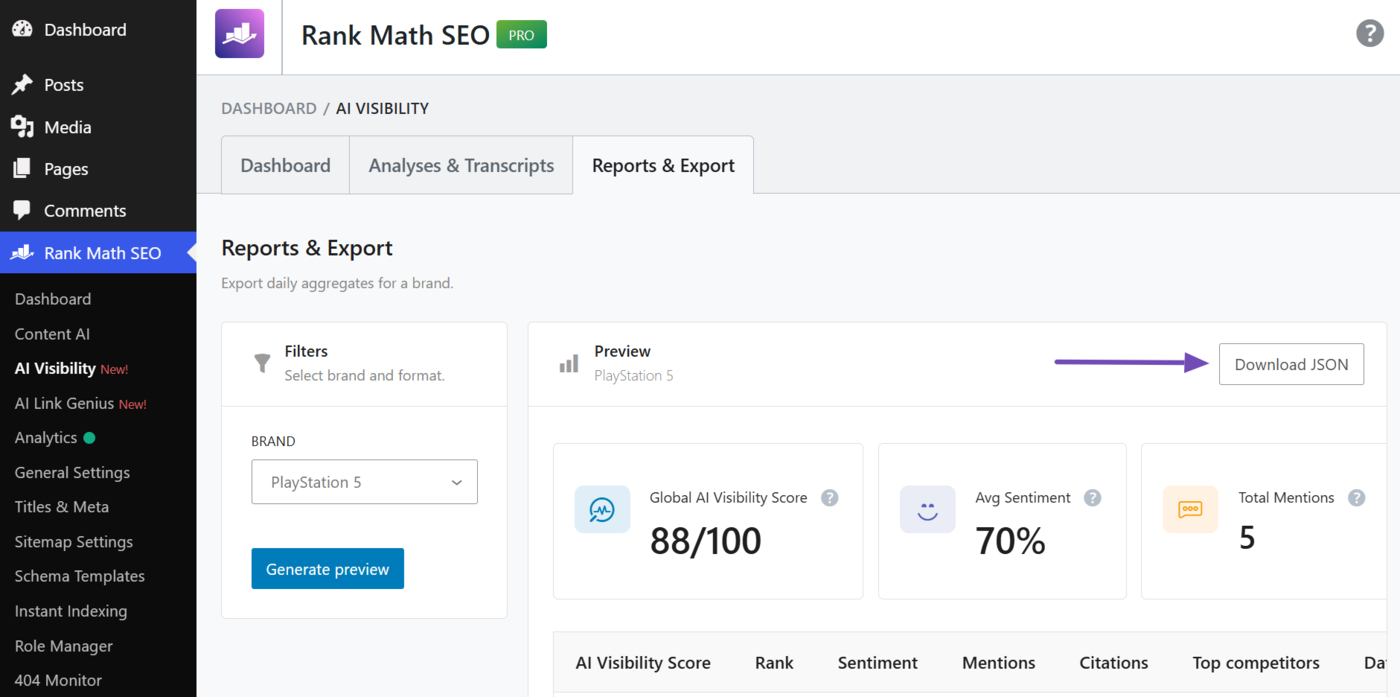
A preview of your AI Visibility report will be displayed. Click Download JSON to download it to your device.
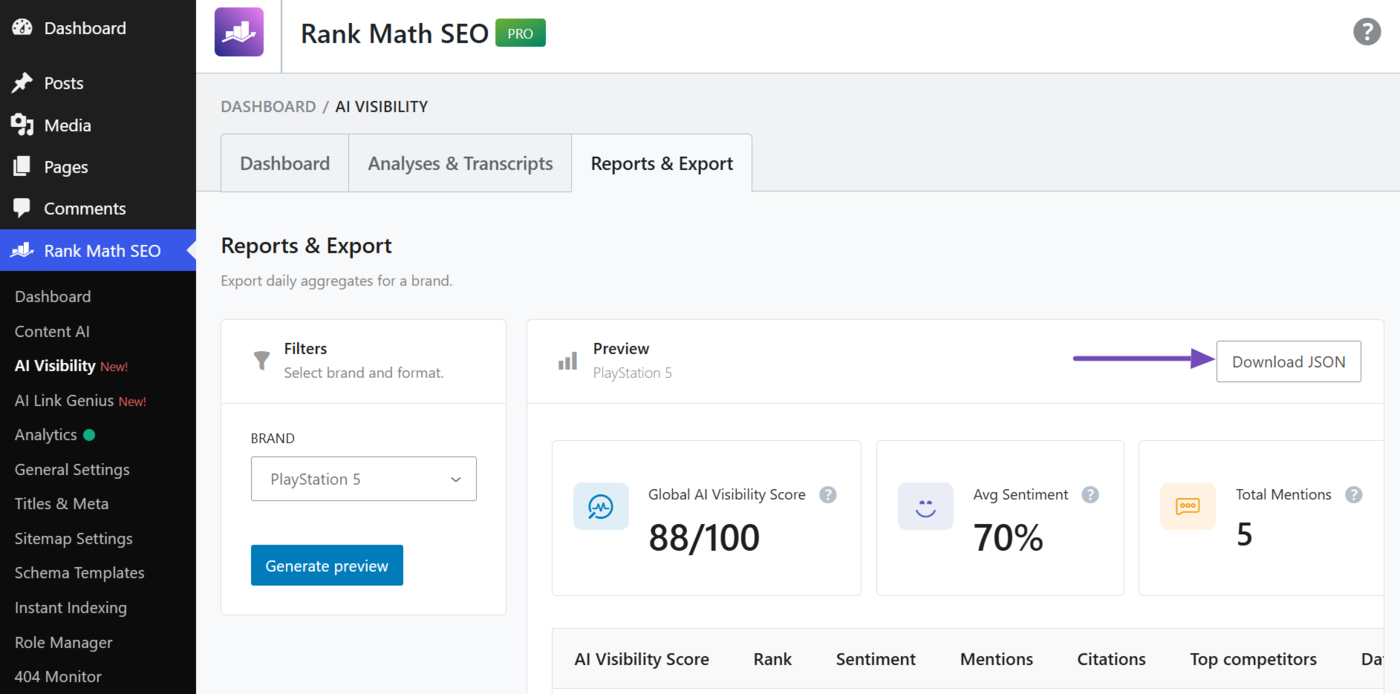
1.2 Using the Reports & Export Tab
Head to Rank Math SEO → AI Visibility from your WordPress dashboard. Once done, click the Reports & Export tab.
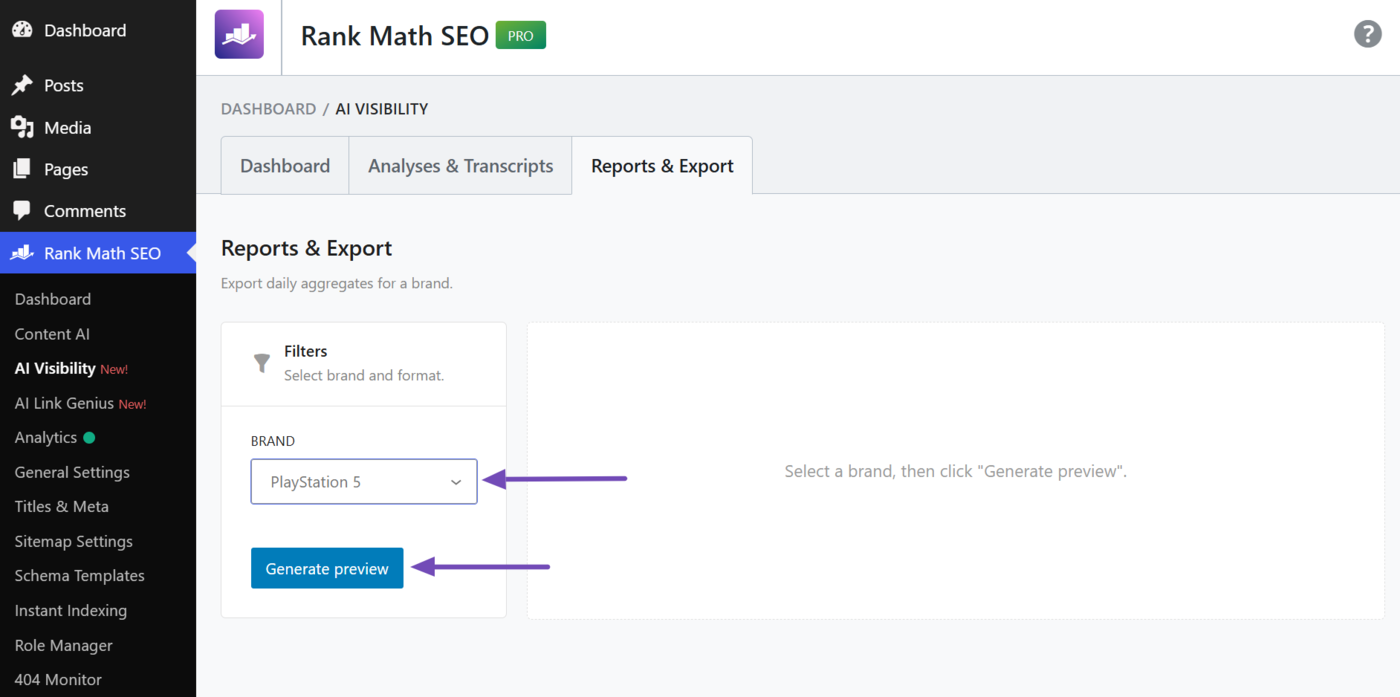
Head to the filter settings and select the brand for which you want to generate the report. Once done, click Generate Preview.
For this example, let us select PlayStation 5. We will then click the Generate Preview button, as shown below.
A preview of your AI Visibility brand report will be shown to you. Click Download JSON to download it.
2 Copy a Specific Query and Response
AI Visibility also lets you copy specific queries that were tracked and responses returned by the AI platform. This report is available in raw text and JSON format.
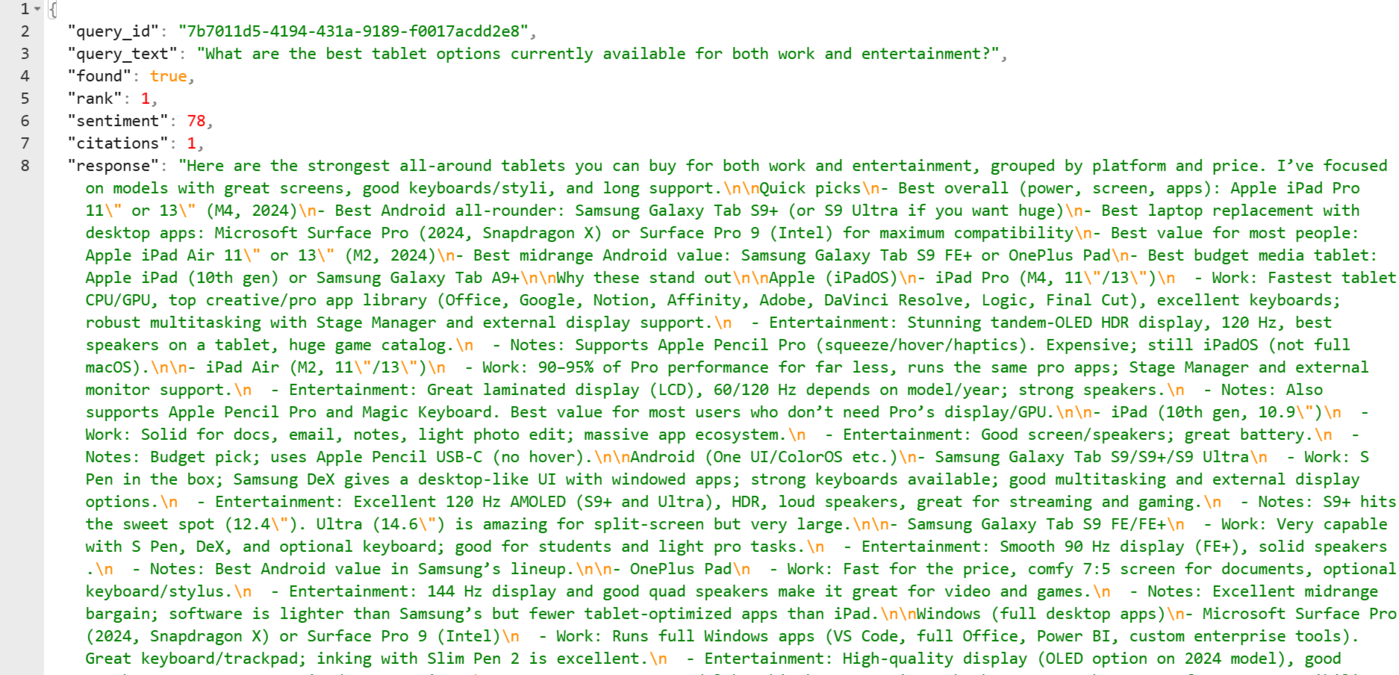
The raw text includes only the query and response. However, the JSON includes the:
- Tracked query
- AI response
- AI summary
- Brand or product name
- Brand or product URL
- Positive keywords
- Negative keywords
- Sentiment
- Rank
- Citation
- Citation report
- Competitors
- Competitor URL
- Competitor sentiment score
- Brand’s rank among competitors
This is what the JSON looks like.
2.1 Using the Analyses & Transcripts Tab
Head to Rank Math SEO → AI Visibility from your WordPress dashboard. Once done, click the Analyses & Transcripts tab.
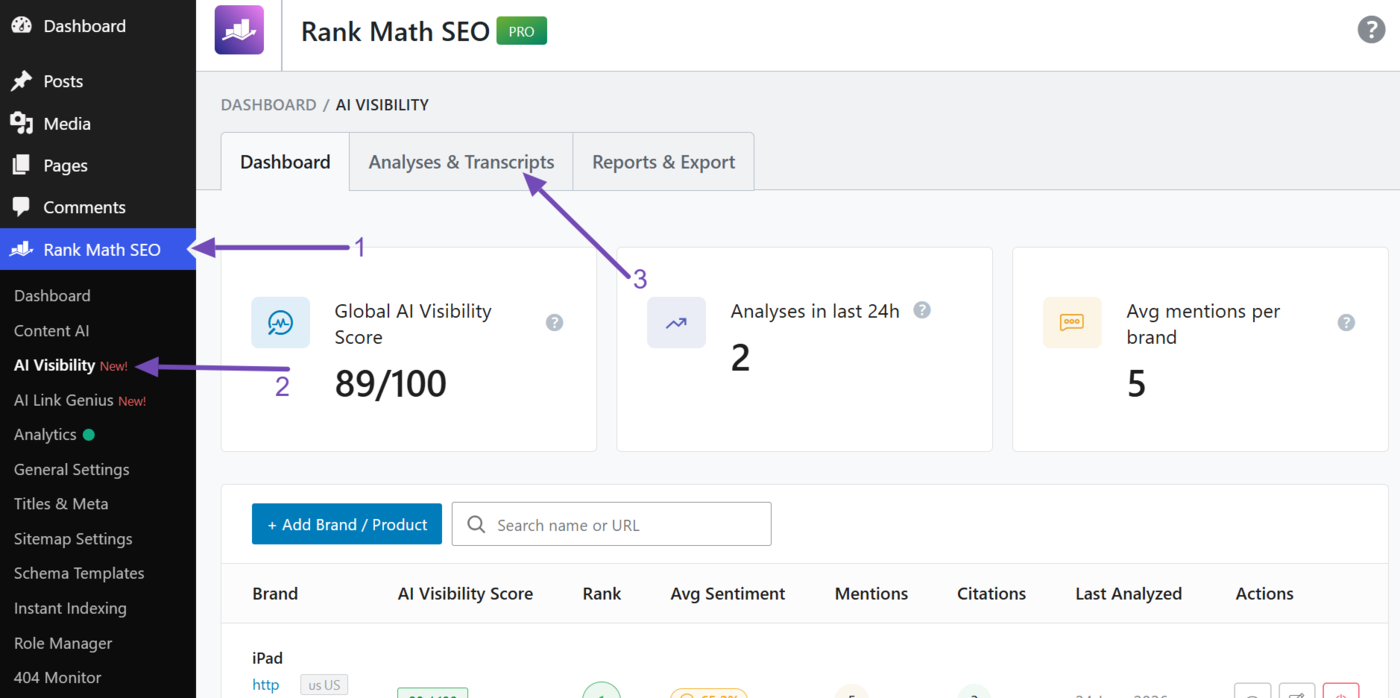
You will see the list of the brands and products you are tracking. Head to the one you want to query and click the View Run Detail button.
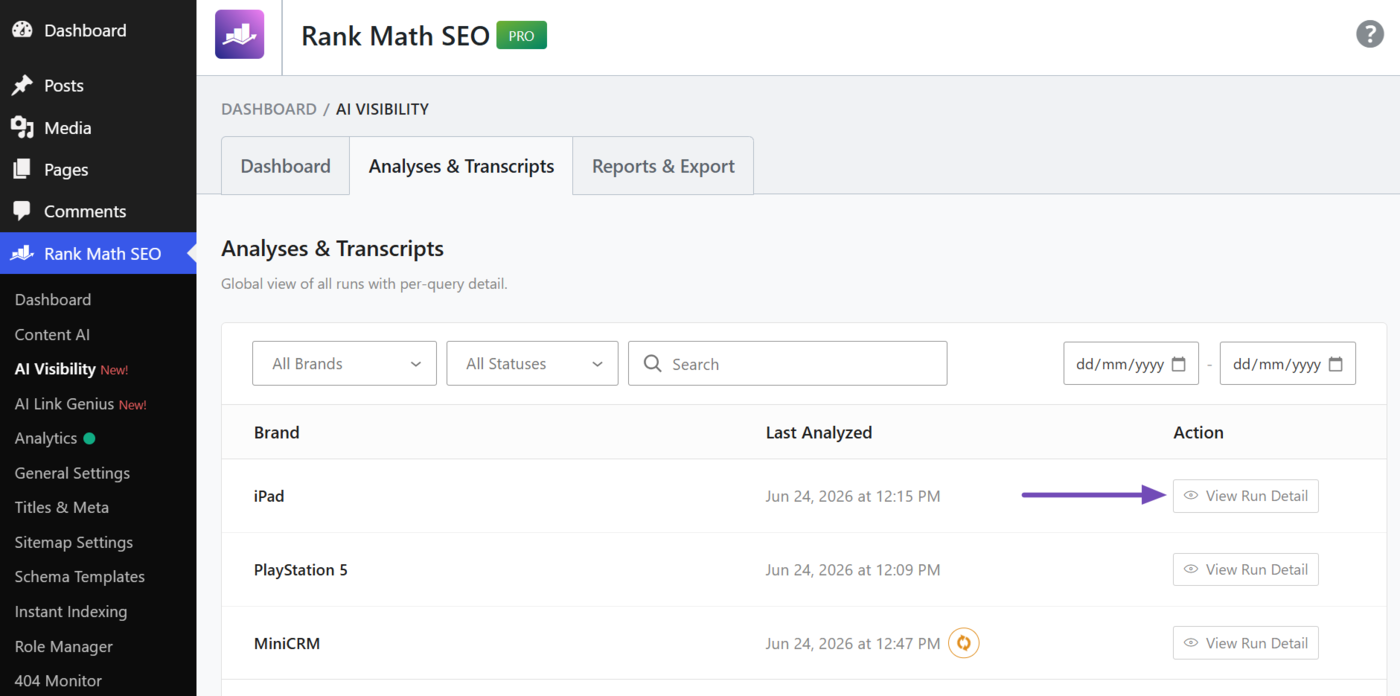
Head to the query you want to review and click View Transcript.
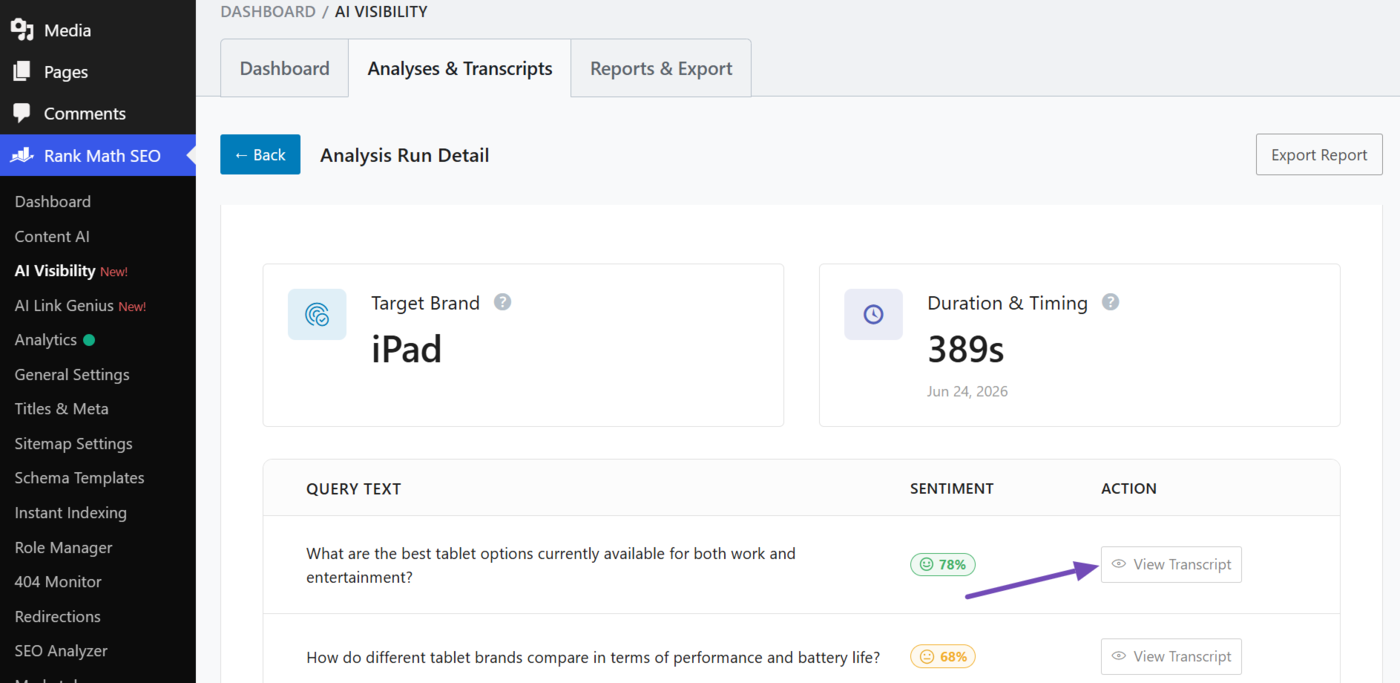
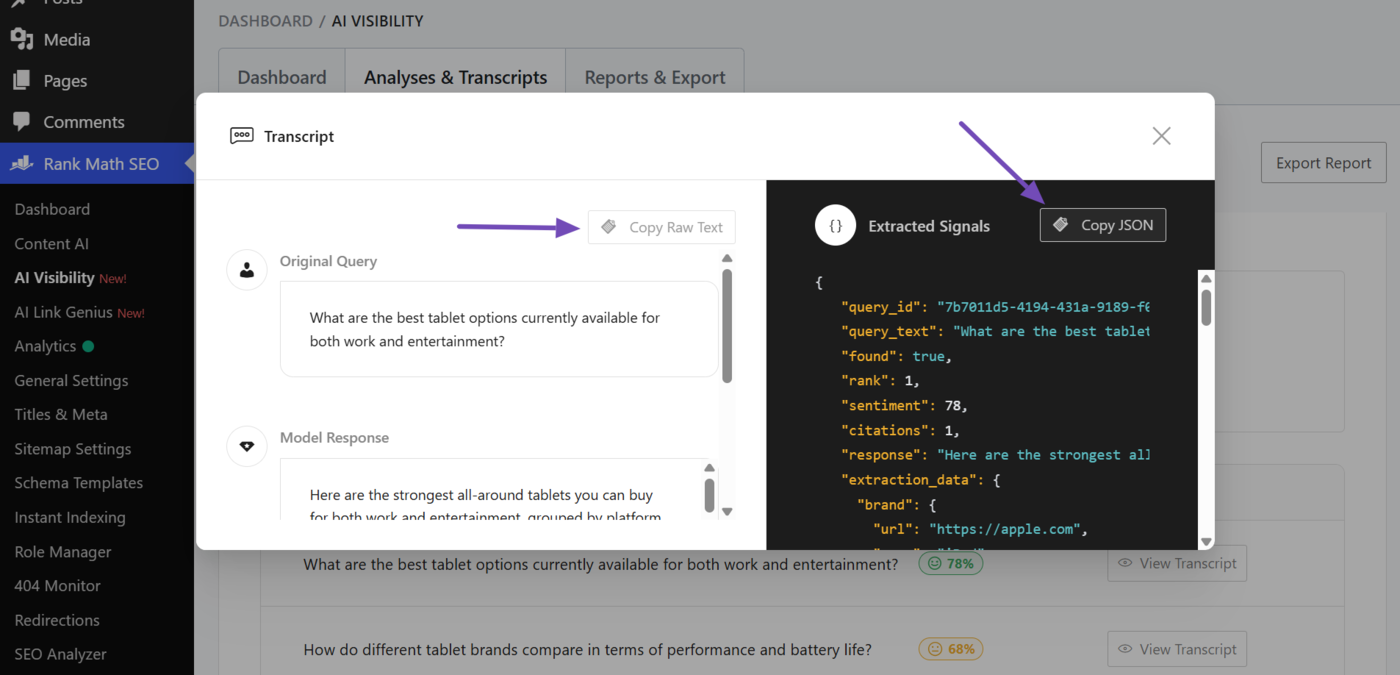
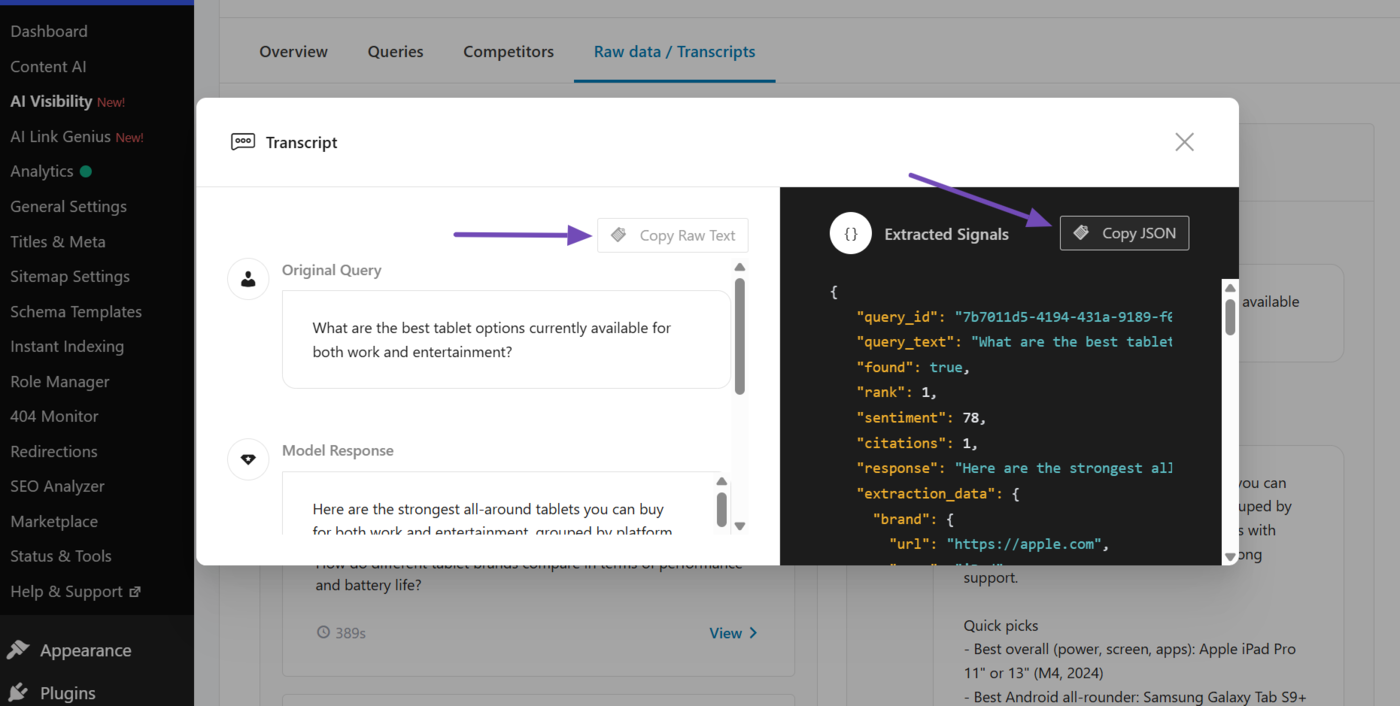
It will display a modal. On the left is the query and the AI platform’s response. On the right is the JSON containing the tracked query, the AI platform’s response, and additional details.
- To copy the raw text, click the Copy Raw Text button
- To copy the JSON code, click the Copy JSON button
2.2 Using the Raw Data / Transcripts Sub-Tab
Head to Rank Math SEO → AI Visibility from your WordPress dashboard. Once done, head to the brand or product for which you want to generate the report, and click the View icon.
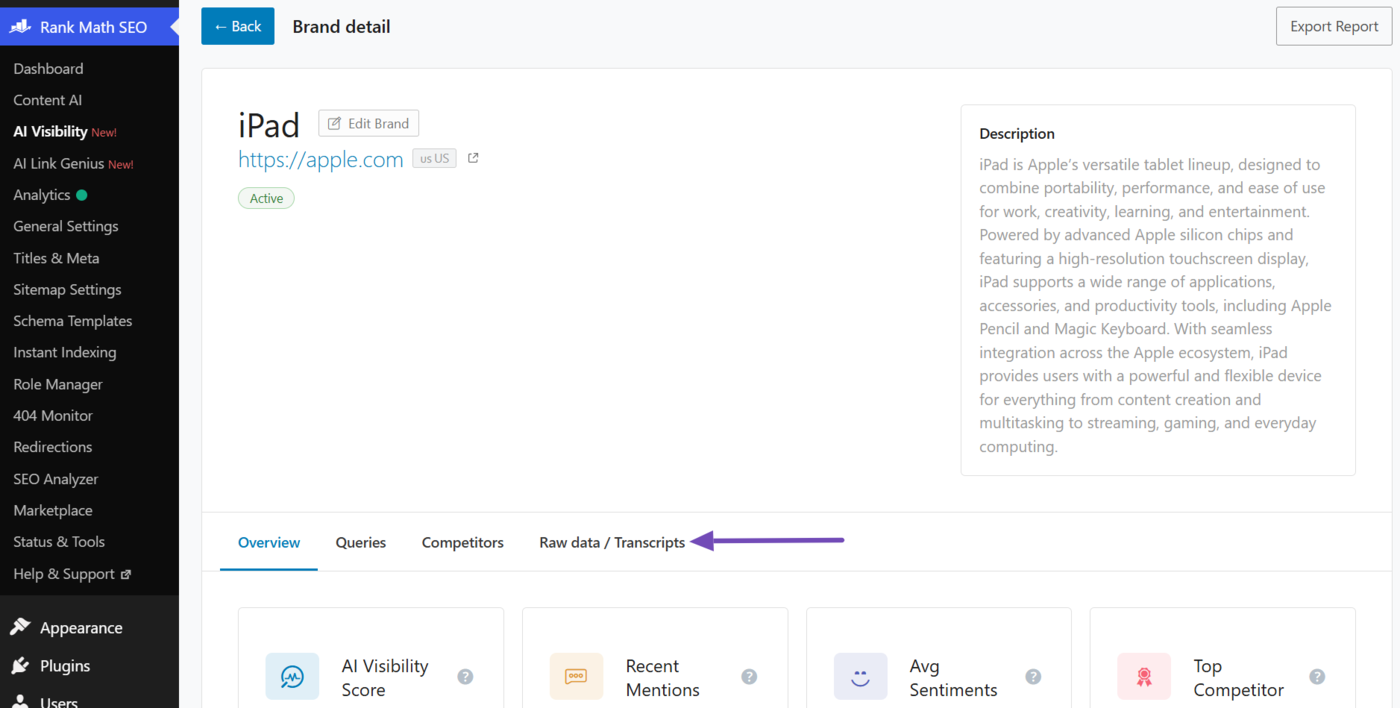
Now, scroll down and click on the Raw data / Transcripts sub-tab.
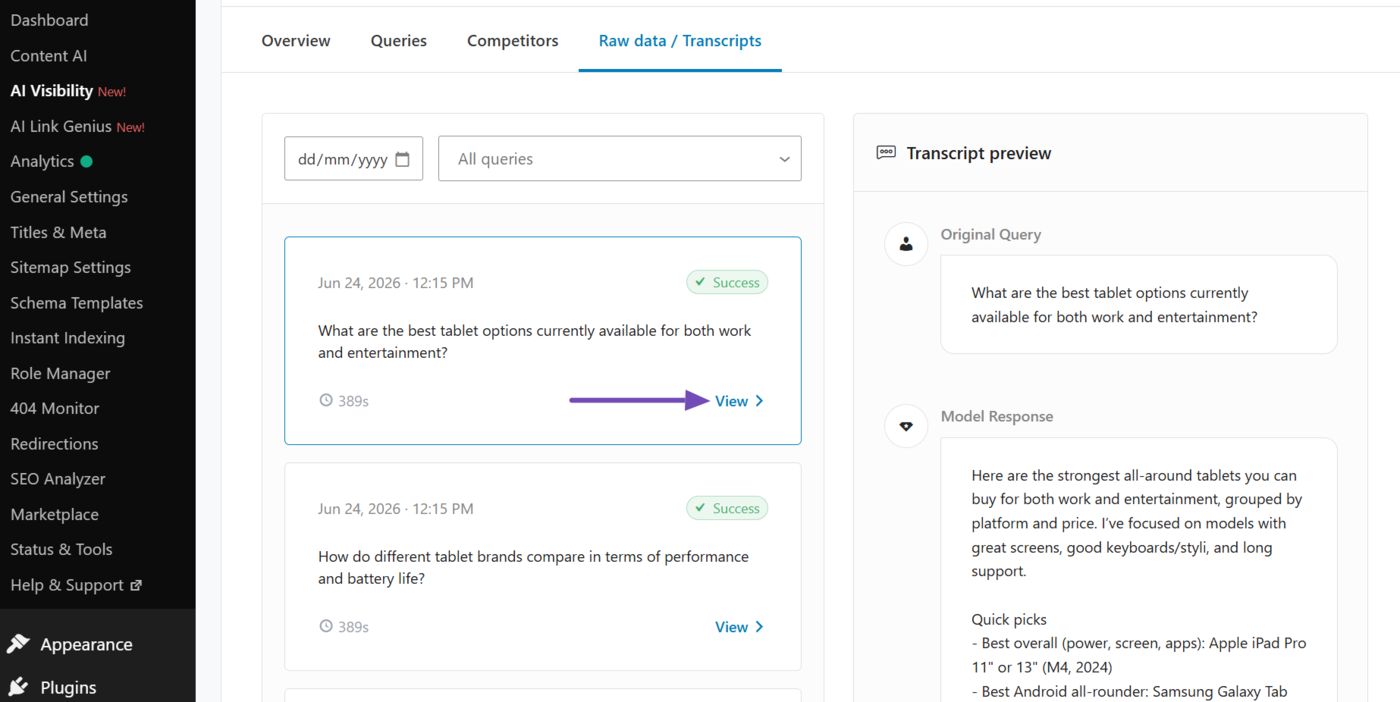
You will be presented with the queries and responses returned by the AI platforms. Head to the query you want to review and click View, as shown below.
A modal will display. The left side contains the query for which the brand was tracked, while the right side contains the response returned by the AI platform. It also contains two buttons:
- Copy Raw Text: Copies the raw text containing the query and response only
- Copy JSON: Copies the JSON containing the query, response, and additional details
That’s it. This is how you can generate your AI brand visibility report. Once generated, you can process the report using external tools, share it with clients, or use it to inform your content, GEO, and SEO strategies.
If you have any questions, you’re always more than welcome to contact our dedicated support team. They are available 24/7, 365 days a year.