
You can access Rank Math’s SEO and AI tools directly from the Claude Desktop app. To do this, you first need to connect your WordPress site to Claude Desktop using MCP. Once connected, you can perform SEO tasks, access AI-powered insights and tools, and even make SEO changes to your WordPress site directly from Claude.
In this knowledgebase article, we’ll show you how to connect Rank Math with Claude Desktop using MCP.
In this article, we’ll cover how to:
1 Connect Rank Math MCP Using OAuth (Recommended)
OAuth (Open Authorization) is a security framework that lets Claude securely access your WordPress site, without accessing or storing your password. It is also swift, making it the quicker, easier, and recommended method for connecting your site to Claude.
- Add a custom connector
- Enter the connector details
- Authorize the connection
- Revoking the connection
Note: Before getting started, make sure you’re logged into both Claude Desktop and claude.ai with the same account, as Claude Desktop may direct you to claude.ai for authentication.
1.1 Add a Custom Connector
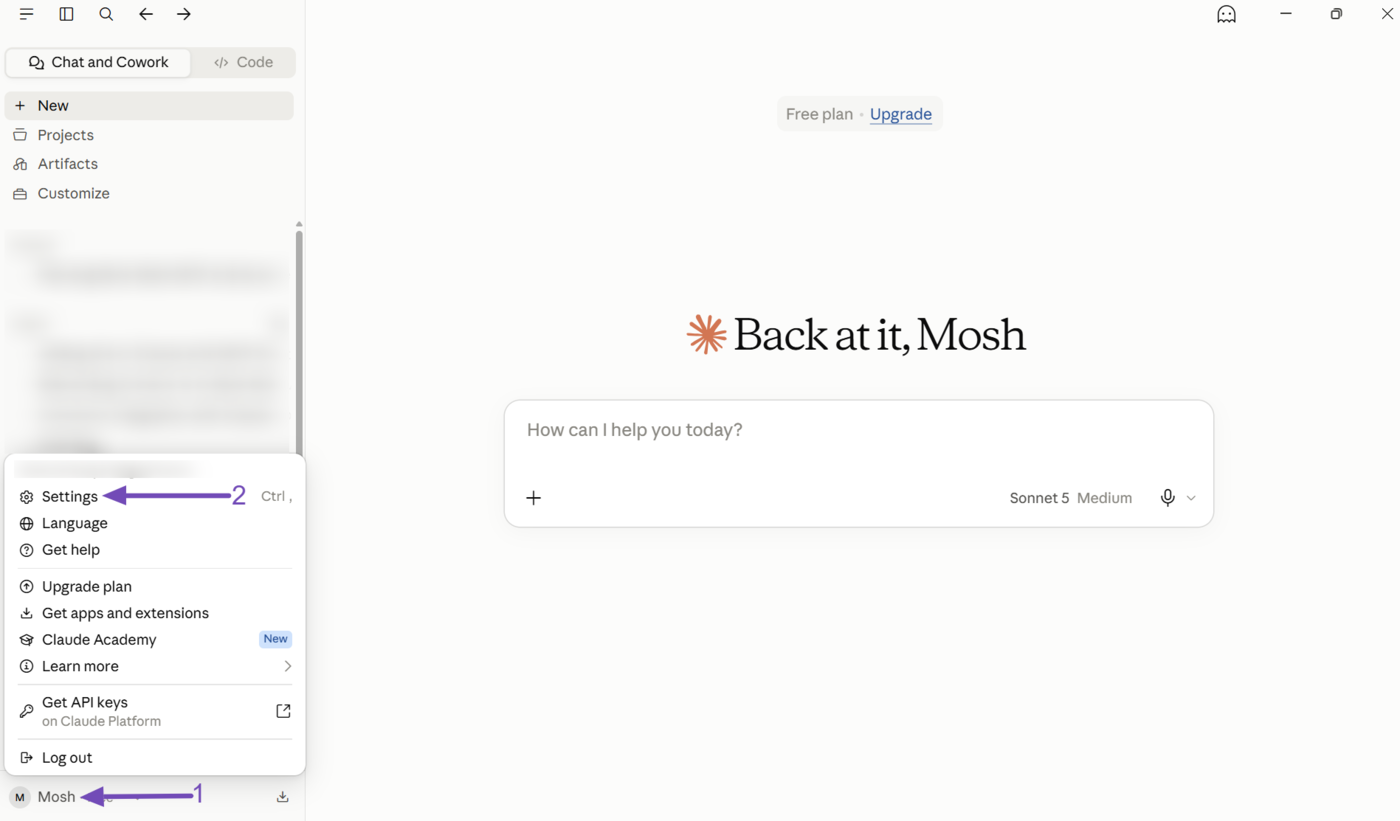
To get started with OAuth, open your Claude desktop app. Once done, click your username and then Settings.
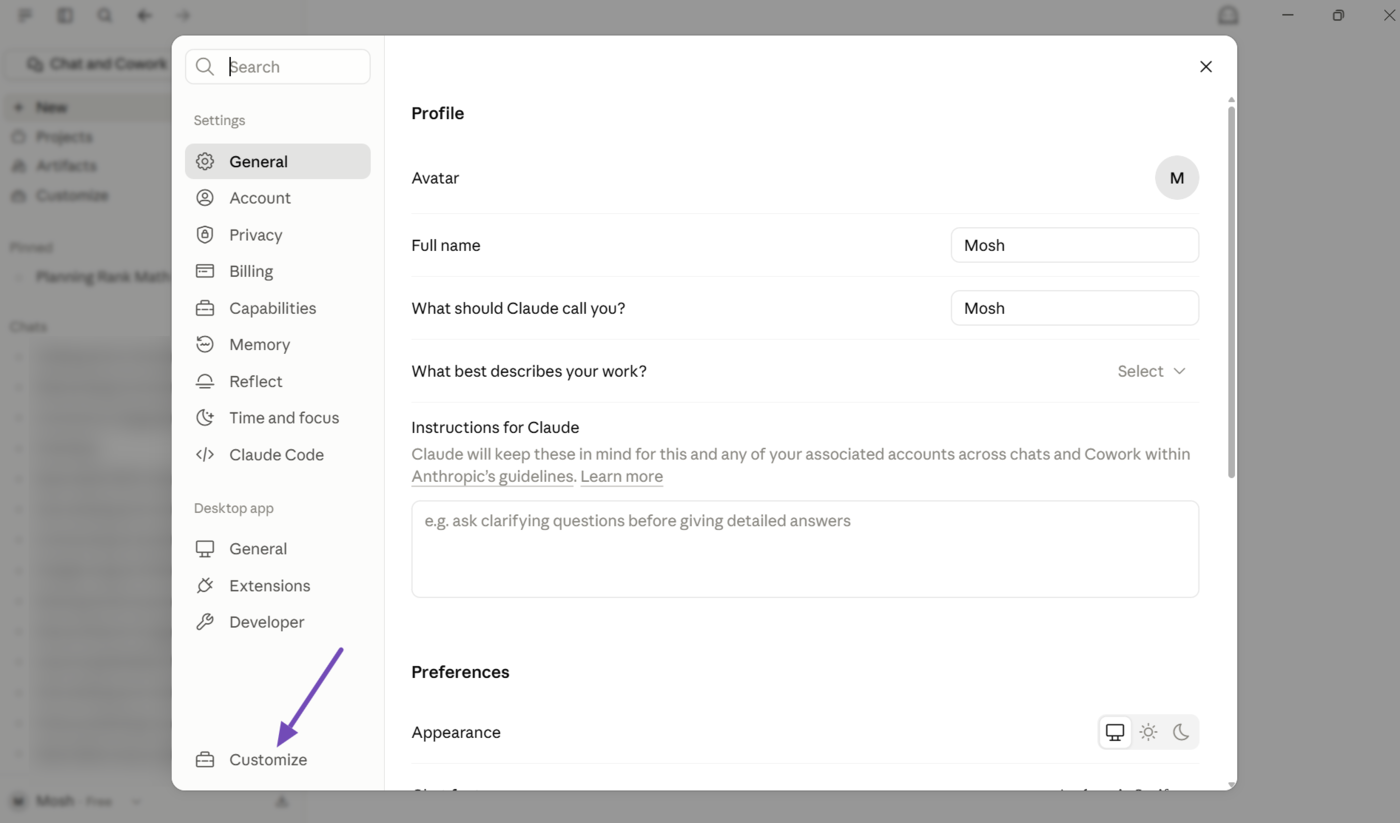
Now, click Customize.
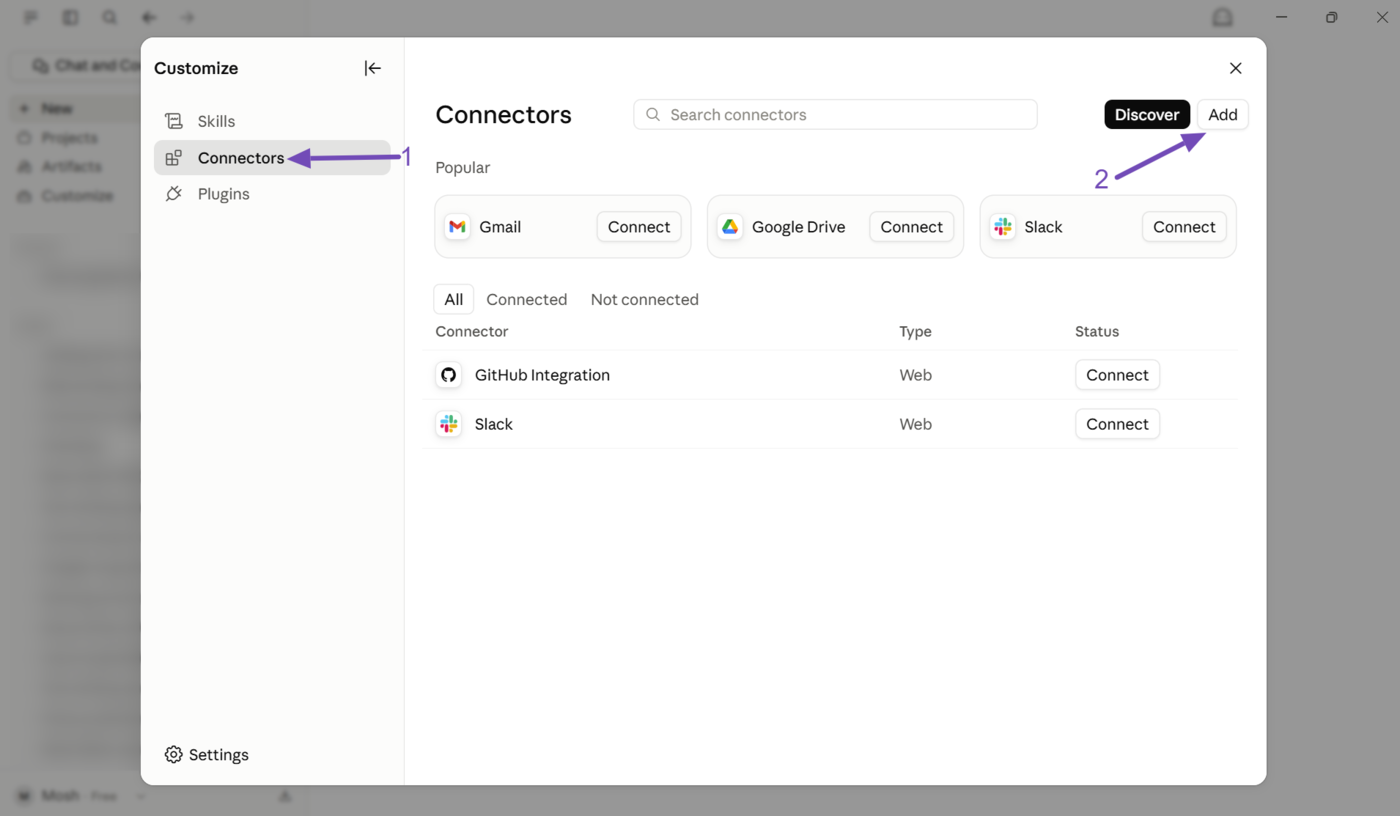
Then click Connectors. Once done, click Add.
1.2 Enter the Connector Details
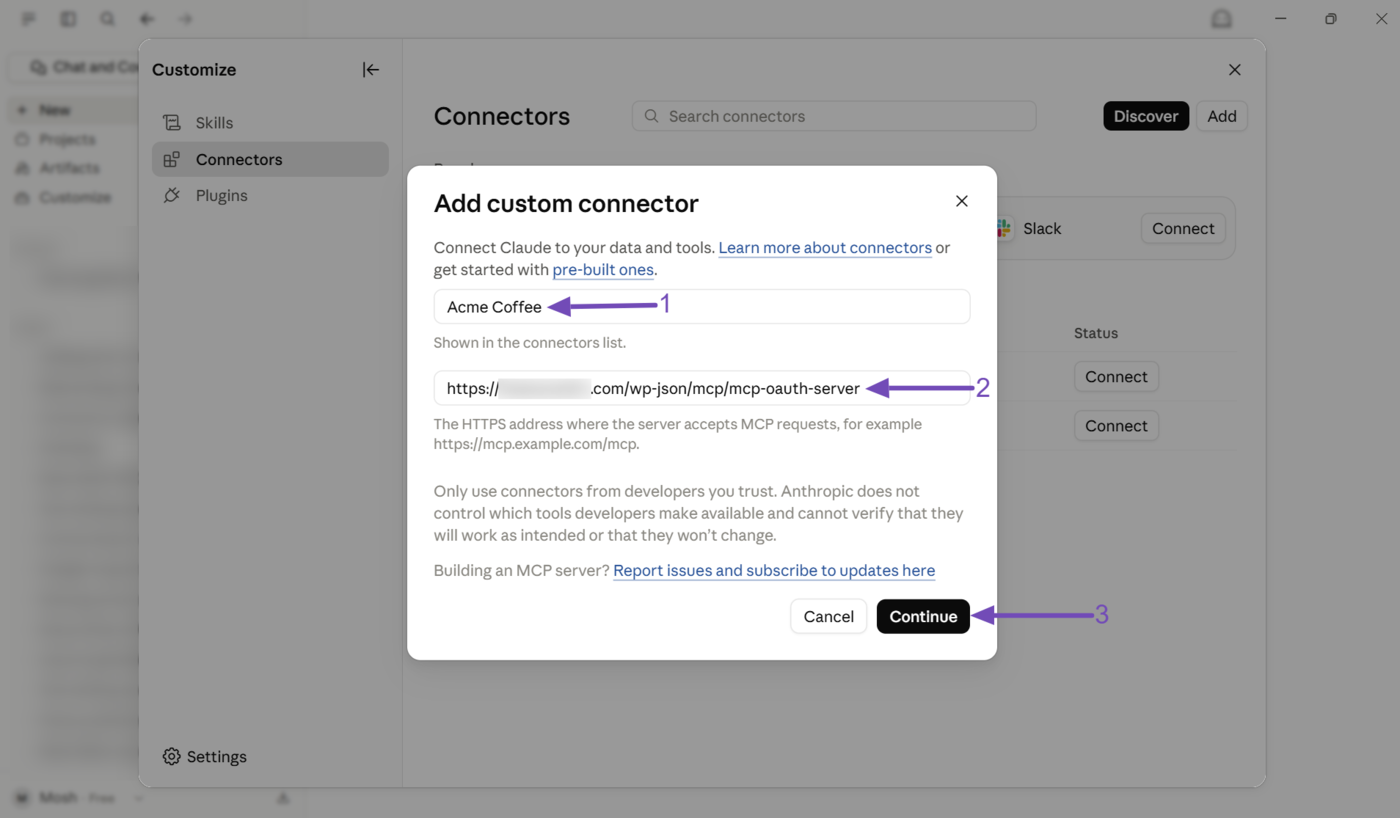
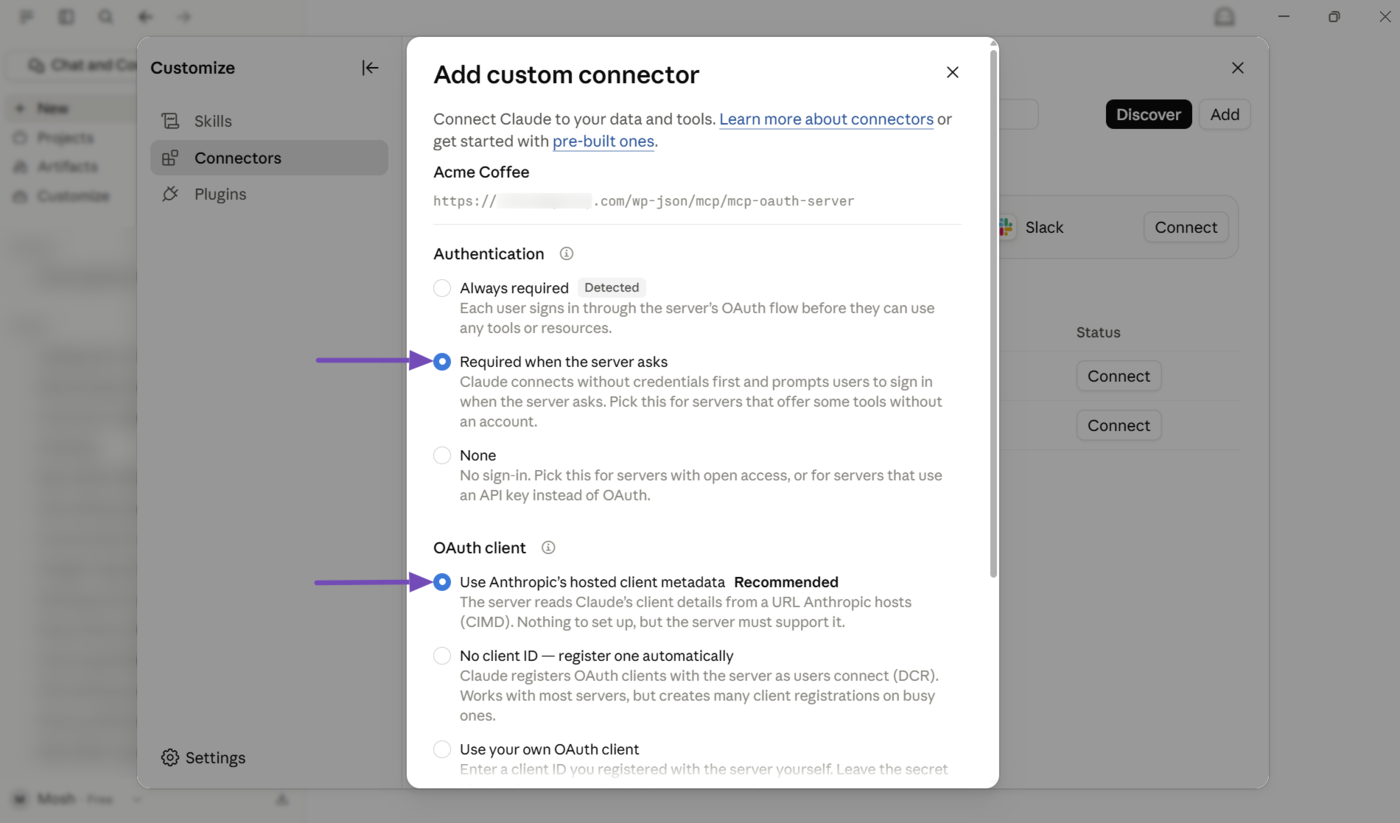
The Add custom connector popup box will appear, as shown below. It contains two fields: Name and Remote MCP server URL.
- Name: Enter your site name into this field
- Remote MCP server URL: Modify and enter the HTTPS address below into this field
https://your-site-url/wp-json/mcp/mcp-oauth-server
Note: Ensure to replace your-site-url with your site’s URL.
Once done, click Continue.
Claude will run a connection check before showing additional options. Once they appear, make sure:
- Authentication is set to Required when the server asks
- OAuth client is set to Use Anthropic’s hosted client metadata
Once done, scroll down and click Add.
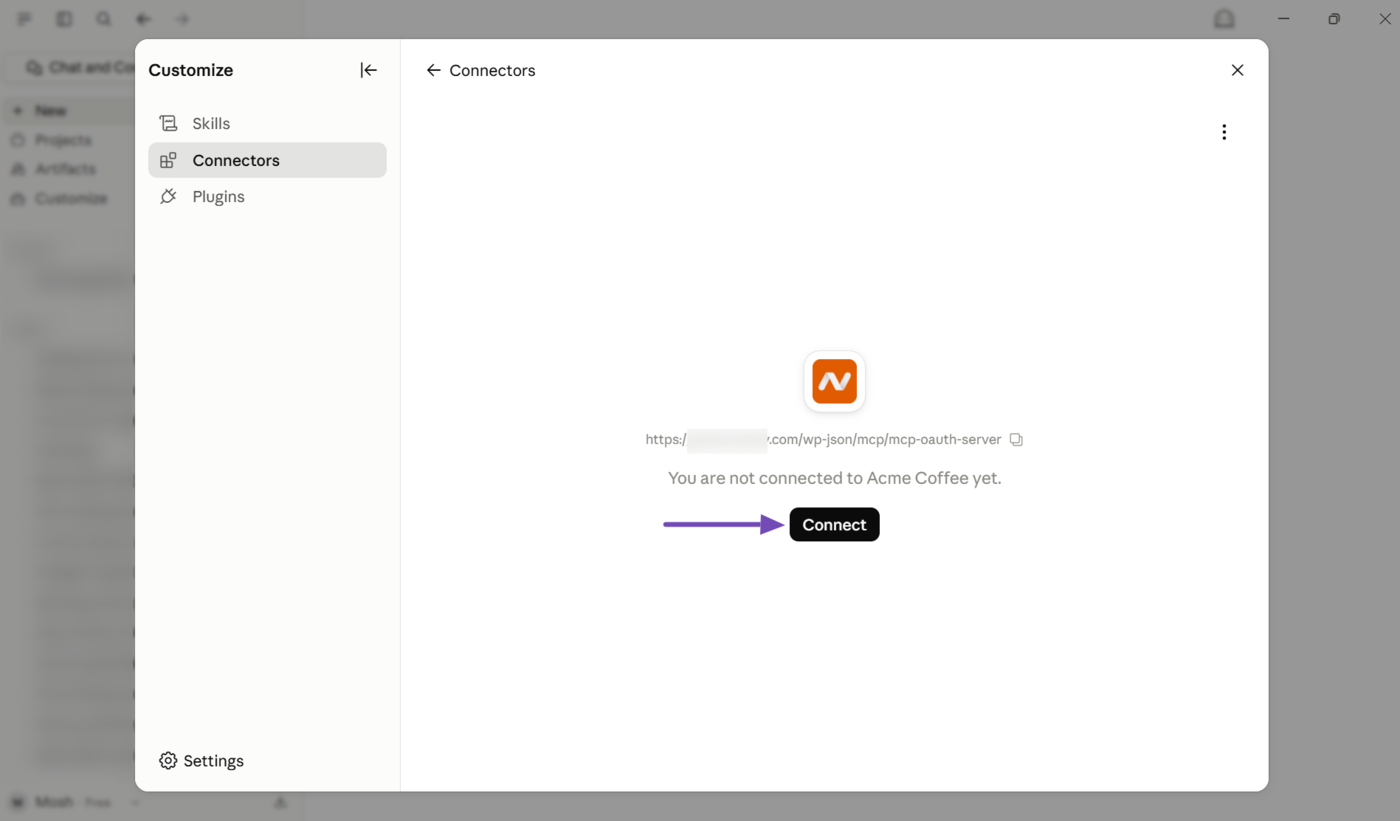
Then, click Connect.
1.3 Authorize the Connection
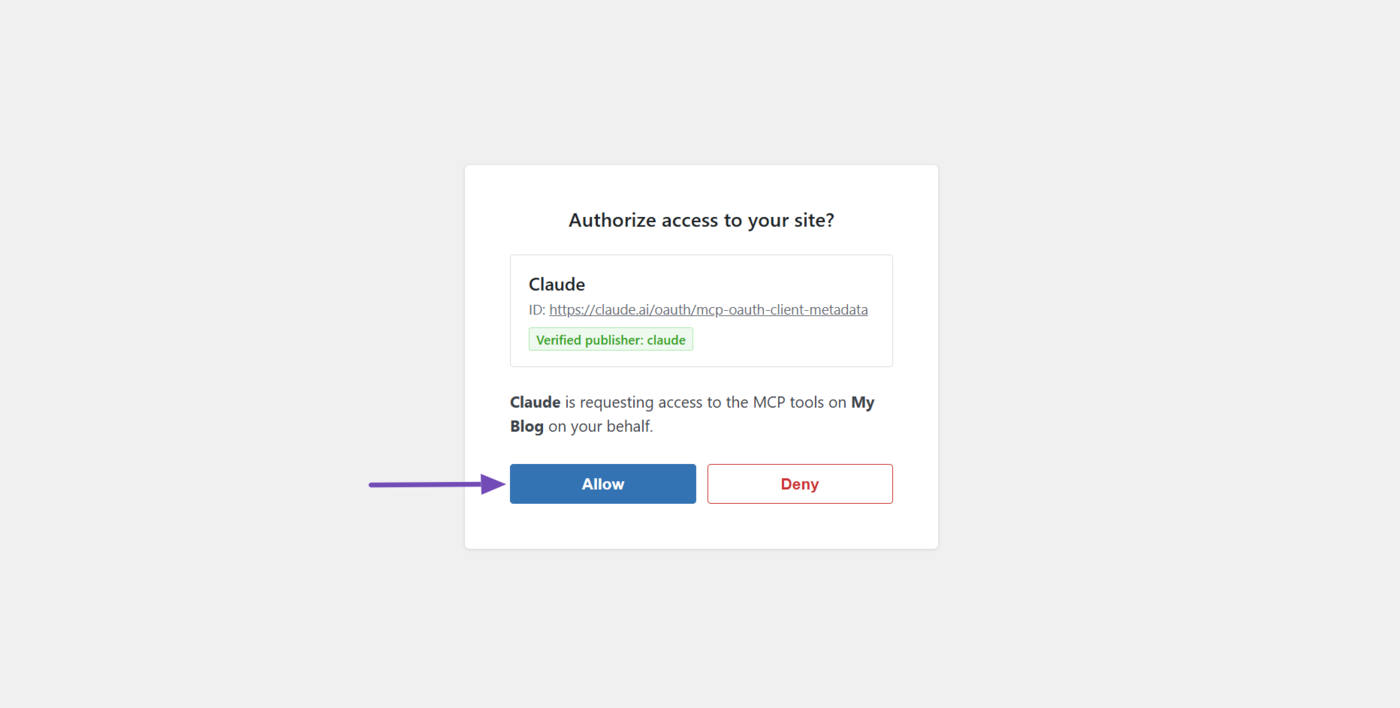
Claude will open a new browser tab to authorize your connection. Click Allow.
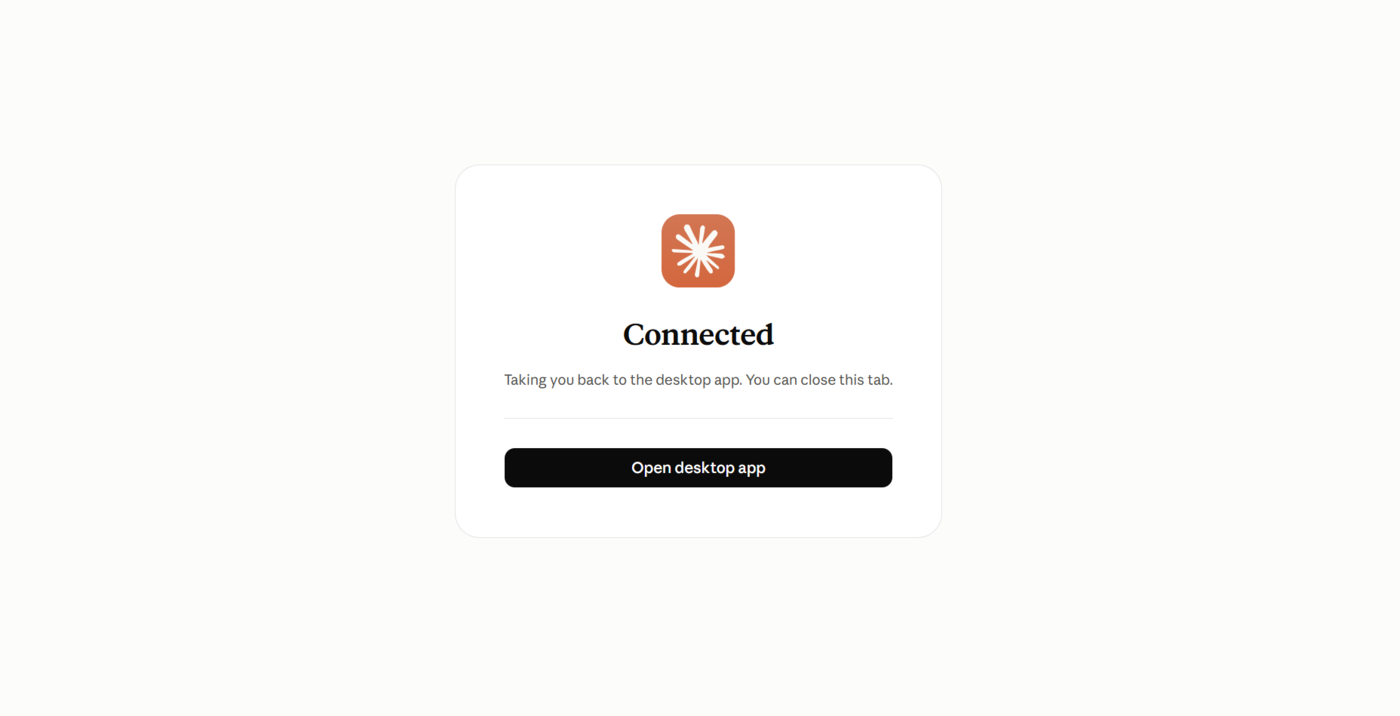
You have now been connected to Claude using OAuth. You will see a success message, indicating the connection was successful.
1.4 Revoking the Connection (If You Need)
Claude generates an application password on your site when you connect using OAuth. This lets Claude access your site to gather reports and implement fixes. However, if you no longer want your site connected to Claude, here’s how to revoke Claude’s access.
Note: This action cannot be undone. If you want to reconnect your site to Claude after revoking its access, you will need to repeat the steps mentioned above.
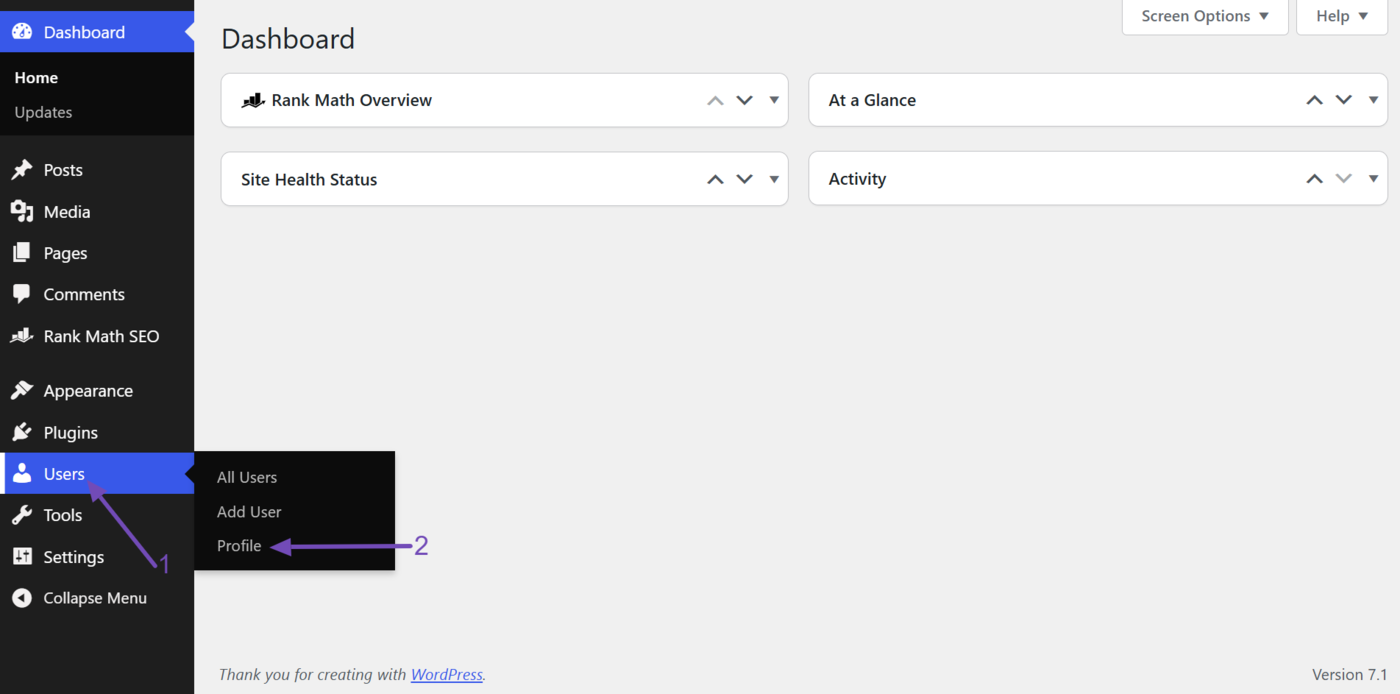
Head to Users → Profile in your WordPress dashboard.
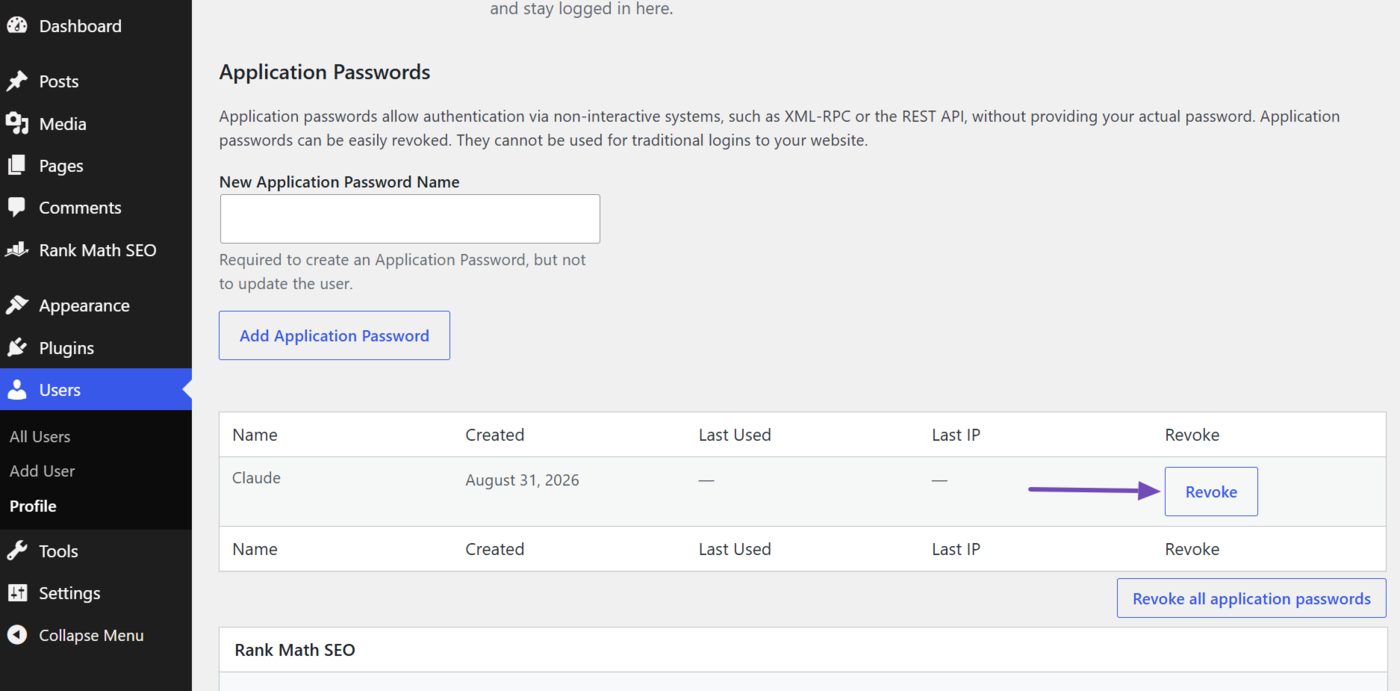
Scroll to the Application Passwords field. Here, you will find the application password Claude created. Click Revoke to delete it.
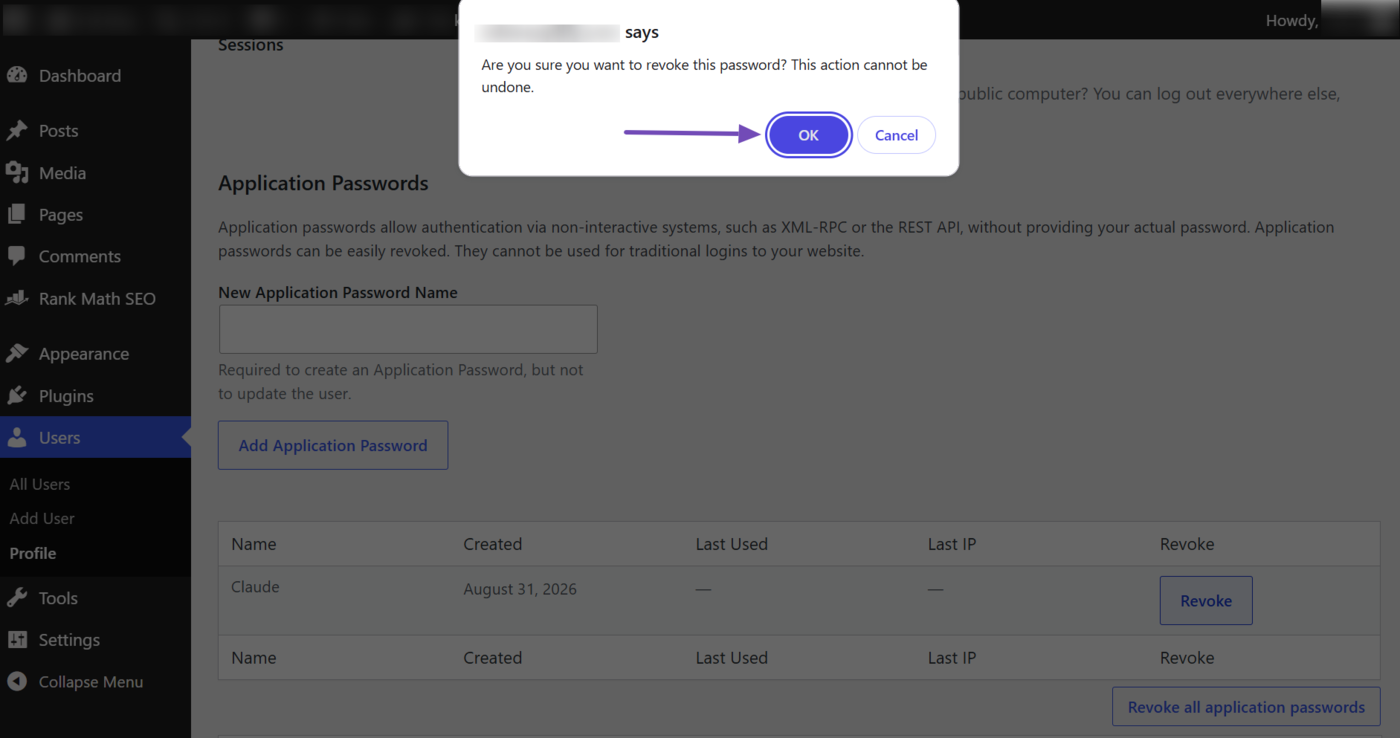
A popup will appear asking you to confirm whether you want to revoke Claude’s access. If you wish to proceed, click OK.
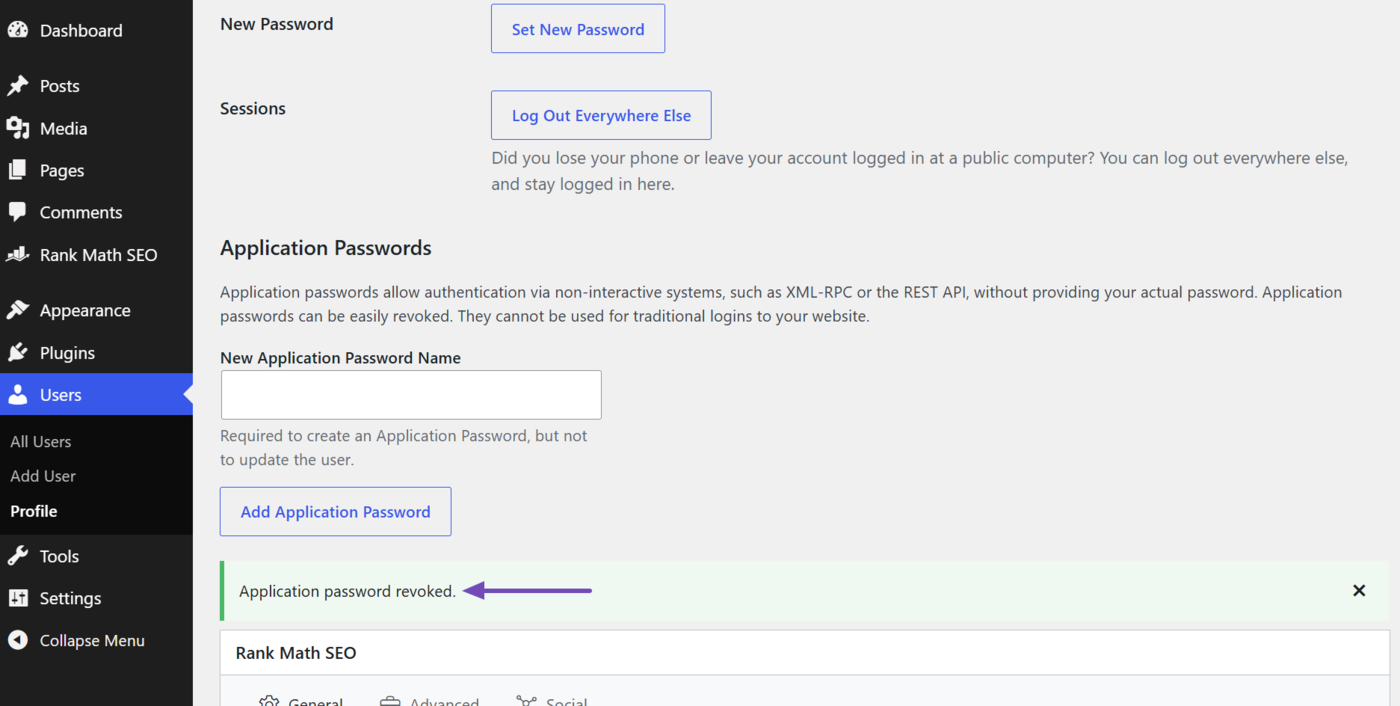
The application password created by Claude will be deleted. A success message will also appear, as shown below.
2 Connect Rank Math MCP Using the JSON File
You can also connect Rank Math to Claude Desktop by adding your MCP server configuration to Claude’s config file. Here’s how to do that:
- Getting started with Rank Math MCP
- Head to the Claude developer settings
- Open the edit config file in Claude
- Add your MCP server configuration
2.1 Getting Started With Rank Math MCP
You will need a few things to get started. Specifically, you’ll need to gather some details and install the required software:
- Website URL
- WordPress username
- Application password
- Install Claude Desktop
- Install Node.js
You already have your site URL. However, you will not include https:// in the URL. So, if your site URL is https://example.com, you will use example.com as your URL.
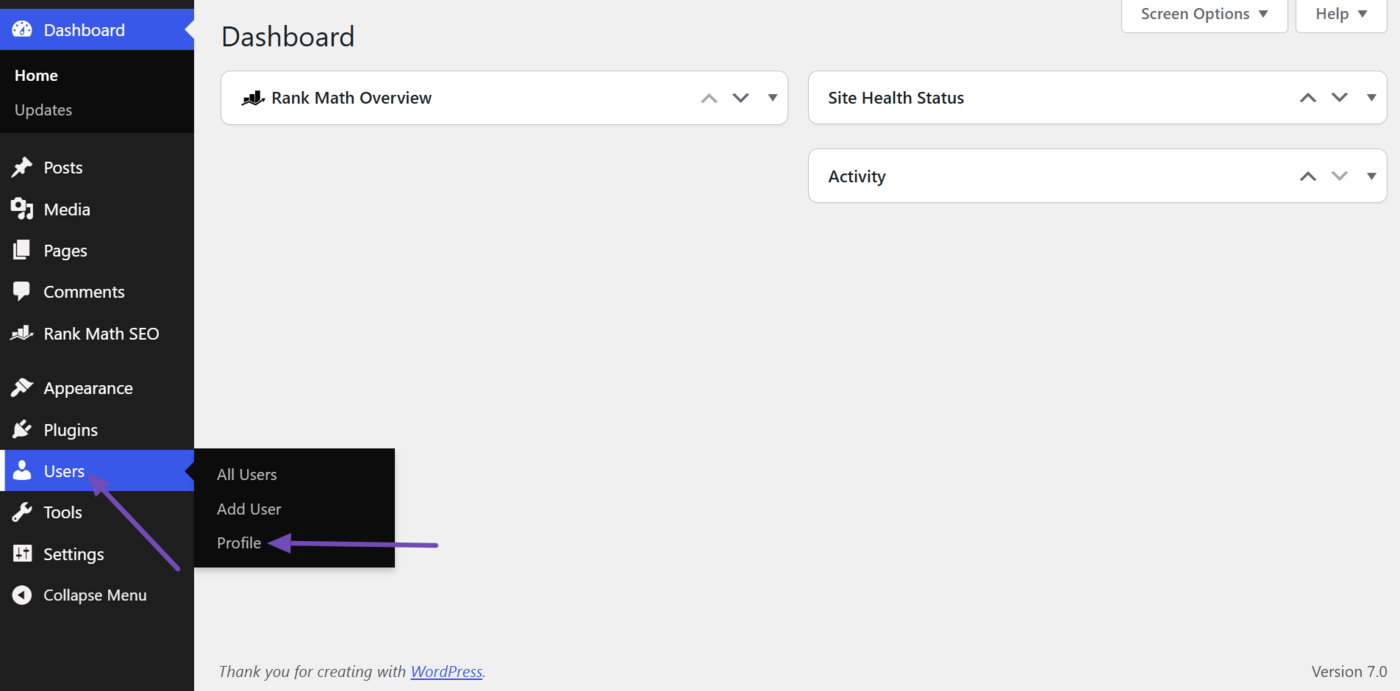
We will show you how to get your WordPress username and application password. To get started with both, head to Users → Profile from your WordPress dashboard.
a. How to Find Your WordPress Username
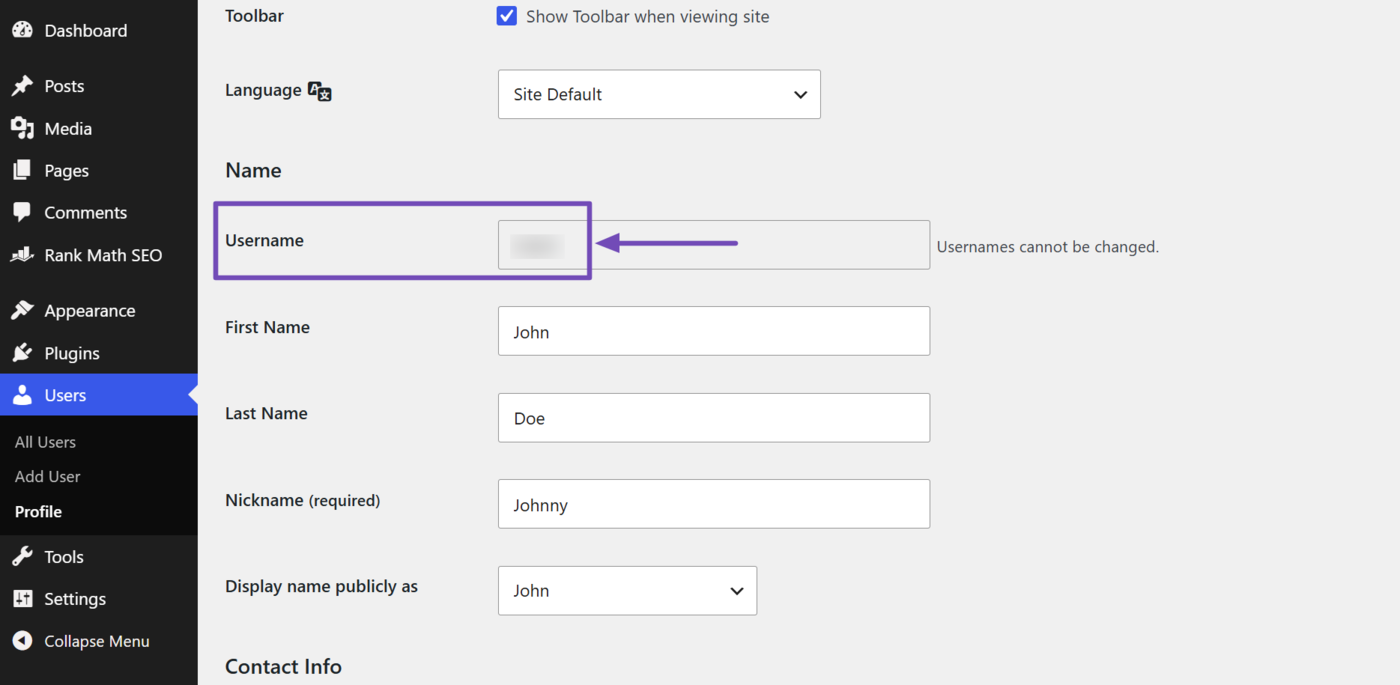
To find your WordPress username, scroll down to the Username field. Your WordPress username will be displayed. Copy it.
b. How to Create an Application Password
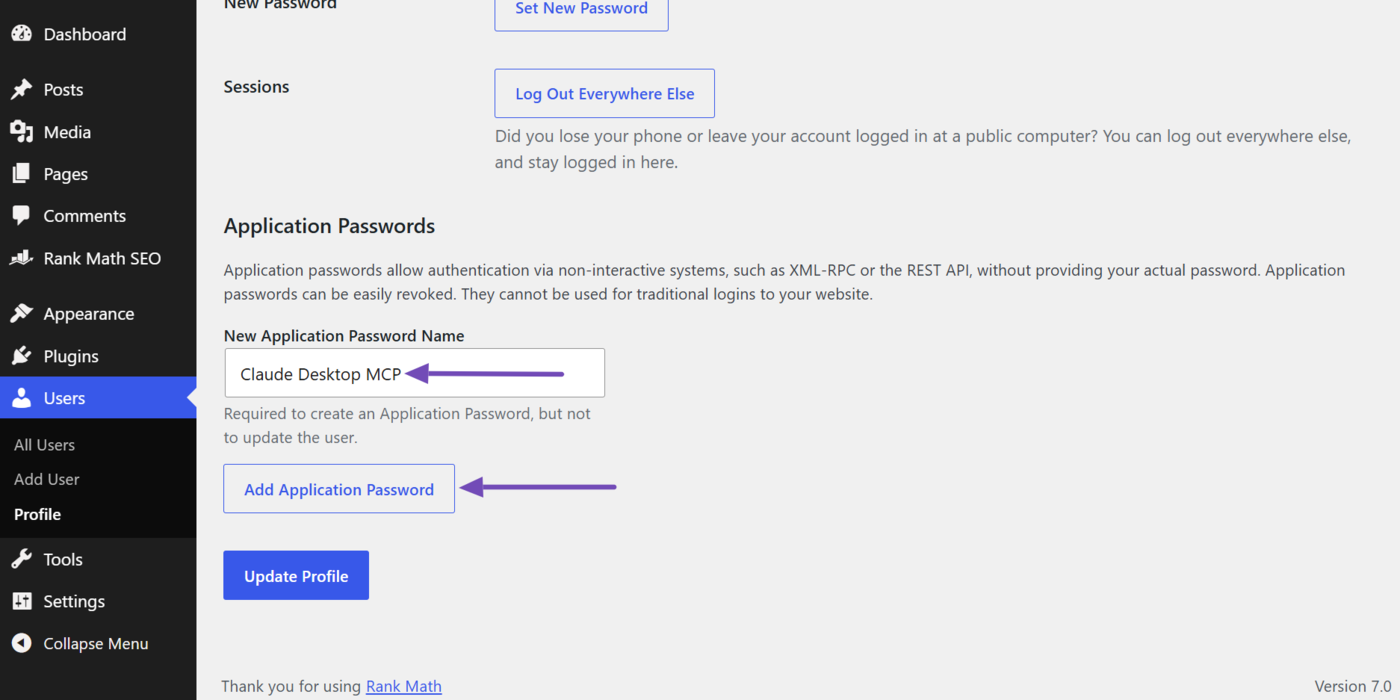
Now, scroll down to Application Passwords. Enter a name for your application password into the New Application Password Name field.
Ensure the name is descriptive so you can identify the application password when you want to delete or review it later. For our example, let us call ours Claude Desktop MCP.
Once done, click Add Application Password.
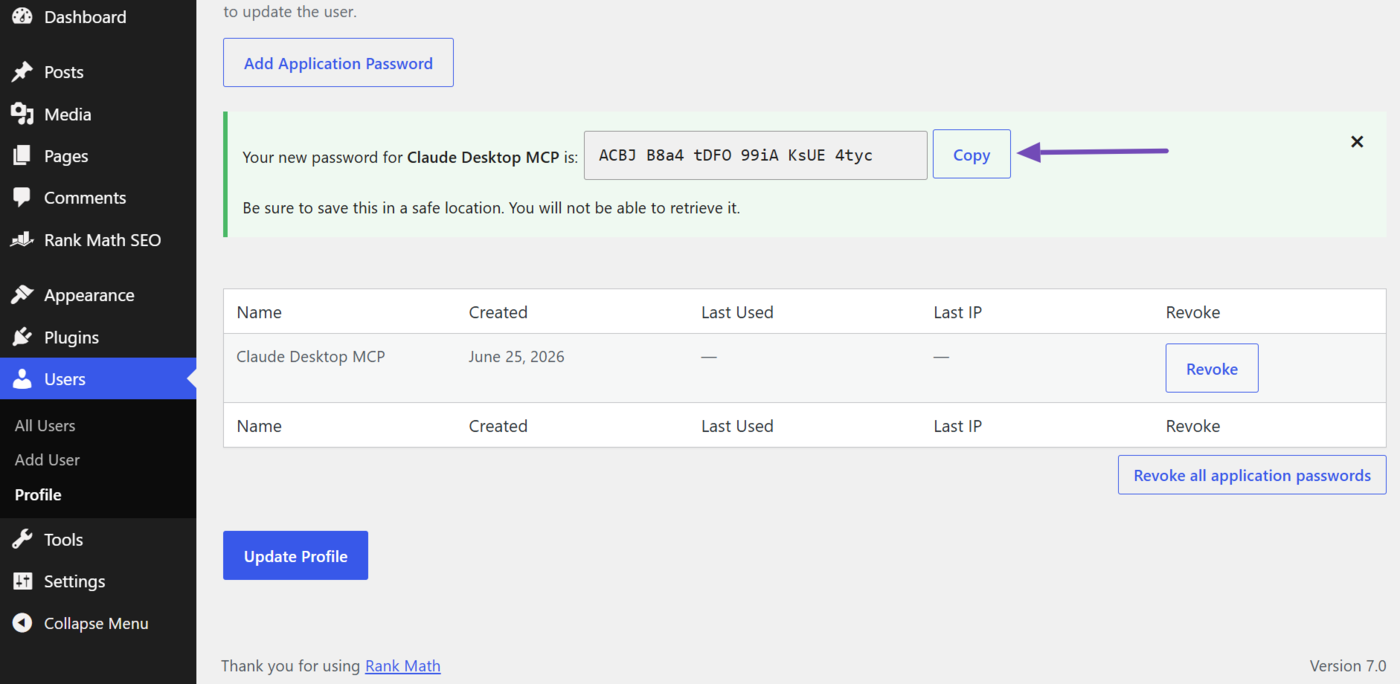
It will display the application password you will use to connect to Claude Desktop. Make sure to click Copy. Also, ensure to save this application password somewhere safe, as WordPress will not show it to you again.
c. Install Claude Desktop App on Your Device
The next step is to download the Claude Desktop app on your device. You can do so here. Once done, log in to your Claude account.
d. Install Node.js on Your Device
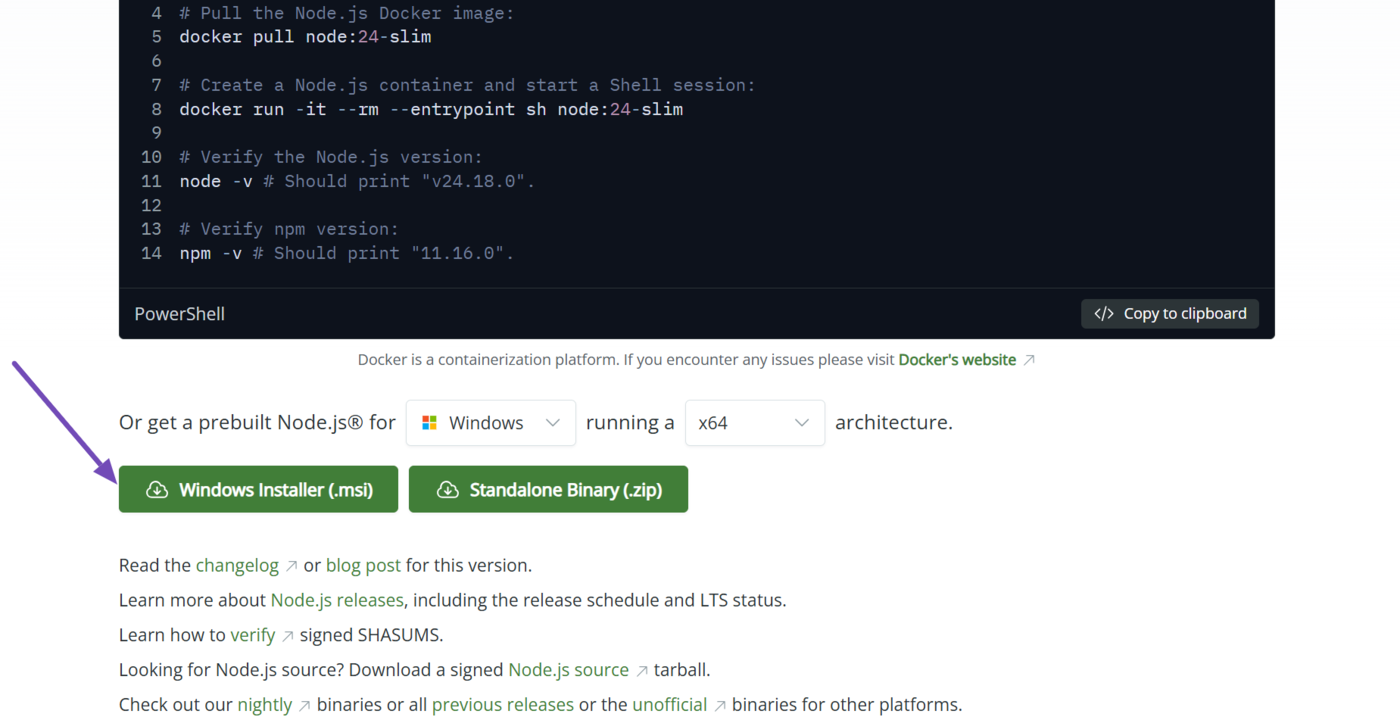
You also need to download Node.js on your device to connect using MCP. You can download Node.js here.
The specific version you download depends on your operating system and CPU architecture. However, the site will typically pre-select your device name and architecture. Review them, and click Windows Installer (.msi) if you use Windows or macOS Installer (.pkg) if you use macOS.
Once done, you can proceed to install the downloaded file on your device.
2.2 Head to the Claude Developer Settings
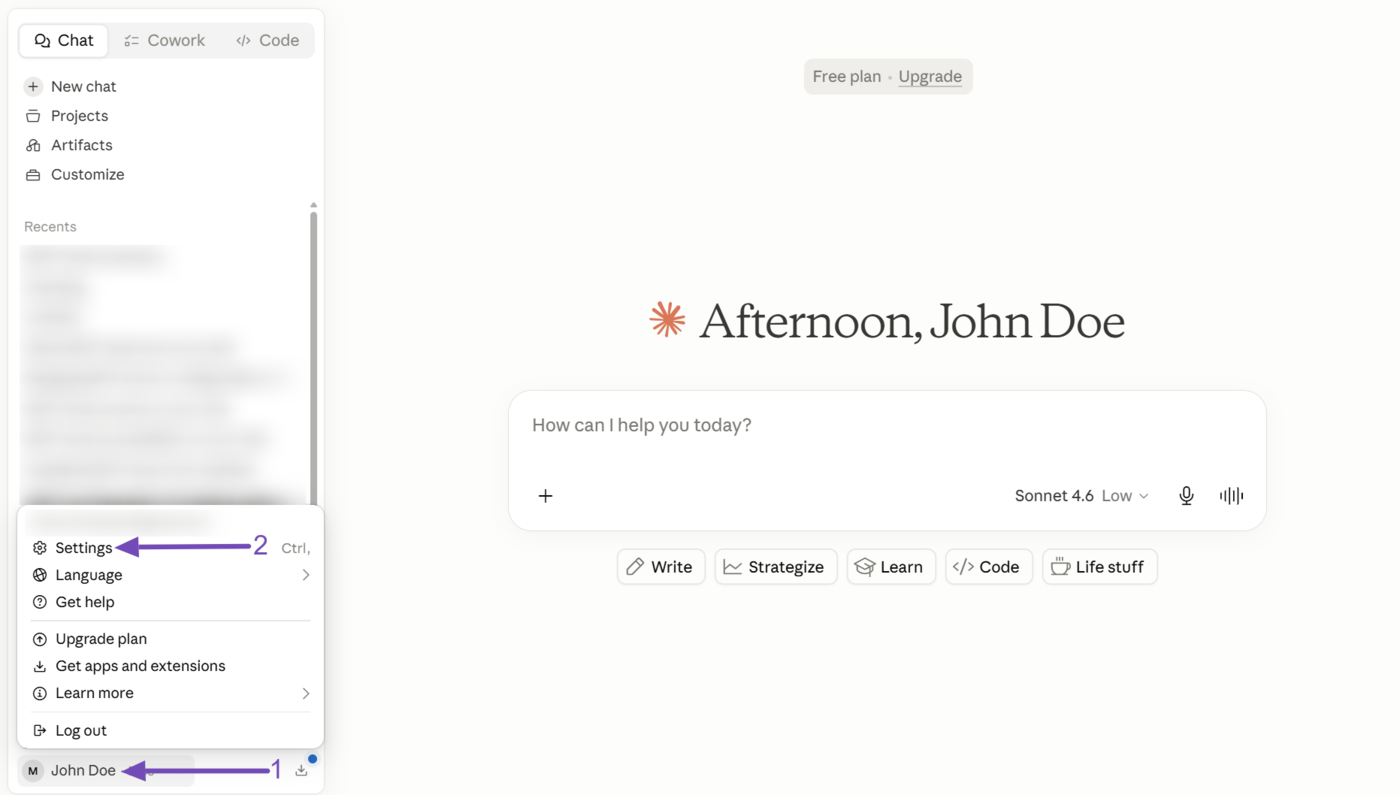
Open Claude Desktop on your device. Now, click on your username and select Settings, as shown below.
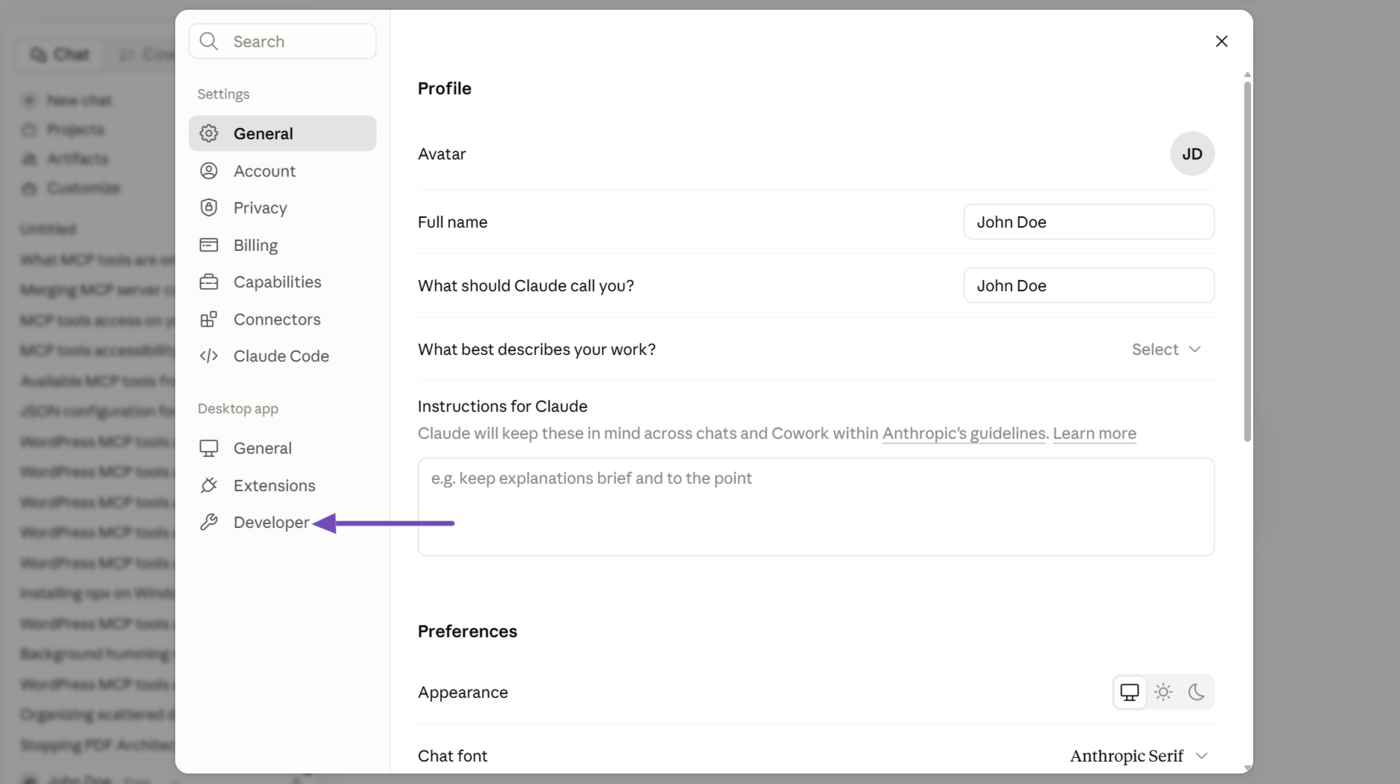
Once done, select Developer.
2.3 Open the Edit Config File in Claude
Now, click Edit Config.
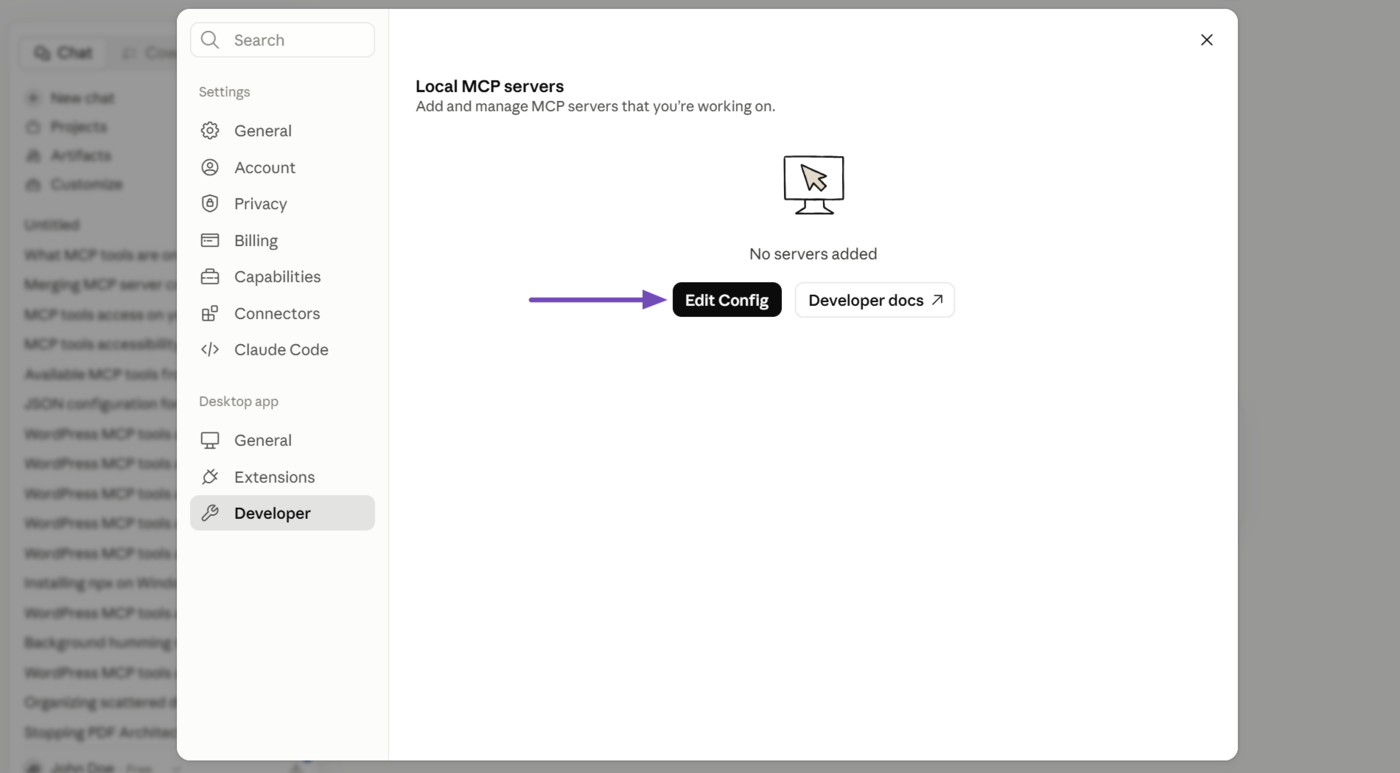
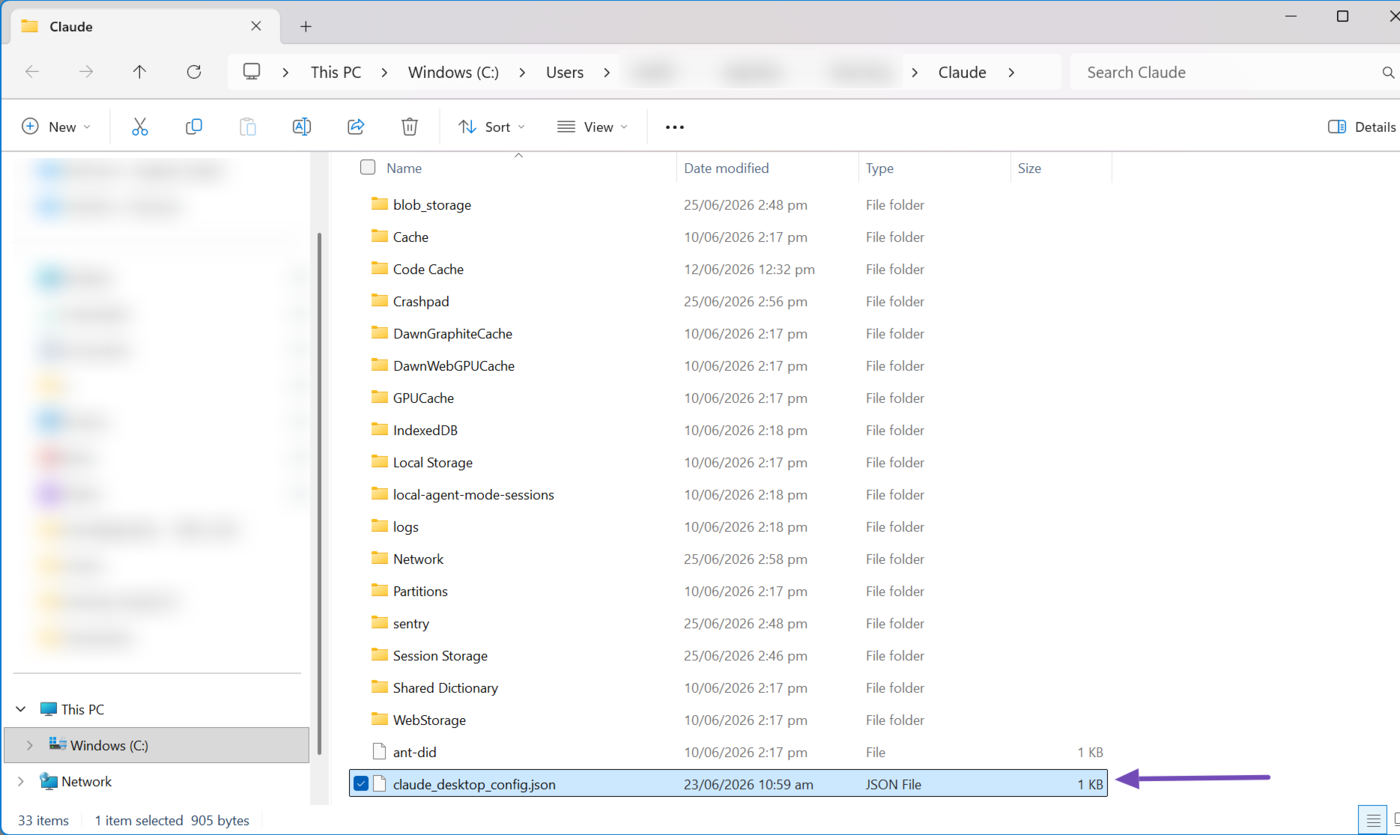
Claude Desktop will open or attempt to open a file named claude_desktop_config.json. You should open the file using a text or code editor, such as Notepad or VS Code.
2.4 Add Your MCP Server Configuration
The next step is to add your WordPress MCP server configuration to the Claude JSON file you just opened. For a start, the claude_desktop_config.json file already has some code. That is normal. Do not delete that code.
Now, copy the MCP server configuration below and add it above the code in the Claude Desktop JSON file. Make sure to format it properly so that the entire code (MCP server configuration and the code you met in the Claude config file) is within the same curly bracket.
{
  "mcpServers": {
    "your-site-url": {
      "type": "stdio",
      "command": "npx",
      "args": [
        "-y", "@automattic/mcp-wordpress-remote@latest"
      ],
      "env": {
        "WP_API_URL": "https://your-site-url/wp-json/mcp/mcp-adapter-default-server",
        "WP_API_USERNAME": "your-wordpress-username",
        "WP_API_PASSWORD": "your-application-password",
        "OAUTH_ENABLED": "false"
      }
    }
  }
}
You should also ensure to replace the following placeholders in the MCP server configuration with the WordPress details you created or copied earlier:
your-site-url— Replace with your site URLyour-wordpress-username— Replace with your WordPress usernameyour-application-password— Replace with your application password
Note: your-website-domain appears twice in the MCP server configuration. You should replace both. Ensure not to include https:// in your site URL, as the MCP server configuration already includes it where required.
The code in the claude_desktop_config.json file should now look like this.
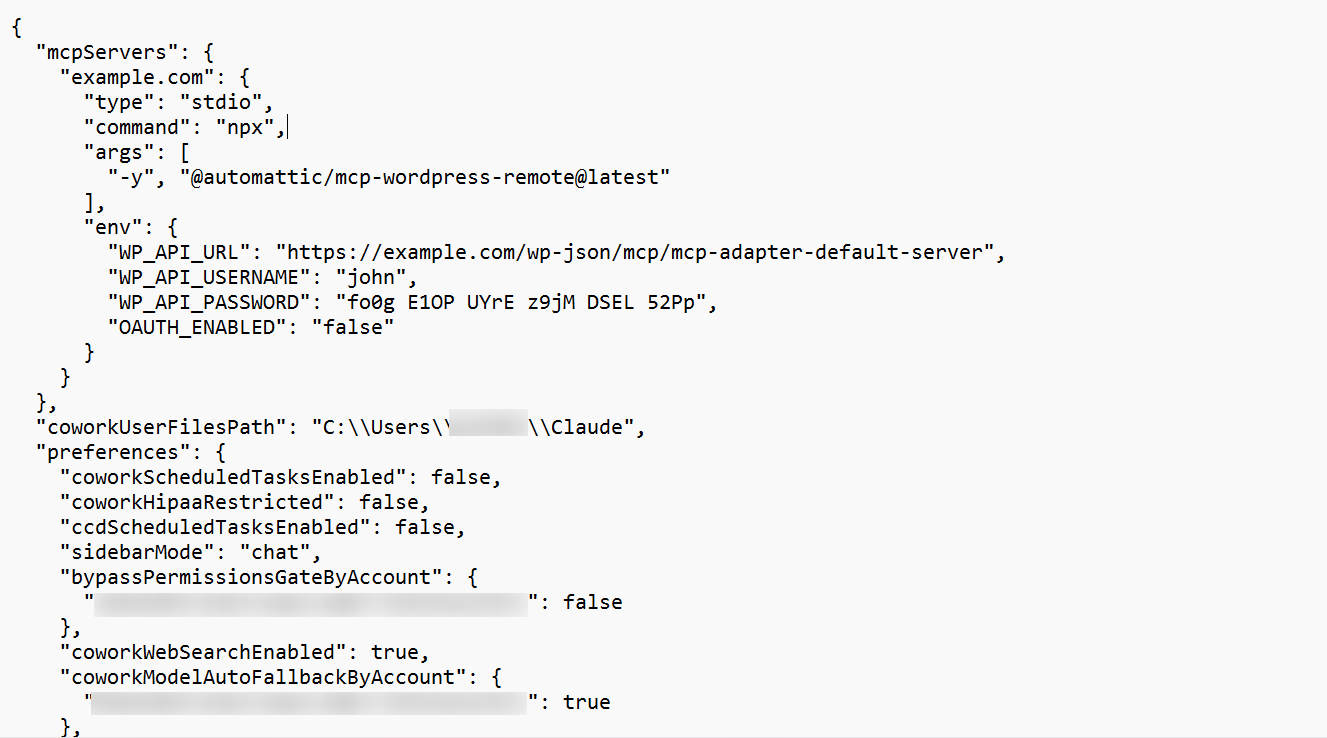
Once done, save the file and restart Claude.
3 View the Available Rank Math MCP Tools
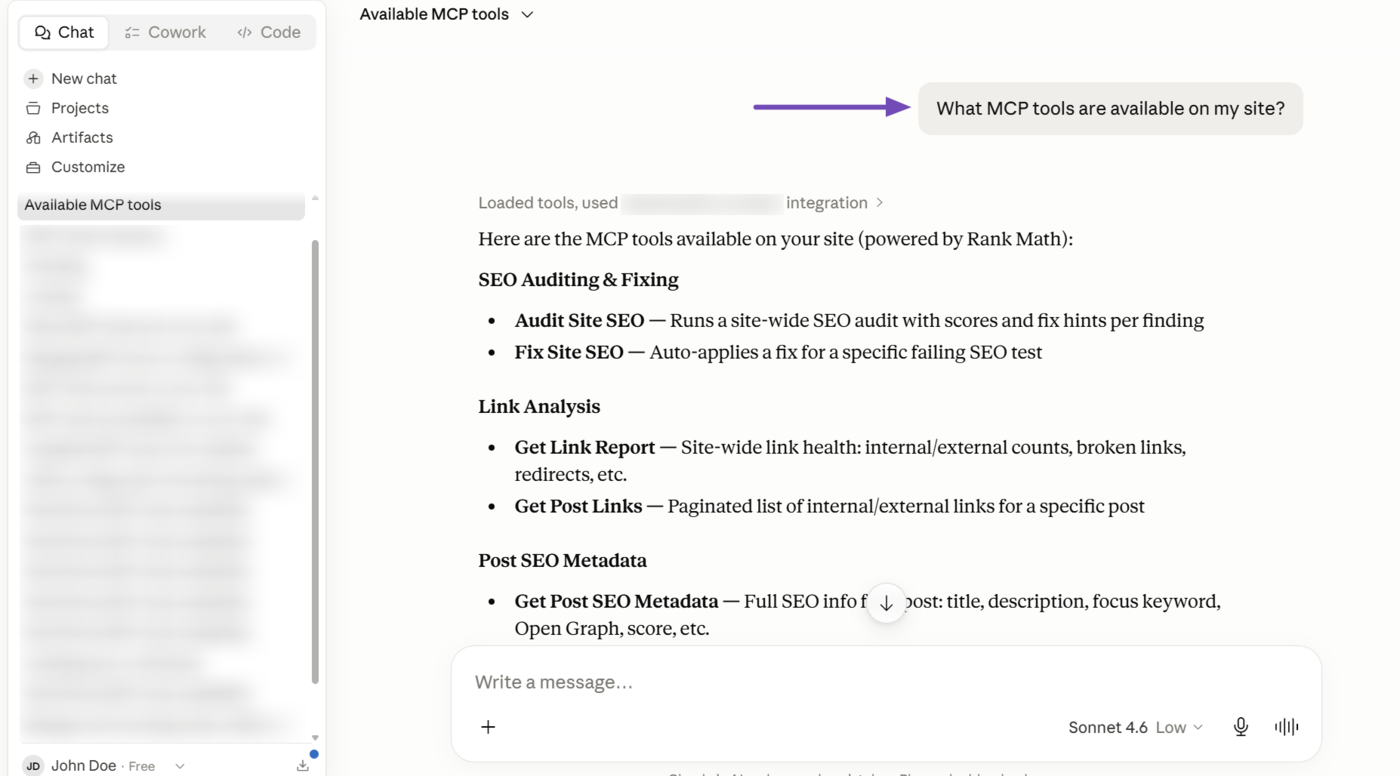
Once you have connected Claude to Rank Math via MCP, you can ask Claude to list the available MCP tools. It will return a response similar to the one shown below.
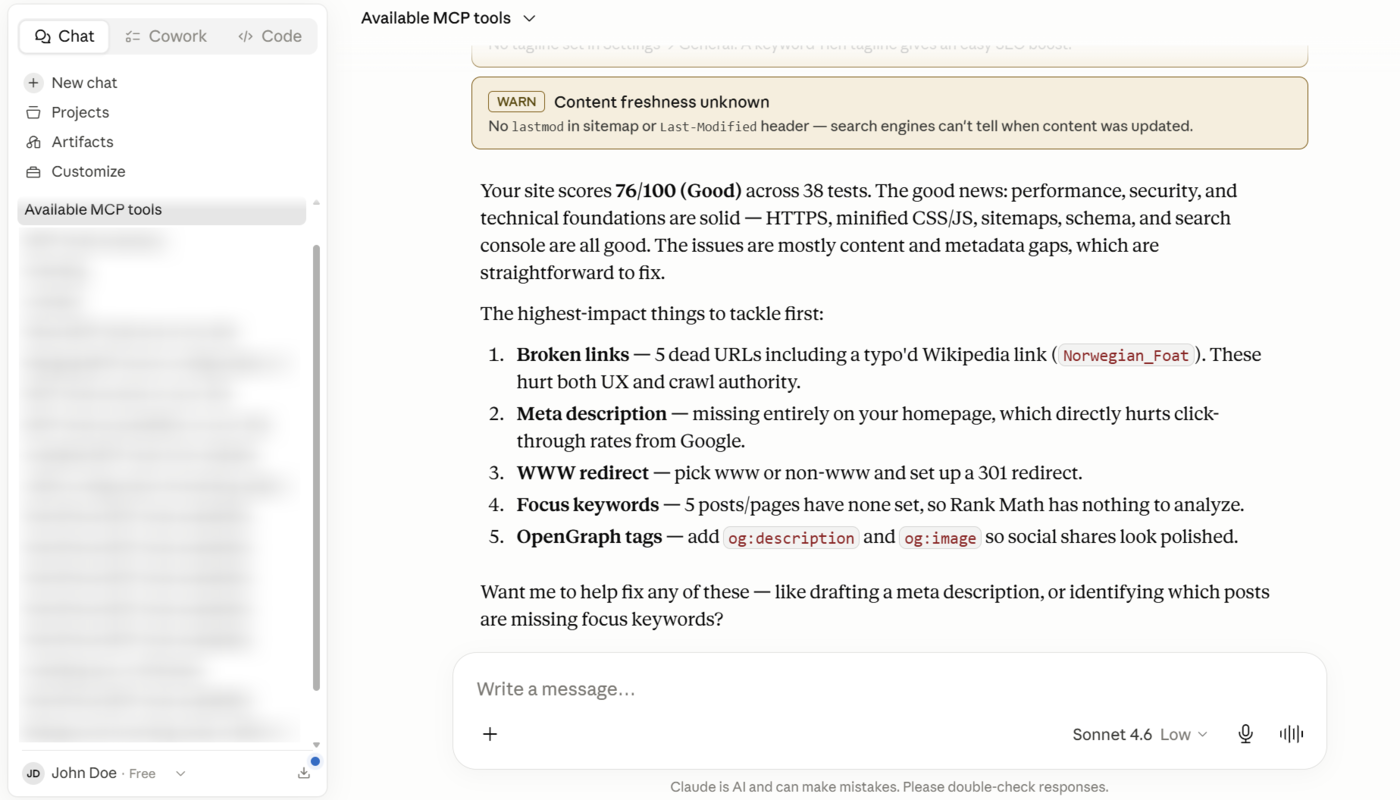
You can also instruct Claude to perform SEO, link analysis, and AI Visibility-related tasks on your site. For example, let us prompt Claude to audit our site’s SEO. It will do so using Rank Math and will return a response, as shown below.
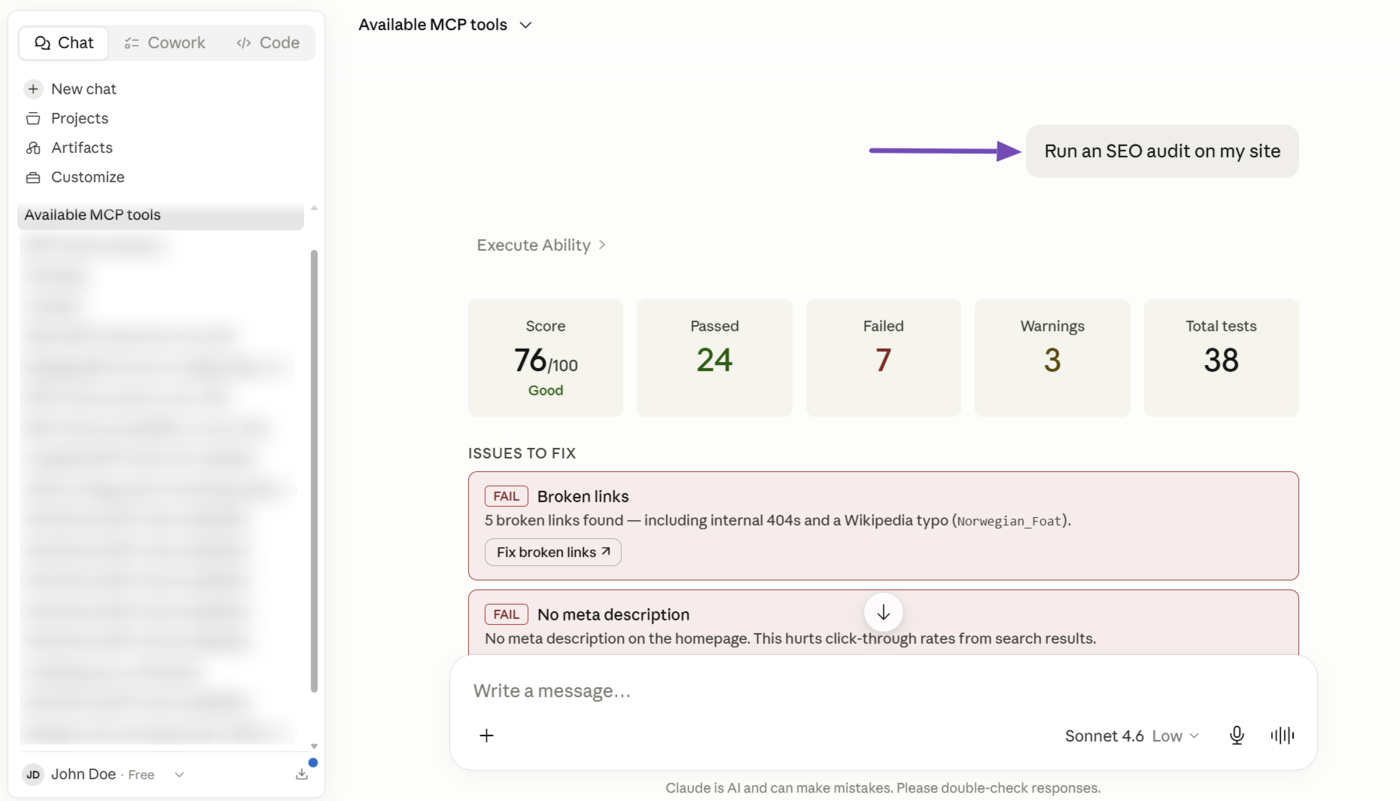
As you can see, its response is comprehensive and shows us issues that failed the test, warnings indicating areas for improvement, and notes on the test it ran.
Rank Math provides multiple MCP tools to perform SEO tasks and manage your WordPress site from Claude. You can refer to this article for a list of the MCP tools available in Rank Math.
You can also refer to this article on optimizing a site using Rank Math MCP.
That is all on connecting Rank Math to Claude using MCP. If you have any questions, you’re always more than welcome to contact our dedicated support team, who are available 24/7, 365 days a year.