
You can access Rank Math’s SEO and AI tools, reports, and features directly within the ChatGPT desktop app. This means that with a prompt or two, you can instruct ChatGPT Chat, Work, or Codex to retrieve reports from Rank Math and even update them, all without logging into WordPress.
To get started, you first need to connect Rank Math to the ChatGPT desktop app using the Model Context Protocol (MCP). In this knowledgebase article, we’ll walk you through the setup step by step.
How to Connect Rank Math to ChatGPT Desktop App Using MCP:
1 Getting Started With Rank Math MCP
To get started, you’ll need to:
- Get your WordPress username
- Create an application password
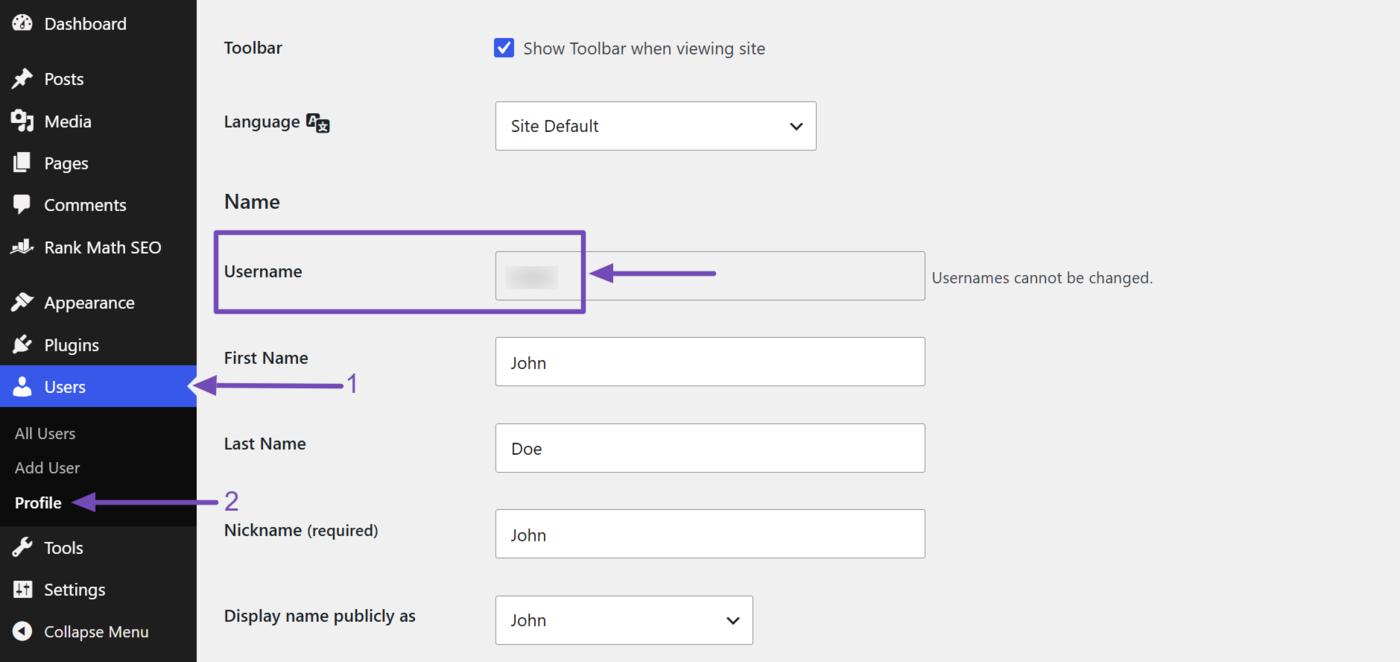
To do that, head to Users → Profile from your WordPress dashboard. Once done, scroll down to the Username field. Your username will be displayed, as shown below. Copy it.
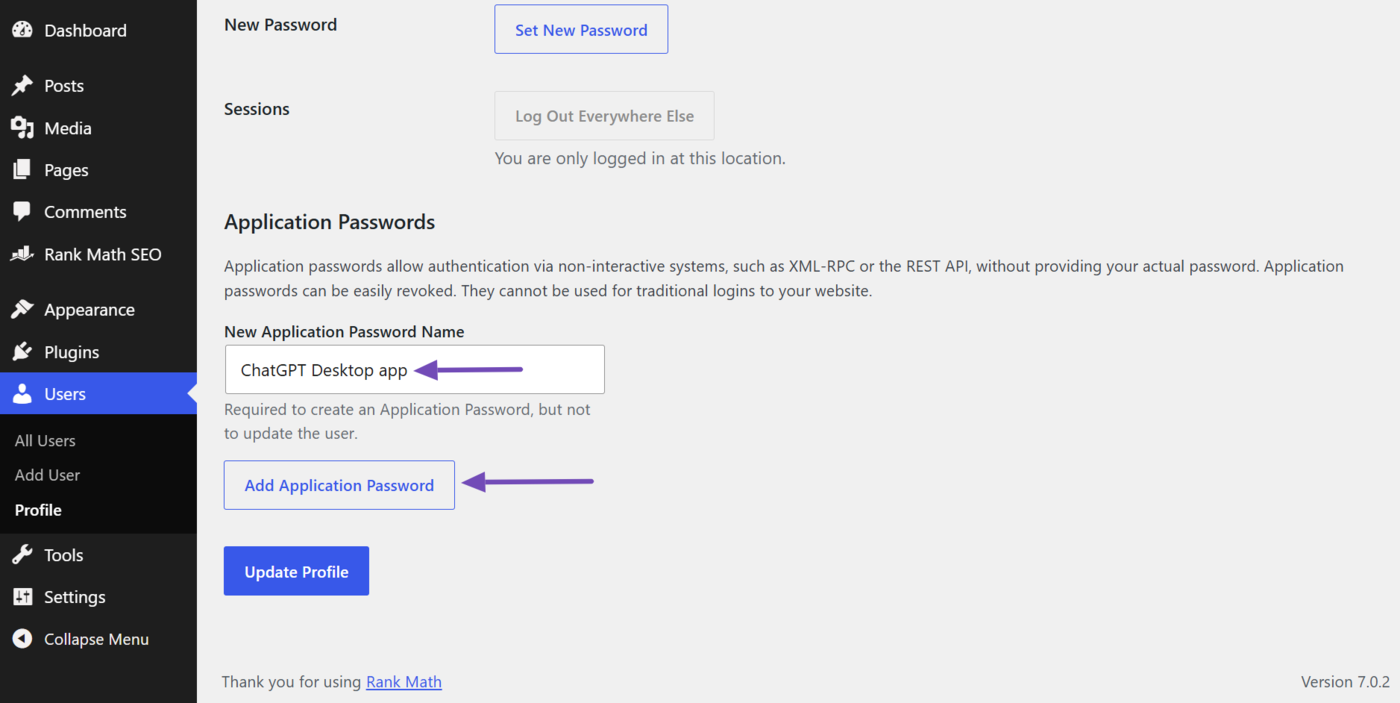
Once done, scroll down to the Application Passwords section. In the New Application Password Name field, enter a name for the application password you are about to create.
Note: Ensure the name is descriptive so you can identify it when you need to review or delete it later.
For this example, let us name it “ChatGPT Desktop app.” Once done, click Add Application Password.
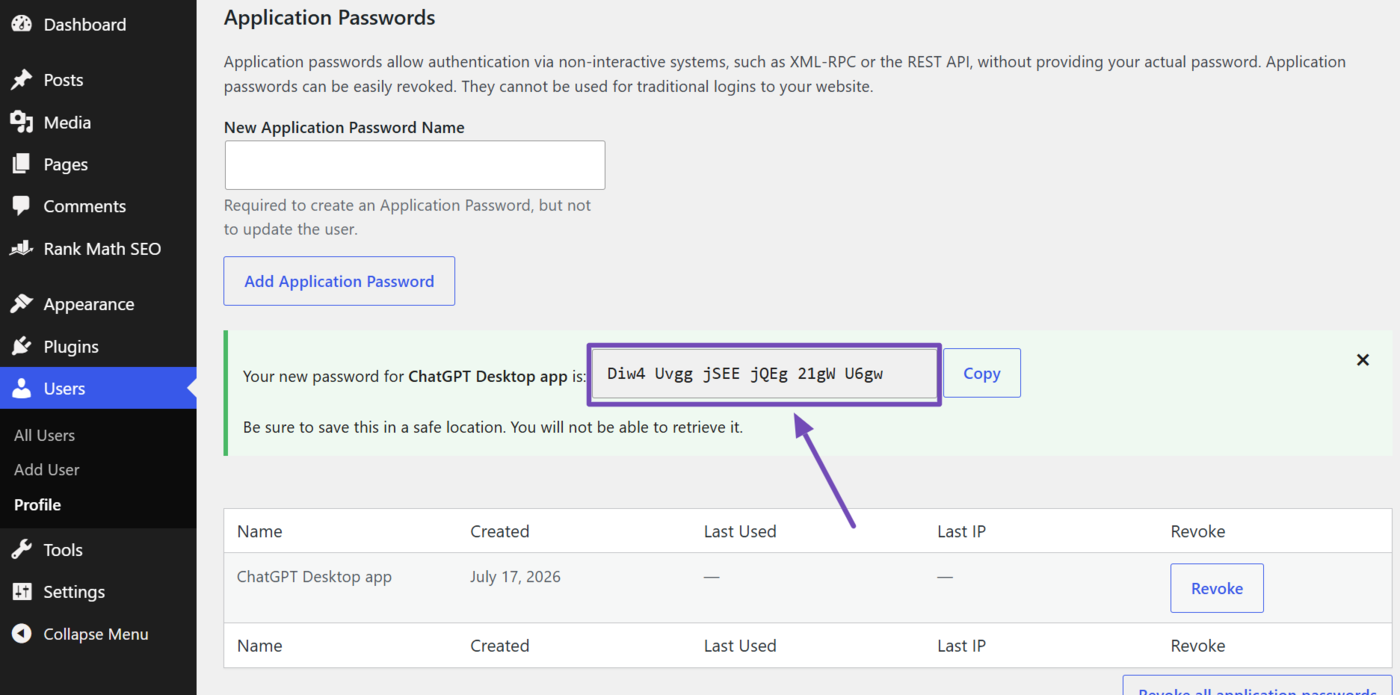
WordPress will generate an application password. Copy and paste it somewhere safe, as WordPress will never show it to you again.
2 Open MCP Servers in ChatGPT Desktop
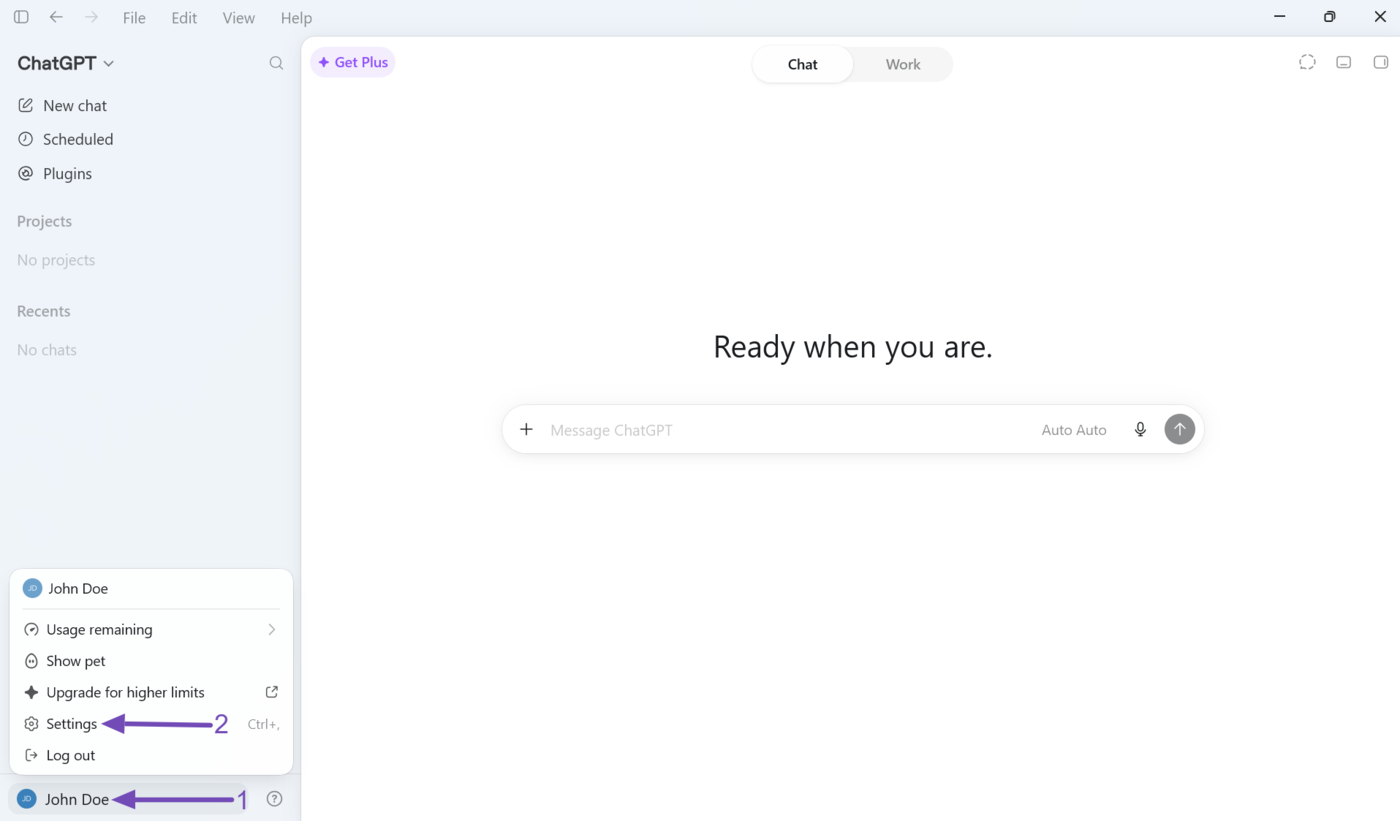
Now, open the ChatGPT desktop app. (You can download it here.) Once done, click your username, and then Settings, as shown below.
Now, head to the Integrations section and click Plugins. Then click MCPs → Add server.
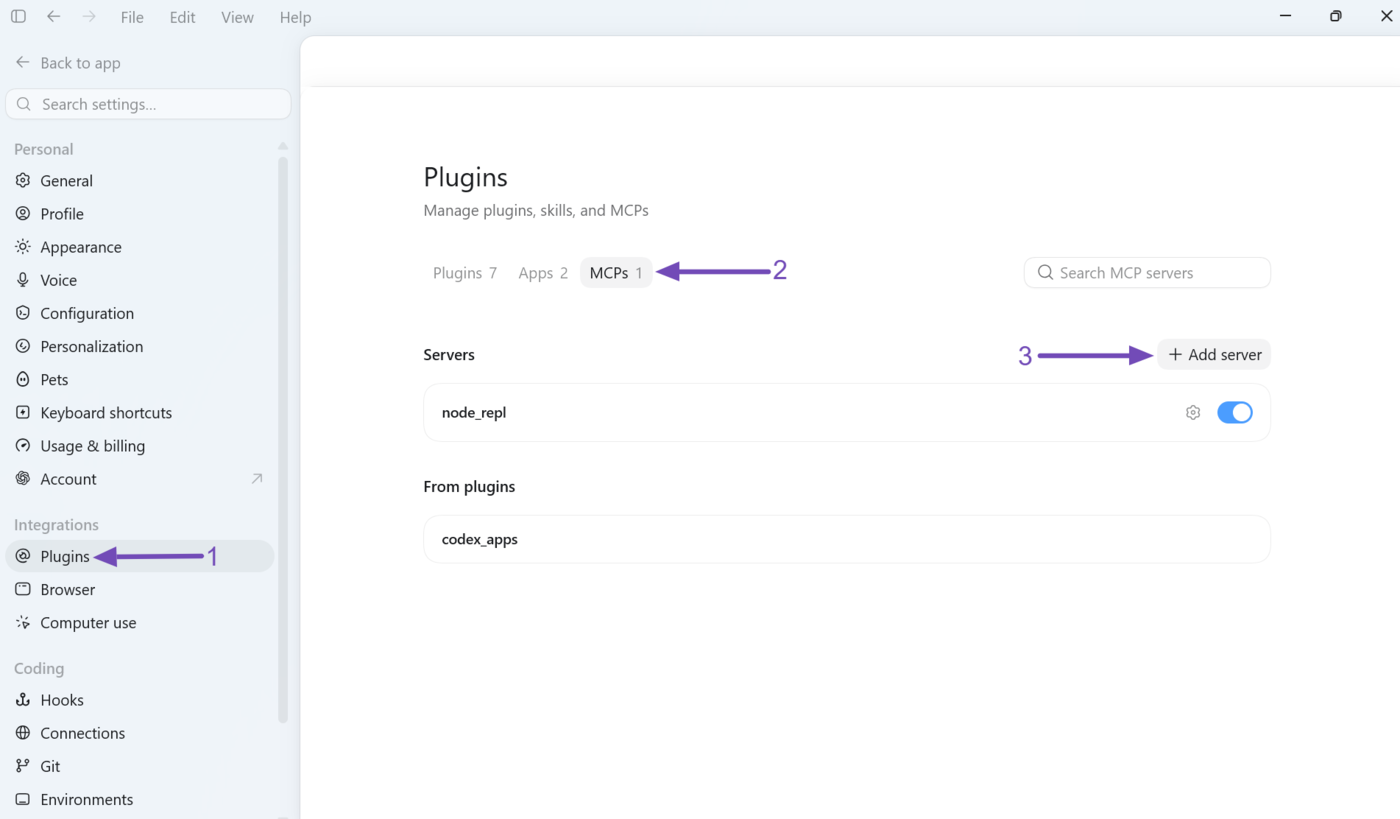
3 Fill in Your MCP Server Settings
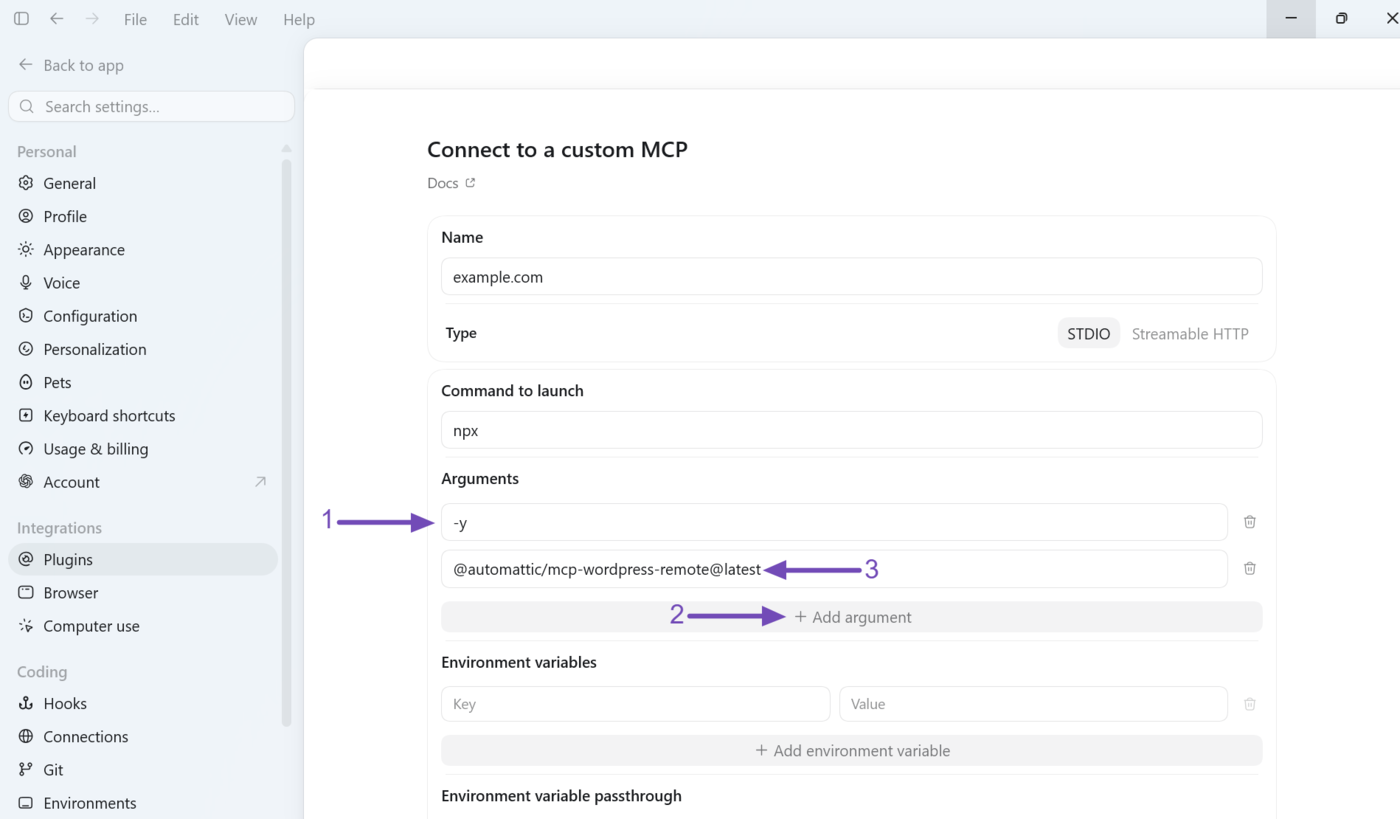
We will now fill in the MCP server settings field after field. In the Name field, enter your WordPress site URL without https://.
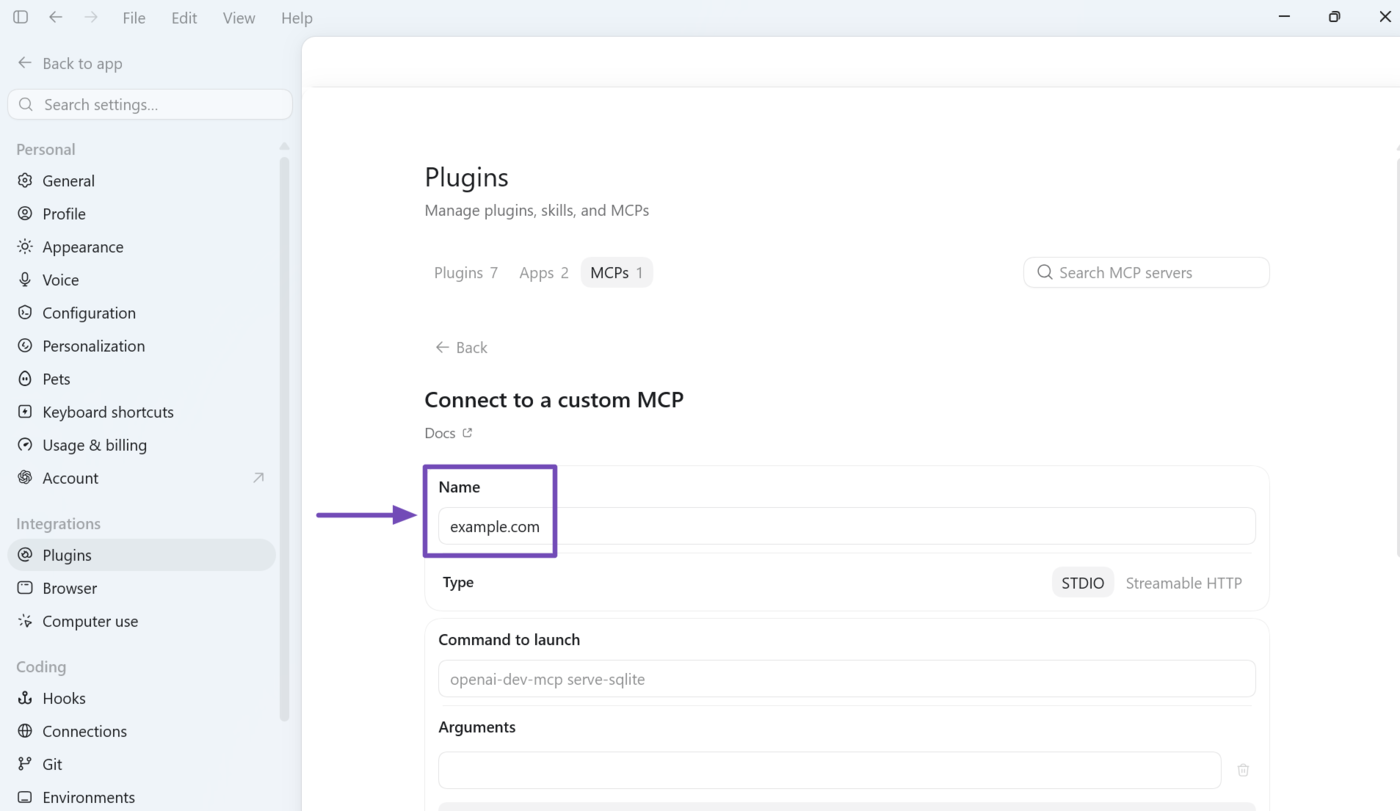
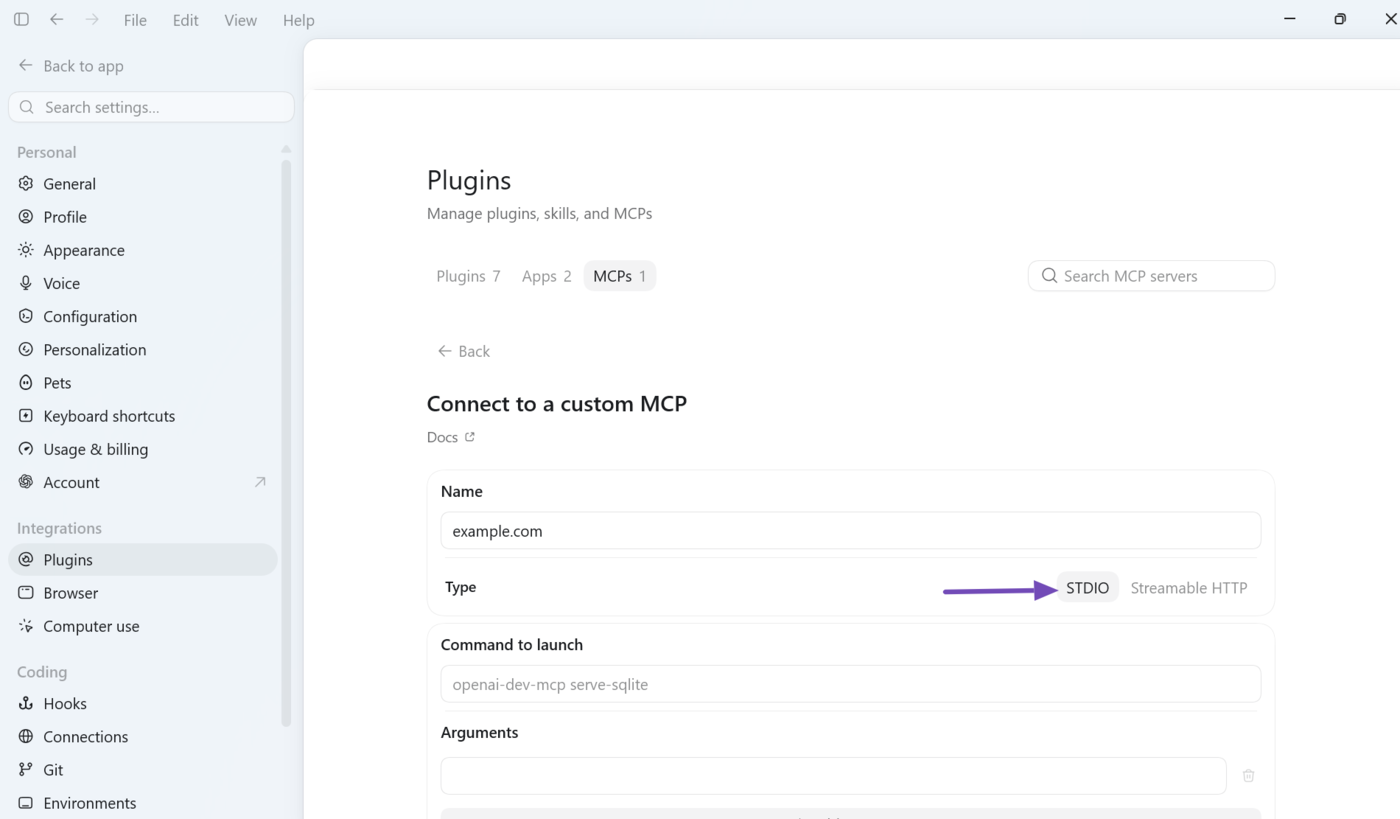
Next are the MCP transport protocols. The available options include STDIO and Streamable HTTP. Select STDIO.
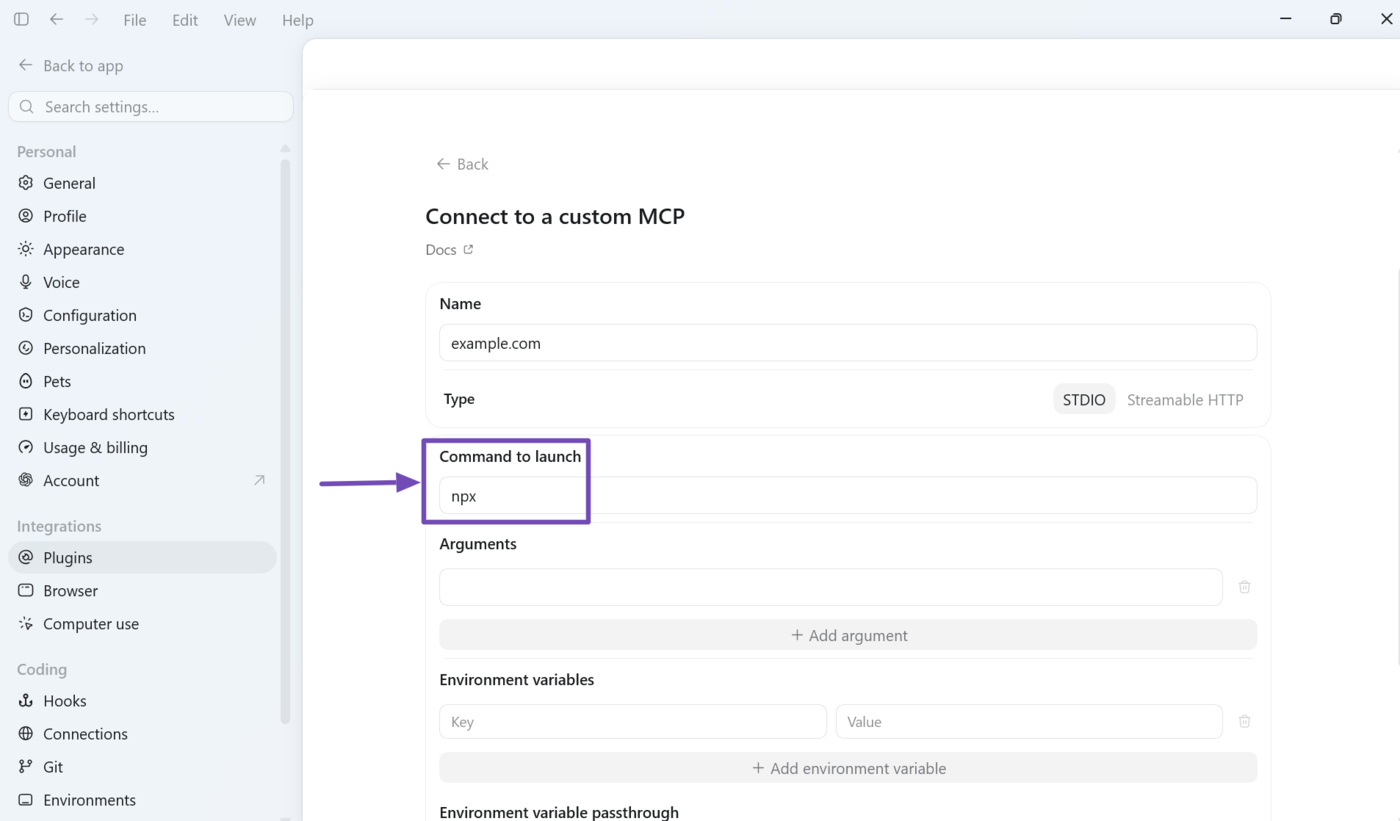
In the Command to launch field, enter npx.
In the Arguments field, enter -y.
Then click Add argument to create a new argument field. Here, enter @automattic/mcp-wordpress-remote@latest.
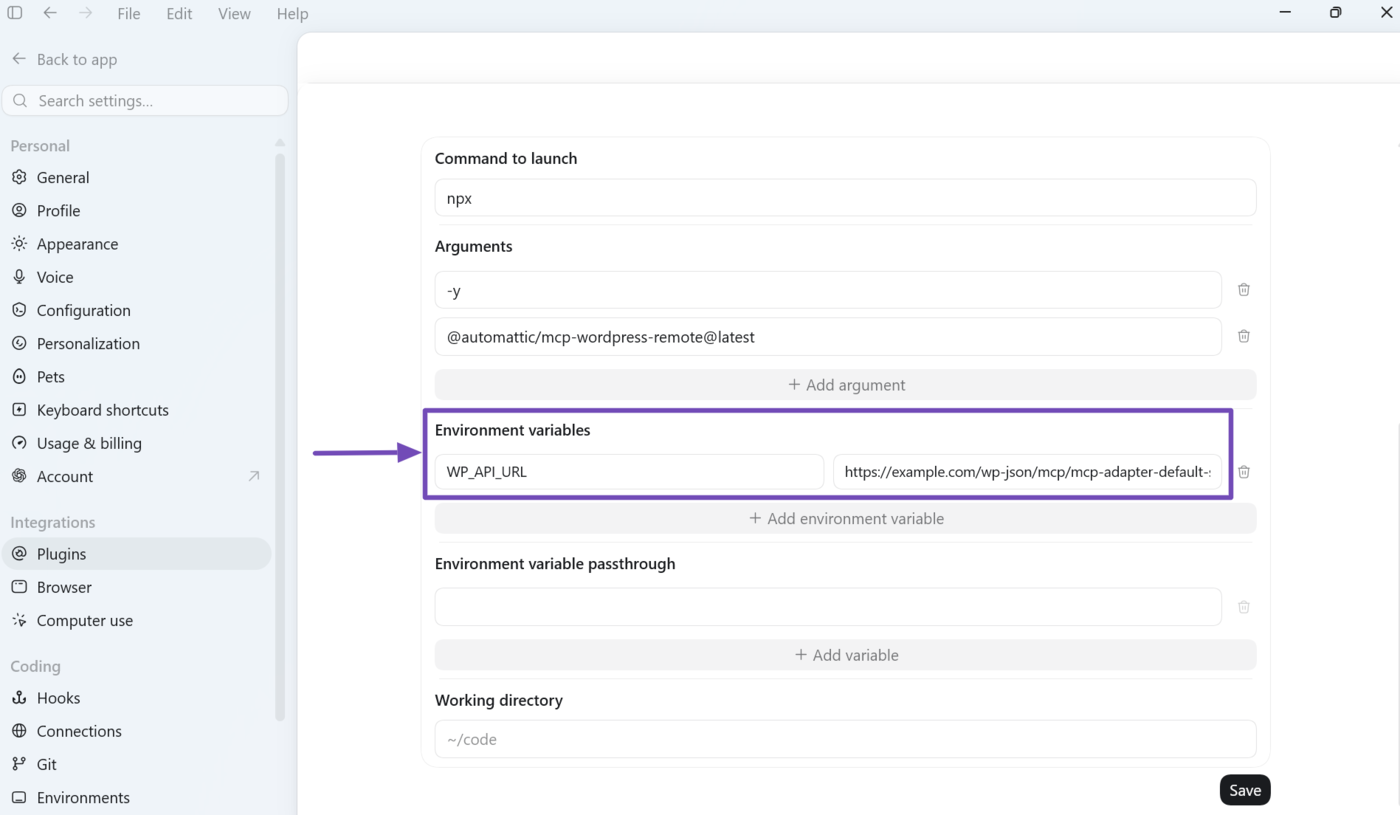
In the Environment variables field, add the following key and value.
- Key:
WP_API_URL - Value:
https://your-site-url/wp-json/mcp/mcp-adapter-default-server
Note: Make sure to replace your-site-url in the value with your site’s URL.
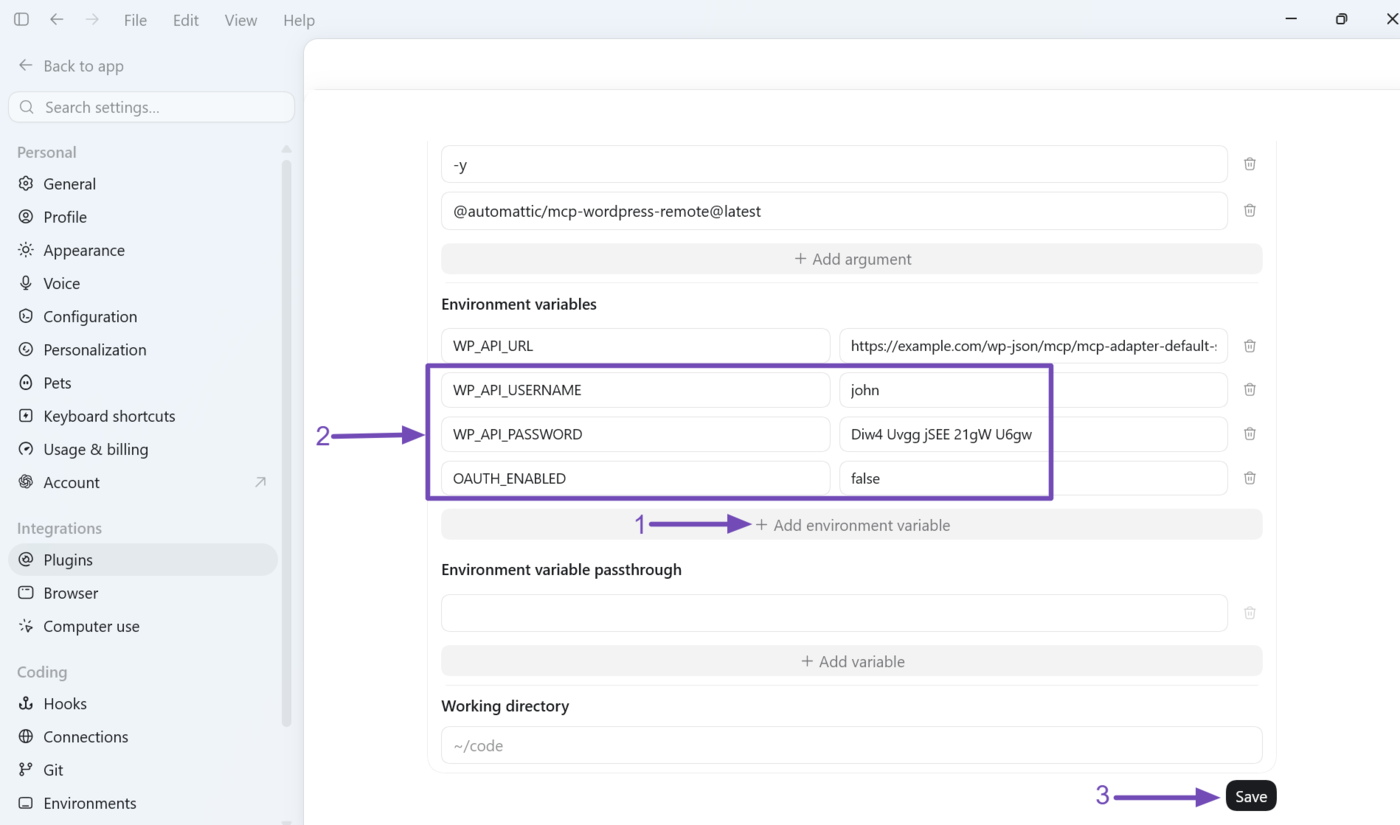
Now, in the same Environment variables field, click on Add environment variable three times. Once done, add the following as key-value pairs.
| Key | Value |
WP_API_USERNAME | Enter your WordPress username here |
WP_API_PASSWORD | Enter your application password here |
OAUTH_ENABLED | false |
Once done, scroll down and click Save.
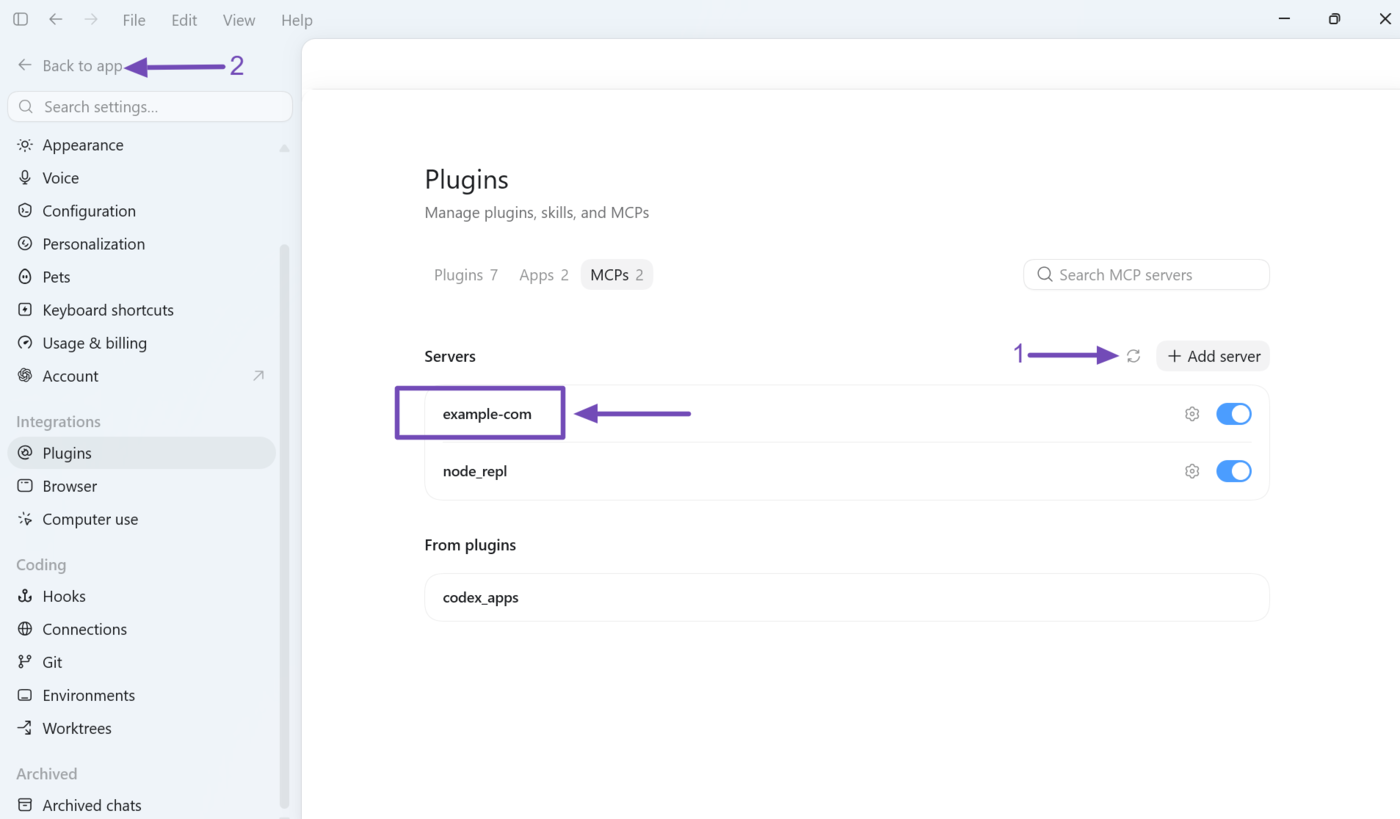
Your MCP server will be added to the ChatGPT desktop app, as shown below. Make sure to click the Refresh icon. Once done, click Back to app to return to the chat dashboard.
4 Verify the MCP Connection
We will now verify that the ChatGPT desktop app is connected to your WordPress site and Rank Math.
To do that, enter a simple prompt such as “What MCP tools are available in my WordPress site?” ChatGPT will return the Rank Math MCP tools available on your site, as shown below.
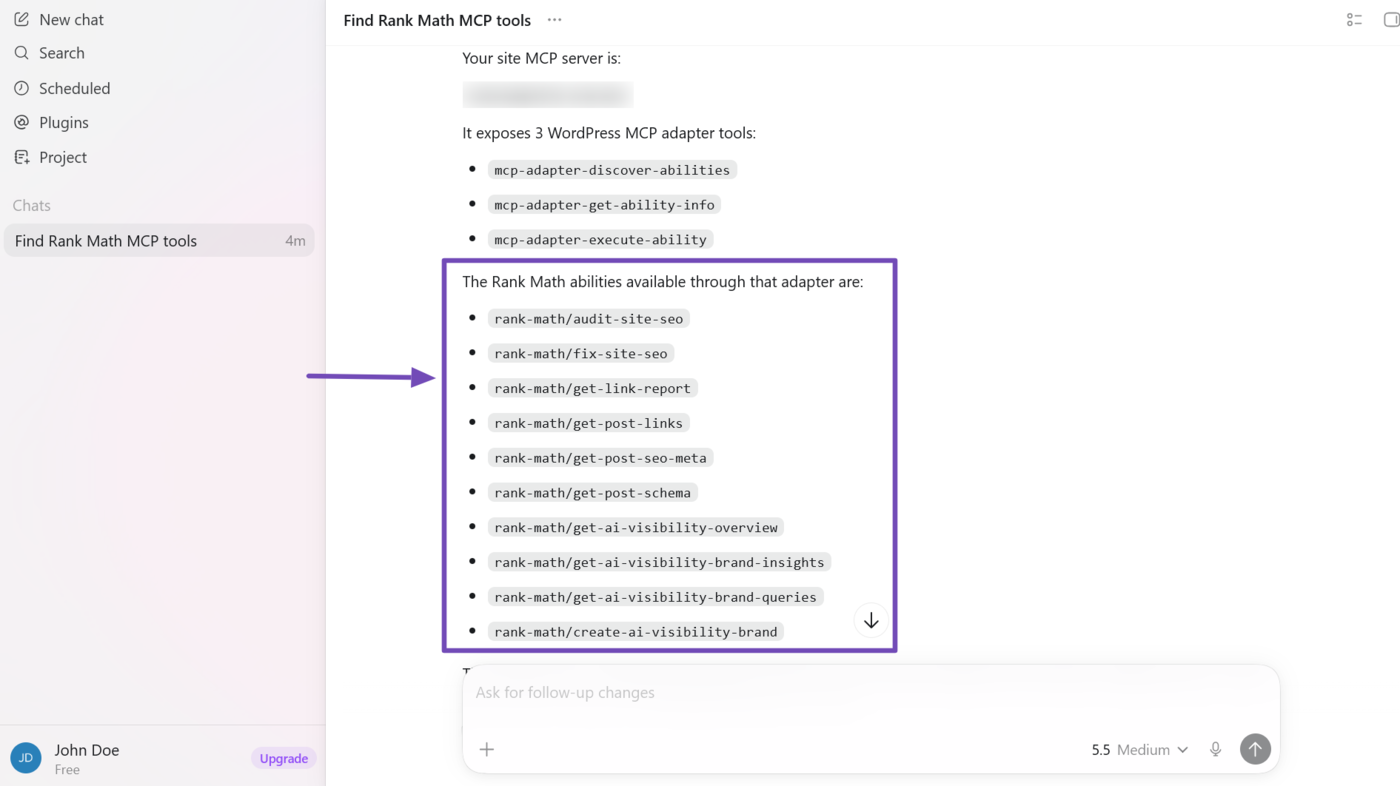
These MCP tools let you access SEO and AI abilities available in Rank Math right from ChatGPT’s chat dashboard. You can refer to this guide for the full list of MCP tools available in Rank Math, along with the SEO and AI tasks you can complete with them.
That is how to connect Rank Math to the ChatGPT desktop app using MCP. If you have any questions, you’re always more than welcome to contact our dedicated support team, who are available 24/7, 365 days a year.