
What Is Google’s AI Mode?
AI Mode is a Google Search feature that uses generative AI to provide answers to a user’s query.
AI Mode transforms Google Search into an answer engine that delivers in-depth responses to search terms. It not only provides answers to a user’s query, but also anticipates and includes answers to follow-up questions that the user might ask.
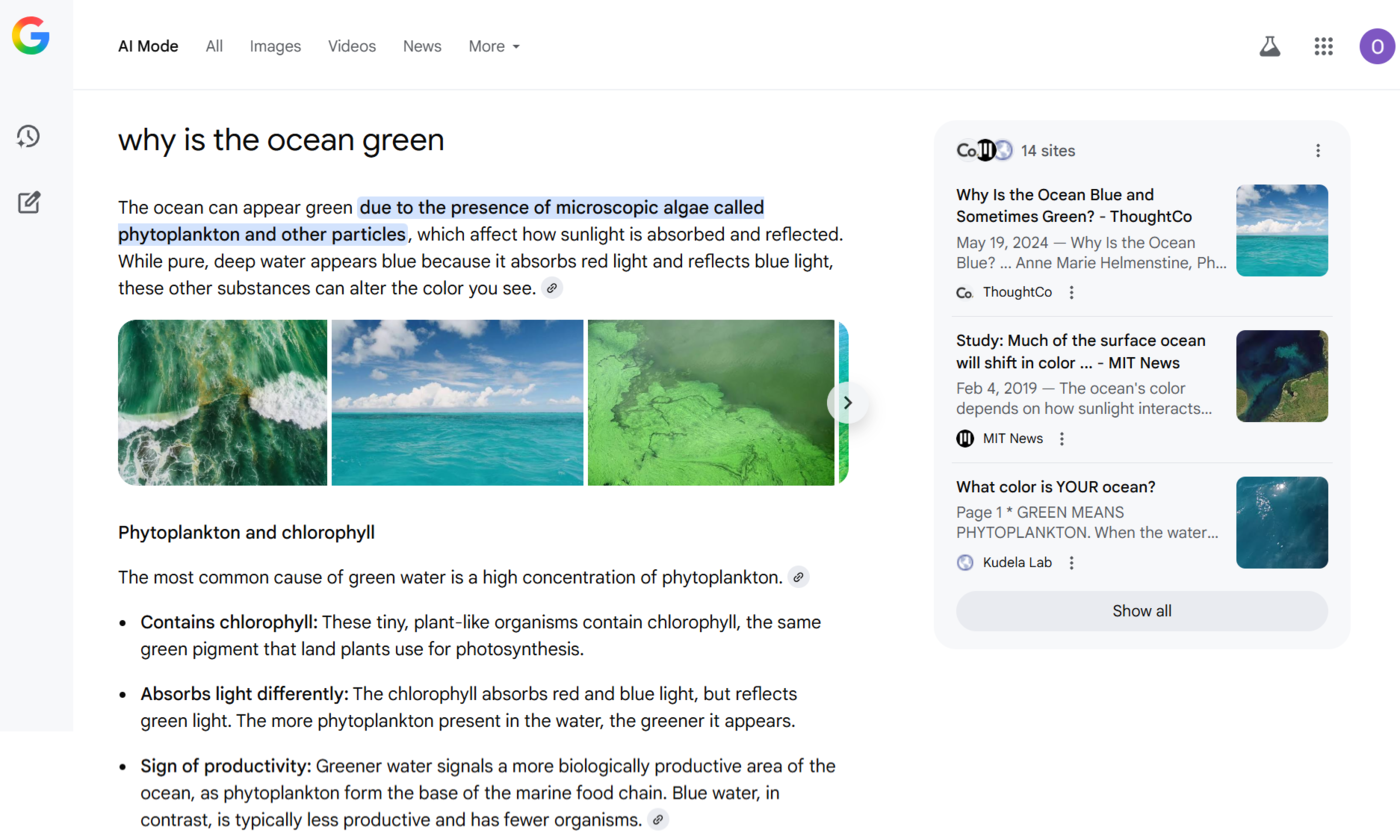
Google AI Mode is more comprehensive than similar generative AI features, such as AI Overviews. This makes it a more direct competitor to answer engines like Perplexity AI and AI chatbots with answer engine capabilities, such as ChatGPT Search.
Google AI Mode is powered by the Google Gemini large language model (LLM), which also powers the Gemini AI chatbot and AI Overviews.
Talking of AI Overviews, AI Mode is an upgrade and expansion of AI Overview, which displays AI-generated summaries on Google search results pages. For example, this is what AI Overviews look like on Google results pages.
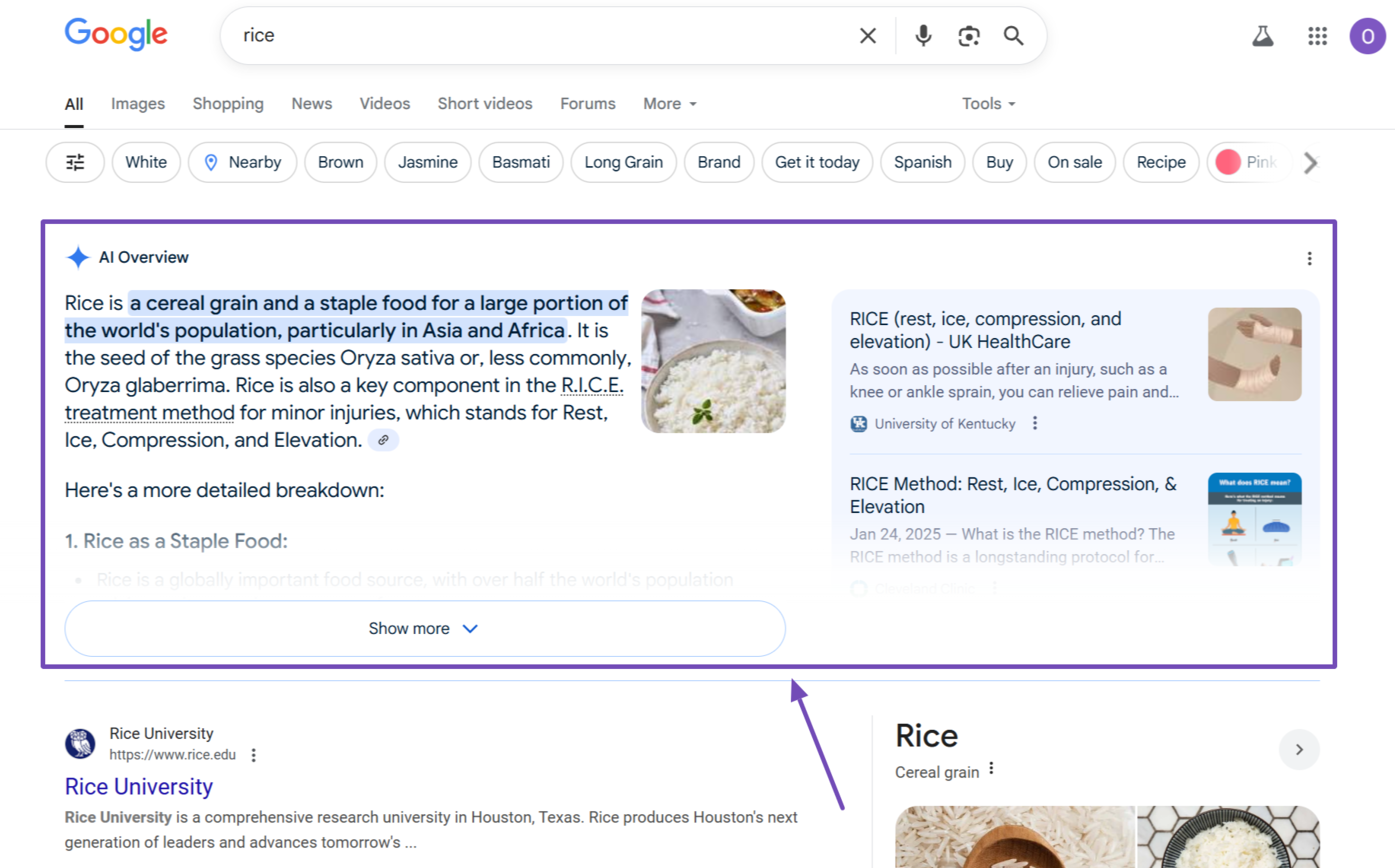
However, AI Mode is more comprehensive. It is not a search results page feature like AI Overviews but an AI-powered search engine that is largely independent of the traditional Google search results page.
Google released AI Mode in March 2025. Its release was limited to the United States and was available only in English. It was later expanded to 180+ countries in August 2025.
In this article, we’ll cover:
Google AI Mode vs. AI Overviews vs. Gemini
Google AI Mode, AI Overviews, and Gemini are three generative AI features and products owned by Google and powered by the Gemini large language model. However, they serve different purposes:
- Google AI Mode is an answer engine built directly into Google Search
- AI Overviews is a search results feature that summarizes information related to a user’s query
- Gemini is an AI chatbot designed for general queries and productivity tasks
AI Overviews and AI Mode are both AI search experiences.
In all, AI Mode is the closest to a regular search engine. We should also remember that it is an expansion of AI Overviews. Google has also confirmed that it will extend multiple AI Mode features and capabilities to the core search experience in the future.
What’s New in Google AI Mode
The primary benefit of the Google AI Mode is its ability to improve and supercharge the results Google returns for your search queries. It provides more in-depth and relevant results than a Google results page. However, it also provides Google and their users with some new capabilities.
The primary benefit of Google AI Mode is its ability to improve and enhance the results Google returns for your search queries. It provides more in-depth and relevant information than a standard Google results page. In addition, it also offers Google and its users several new capabilities.
1 It Transforms Google into an Answer Engine
Instead of just acting like a regular search engine with AI features (which AI Overviews does), AI Mode transforms Google into an AI-powered search engine, also known as an answer engine.
This means that AI Mode can perform tasks that exceed the capabilities of regular Google Search. For instance, they can answer complex queries and provide responses to questions related to math and coding.
This makes AI Mode Google’s equivalent of answer engines like Perplexity AI. Many also consider AI Mode a direct competitor to ChatGPT, particularly its search feature, which allows ChatGPT to function like an answer engine.
2 It Can Function as an AI Assistant
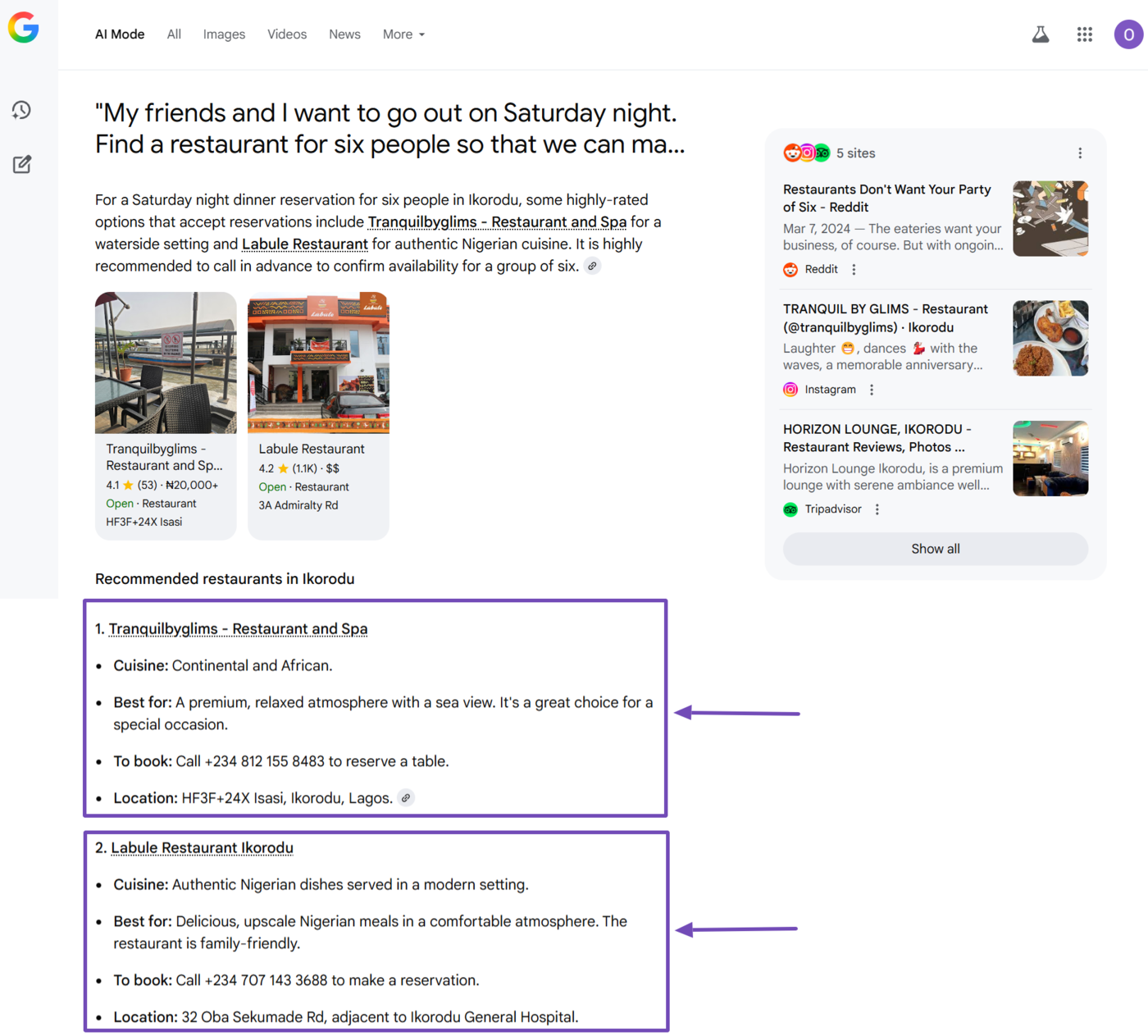
Aside from serving as an answer engine, AI Mode integrates with multiple Google products, including Google Shopping and Google Maps. This allows it to perform additional tasks, such as finding restaurant reservations.
For instance, you can enter a prompt like this into Google AI Mode:
“My friends and I want to go out on Saturday night. Find a restaurant for six people so that we can make a reservation.”
In response, AI Mode will find a relevant restaurant along with links to their reservation page.
3 It Allows Multiple Users to Collaborate on a Search
AI Mode allows you to return to your conversation. Unlike regular Google searches, where each new query is typically treated as a distinct experience, AI Mode will enable you to continue the same search later.
AI Mode also introduces collaborative capabilities to the search experience. This means you send the links of your AI Mode search to your friends, and they can continue where you stopped.
With that said, AI Mode, like all other answer engines and AI chatbots, is undergoing continuous improvements and refinements, which can change its features, appearance, and capabilities over time.
How Google AI Mode Works
AI Mode introduces new methods to ensure it delivers high-quality responses to your queries. Two of these methods include:
- Query fan-out
- Visual fan-out
Let’s discuss both below and show you how they improve AI Mode’s responses.
1 Query Fan-Out
Google AI Mode works by expanding a search query into multiple sub-queries, which it then answers collectively as a single result. This technique is known as query fan-out.
Query fan-out is the process by which AI Mode breaks a user’s question into multiple smaller, but related, sub-queries. AI Mode then generates responses to these sub-queries and combines them into a single result, which it returns to the user.
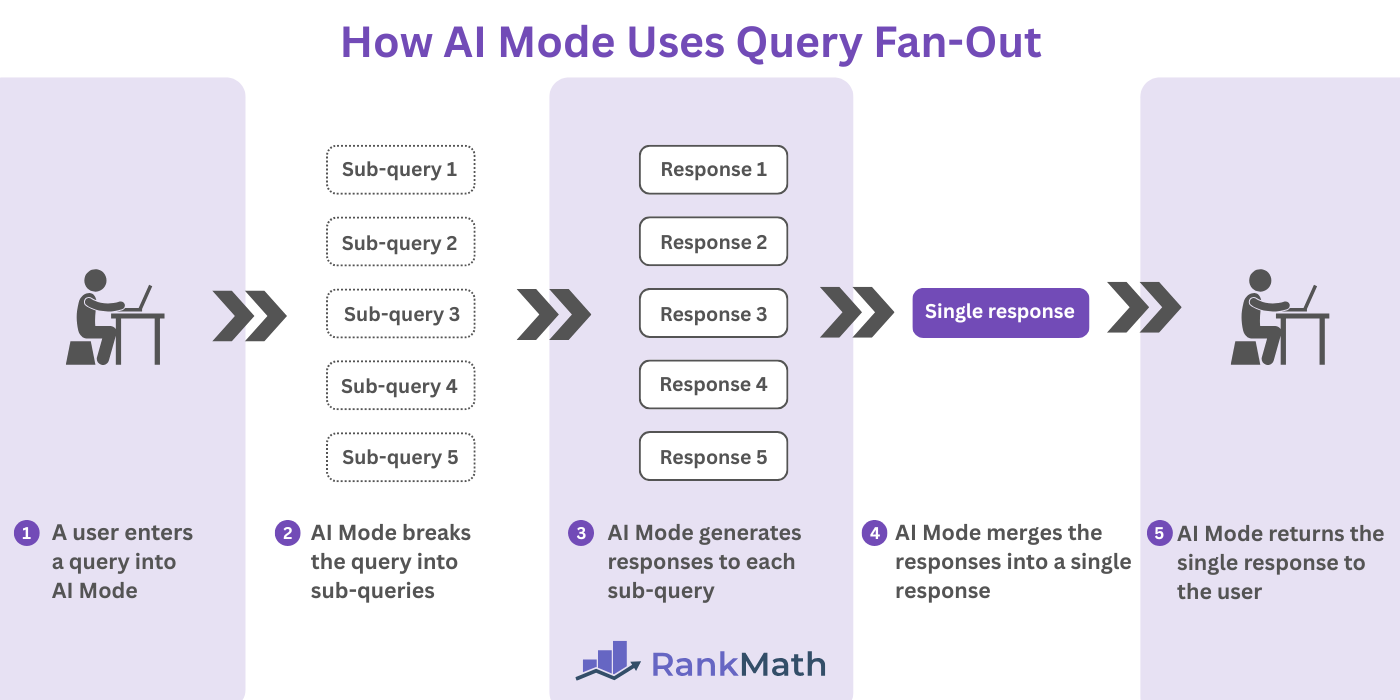
Query fan-out allows AI Mode to provide comprehensive and in-depth answers to its users. For example, let us assume a person is new to yoga. So, they enter a query like “I am new to yoga. What do I need to know?” into Google AI Mode.
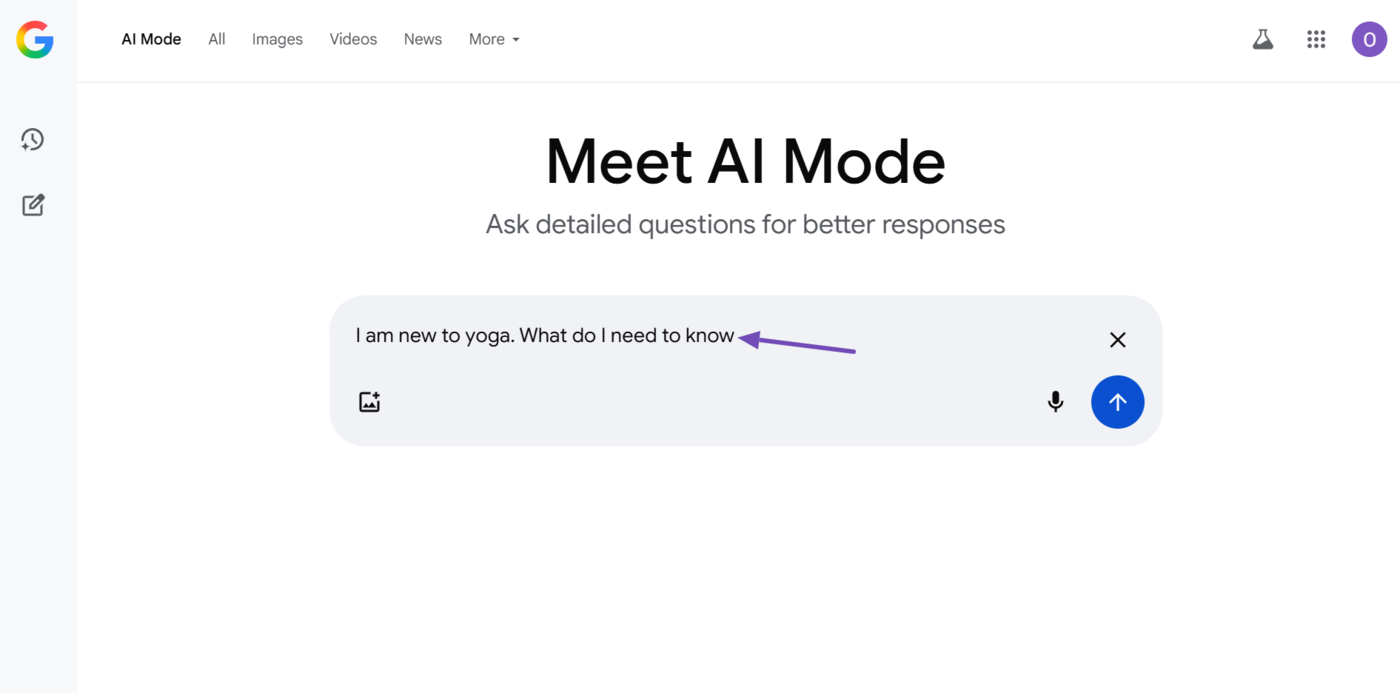
AI Mode will then break this query into relevant and related sub-queries, such as:
- How do I get started with yoga
- What do I wear for yoga
- What are some basic yoga etiquette
- What are some common yoga terms
- What are the benefits of yoga
AI Mode will then include responses to these subqueries in its response: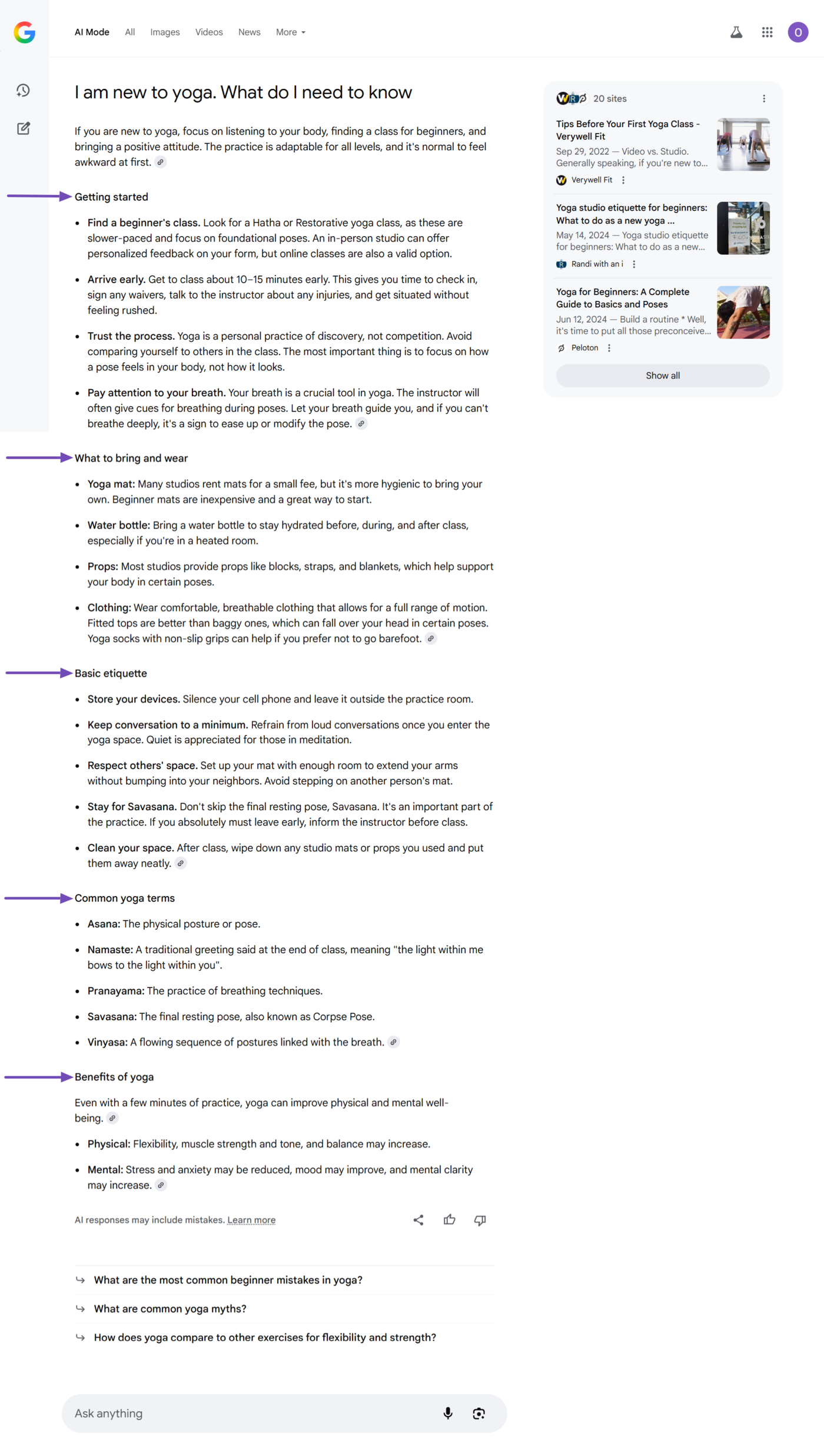
2 Visual Fan-Out
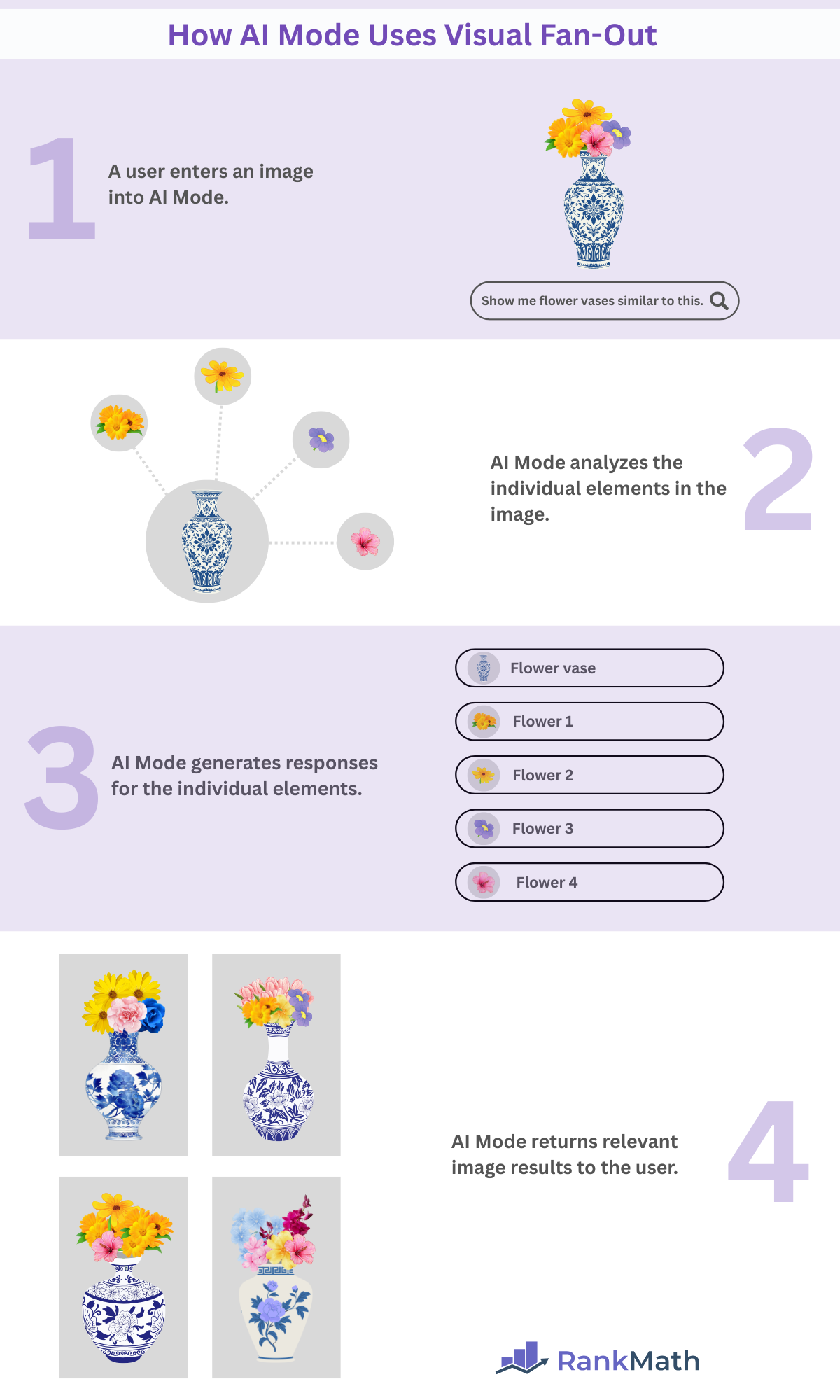
Visual fan-out is a search technique where Google breaks down an image query into multiple sub-queries to better understand its different elements. It then returns multiple relevant images in response.
Visual fan-out is an update to the query fan-out technique. The difference is that while the query fan-out technique is for text, the visual fan-out technique is for images.
When you submit an image in AI Mode, Google analyzes different elements of the image and expands them into multiple sub-queries. It then returns relevant images in its response.
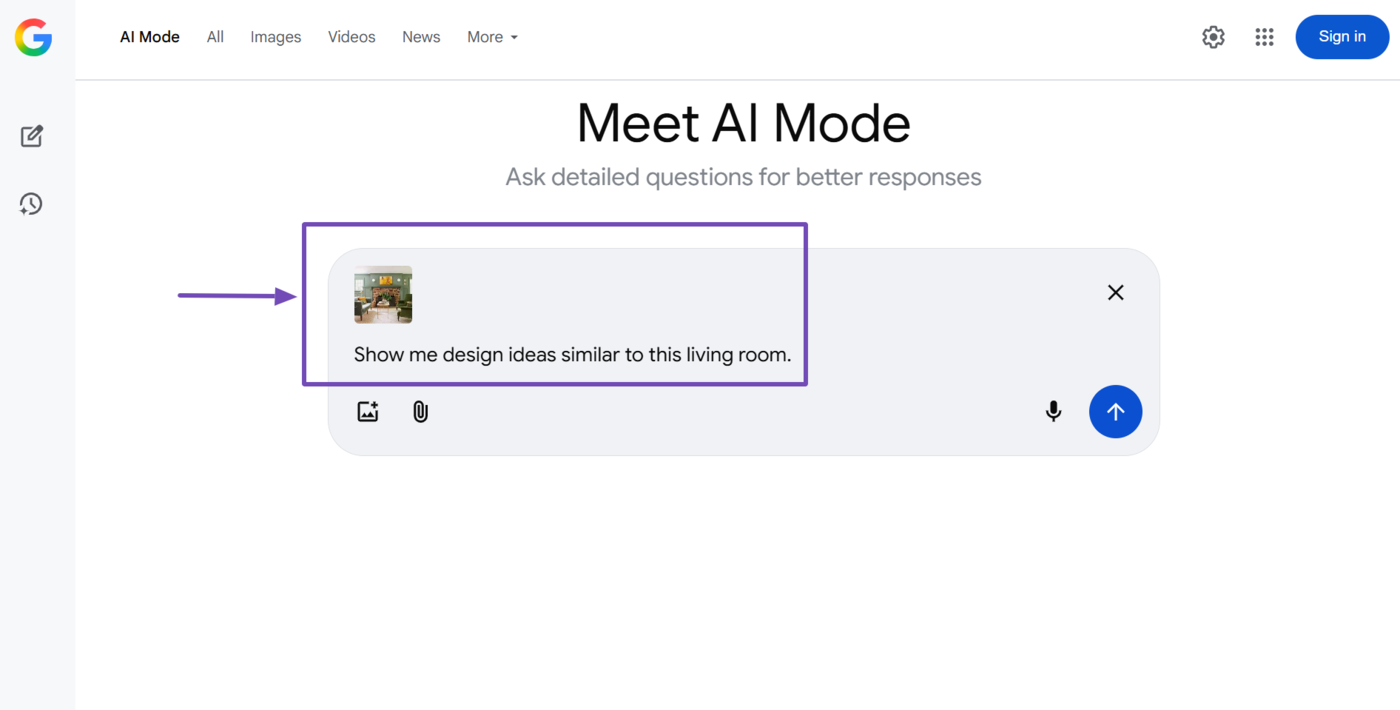
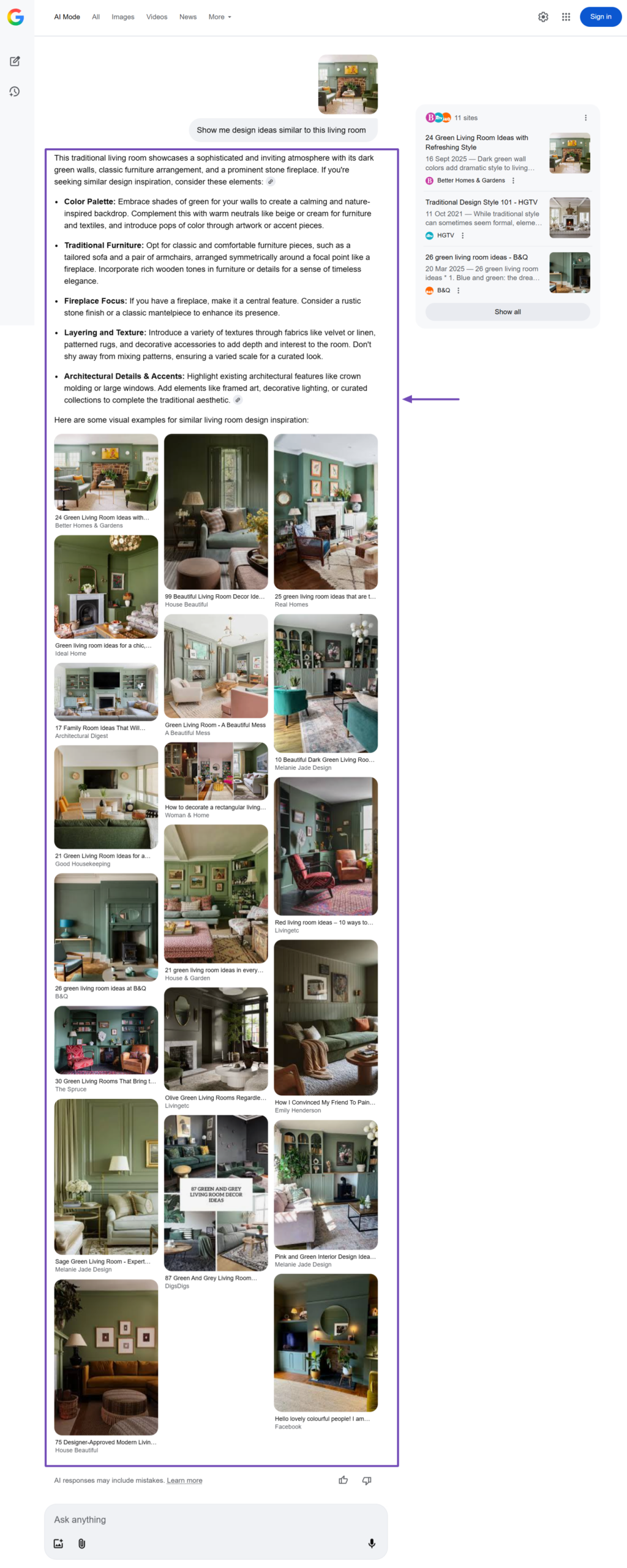
For instance, let us say we want to redesign our living room. We can then upload a photo of a living room to AI Mode and include the query, “Show me design ideas similar to this living room.”
AI Mode will scan various aspects of the image, such as its background, furniture color, frames, and plants in the room. It then returns relevant results related to each element. Depending on the type of query, this response can include:
- Text only
- Text and images
For instance, in our response, it returns text and images.
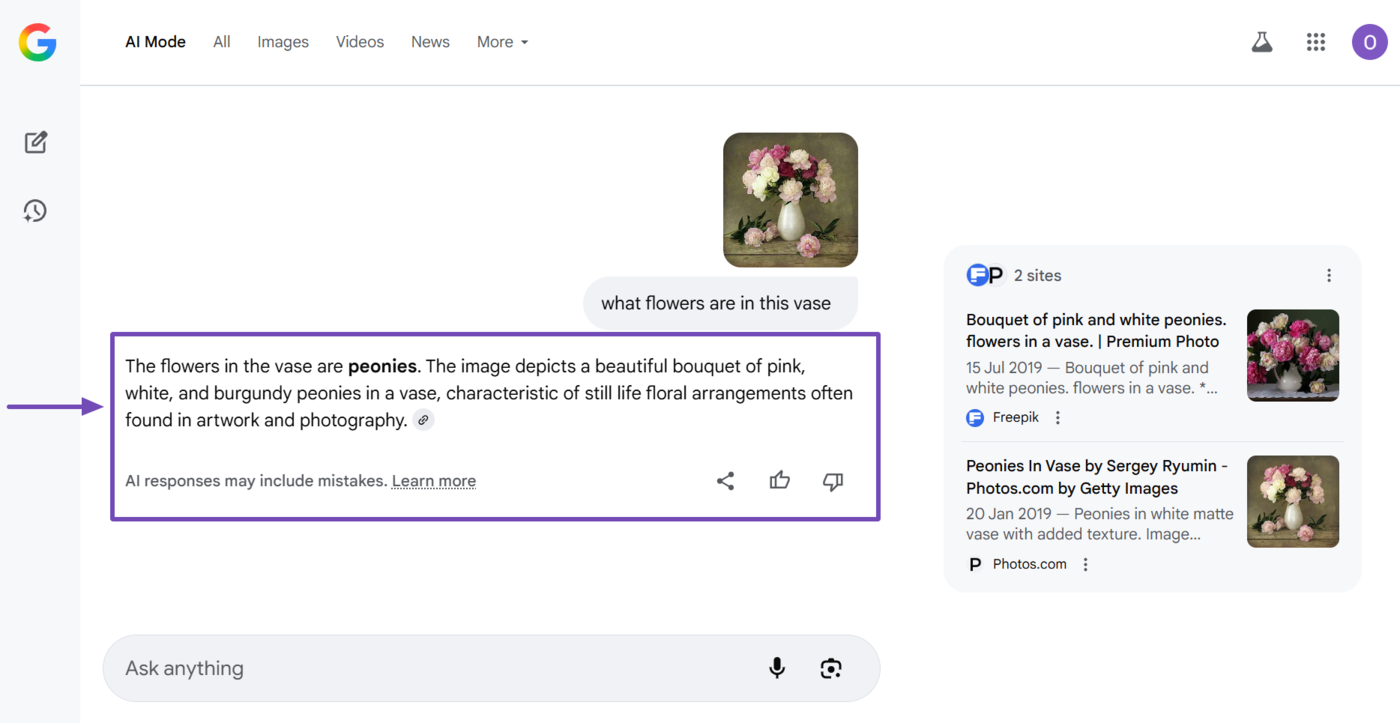
However, in this search, where we ask “What flowers are in this vase?”, it only returns text results without any images.
Importance of AI Mode
AI Mode is important because it turns Google into an answer engine. This provides it with multiple capabilities that are not available in the regular Google Search.
Before AI Mode, a user will visit one or more results on the search results page to see which one answers their query. However, with AI Mode, the answer is extracted from multiple sources and presented to the user on a single page.
This makes Google more conversational, intelligent, and useful to the user. It also increases the user’s chances of finding answers that are highly relevant to their query.
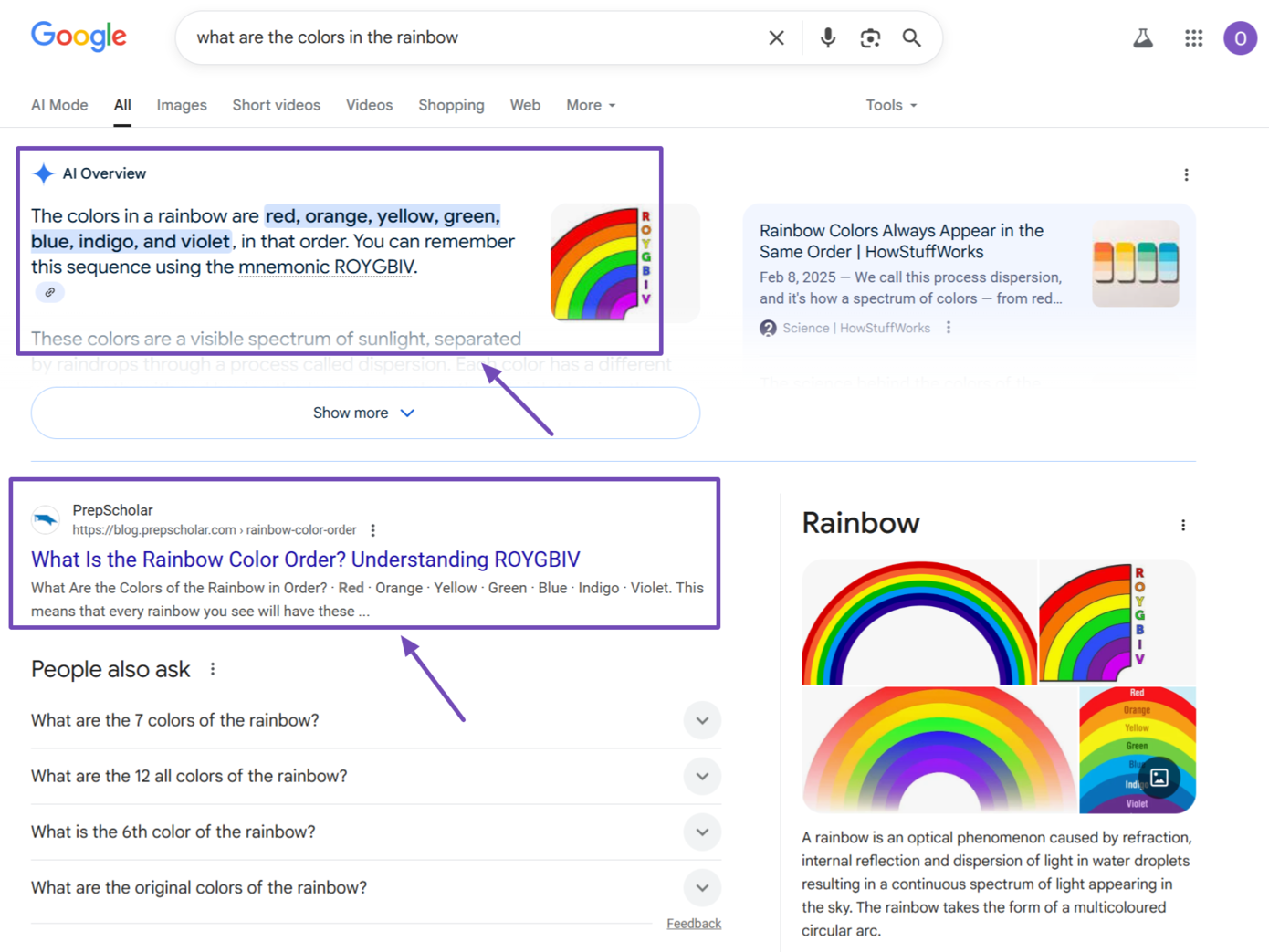
For context, here is the Google results page for the query, “What are the colors in the rainbow?” From the image, we can see that the regular results and even AI Overviews only list the seven colors in the rainbow.
On the other hand, AI Mode lists the seven colors, but also responds to various other sub-queries related to the “What are the colors in the rainbow?” query, including:
- How are rainbows formed?
- Why are the colors in the rainbow arranged that way
- Which color in the rainbow has the longest wavelength
- Which color in the rainbow has the shortest wavelength
- Why do some people say there are six colors in the rainbow
- Who named the colors in the rainbow
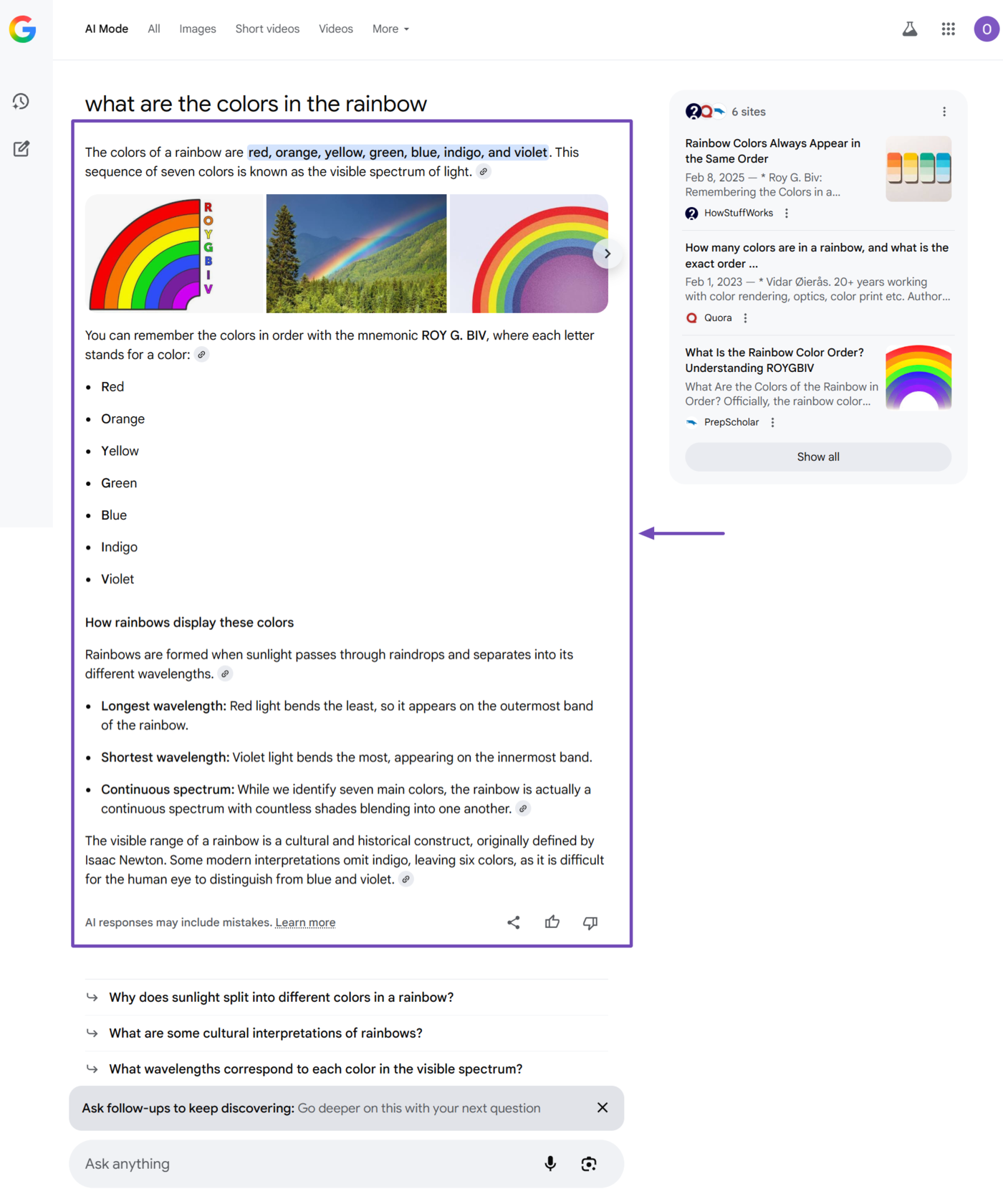
From the results, you can see that the AI Mode response is clearly more useful and elaborate than the regular Google Search results.
How to Access Google AI Mode
You can access AI Mode through multiple methods, including:
- Going to Google.com/ai
- Clicking AI Mode on Google.com
- Clicking AI Mode on Google results page
- Clicking AI Mode in Chrome’s omnibox
- Clicking AI Mode on Google Android or iOS app
- Clicking Show more in AI Overviews
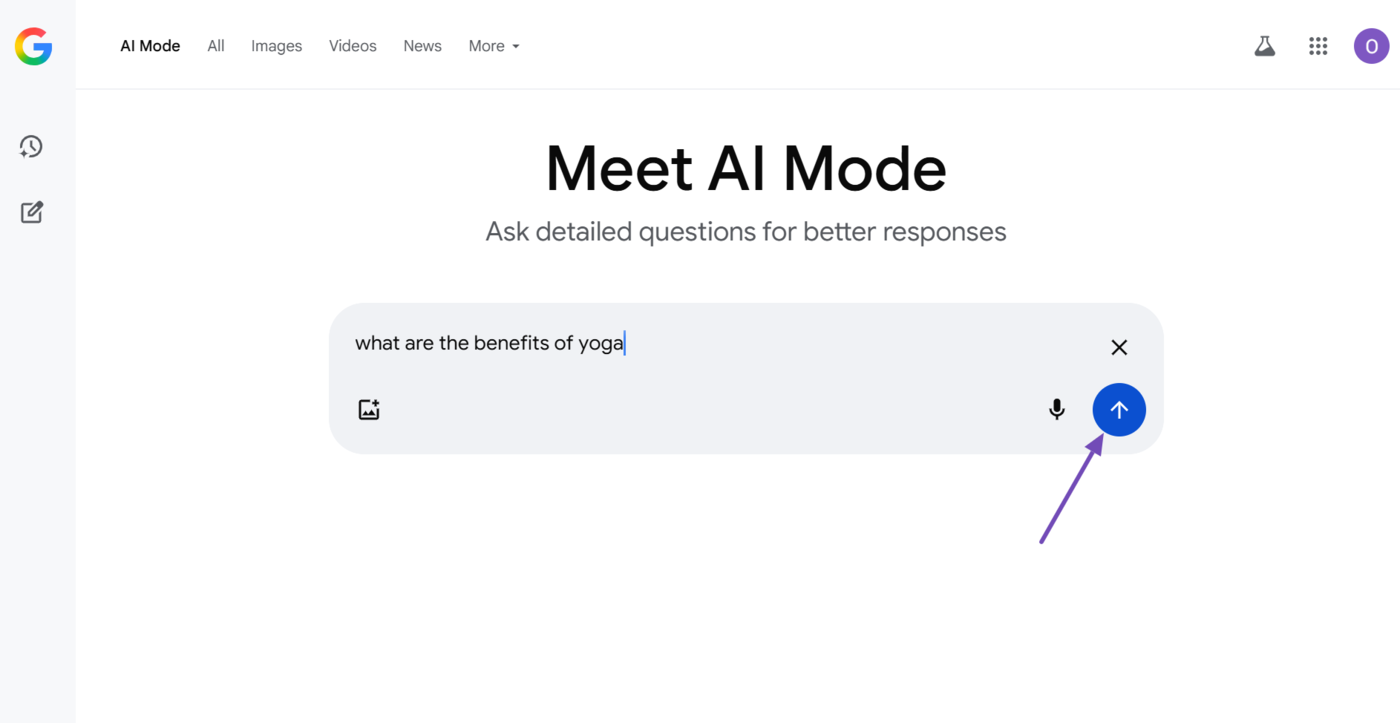
1 Go to Google.com/ai
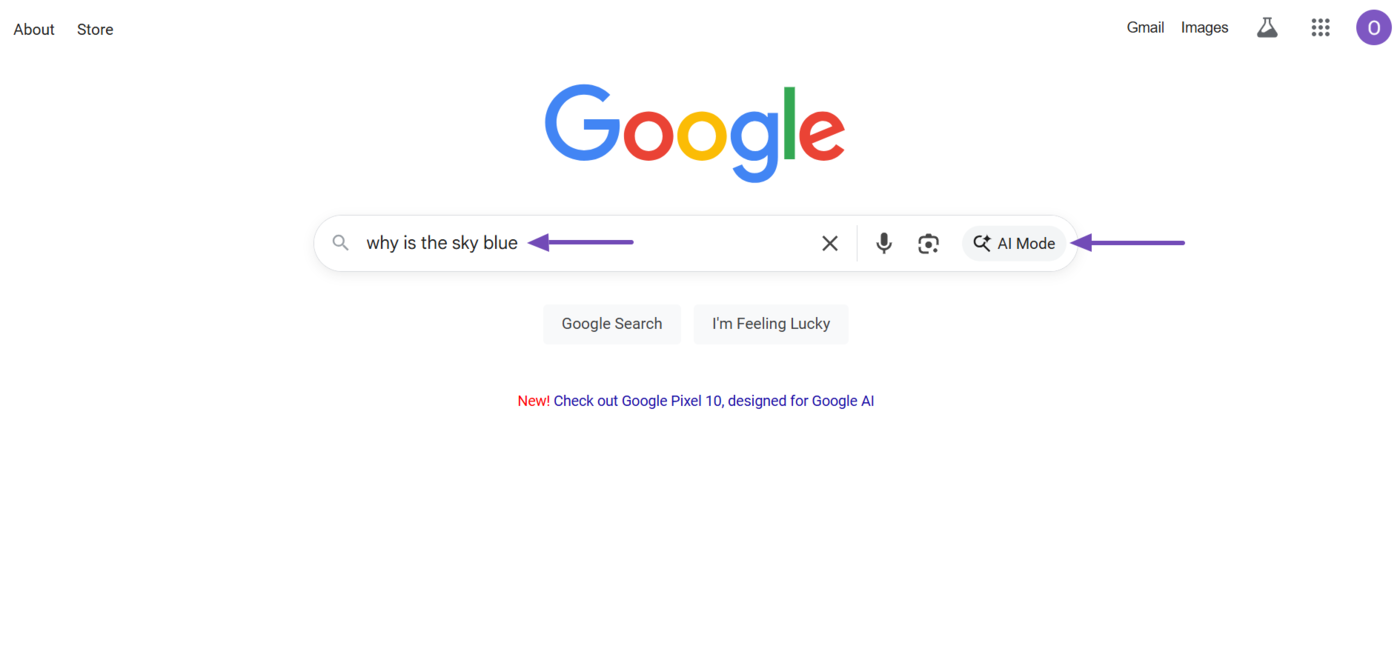
You can access AI Mode by heading directly to its URL at google.com/ai. Once done, you can enter your query into AI Mode and click the Enter icon.
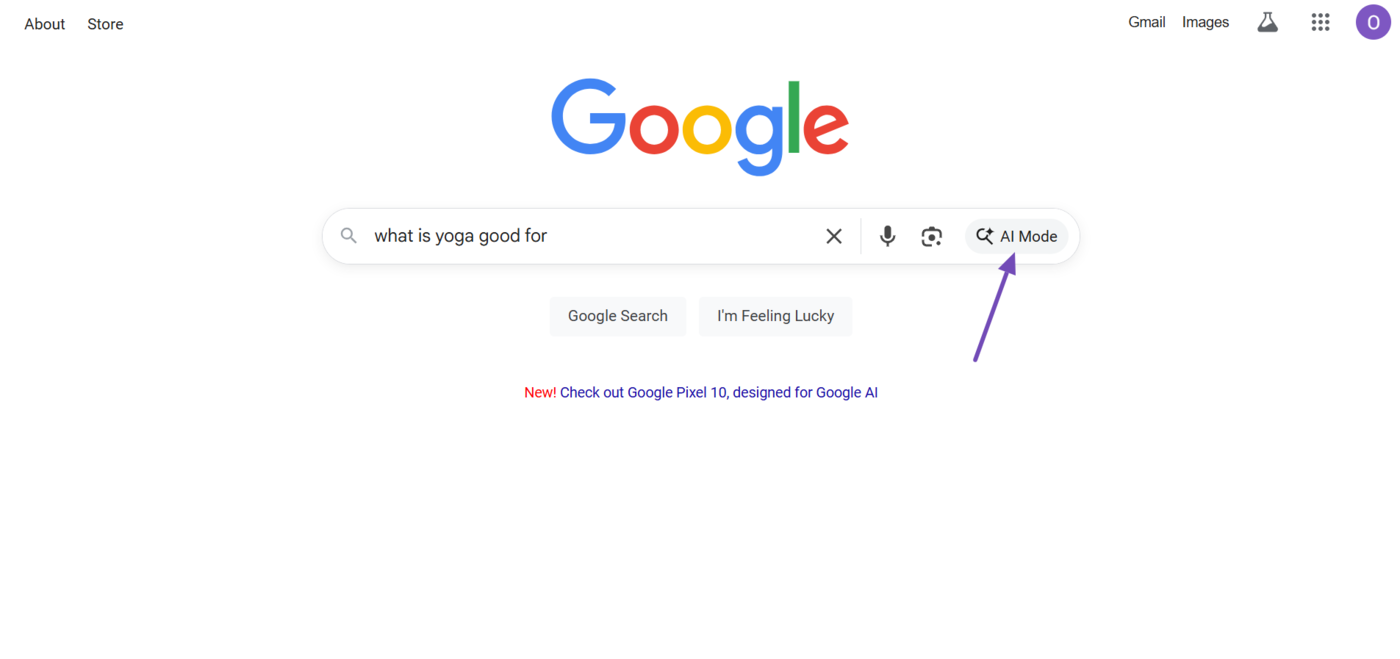
2 Click AI Mode on Google.com
You can also access AI Mode by heading to google.com and clicking AI Mode. Then, enter your query into it and click AI Mode. (You may also click AI Mode before entering your query, depending on your preference.)
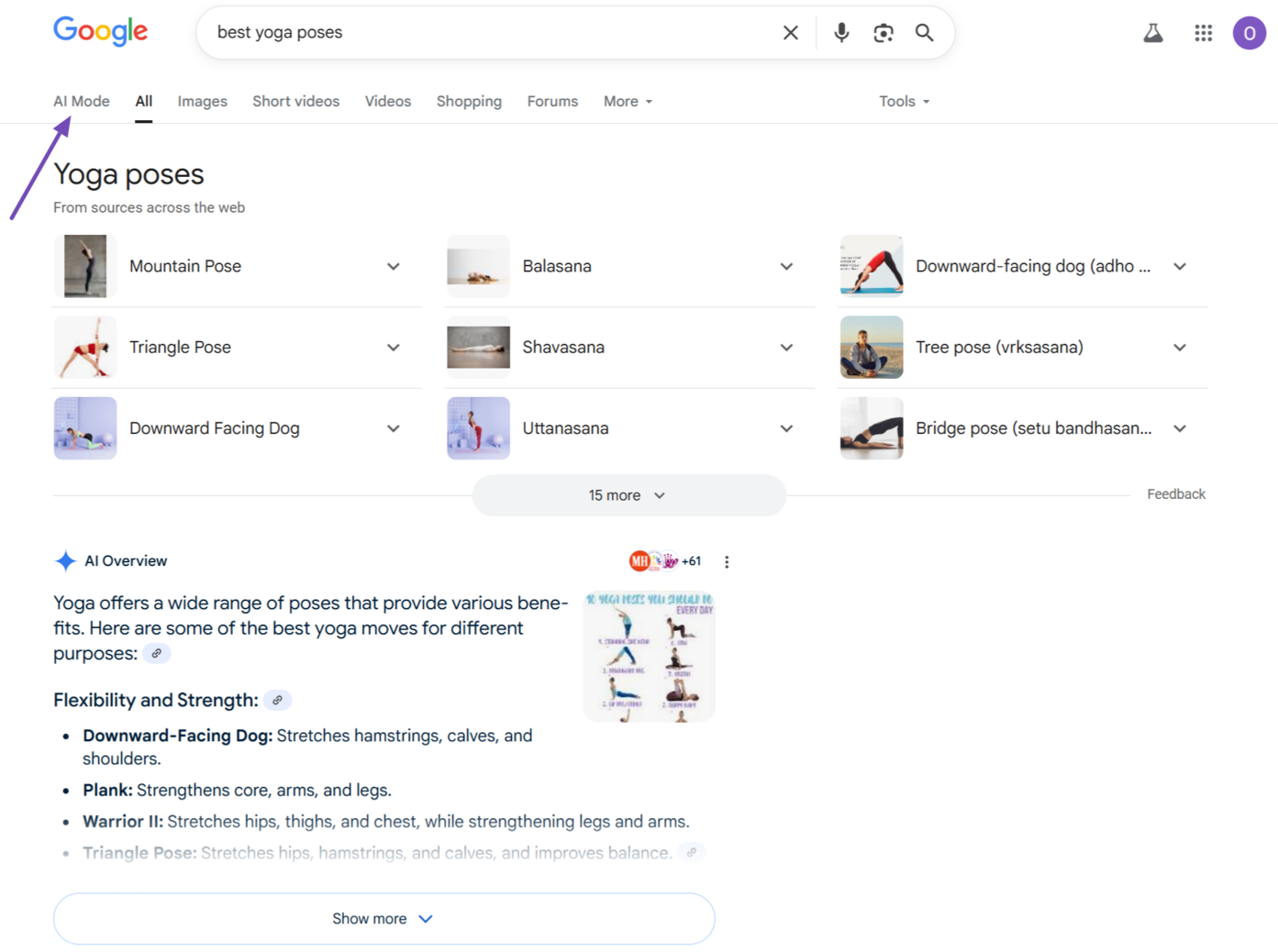
3 Click AI Mode on Google Results Page
If you have already performed a search, you can click AI Mode on Google search results page. Google will then open AI Mode and provide a response to your query.
4 Click AI Mode in Chrome’s Omnibox
You can also access AI Mode directly from the omnibox in Chrome. The omnibox is the joint search and address bar in the Chrome browser. To do so, enter your query into it and click the AI Mode button.
5 Click AI Mode on Google Android or iOS App
You can also access AI Mode using the Google app on Android or iOS. To do so, open the Google app on your device and click AI Mode.

6 Click Show More in AI Overviews
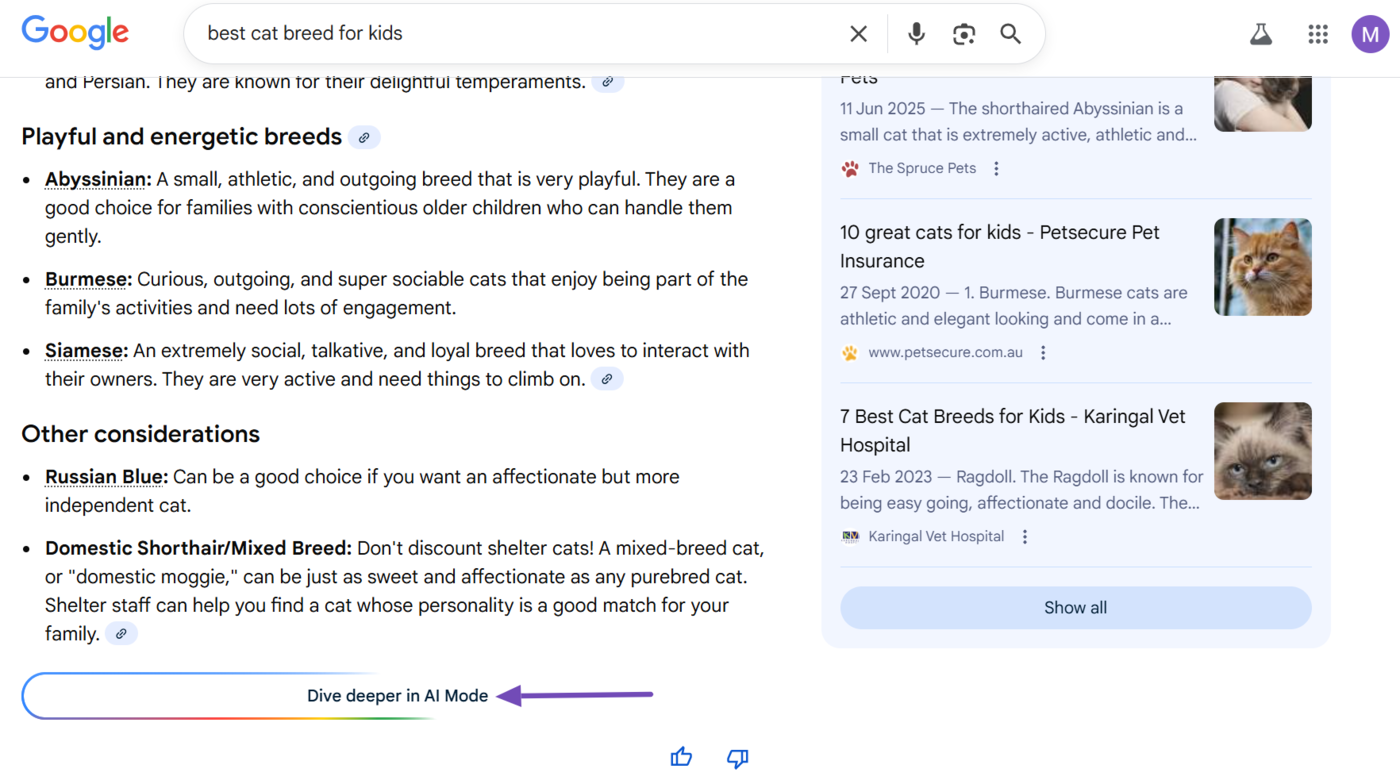
You can access AI Mode through AI Overviews. To do so, click Show more in the AI Overviews result, as shown below.
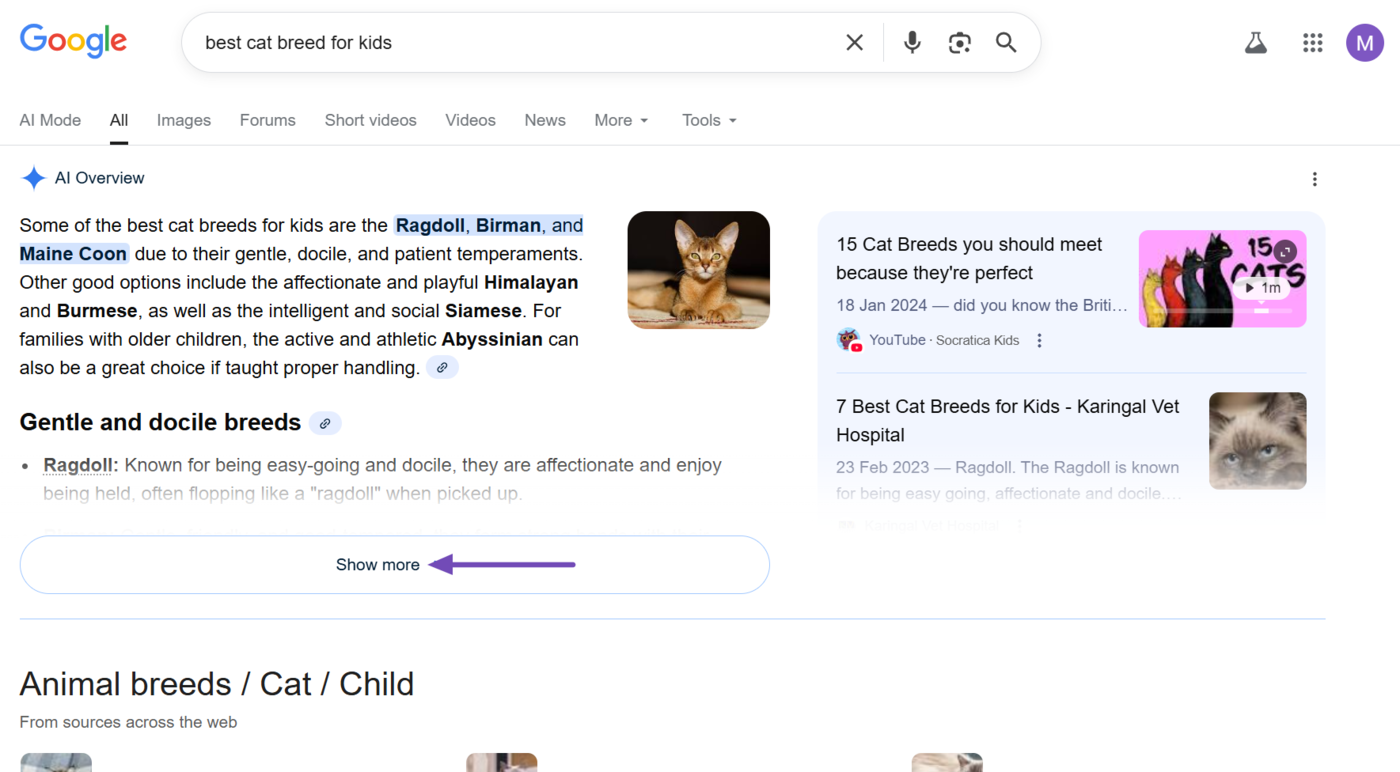
The AI Overviews field will expand. Scroll to the bottom and click Dive deeper in AI Mode, as shown below. AI Mode will open up.
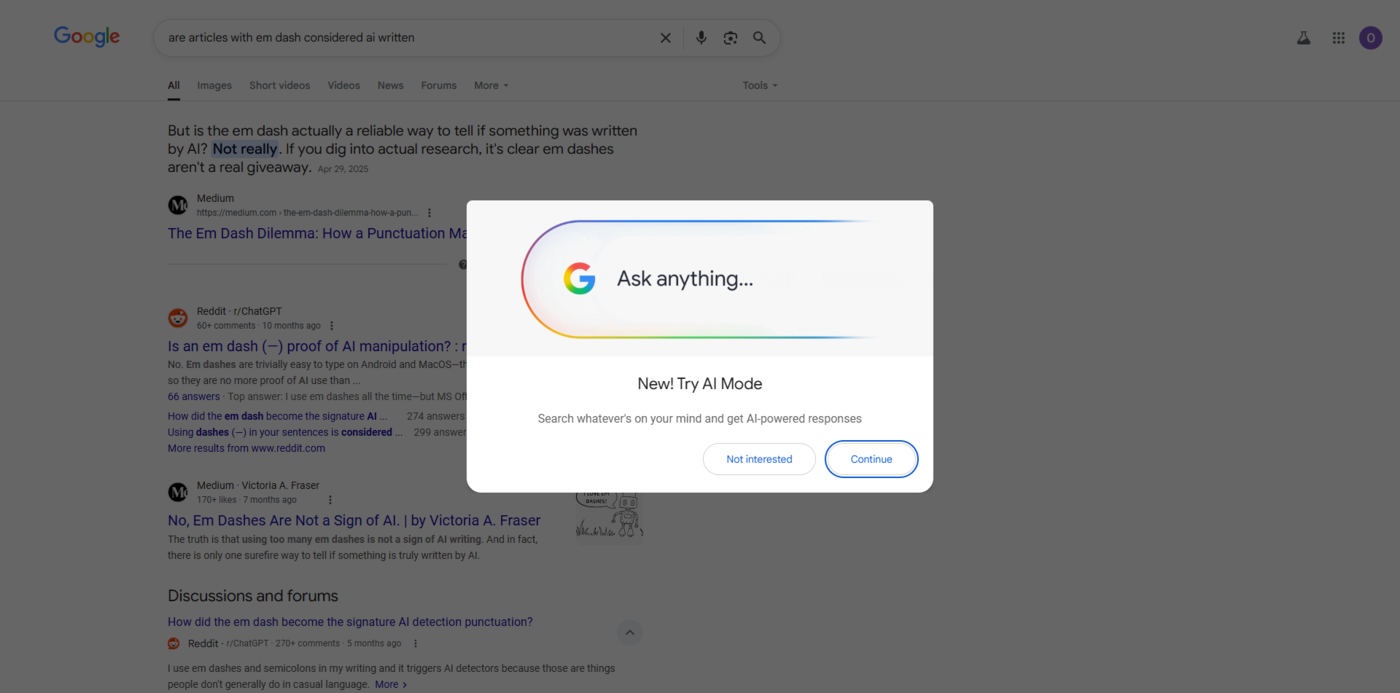
These are the major ways to access AI Mode. However, in some situations, Google may also display a popup inviting you to test AI Mode when you enter a search query into it. Click Continue to use AI Mode.
With that said, note that Google AI Mode is still being rolled out in various regions and languages, so some features or formats may not be available to you.
How to Use Google AI Mode
You use AI Mode the same way you use Google Search. You begin by entering your query (or prompt) into Google and clicking AI Mode.
Note: that Google AI Mode is a multimodal system. This means it accepts queries in various formats, including text, voice, and photos.
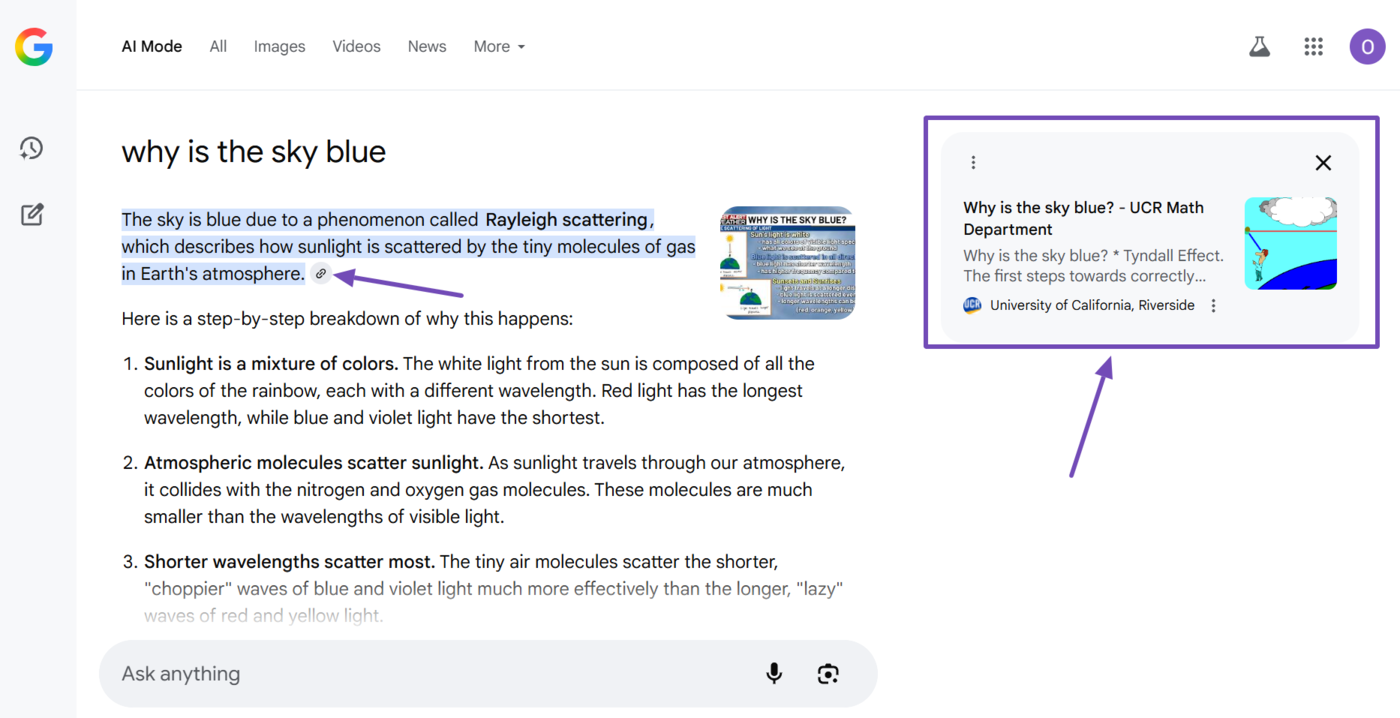
AI Mode will return your results along with a few webpages. You can click on the webpages for additional information on the topic.
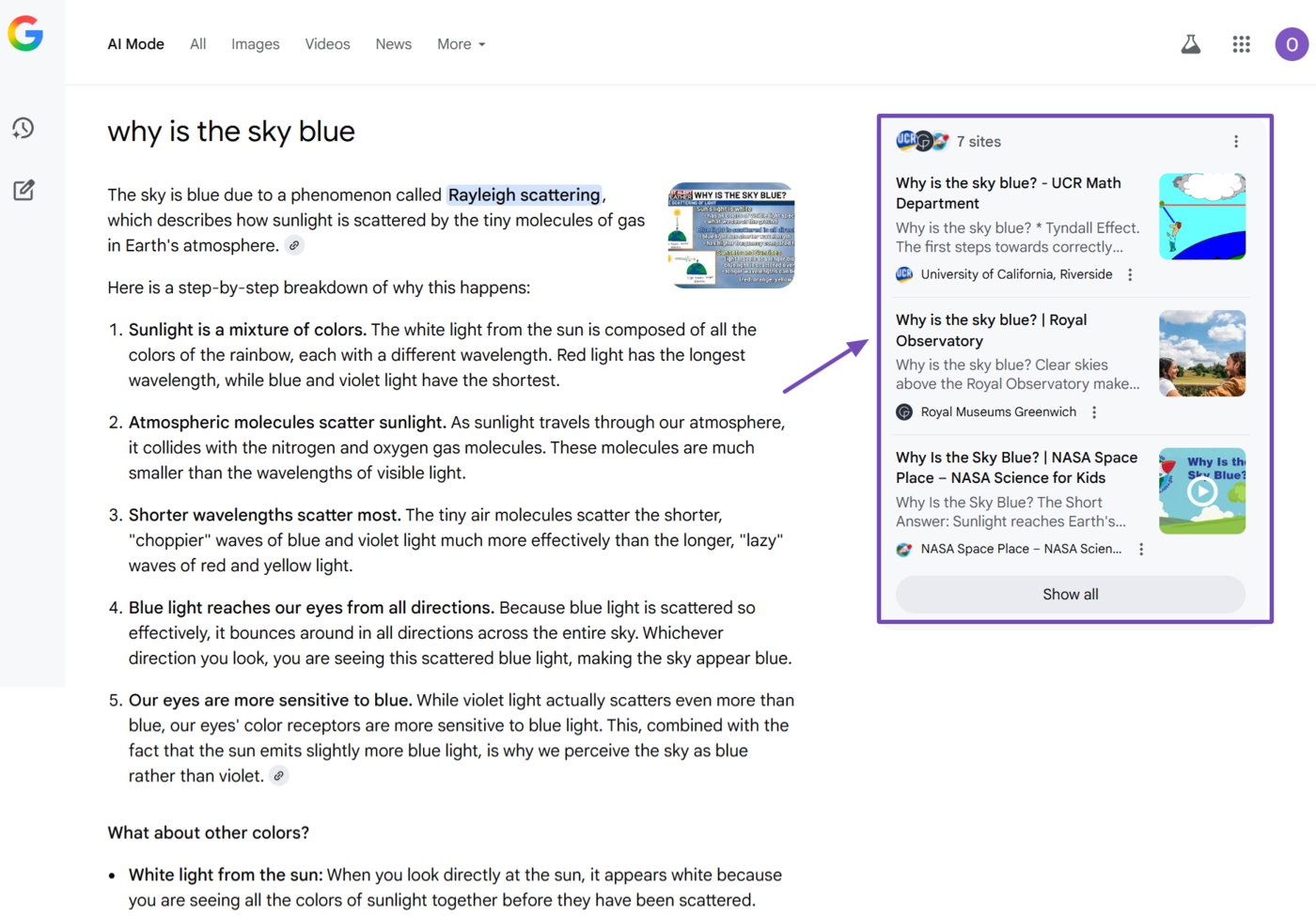
The AI Mode page will also contain multiple link icons. When you click on them, AI Mode will display additional webpages that are relevant to that specific content.
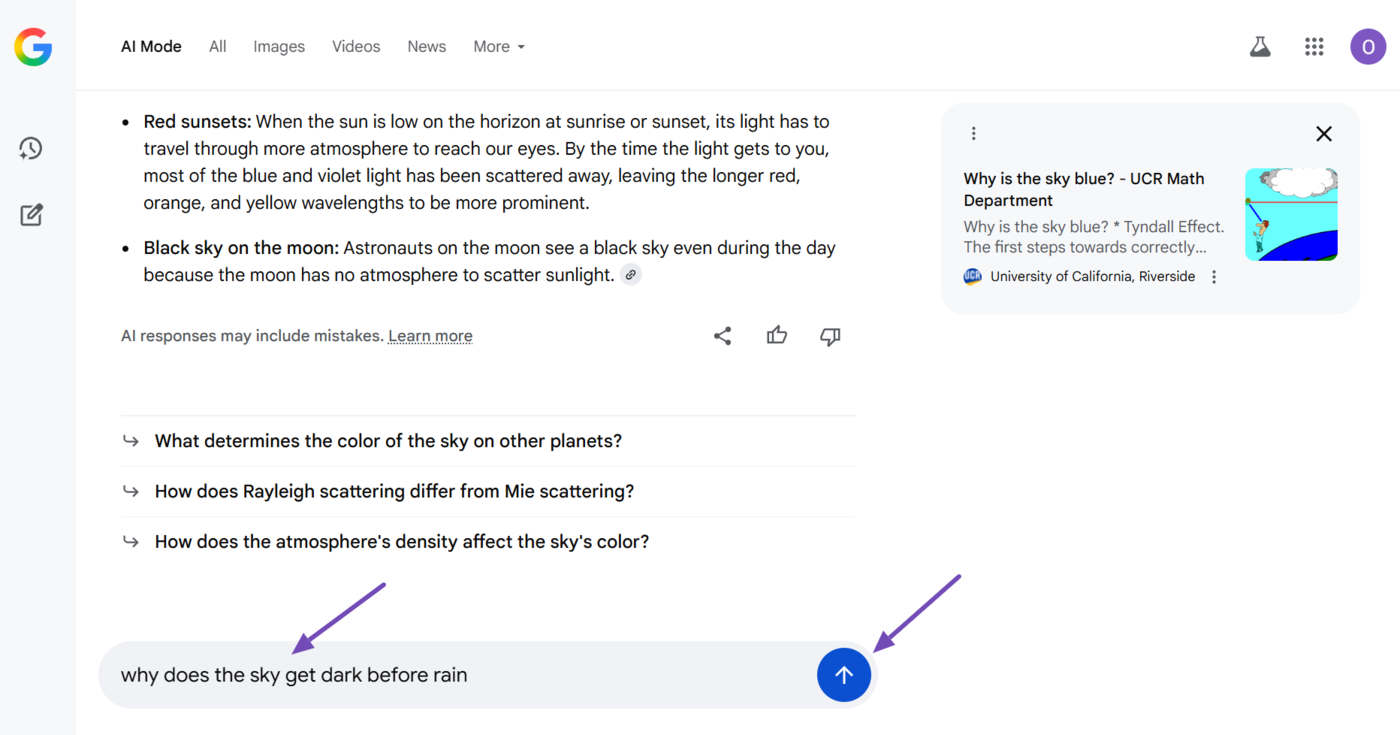
If you have follow-up questions, scroll down and enter them into chat box. In response, AI Mode will provide additional responses to your query on the same chat page.
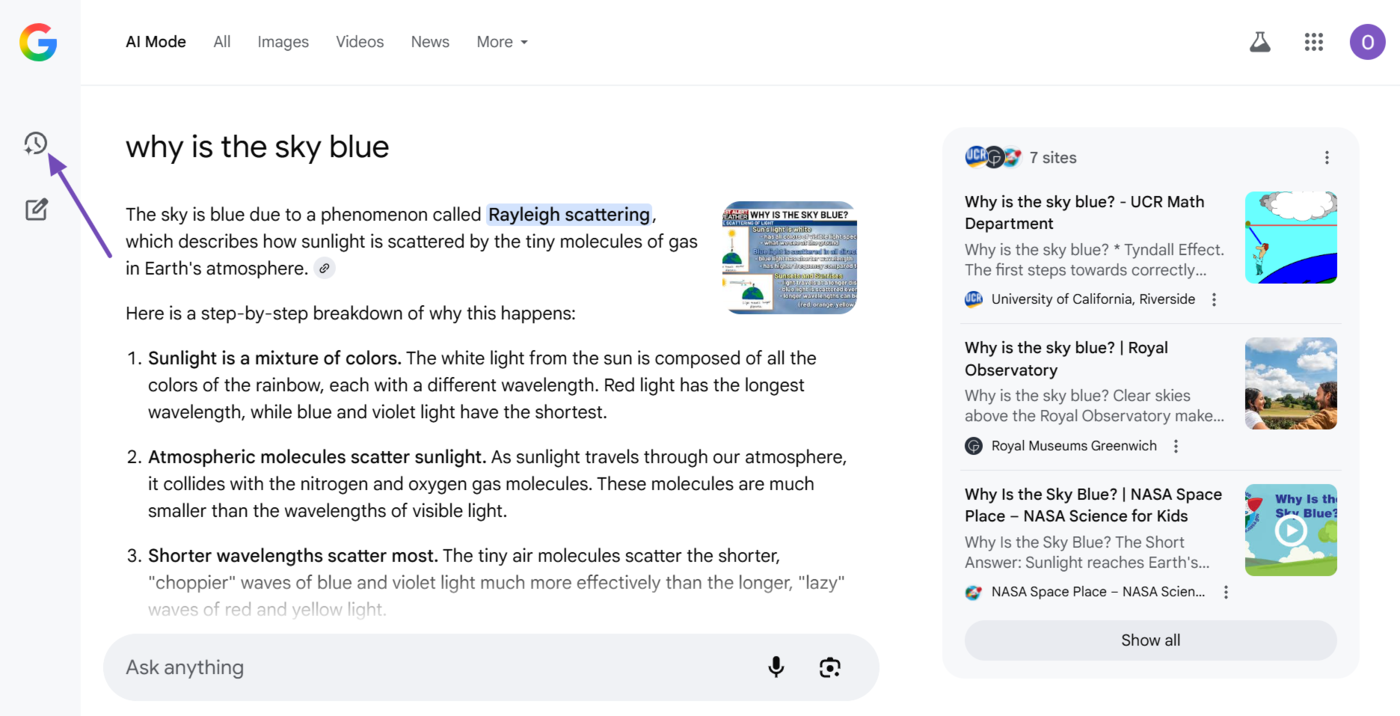
Once you are done, you can leave the chat and return to it by clicking the history icon in the sidebar and selecting the relevant chat.
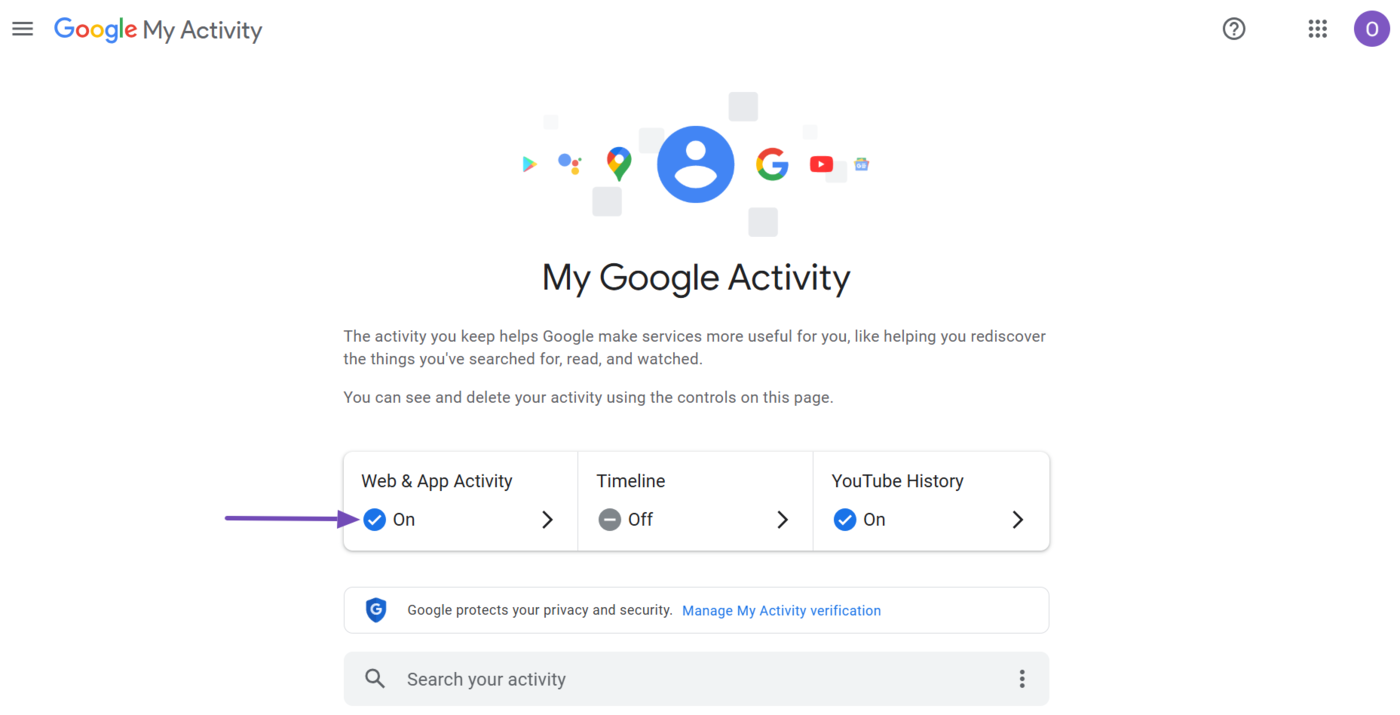
However, this only works when you enable Web & App activity in your Google Activity settings.
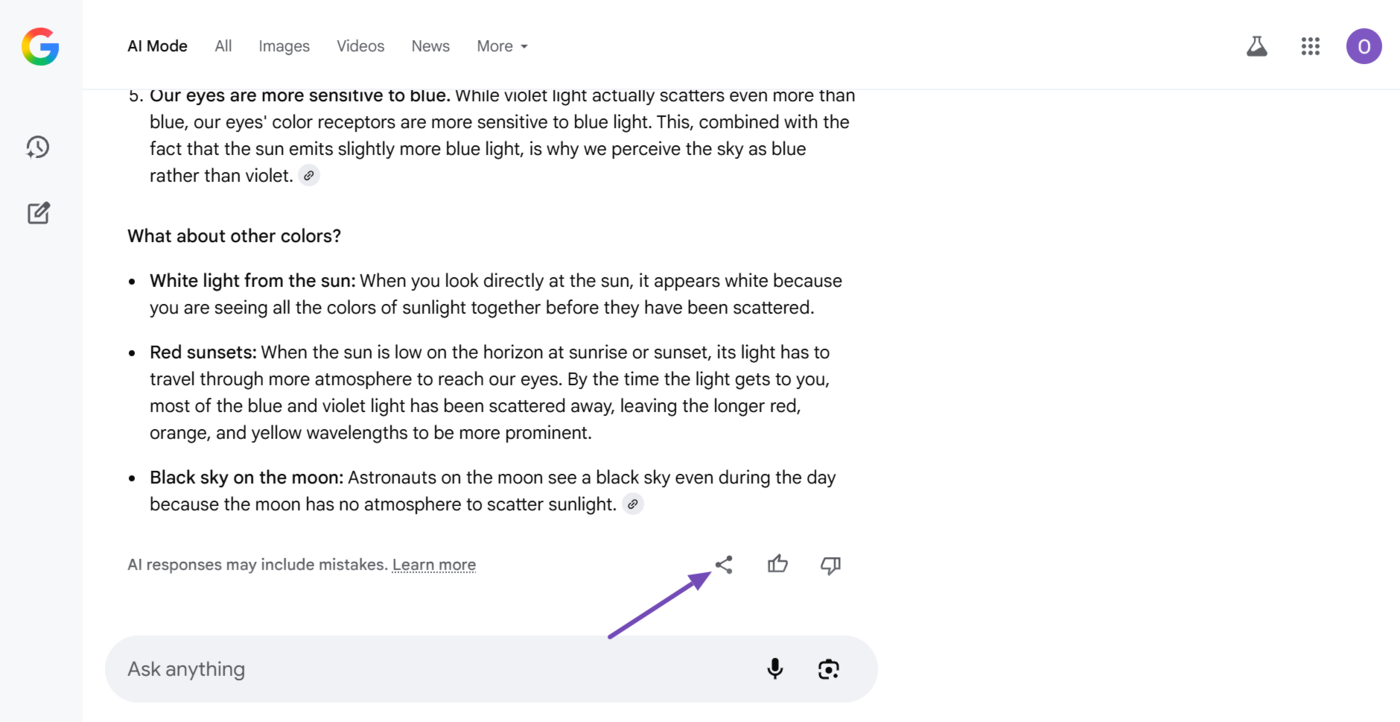
You can also click the share icon to share the link to a friend.
Upcoming AI Mode Features
Google is continuously improving AI Mode and introducing new features and improvements. With that in mind, here are some potential features that will be coming to AI Mode.
1 Paid Ads
Google is introducing paid ads to AI Mode. Google has even started to test these ads in some regions, and multiple users have already encountered it, especially for local search queries.
These ads are labeled “Sponsored” to differentiate them from the regular results in AI Mode. We should expect to see more of them in future.