

Internal linking is one of the most overlooked SEO tactics, yet it has a measurable impact on rankings, crawlability, and user engagement.
Many websites focus heavily on backlinks. But internal links? They’re often added randomly, or worse, forgotten entirely.
If you want stronger rankings, better content discoverability, and a site structure search engines understand clearly, you need a smart internal linking strategy.
In this post, you’ll learn how to build internal links for SEO using AI Link Genius in Rank Math. We’ll cover both manual AI-assisted linking and full automation using keyword maps.
Let’s get started.
Table Of Contents
- Importance of Internal Links for SEO
- The Problem With Manual Internal Linking
- What is AI Link Genius in Rank Math?
- How to Enable the AI Link Genius Module
- How to Add Internal Links Using AI in the Editor
- How to Automate Internal Linking With Keyword Maps
- Best Practices for Internal Linking with AI Link Genius
- Frequently Asked Questions
- Conclusion
1 Importance of Internal Links for SEO
Internal links connect one page of your website to another page on the same domain. Simple, right? But their impact is powerful.
Here’s what internal links actually do:
Improve Crawlability
Search engines discover content by following links. If a page has no internal links pointing to it, it may become an orphan page, meaning search engines struggle to find it.
Distribute Authority Across Pages
When one of your pages earns backlinks, it builds authority. Internal links help distribute that authority (often called link equity) to other important pages.
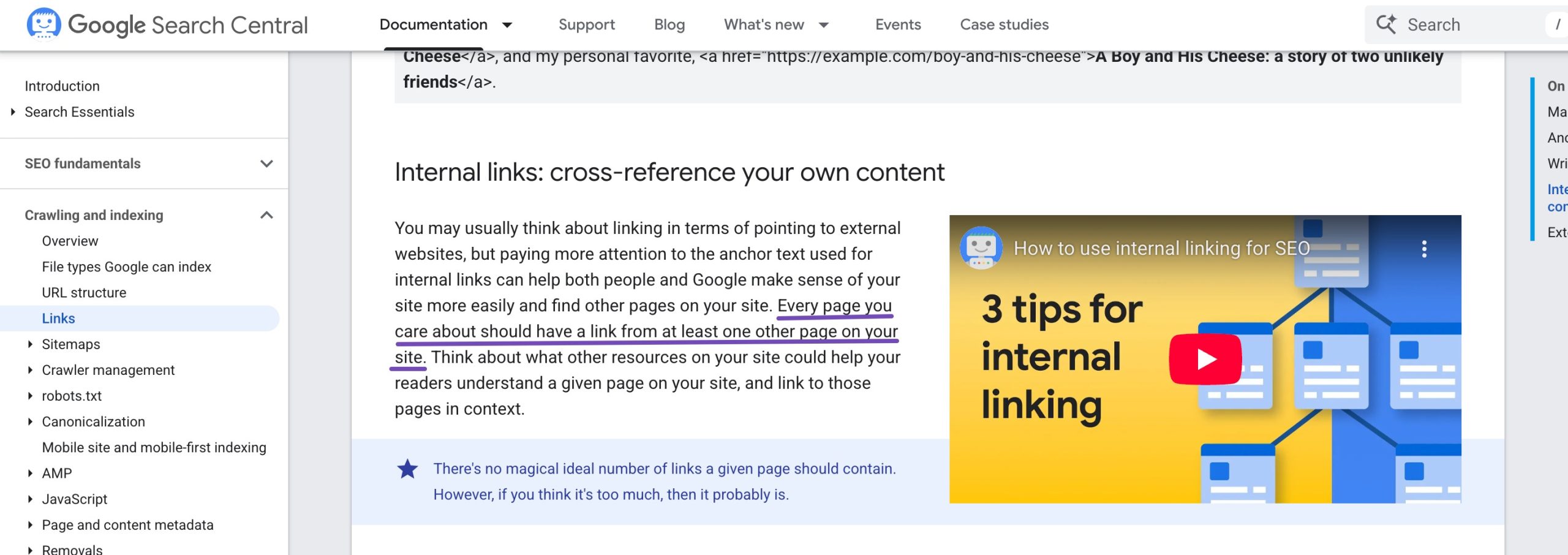
Without internal linking, that SEO value stays isolated.
Help Search Engines Understand Context
Anchor text, the clickable words in a link, tells search engines what the linked page is about.
For instance, linking the phrase technical SEO to a relevant guide strengthens that page’s topical relevance.
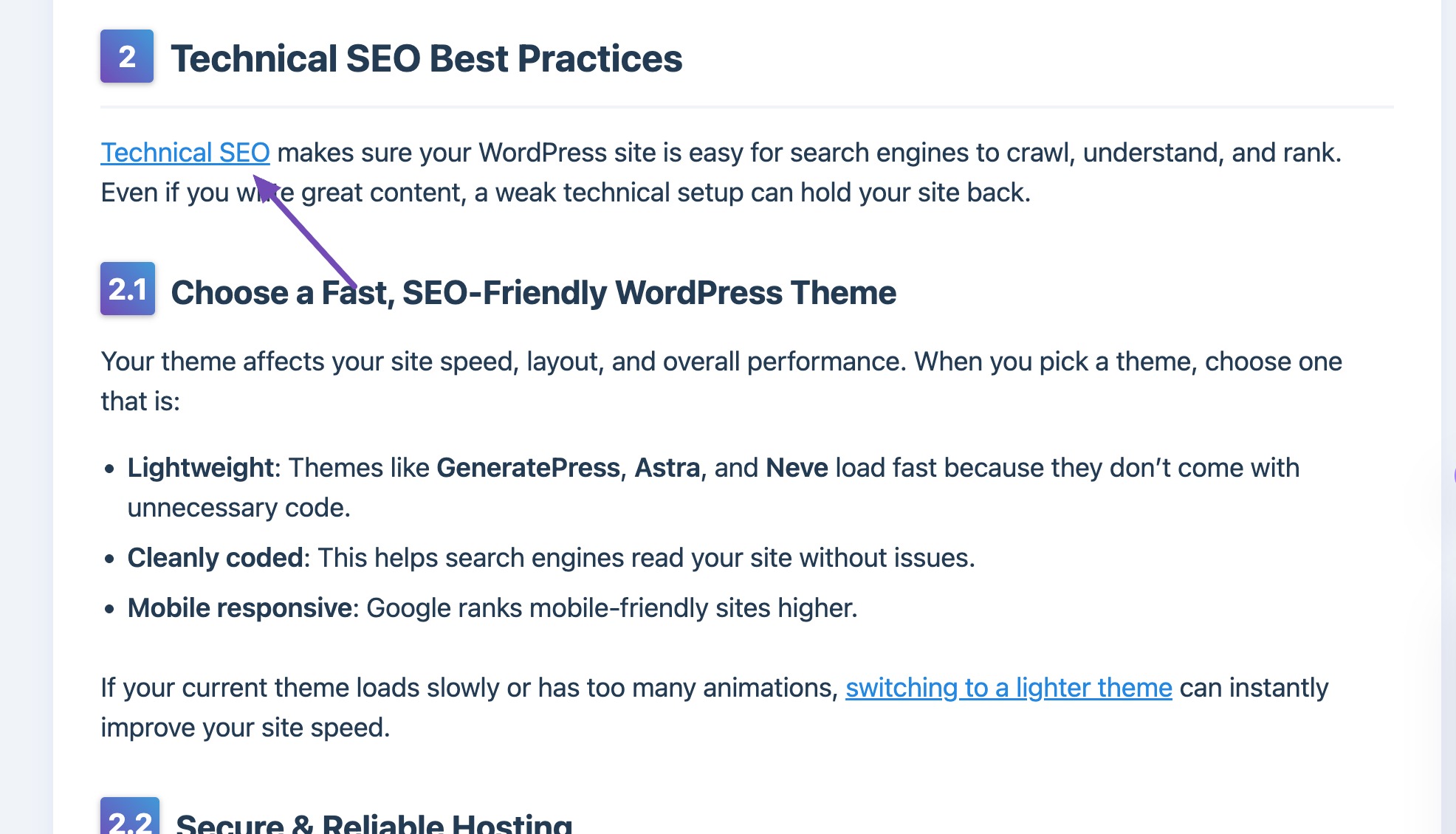
When done consistently, this strengthens keyword signals across your site.
Increase Time on Site & Page Views
Internal links improve user experience. When readers find relevant content easily, they stay longer. When done correctly, internal linking creates a clear path for both users and search engines.
2 The Problem with Manual Internal Linking
Manual internal linking works well at first. If you have 20 blog posts, you can remember where everything lives. But what happens when you hit 200? Or 2,000? Here’s how it typically scales:
| Site Size | Manual Linking | AI Linking |
| 10 Pages | Easy to manage | Easy |
| 100 Pages | Hard to track | Easy |
| 1,000 Pages | You lose visibility | Organized |
| 10,000 Pages | Nearly impossible | Controlled |
Common problems include:
- Forgetting to link to older posts
- Overlinking to recent articles
- Inconsistent anchor text
- Missing opportunities to strengthen cornerstone content
- Creating orphan pages
As your site grows, internal linking becomes a structural challenge, not just an editorial task.
That’s where process, documentation, and sometimes automation help.
3 What is AI Link Genius in Rank Math?
AI Link Genius is an internal linking feature built inside Rank Math PRO. It analyzes your content, finds linking opportunities, and helps you insert internal links faster.
It works directly inside your WordPress dashboard.
Instead of guessing which pages to link, AI Link Genius reviews your content and suggests relevant internal links. You can approve them manually or automate the process using keyword maps.
4 How to Enable the AI Link Genius Module
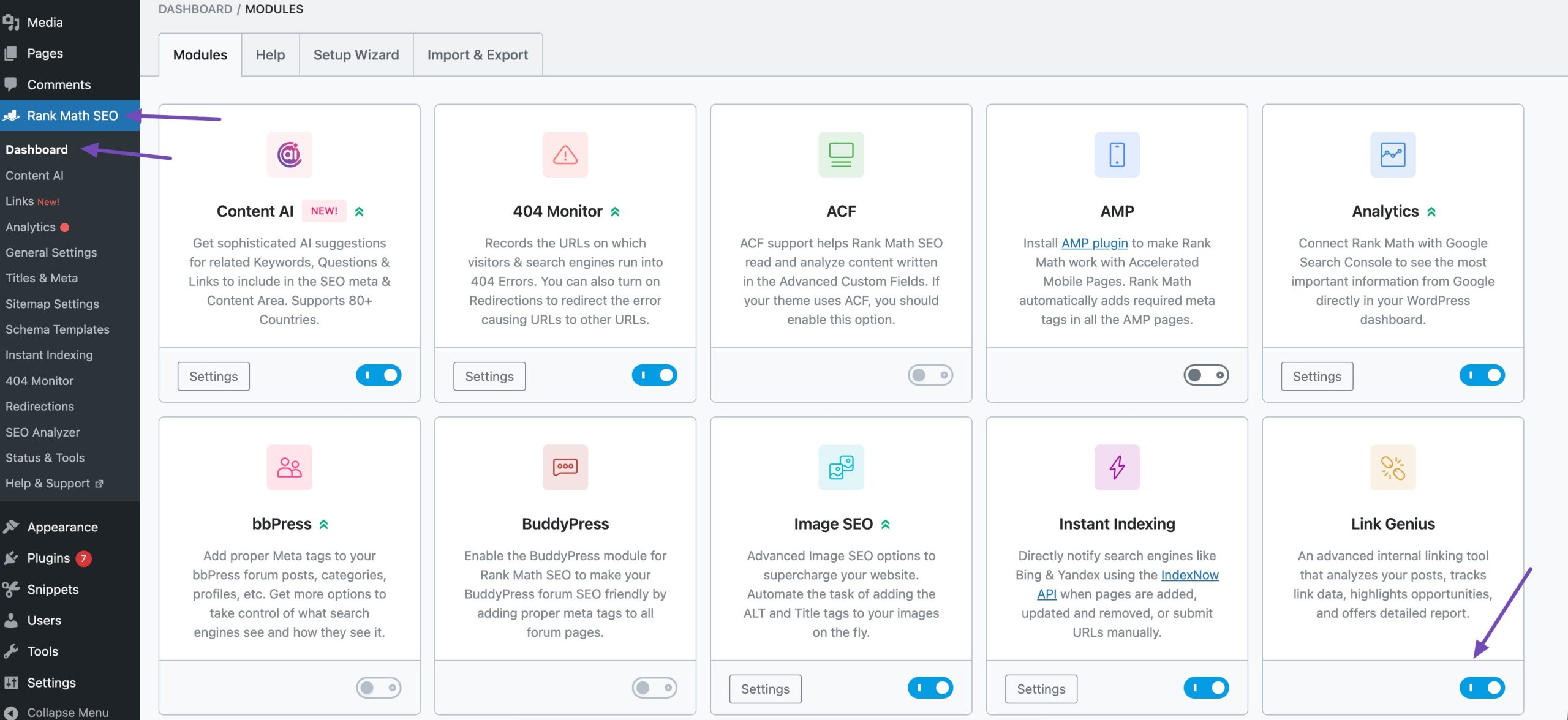
Before adding links, you need to enable the Link Genius module.
From your WordPress dashboard, click Rank Math SEO. Locate the Link Genius module and enable it, as shown below. Once enabled, you can start adding internal links using AI.
5 How to Add Internal Links Using AI in the Editor
AI Link Genius allows you to add links directly while writing.
5.1 Using the Command Center
Open your post in the editor and navigate to the section where you want to add an internal link. Highlight the text that should be the anchor text.
Once you do that, the formatting toolbar will appear. Click on the Content AI icon and then select Generate Link, as shown below.
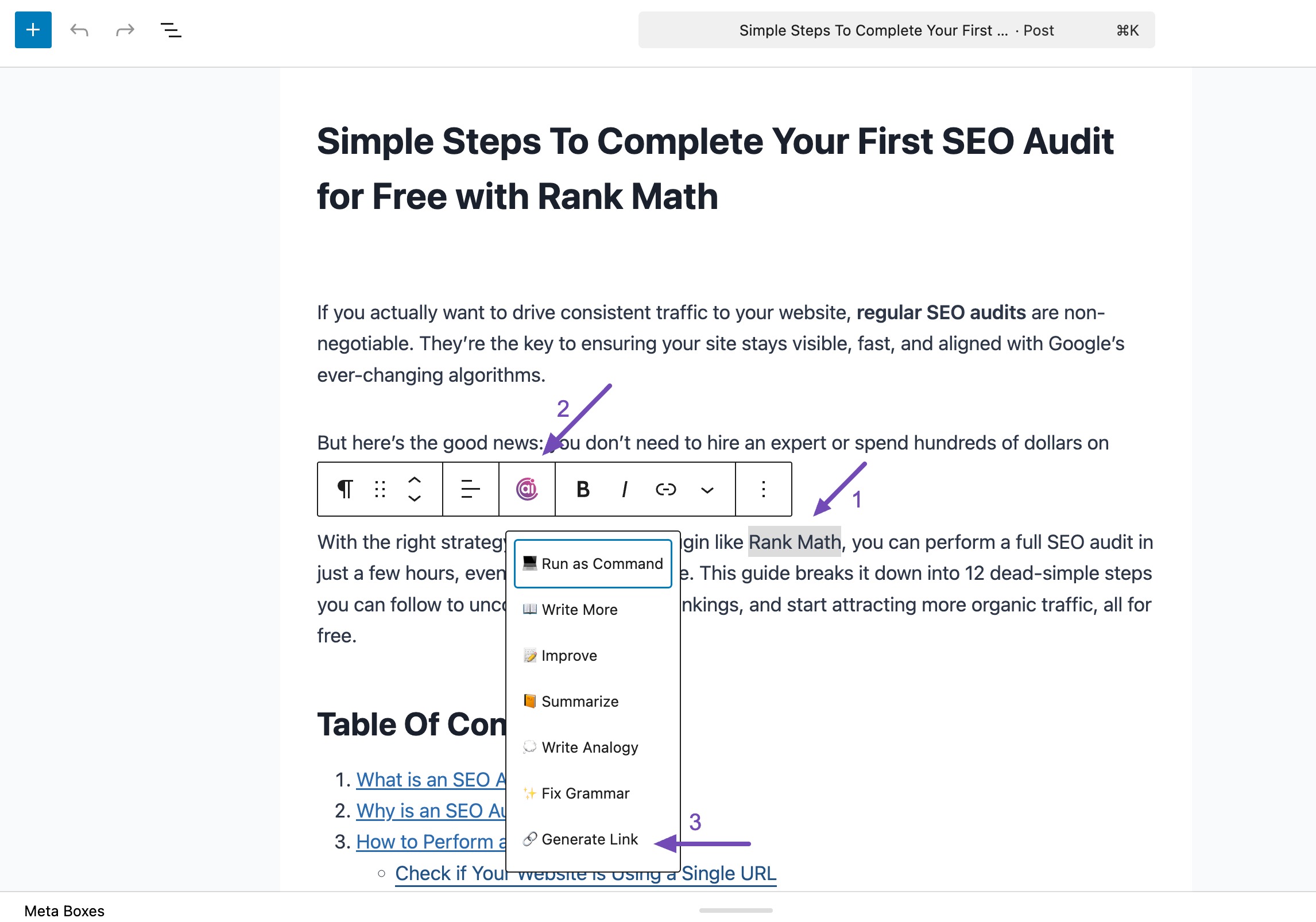
AI Link Genius will suggest relevant internal links based on your content. Choose the link you want to use, and it will be added instantly to the highlighted text.
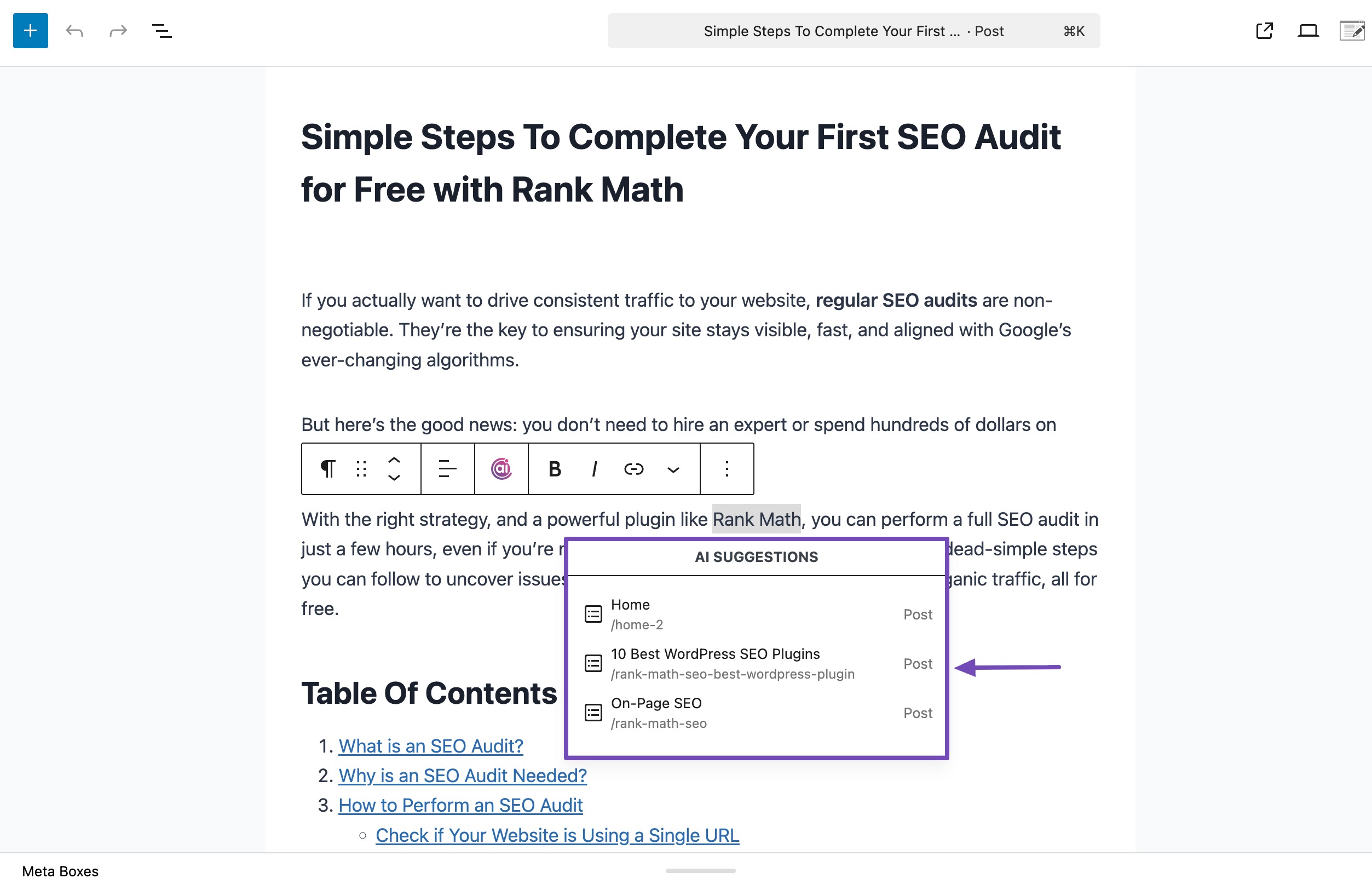
This method is especially useful when you want full control over your anchor text while still benefiting from AI suggestions.
5.2 Using Link Opportunities
Another simple way to add internal links is by using the Link Opportunities feature.
Navigate to your post in the WordPress editor and click on the Rank Math SEO icon. Scroll down until you find the Link Opportunities section, then click Generate.
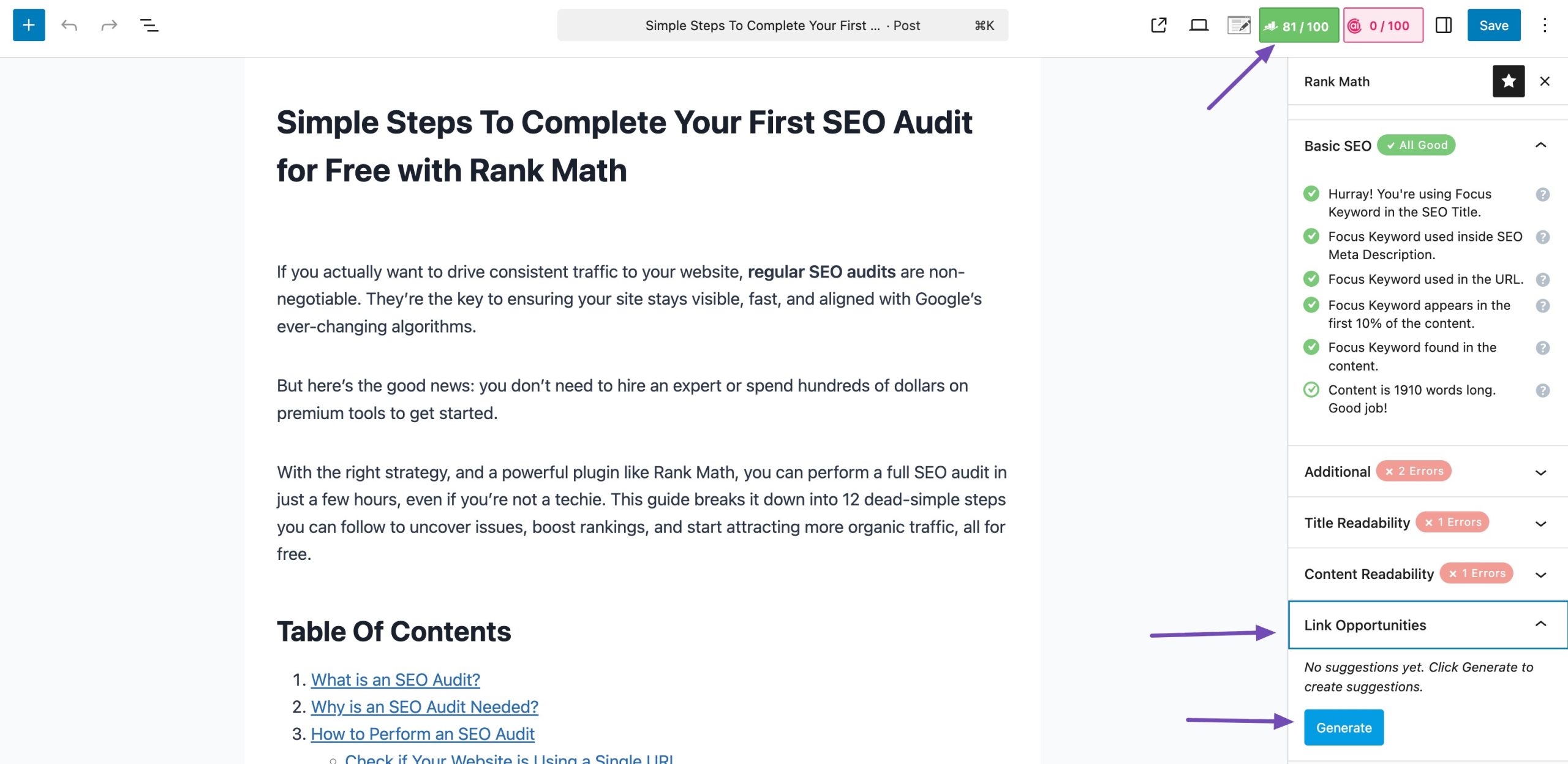
AI Link Genius will analyze your content and suggest relevant internal links that fit naturally within your article.
For each suggestion, you’ll see two options: Copy Link URL, which copies the link to your clipboard, and Insert URL, which adds the link directly into your post.
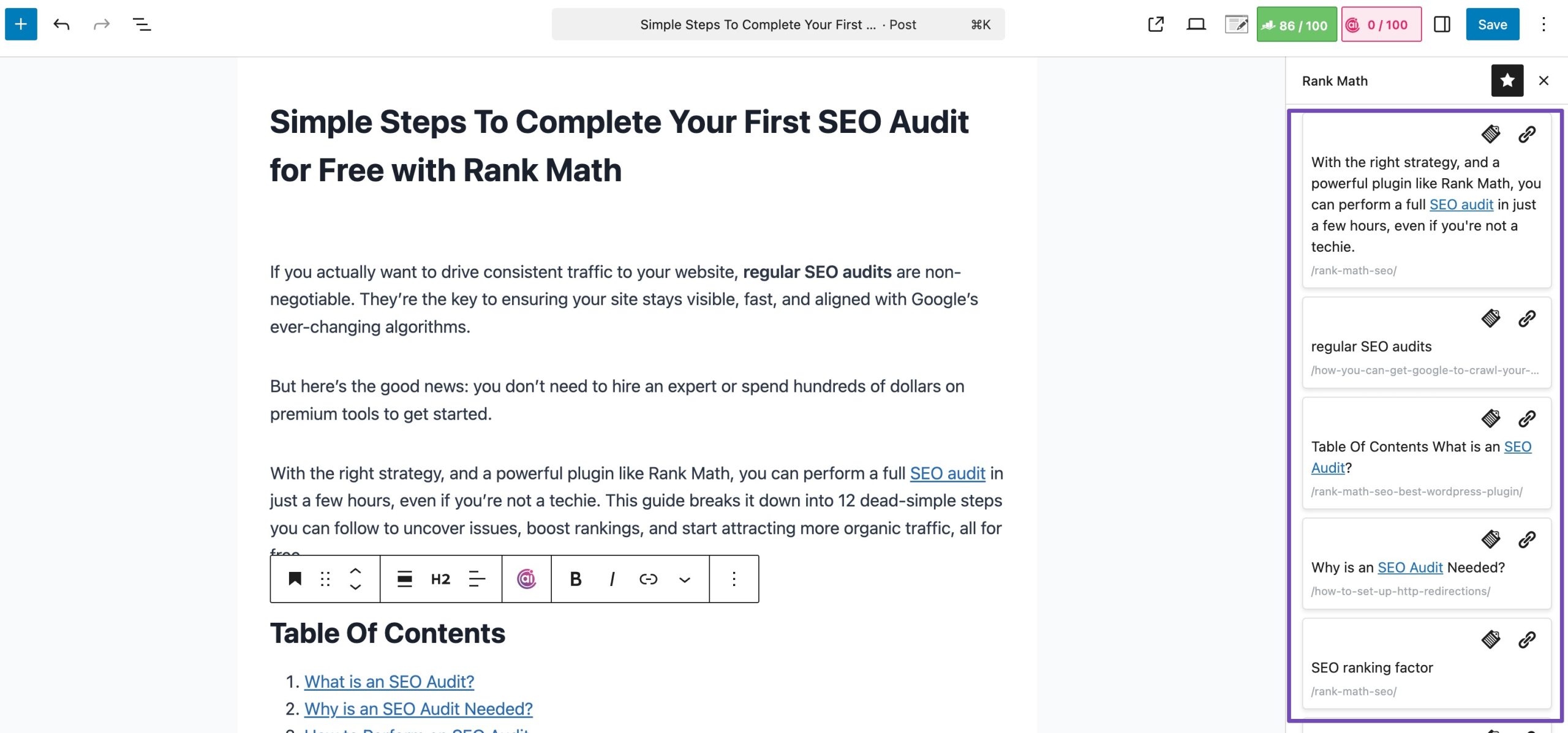
This method allows you to add internal links quickly without interrupting your writing flow.
5.3 Using Related Posts for Smart Internal Linking
AI Link Genius includes Related Posts suggestions that automatically connect your current article to other relevant content on your website. This helps readers discover more pages and improves how your content is connected overall.
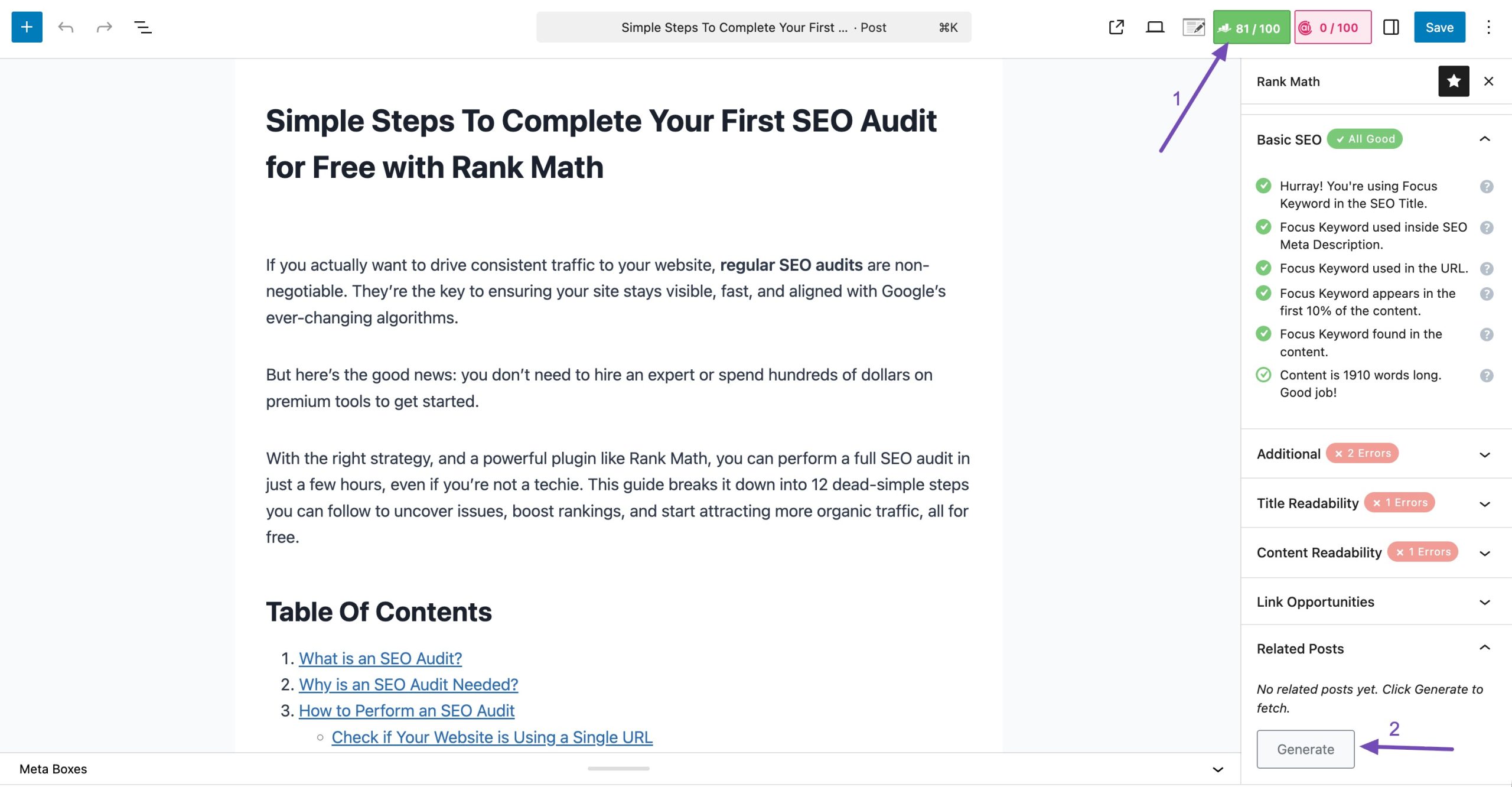
To add related posts, open your article in the WordPress post editor. Click the Rank Math SEO icon and scroll down until you see the Related Posts section. Then click Generate.
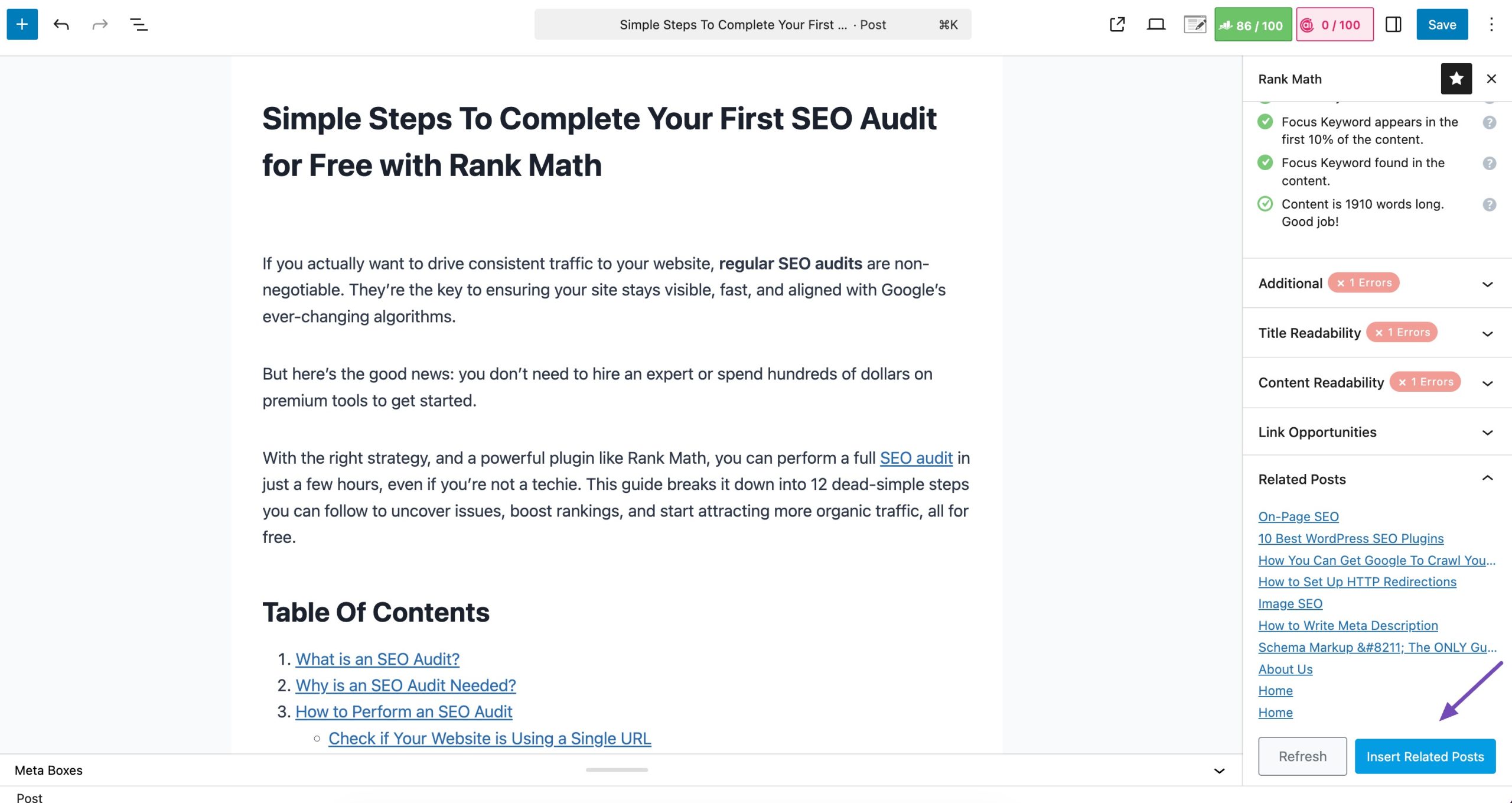
Click on the Insert Related Posts button to add the related posts block.
This will automatically add a related posts block to your content, displaying up to three relevant articles by default.
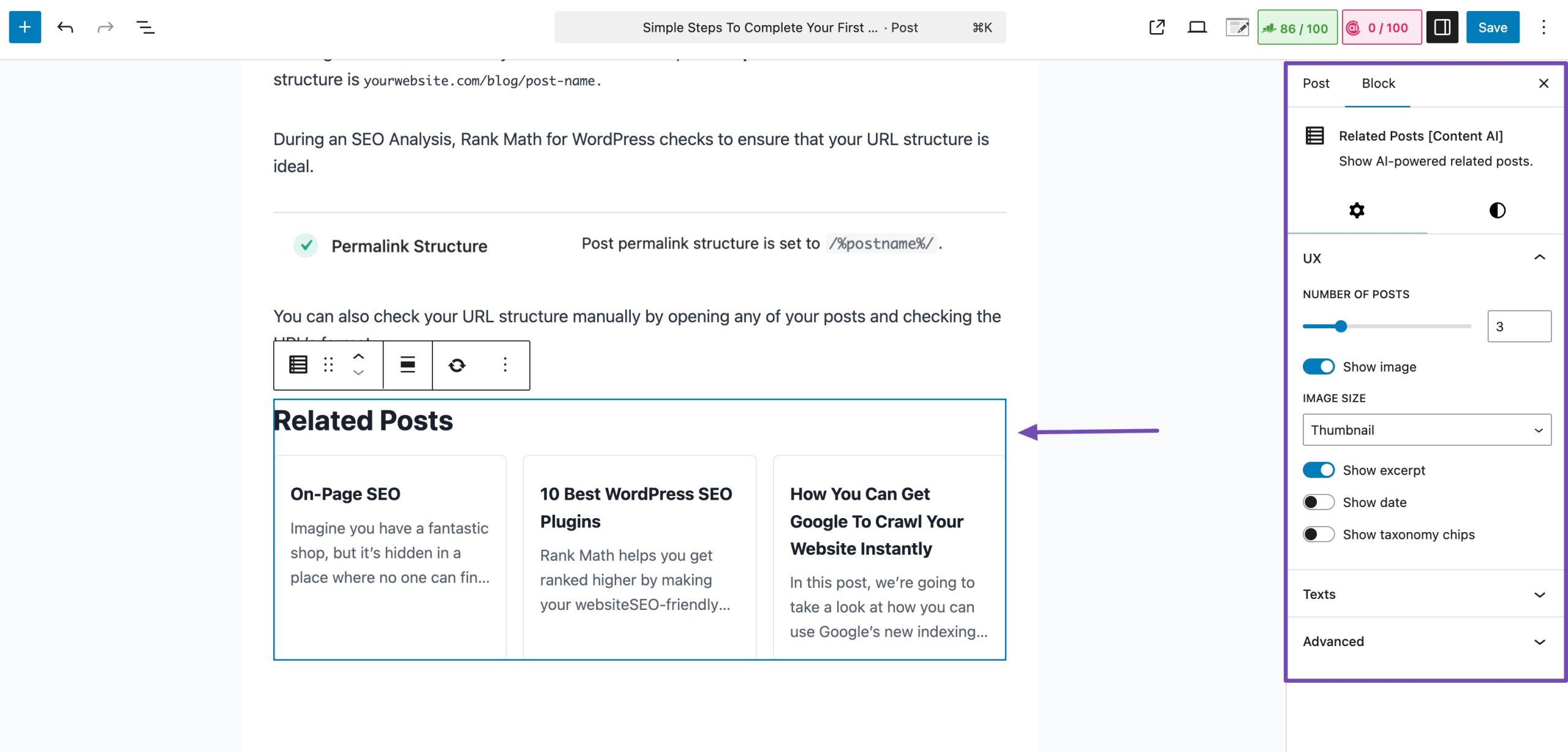
You can also:
- Customize layout and design
- Control the number of posts
- Adjust featured image settings
- Modify titles and buttons
- Add custom CSS
- Save designs as reusable patterns
You can even insert it via shortcode or apply it globally using block patterns.
If you are using a Block Editor, click the + icon and locate the Related Posts [Content AI] block, as shown below.
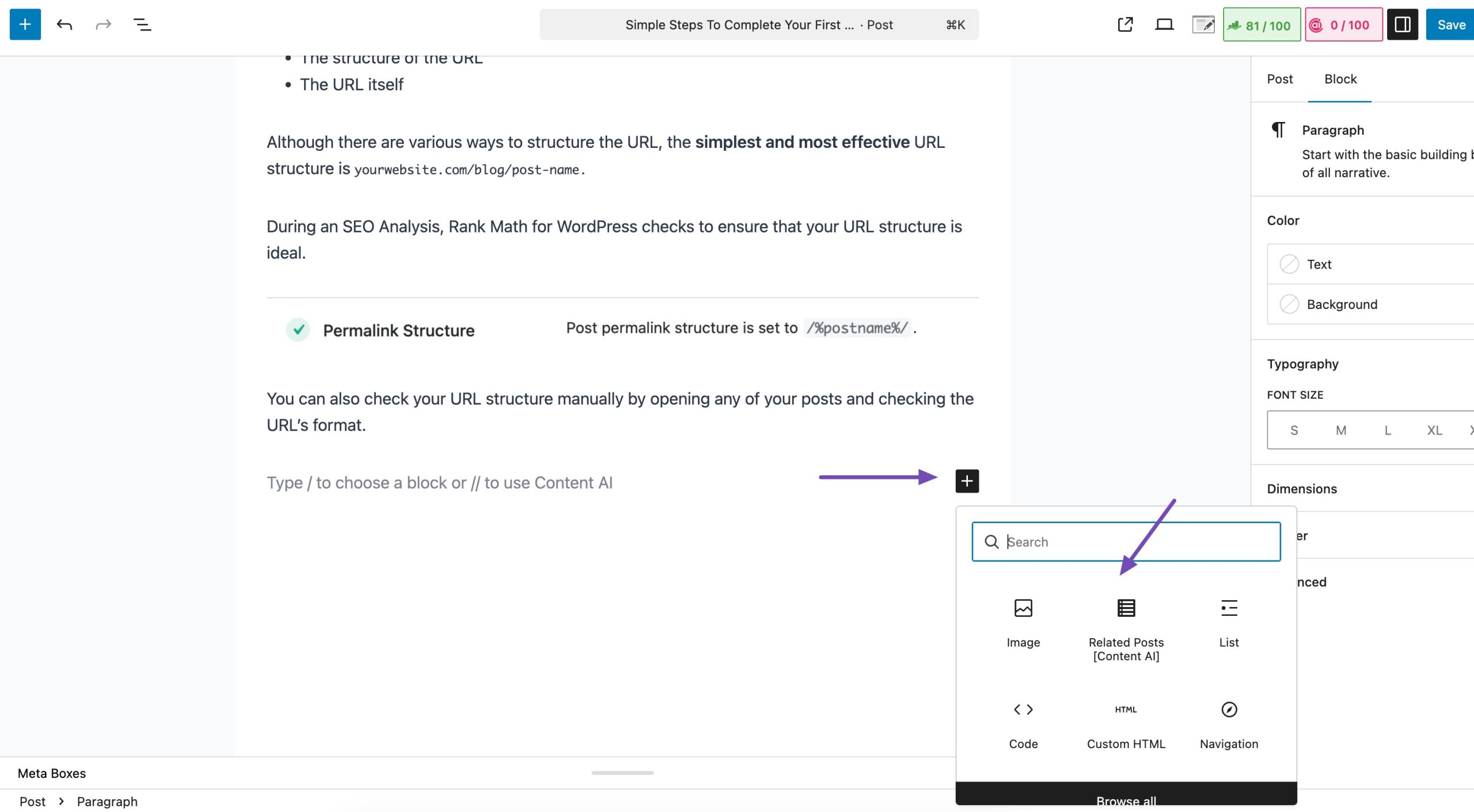
When inserted, the block automatically fetches AI-recommended related posts based on the current post’s content. If related posts have already been generated (via the panel or a previous insert), the cached data is used immediately.
For sites using the Classic Editor, or for inserting related posts directly into theme templates, the shortcode is:
[rank_math_related_posts]
The shortcode accepts the same settings as the block.
These related articles act as internal links, guiding readers to other useful pages on your site. It’s a simple way to keep visitors engaged while strengthening your site’s internal linking structure without adding links manually throughout the content.
Customize Related Posts
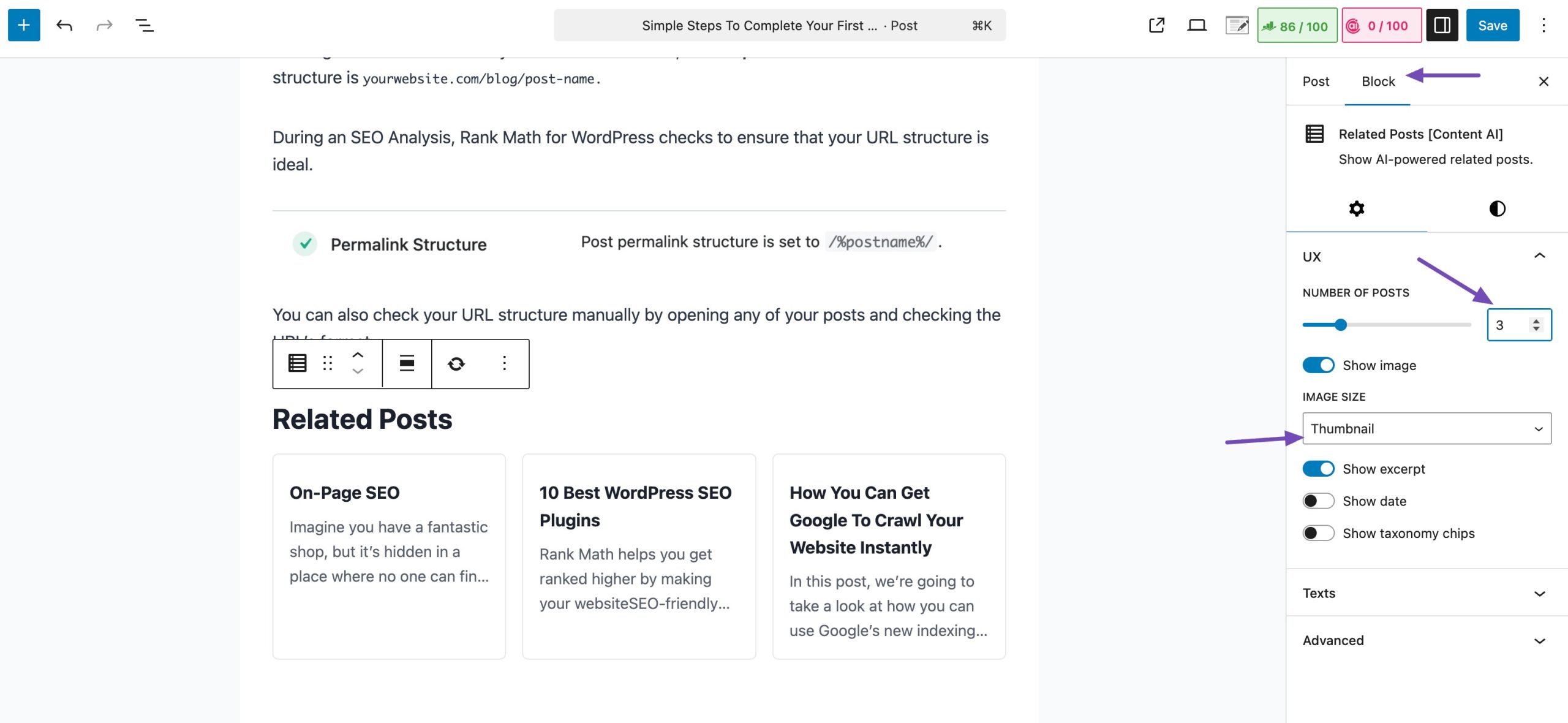
To customize the number of related posts displayed, click on the Related Posts block inside your post editor.
Once selected, open the WordPress settings sidebar. From there, you can adjust the number of posts you want to show in the block. You also have the option to choose whether images should be displayed alongside the post titles.
You can also change the layout of the Related Posts, such as alignment (wide, full), text/background/link colours, typography (font size, line height), spacing (margin, padding), and border (colour, radius, style, width).
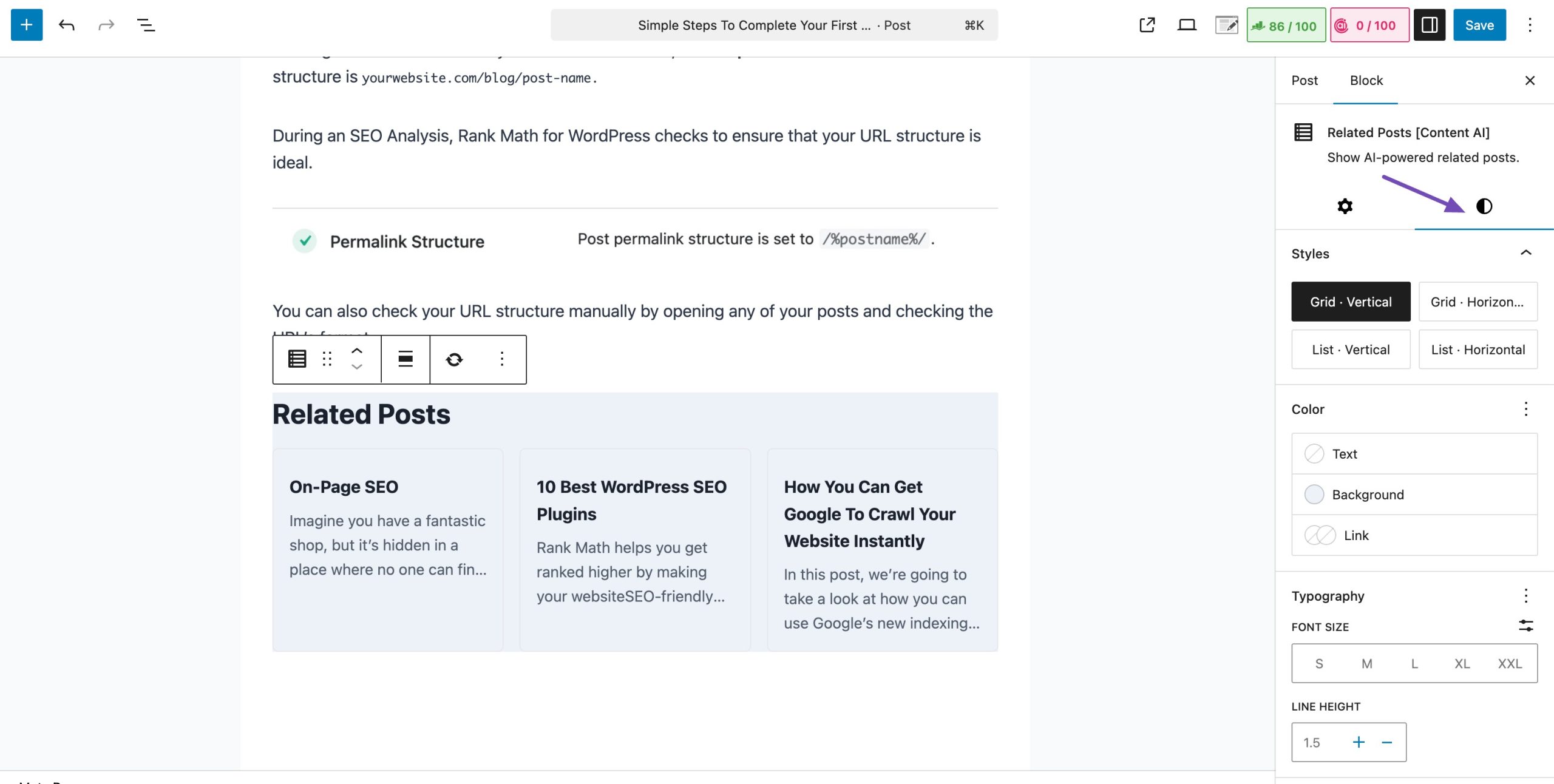
Adjusting these settings allows you to control how many internal links appear at the end of your article, helping readers discover more content while keeping your internal linking structure clean and organized.
6 How to Automate Internal Linking with Keyword Maps
If you want automation, use Keyword Maps.
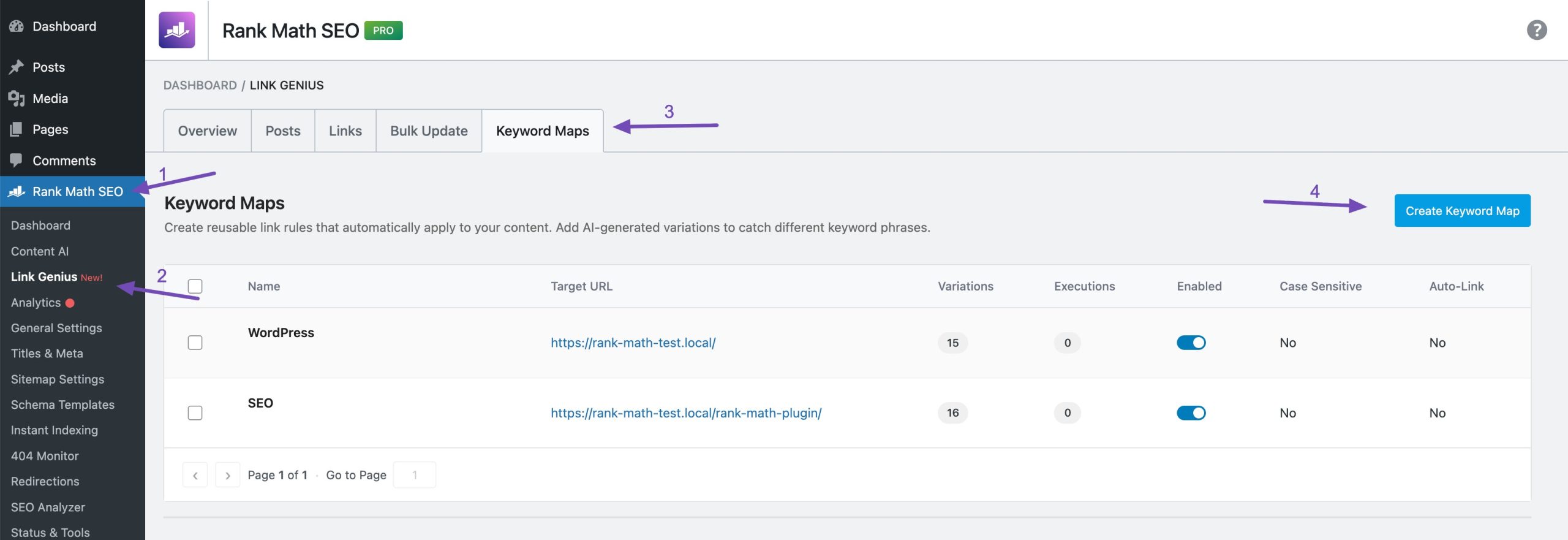
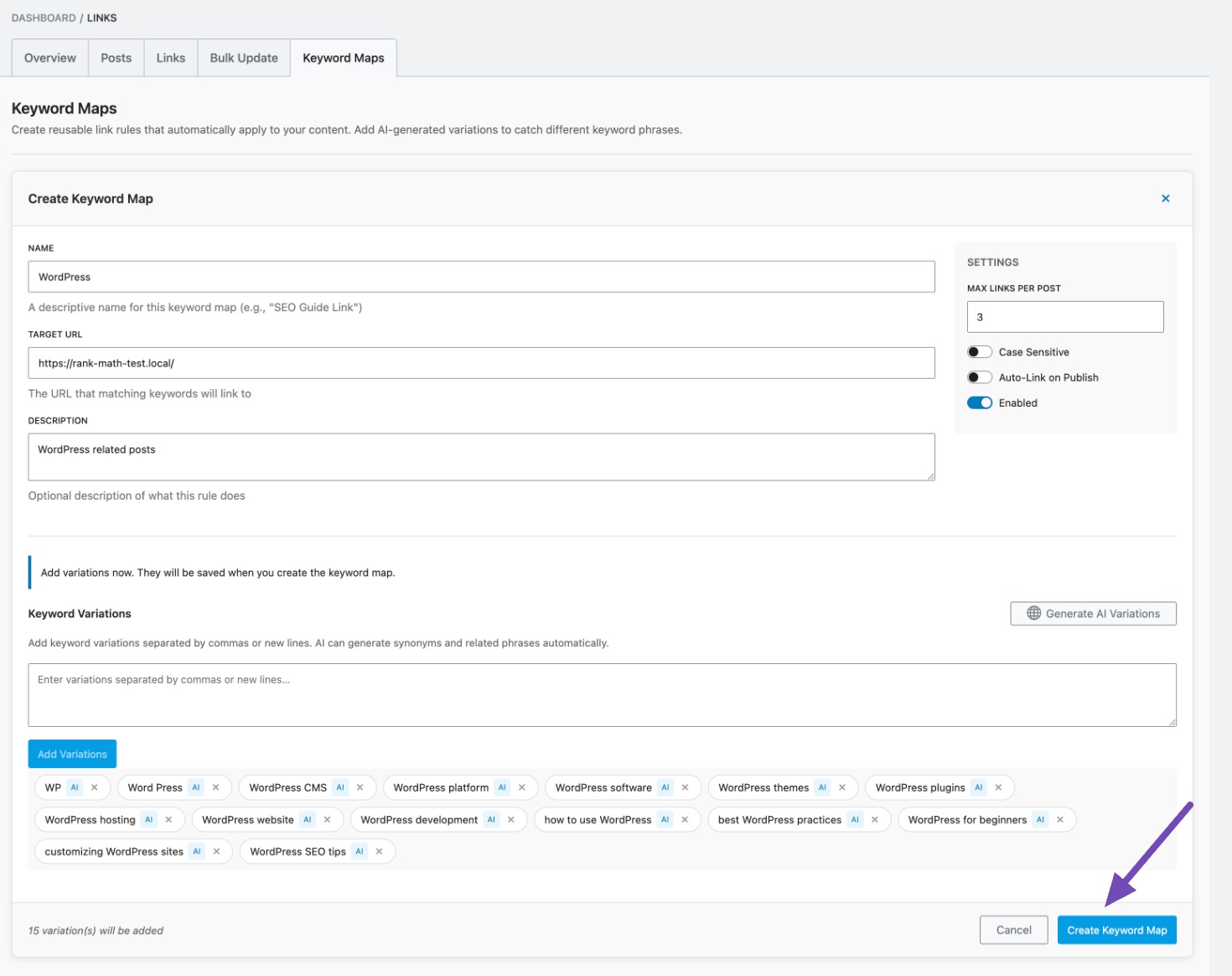
Navigate to Rank Math SEO → Links → Keyword Maps, and then click Create Keyword Map. This will open the settings where you can configure how your internal links should work.
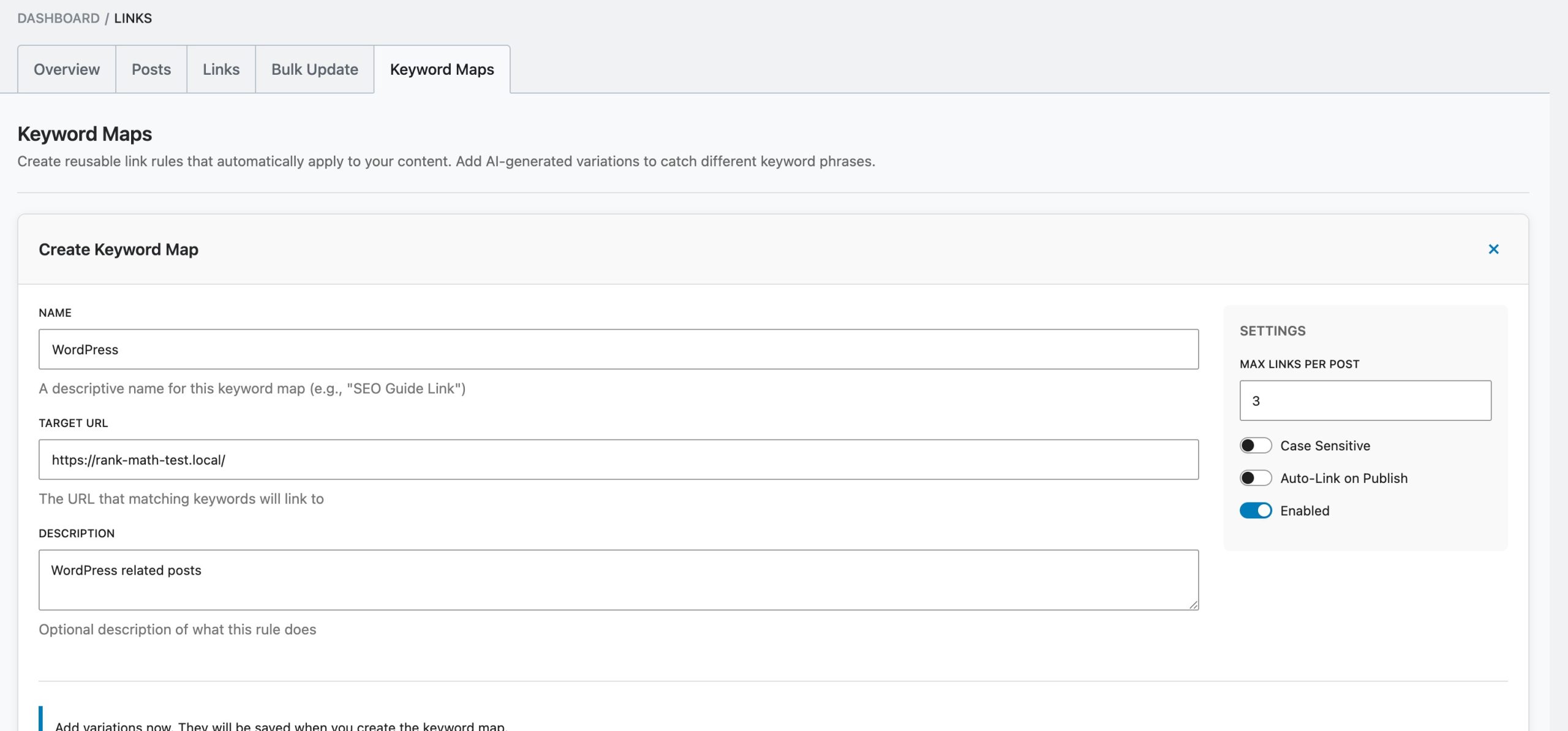
First, enter a Name for your keyword map. This name is only for your reference, so choose something that helps you remember its purpose.
Next, add the Target URL, which is the full web address where your internal link should point. Make sure you enter the complete URL. Then, include a short Description to explain what this keyword map is for. This is optional but helpful for organization.
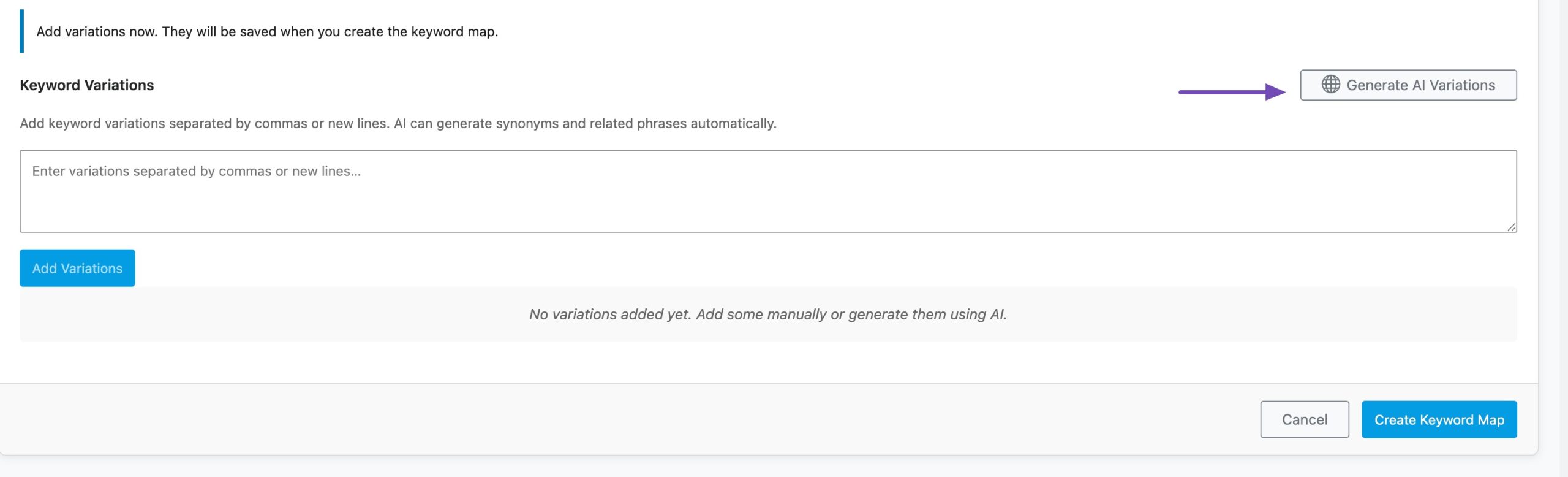
Now, move to Keyword Variations. Here, you will add the words or phrases that should trigger the internal link. You can separate multiple keywords with commas or place each one on a new line.
After adding them, click Add Variations. If you want more suggestions, click Generate AI Variations.
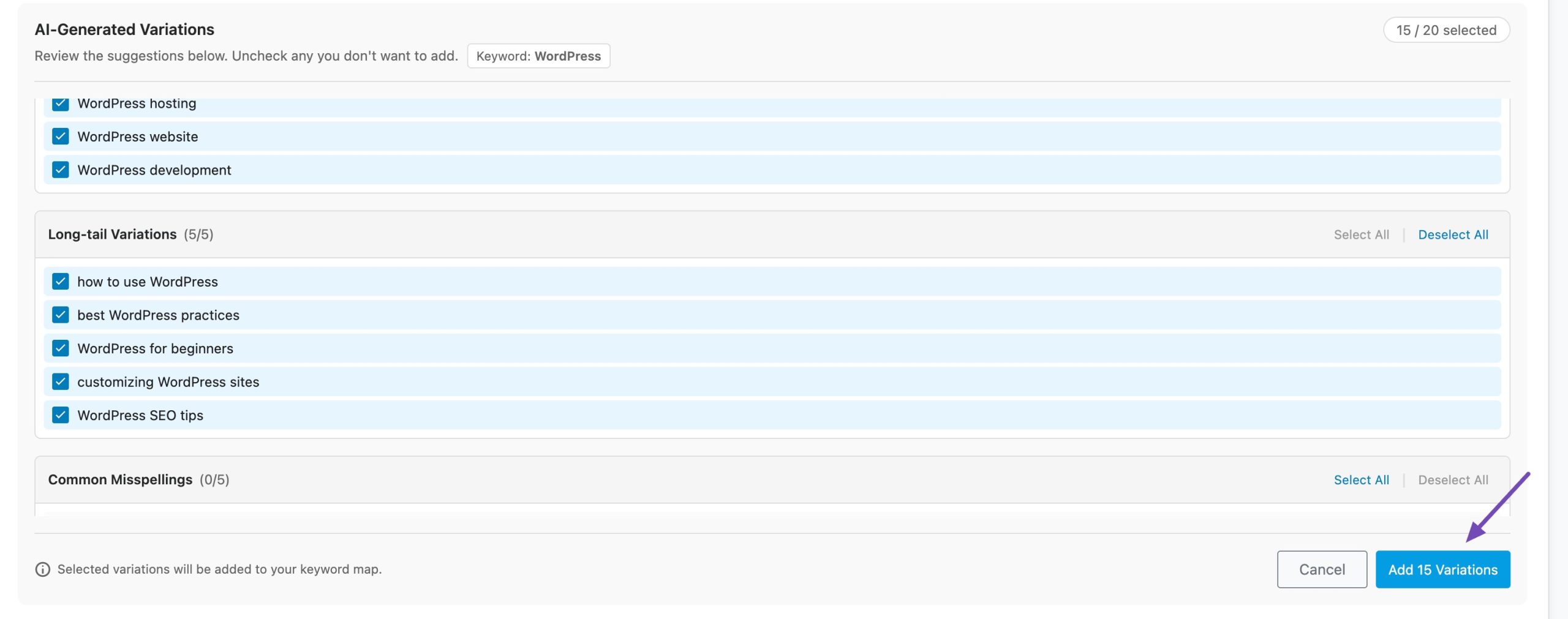
AI Link Genius will create similar keywords, long-tail variations, and even common misspellings. Review these suggestions carefully and disable any keywords you do not want to include. Click on Add Variations, as shown below.
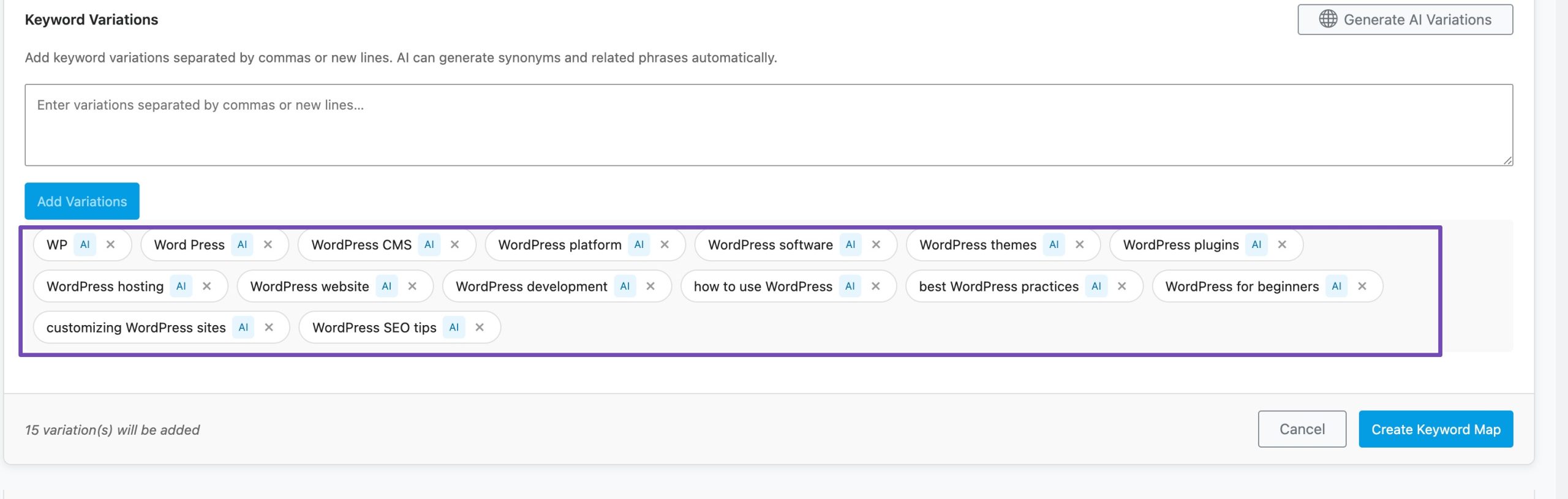
Your variations will now be added.
Next, you can set the Max Links per Post option. This controls how many times the internal link appears in a single post. For example, if you set it to three, the link will appear up to three times, even if the keyword shows up more often. This helps prevent over-linking.
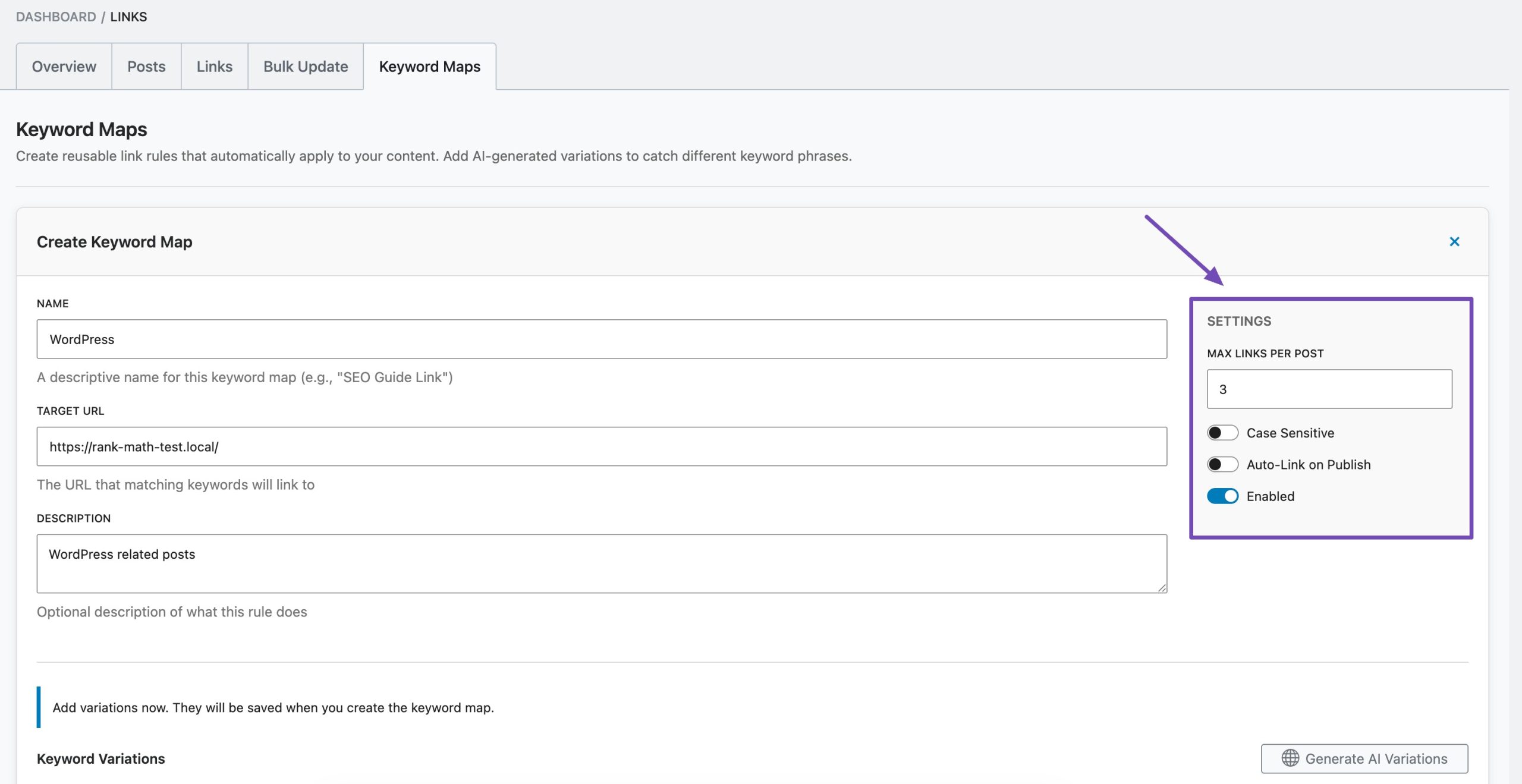
You can also enable the Case Sensitive option if you want the link to appear only when the keyword matches the exact letter case. For instance, if your keyword is Cat, it will not link to the lowercase cat.
If you want internal links to be added automatically in future posts, enable Auto-Link on Publish. When this setting is turned on, any new post containing the keyword will automatically include the internal link. If it is disabled, the keyword map will only update existing posts.
Finally, click Create Keyword Map to save your settings. Once this is done, whenever your specified keyword appears in your content, an internal link will be added automatically to the target URL you selected.
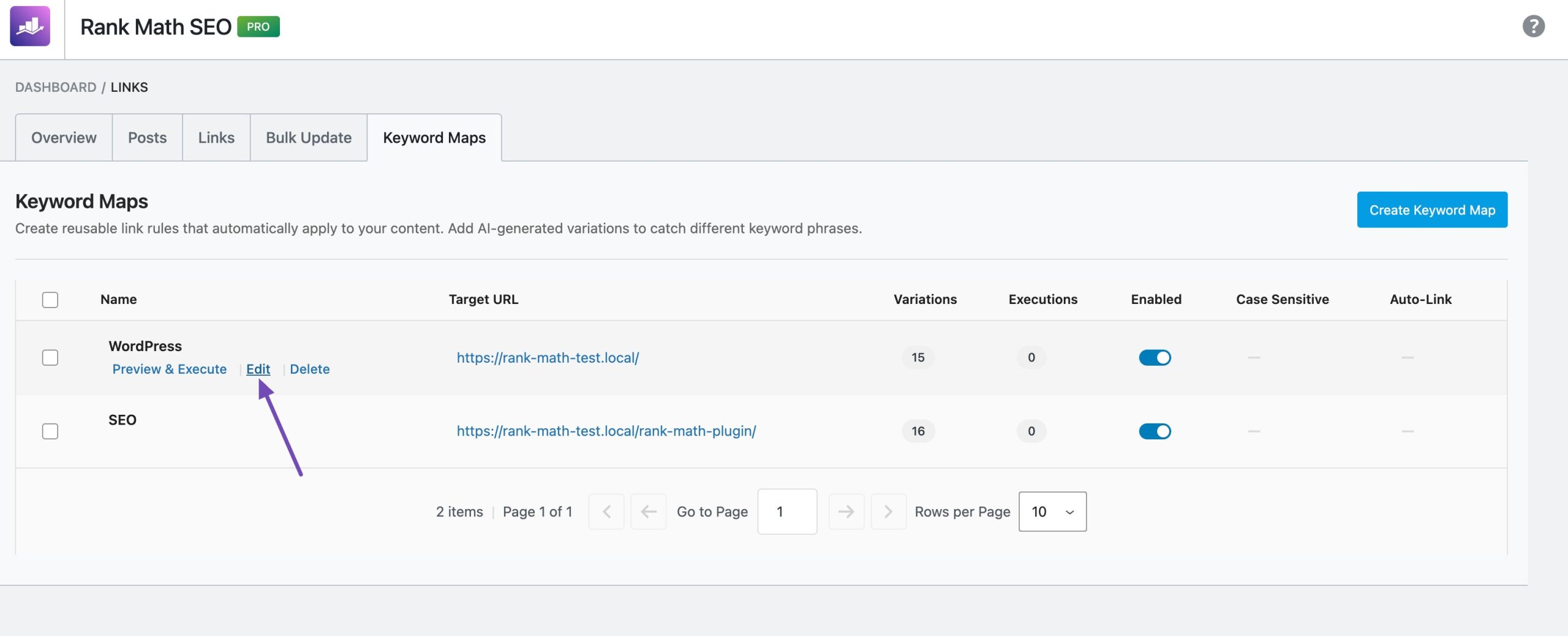
You can also update your existing keyword maps by clicking the Edit link on the keyword map.
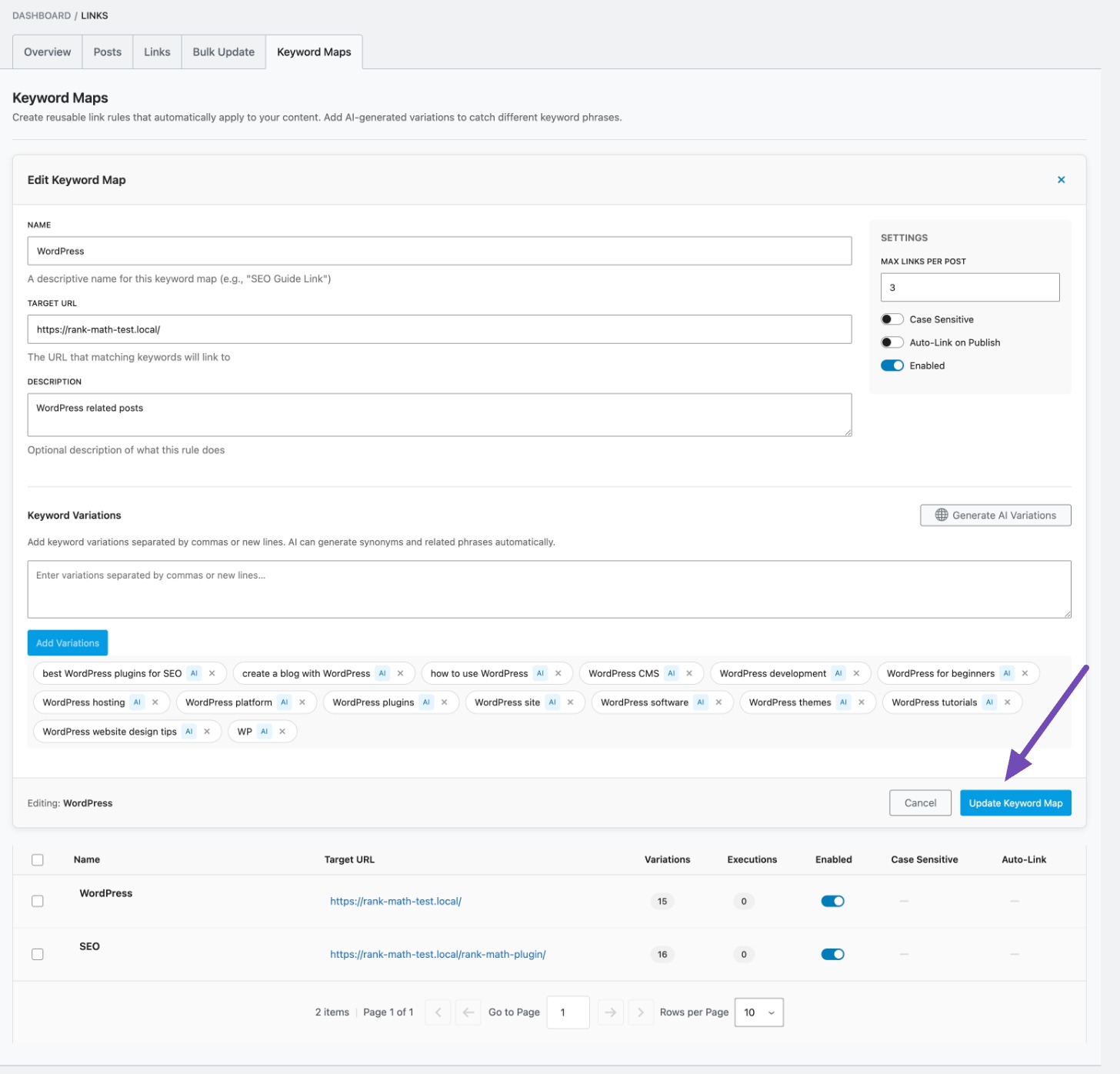
Make the necessary changes, and then click Update Keyword Map, as shown below.
7 Best Practices for Internal Linking With AI Link Genius
When using AI Link Genius, it’s important to follow a few best practices to keep your internal linking clean and effective. Even though automation saves time, you should still guide the process carefully. Here are some simple rules to follow:
- Do not overlink. Adding too many internal links on one page can make the content look cluttered and unnatural.
- Keep anchor text natural. Make sure your links fit smoothly within the sentence and match the context of your content.
- Link to important pages more often. Give priority to cornerstone or high-value pages, so they receive stronger internal support.
- Review AI suggestions before inserting. Always double-check that the recommended link truly fits the topic and adds value.
- Set link limits per post. Use the Max Links per Post setting to avoid excessive linking.
- Check your keyword maps regularly. Update or refine them as your content strategy evolves.
Automation makes internal linking faster and easier, but regular review ensures your links remain relevant, helpful, and well-structured.
8 Frequently Asked Questions
What is internal linking in SEO?
Internal linking connects pages within the same website. It helps search engines understand site structure and helps users navigate content.
Should I automate internal linking?
Automation is helpful for large websites, but it should be guided by strategy. Review automated links regularly.
What is AI Link Genius?
AI Link Genius is Rank Math’s internal linking feature that analyzes content, suggests relevant links, and automates internal linking inside WordPress.
Does AI Link Genius slow down my website?
No. Scans and suggestions run in the background and do not affect frontend performance.
Does AI Link Genius work in both Classic and Block editors?
Yes. It works in both editors and supports major page builders.
9 Conclusion
Internal linking is essential for SEO.
As your site grows, tools like AI Link Genius in Rank Math can help you scale intelligently, suggesting opportunities, organizing link data, and automating high-priority connections.
With the right settings and regular review, you can build a strong internal linking structure without extra effort.
Start small, stay consistent, and let AI help you scale your internal links for SEO. If you like this post, let us know by tweeting @rankmathseo.