
If you’re using Rank Math’s Content AI, it’s important to keep an eye on your feature usage and refresh date to ensure you can always generate AI-driven content suggestions, keyword ideas, and internal linking improvements, without interruption.
Fortunately, there are multiple convenient ways to check your remaining Content AI feature usage and monthly refresh date right from your WordPress dashboard. Let us show you.
How to Check Content AI Usage and Refresh Date
1 How to View Your Content AI Feature Usage
Your Content AI feature usage shows how many uses you have for each AI feature and how many you have already used. This lets you track your usage and manage your uses more effectively.
There are multiple ways to check your monthly feature usage, including:
- The Content AI usage tab
- The Content AI menu
- The Content AI sidebar
1.1 Use the Content AI Usage Tab
The most direct way to view your feature usage is through the Content AI Usage tab in your WordPress admin dashboard. This is also the preferred method, as it shows your usage across all AI tools and features available in Rank Math.
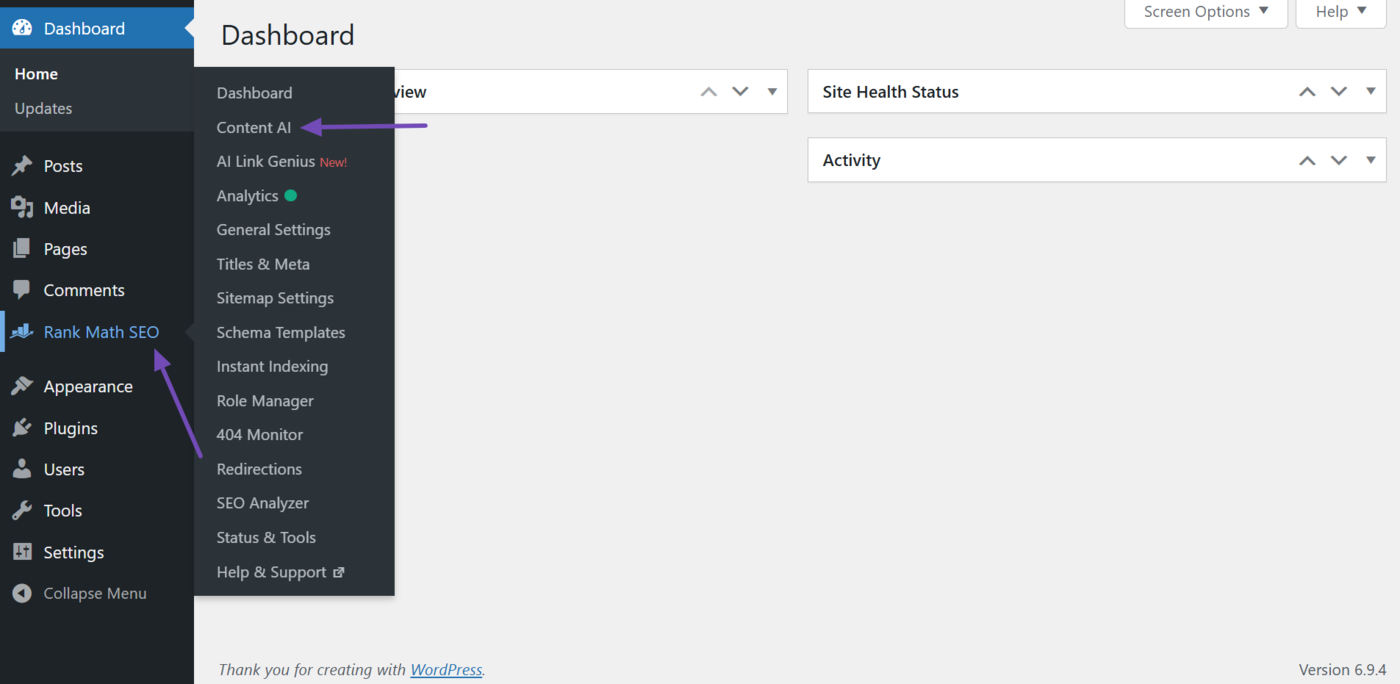
To get started, navigate to Rank Math SEO → Content AI from your WordPress dashboard.
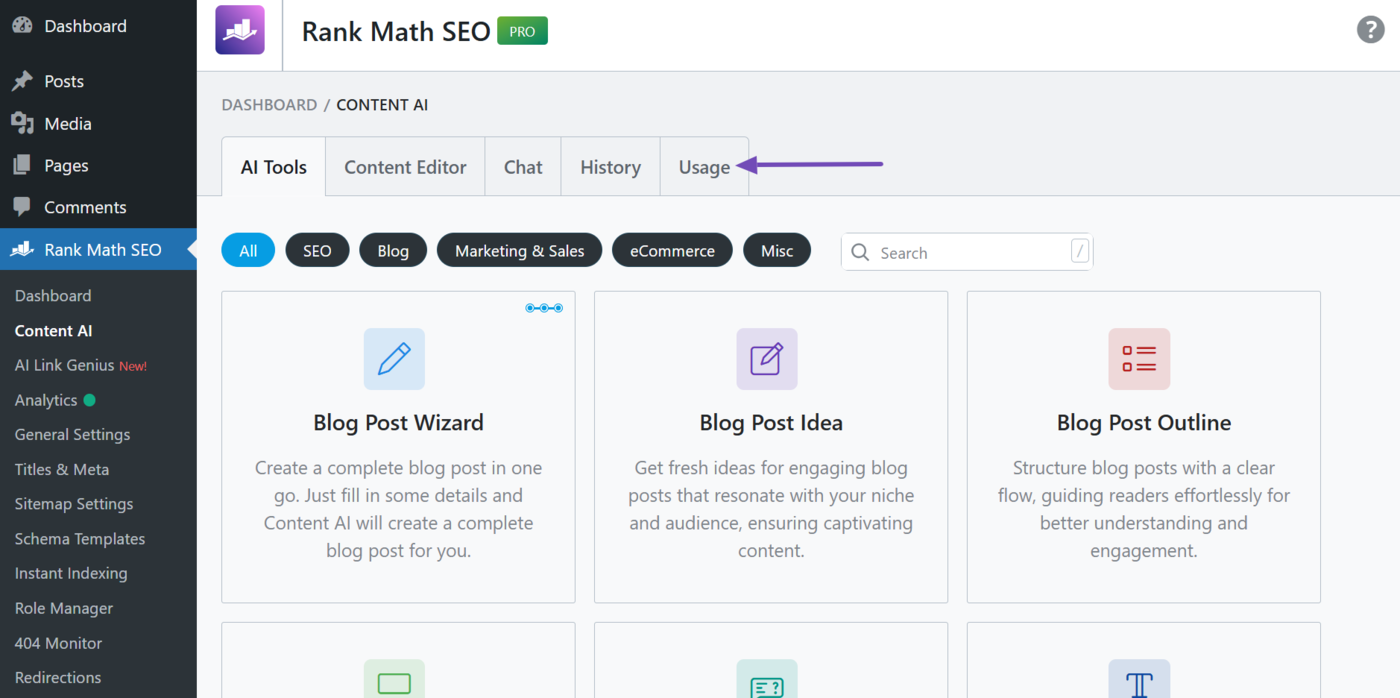
Once done, click on the Usage tab.
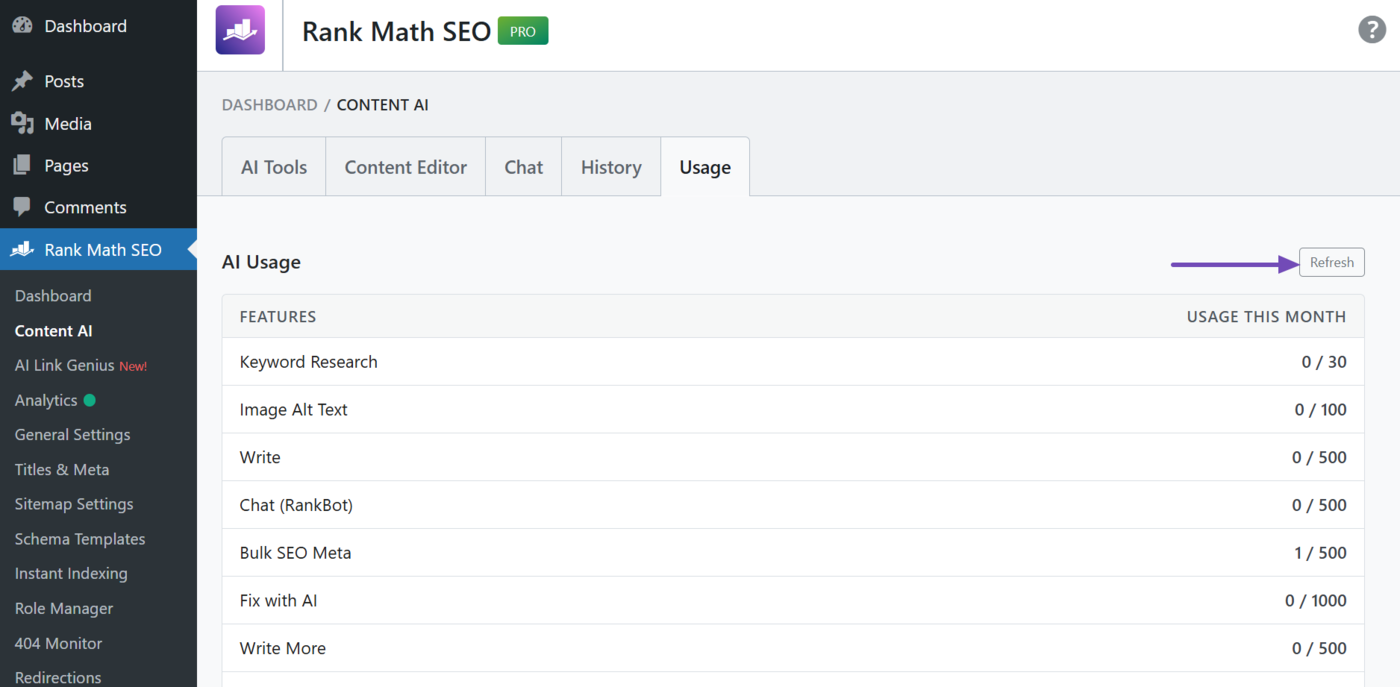
Your feature usage report will be clearly displayed to you, as shown below. You may also click the Refresh button to ensure your latest feature usage is displayed to you.
1.2 Use the Content AI Menu
Multiple AI tools and features, including RankBot and the 44+ content ideation, creation, and improvement tools in Content AI, display your feature usage. This makes it easy to check your AI usage while using the specific tool.
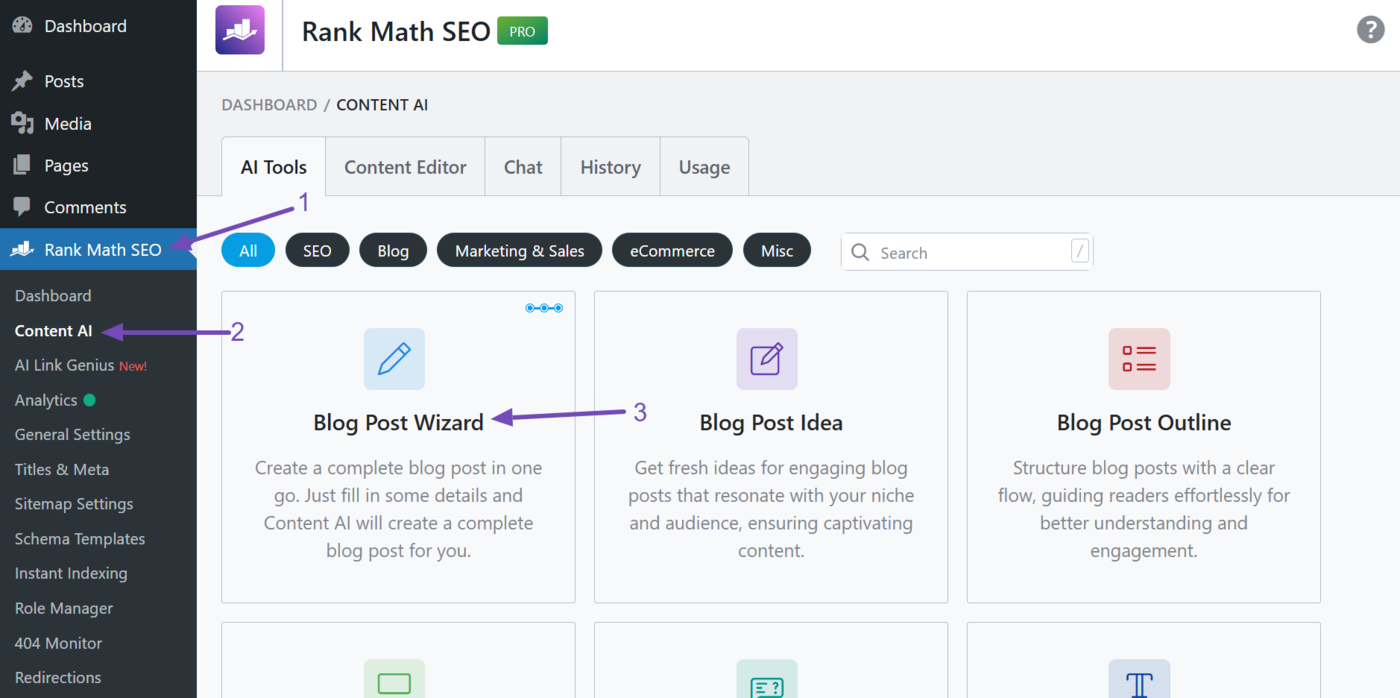
To view the feature usage of these tools, head to Rank Math SEO → Content AI from your WordPress dashboard. Once done, select the relevant AI tool.
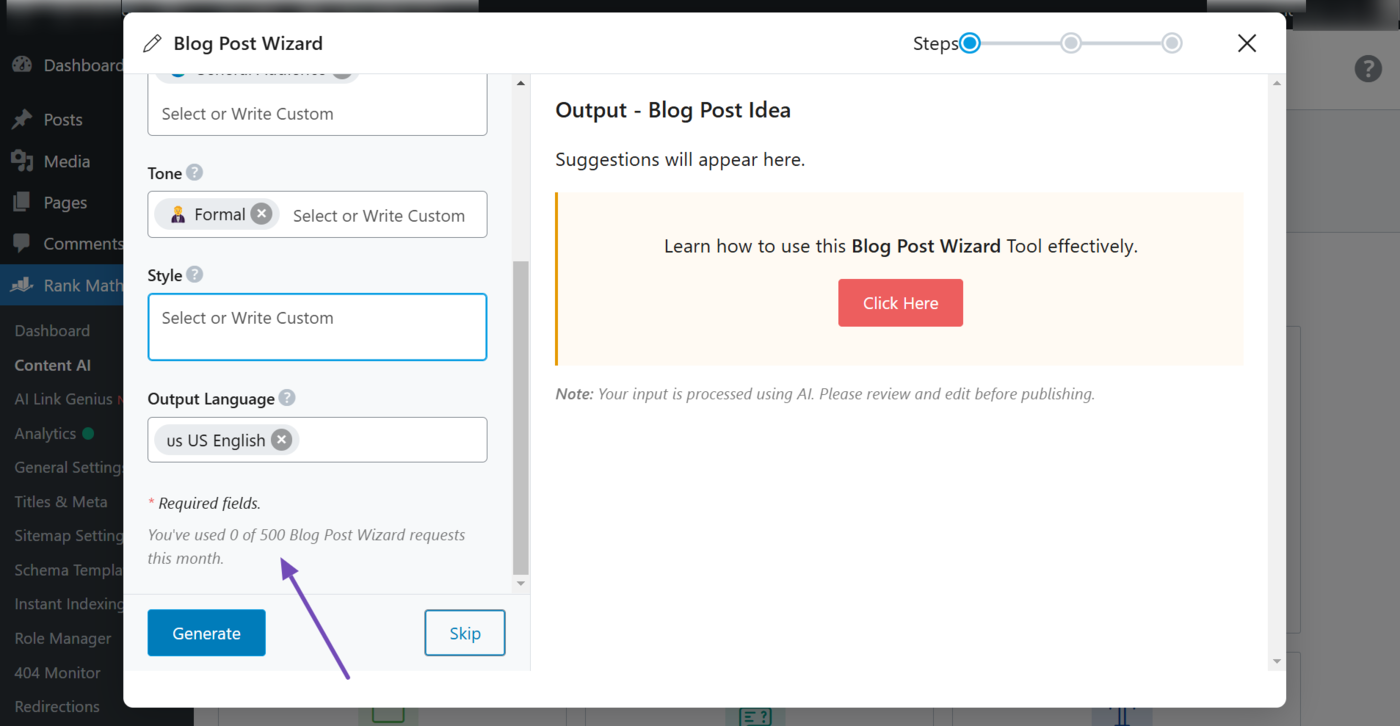
Let us click on the Blog Post Wizard AI tool for this example.
The tool’s feature usage will be displayed under its settings, as shown below.
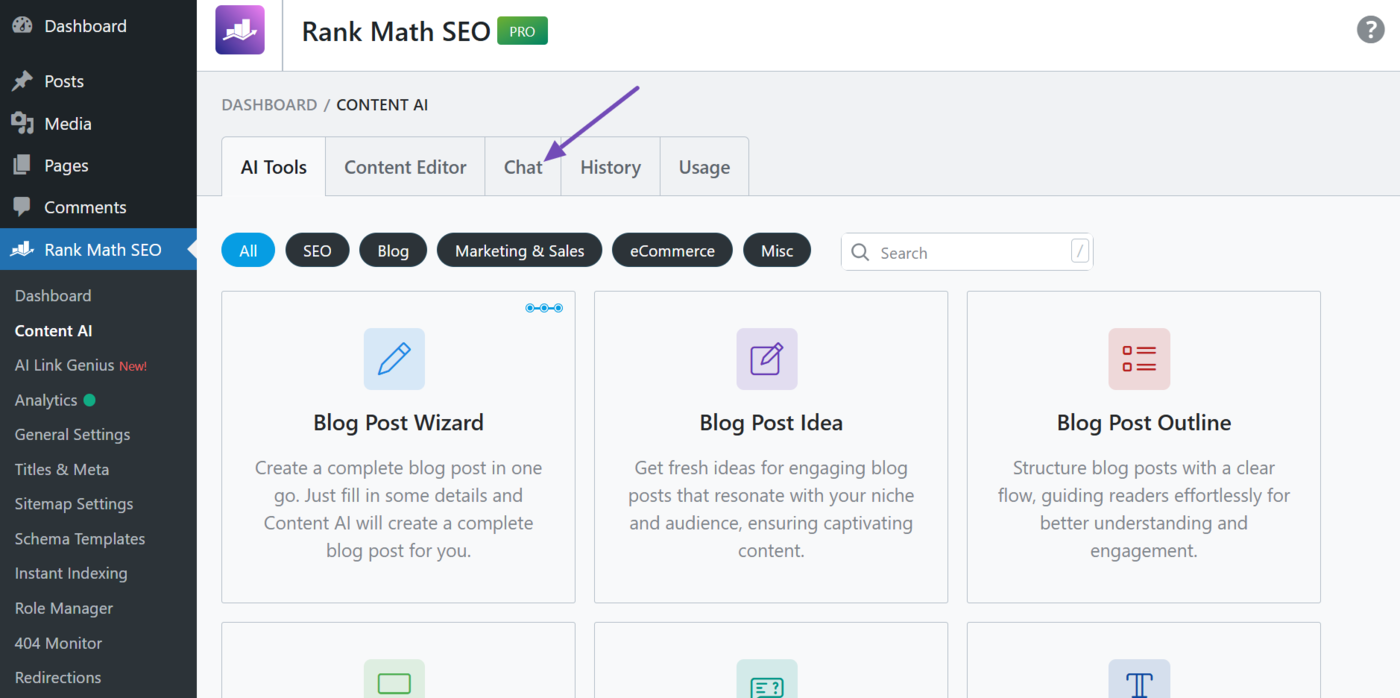
You can also use this method to check RankBot’s feature usage. To do that, click the Chat tab at Rank Math SEO → Content AI.
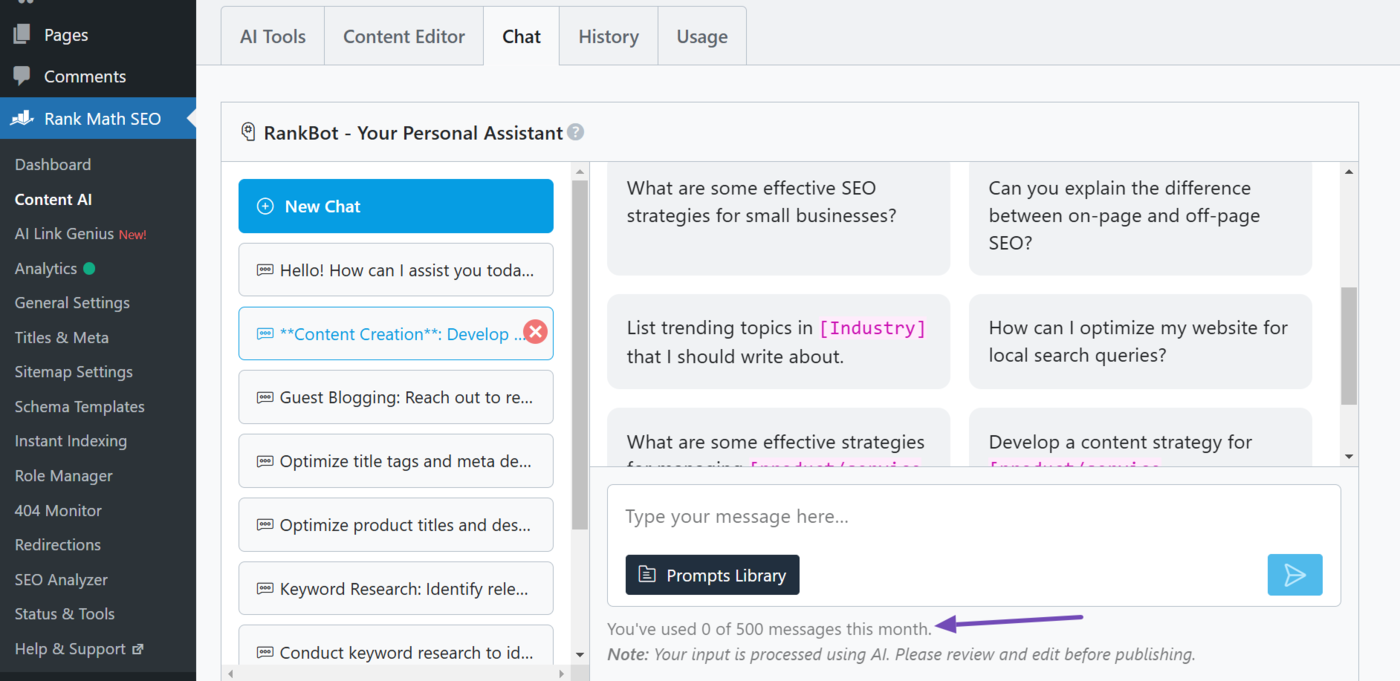
Once done, scroll down. Rankbot’s feature usage will be displayed, as shown below.
1.3 Use the Content AI Sidebar
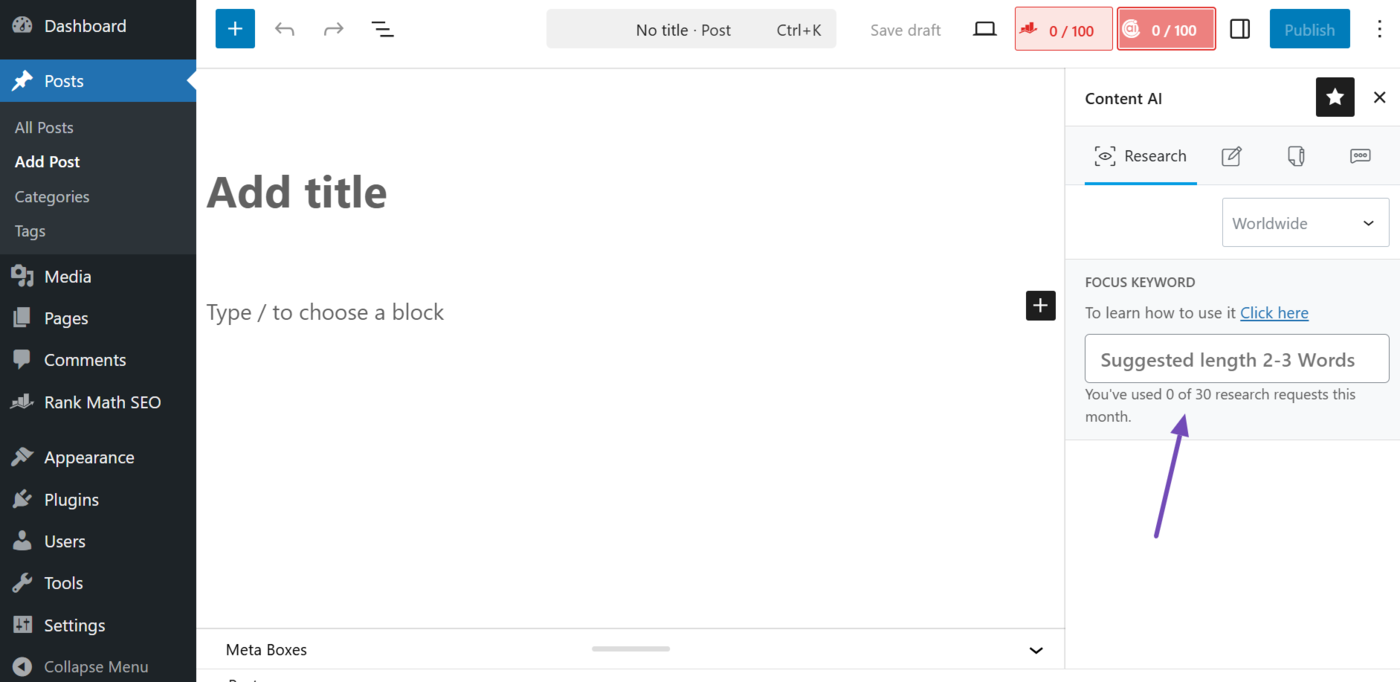
When editing a blog post or a page in the WordPress Block Editor, you can view your Content AI feature usage directly within the editor.
To do that, head to your post or page editor and click the Content AI button.
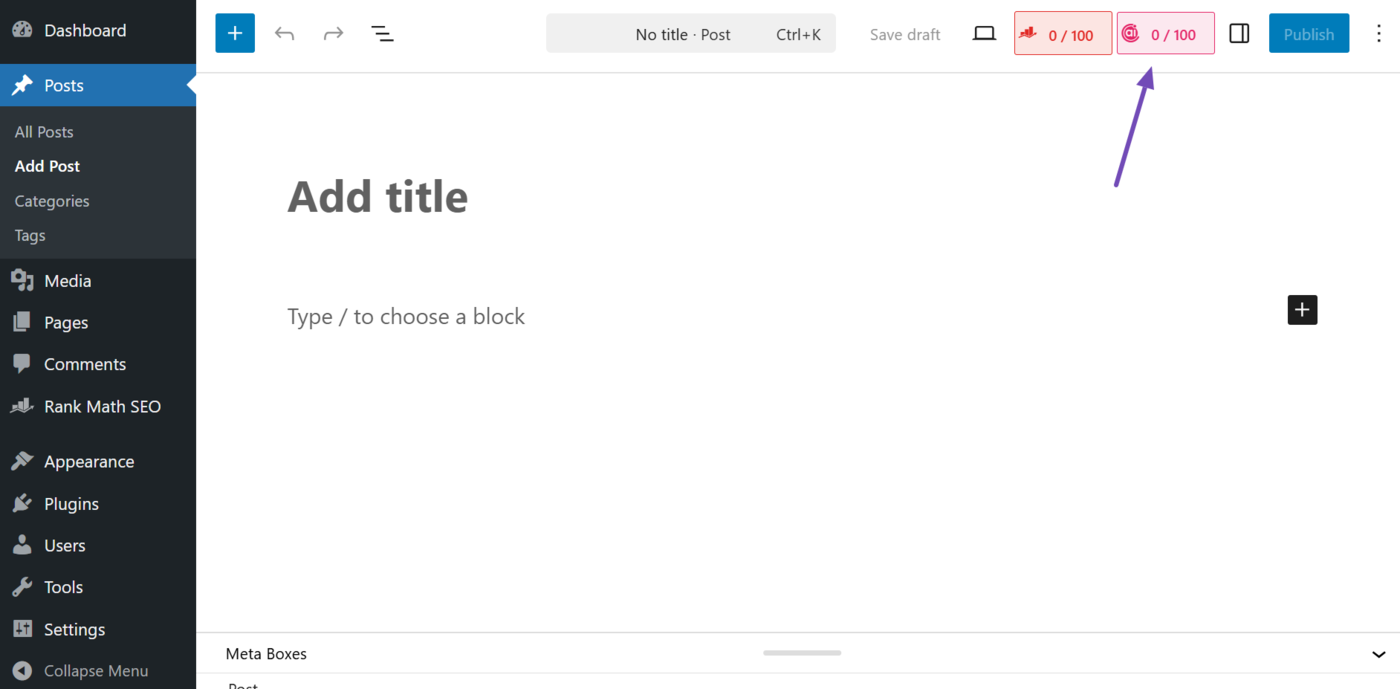
The AI tools and features within the Content AI sidebar will include your feature usage, as shown below.
2 How to View Your Content AI Monthly Refresh Date
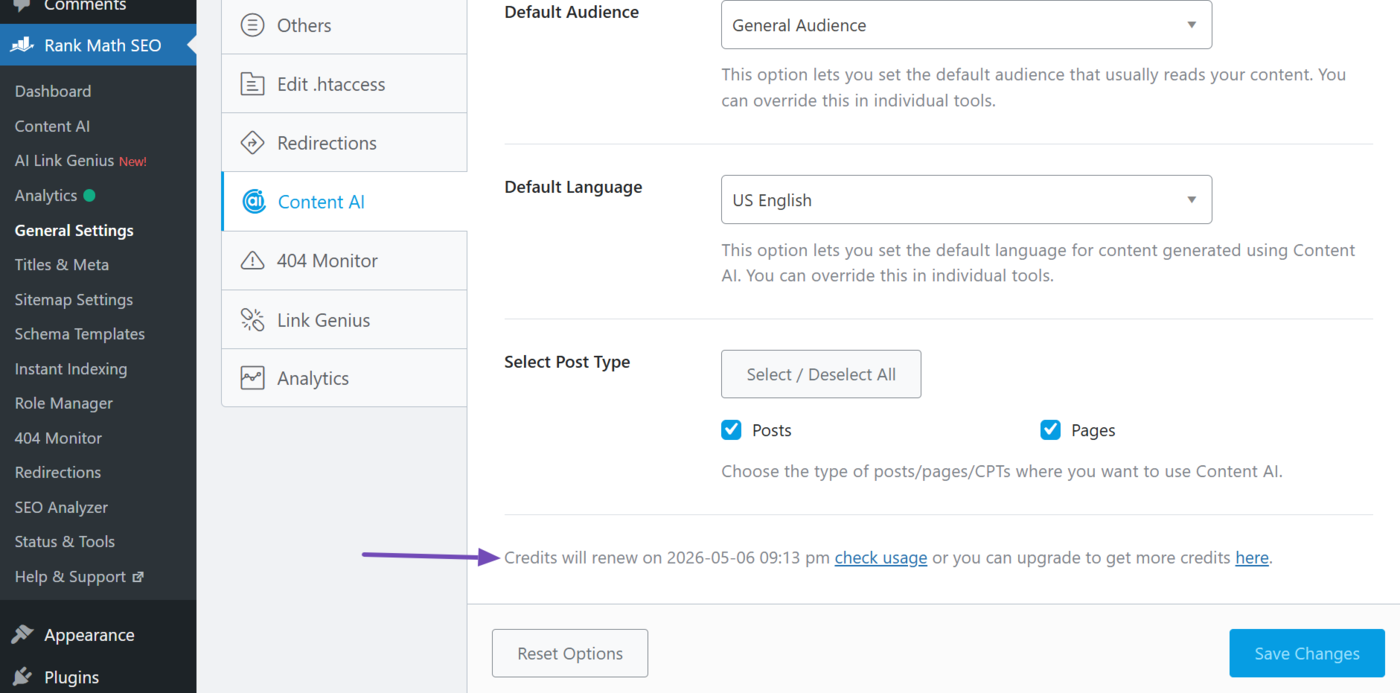
Your Content AI feature uses refreshes on a fixed date every month. You can view that date and time in your Content AI settings.
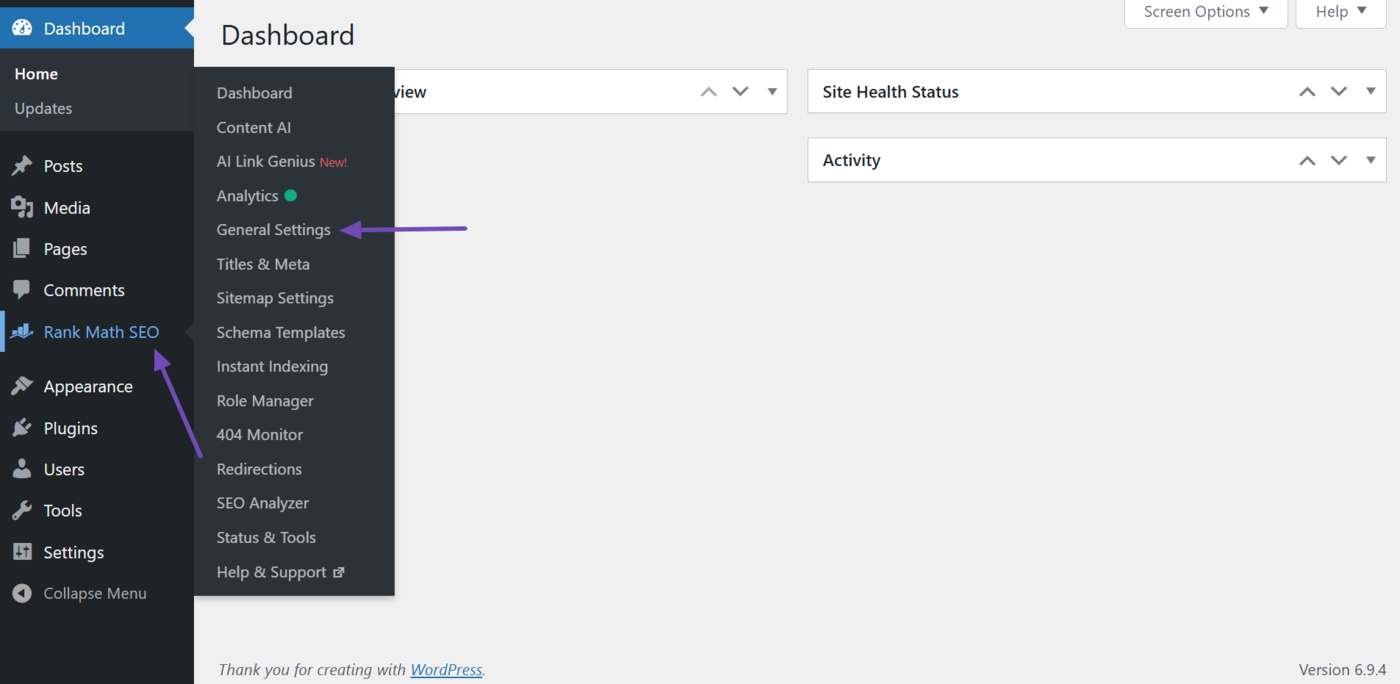
To view your Content AI refresh date, go to Rank Math SEO→ General Settings from your WordPress dashboard.
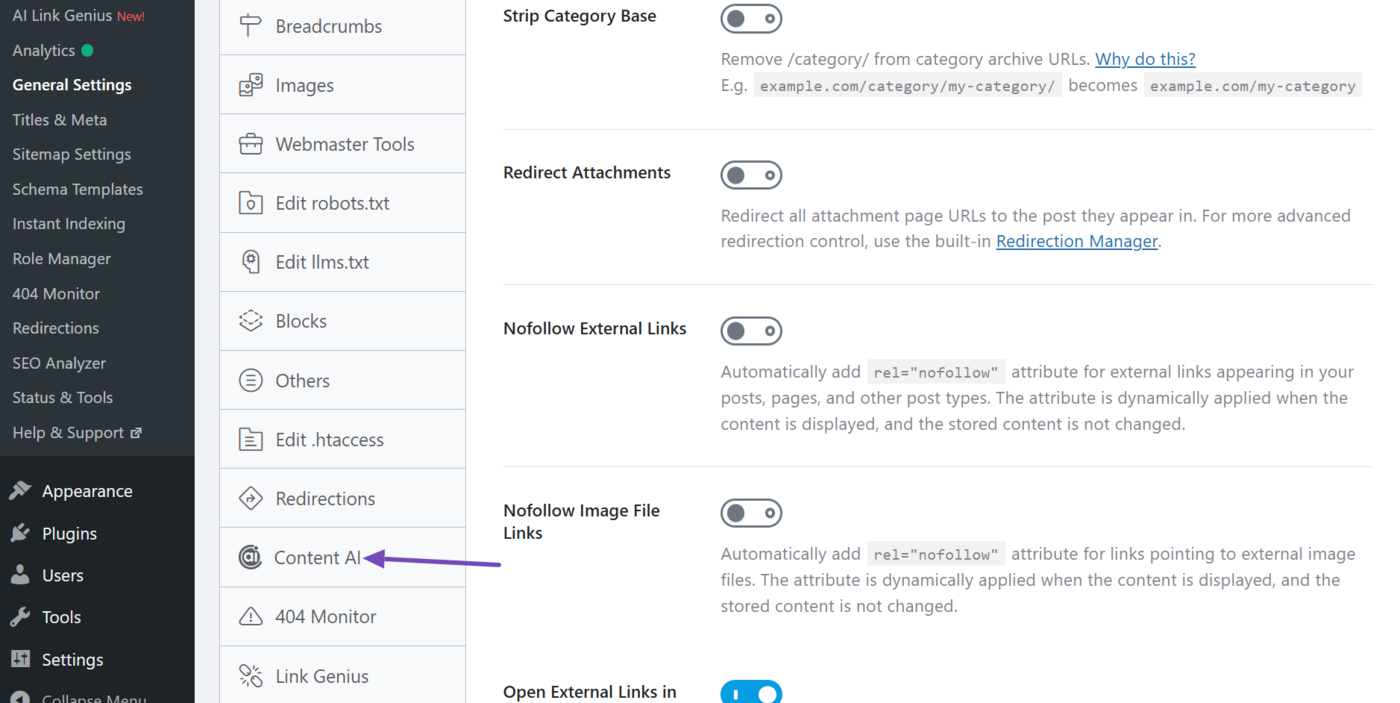
Once done, scroll down the available options and click Content AI, as shown below.
Then scroll down to the bottom of the Content AI settings. Your Content AI refresh date will be shown to you.
That is how you can view your Content AI feature usage and refresh date from your WordPress dashboard. This helps you plan your workflow more efficiently and ensure you never run out of features while creating or optimizing content.
And that’s it! If you have any questions or need help using Rank Math or Content AI, don’t hesitate to reach out to our support team. We’re available 24/7, 365 days a year, and always happy to assist!