
An internal link audit helps to uncover broken, missing, or poorly structured links on your site. It also allows you to identify opportunities to improve your SEO, internal linking, and user experience.
This makes it crucial for sites that want to strengthen their authority, improve navigation, and ensure both users and search engines can easily find their content. This is how to do an internal link audit using the links and posts tab in AI Link Genius.
Table of Contents:
1 Getting Started
Here are a few things to do before you start your internal link audit.
- Enable the AI Link Genius module
- Audit the HTTP status of your internal links
1.1 Enable the AI Link Genius Module
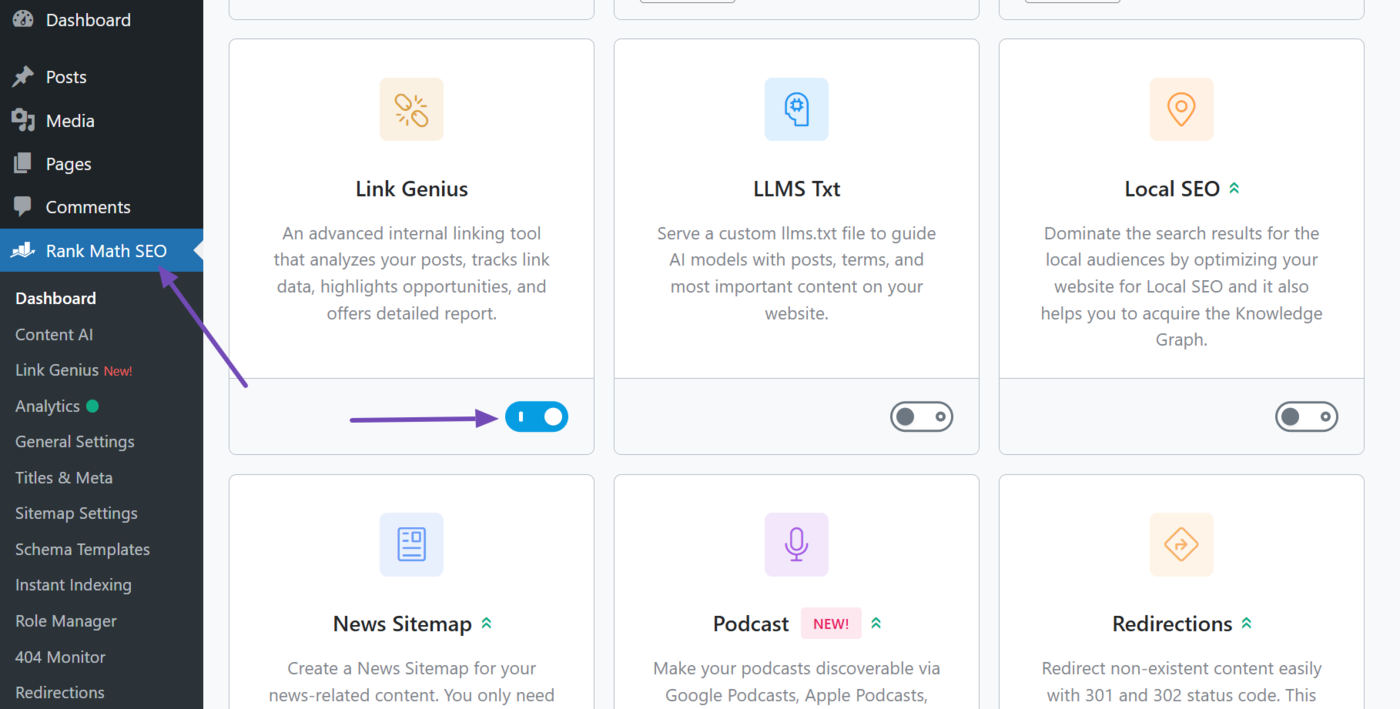
First of all, we need to enable the Link Genius module. To do that, click Rank Math SEO from your WordPress dashboard. Once done, next, enable the Link Genius module, as shown below.
Note: AI Link Genius is available exclusively in Rank Math PRO. If you haven’t installed Rank Math PRO yet, you can get a subscription of your choice from here.
1.2 Audit the HTTP Status of Your Internal Links [PRO]
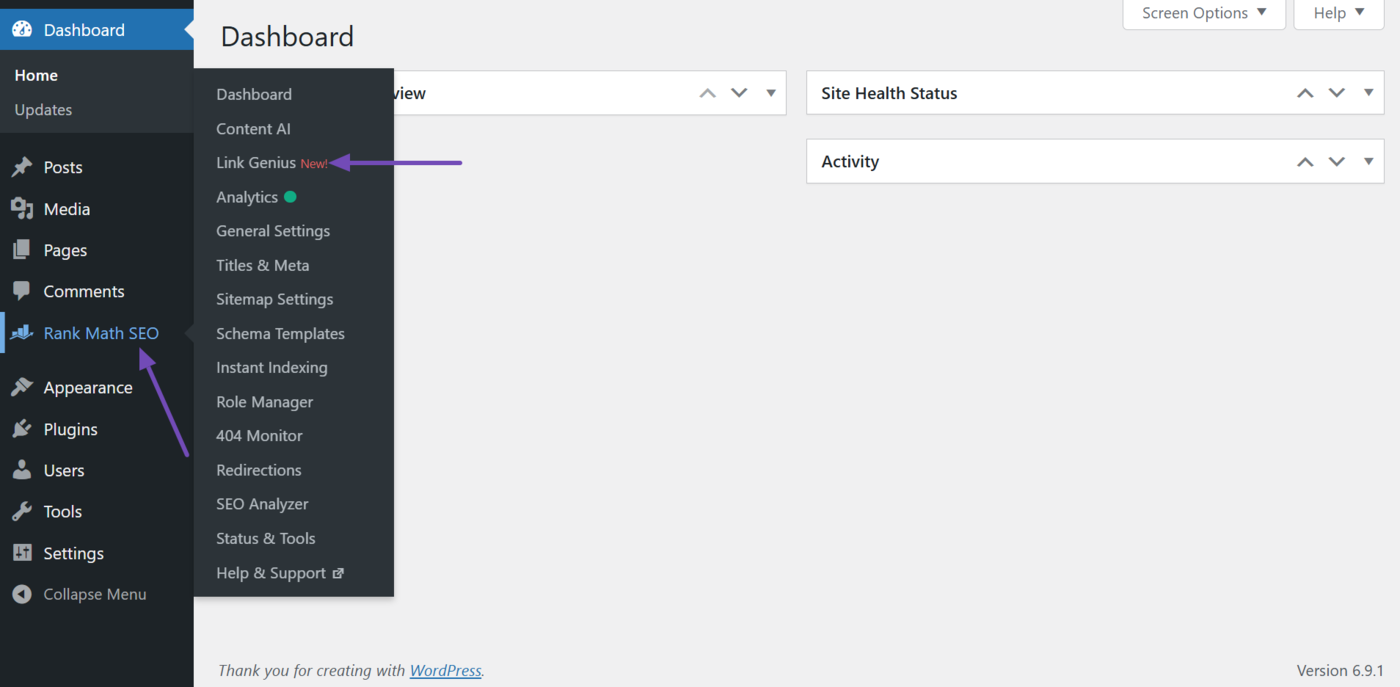
Now, head to Rank Math SEO → Link Genius, as shown below.
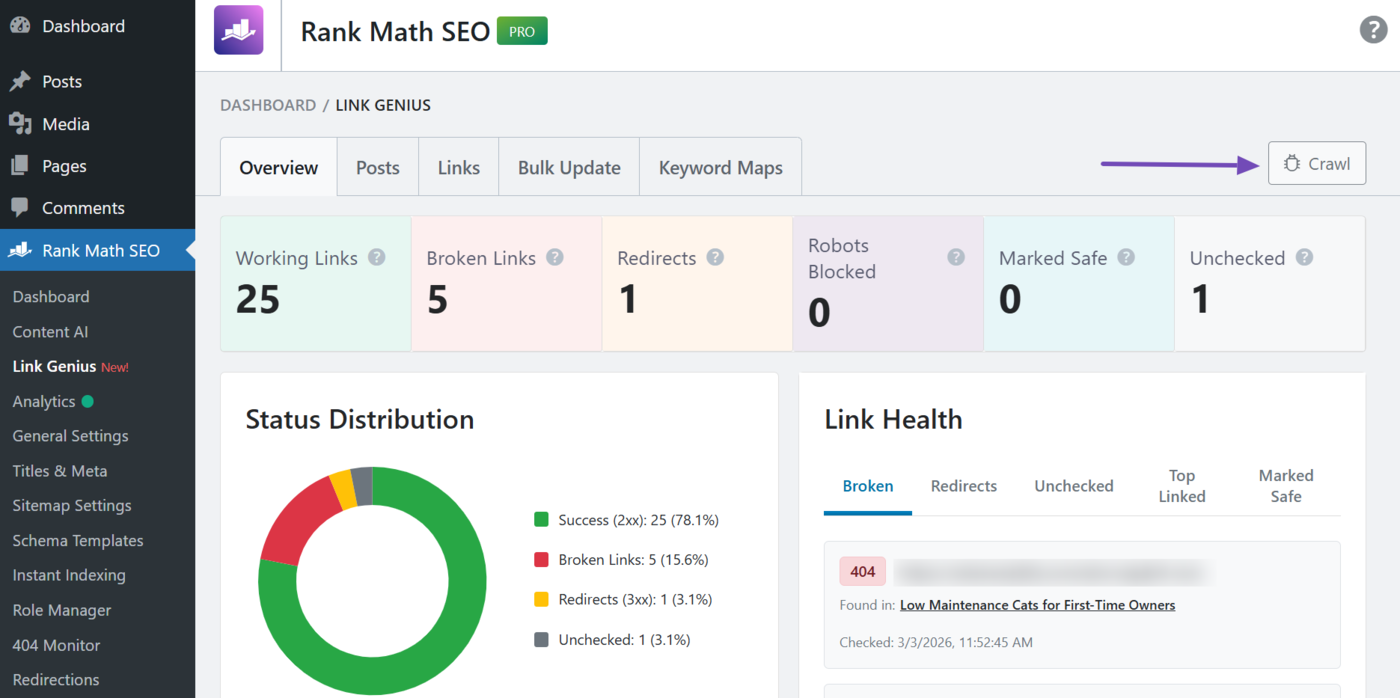
Here, you can audit the HTTP status of your internal links. To do that, click Crawl.
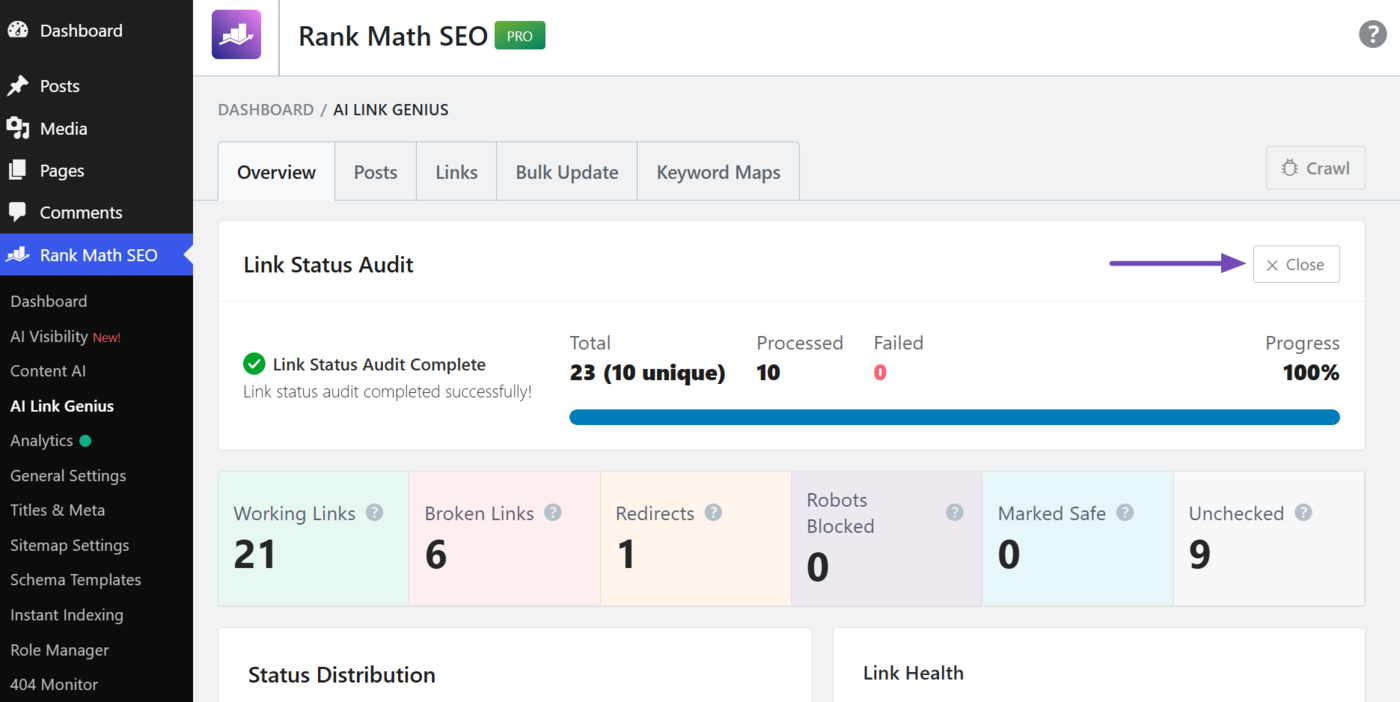
Note: If the Crawl button is unclickable, it means you have a previously completed link audit. Click the Close button to dismiss it. Once done, the Crawl button will become clickable again.
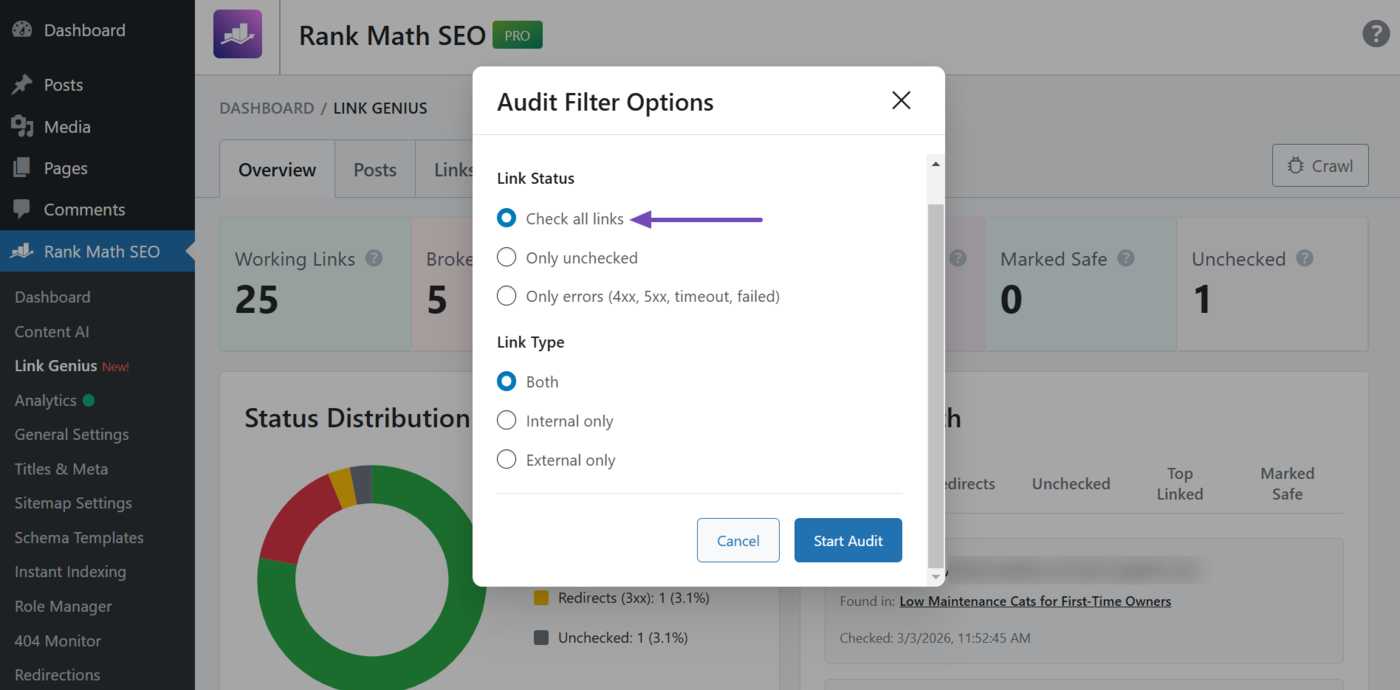
The audit filter options will appear. It contains two sets of filters: link status and link type. For the link status filter, we have three options:
- Check all links: Audit all links on your site
- Only unchecked: Only audit links that have not been previously audited
- Only errors: Only audit links that return client, server, or other errors
You will most likely want to check all your links. So, select Check all links.
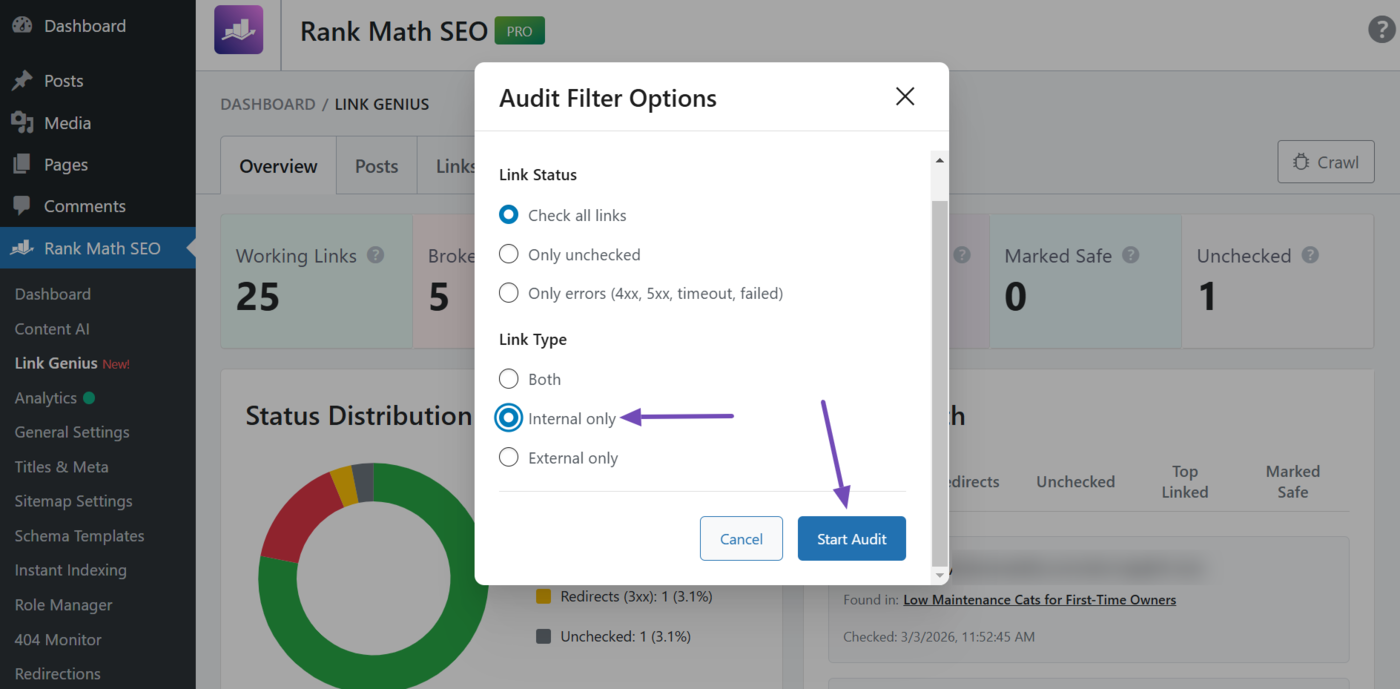
For the link type filter, select Internal only since we are performing an internal link audit. Then click Start audit.
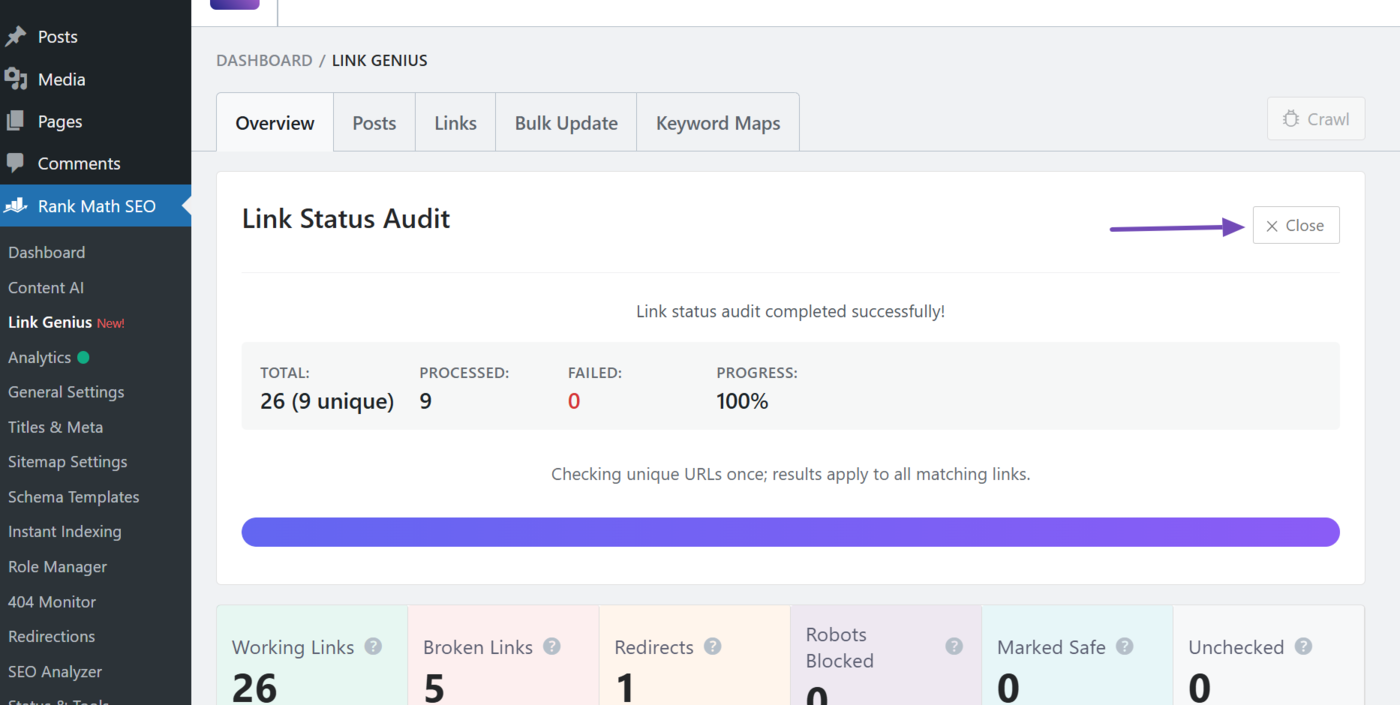
AI Link Genius will audit your links and display a success message once it is done. It will also include the details of the audit. You will now proceed to the next steps.
You can click Close to close it.
2 Using the Links Tab
It is time to find internal links that are broken, redirect to other pages, contain a nofollow tag, or are blocked by the robots.txt file. You will do this using the Links tab in AI Link Genius.
To get started, click Links.
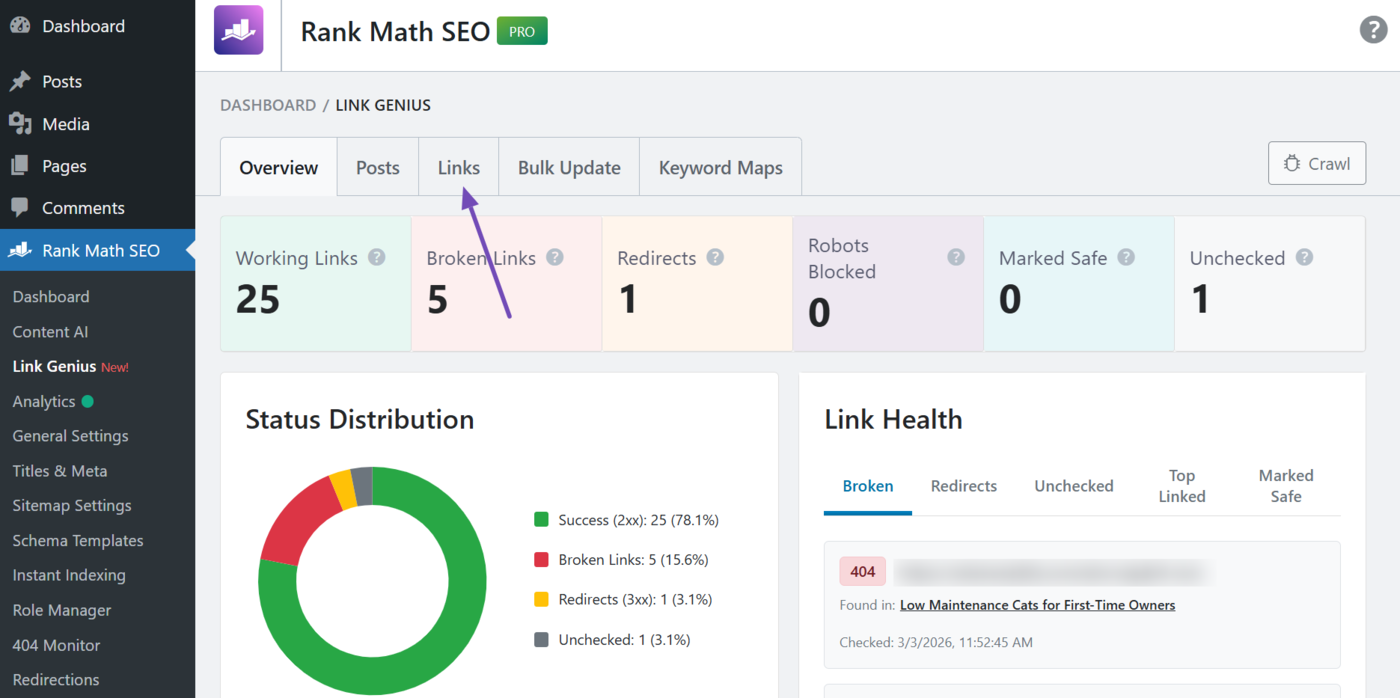
Then, select the Internal filter, as shown below.
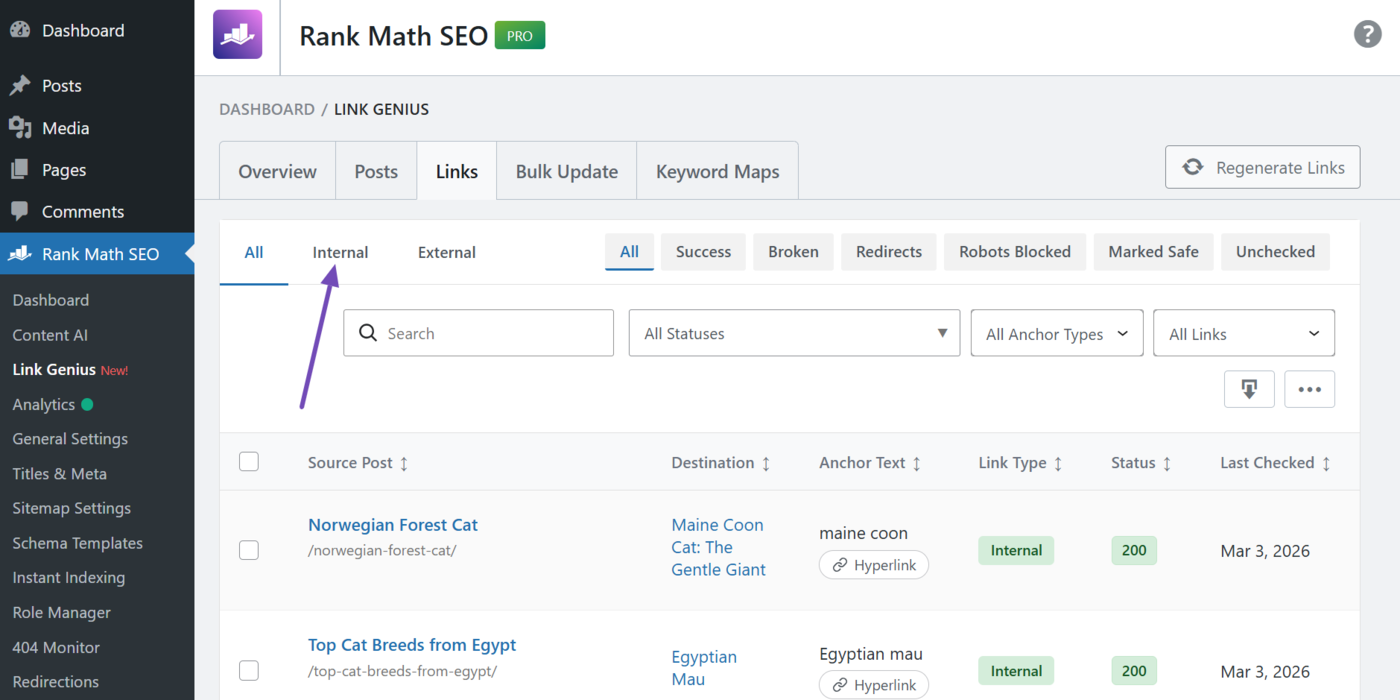
You can now proceed with the internal links audits below.
- Find broken internal links
- Find nofollow internal links
- Find redirected internal links
2.1 Find Broken Internal Links
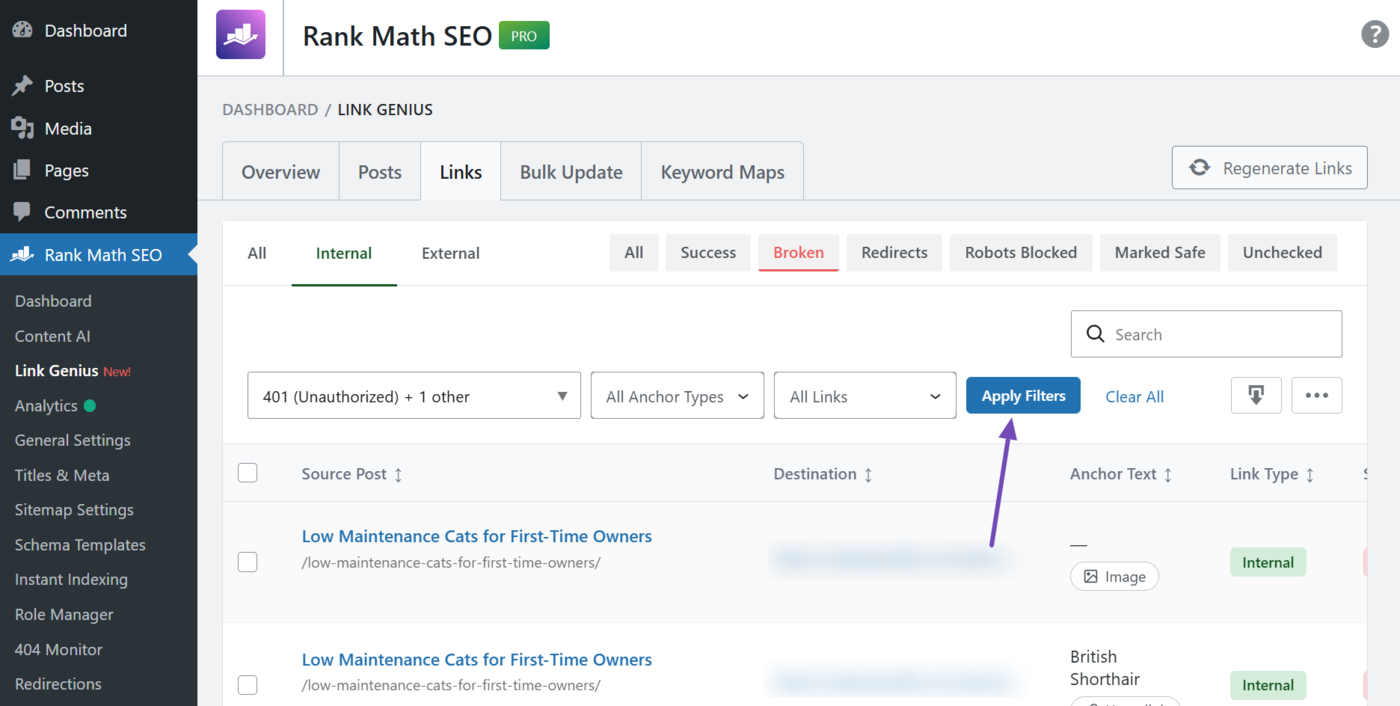
To find broken internal links, click the Broken filter.
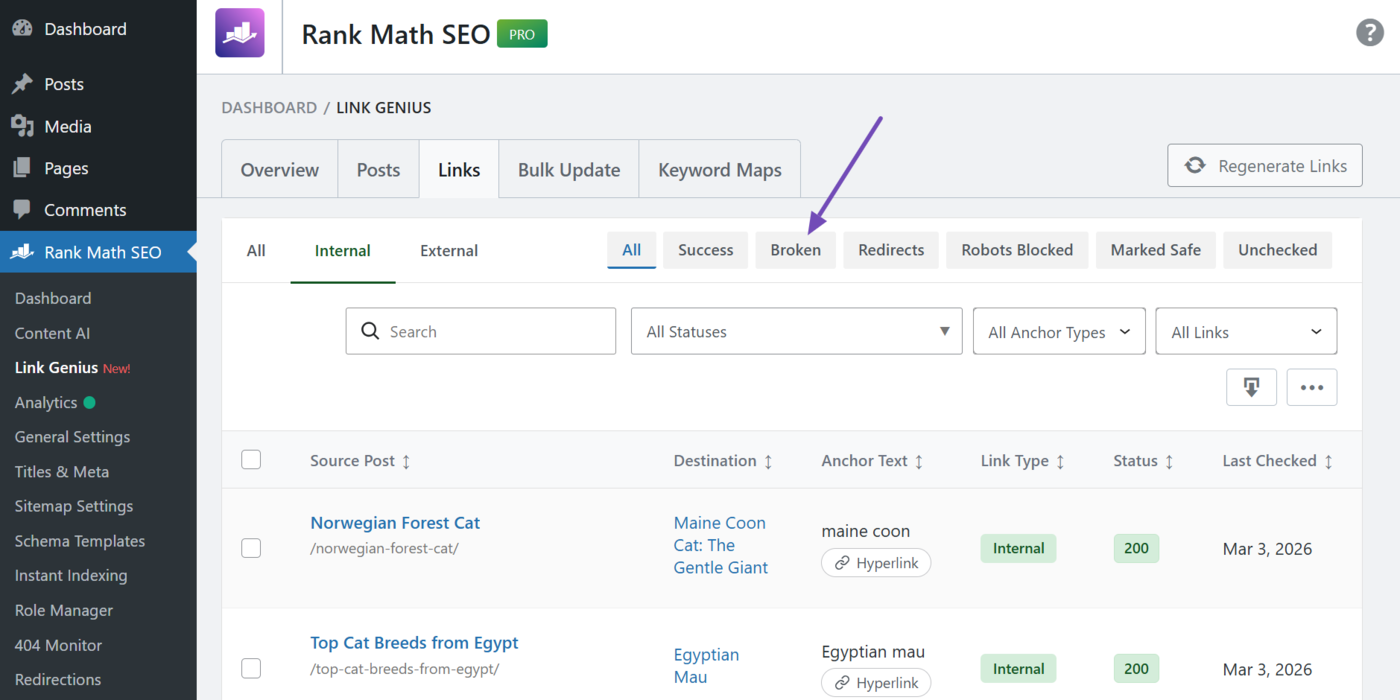
You will be presented with the broken internal links on your site. These links typically return a 4xx or 5xx status code, such as the 404 Not Found and 502 Bad Gateway errors.
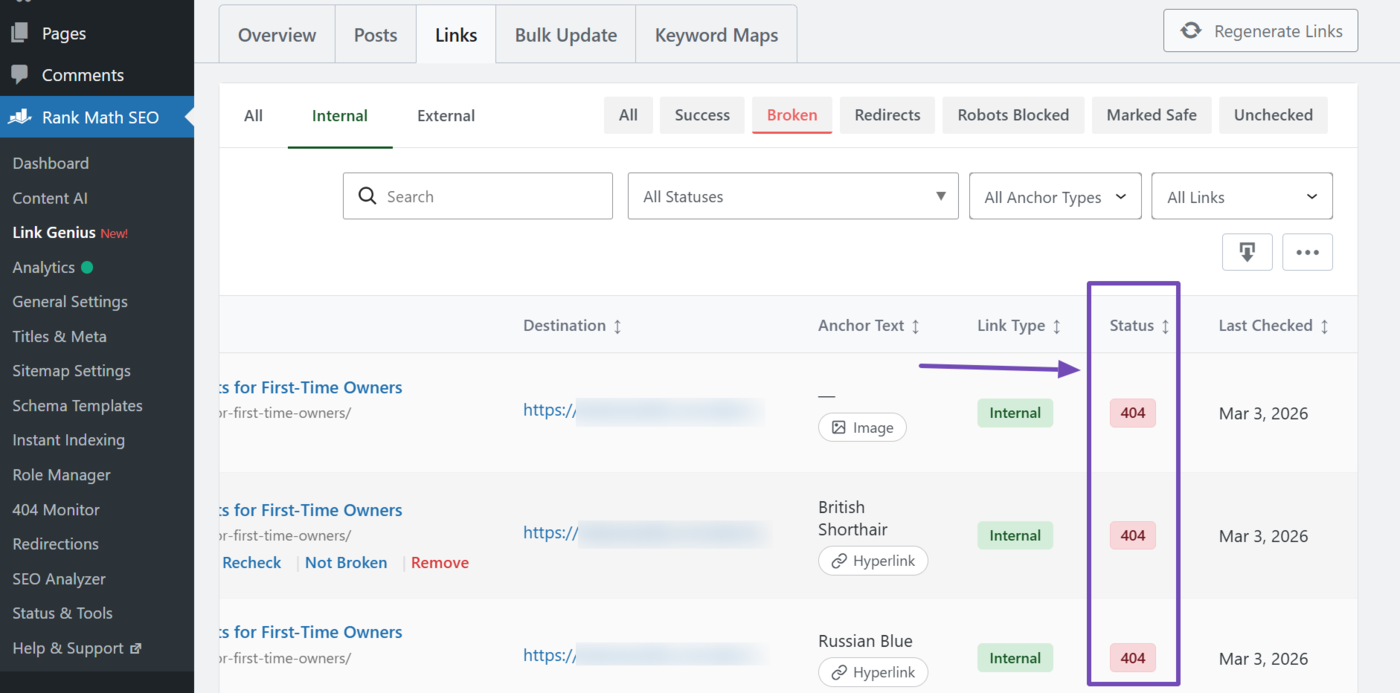
To filter the broken links by their status codes, click the HTTPS status filter and select one or more of the following status codes:
- 401 unauthorized
- 403 forbidden
- 404 not found
- 410 gone
- 500 server error
- 502 bad gateway
- 503 service unavailable
You can select multiple status codes here.
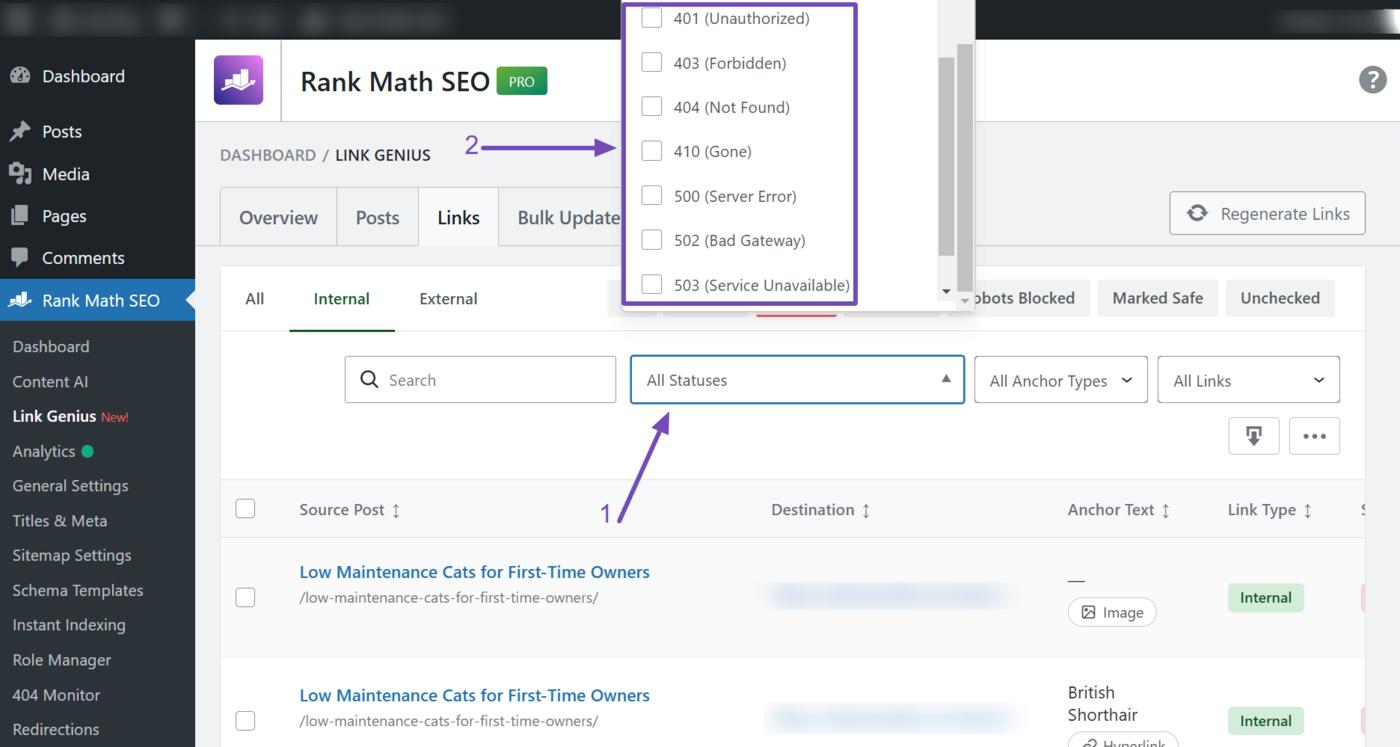
After selecting your HTTP status codes, click Apply filters.
2.2 Find Nofollow Internal Links
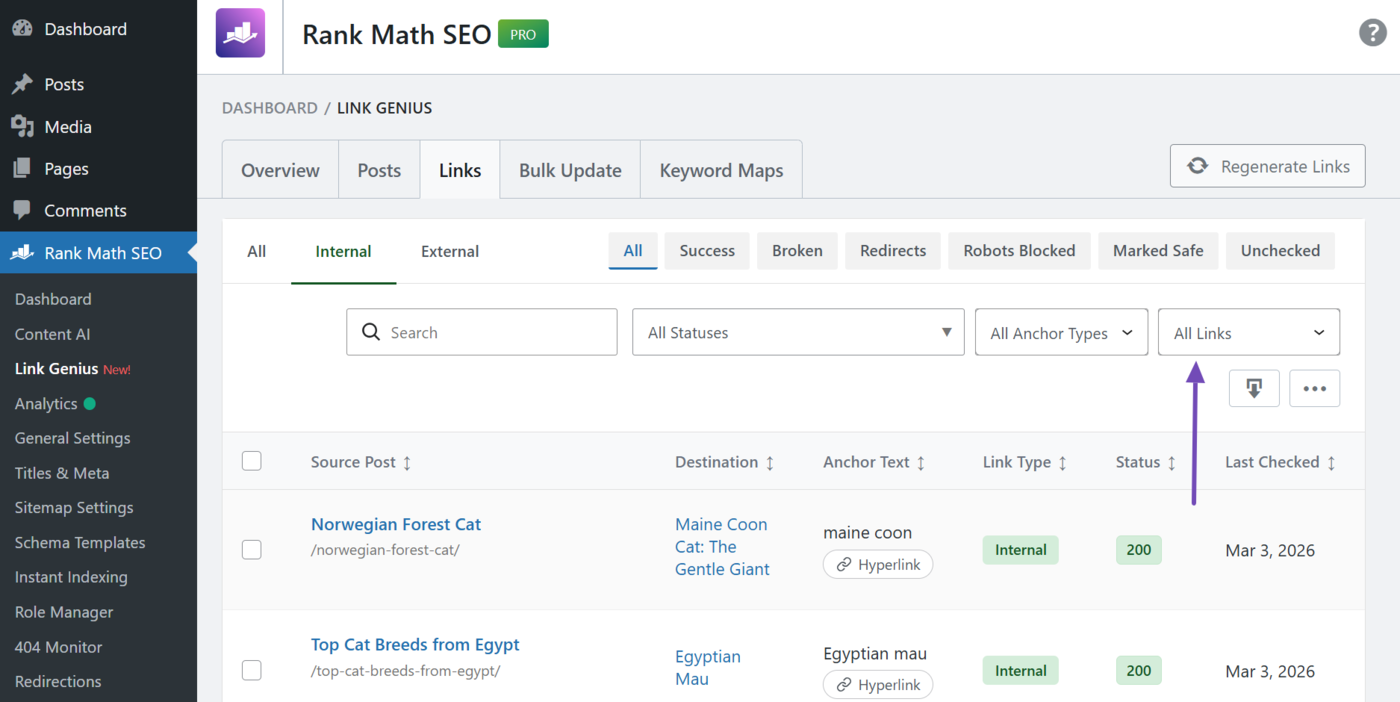
Your internal links should not have a nofollow tag. If they do, you should remove them. To get started, click the nofollow status filter and select With nofollow.
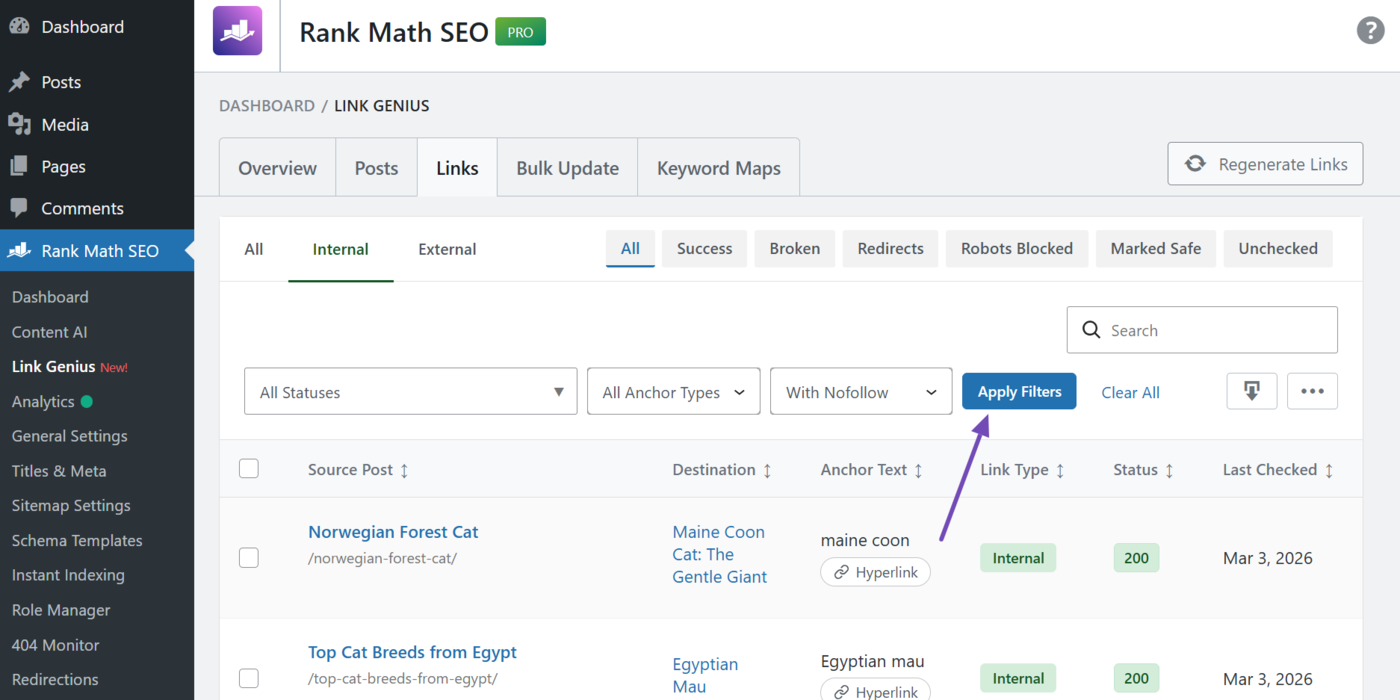
Once done, click Apply filters.
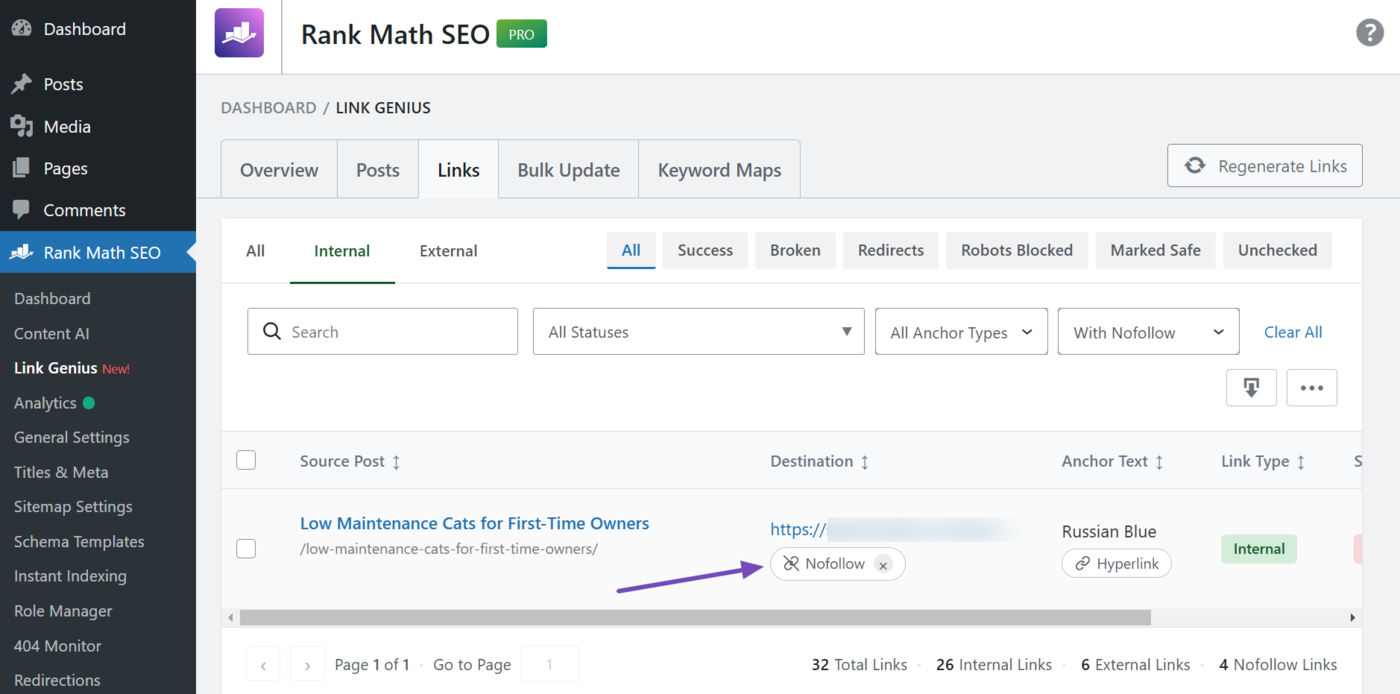
You will be presented with internal links that have a nofollow tag. Click × to remove the tag.
2.3 Find Redirected Internal Links
Internal links should not have redirects. Instead, you should link directly to the final webpage. To check for internal links with redirects, select the Redirects filter.
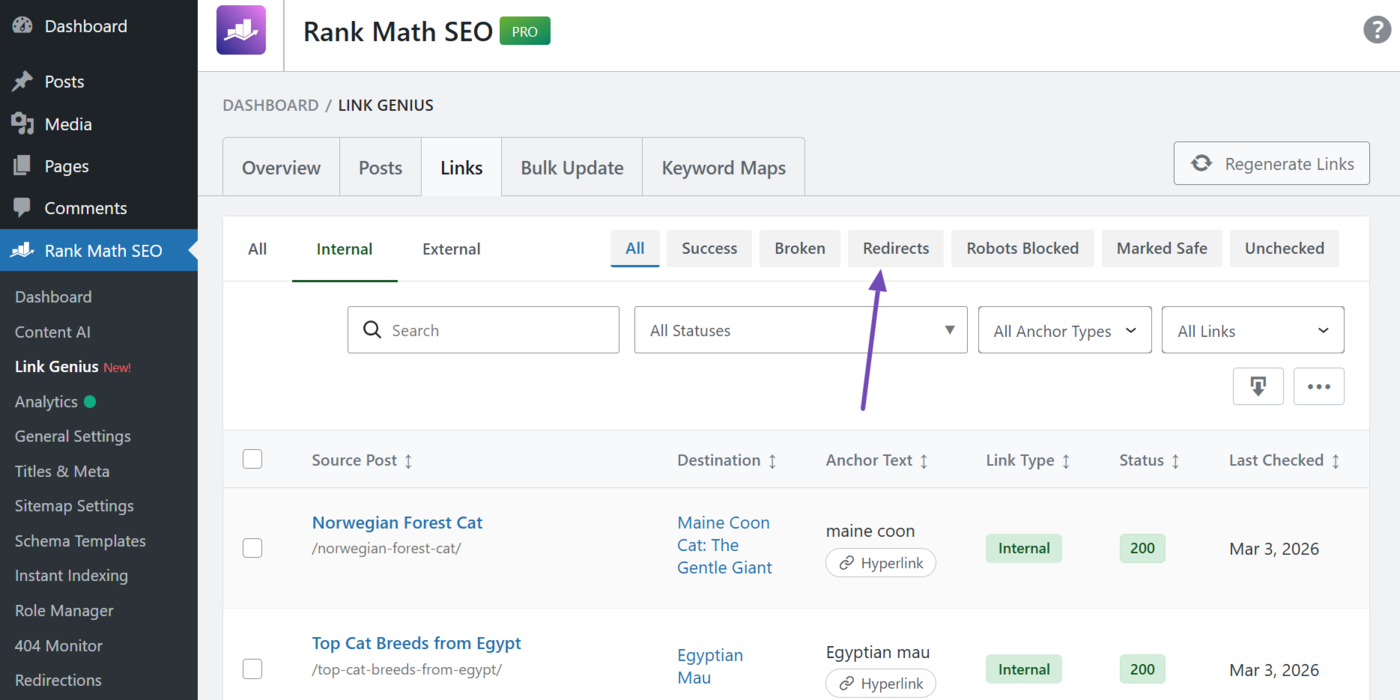
You will be presented with the internal links that redirect to other internal links. These links typically return a 3xx error, such as the 301 Moved Permanently and 302 Found.
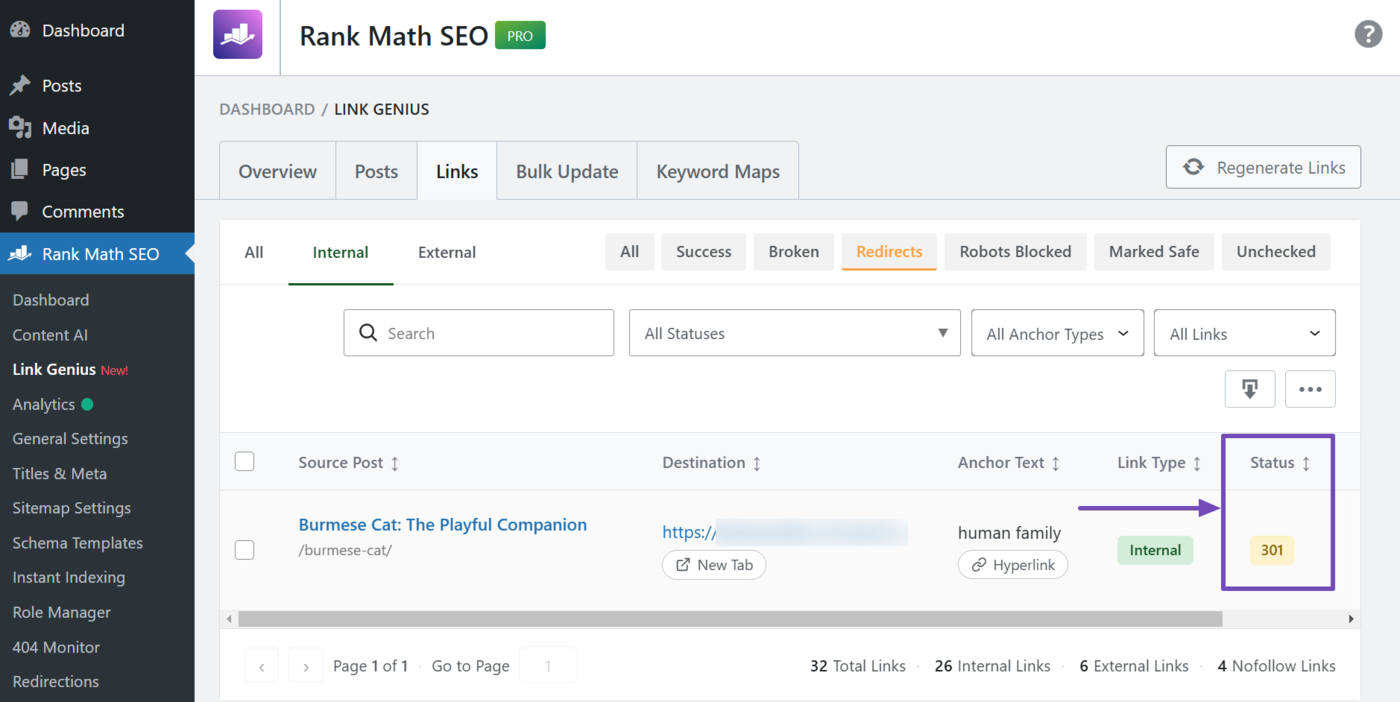
You can resolve this by linking to the final URL instead of the redirect.
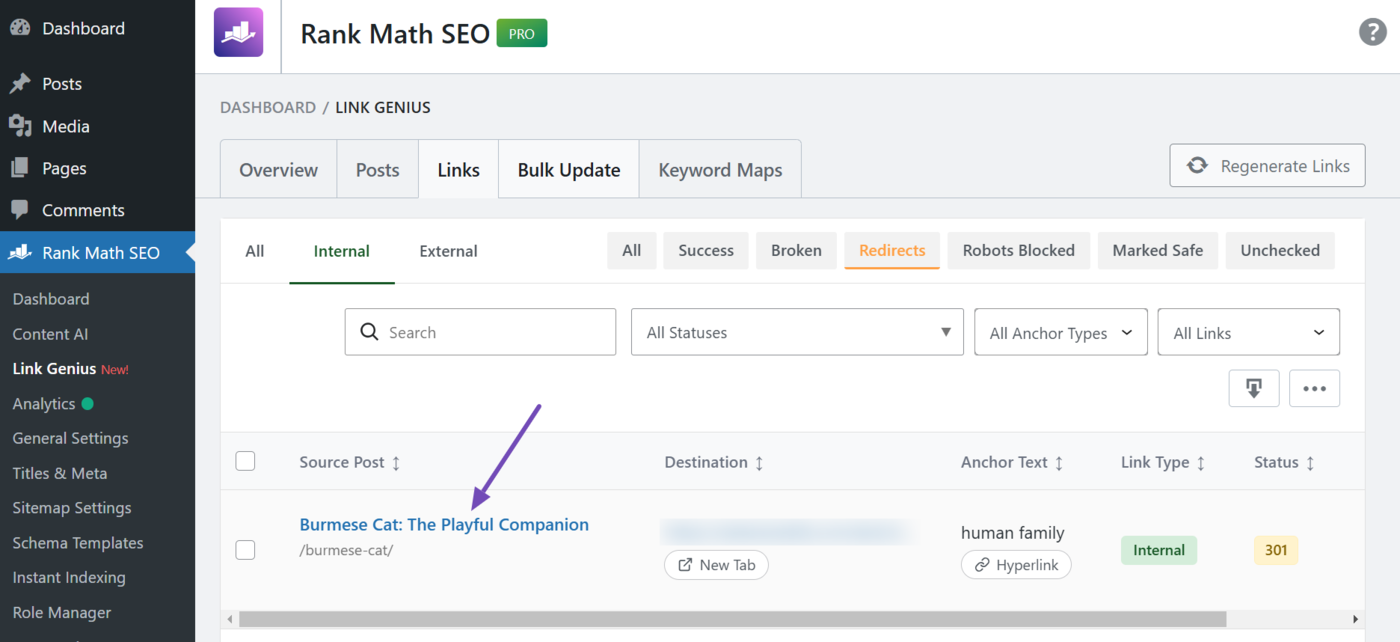
To do this, click the post title, as shown below. This opens the post editor. You can now proceed to locate the anchor text and update the link.
3 Using the Posts Tab
You can also audit the internal links pointing to your posts. This helps you discover the links pointing to your pages and identify orphan pages that have no links pointing to them.
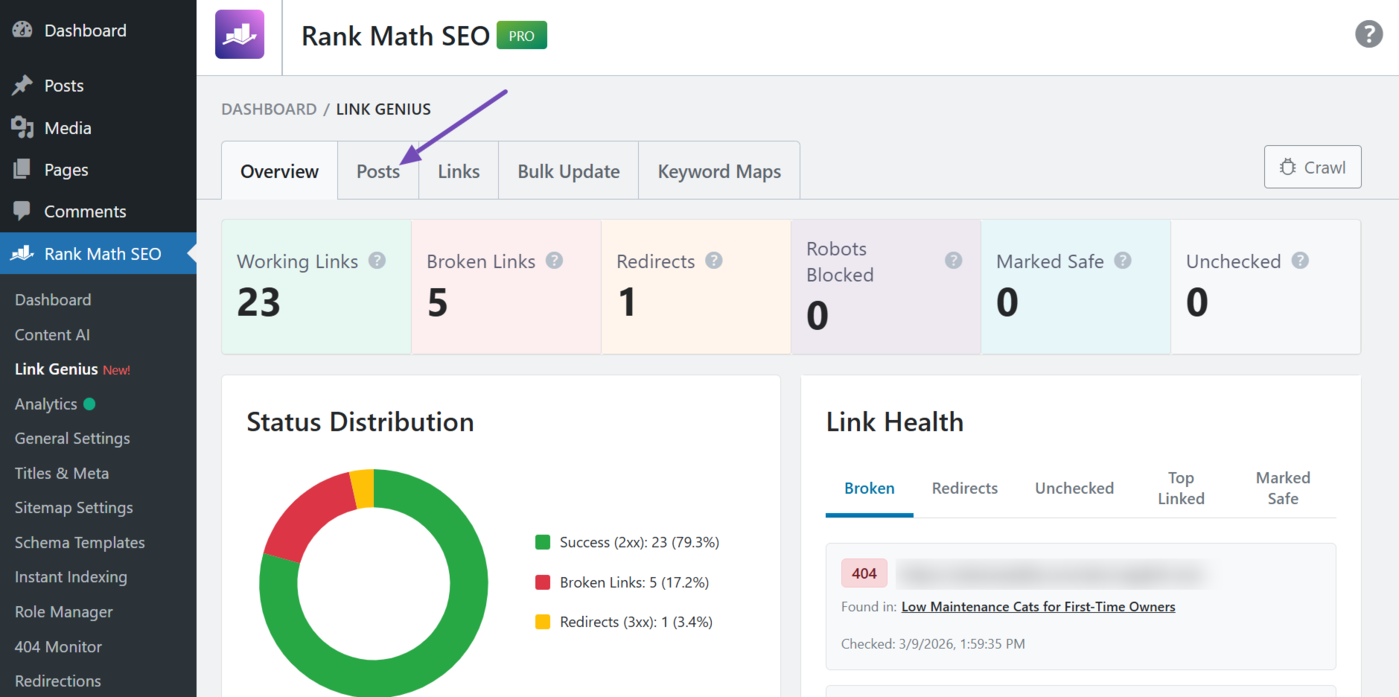
To get started, click the Posts tab.
You can now proceed with the internal link post audits below.
- Find orphan posts
- Analyze incoming links
3.1 Find Orphan Posts
Orphan posts are posts without internal links pointing to them. To find such posts, click the Orphan posts filter, as shown below.
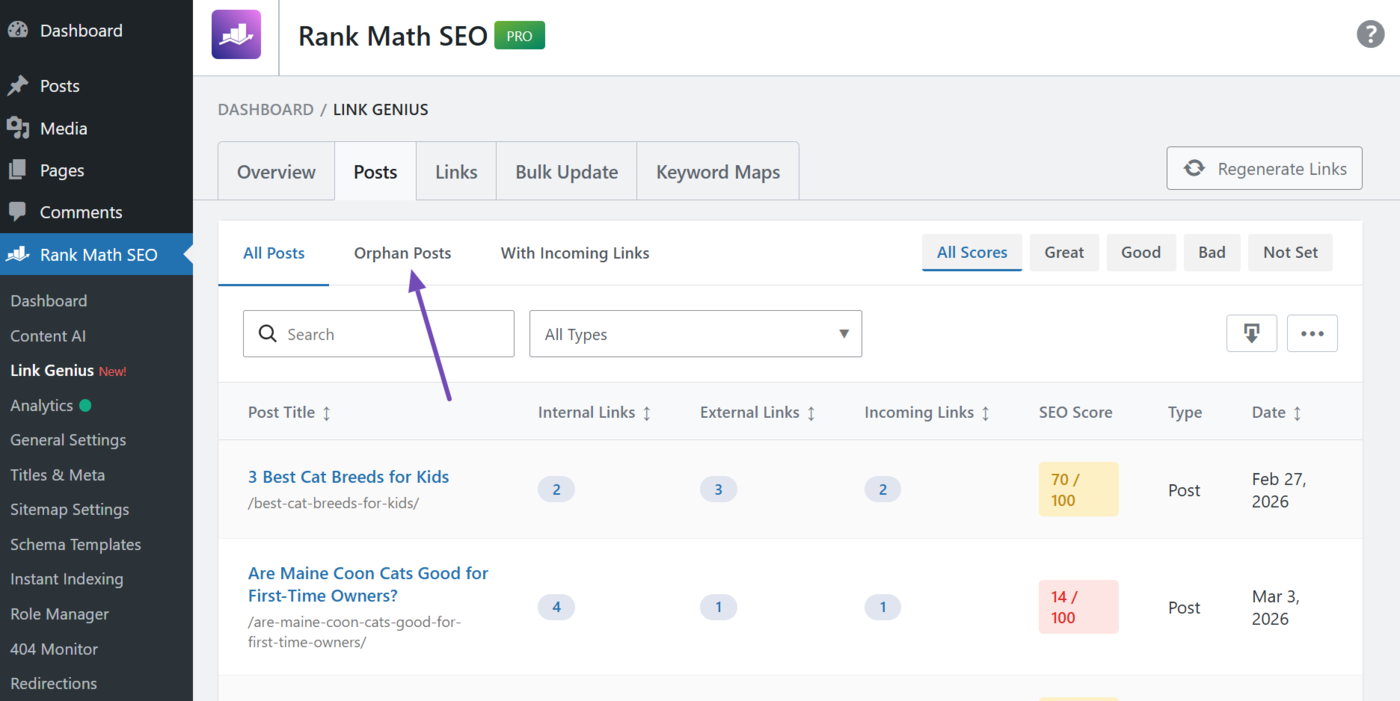
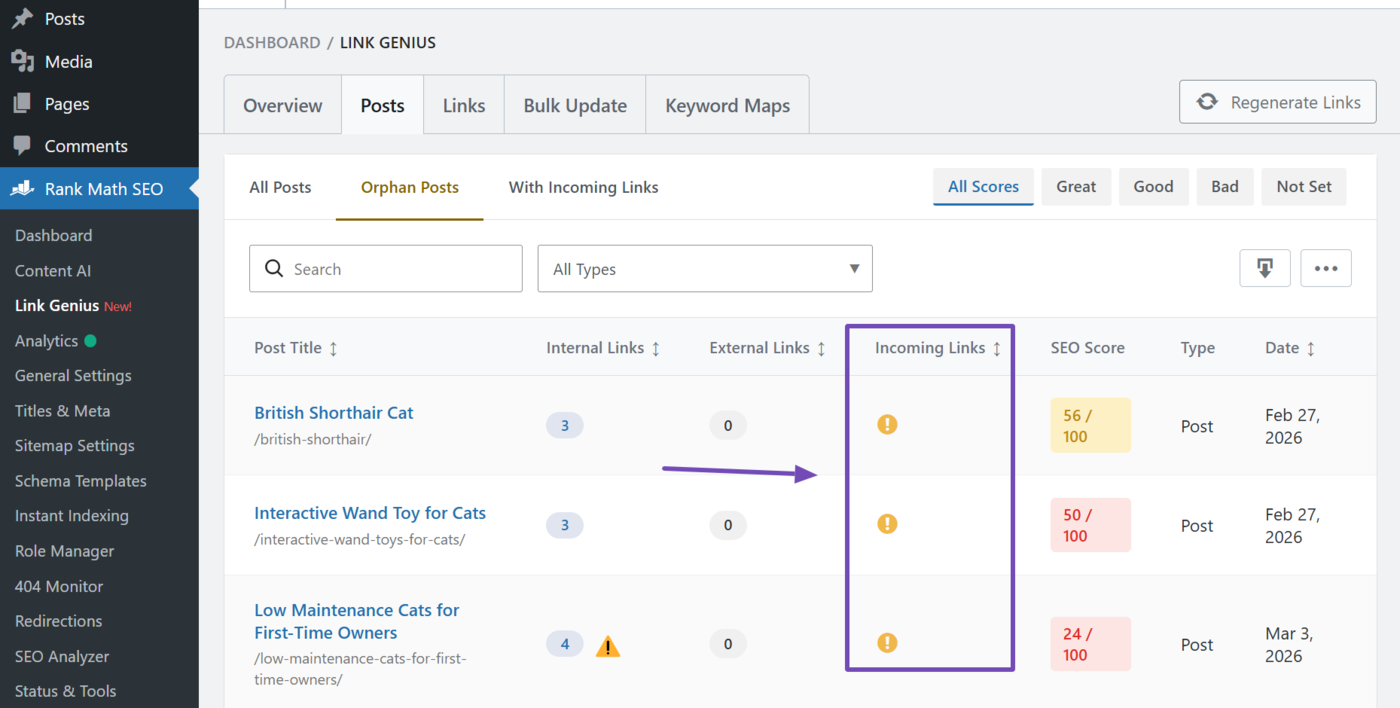
You will be presented with the orphan posts on your site. The incoming links to these posts are zero. We specify that using an exclamation mark !, as shown below.
3.2 Analyze Incoming Links
It is good practice to inspect the internal links pointing to your pages. This allows you to understand your linking structure and identify opportunities for improvement.
To get started, click the With incoming links filter.
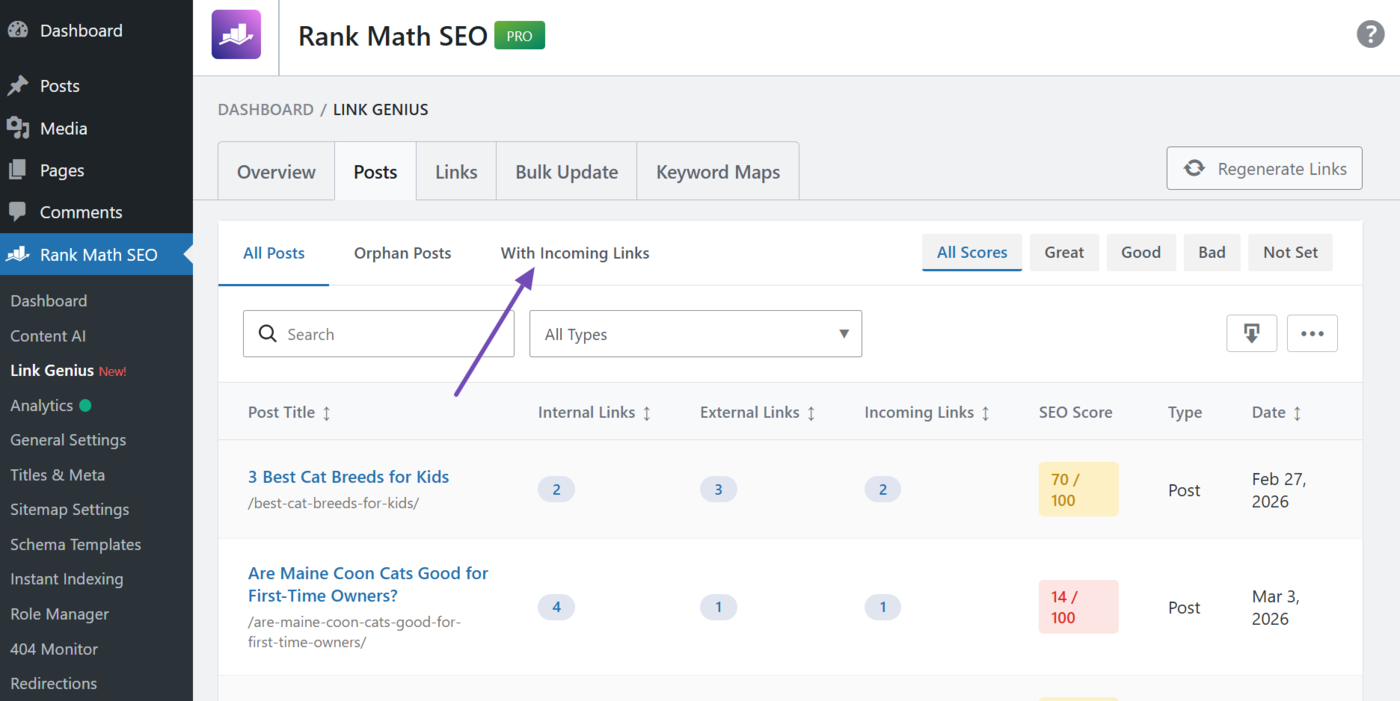
Once done, head to the incoming links column. It will show the link count (number of incoming links) pointing to each post. You click the link count for additional insights into the incoming links.
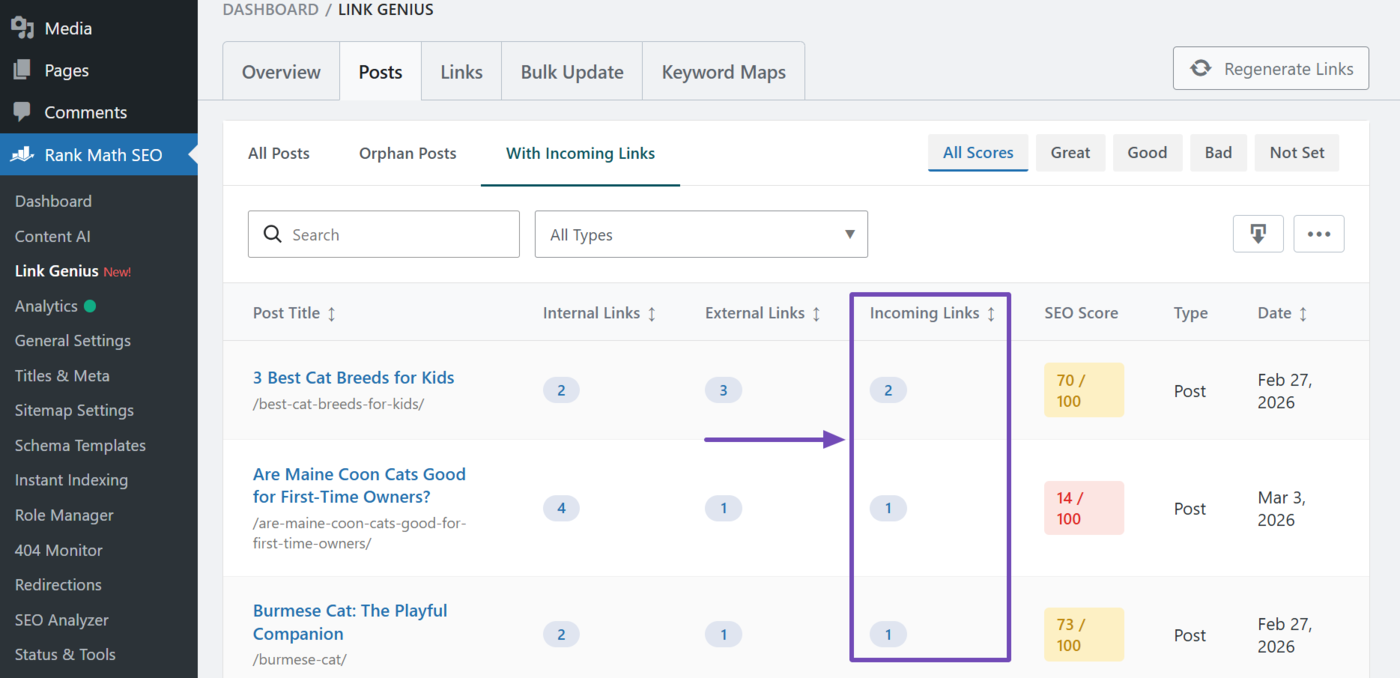
When you click on the link count, you will be presented with the details of the links, including the title of the posts containing the link (source post) and their anchor text.
You can click on the post title (in the source post column) to edit the post.
4 Overview of Filters in the Links and Posts Tabs
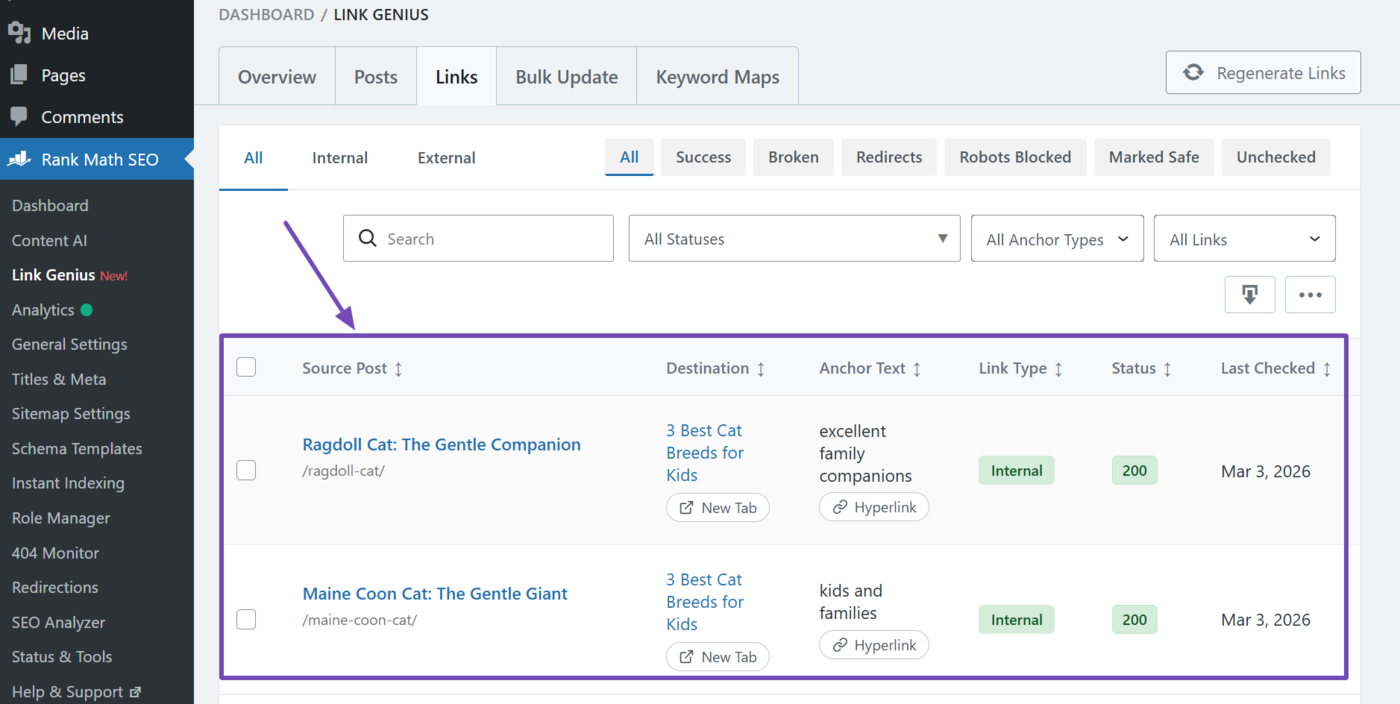
The links and posts tabs contain multiple options and filters that allow you to find the specific posts, links, and data you need. We will show you the available filters and options below.
- Links tab filters
- Posts tab filters
4.1 Links Tab Filters
The links tab contains multiple options and filters for analyzing your internal links, including:
- Search bar
- Link type filter
- Link status filter
- HTTP status filter
- Anchor type filter
- Nofollow status filter
- Column visibility toggle
a. Search Bar
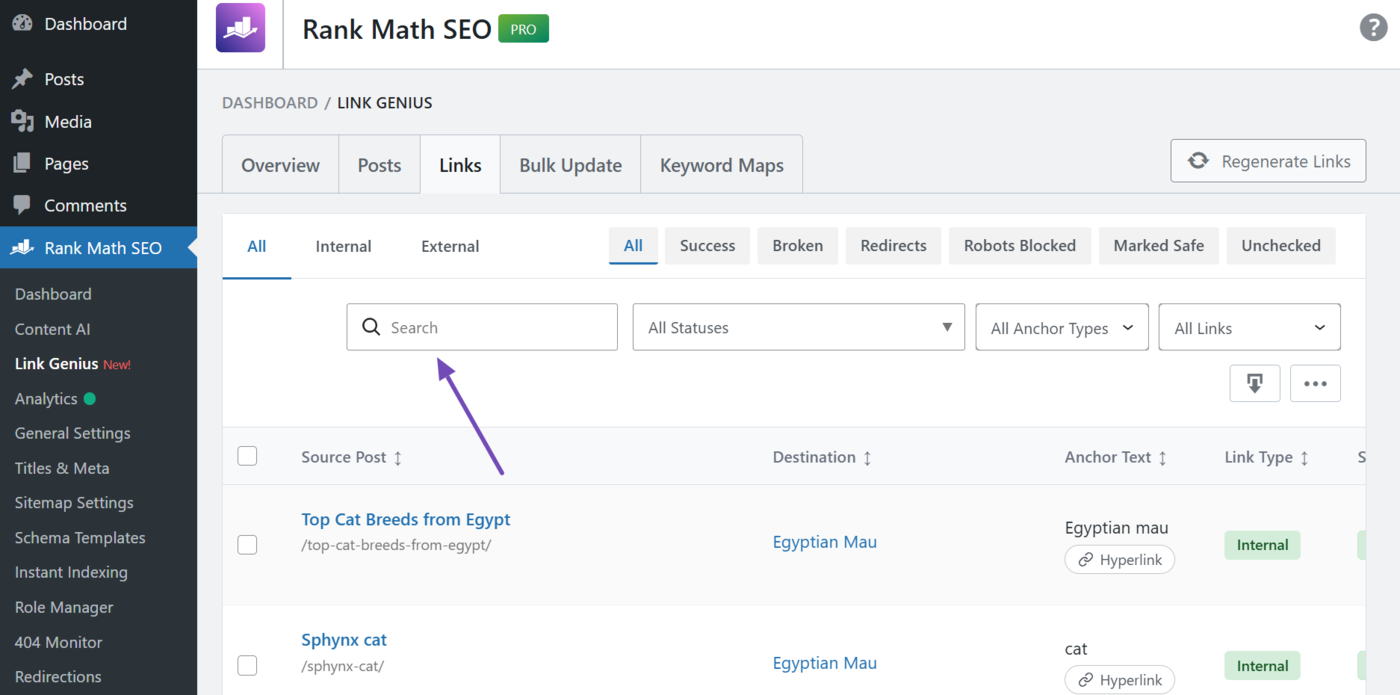
Enter your search term into this field. It should match the post title in the source post column, or the URL in the destination column.
Note: If your search term is a URL, make sure to add hyphens - where relevant. Do not include forward slashes /.
b. Link Type Filter
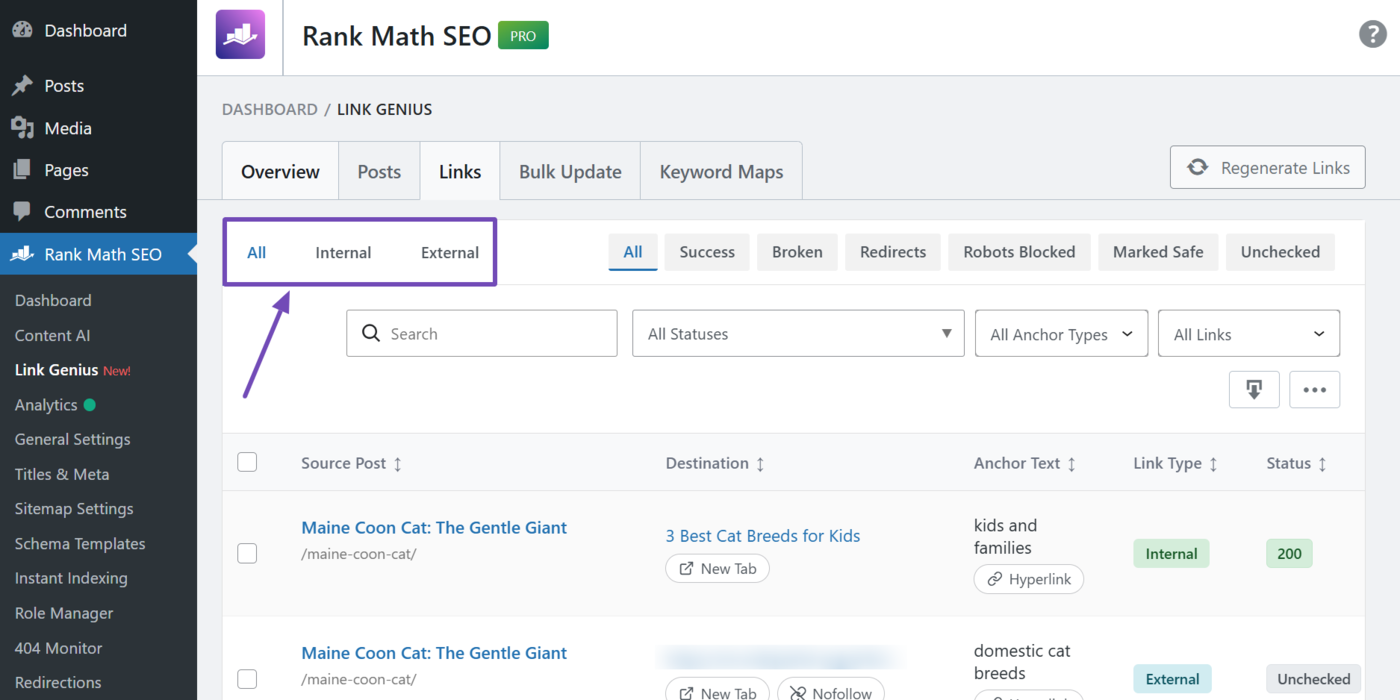
This lets you filter the type of link to audit. The available options include:
- All: View internal and external links
- Internal: View internal links only
- External: View external links only
You should select Internal here since you are auditing your internal links.
c. Link Status Filter
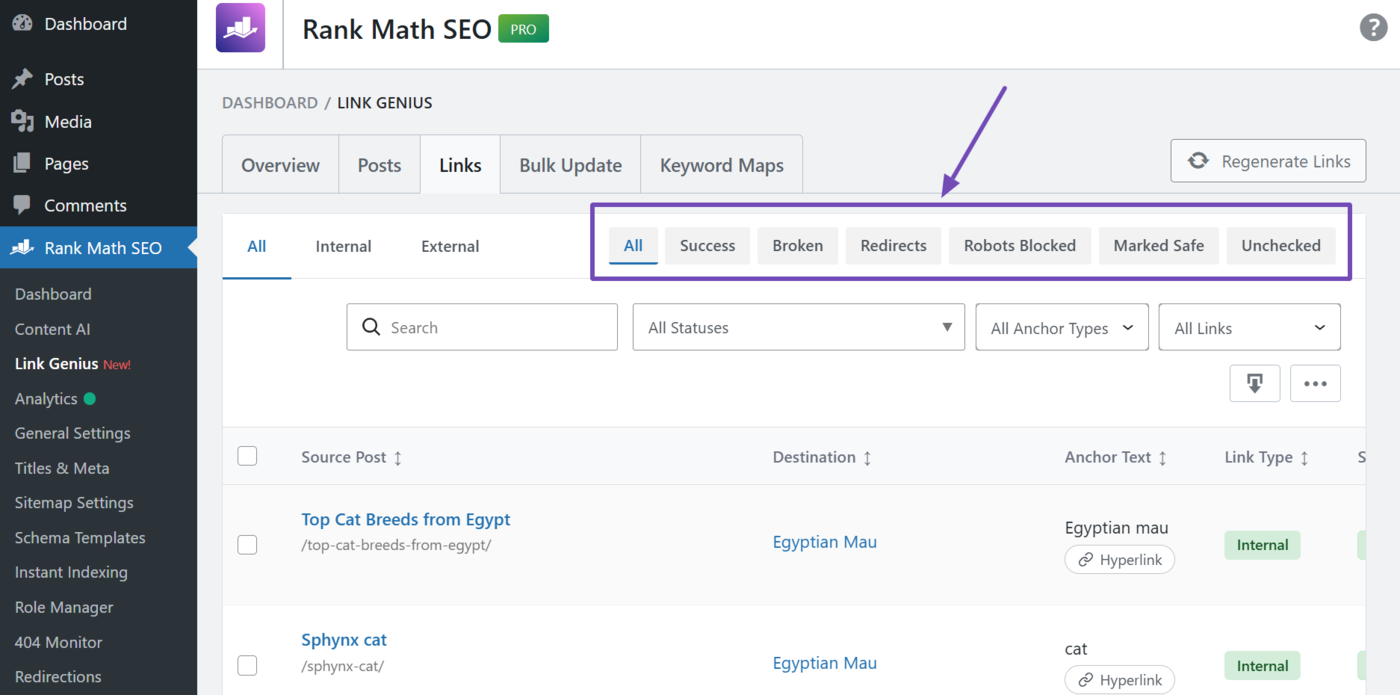
This lets you filter your internal links by their status. The available options include:
- All: View all internal links irrespective of their status
- Success: Only view internal links that return a 2xx status code
- Broken: Only view internal links that return a 4xx or 5xx status code
- Redirects: Only view internal links that return a 3xx status code
- Robots blocked: Only view internal links blocked by your robots.txt file
- Marked safe: Only view internal links you marked as safe
- Unchecked: Only view internal links that have not been checked
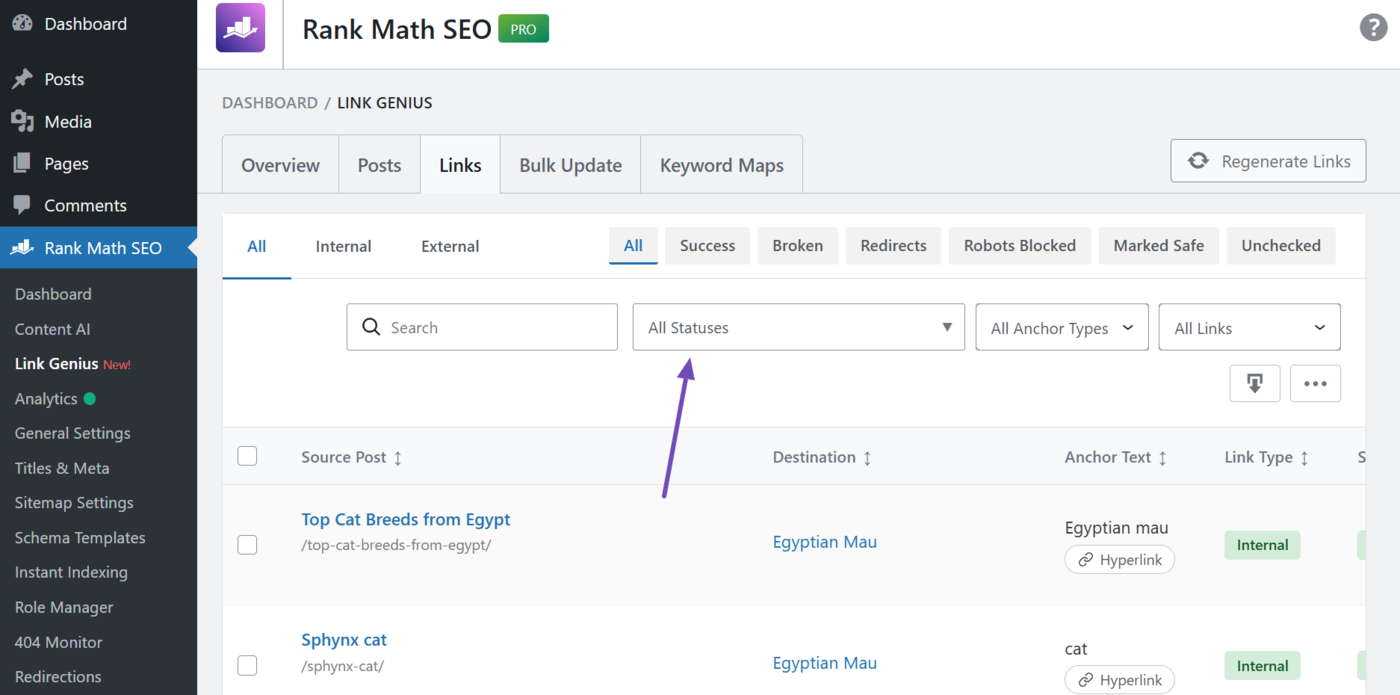
d. HTTP Status Filter
This lets you filter your internal links by their HTTP status code. Click on it and select the status codes to audit. You can select multiple status codes.
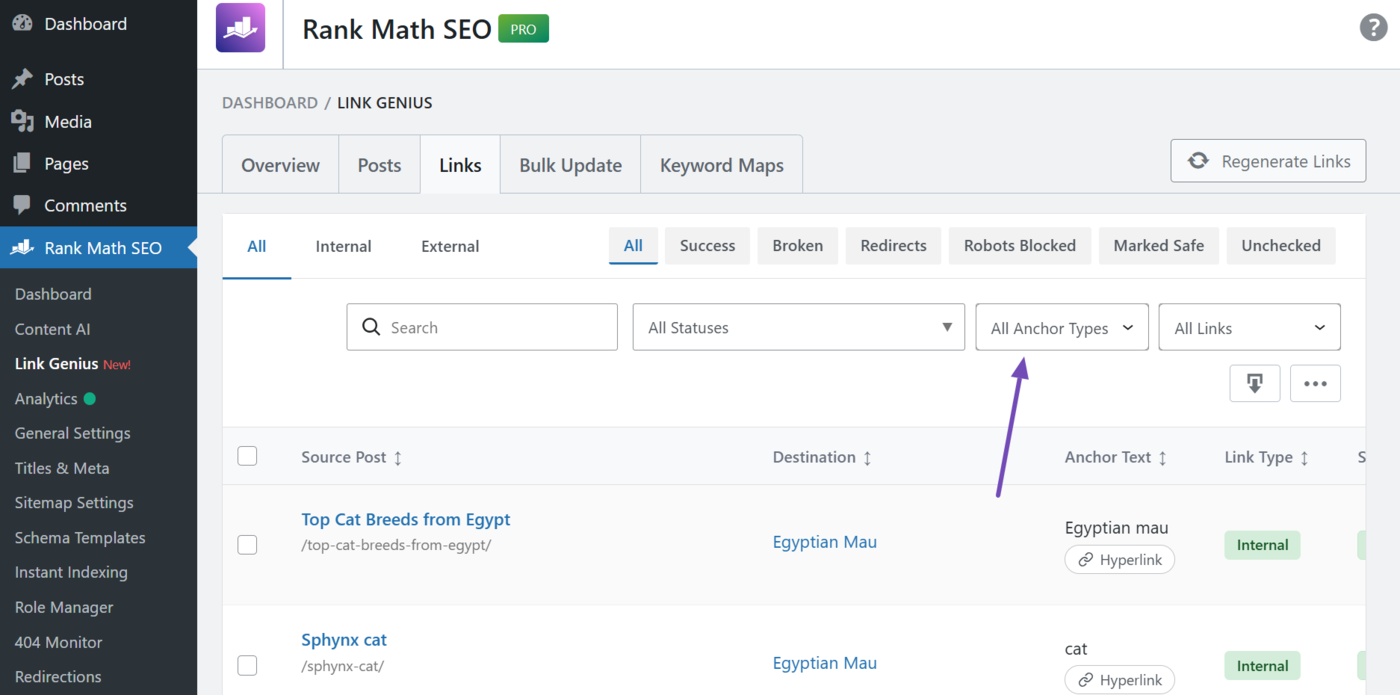
e. Anchor Type Filter
This lets you filter the links by their anchor. The available options include:
- All anchor types: View hyperlink and image anchors
- Hyperlink: View hyperlink anchors only
- Image: View image anchors only
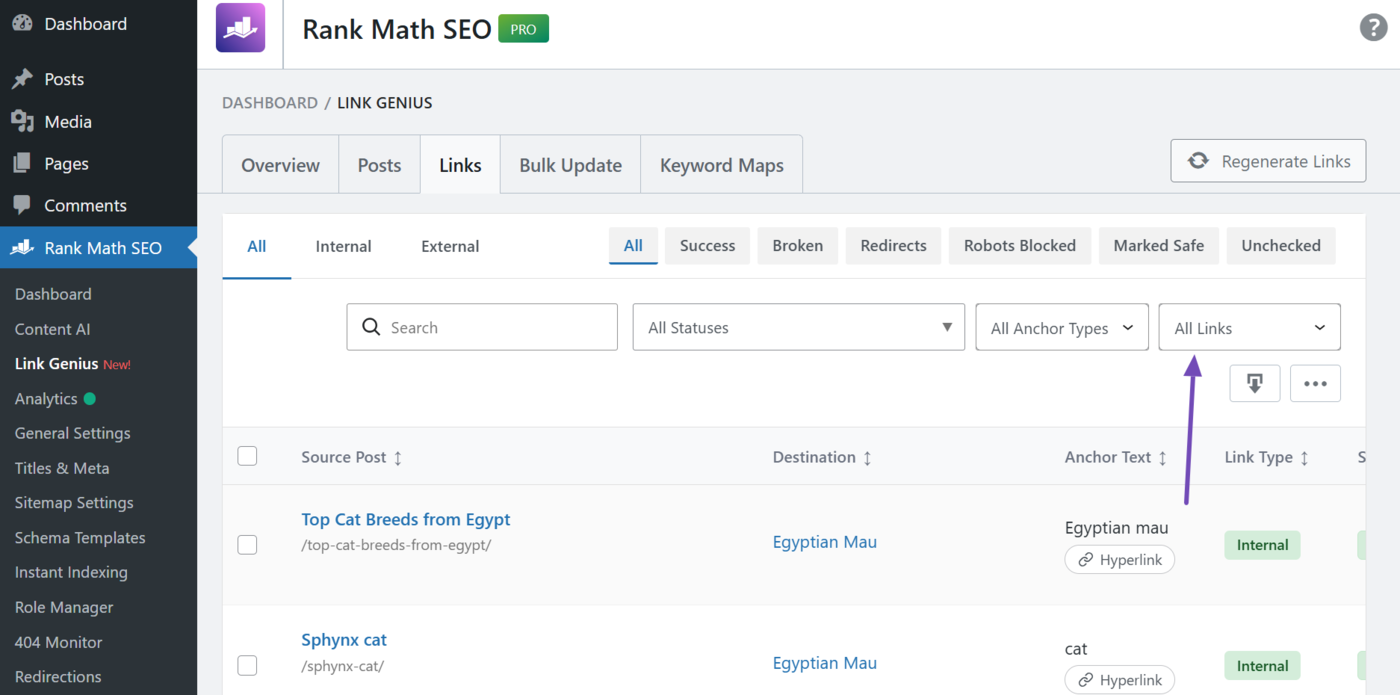
f. Nofollow Status Filter
This lets you filter links based on whether they include a nofollow tag.
- All links: Show all links regardless of their follow status
- With nofollow: Only show nofollow internal links
- Without nofollow: Only show dofollow internal links
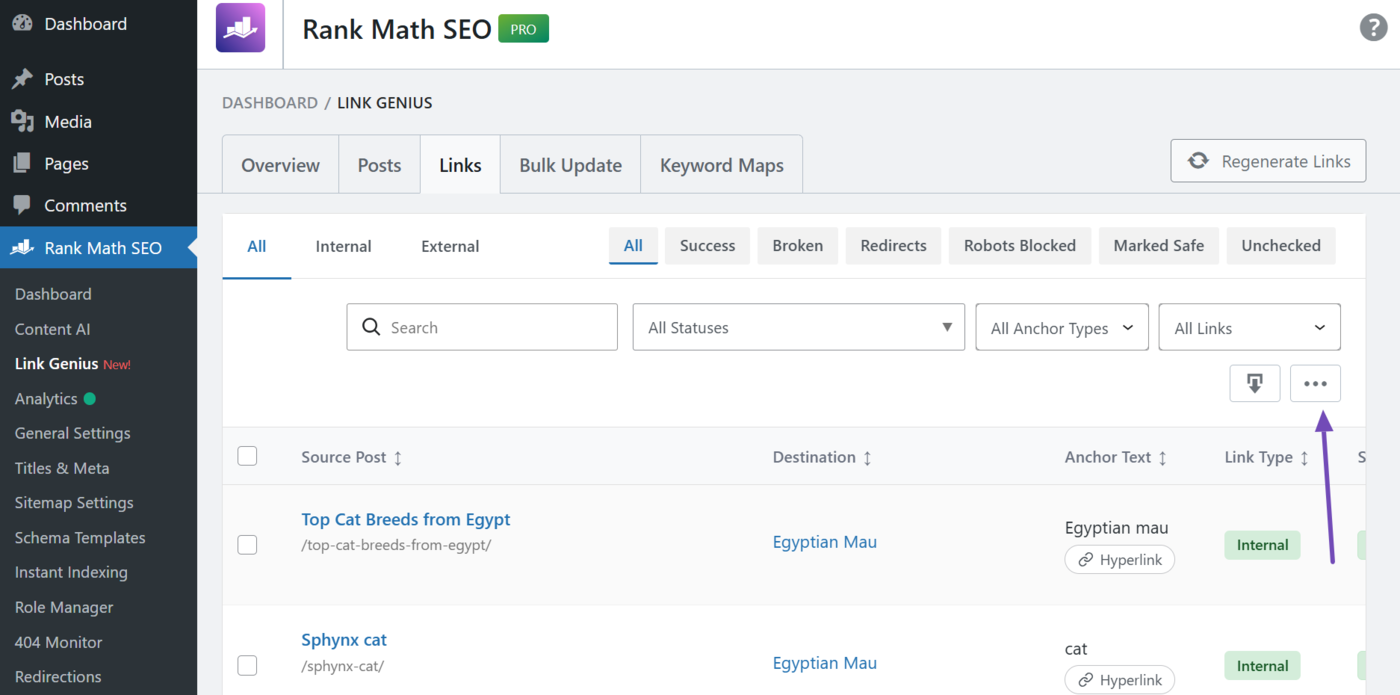
g. Column Visibility Toggle
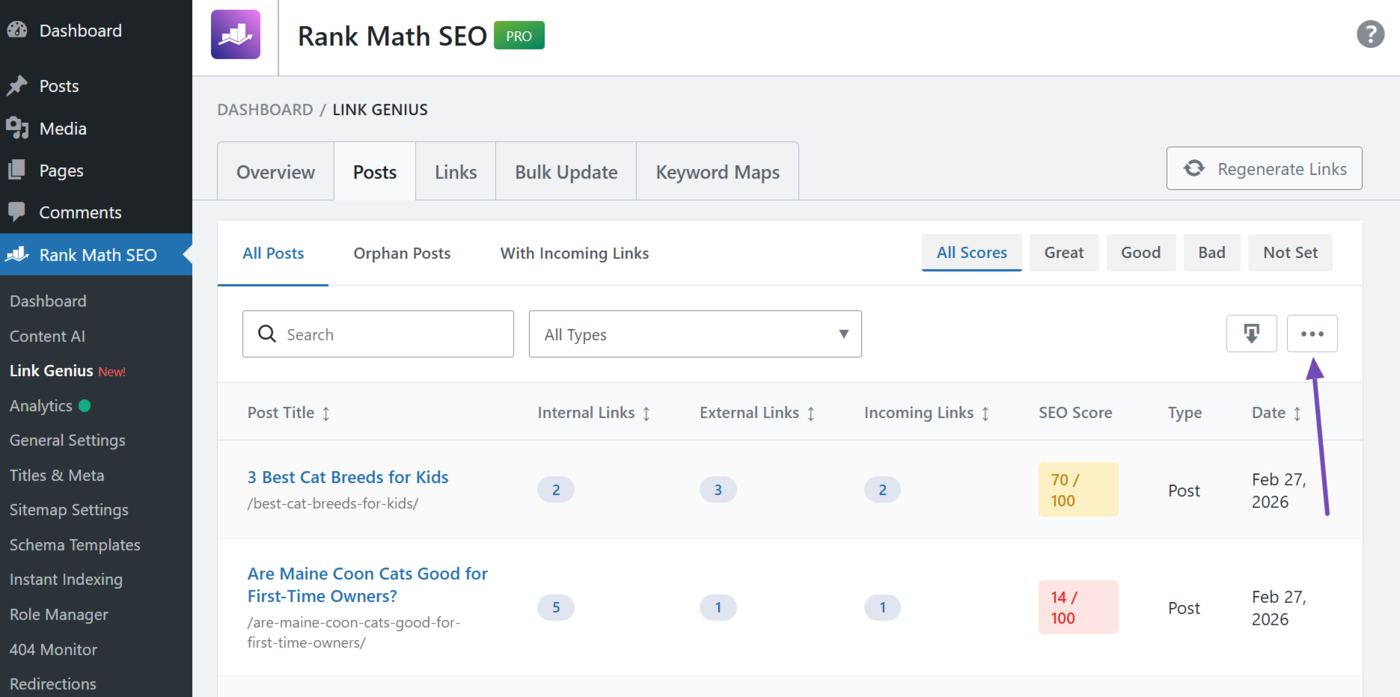
The column visibility toggle lets you display or hide the columns in the posts tab. This ensures you only see the information you need. Click on it to get started.
Note: You can hide every column except the source post and destination columns.
4.2 Posts Tab Filters
The posts tab options and filters lets you customize the internal links you accessed using the Posts tab. The available options and filters include:
- Orphan status filter
- Search bar
- Post type filter
- SEO score filter
- Column visibility toggle
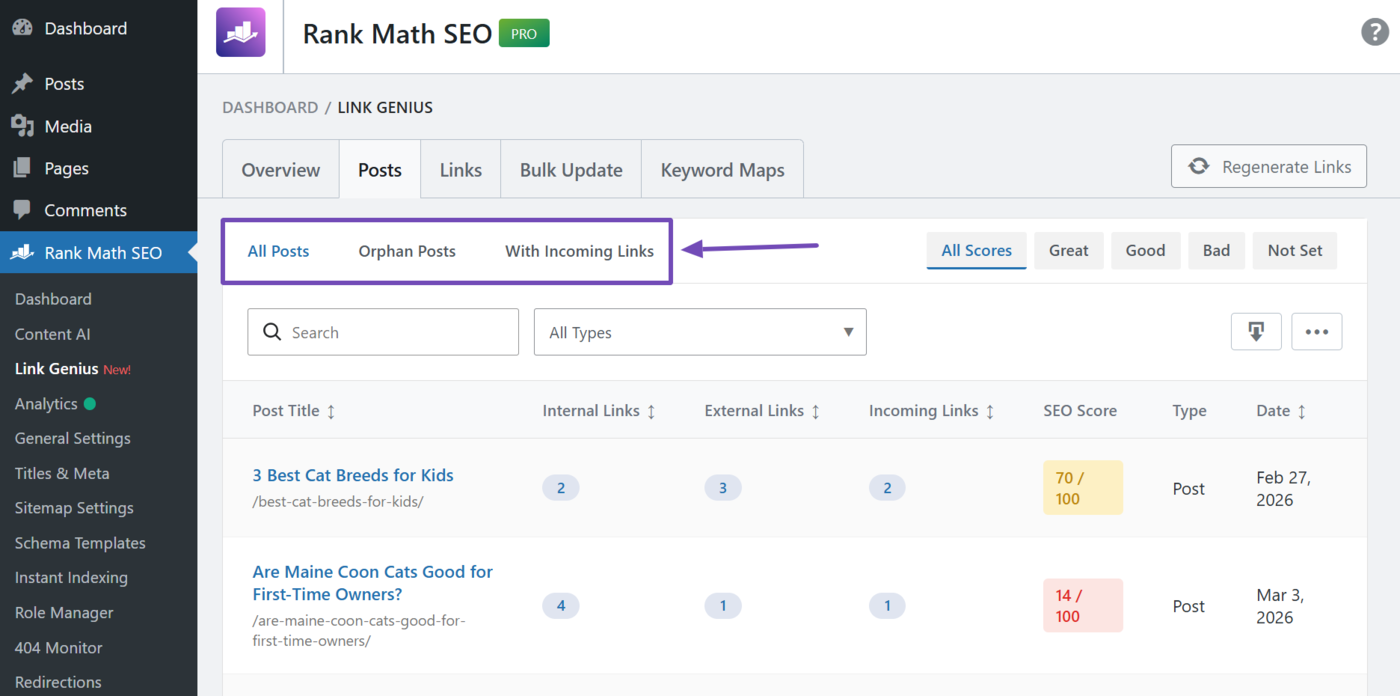
a. Orphan Status Filter
The orphan status filter lets you identify the orphaned and well-linked posts on your site. This filter is particularly important for your internal link audit. The available options include:
- All posts: View orphan and non-orphan posts
- Orphan posts: View orphan posts only
- Well incoming links: View the internal links pointing to a post
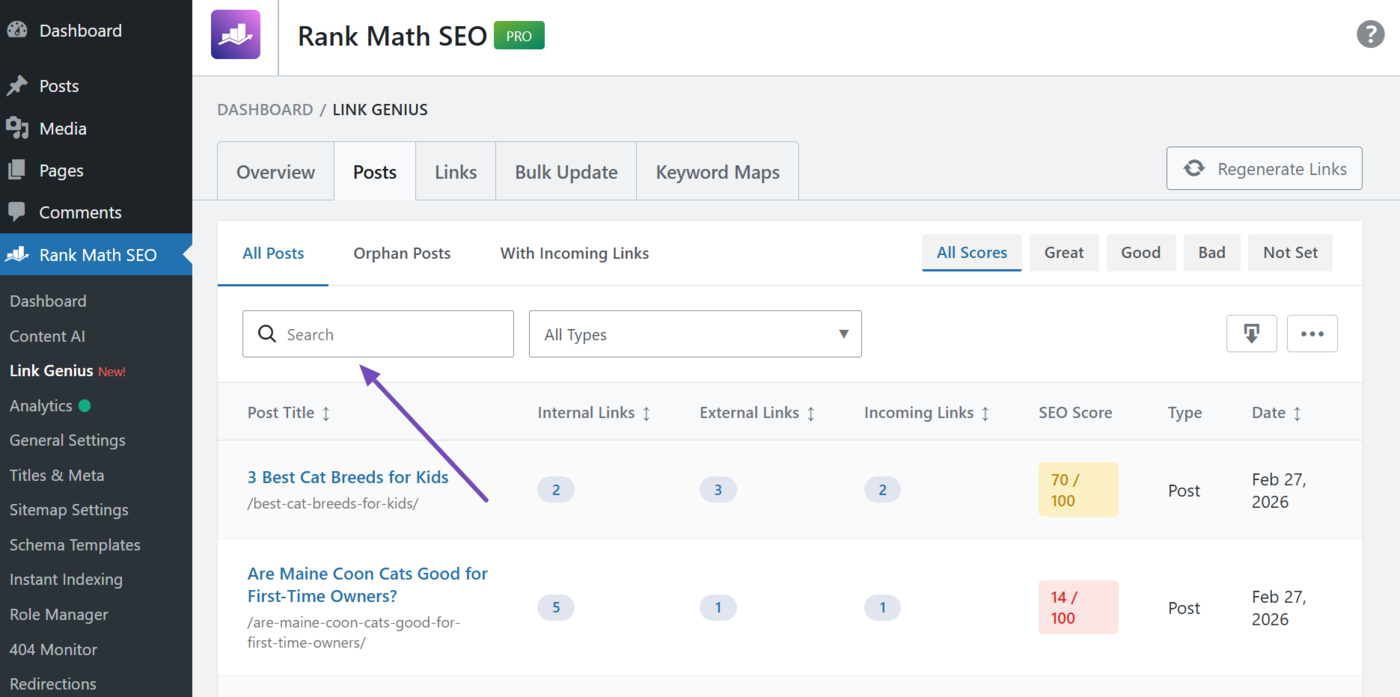
b. Search Bar
This lets you find specific orphan posts. Enter the post title or words that appear in the post title into this field.
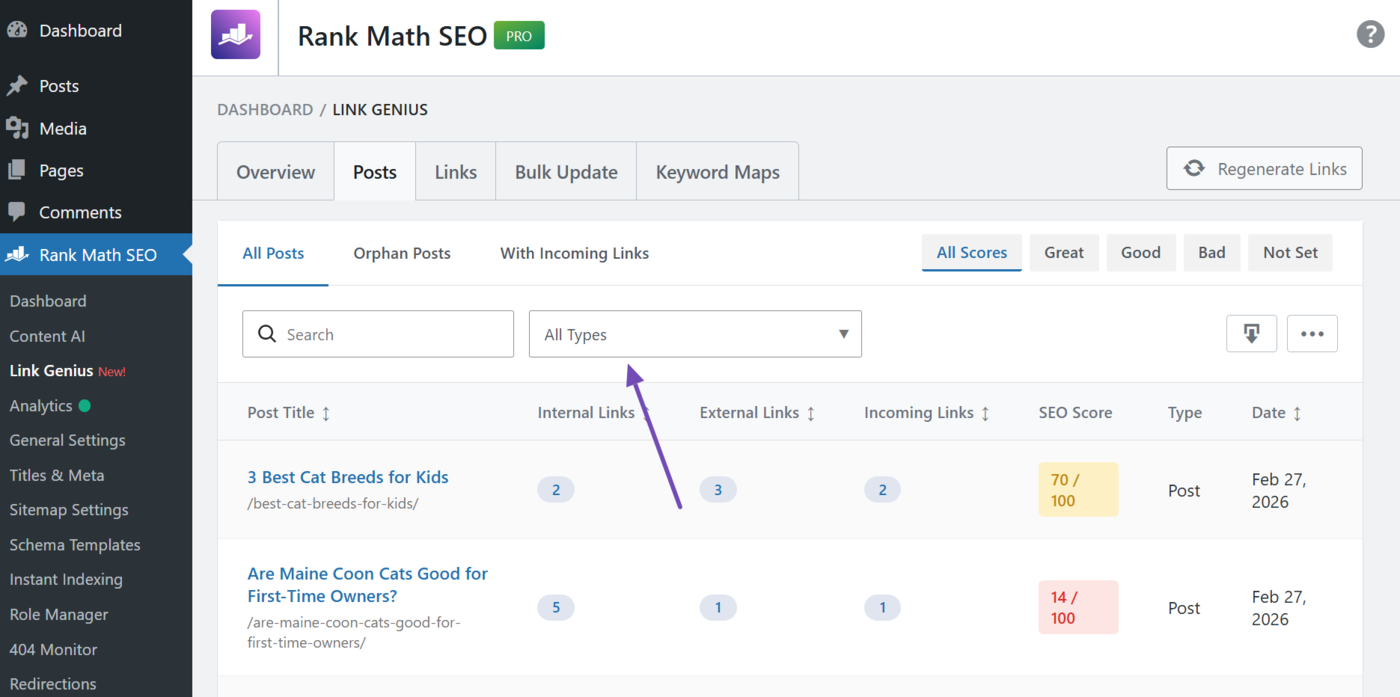
c. Post Type Filter
This filter lets you find specific content by their post type. The default options are posts and pages. However, it can include additional post types, such as products, depending on your site.
You can select multiple post types here.
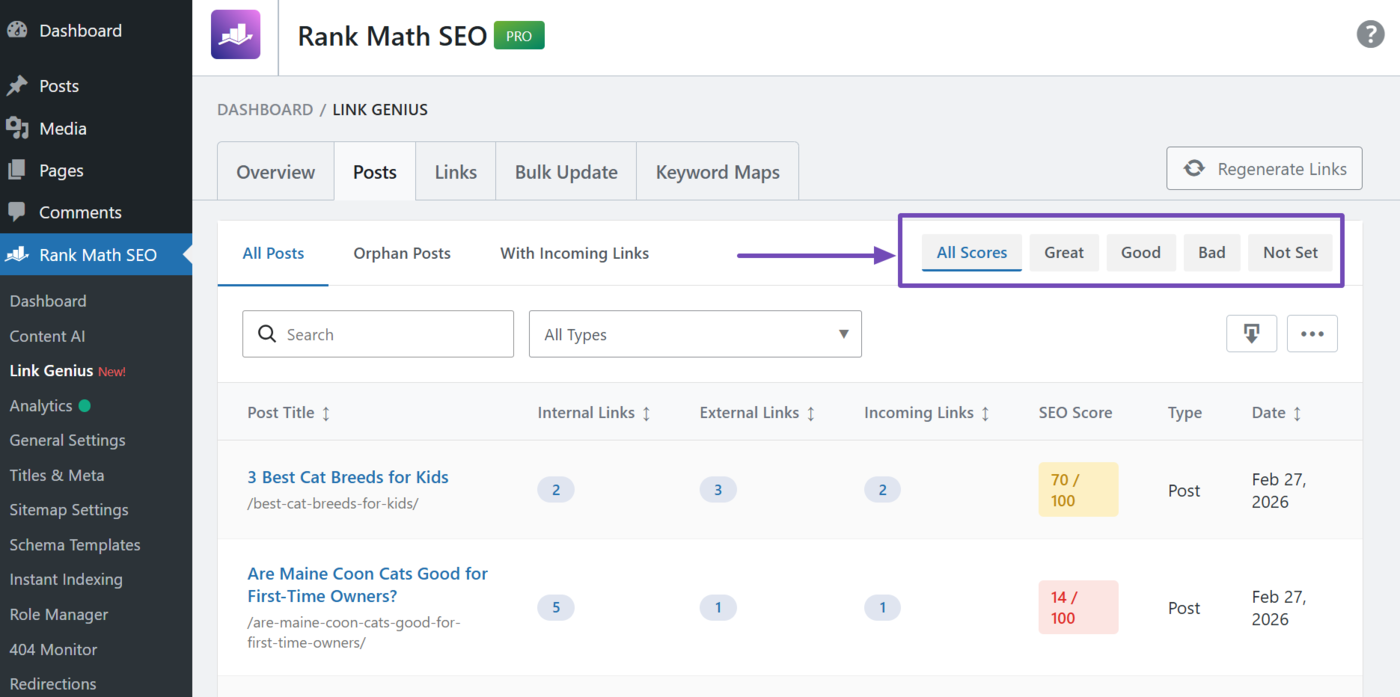
d. SEO Score Filter
This lets you filter your posts by their SEO score. The available options include:
- All scores: Shows all posts regardless of their SEO score
- Great: Only shows posts with an SEO score of 81 and above
- Good: Only shows posts with an SEO score between 51 and 80
- Bad: Only shows posts with an SEO score below 50
- Not set: Only shows posts without an SEO score
e. Column Visibility Toggle
The column visibility toggle lets you display or hide the columns in the posts tab. You can hide every column except the post title column.
That is how to do an internal link audit using AI Link Genius. If you have any questions, you’re always more than welcome to contact our dedicated support team, who are available 24/7, 365 days a year.