
Internal links are essential elements for improving your SEO, site structure, and user experience. However, many creators don’t want to spend time finding relevant internal links to include in their content.
This is where AI Link Genius comes in. Instead of manually searching for posts to link to, AI Link Genius removes the workload and guesswork, and automatically adds relevant internal links to your content, without requiring you to leave the post.
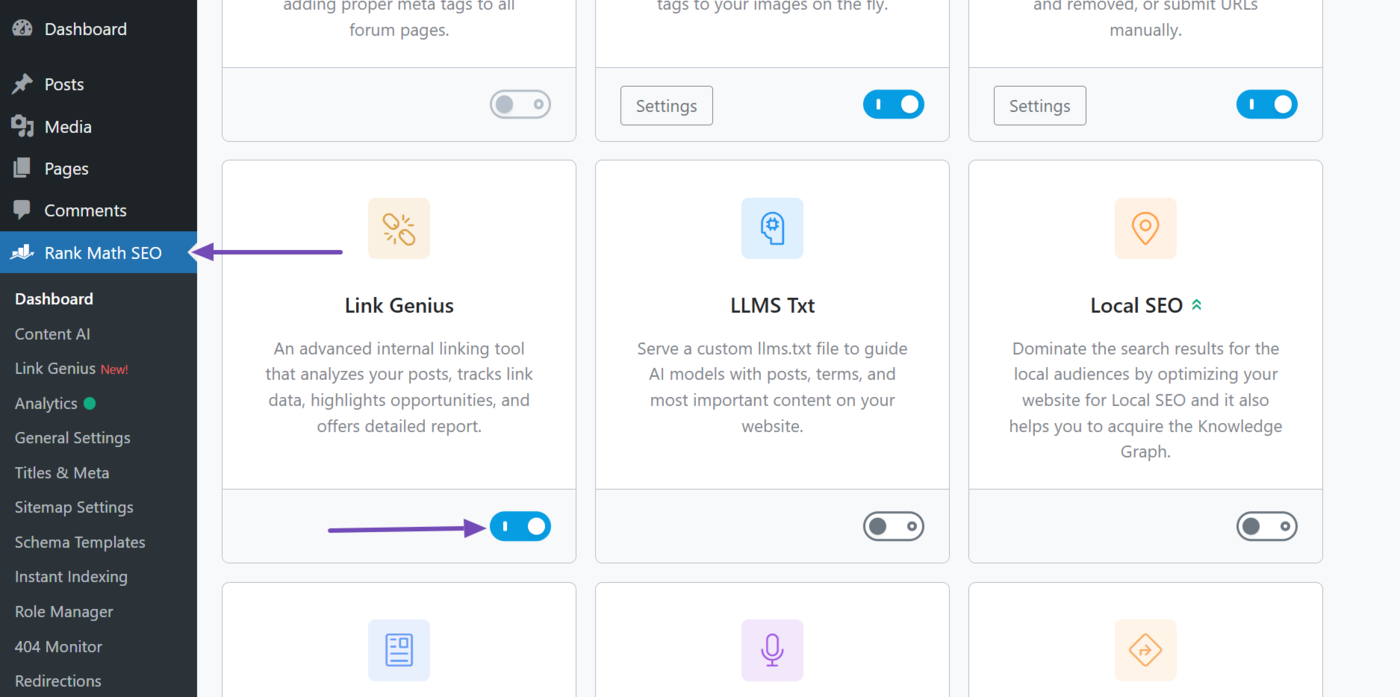
However, before we get started, we want to be sure you have enabled the Link Genius and Content AI modules. To do that, click Rank Math SEO from your WordPress dashboard and enable the Link Genius module, as shown below.
Note: AI Link Genius is available exclusively in Rank Math PRO. If you haven’t installed Rank Math PRO yet, you can get a subscription of your choice from here.
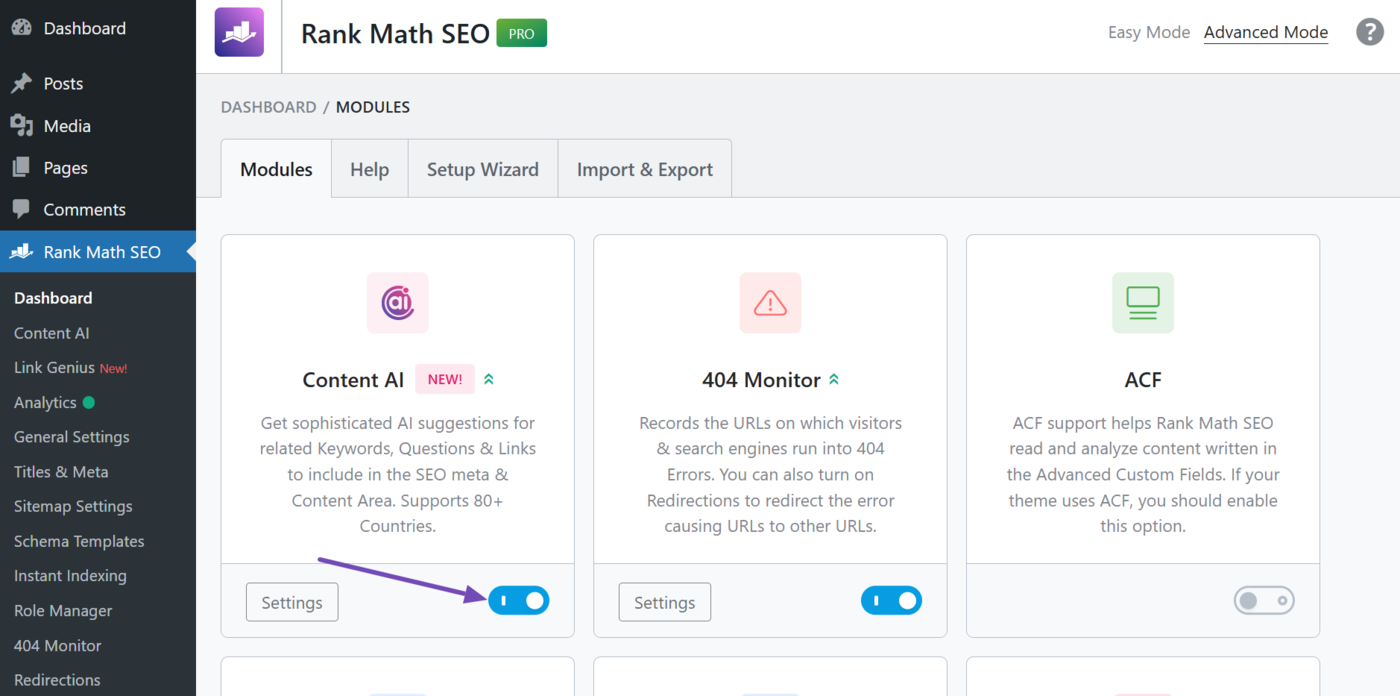
Once done, enable the Content AI module, as shown below.
How to Add Internal Links Using
1 Use the Command Center
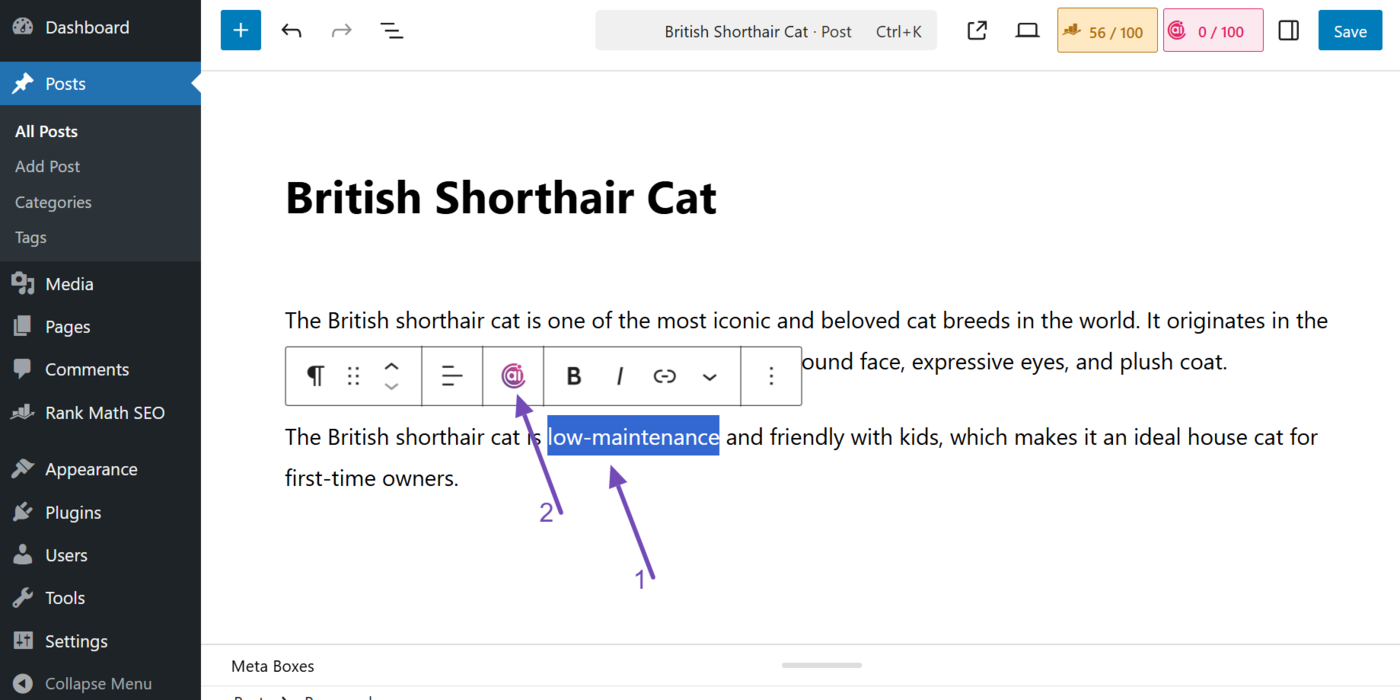
Highlight the text you want to turn into an internal link. The text formatting bar will appear, as shown below. Select the Content AI commands icon.
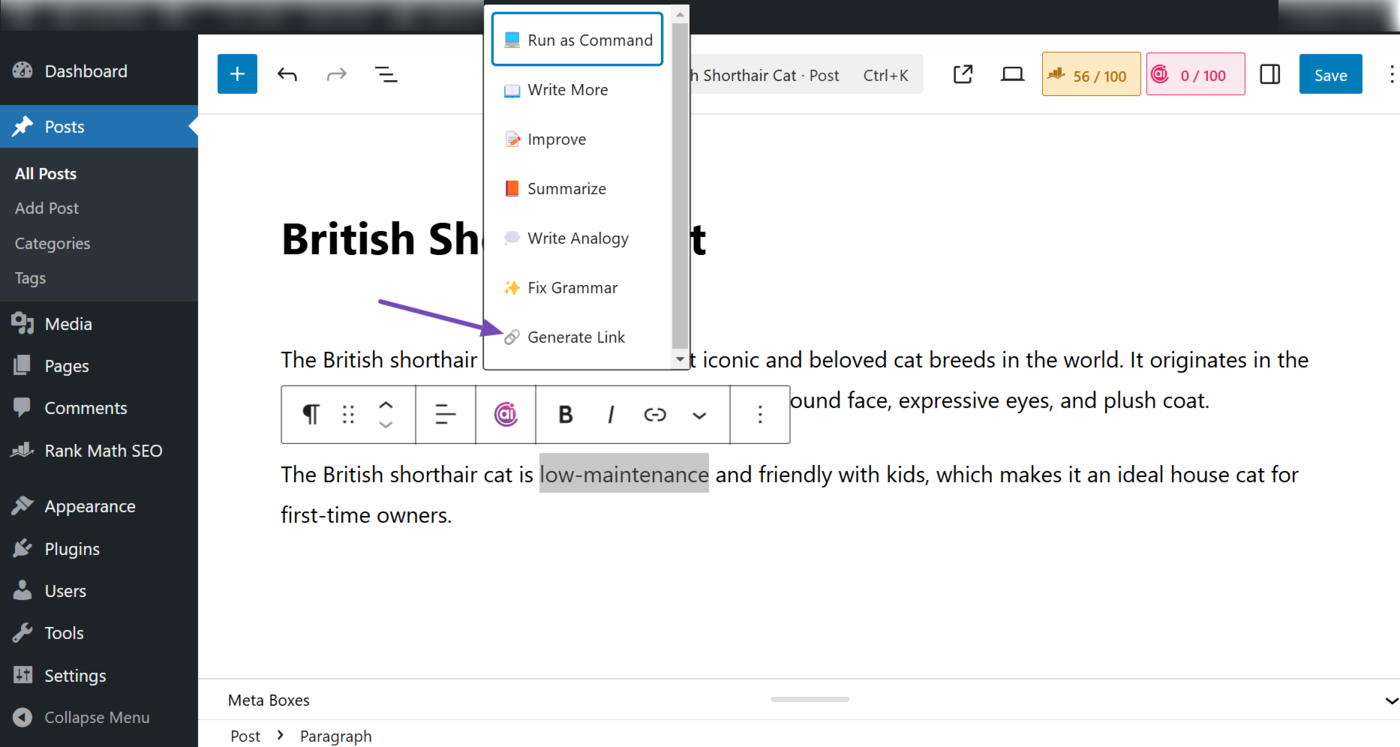
Once done, click Generate Link.
AI Link Genius will generate some internal links. Click on the one you want to use as an internal link.
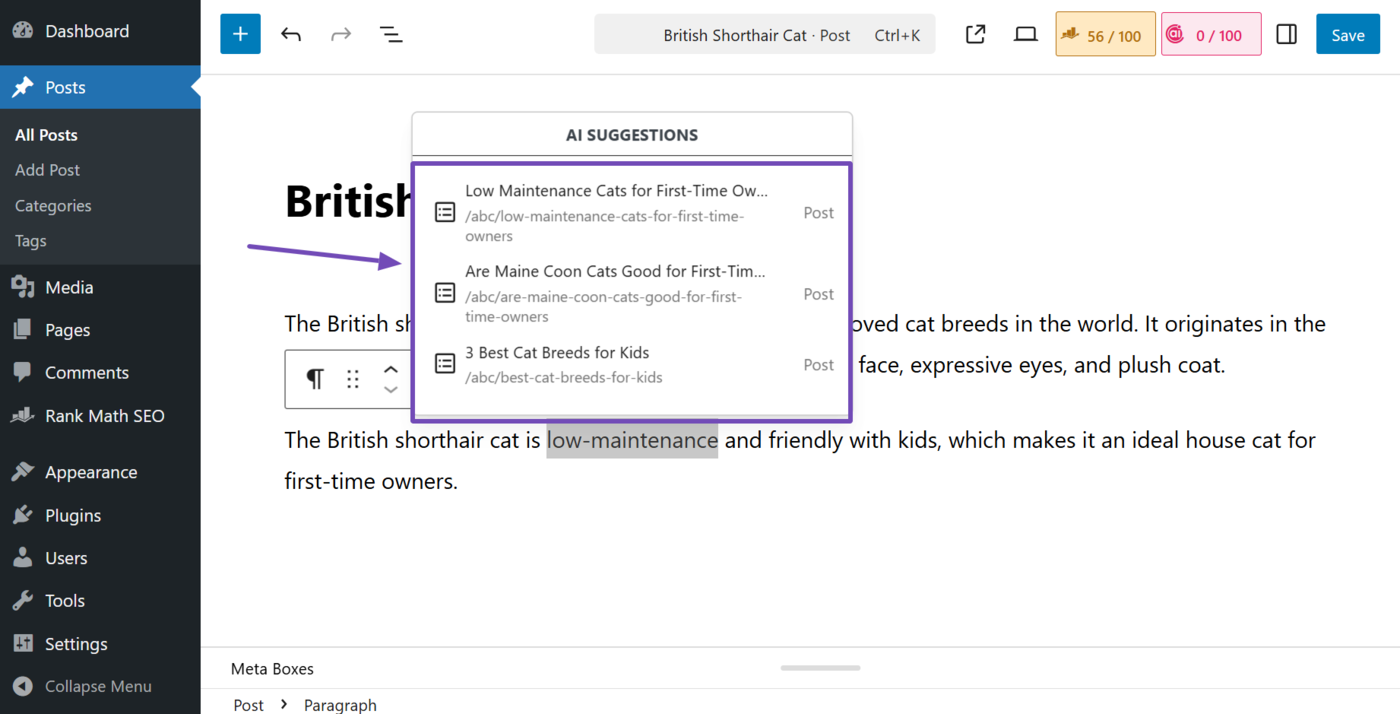
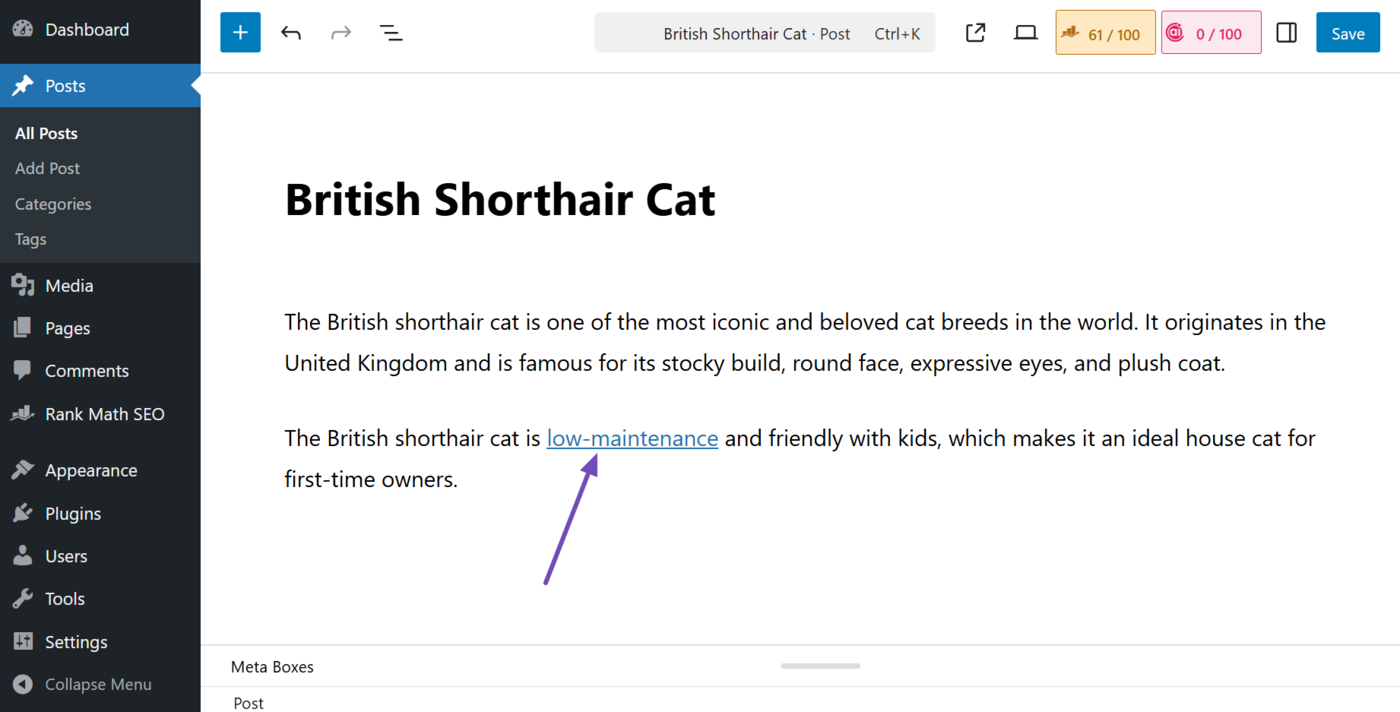
The internal link will now be added to your post, as shown below.
2 Use the Link Opportunities Panel
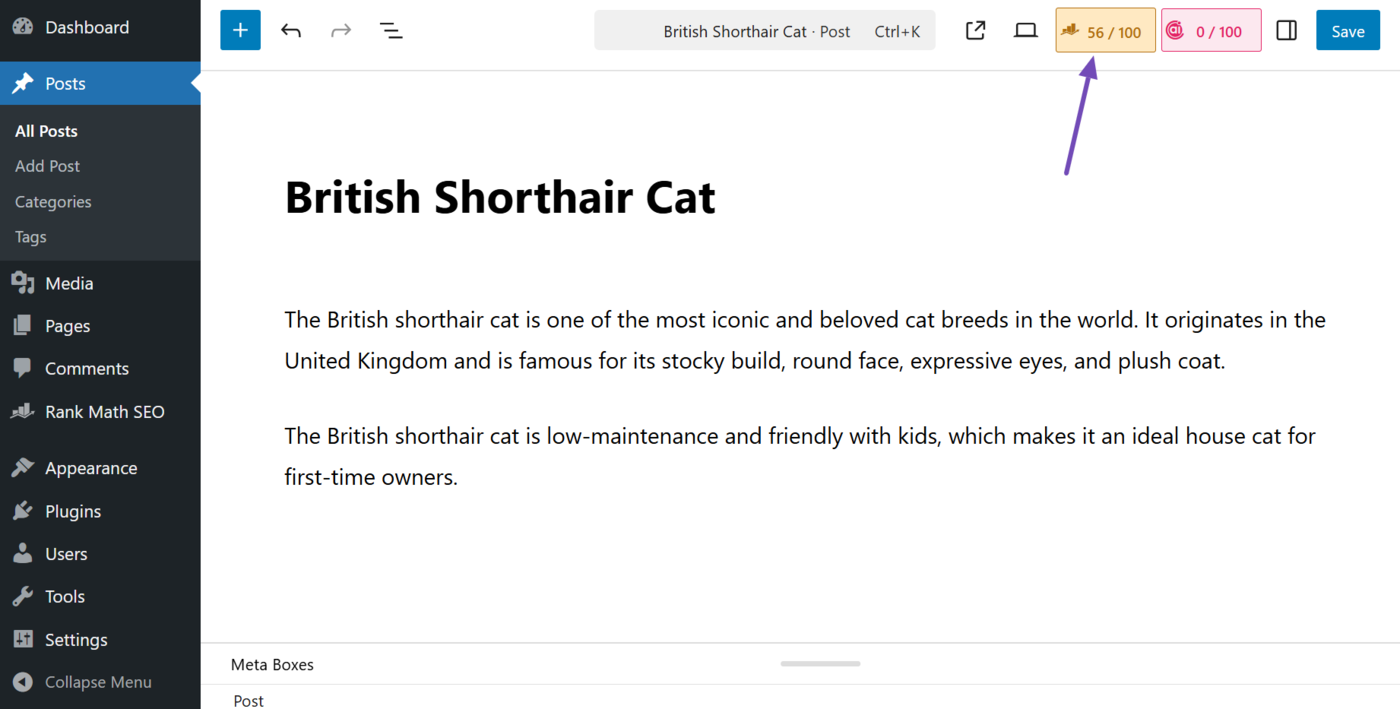
From the post editor screen, click the Rank Math SEO icon.
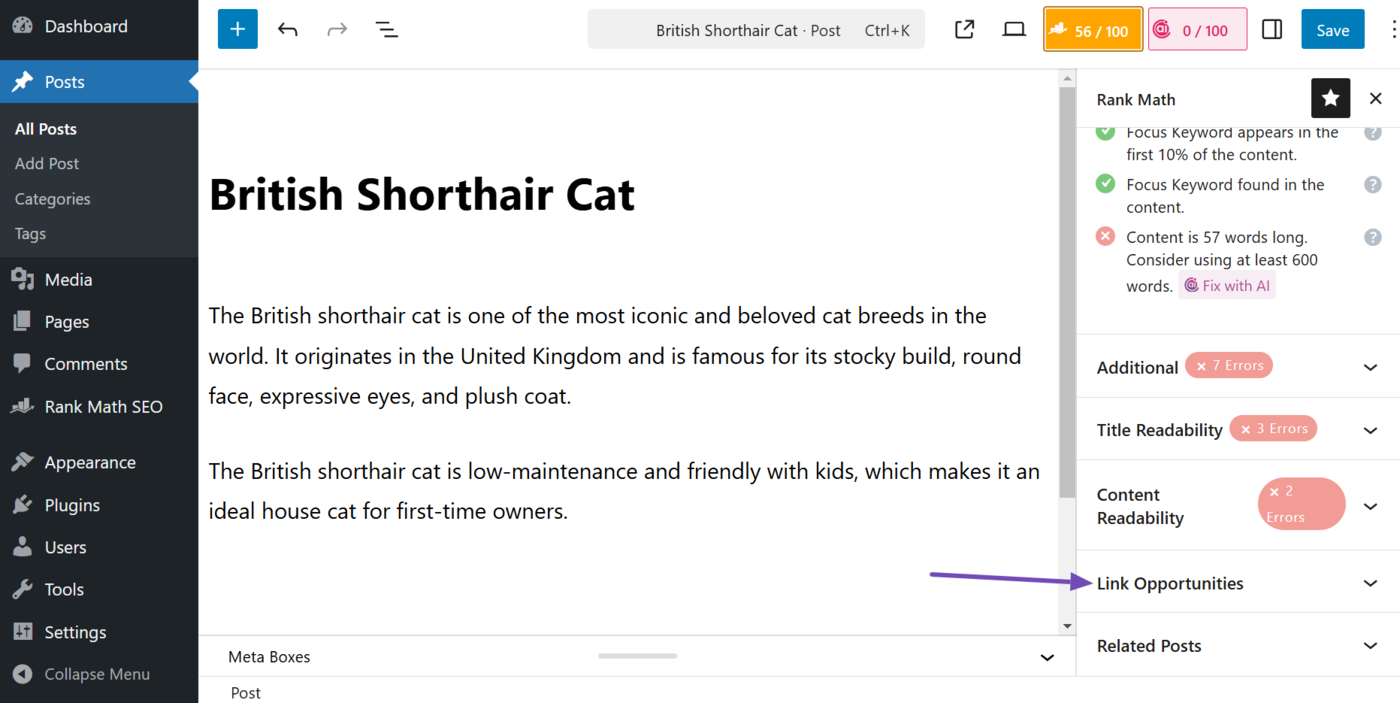
Now, scroll down and click Link opportunities.
Then click Generate.
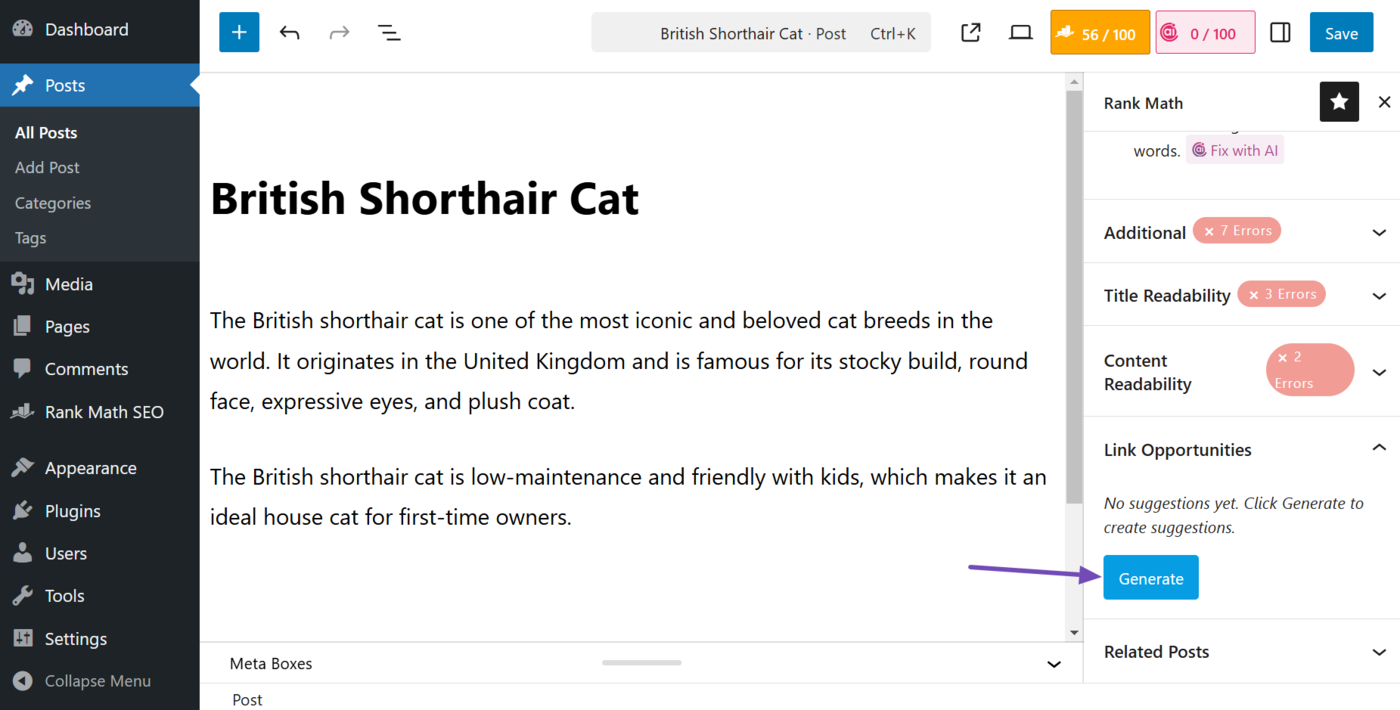
AI Link Genius will suggest some relevant internal links to include in your content. It will show you the suggested internal link along with the surrounding content.
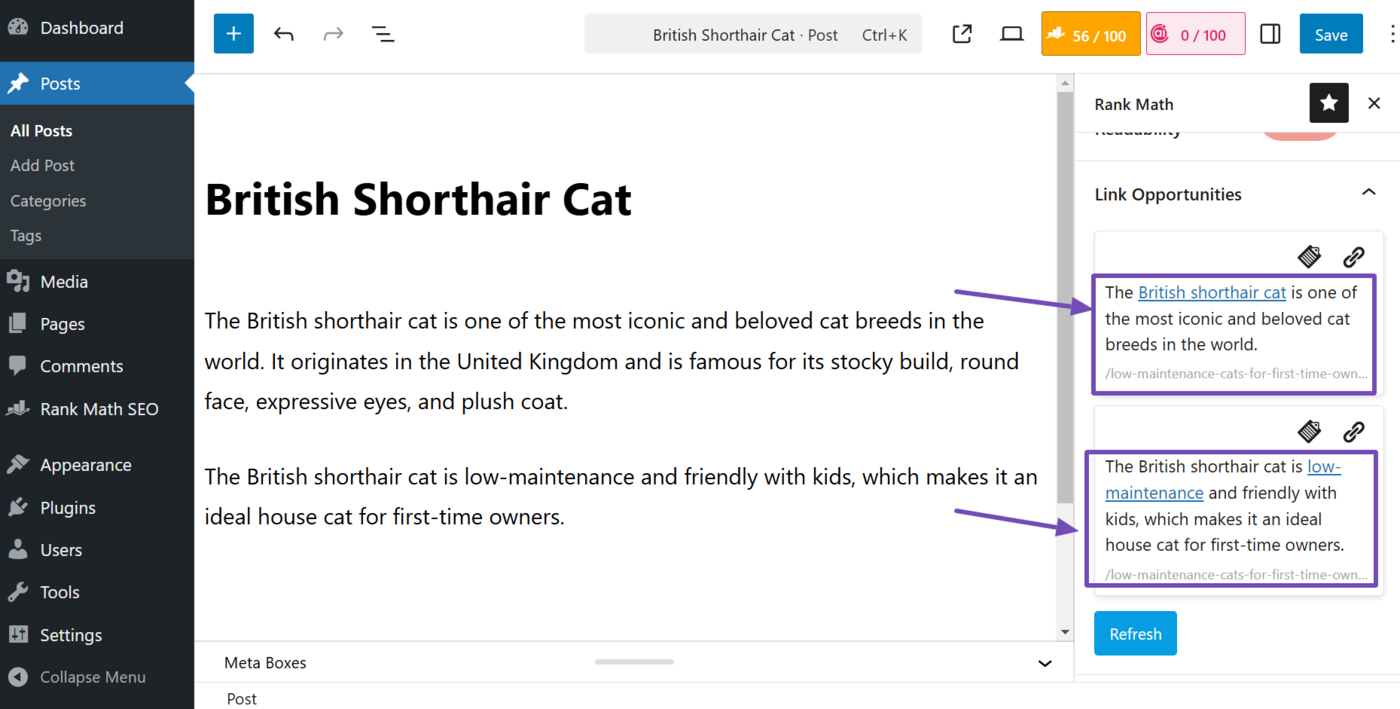
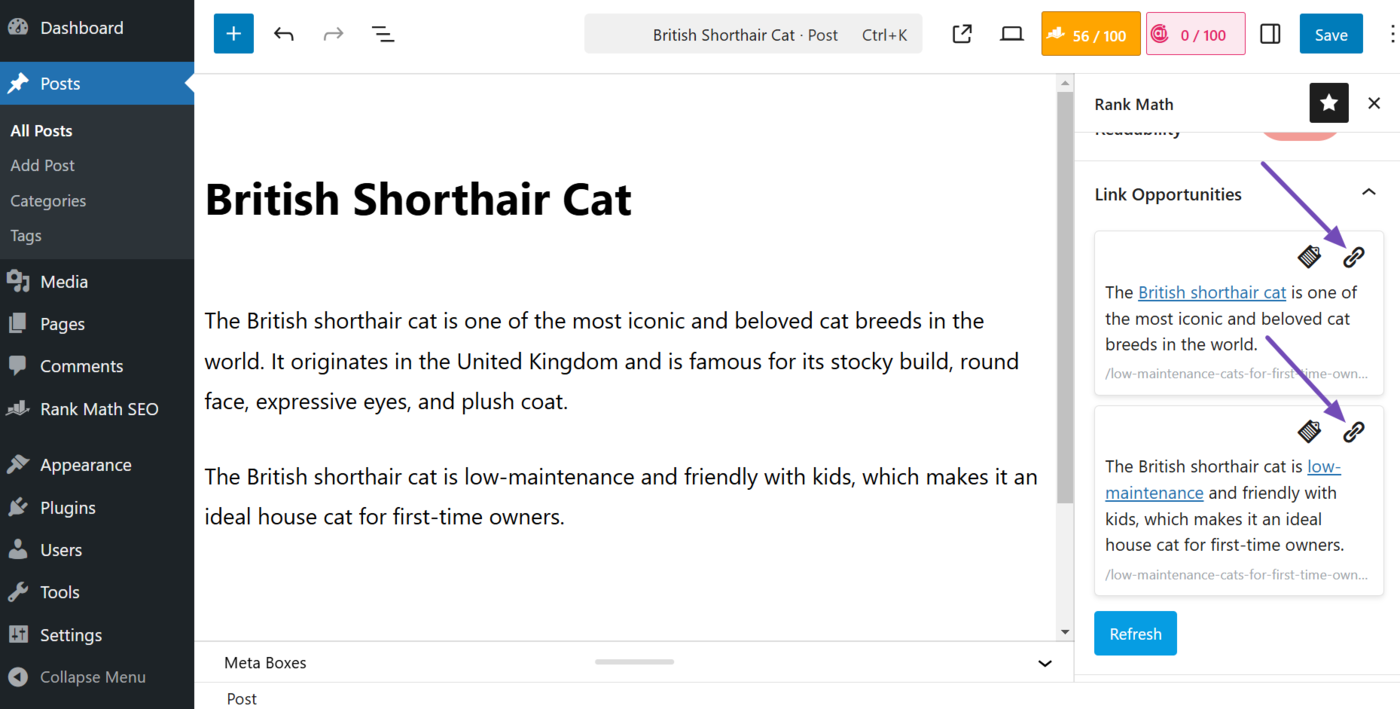
Each link includes two options:
- Copy link URL: Copies the link to your clipboard
- Insert URL: Inserts the link into your post
Review the suggested internal links. Then click the Insert URL icon to add it to your post.
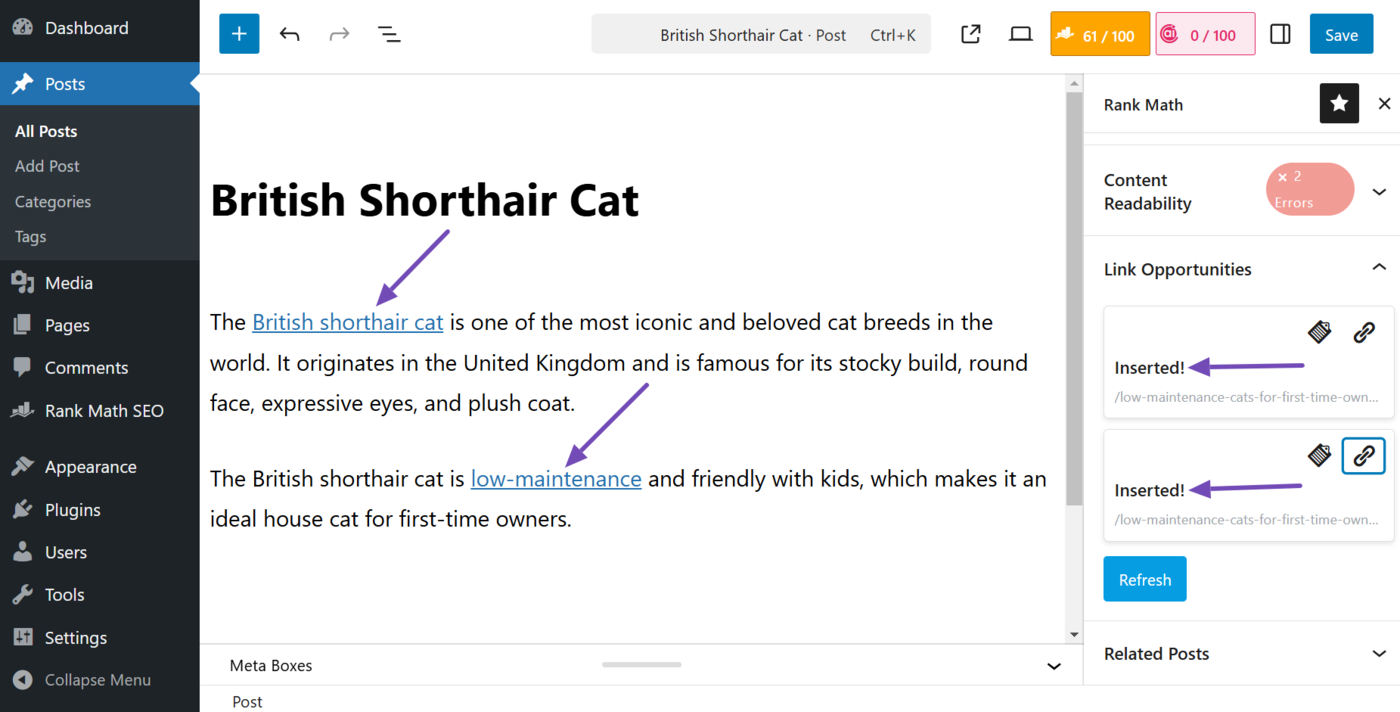
The internal link will be added to the post, as shown below. (The link opportunities panel will also briefly display “Inserted” to indicate the link was successfully added to your post.)
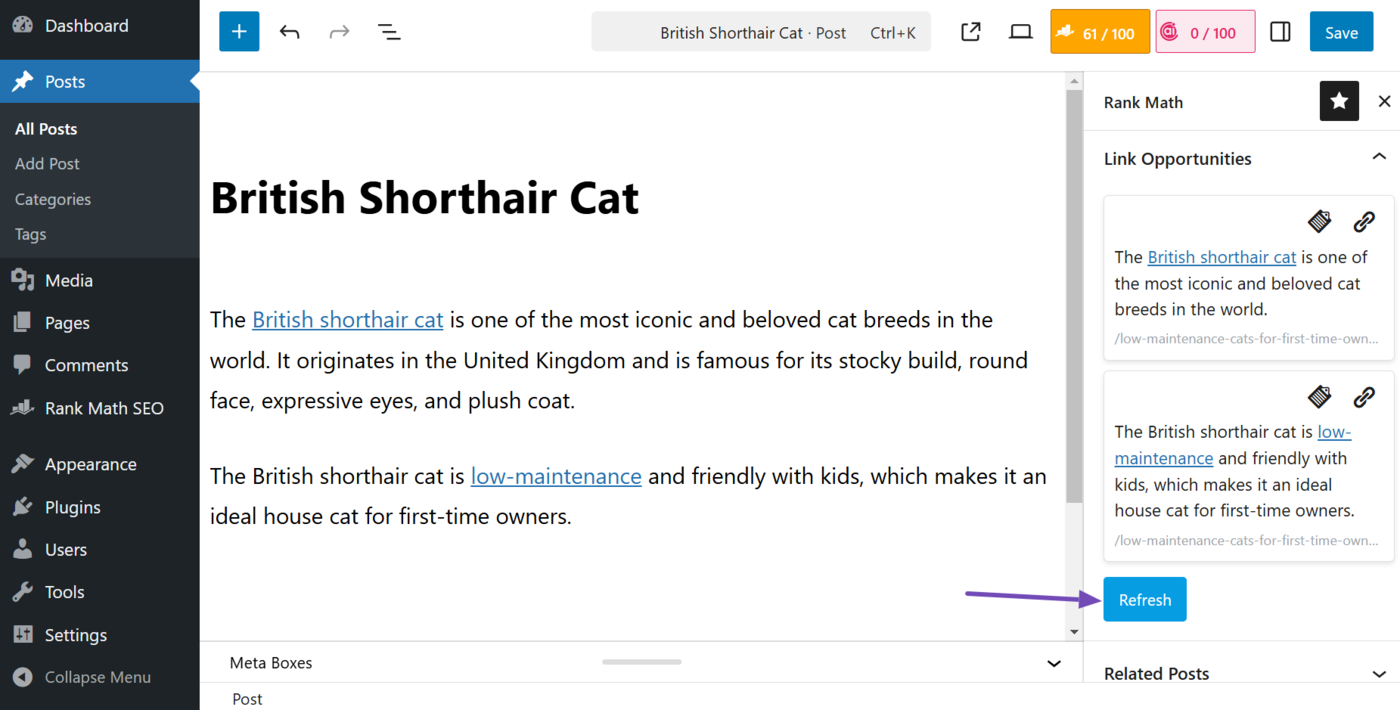
The link opportunities panel also includes a refresh button. This lets you generate a new set of internal links. This is especially useful if you have updated the post or some other content since the internal links were last generated.
3 Use the Related Posts Panel
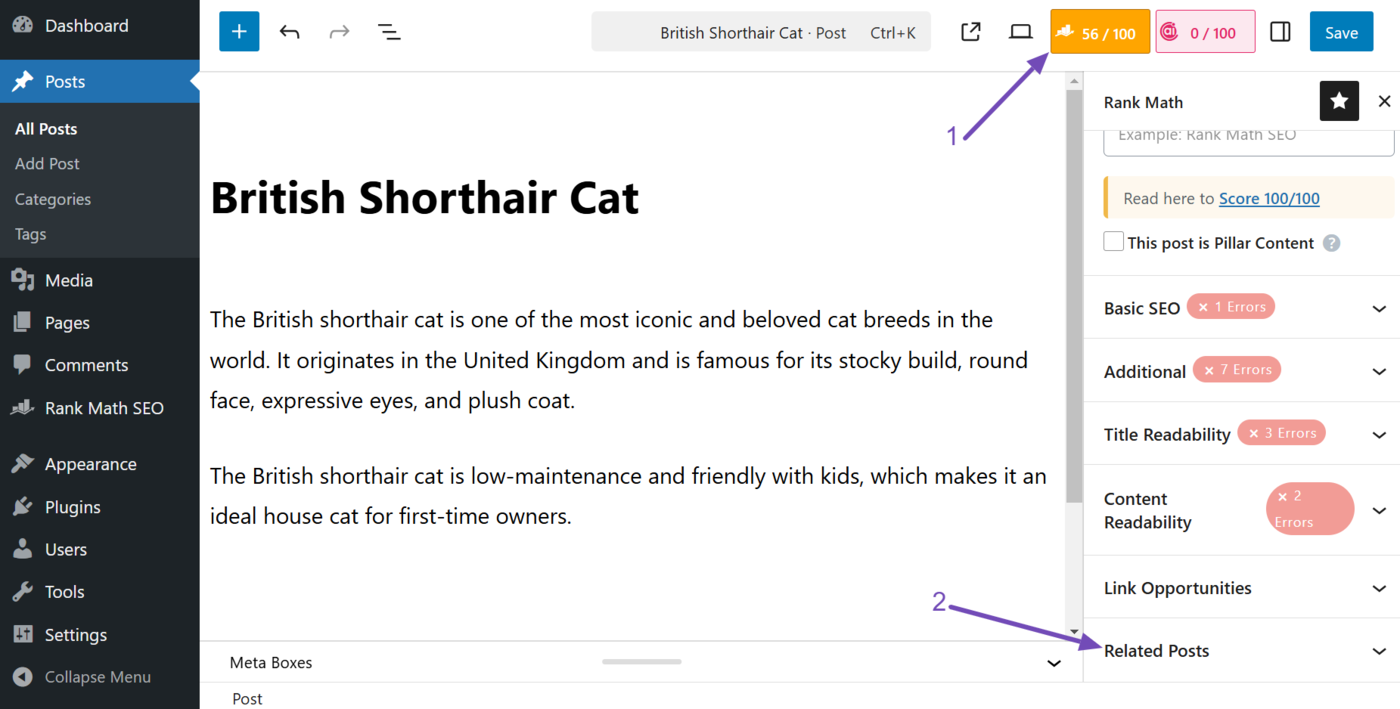
From the post editor screen, click the Rank Math SEO icon and scroll to Related Posts.
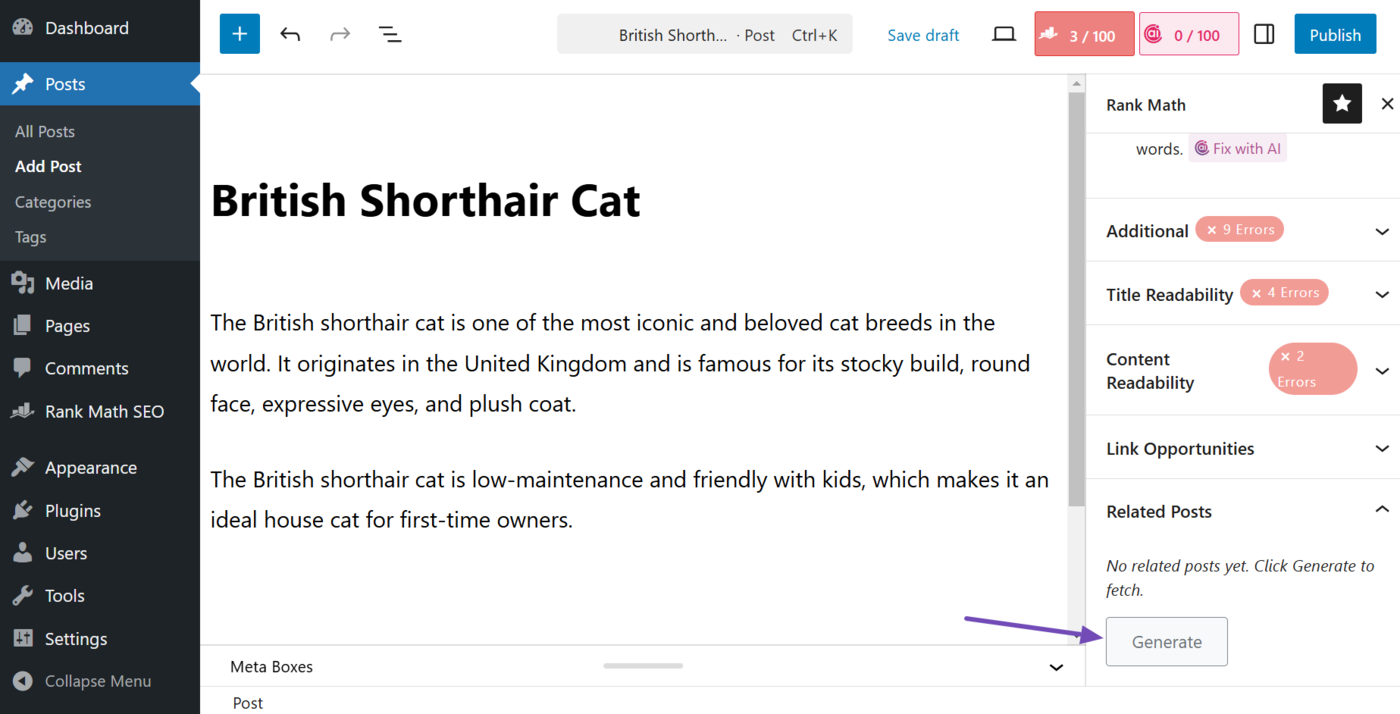
Click Generate.
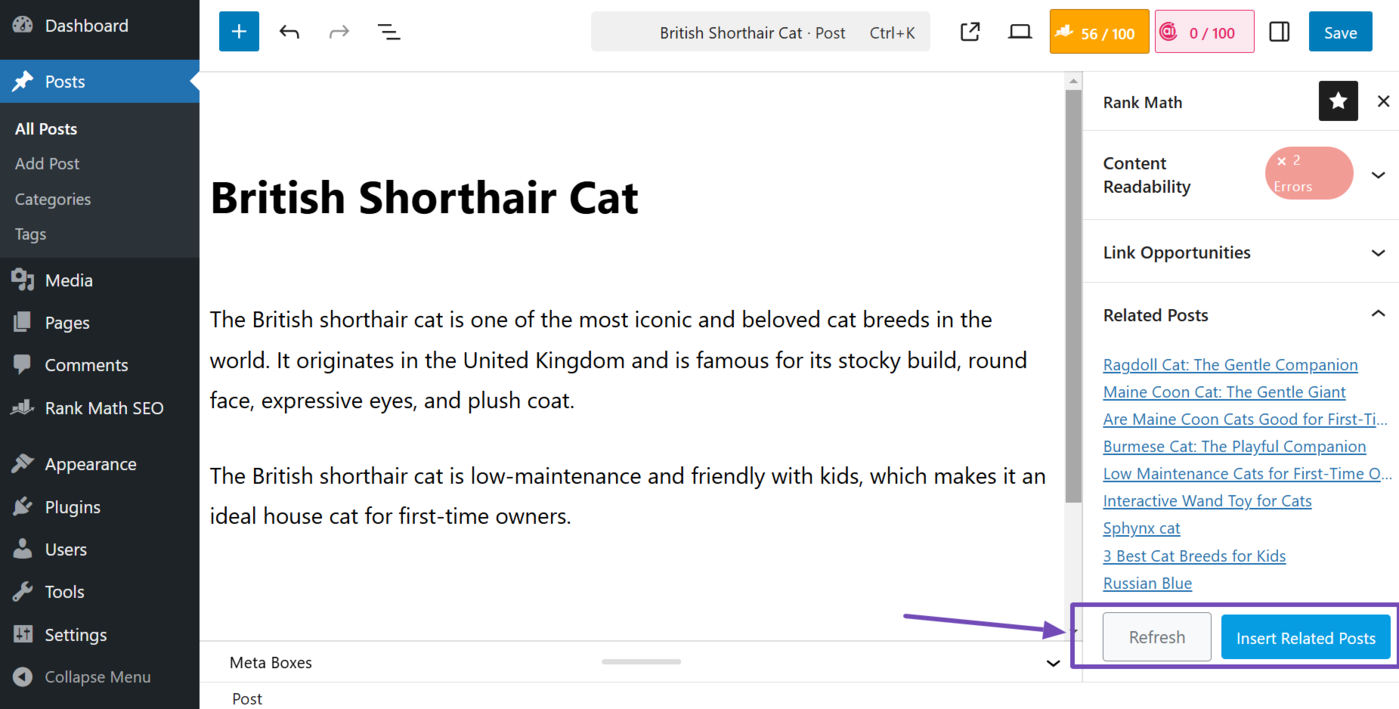
AI Link Genius will generate some related posts. It will include two choices:
- Refresh: Generate a new set of related posts
- Insert related posts: Insert a related post block into your post
Review the related posts. Once done, click the Insert related posts button.
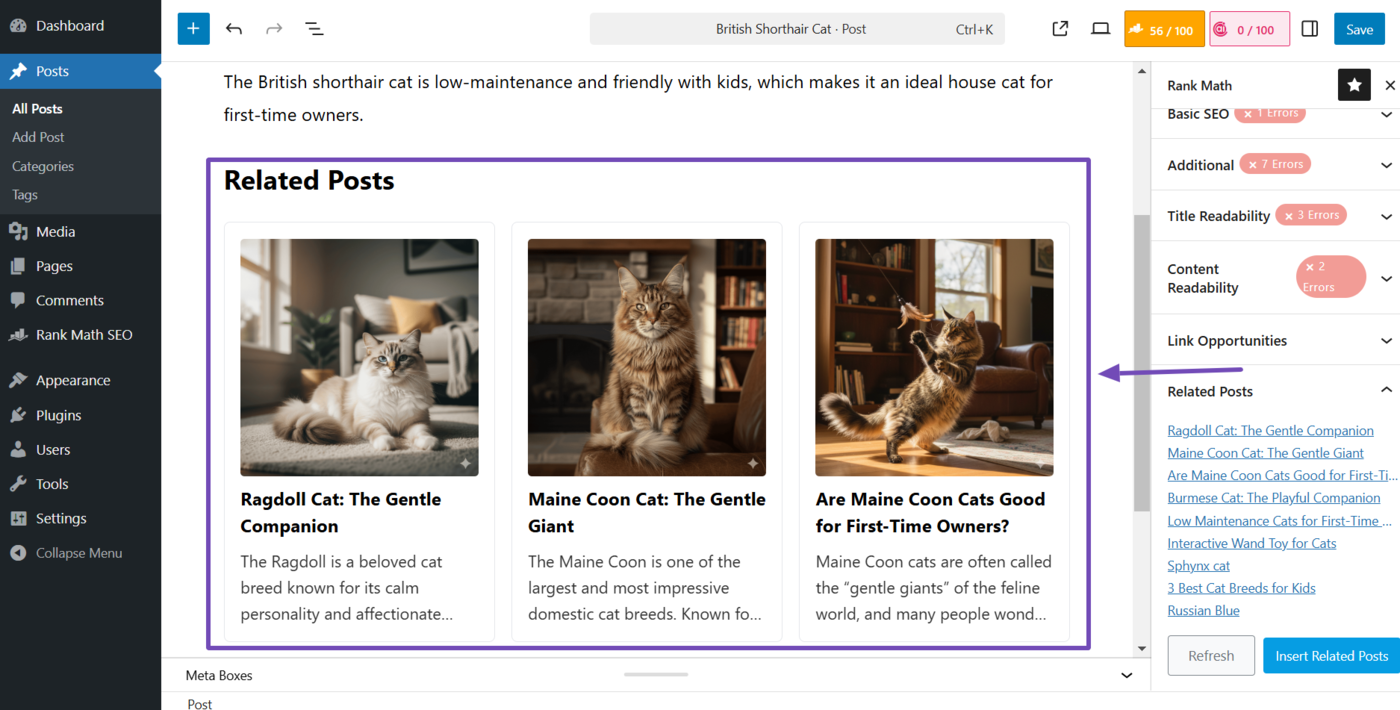
Rank Math will insert a related posts block into your post.
That is how to add internal links to your content using AI Link Genius. If you have any questions, you’re always more than welcome to contact our dedicated support team, who are available 24/7, 365 days a year.