
AI Link Genius lets you remove the internal and external links in your posts, without opening the post to manually find and remove the link. This helps to save time, and allows you to quickly remove links, either individually or in bulk.
Here is how to remove your internal links individually or in bulk, using AI Link Genius.
Table of Contents:
1 Open the Links Tab
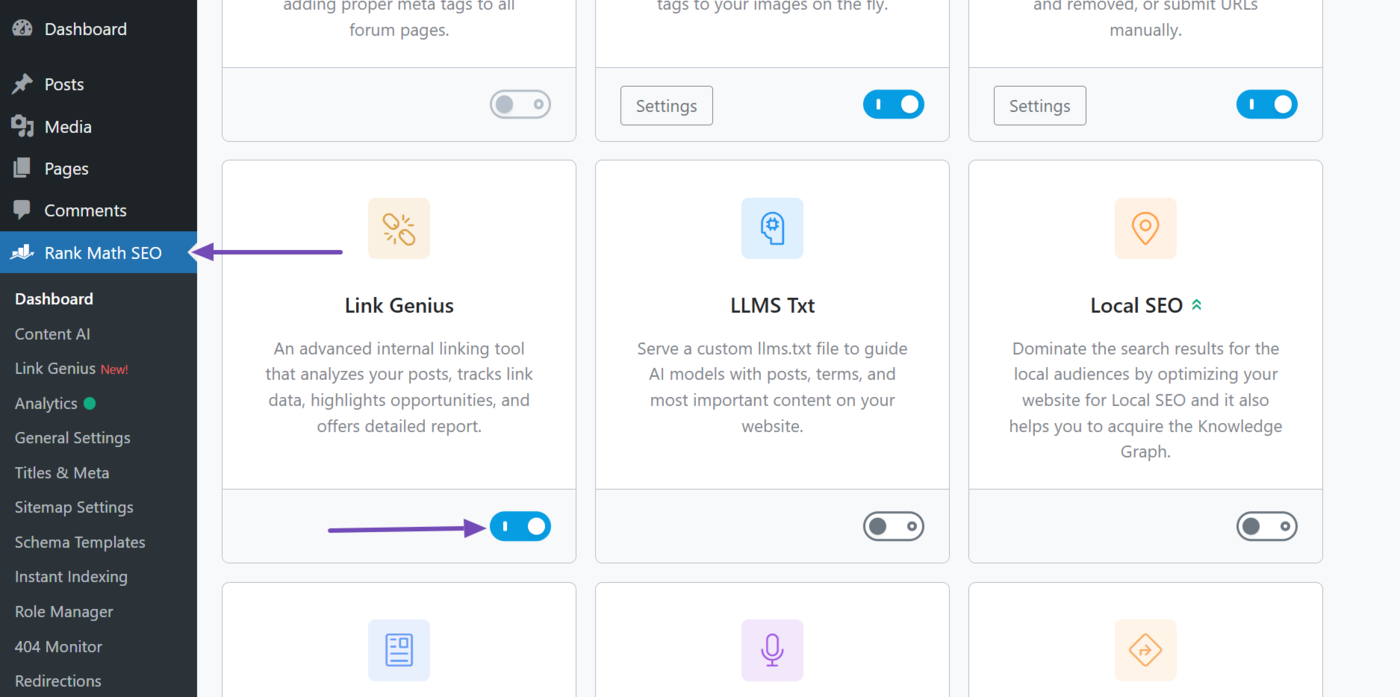
To get started, click Rank Math SEO from your WordPress dashboard. Once done, scroll down to the Link Genius module and enable it, as shown below.
Note: AI Link Genius is available exclusively in Rank Math PRO. If you haven’t installed Rank Math PRO yet, you can get a subscription of your choice from here.
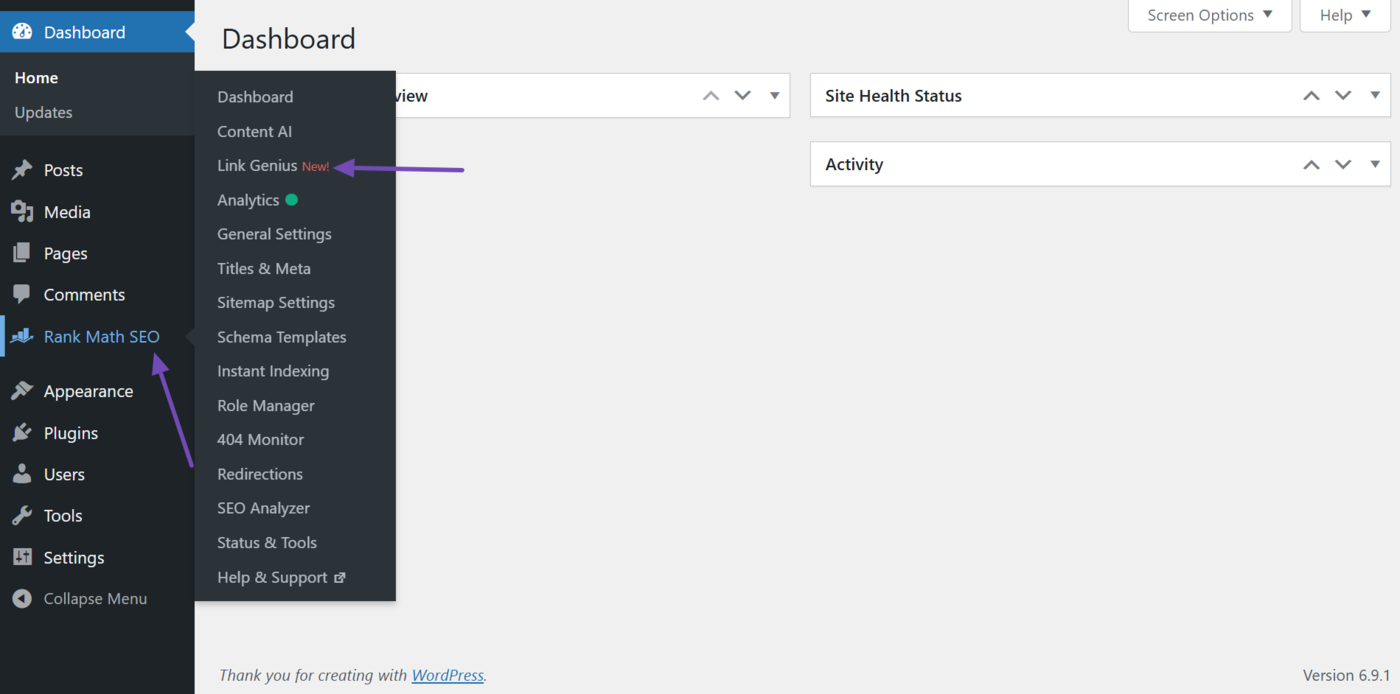
Now, head to Rank Math SEO → Link Genius from your WordPress dashboard.
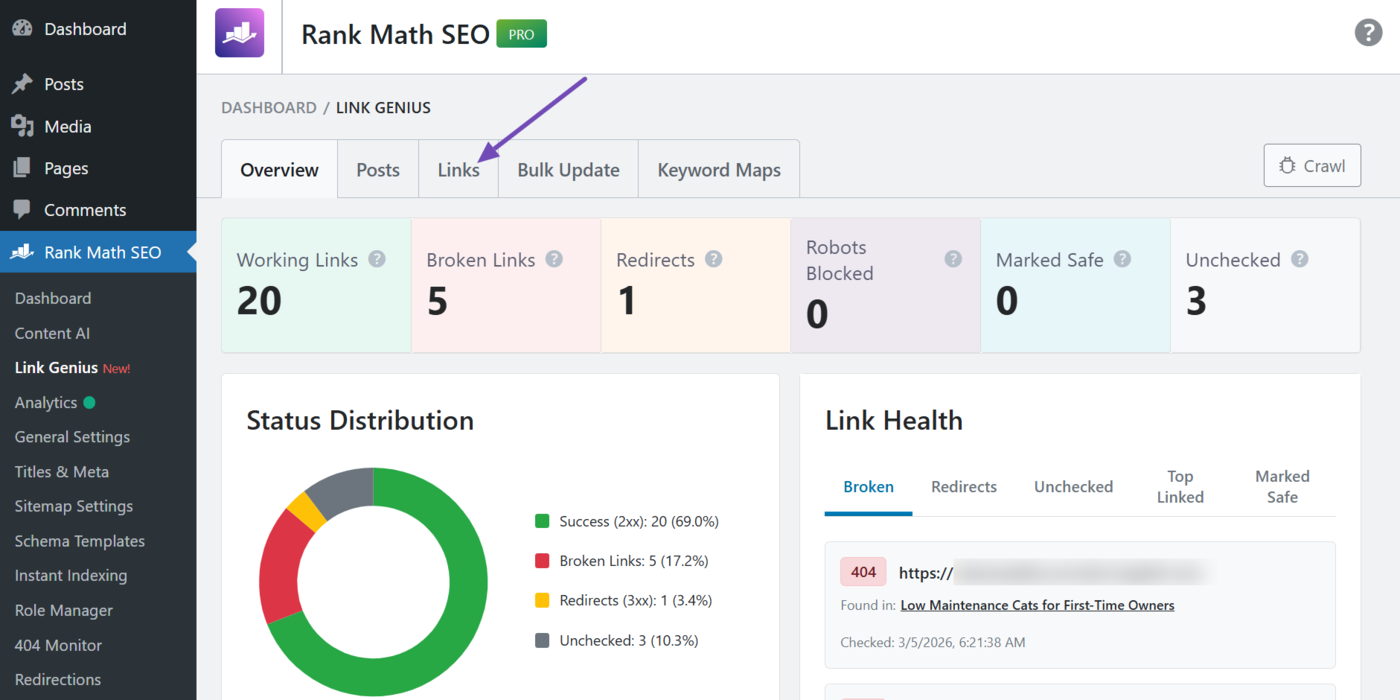
Then, click the Links tab.
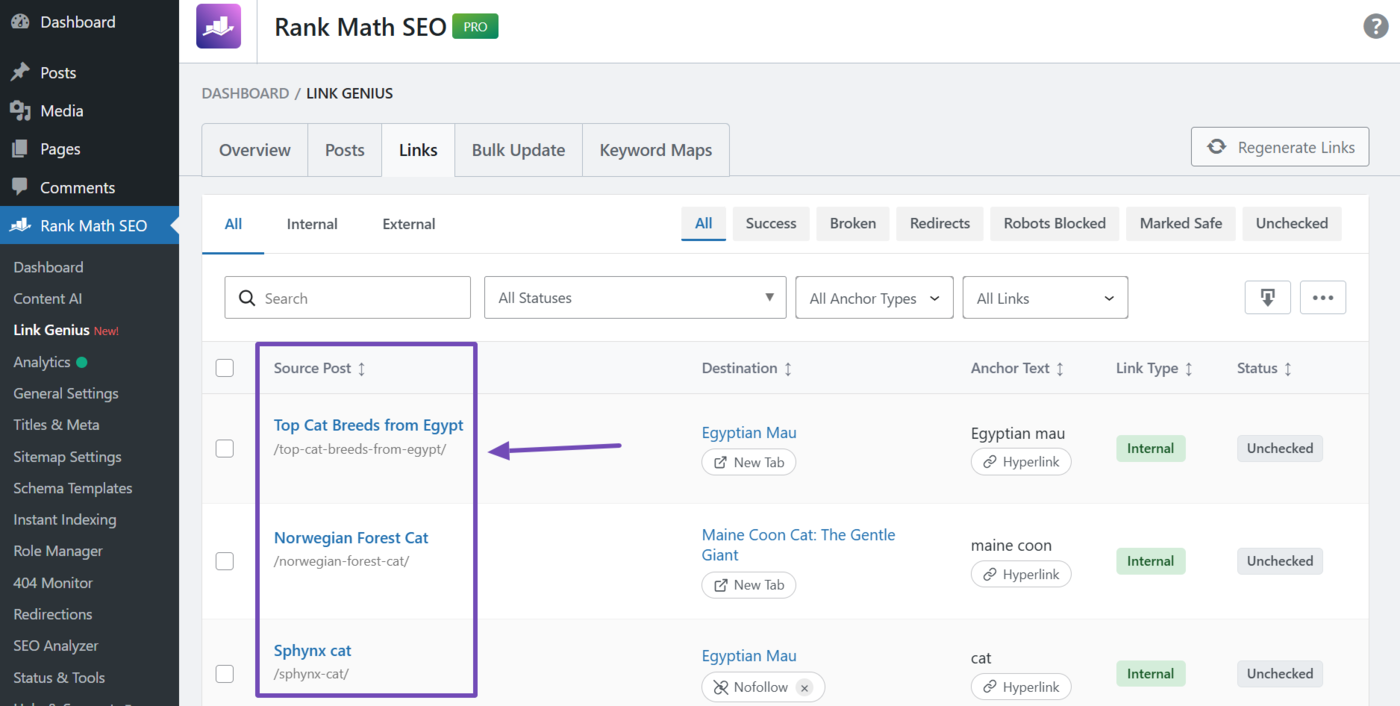
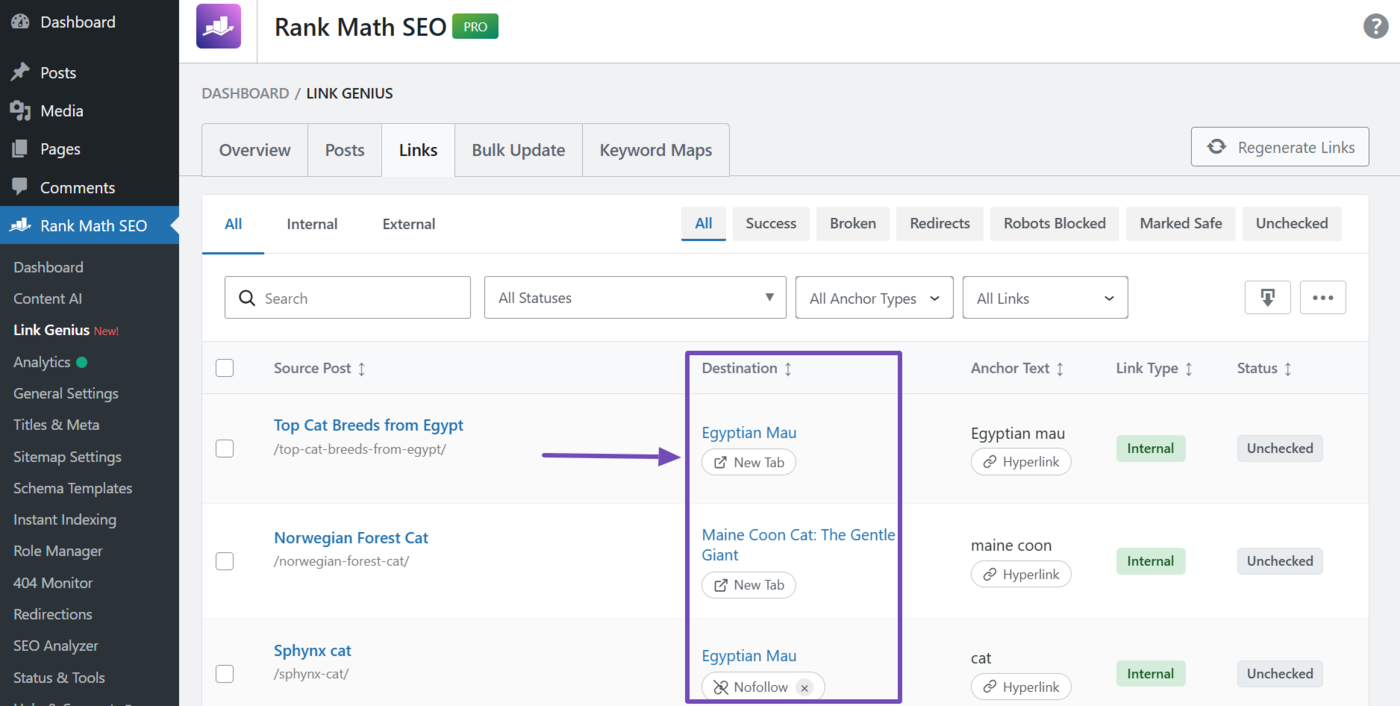
You will now be presented with the internal and external links on your site. The source post and destination columns are the main columns here.
1.1 Source Post Column
The source post column shows the title and URL slug of the post containing the link. This post is always on your site.
1.2 Destination Column
The destination column shows the title and URL of the post the link points to. It also includes additional details, such as whether the link is nofollow or opens in a new tab.
Note: This column only shows the URL for external links. For internal links, it shows the post title, but will show the URL on hover.
2 Remove the Links
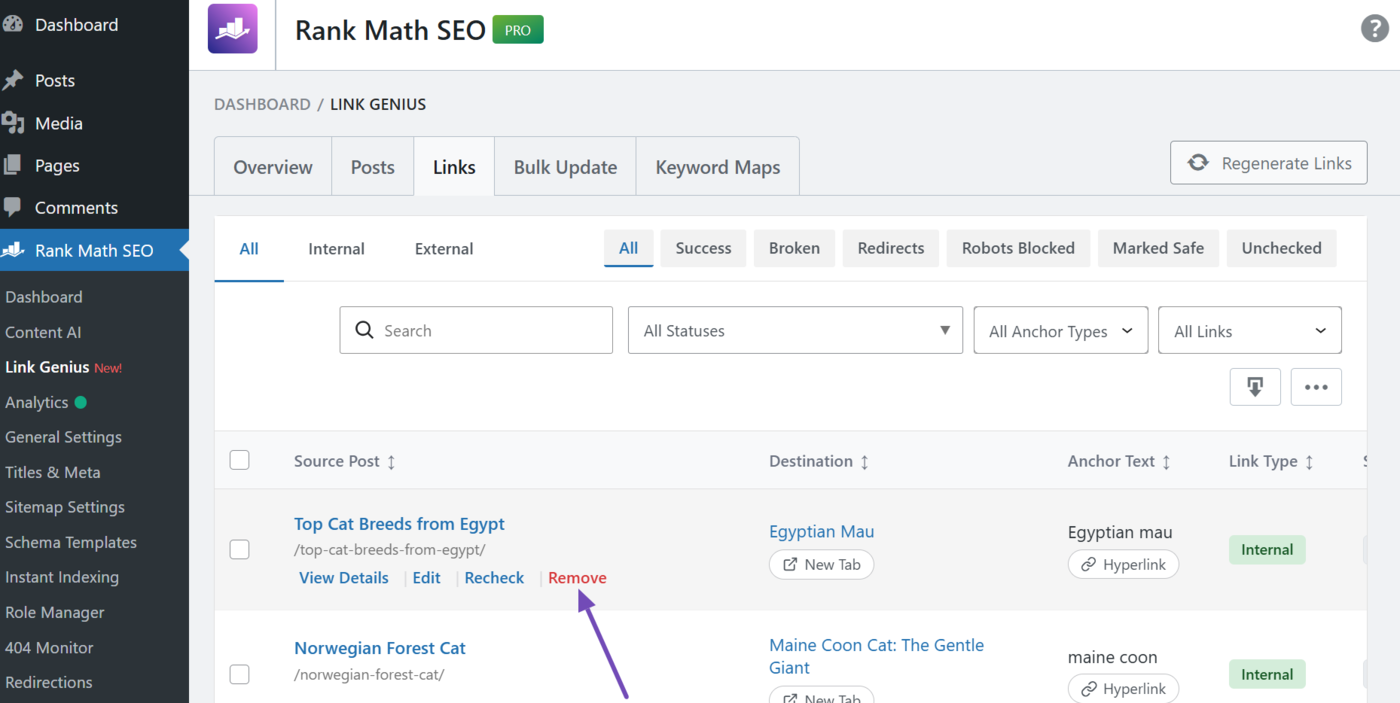
You can remove the links one after another, or in bulk. To remove them one by one, hover over the link and click Remove, as shown below.
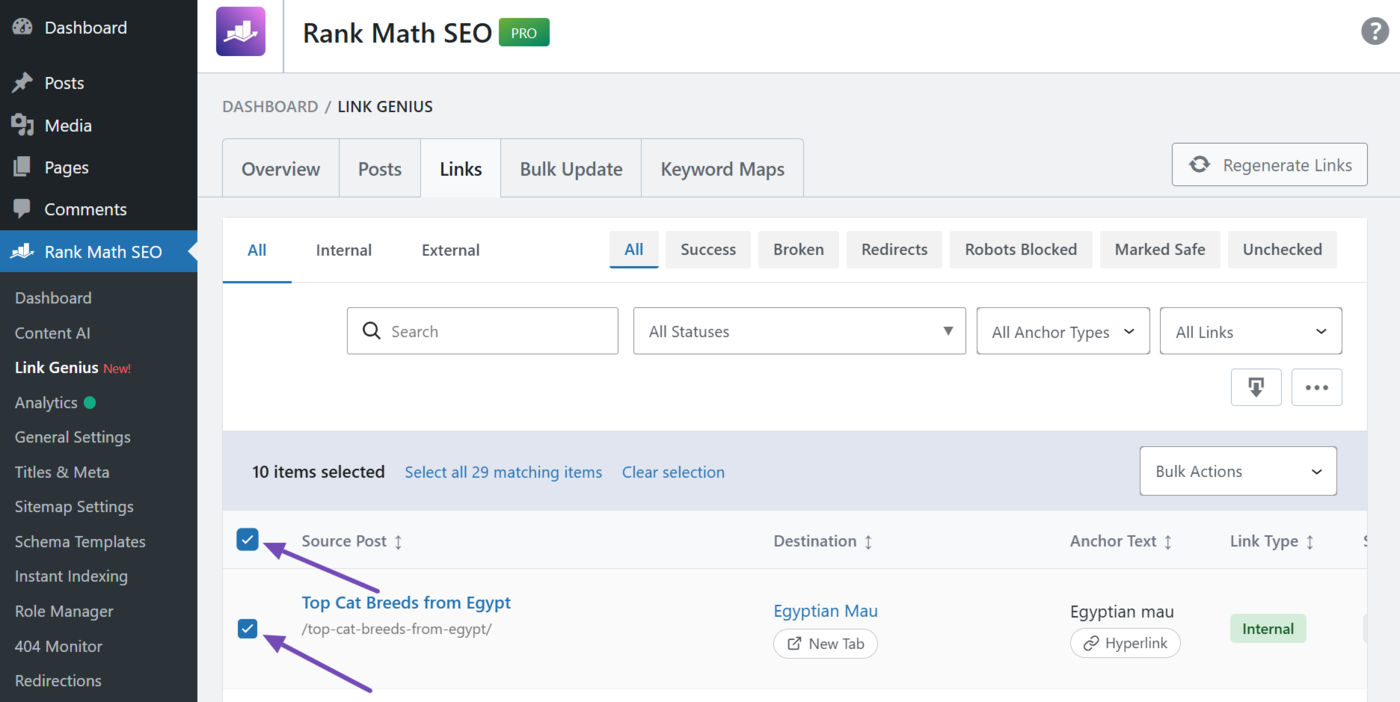
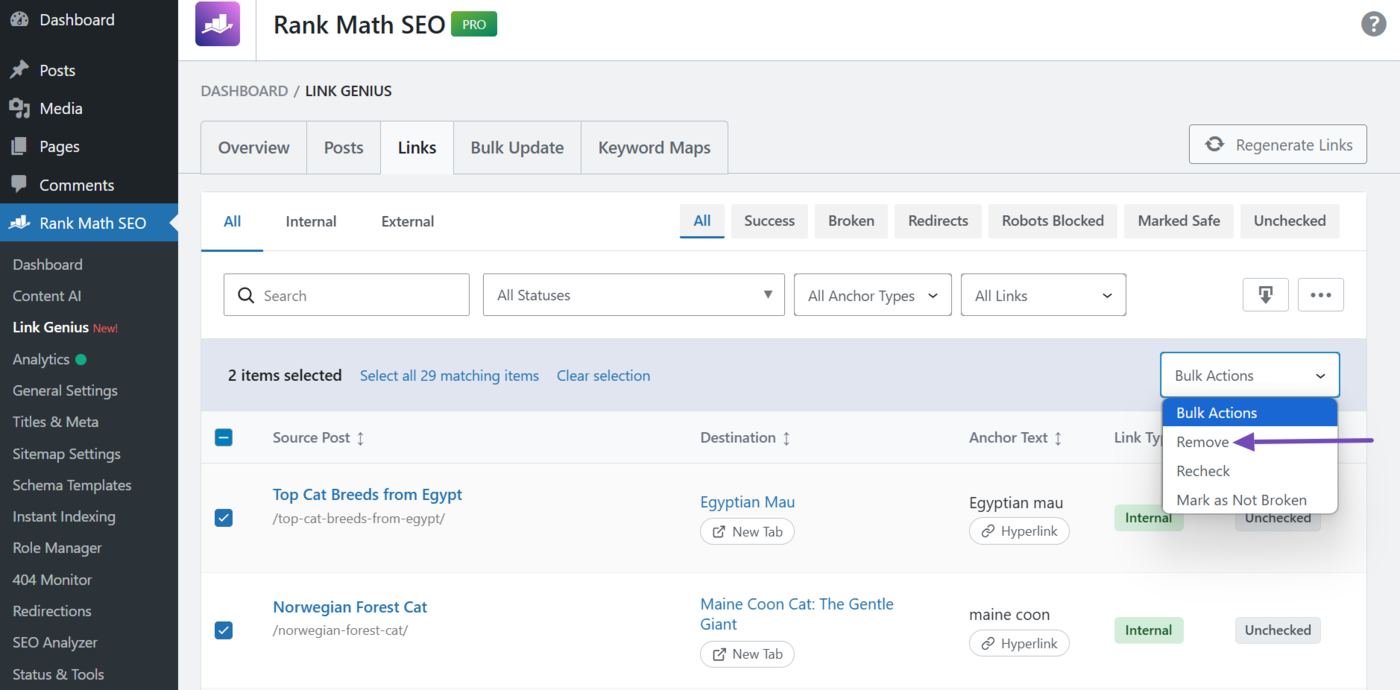
To remove the links in bulk, click on the checkbox of the links you want to remove. To remove all links, click the select all checkbox at the top.
The Bulk actions dropdown will appear on the page when you select one or more links. Click on it.
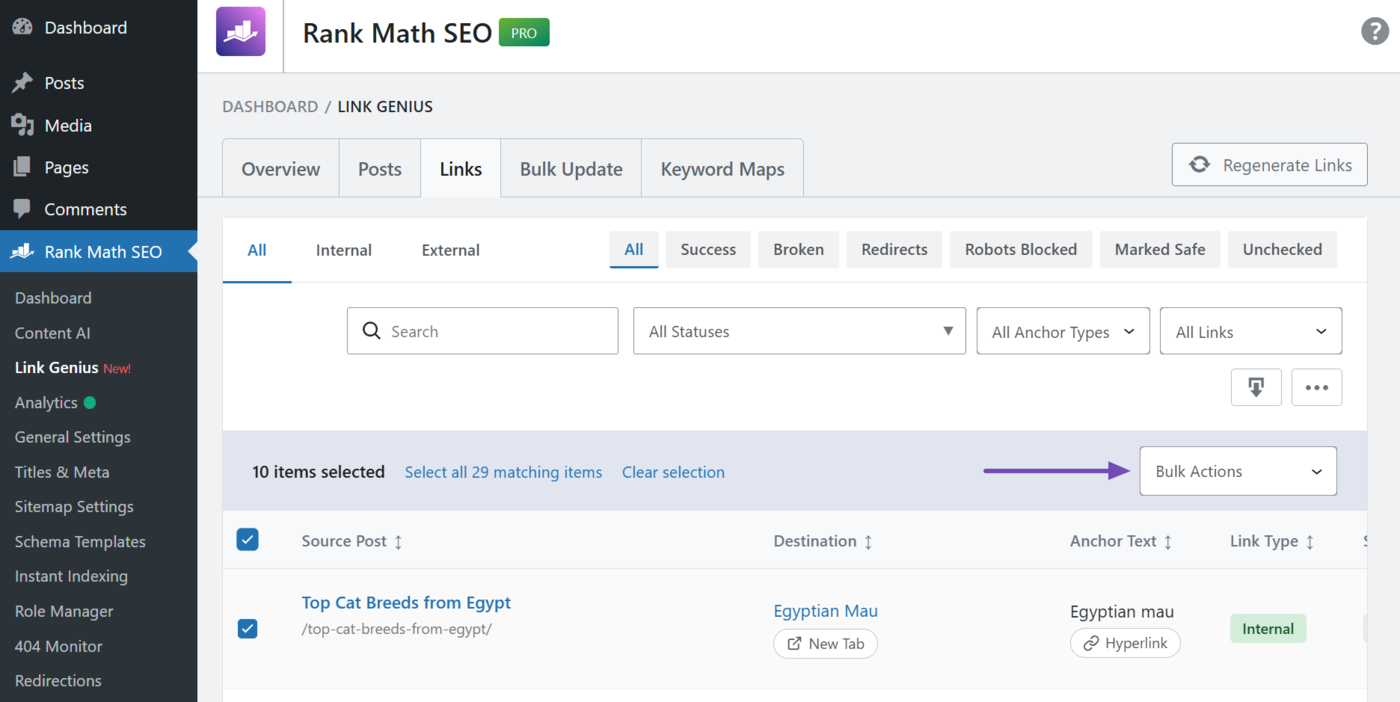
Once done, select Remove.
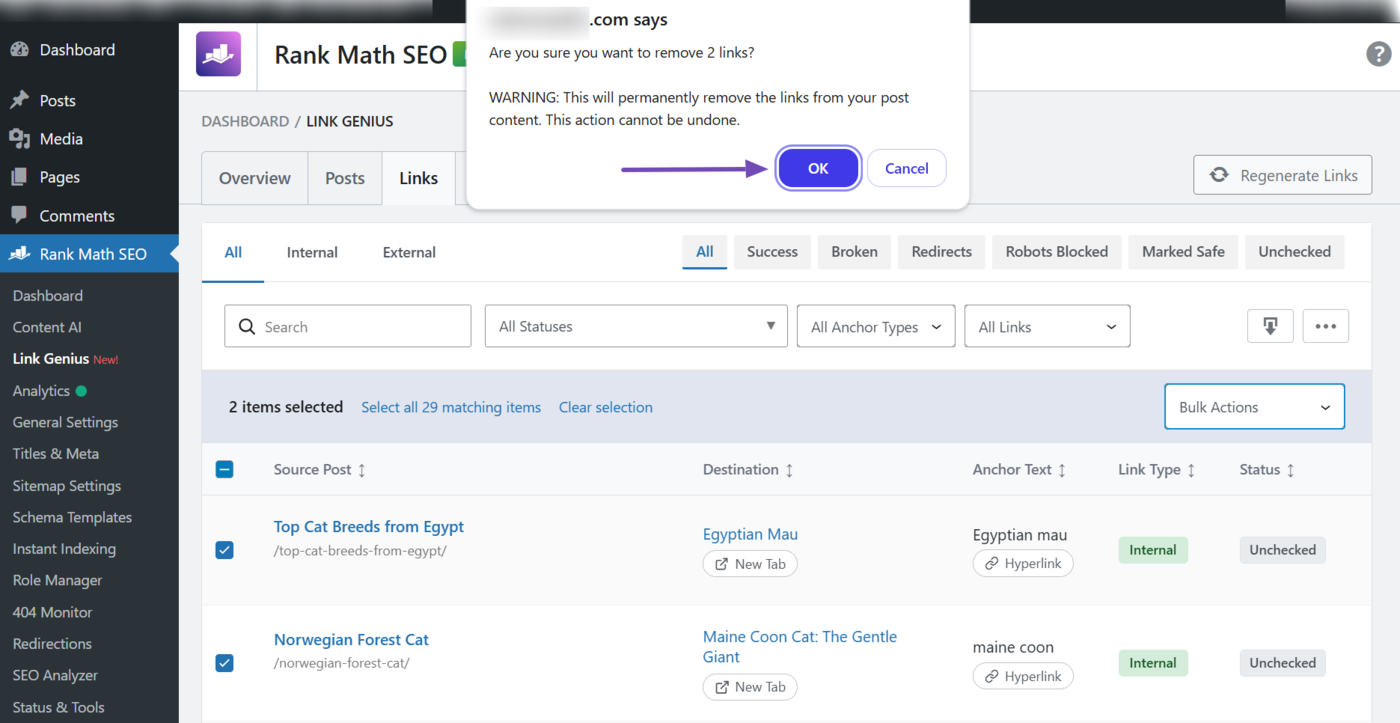
A confirmation box will then appear, as shown below. Click OK. The links you selected will be removed from your posts.
3 How to Filter Links to Remove
You may want to review the details of your links before deciding to remove them. You can do this using the filters and options available in the Links tab. They include:
- Search bar
- Link type filter
- Link status filter
- HTTP status filter
- Anchor type filter
- Nofollow status filter
- Column visibility toggle
Let us show you how to use them.
3.1 Search Bar
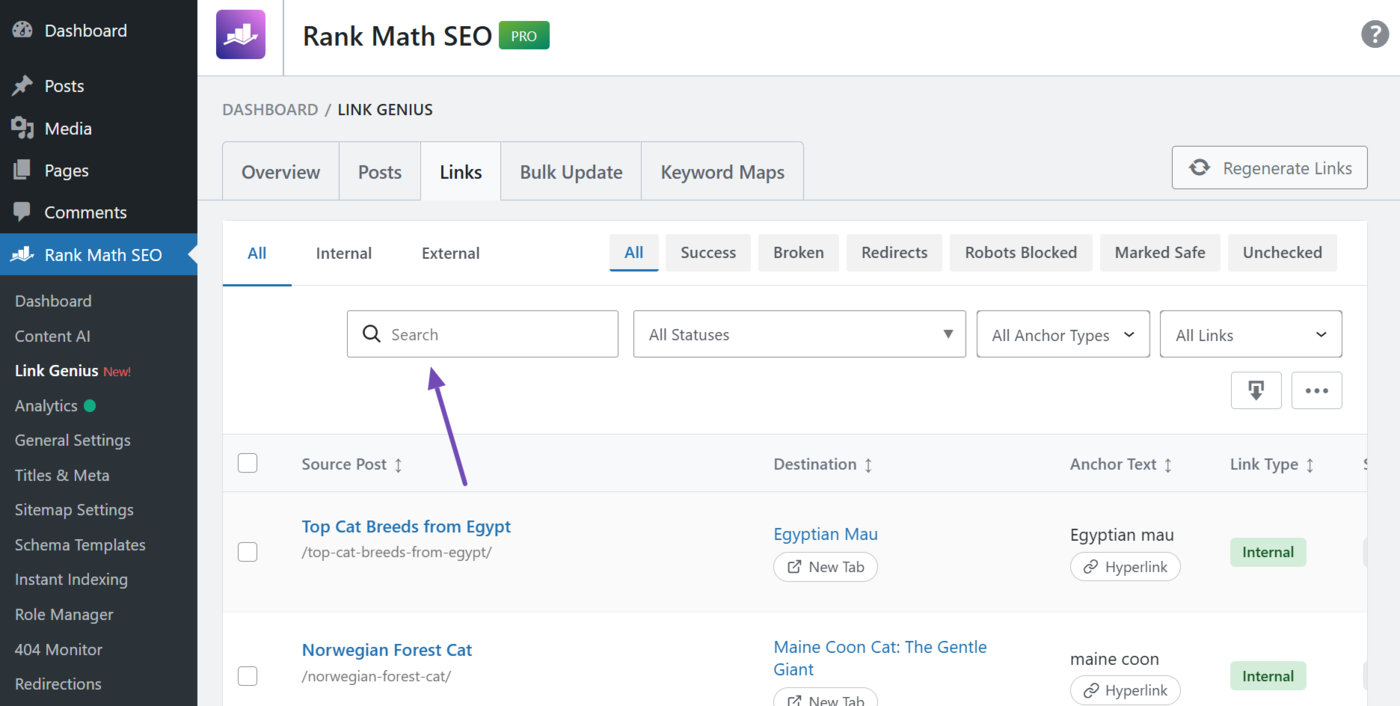
Enter your search term into the search bar. It should match the terms in the destination or anchor text columns.
Note: If your term is a URL, make sure to include hyphens - and forward slashes / where necessary.
3.2 Link Type Filter
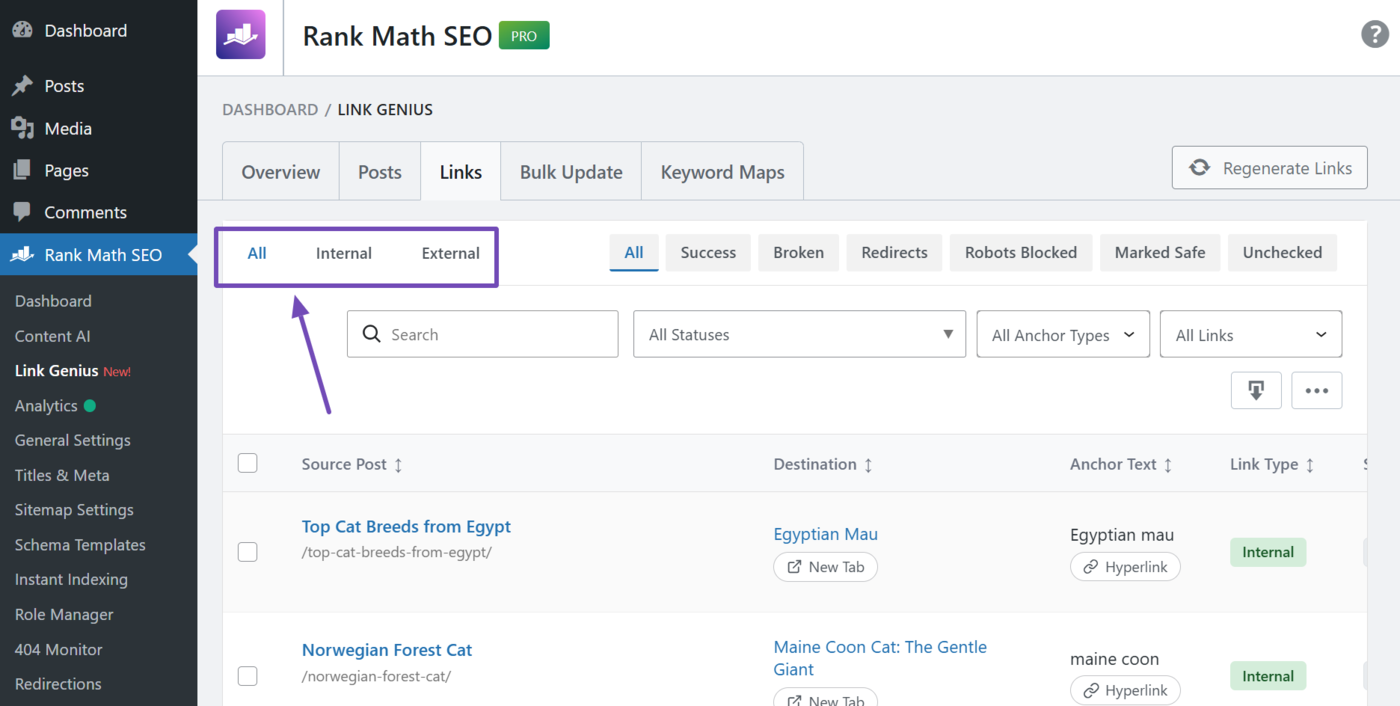
Select the type of links you want to review. The available options include:
- All: Show internal and external links
- Internal: Show internal links only
- External: Show external links only
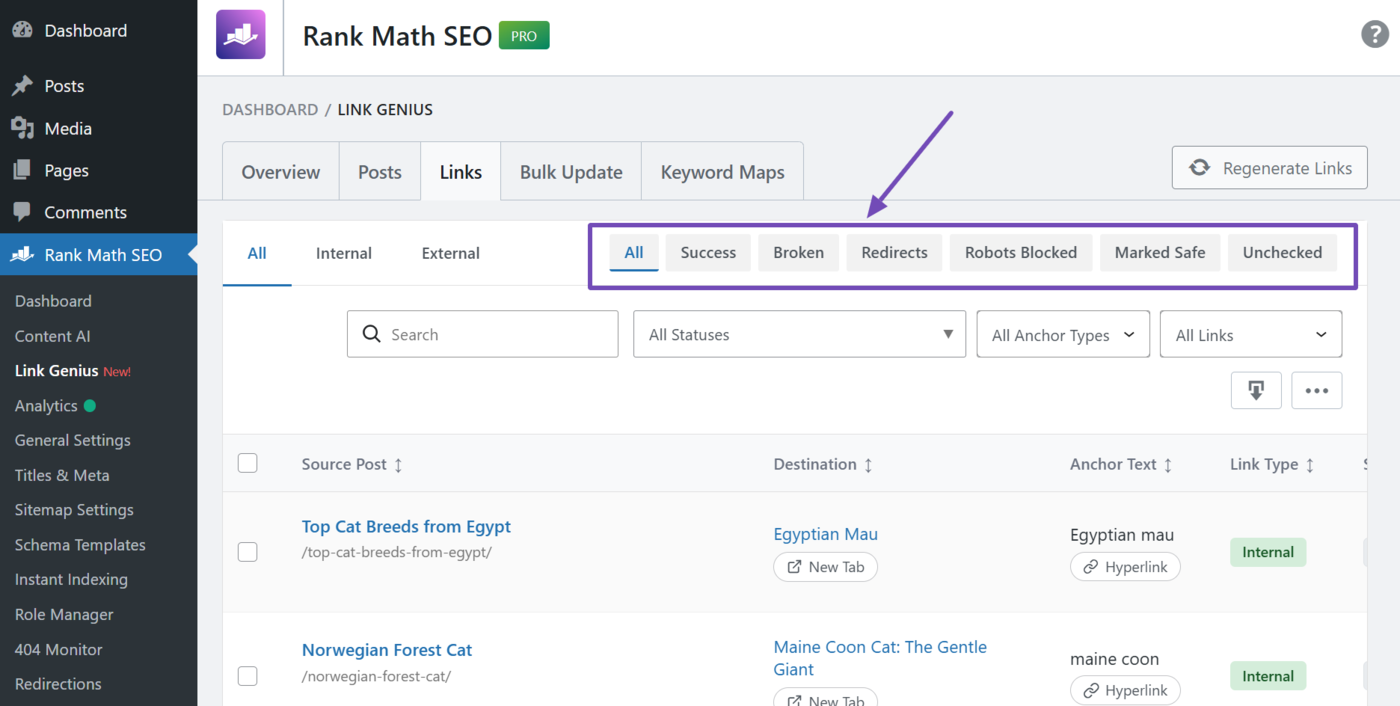
3.3 Link Status Filter
Select the status of the links to review. The available options include:
- All: Show all links regardless of their status
- Success: Only show links that return a success status code, such as 200 OK
- Broken: Only show broken links, which typically return a 4xx and 5xx status codes
- Redirects: Only show links that redirect, which typically return a 3xx status code
- Robots blocked: Only show links disallowed by the destination site’s robots.txt file
- Marked safe: Only show links you marked as safe
- Unchecked: Only show links that have not been previously checked
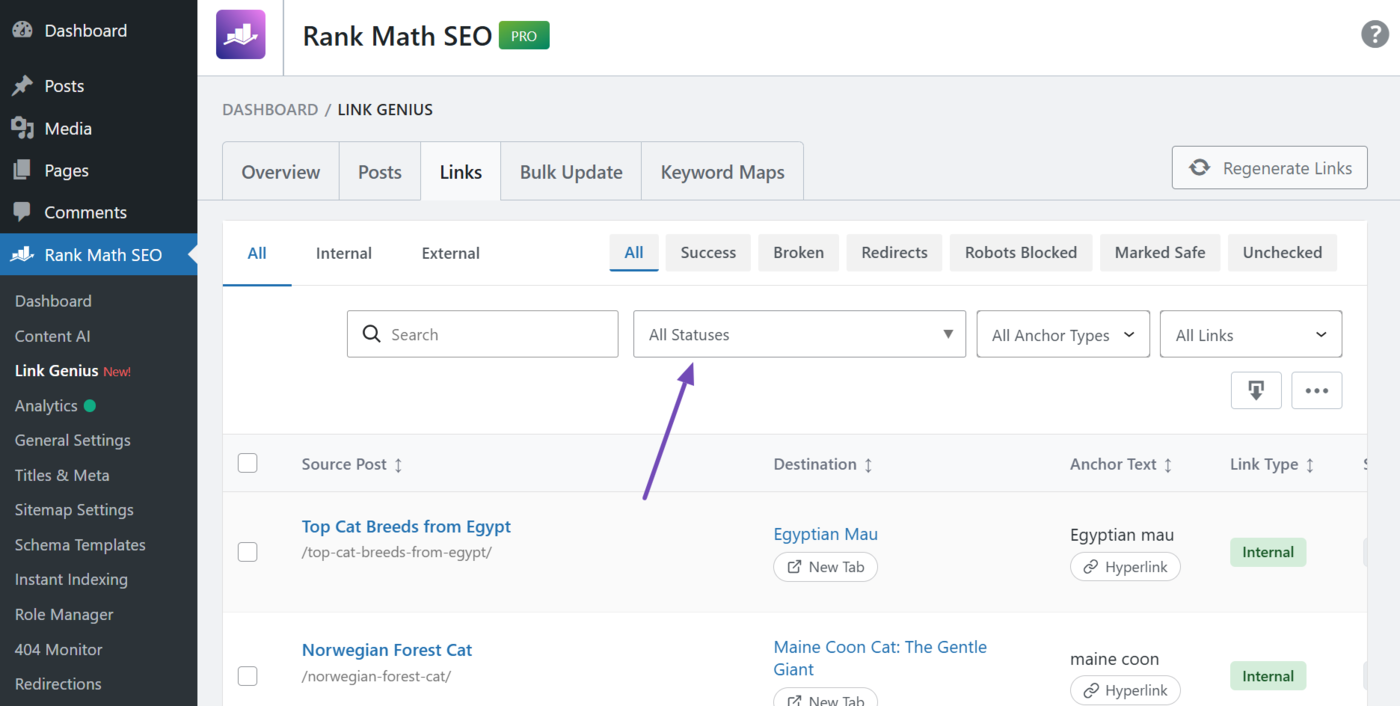
3.4 HTTP Status Filter
Select the HTTP status codes of the links to review. You can select multiple HTTP status codes. If you select, null/unchecked, it will show you the links that have not been previously checked.
Make sure to click the Apply filter after making your selection.
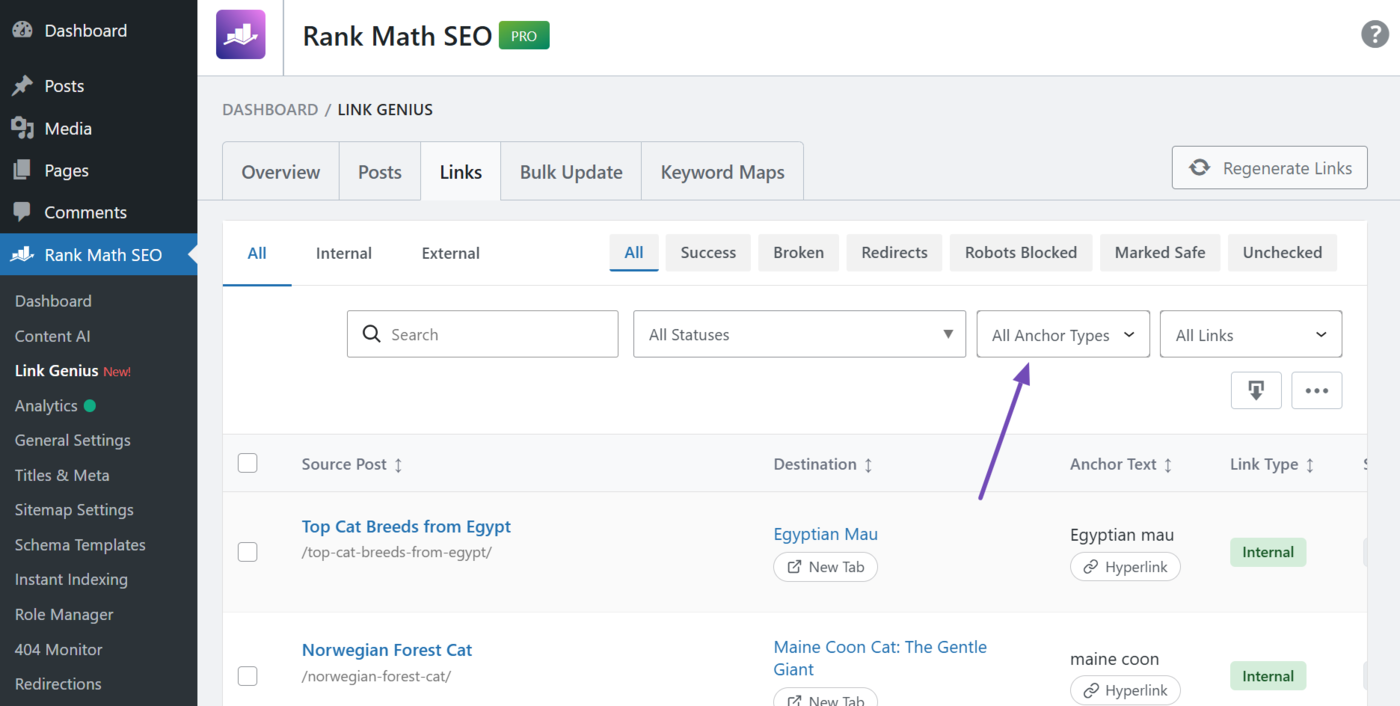
3.5 Anchor Type Filter
Select the type of anchor text of the links to review. The available actions include:
- All anchor types: Show all links regardless of their anchor type
- Hyperlink: Show links embedded within text only
- Image: Show links embedded within images only
Make sure to click the Apply filter after making your selection.
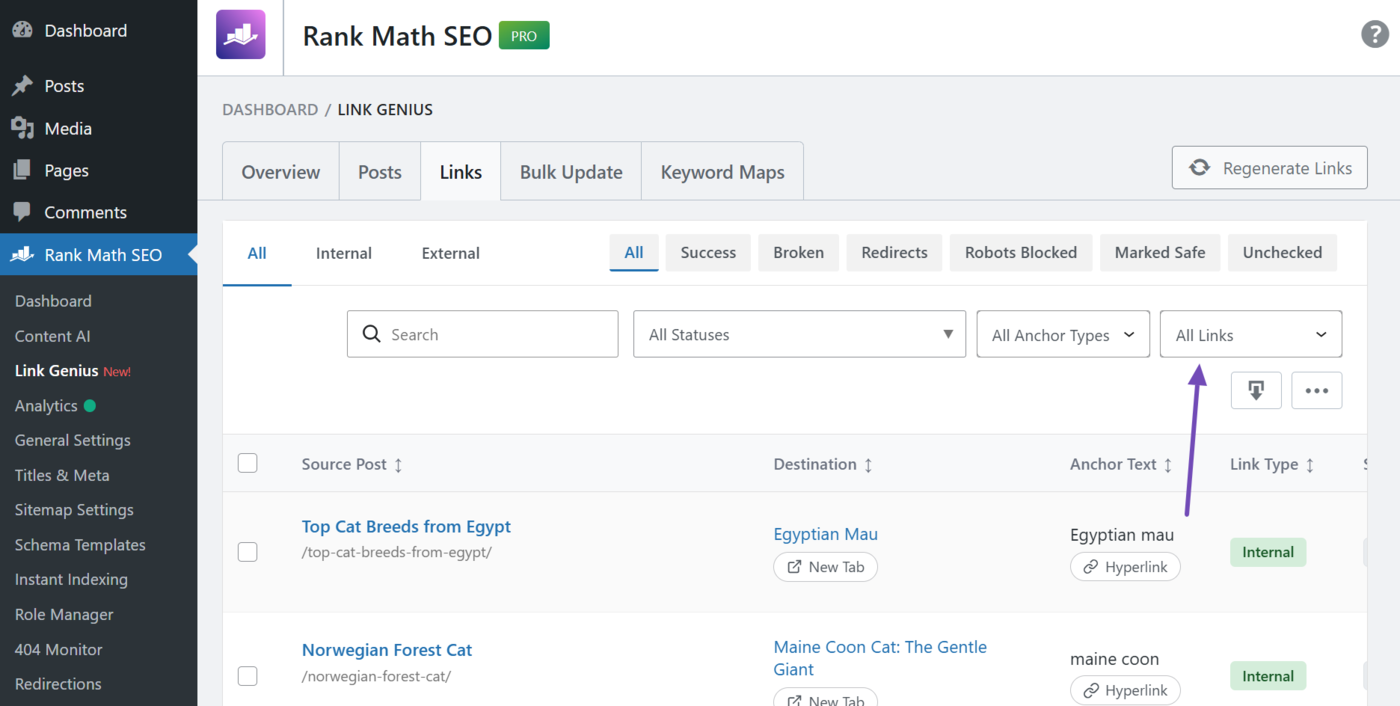
3.6 Nofollow Status Filter
Select whether the link you want to review has a nofollow tag.
- With nofollow: Only show nofollow links
- Without nofollow: Only show dofollow links
Make sure to click the Apply filter after making your selection.
3.7 Column Visibility Toggle
The details of the links you are filtering are arranged into columns, as shown below:
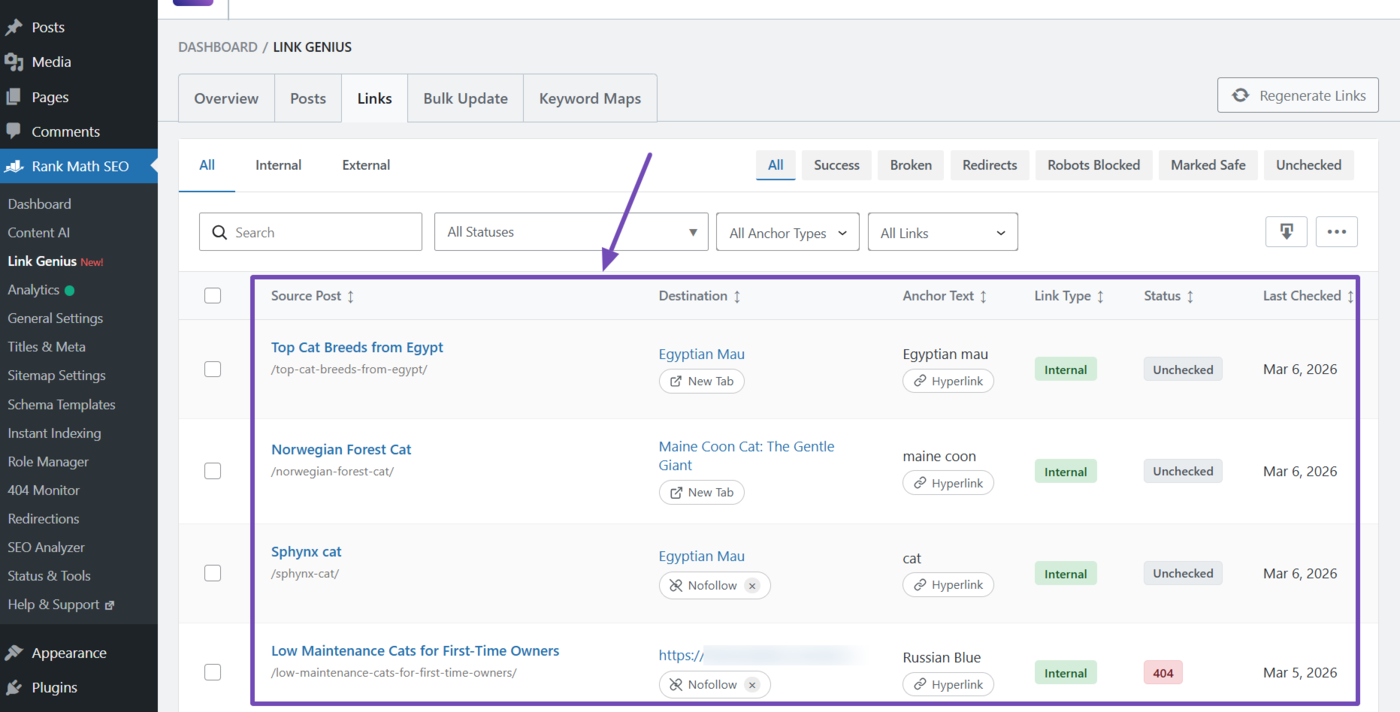
You can select which columns to show or hide using the column visibility toggle. To get started, click the Column visibility toggle, as shown below.
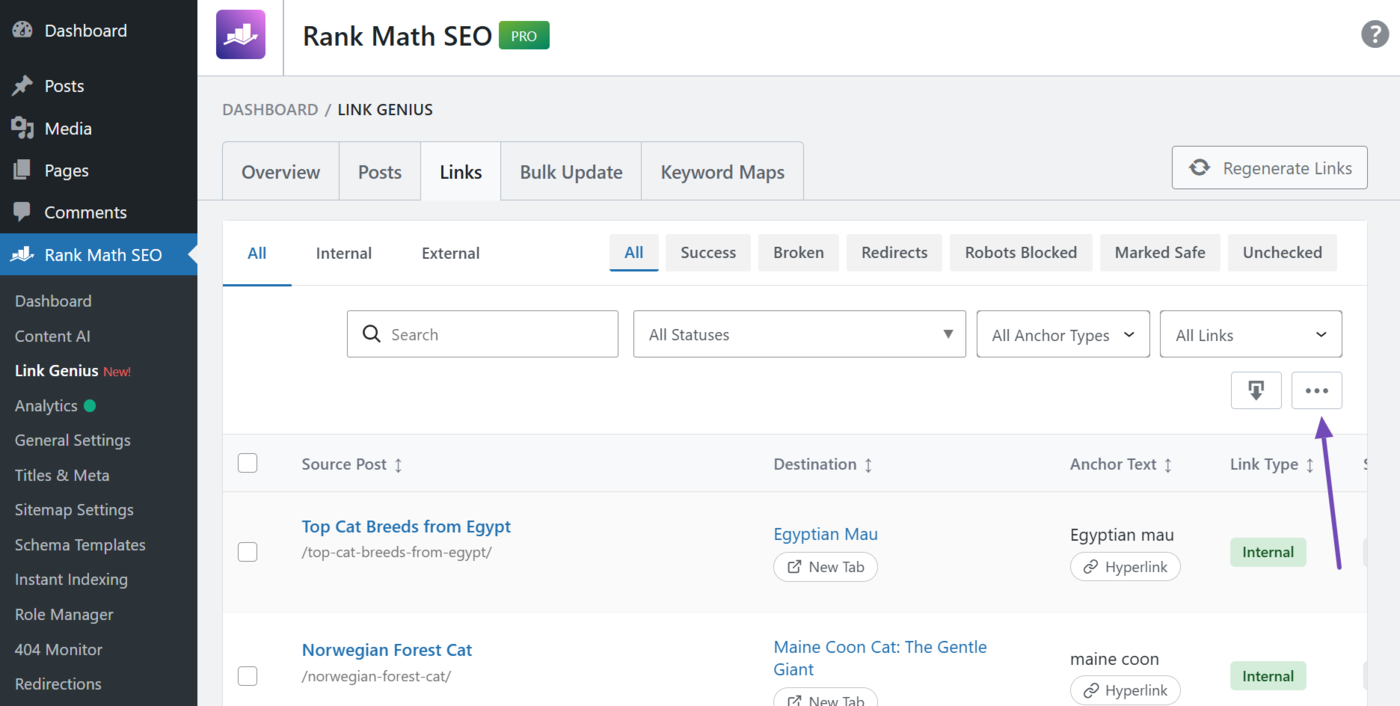
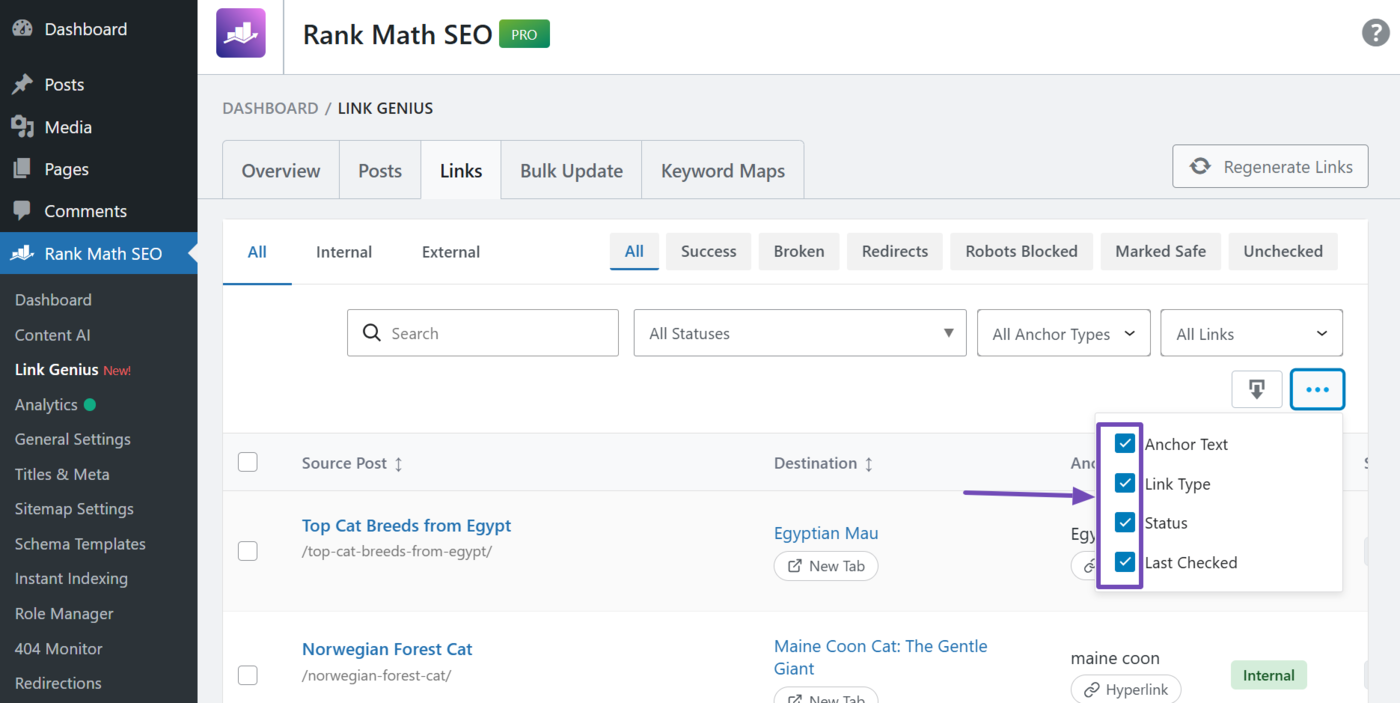
Once done, uncheck the columns to hide. The available options include:
- Anchor text: Shows the anchor text and specifies whether the link a hyperlink or image link
- Link type: Specifies whether the link is an internal or external link
- Status: Shows the HTTP status code returned by the link
- Last checked: Shows the date the link was last crawled
Once done, you can now proceed to remove the links you no longer want.
That’s how to remove your internal and external links using AI Link Genius. But AI Link Genius can do much more than just remove links. It can automate your internal links and improve your internal linking strategy using AI-powered suggestions.
If you have any questions, you’re always more than welcome to contact our dedicated support team, who are available 24/7, 365 days a year.