
Broken links can negatively impact your website’s SEO performance and user experience. They prevent search engines from properly crawling your site and frustrate visitors when they encounter the error pages.
This makes it crucial to create a broken link report. It allows you to identify issues quickly so you can fix them and maintain a healthy website. In this guide, we will show you how to create a broken link report step by step using Rank Math.
Table of Contents:
1 Head to the Broken Links Report
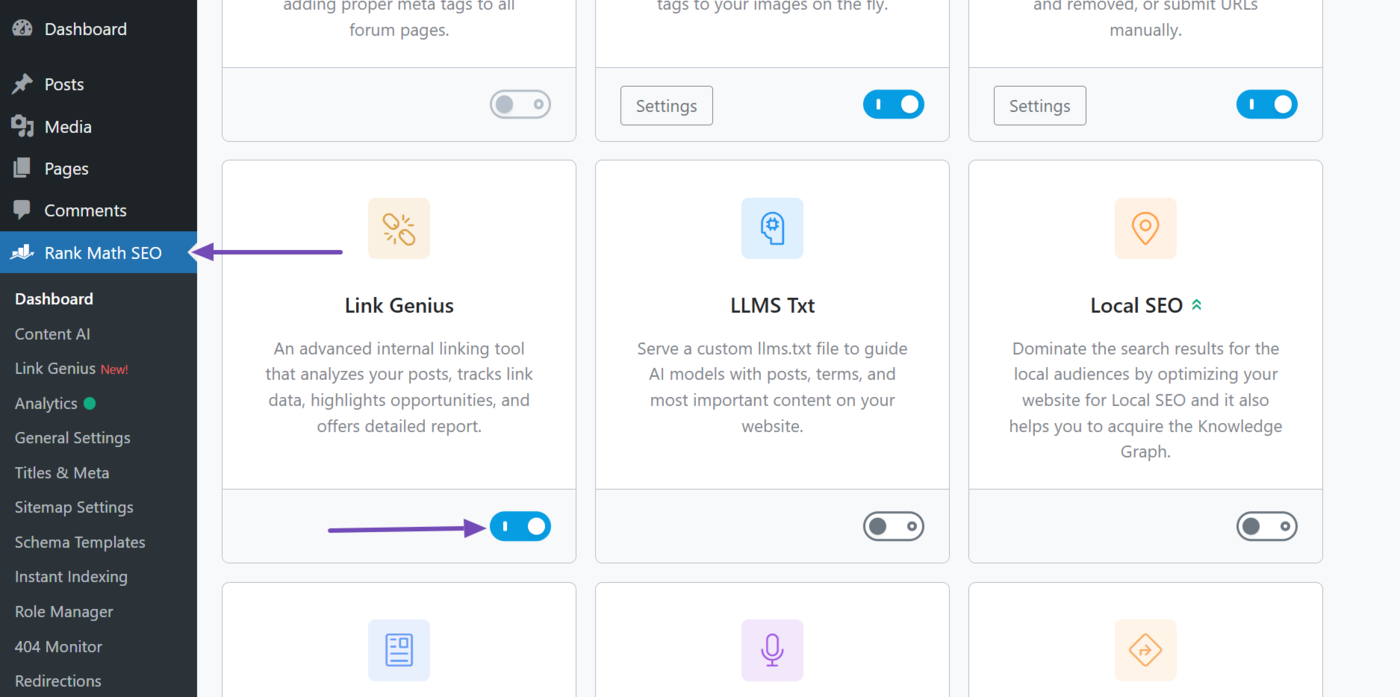
First things first, we want to be sure we have enabled the Link Genius module. So, click Rank Math SEO from your WordPress dashboard and enable the Link Genius module, as shown below.
Note: AI Link Genius is available exclusively in Rank Math PRO. If you haven’t installed Rank Math PRO yet, you can get a subscription of your choice from here.
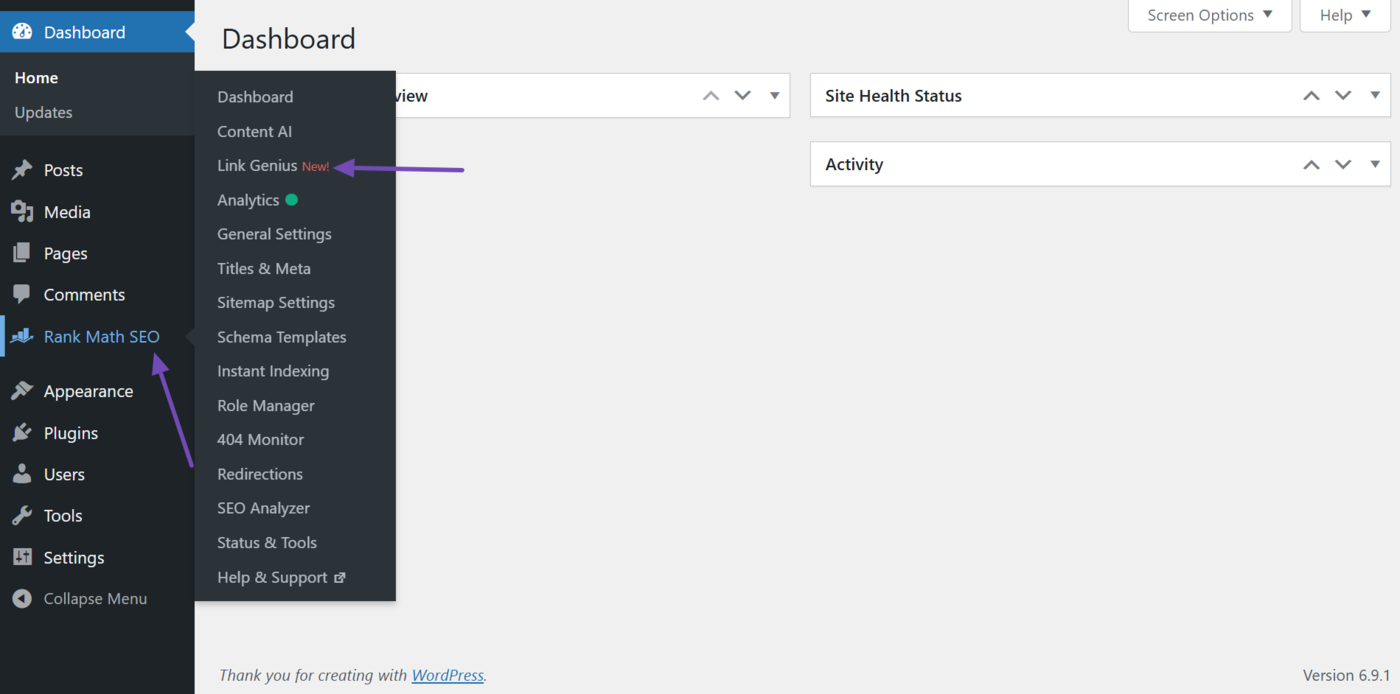
Now, head to Rank Math SEO → Link Genius, as shown below.
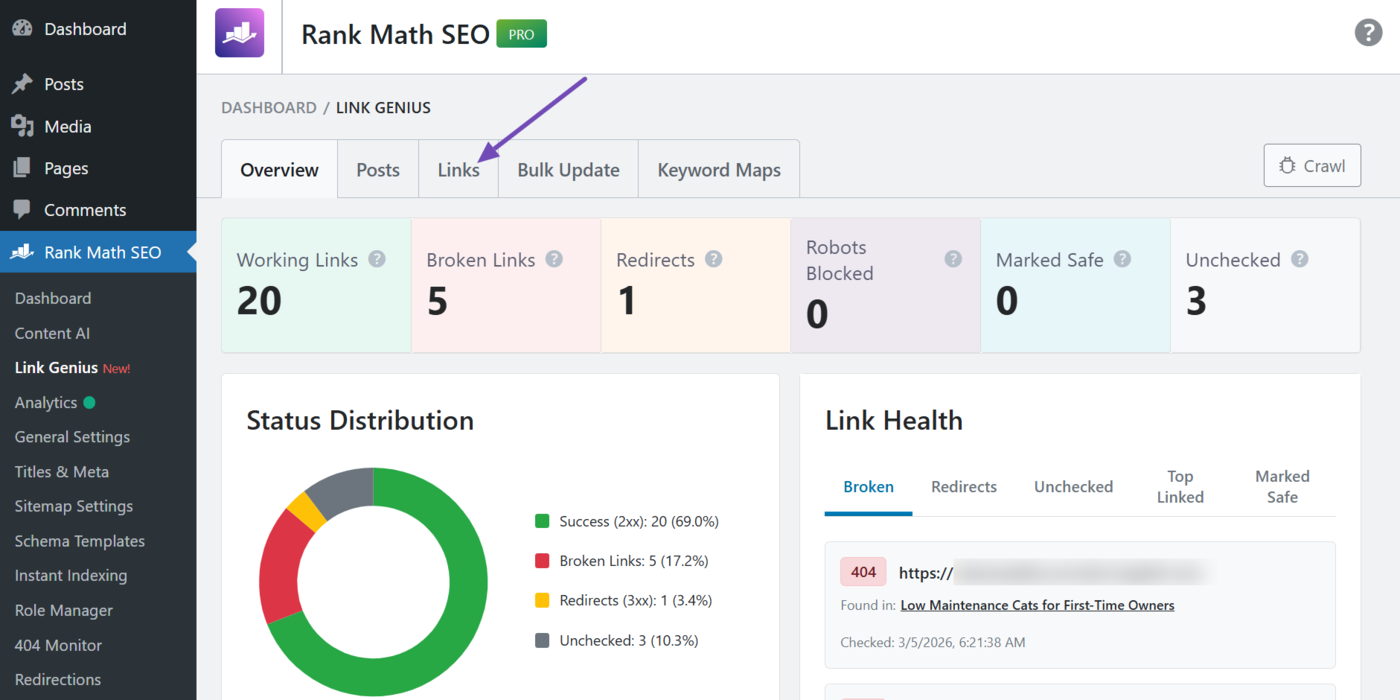
Then, click the Links tab.
Once done, click the Broken links filter, as shown below.
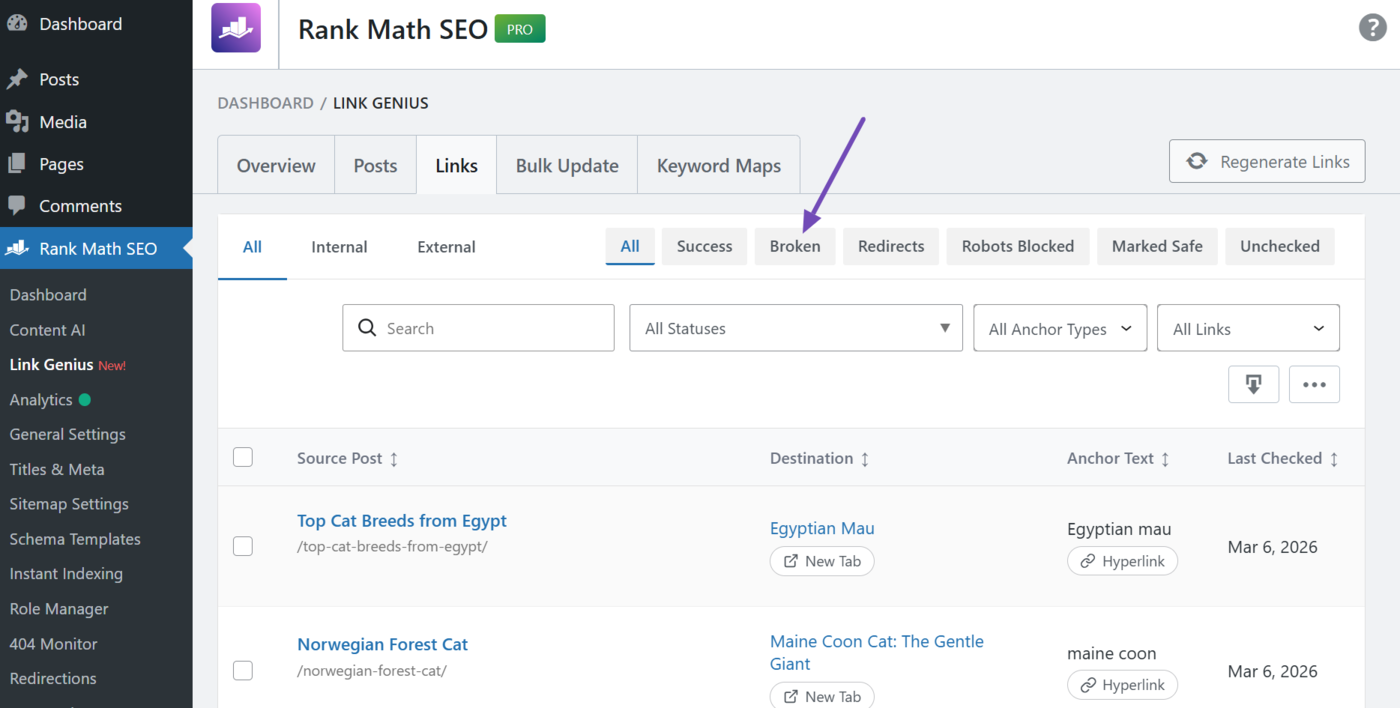
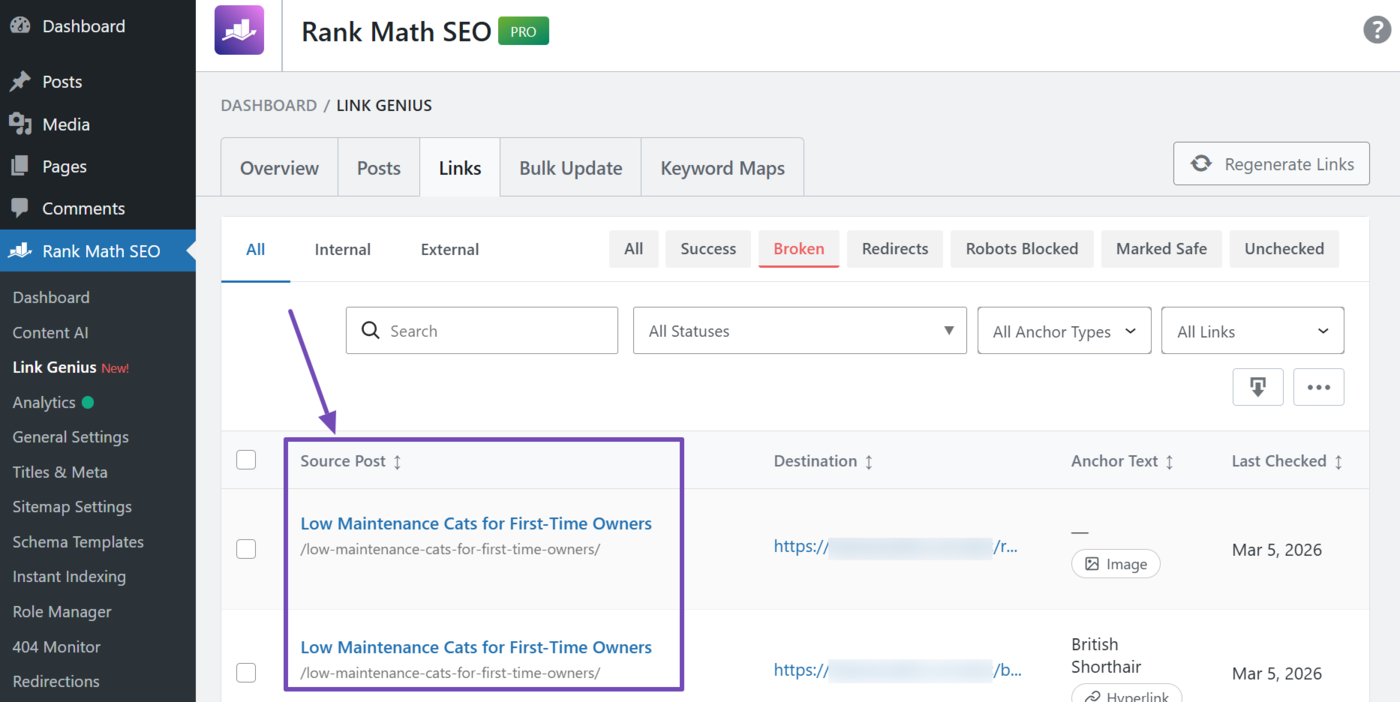
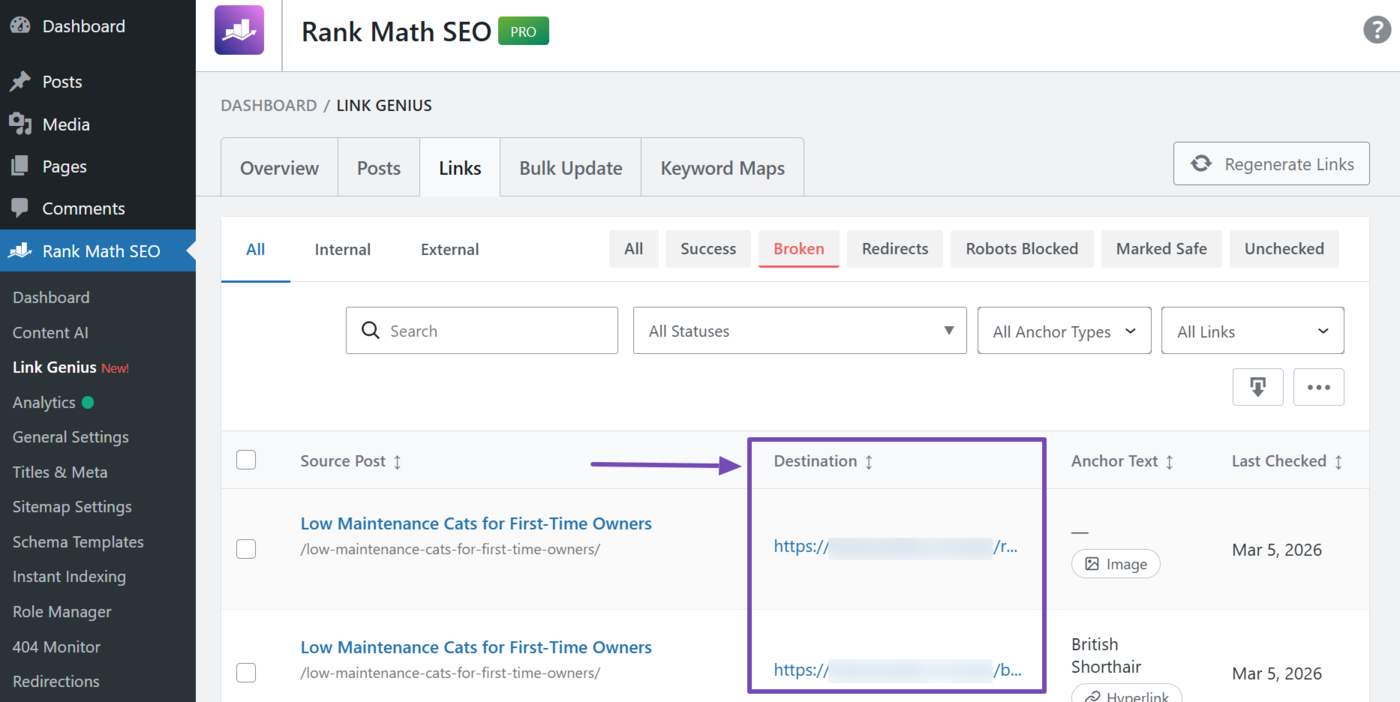
You will be presented with the broken links on your site. The source post and destination columns are the main columns here.
1.1 Source Post Column
The source post column shows the title and URL slug of the post containing the broken link.
1.2 Destination
The destination column shows the URL the link points to. However, the content at that URL is missing or unavailable, which causes a broken link.
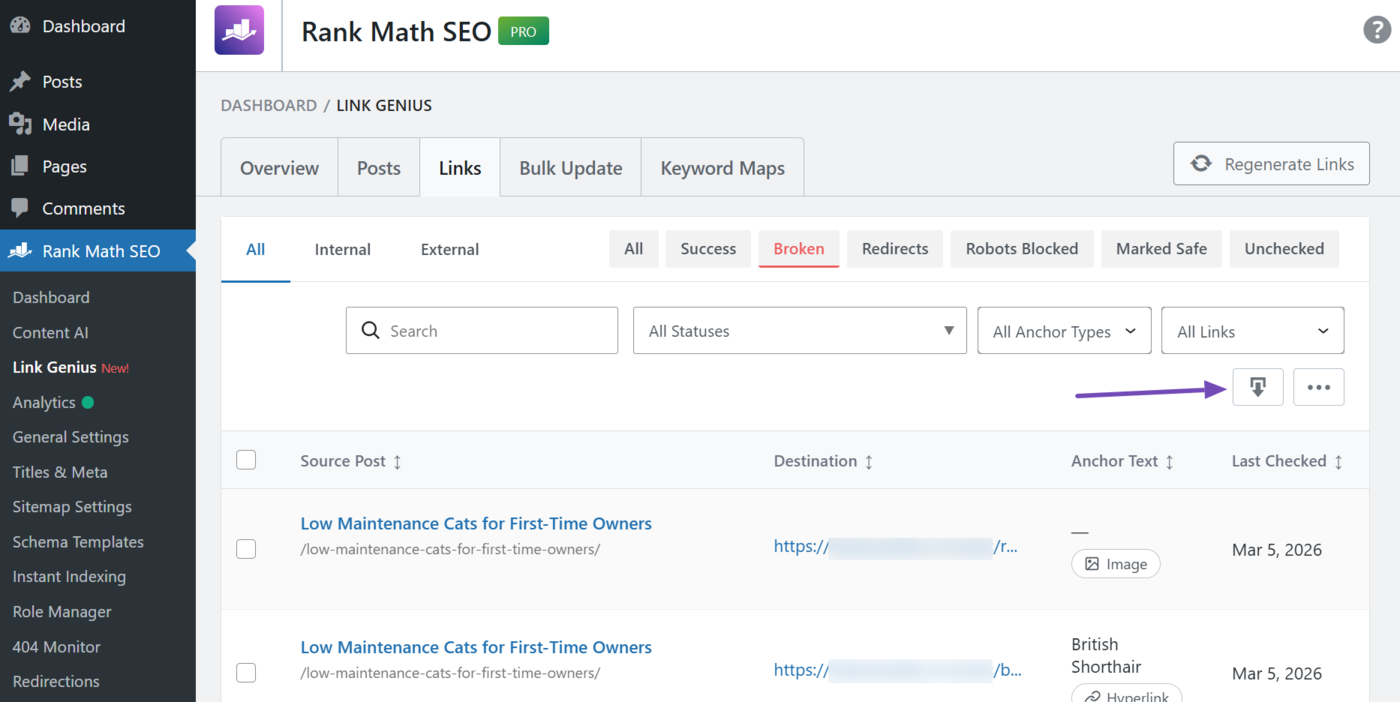
2 Export Your Broken Link Report
To export your broken link, click the Export table data button, as shown below.
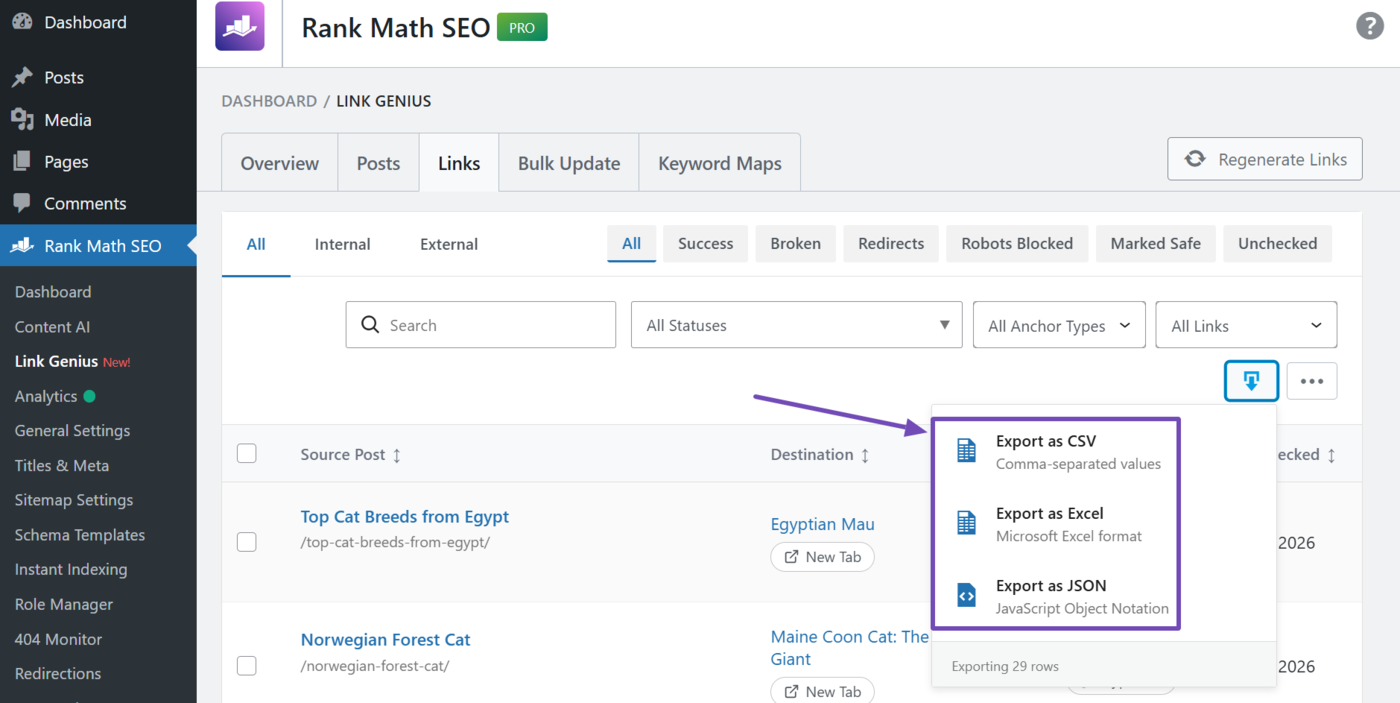
Then, select your document format. You can export the broken link report in multiple formats, including:
- Export as CSV: Export the report in .csv format
- Export as Excel: Export the report in .xls format
- Export as JSON: Export the report in .json format
Once done, the broken link report will be downloaded to your device.
Note: If you have a large number of broken links, the export will be processed in the background and delivered to you using the email address linked to your account. This ensures you do not have to stay on the page until the report is generated.
3 How to Customize Your Broken Link Report
You may want to customize your broken link report before export. This ensures you can view, analyze, and export the specific post and link details you need. You can customize your report using:
- Search bar
- Link type filter
- HTTP status filter
- Anchor type filter
- Nofollow status filter
- Column visibility toggle
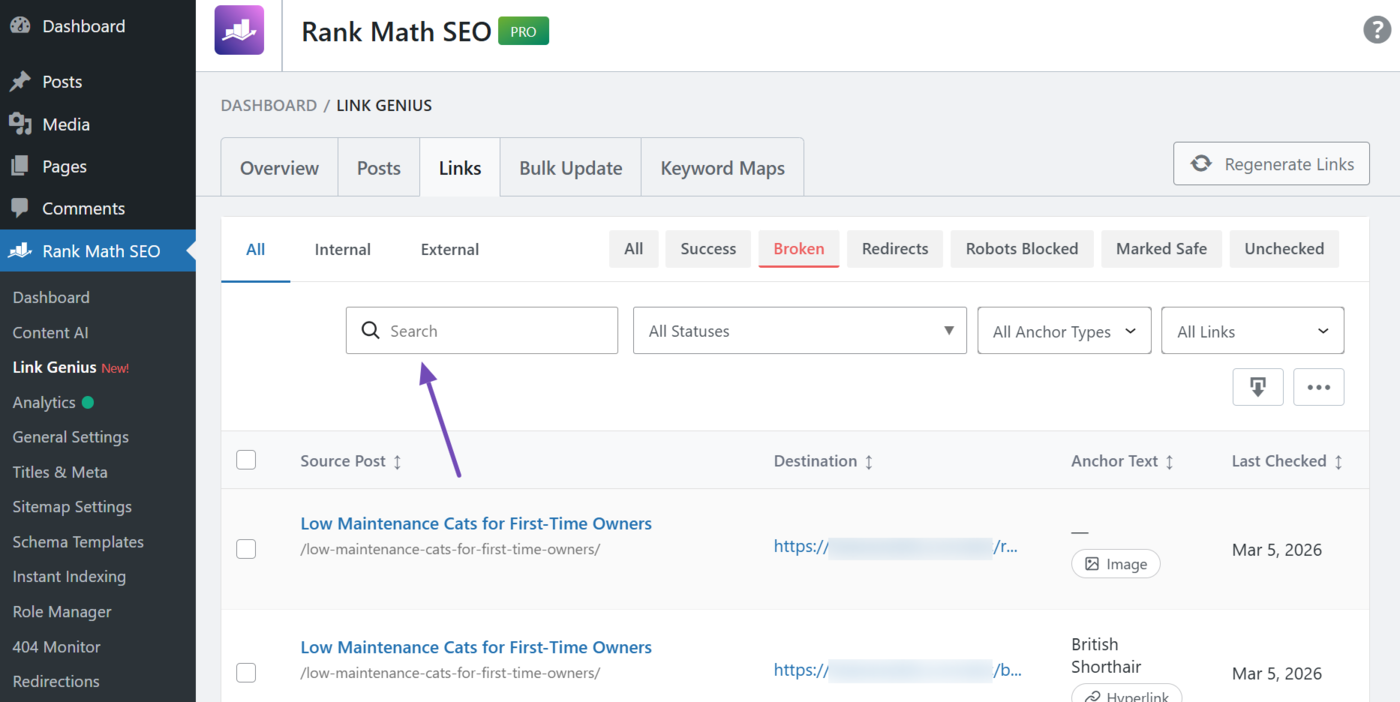
3.1 Search Bar
Enter your search term into the search bar. It should match the terms in the destination or anchor text columns.
Note: If your term is a URL, make sure to include hyphens - and forward slashes / where necessary.
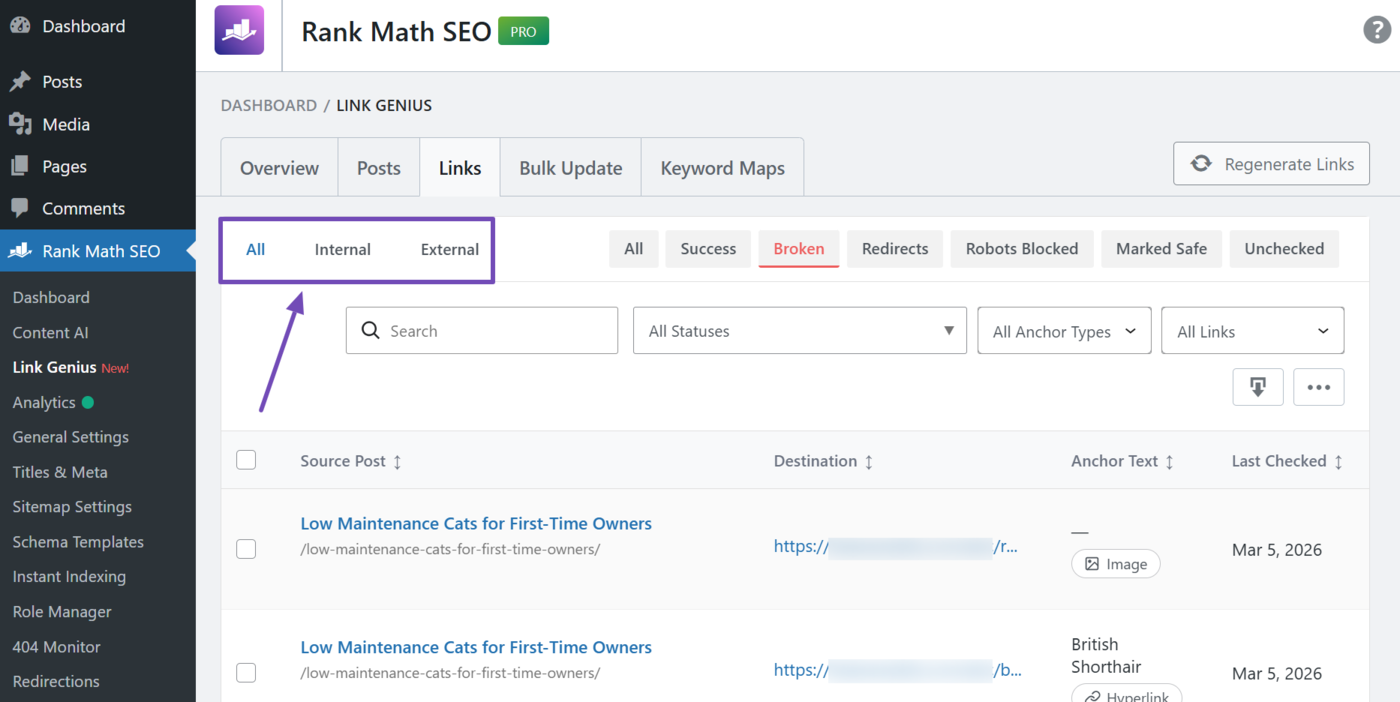
3.2 Link Type Filter
Select whether to view internal links, external links, or both. The available options include:
- All: Show internal and external broken links
- Internal: Show internal broken links only
- External: Show external broken links only
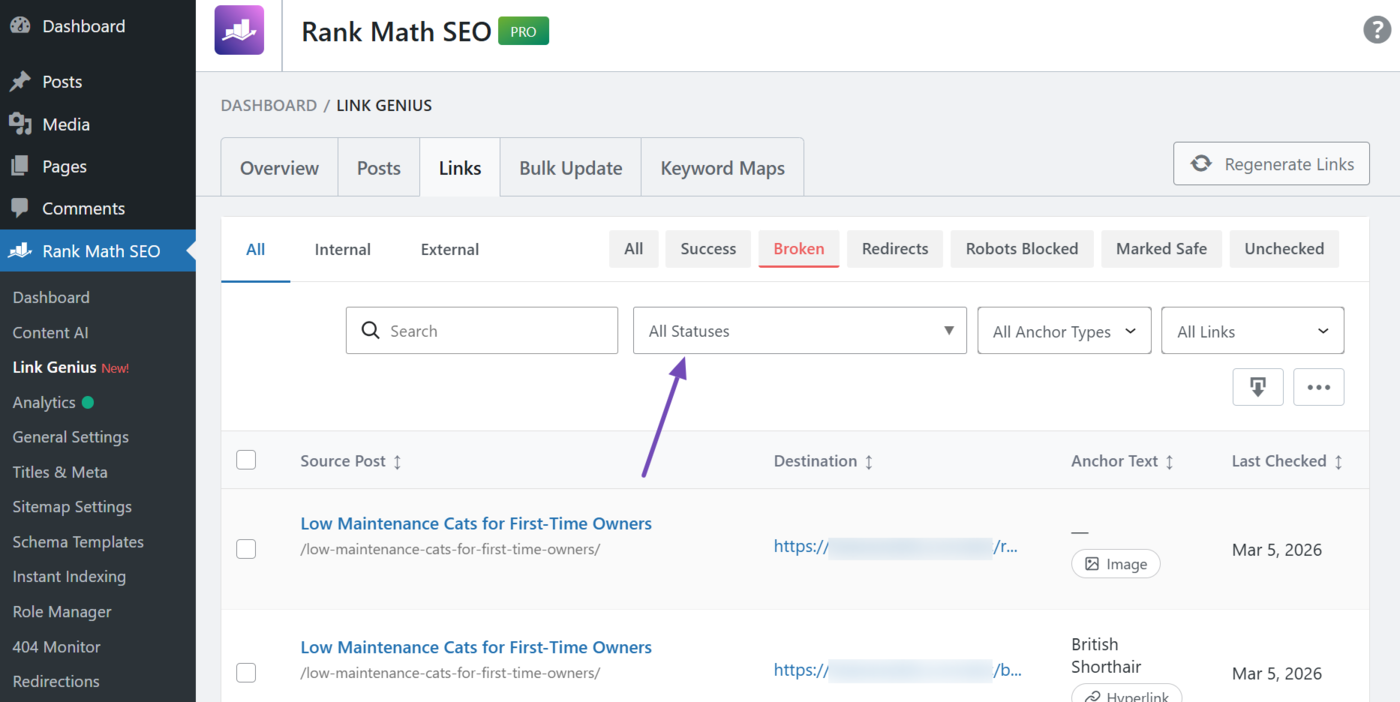
3.3 HTTP Status Filter
The HTTP status filter lets you filter the broken links by the HTTP status codes they return. Broken links typically return 4xx and 5xx status codes, so you’ll want to focus on the status codes below:
- 401 unauthorized
- 403 forbidden
- 404 not found
- 410 gone
- 500 server error
- 502 bad gateway
- 503 service unavailable
You can select multiple status codes. Once done, make sure to click Apply filters to update the report.
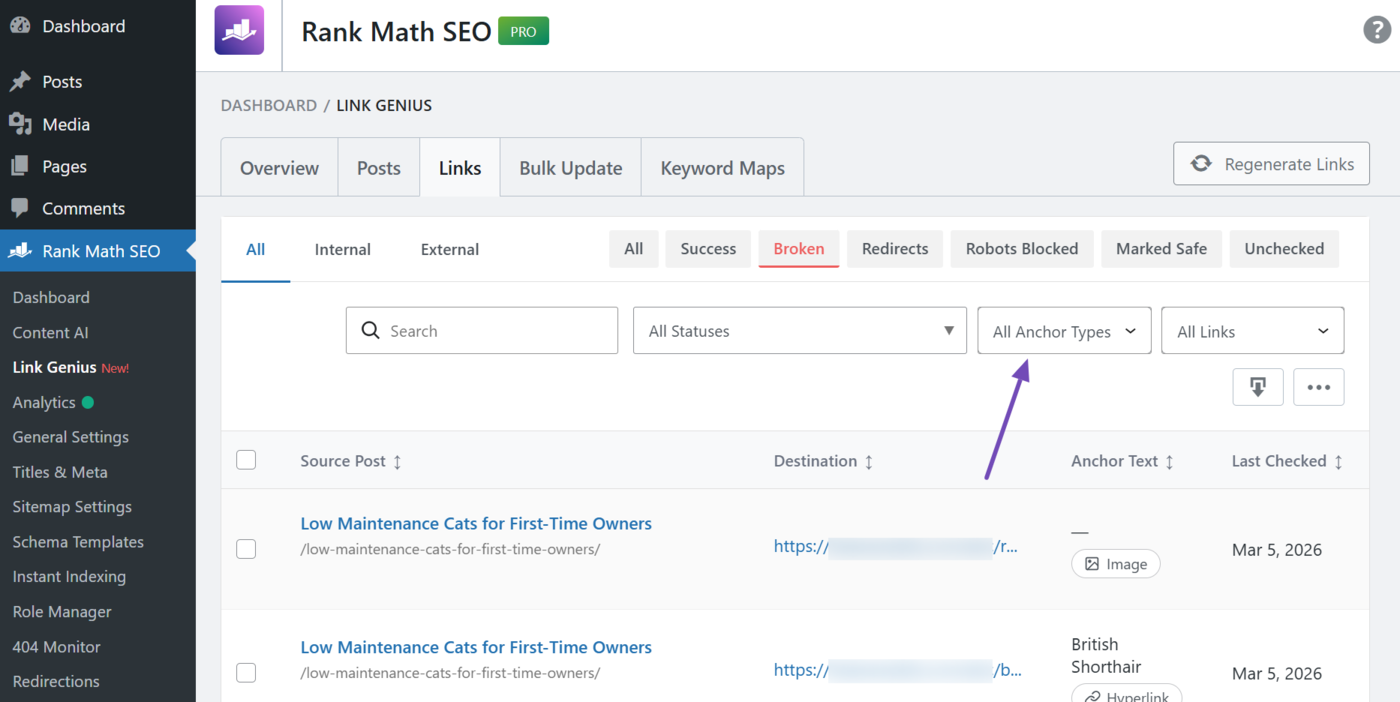
3.4 Anchor Type Filter
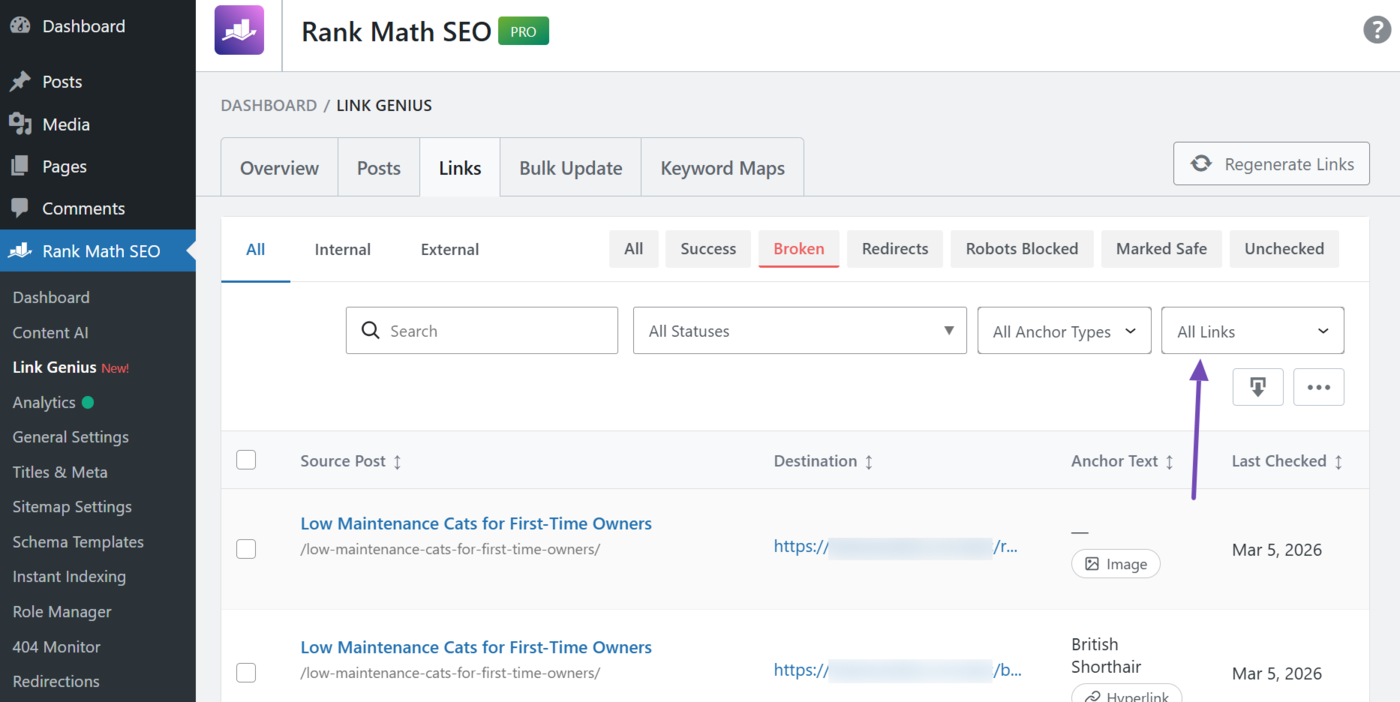
Broken links can appear in hyperlinks (text) or images. Select either Hyperlink or Image, depending on which type you want to view. To view both hyperlinks and images, select All anchor types.
Once done, make sure to click the Apply filters button to update the report.
3.5 Nofollow Status Filter
Select the nofollow status of the broken links. The available options include:
- All links: Show both nofollow and dofollow links
- With nofollow: Only show nofollow links
- Without nofollow: Only show dofollow links
Select your choice here. Once done, click Apply filters
3.6 Column Visibility Toggle
The details of your broken links are organized into multiple columns, as shown below.
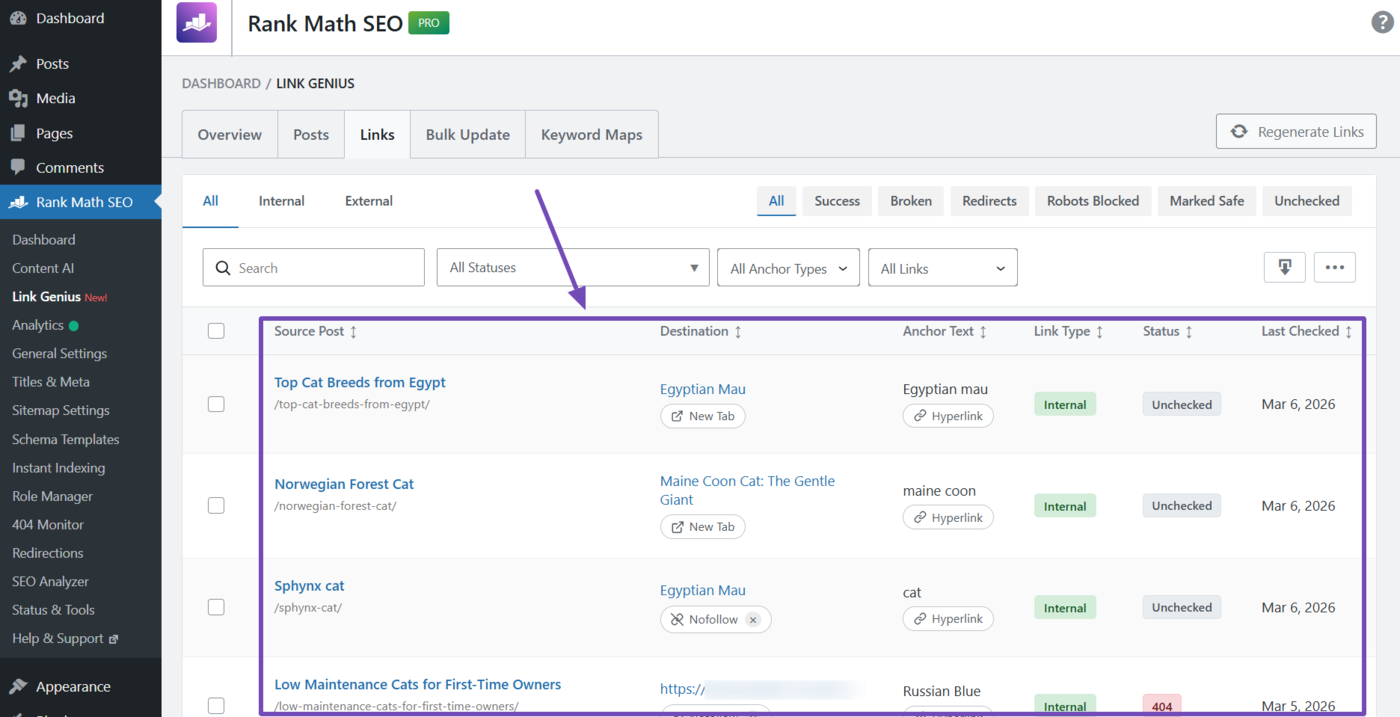
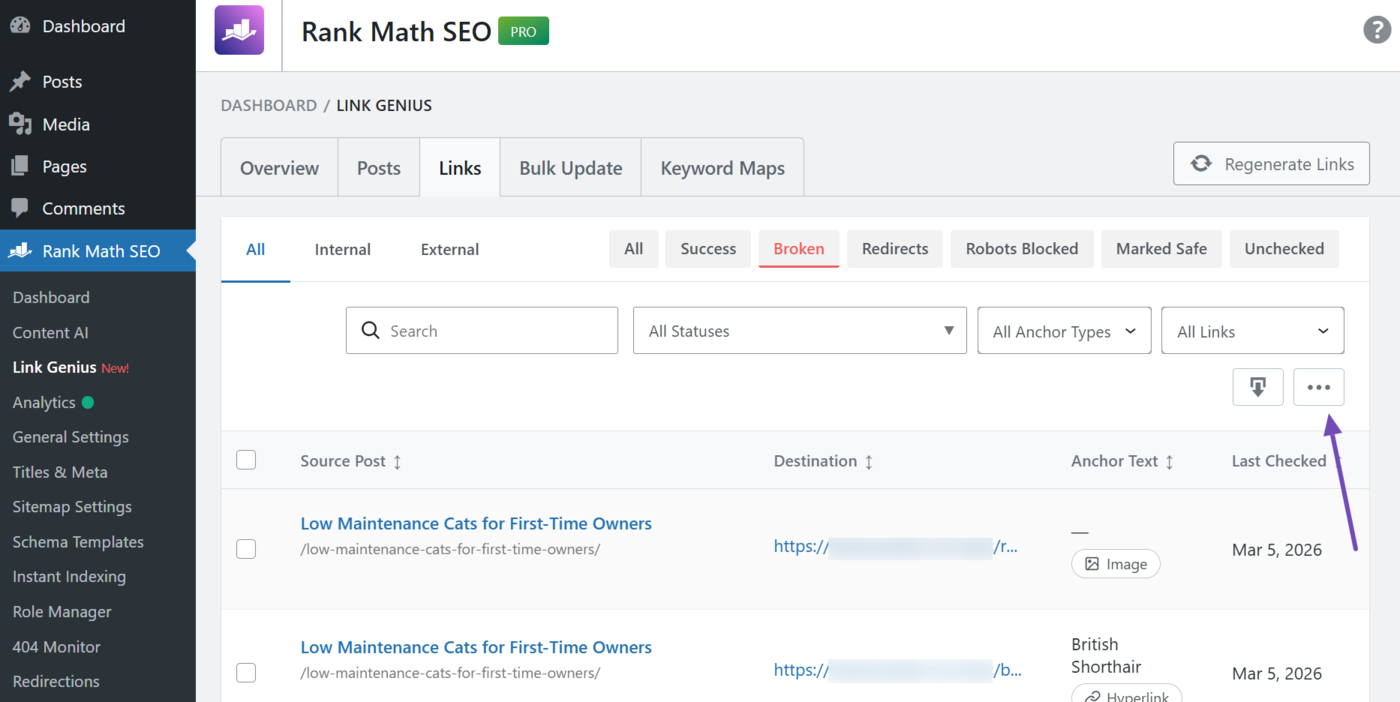
AI Link Genius will export all these columns by default. However, you can hide the columns you do not want to export. To do that, click the Column visibility toggle button.
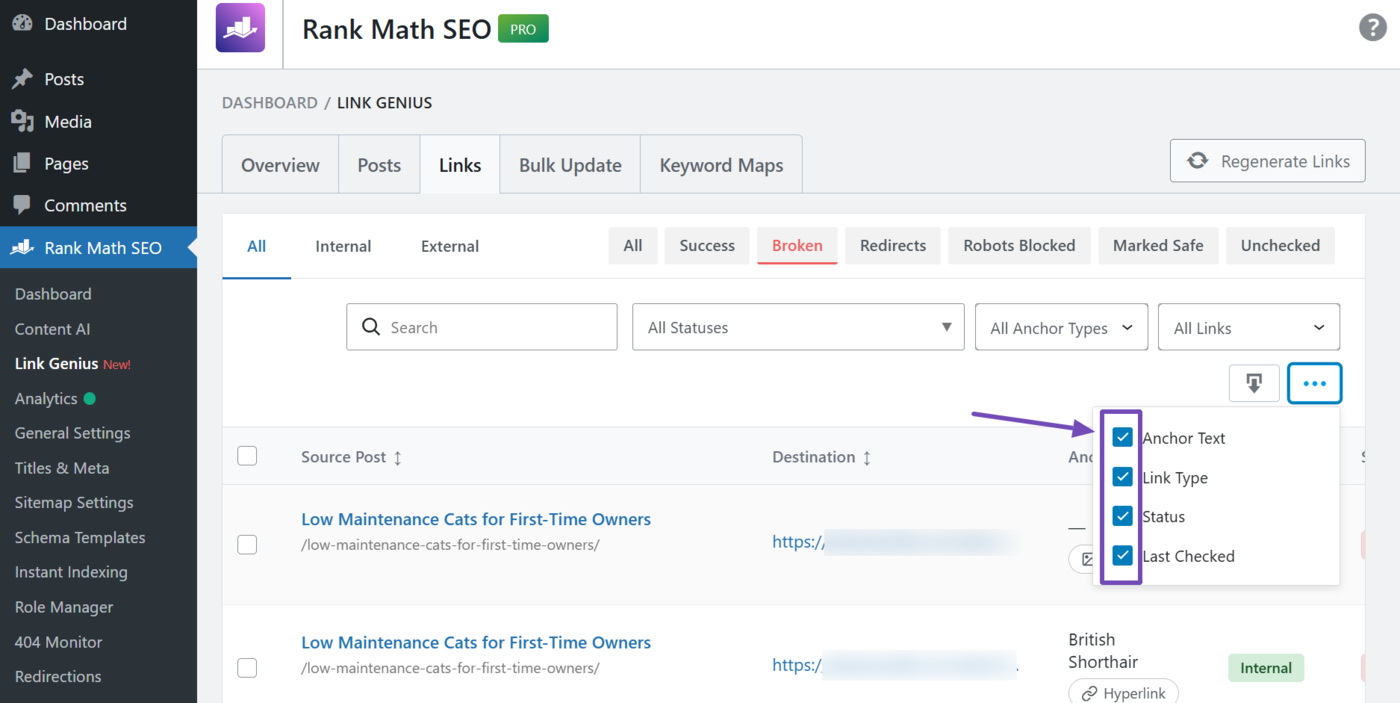
Now, uncheck the columns you do not want to view or export. The available options include:
- Anchor text: Shows the anchor text of the broken link, and specifies if it is an image or hyperlink
- Link type: Indicates whether the broken link is an internal or external link
- Status: Shows the HTTP status code returned by the broken link
- Last checked: Shows the date the broken link was discovered or last checked
Once done, you can now export your broken link report.
That is how to customize and export your broken links using AI Link Genius. If you have any questions, you’re always more than welcome to contact our dedicated support team, who are available 24/7, 365 days a year.