Wilt u een pagina of bericht dupliceren in WordPress?
Het dupliceren van een bericht in WordPress kan een tijdbesparende techniek zijn, vooral als u meerdere vergelijkbare berichten maakt of een consistente indeling voor de inhoud van uw website handhaaft.
Of je nu een bestaand bericht repliceert om als sjabloon te dienen of kleine wijzigingen aanbrengt om het aan te passen voor een ander publiek, WordPress biedt eenvoudige manieren om berichten te dupliceren.
In dit bericht onderzoeken we verschillende benaderingen om een bericht in WordPress te dupliceren met behulp van een plug-in en met behulp van de handmatige methode, waardoor u inhoud efficiënt kunt repliceren en uw workflow binnen het WordPress-platform kunt stroomlijnen.
Duplicating a page or post in WordPress is a practical strategy for maintaining consistency and enhancing the overall management of your website.
Duplicating a well-designed page or post can serve as a template for creating new content with a consistent layout, style, and structure. For instance, if you have a blog post layout that includes specific sections such as an introduction, main content, and conclusion, duplicating this layout can save time when creating similar posts.
By duplicating a page or post, you can replicate elements such as headers, footers, sidebars, and formatting, ensuring a cohesive look and feel throughout your site. For example, duplicating a Neem contact op page layout can ensure uniformity in contact information and form placement across multiple pages.
Duplicating a page or post can also serve as a backup or safeguard for preserving the original content before making significant changes or updates. This allows you to revert to the original version, minimizing the risk of data loss or irreversible modifications.
However, duplicating a page’s content across multiple pages is not recommended for SEO reasons.
2 Methods to Duplicate a Page in WordPress
Now that you’re aware of why you should duplicate a page, let us discuss how you can achieve this.
2.1 Duplicate a Page Manually
To manually duplicate a WordPress page, begin by logging in to your WordPress dashboard.
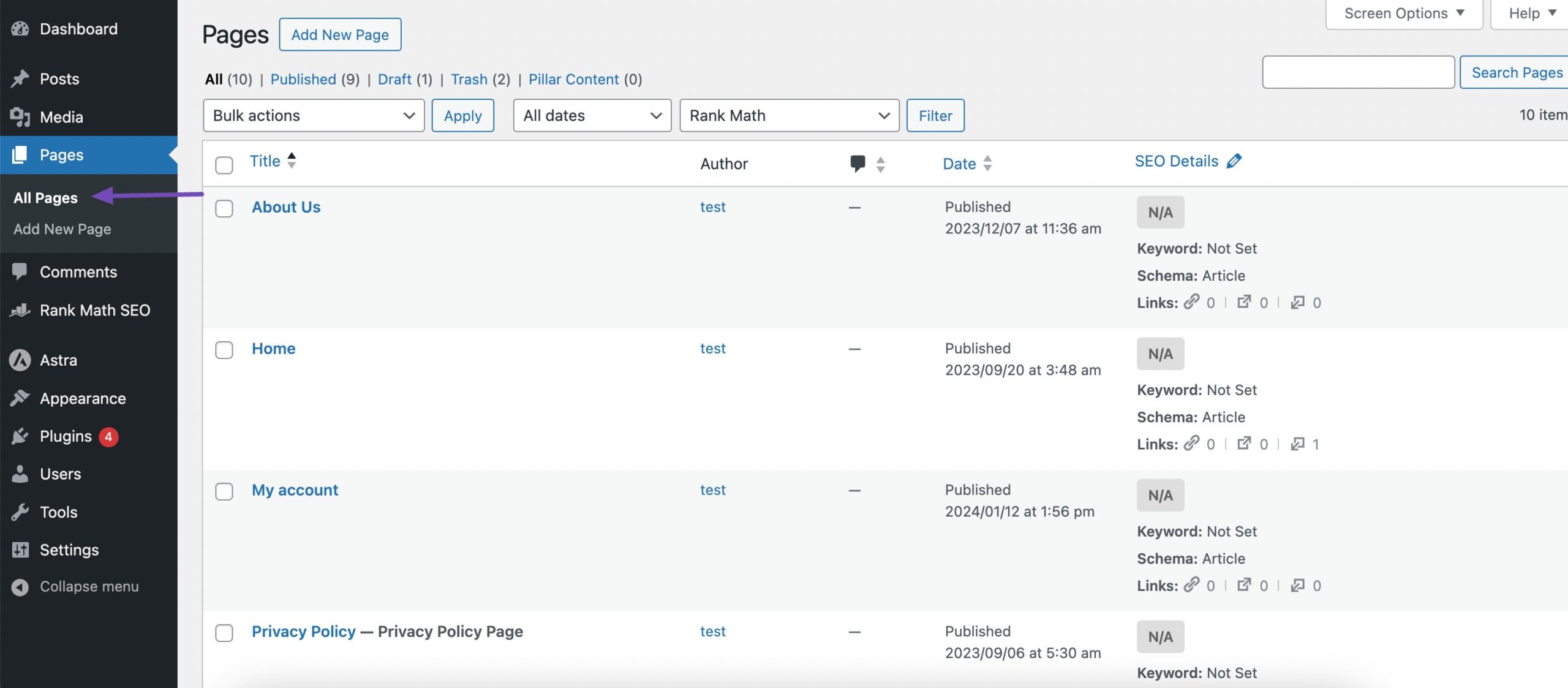
Once logged in, navigate to the Pagina's section from the sidebar menu. Locate the page you wish to duplicate from the list of existing pages and click on it to access the editing interface.
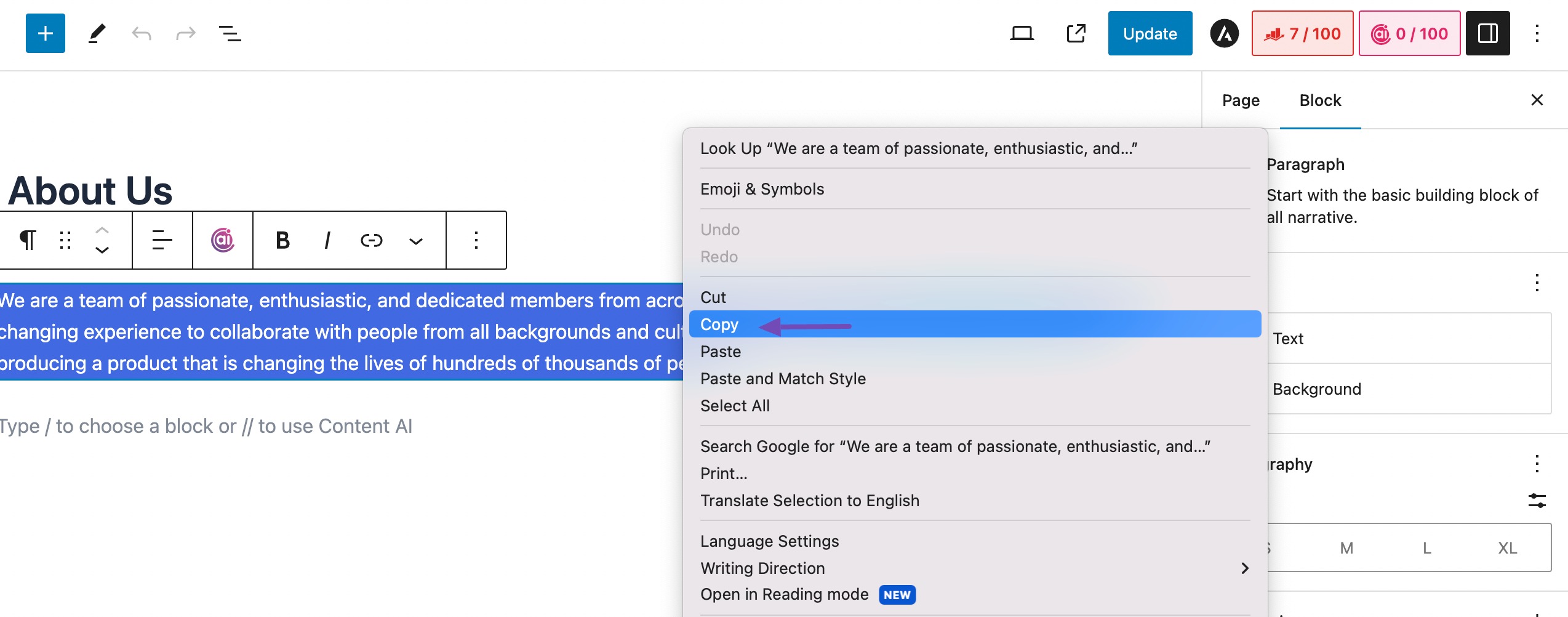
Once inside the editor, select all the content on the page by clicking and dragging your cursor over it or using keyboard shortcuts. Right-click on the selected content and choose Kopiëren, or use the appropriate keyboard shortcut.
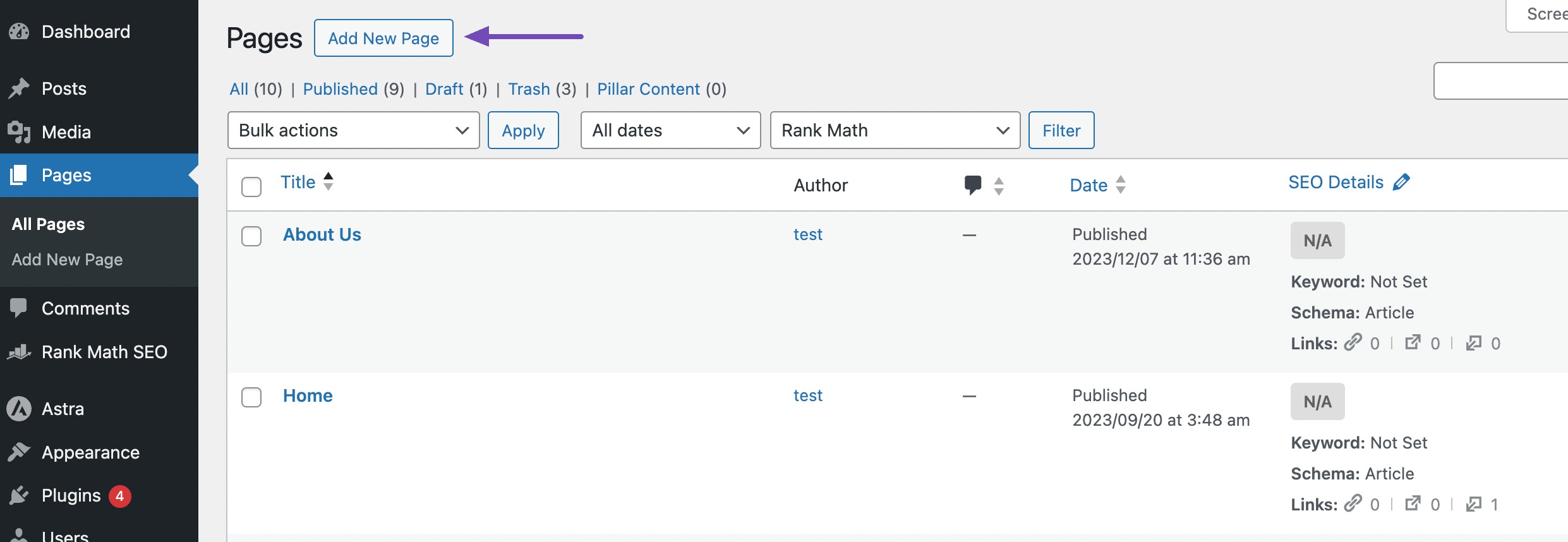
Next, return to the Pagina's section of the dashboard and click on the Nieuw toevoegenBladzijde button to create a new page.
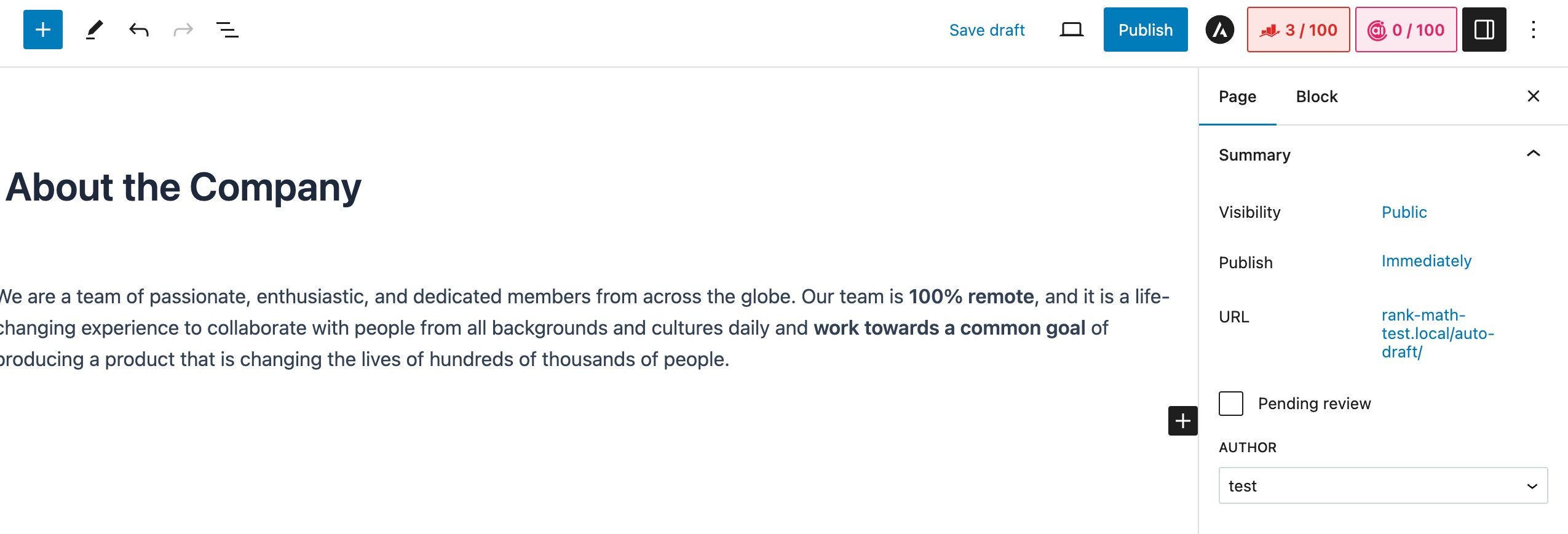
Inside the new page editor, click within the content area to place your cursor, right-click, and select Paste, or use the keyboard shortcut to paste the copied content.
Customize the duplicate page by adjusting the title, permalink, featured image, and other relevant settings or content to differentiate it from the original. Save the duplicate page as a draft or publish it, depending on your preference.
Finally, review the duplicate page to ensure everything appears as intended and test its functionality before making it live on your website.
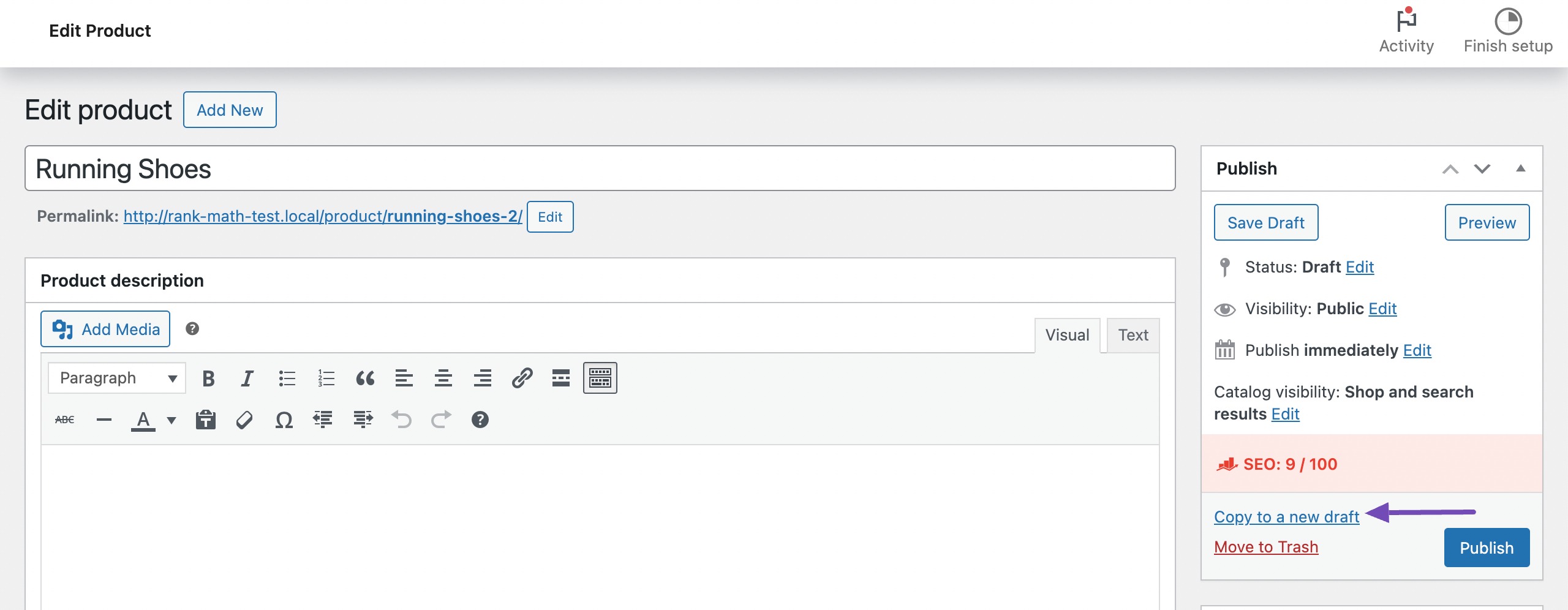
In WooCommerce, there’s an option to clone the product pages. Click Copy to a new draft to duplicate the product page, as shown below.
2.2 Duplicate a Page Using a Plugin
There are several plugins available to help you duplicate a page; one of them is Duplicate Page.
To do so, install and activate the plugin on your WordPress dashboard. You can refer to our dedicated tutorial on installing plugins op uw site.
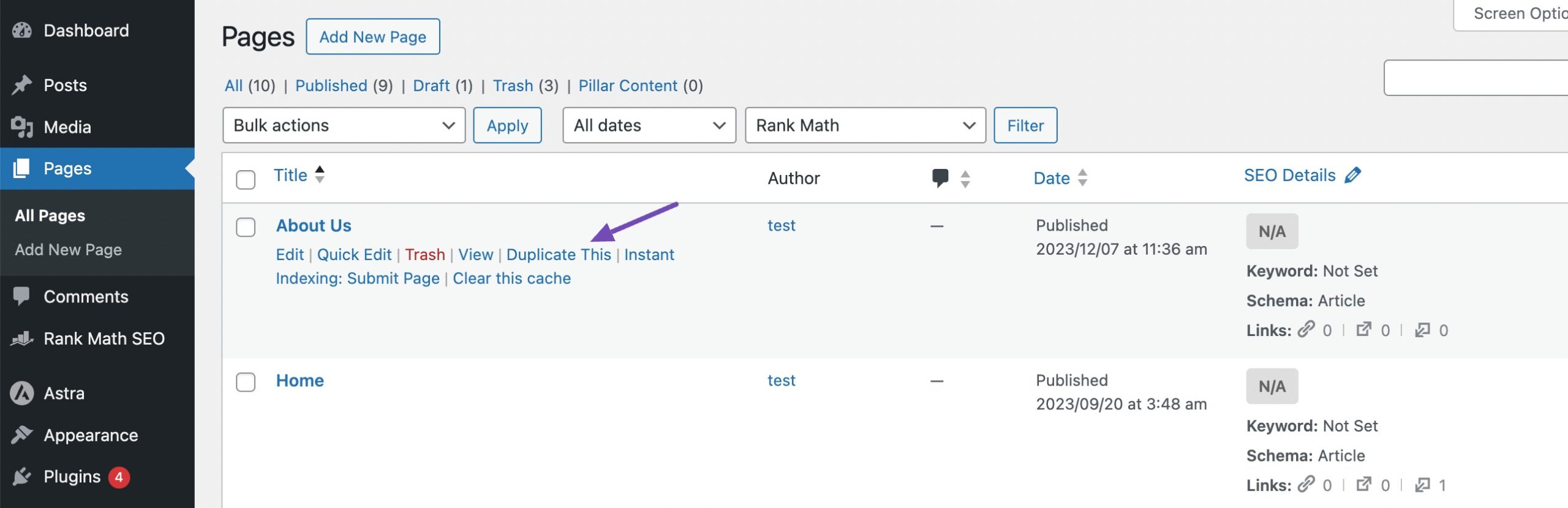
Once the Duplicate Page plugin is installed and activated, an additional menu item, Duplicate This will be added to the Pagina's section of your site.
Klik op de Duplicate This link next to the page you want to duplicate. And that’s it! The page will be duplicated. You can then edit the duplicate page as you prefer.
3 Veel Gestelde Vragen
Is there a built-in feature in WordPress to duplicate a page/post?
WordPress does not have a native feature to duplicate a post or a page, but you can achieve this by using certain plugins or following manual methods.
Are there any risks involved in duplicating a post?
Duplicating a post/page typically doesn’t pose any risks to your website. However, you should ensure that the duplicated post doesn’t contain any outdated or irrelevant information before publishing it.
Will duplicating a post affect my website’s performance?
Duplicating a post/page should not significantly impact your website’s performance. However, having unnecessary duplicate content may affect SEO, so it’s essential to manage duplicates appropriately.
What is the difference between cloning and duplicating in WordPress?
In WordPress, a clone contains the exact copy of content, while a duplicate is a new entry with data taken from an existing page.
4 Conclusie
Duplicating a page/post in WordPress is a handy trick that can save you time and effort. Whether you’re creating similar content or just want to keep things consistent, you can choose to duplicate a page or a post.
By using plugins or manual methods, you can quickly make copies of your posts without any hassle. So, next time you need another post that looks like one you’ve already made, remember that duplicating is the way to go!
How to Effortlessly Duplicate a Page in WordPress » Rank Math
Bhanu Ahluwalia
In this post, learn to duplicate a page in WordPress with actionable steps.
Is there a built-in feature in WordPress to duplicate a page/post?
WordPress does not have a native feature to duplicate a post or a page, but you can achieve this by using certain plugins or following manual methods.
Are there any risks involved in duplicating a post?
Duplicating a post/page typically doesn't pose any risks to your website. However, you should ensure that the duplicated post doesn't contain any outdated or irrelevant information before publishing it.
Will duplicating a post affect my website's performance?
Duplicating a post/page should not significantly impact your website's performance. However, having unnecessary duplicate content may affect SEO, so it's essential to manage duplicates appropriately.
What is the difference between cloning and duplicating in WordPress?
In WordPress, a clone contains the exact copy of content, while a duplicate is a new entry with data taken from an existing page.