
AI Link Genius is an advanced internal linking solution that helps improve user experience and SEO performance while maintaining a healthy internal linking structure.
It includes features for running link audits, bulk updating links, automating internal linking, identifying related posts, and even using AI to suggest anchor texts. This article walks you through the key tasks you can complete using AI Link Genius.
Table of Contents:
1 What is AI Link Genius?
AI Link Genius is an AI-powered internal linking tool that helps you manage the internal and external links on your WordPress site from one place.
- View the health of the links on your site
- Find broken links and fix them quickly
- Discover pages that no other page on your site links to
- Automatically add internal links to your content using keywords
- Get smart link suggestions as you write
- Add related posts section to your content
- Update links across your entire site in bulk
2 Enable and Configure AI Link Genius
Before you can use AI Link Genius, you need to enable it from your Rank Math dashboard. Once enabled, you can configure it to match how you want it to manage links on your site. Here’s how to do that.
- Enable AI Link Genius
- Configure AI Link Genius
Note: AI Link Genius is available exclusively in Rank Math PRO. If you haven’t installed Rank Math PRO yet, you can get a subscription of your choice from here.
2.1 Enable AI Link Genius
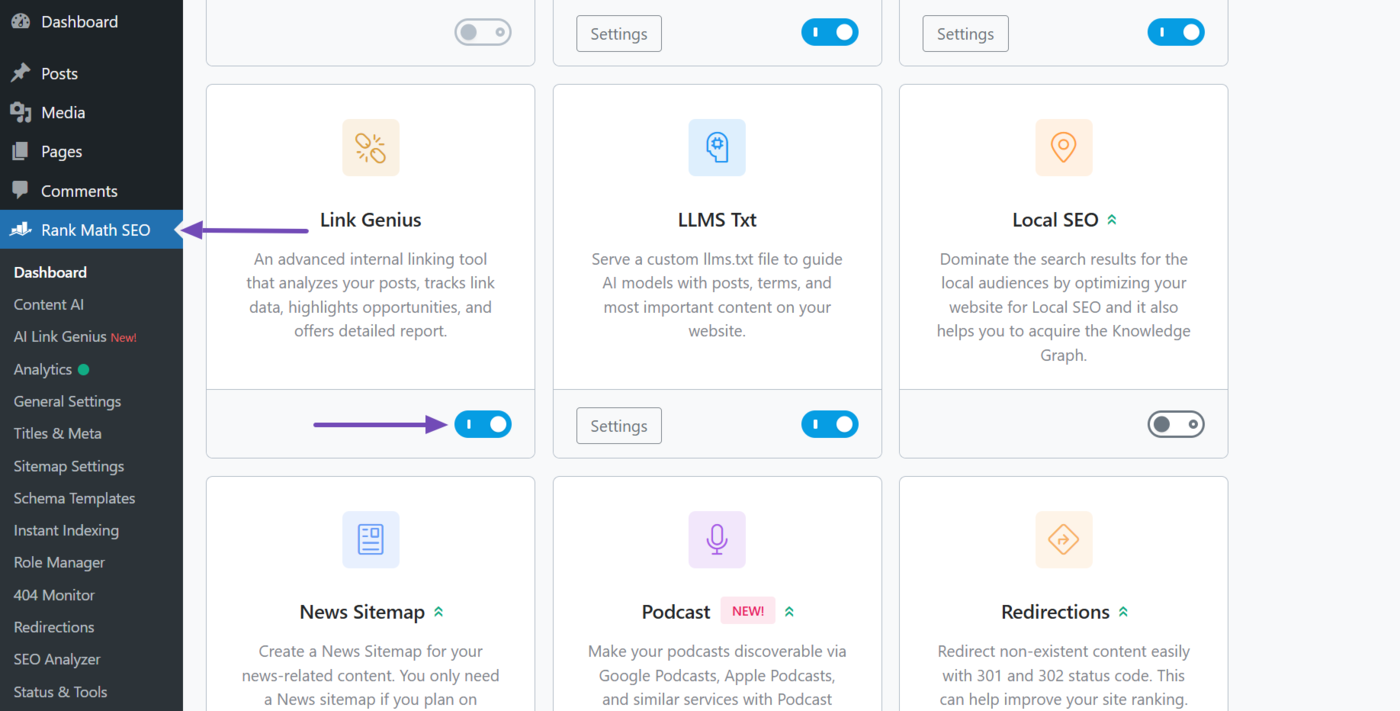
To enable AI Link Genius, click Rank Math SEO from your WordPress dashboard. Once done, enable the Link Genius module, as shown below.
2.2 Configure AI Link Genius
To configure AI Link Genius, go to Rank Math SEO → General Settings → Link Genius from your WordPress dashboard.
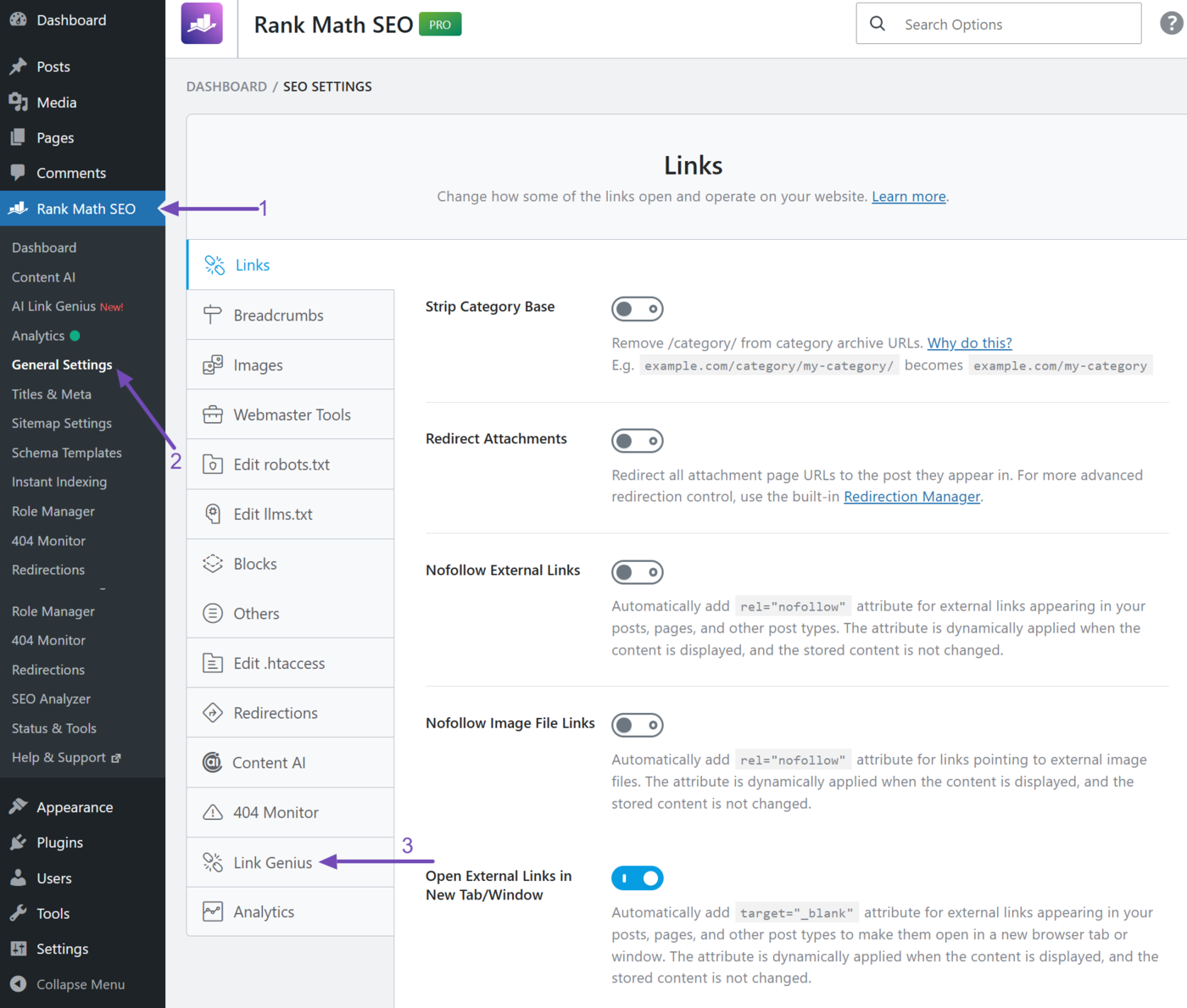
You will be presented with the AI Link Genius settings. Here’s how to fill them in.
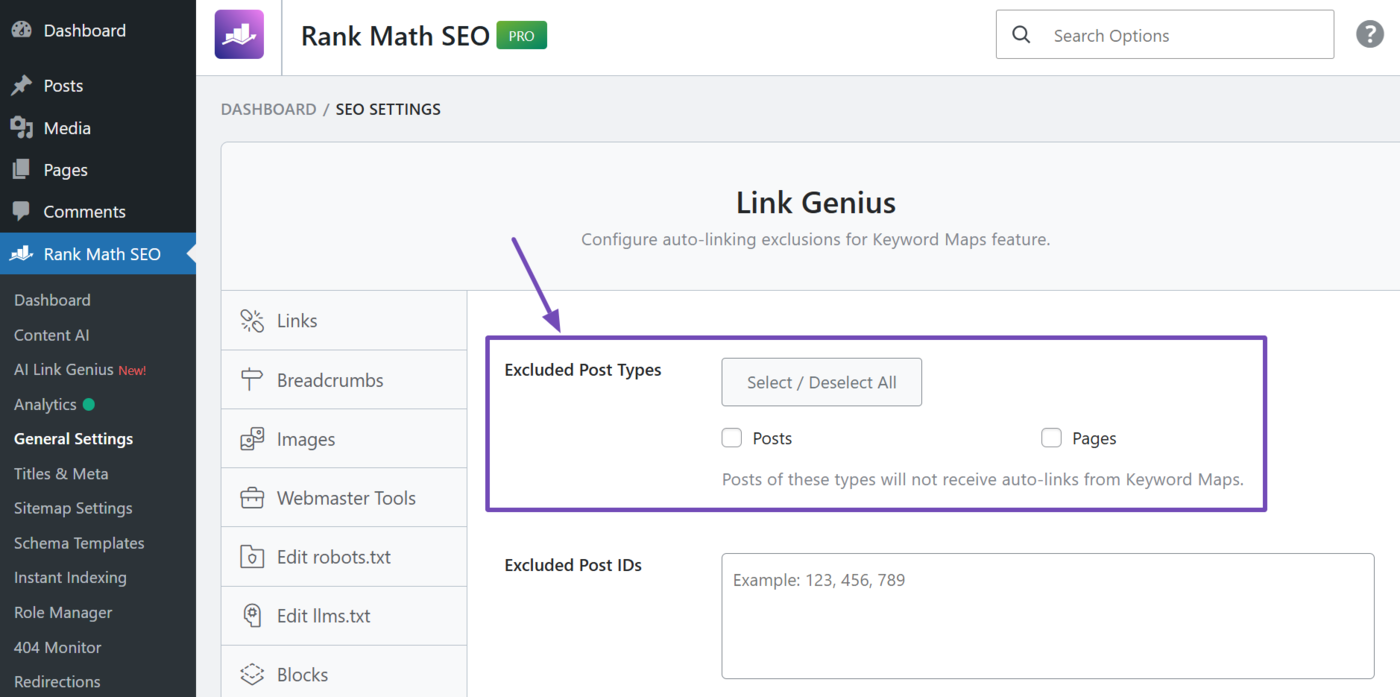
a. Excluded Post Types
This option lets you choose which post types AI Link Genius should skip when inserting links generated by the keyword map. The options listed here depend on the post types on your site, but the default ones include:
- Select/Deselect All: Enables or disables all post types at once
- Posts: Excludes posts from the keyword map when enabled
- Pages: Excludes pages from the keyword map when enabled
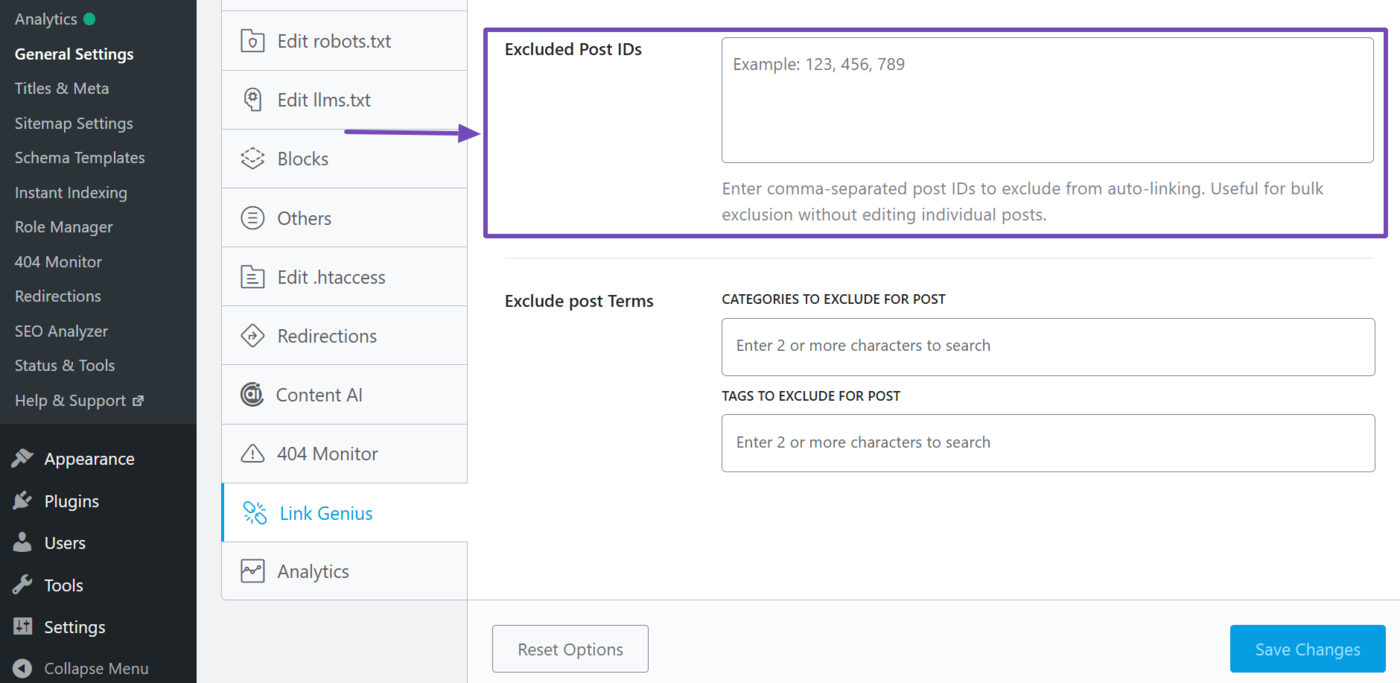
b. Excluded Post IDs
Enter the post ID of specific posts, pages, or other post types you do not want the keyword map to insert links into. Ensure to separate multiple post IDs with a comma.
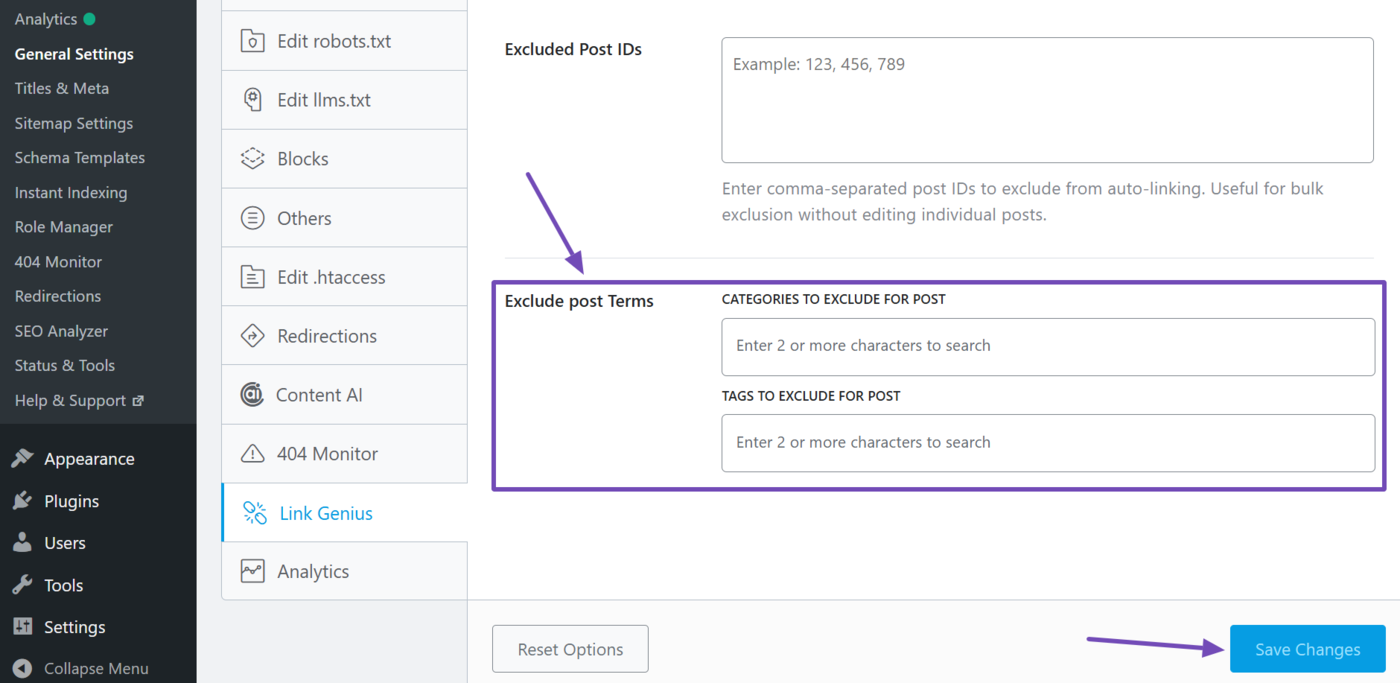
c. Exclude Post Terms
This option lets you prevent the keyword map from inserting links into posts in specific categories or posts containing specific tags. Type the category or tag name into the field and select it from the dropdown.
Once you’re done with your AI Link Genius settings, click Save Changes.
3 Get Internal Link Suggestions While You Write
As you write or edit a post, AI Link Genius can suggest relevant internal posts to link to. This saves you the effort of manually searching for pages to link to and helps you build a stronger internal link structure without leaving the editor.
There are two ways to do this.
- Generate a link for specific texts
- Generate links for the entire post
3.1 Generate a Link for Specific Texts
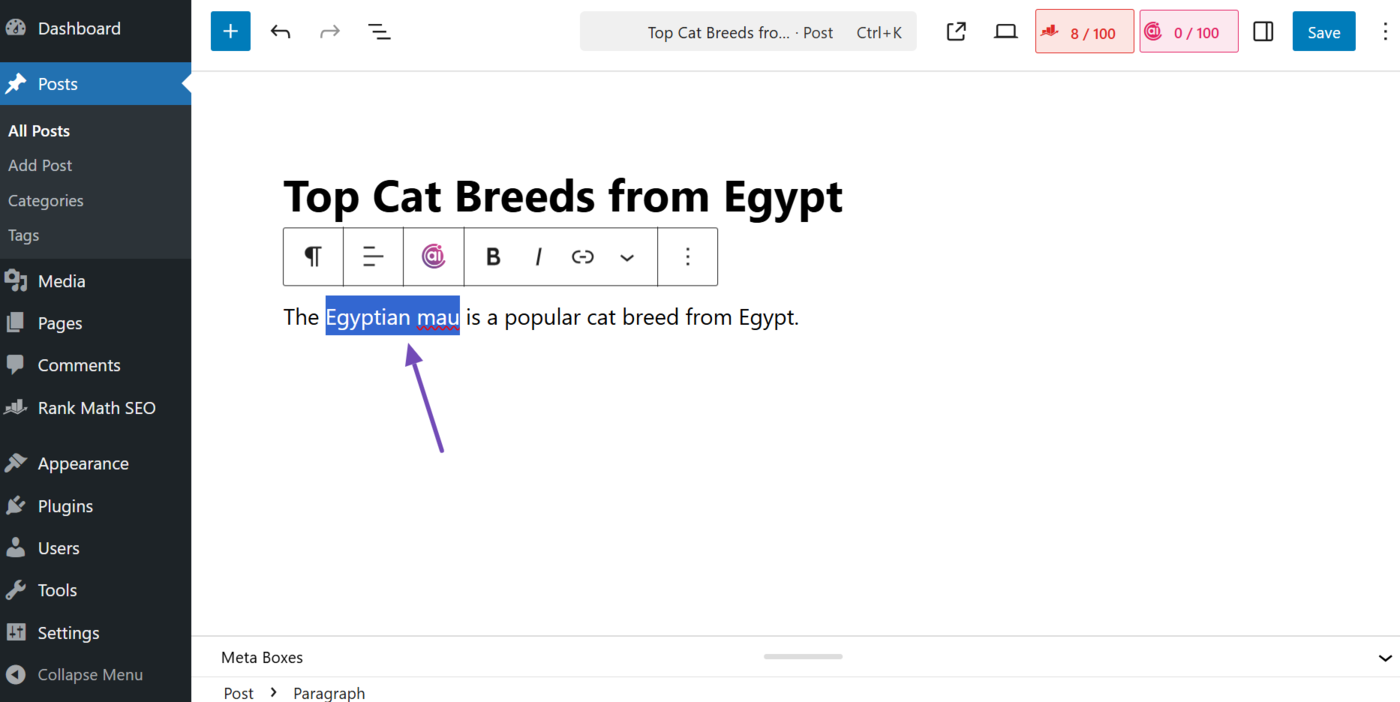
To get started, open the post you want to edit. Once done, highlight the text you want to turn into an internal link.
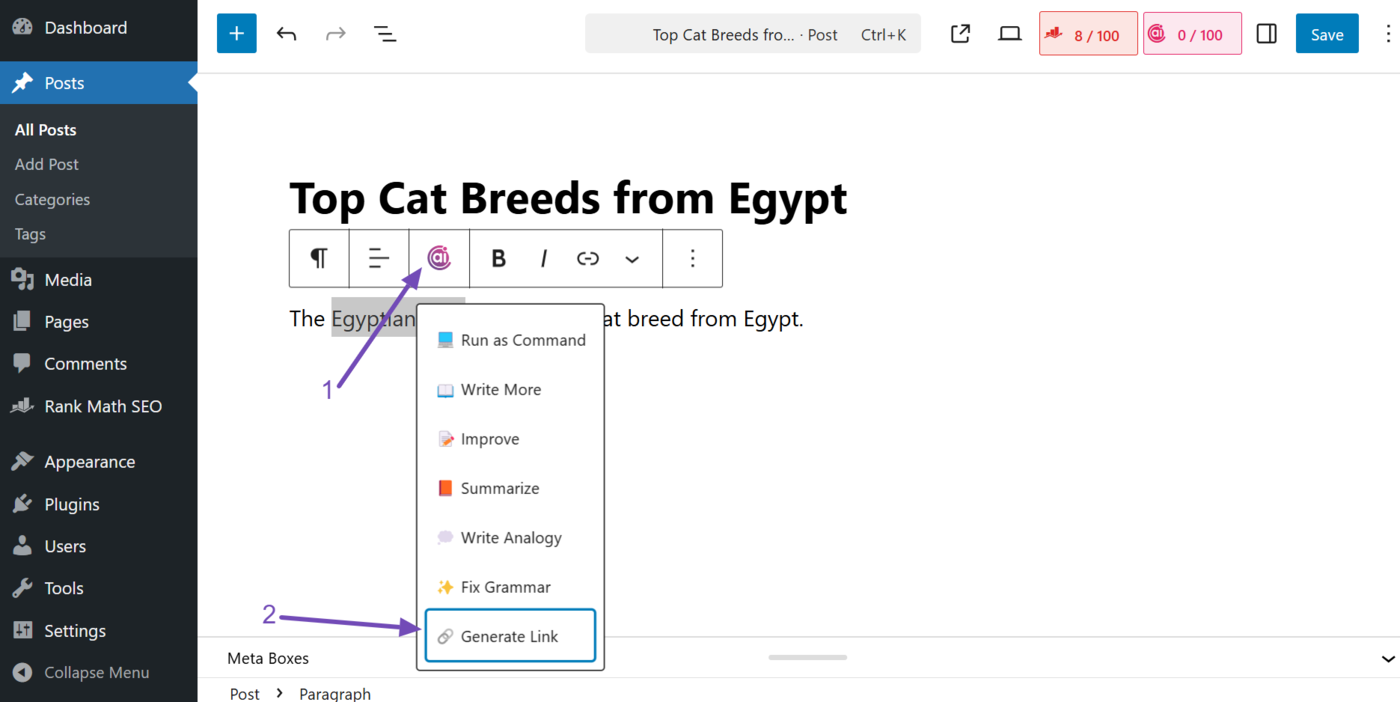
The block toolbar will appear. Now, click Content AI Commands. Then, click Generate Link.
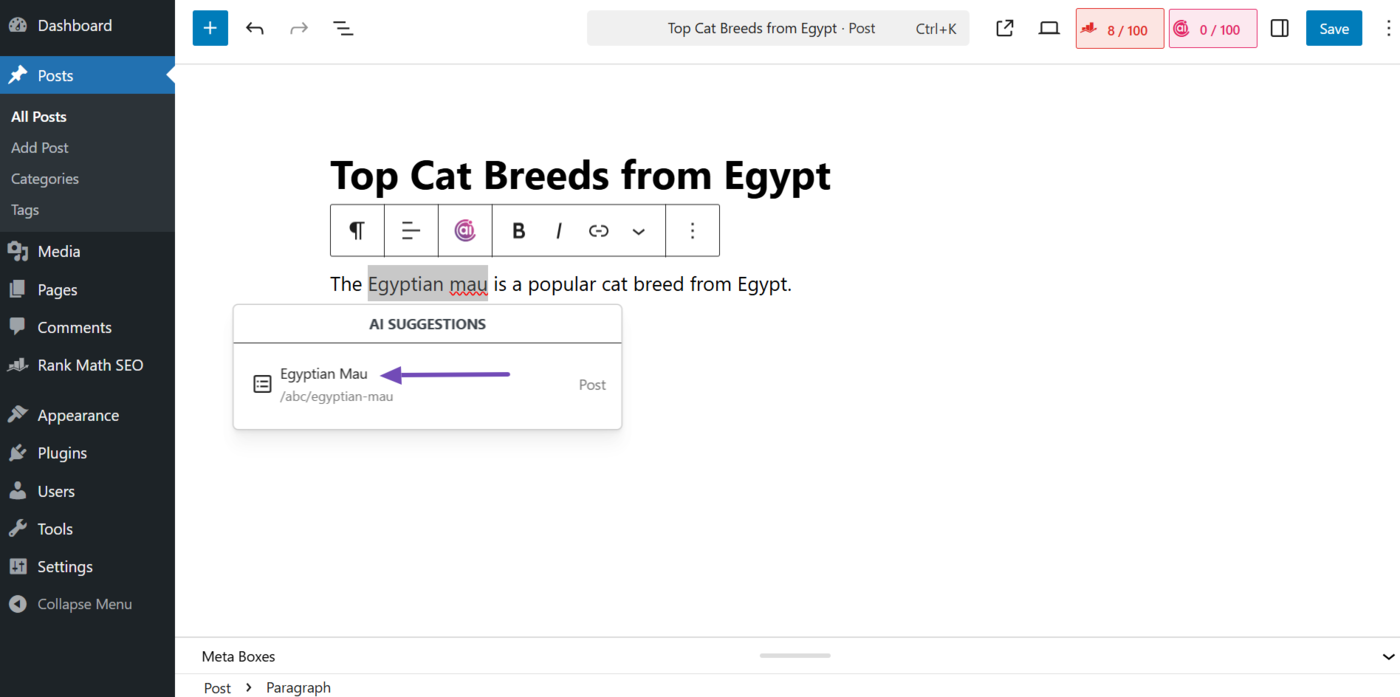
AI Link Genius will suggest one or more internal links. Click the one you want to add to your text.
3.2 Generate Links for the Entire Post
To get started, open the post you want to edit. Once done, click the Rank Math SEO icon. Then scroll down and click Link Opportunities → Generate, as shown below.
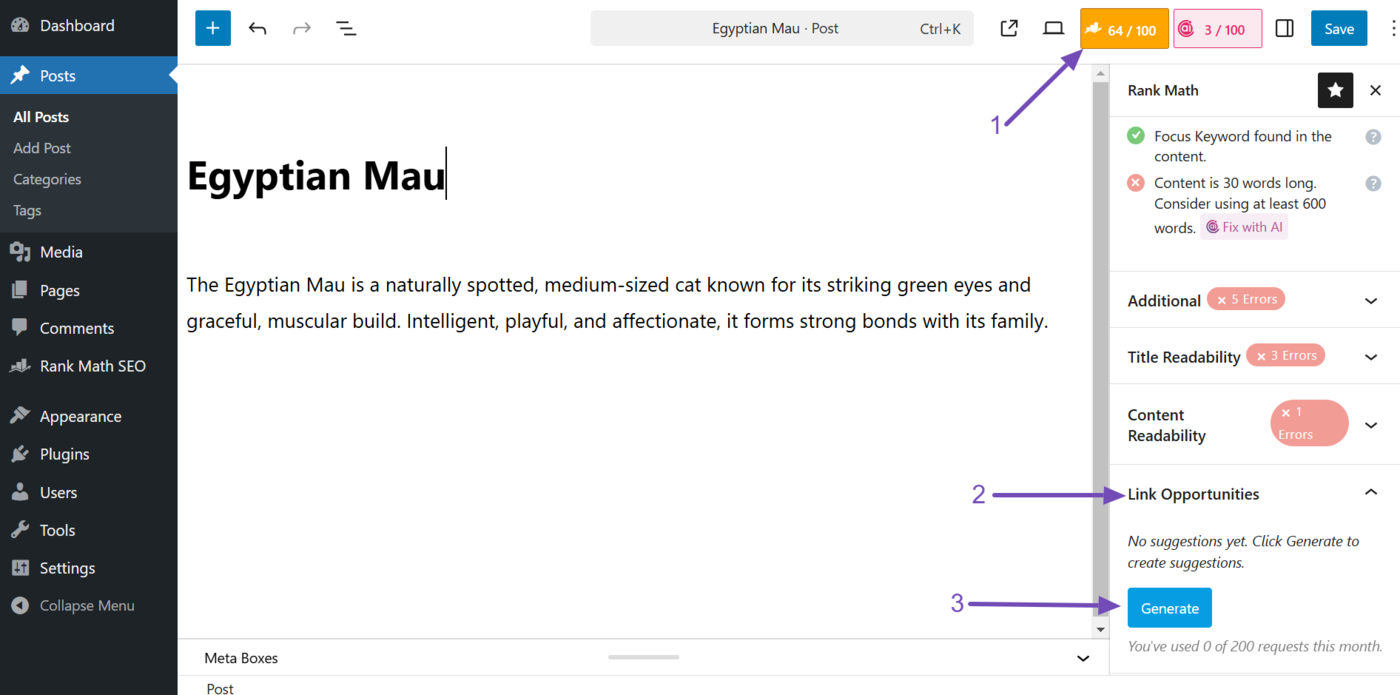
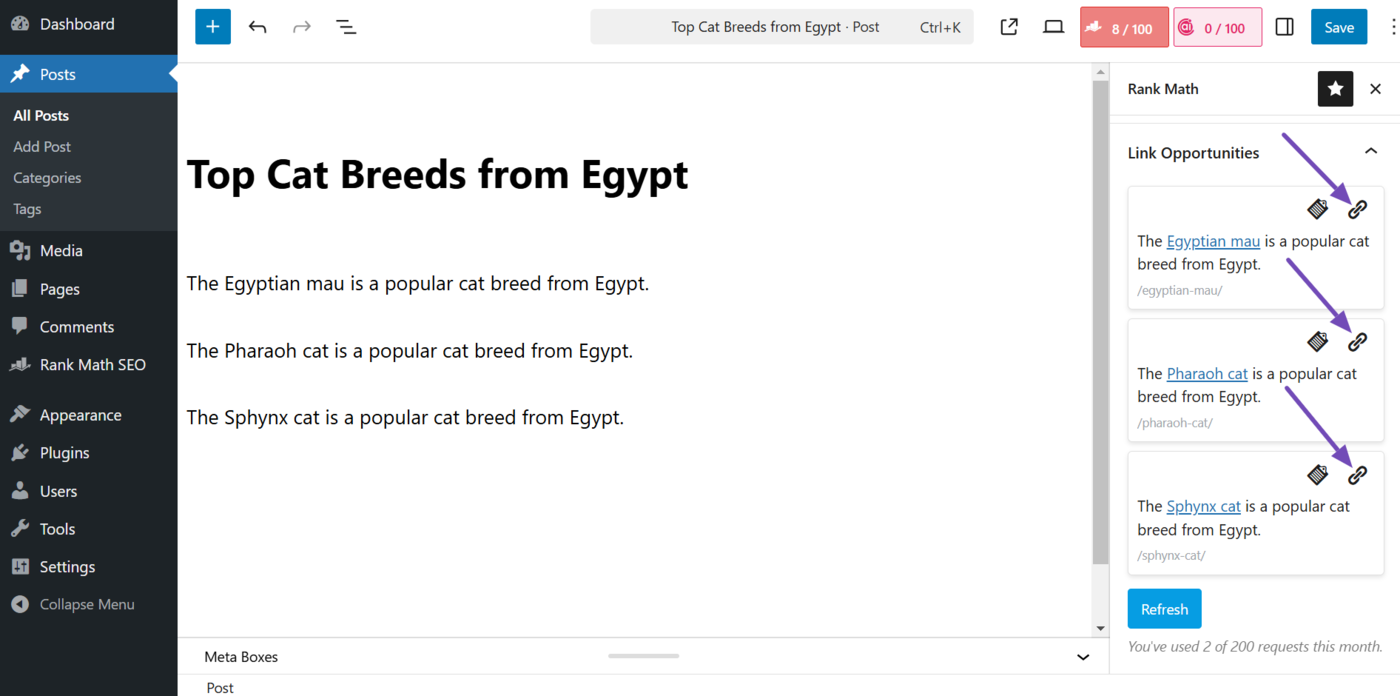
AI Link Genius will analyze your content and suggest relevant internal posts to link to. Each suggestion includes three options:
- Copy Link URL: Copies the link URL to your clipboard
- Insert Link: Adds the link directly to your content
- Refresh: Generates a new set of links if available
Click the Insert Link icon. AI Link Genius will automatically insert the internal link into your content.
4 Add Related Posts to Your Content
AI Link Genius can suggest relevant related posts to include in your content. This helps keep visitors on your site longer by pointing them to similar content they may find useful.
You can add these related posts using a block or shortcode.
- Add a related posts block
- Add a related posts shortcode
- Customize the related posts block or shortcode
4.1 Add a Related Posts Block
To add a related posts block, open the post you want to edit and click the Rank Math SEO icon. Scroll down and click Related Posts → Generate.
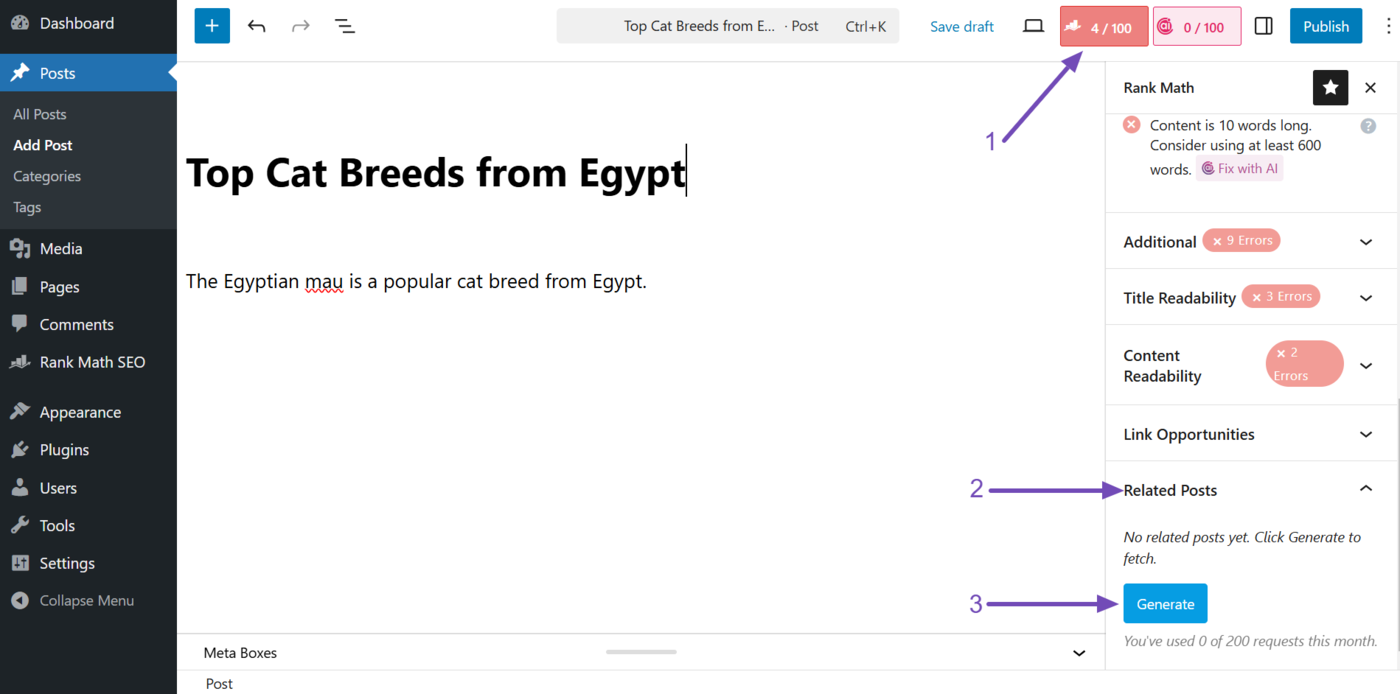
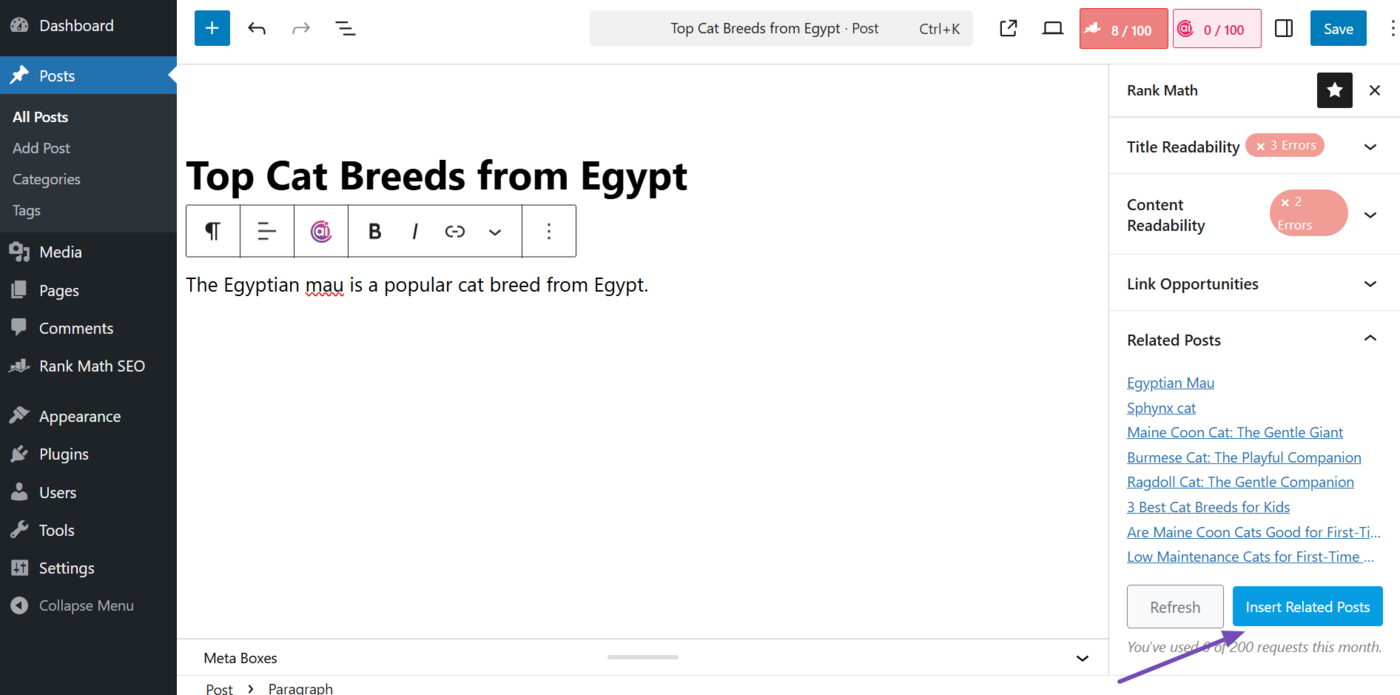
AI Link Genius will generate some related posts. It will include two options:
- Refresh: Generate a new set of related posts if available
- Insert Related Posts: Insert a related posts block into your content
Click Insert Related Posts. The related posts block will then be added to your post.
4.2 Add a Related Posts Shortcode
To add a related posts shortcode, type /shortcode into the block editor and select the shortcode block. Then paste the shortcode below into it.
If you use the Classic editor, there is no need to type /shortcode. Just copy and paste the shortcode into it.
[rank_math_related_posts]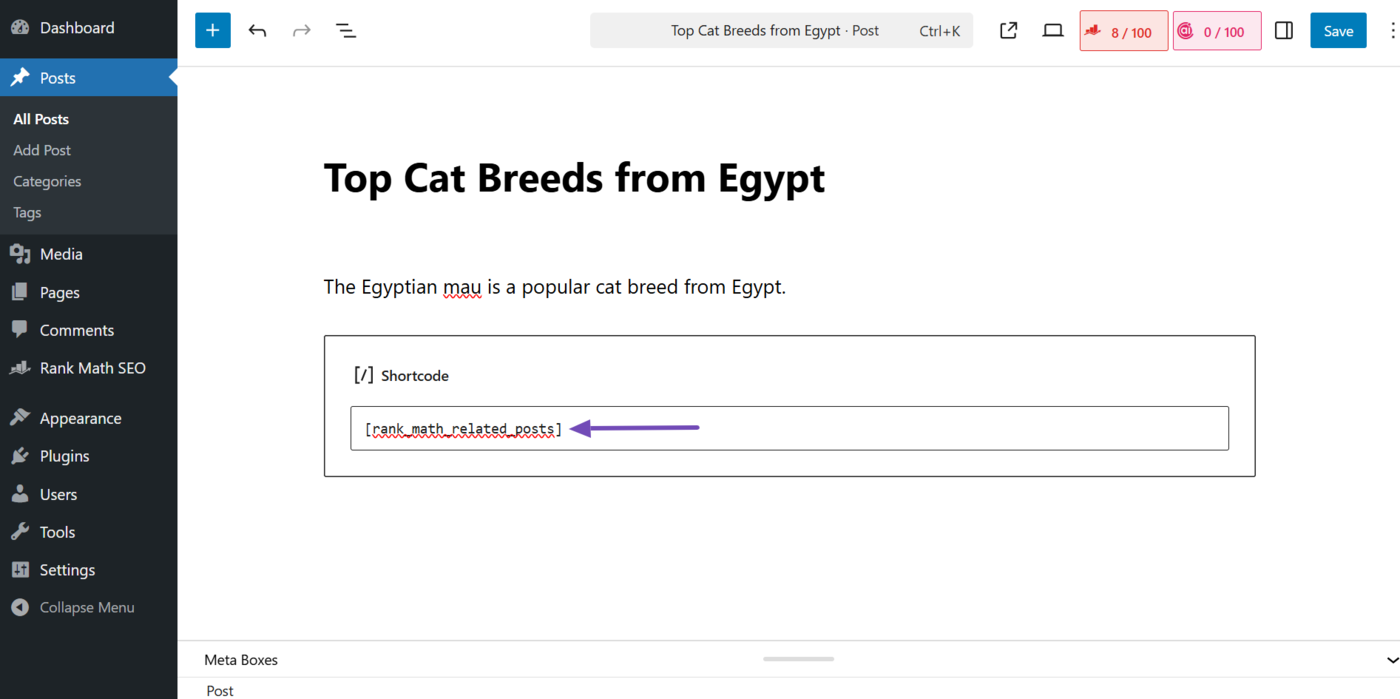
AI Link Genius will add the related posts to your content. The related posts themselves will not be visible in the editor, but will appear when you preview or publish the post.
4.3 Customize the Related Posts Block or Shortcode
AI Link Genius lets you customize the related posts block and shortcode to match your site’s look and feel. To get started, refer to this article on customizing the related posts block or shortcode.
5 View Your Site’s Link Health
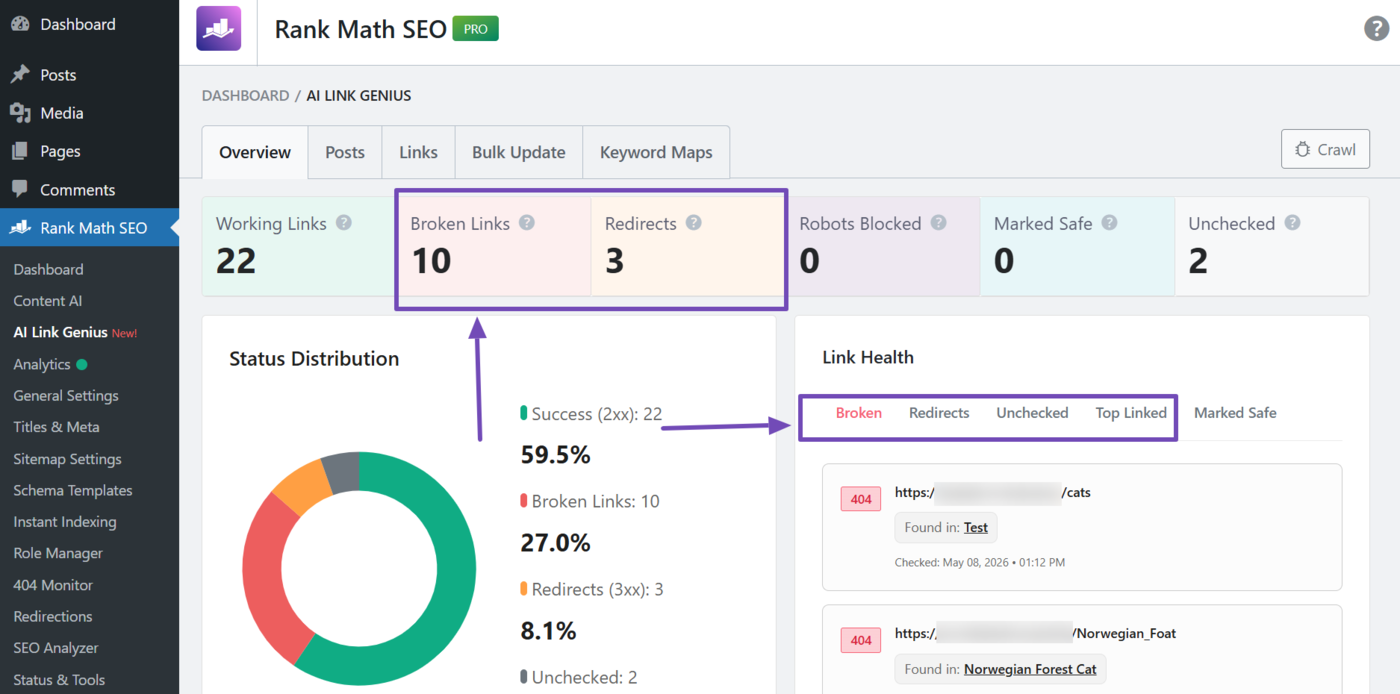
The Overview tab provides a summary of all internal and external links on your site. From here, you can see how many links are working, broken, redirected, or blocked, so you know where to focus your attention.
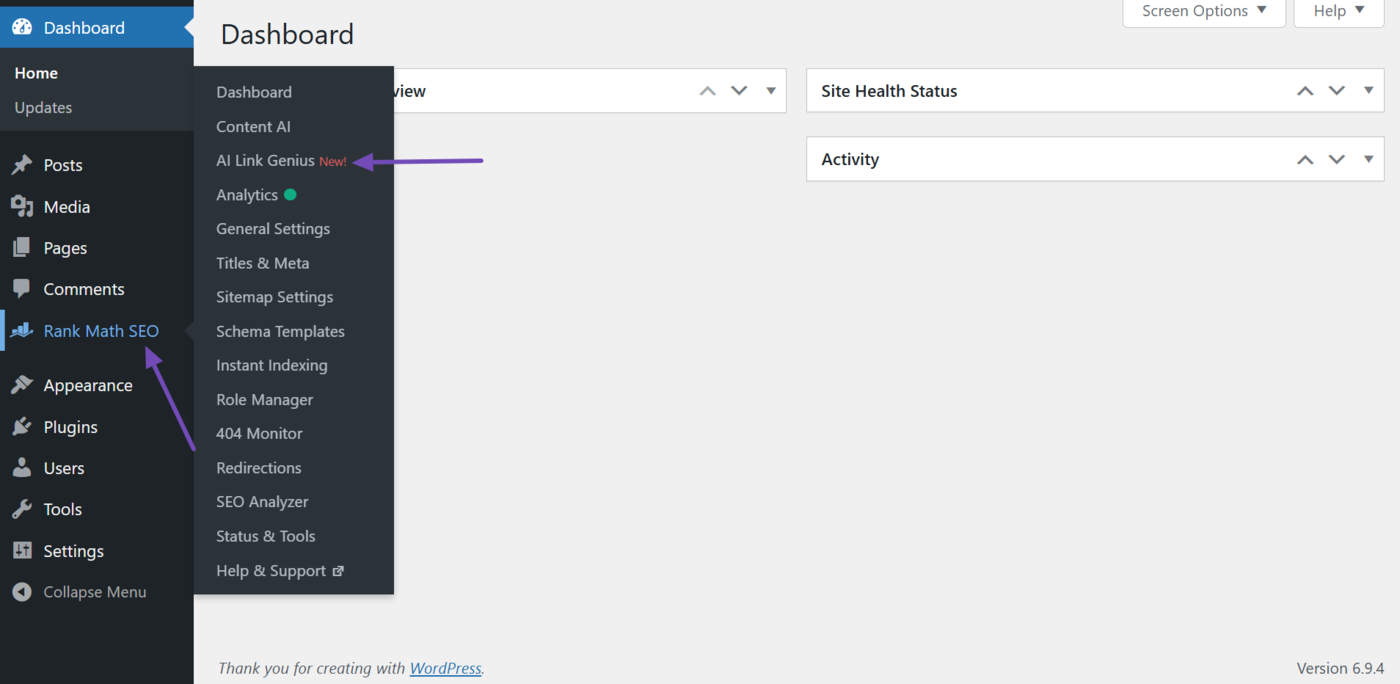
To view your link health, go to Rank Math SEO → AI Link Genius from your WordPress dashboard.
The metrics you will want to pay attention to include:
- Broken Links: Links returning a 4xx or 5xx status code, such as 404 Not Found or 500 Internal Server Error
- Redirects: Links that redirect to another page, typically returning a 3xx status code such as 302 Found
- Top Linked: Posts with the most internal links pointing to them
These metrics are displayed across the summary cards and the link health widget.
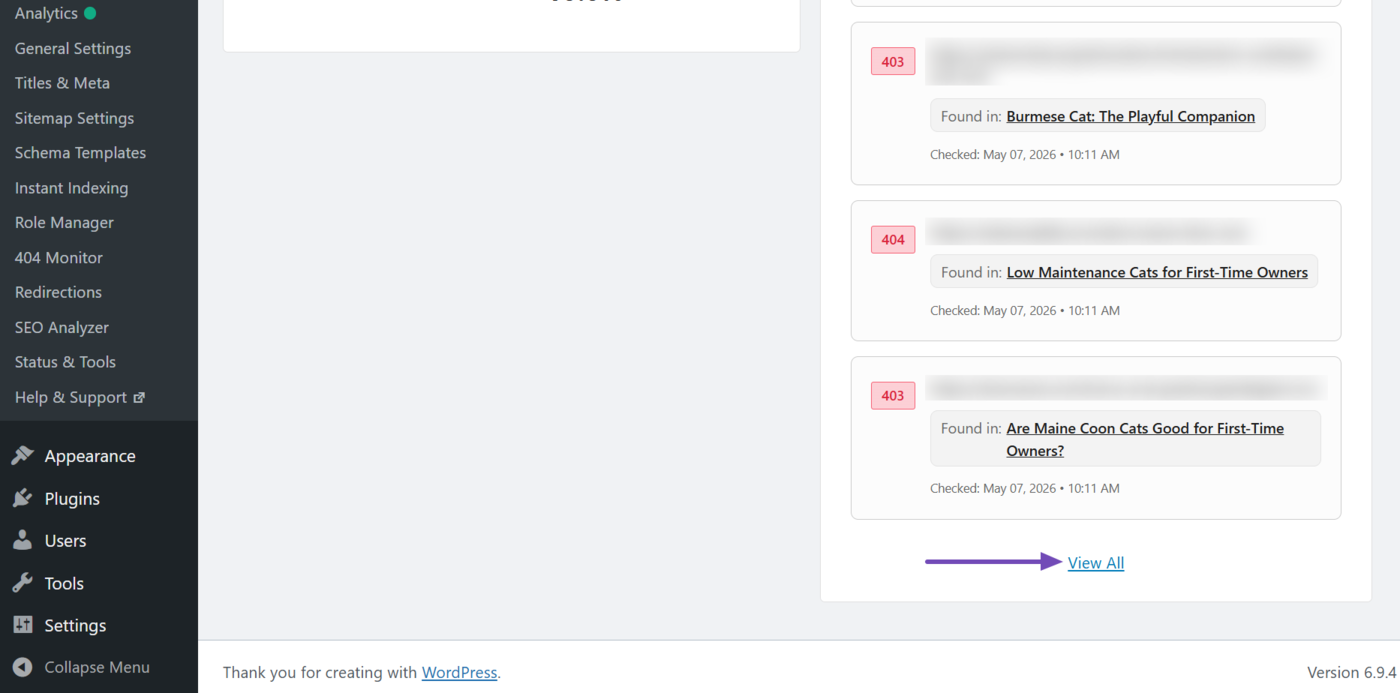
To explore any of these reports further, click on the summary card or the View All button on the link health widget. For the Top Linked report, click View [Number] Links. Each option opens a filtered view with additional details about the links.
6 Find and Fix Link Issues
The Links tab gives you a detailed breakdown of every link on your site, where each link comes from, where it points to, and whether it is working correctly. This lets you discover and fix active and potential link issues right from the AI Link Genius dashboard.
To get started, head to Rank Math SEO → AI Link Genius → Links from your WordPress dashboard.
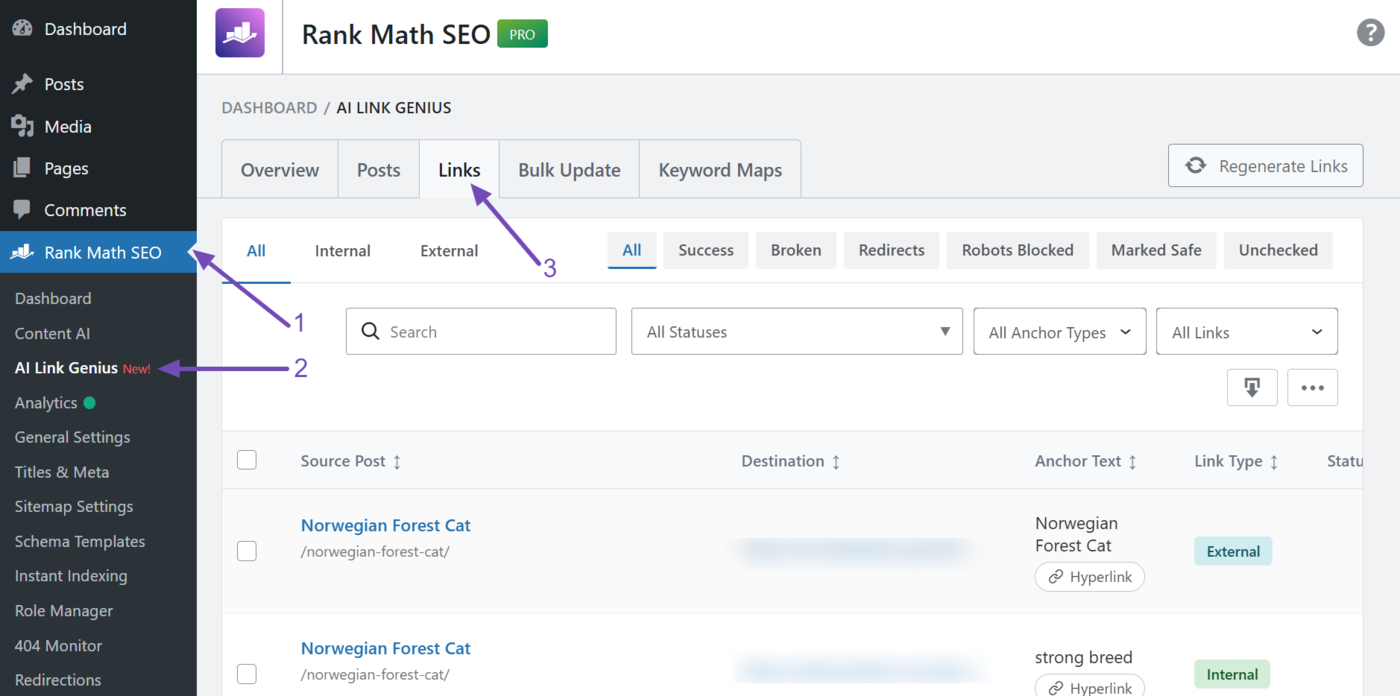
Once done, you can begin to audit your links.
- Find and fix broken links
- Find and fix redirected links
- Filter your link report
6.1 Find and Fix Broken Links
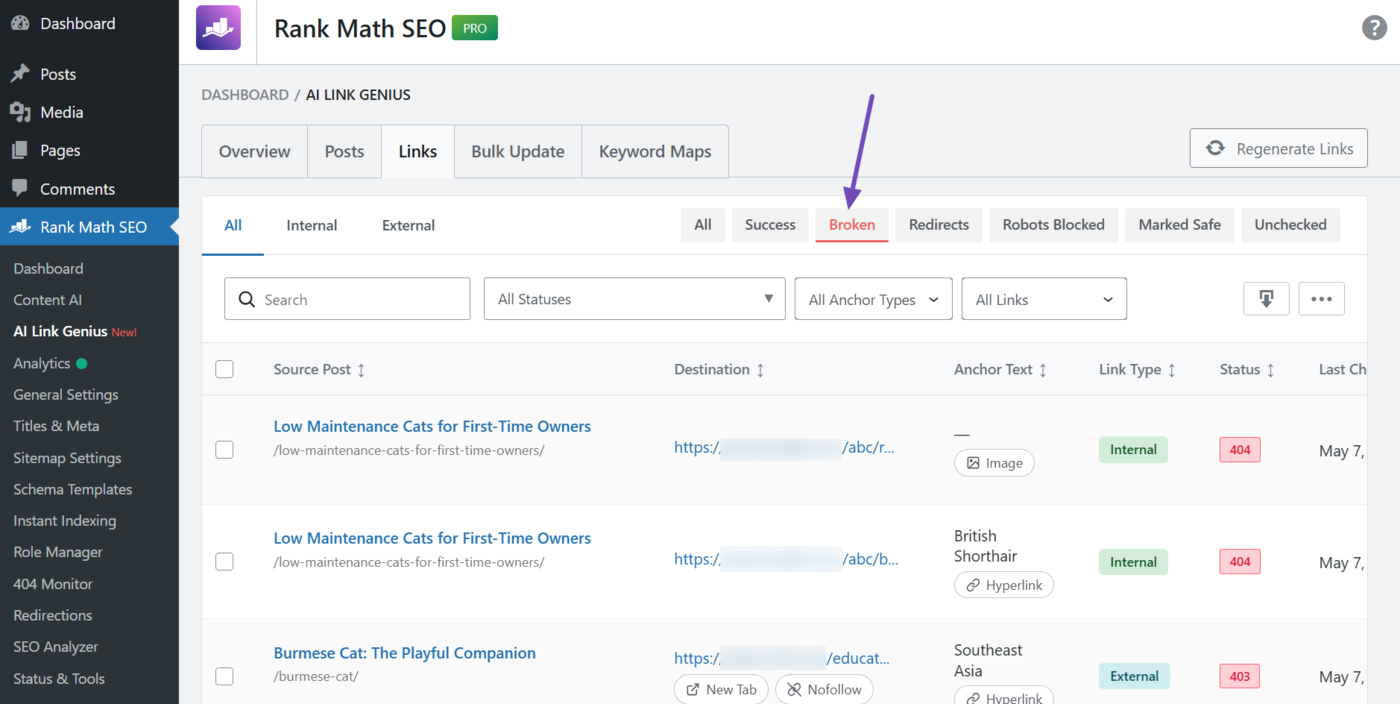
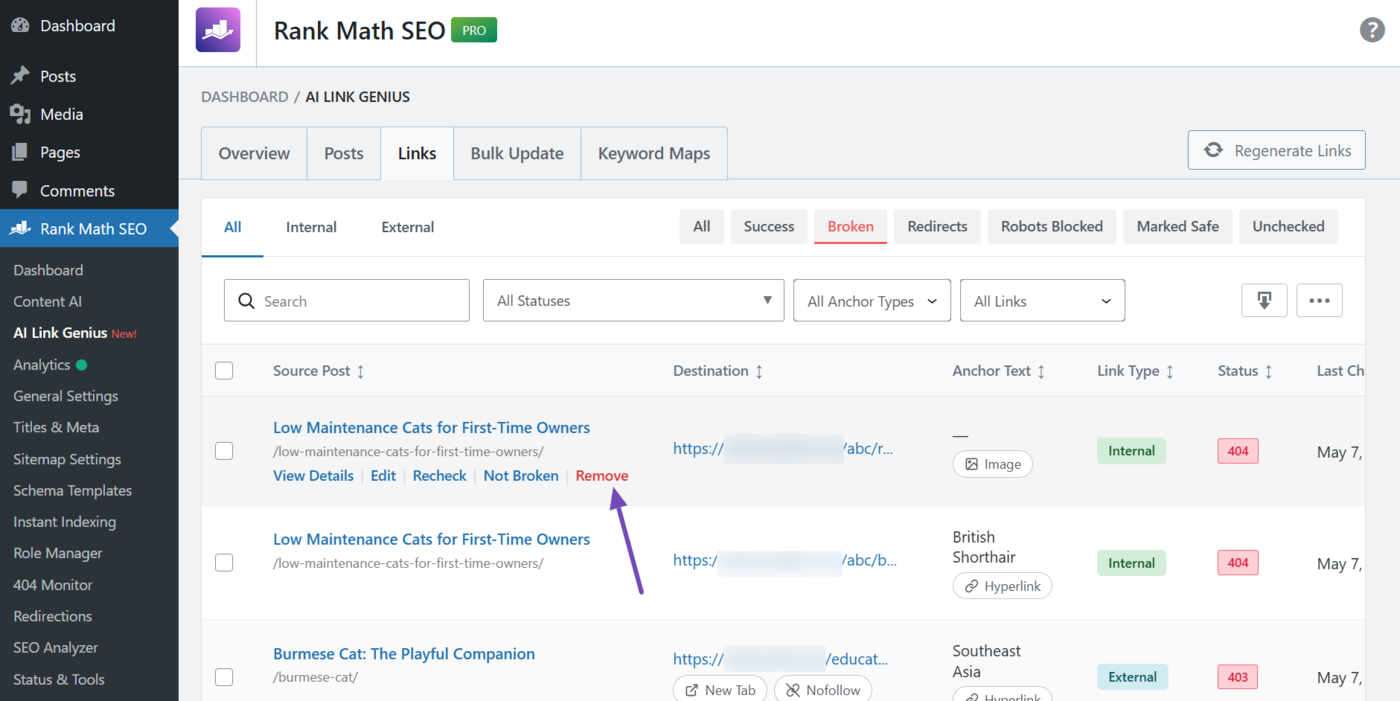
To find your broken links, click the Broken filter. Your broken links will then be shown to you.
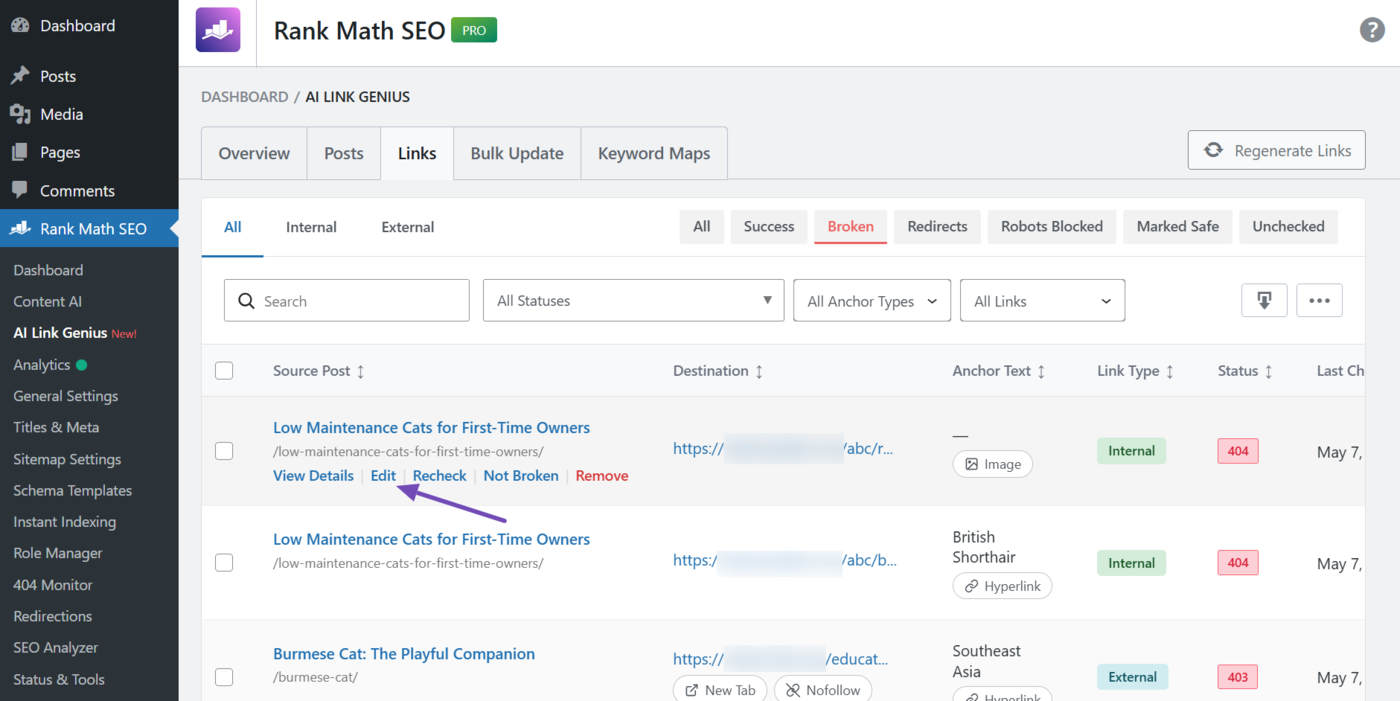
To fix a broken link, hover over the source post and click Edit.
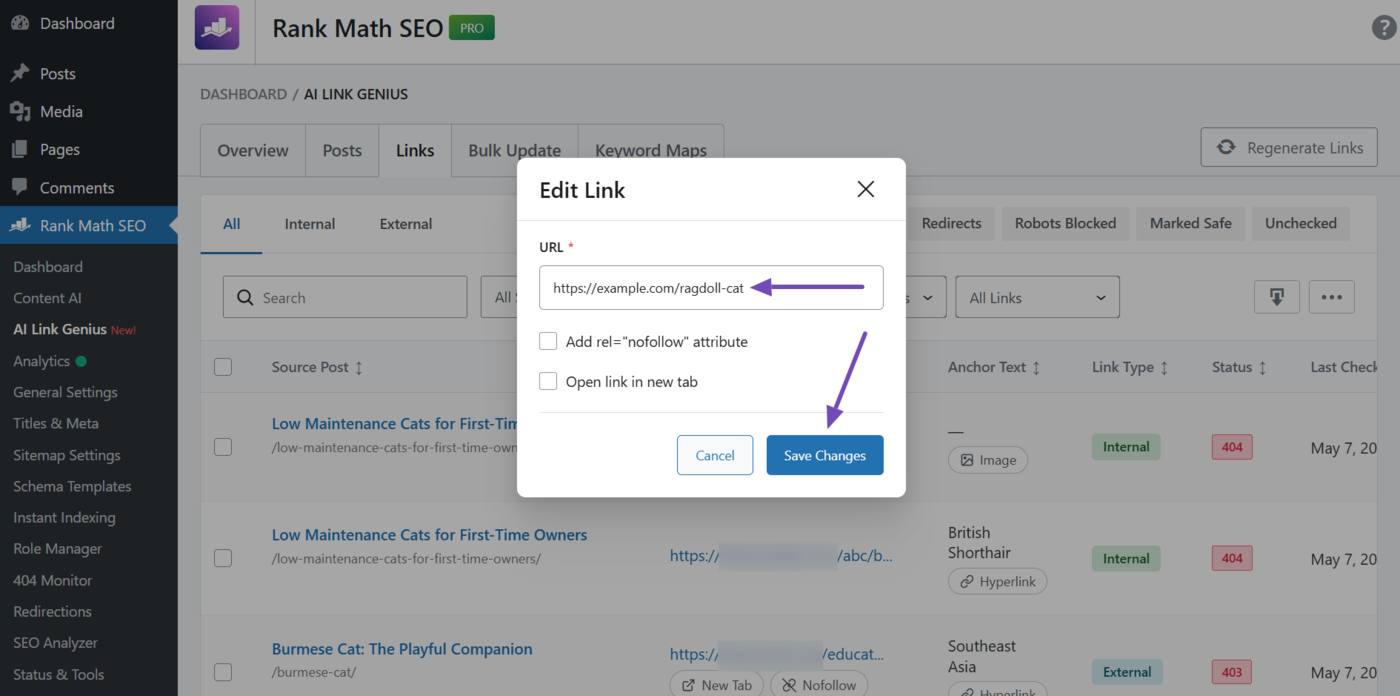
Enter the correct or new URL in the URL field and click Save Changes.
Optionally, if you prefer removing the link, hover over the source post and click Remove.
6.2 Find and Fix Redirected Links
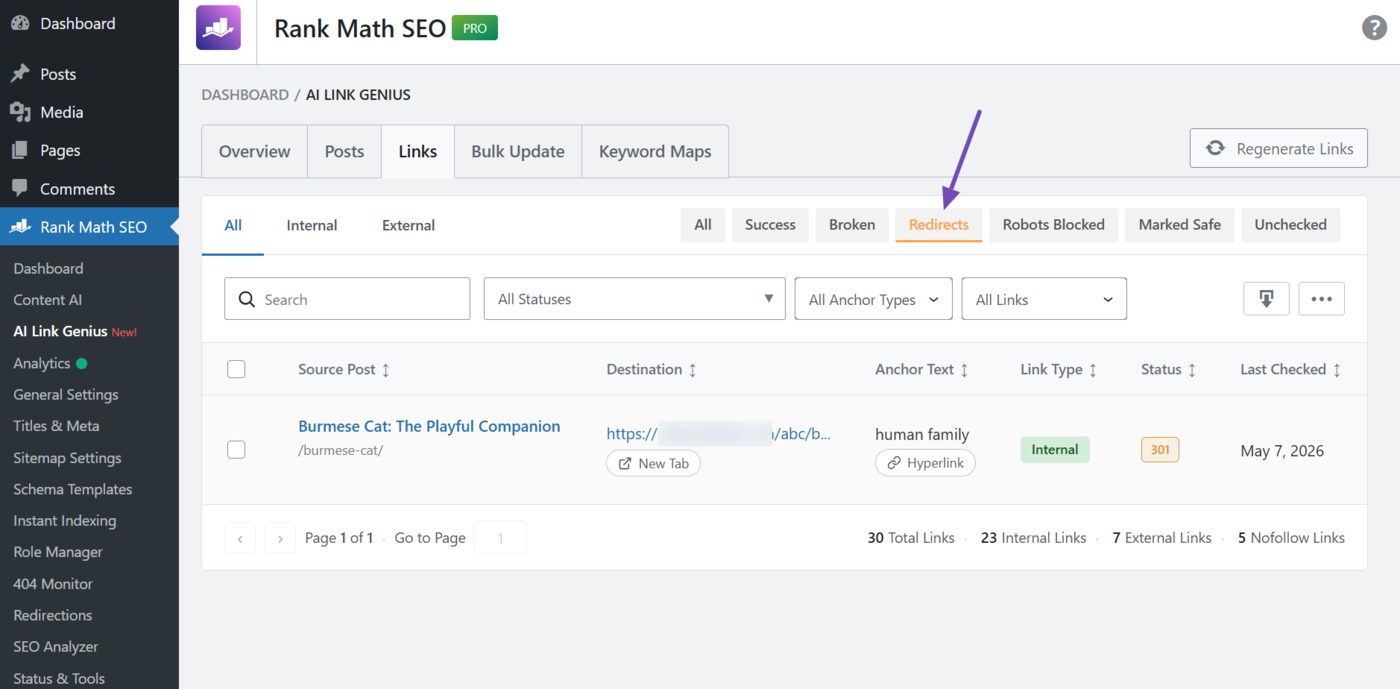
To find redirected links, click the Redirects filter. Your redirected link report will be shown to you.
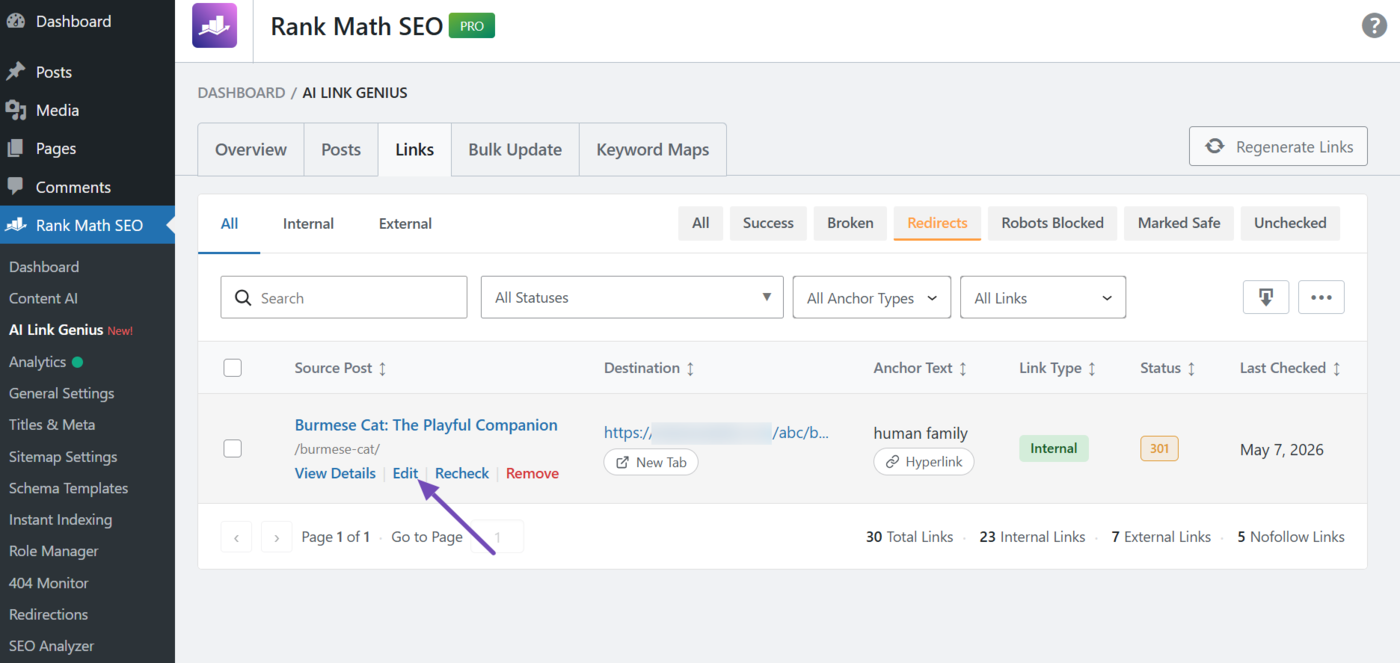
To fix a redirect link, hover over the source post and click Edit.
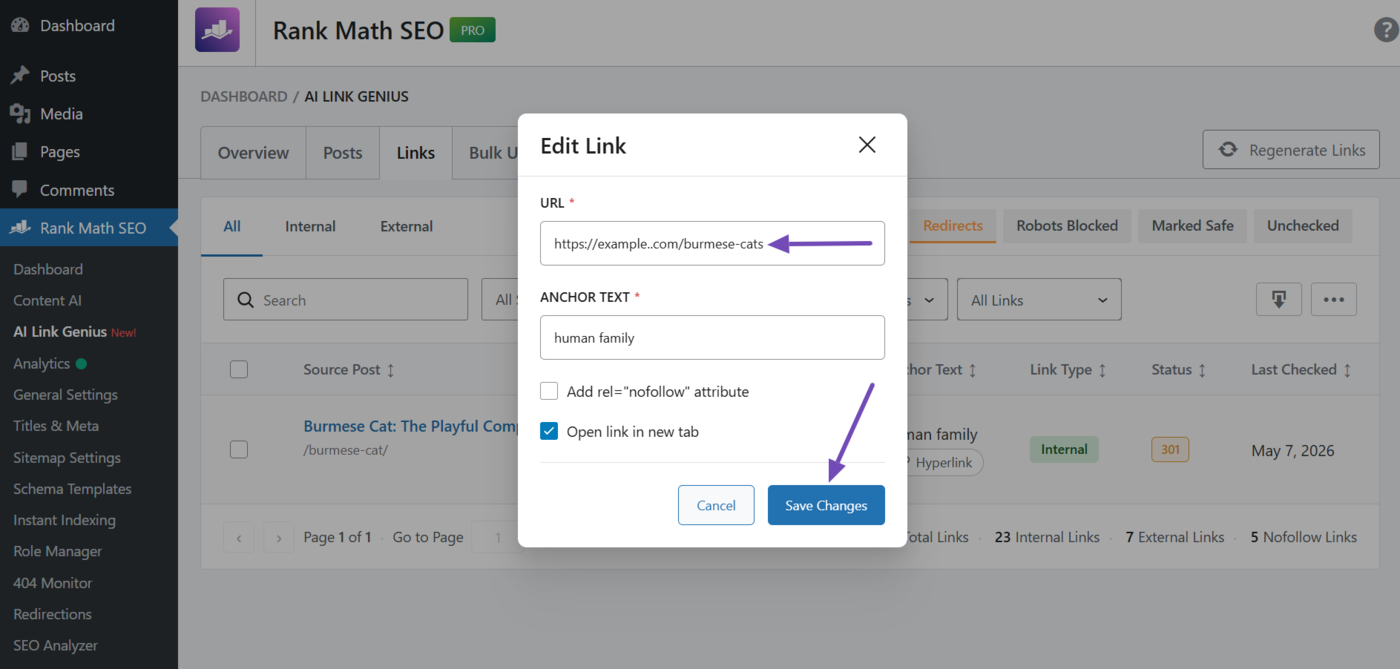
Enter the final URL in the URL field and click Save Changes.
6.3 Filter Your Link Report
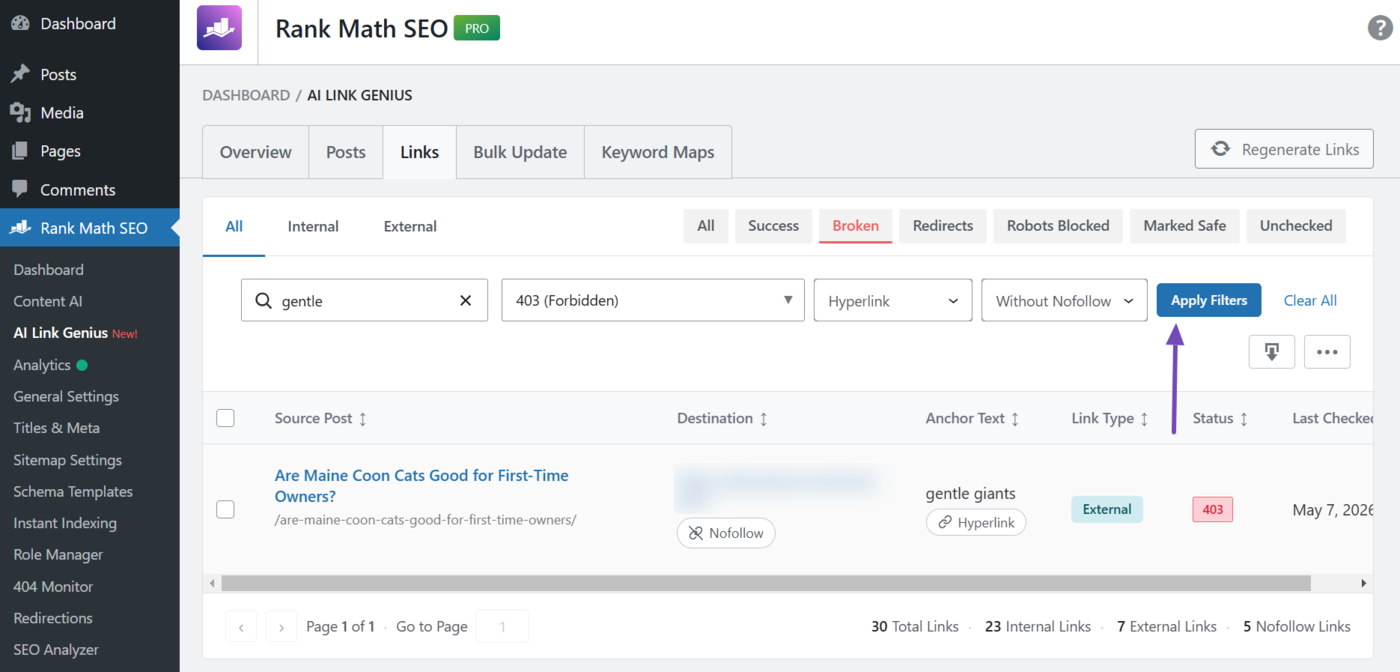
The Links tab includes multiple filters and settings to help you narrow down your broken and redirected links. The relevant ones include:
- Search bar
- Link type filter
- Dropdown filters
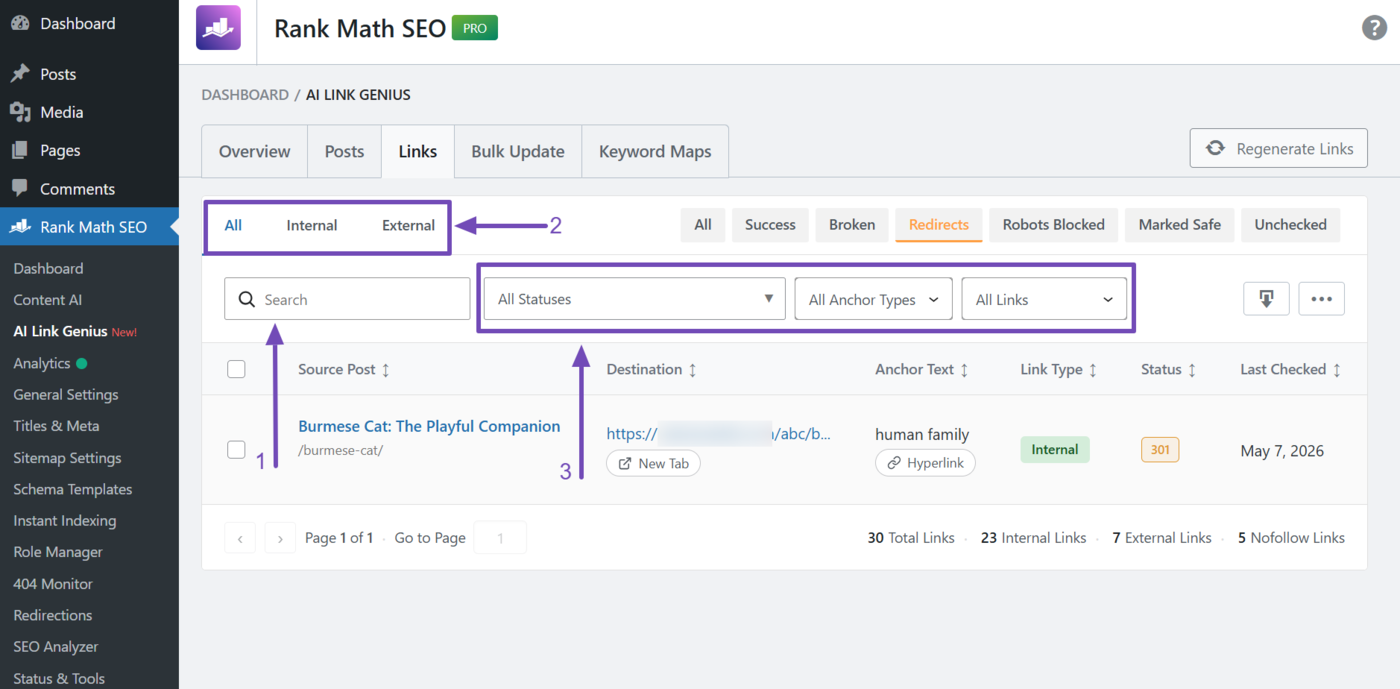
a. Search Bar
Enter a term into the search bar. Once done, the link report will only display Destination URLs or Anchor texts that contain that term.
Note: In the case of a destination URL, ensure to include hyphens - and forward slashes / where relevant.
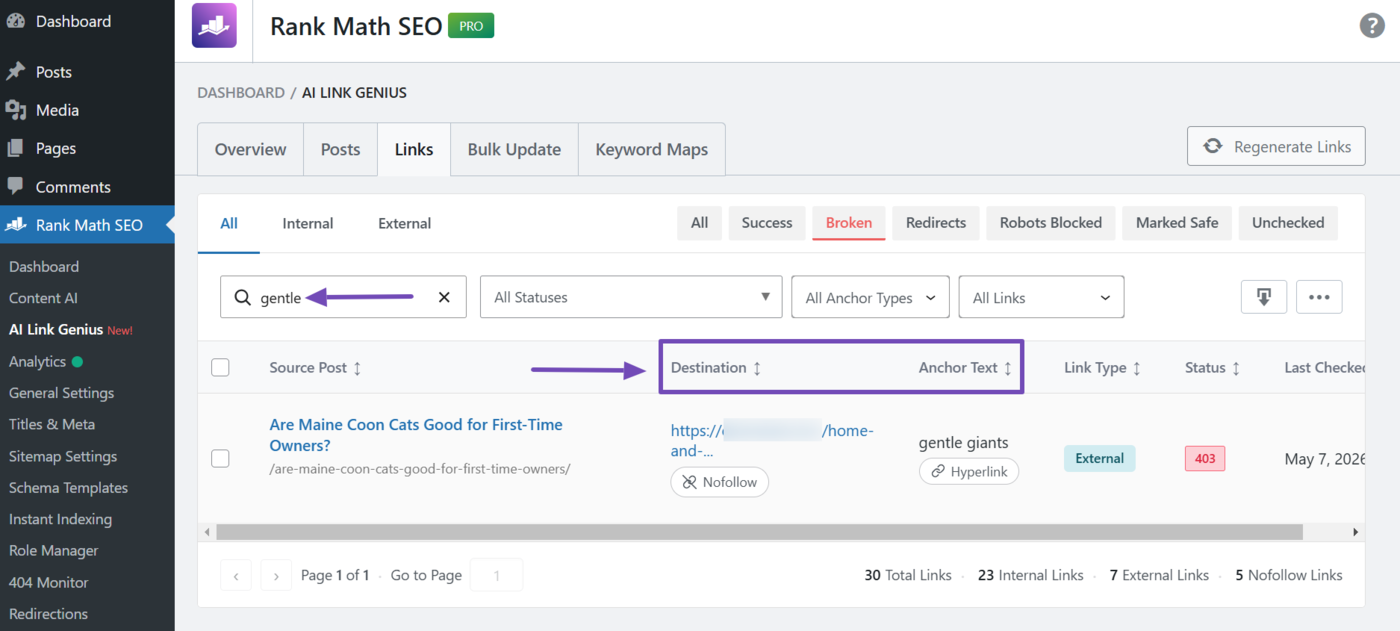
b. Link Type Filter
The link type filter lets you specify which link types to display. It has three options:
- All: Displays both internal and external links
- Internal: Displays internal links only
- External: Displays external links only
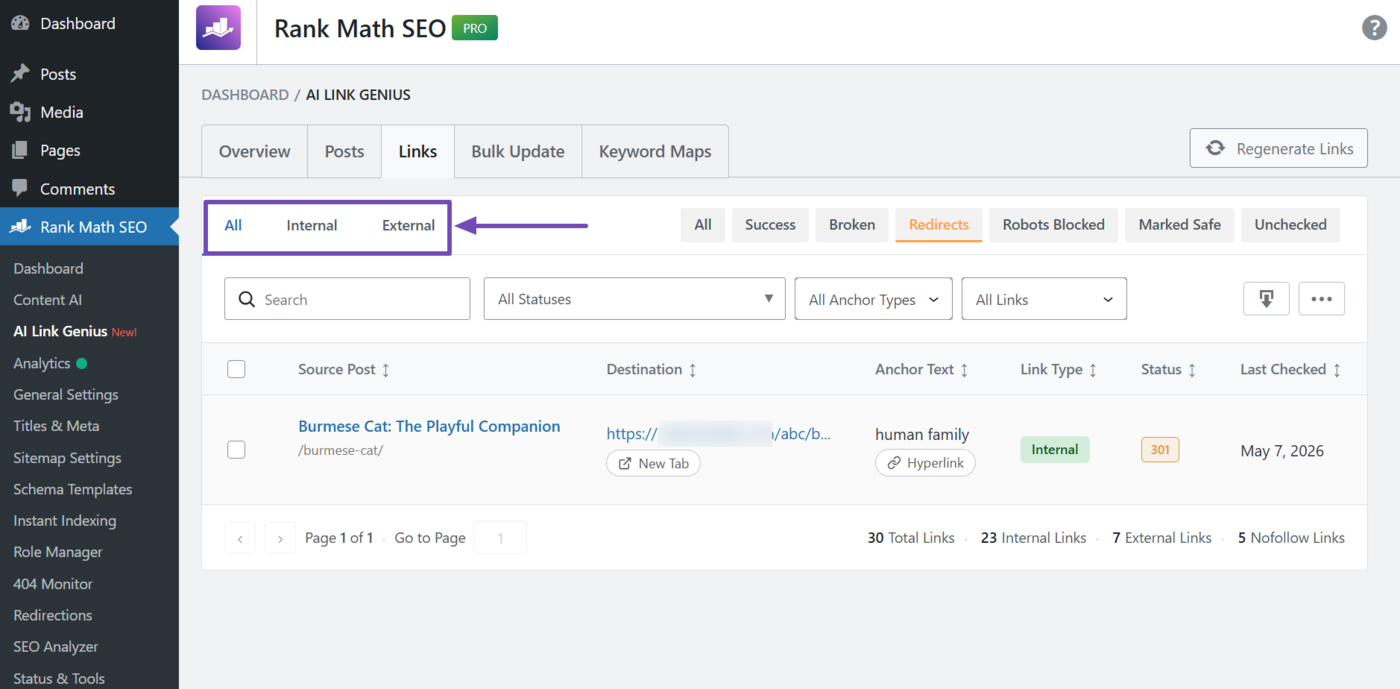
c. Dropdown Filters
Use the dropdown filters to narrow down your links by their HTTP status, anchor type, and nofollow status.
- HTTP Status: Filter links by their HTTP status code, such as 200, 301, or 404
- Anchor Type: Filter links by anchor type, such as hyperlinks or images
- Nofollow Status: Filter links by whether they contain a nofollow tag
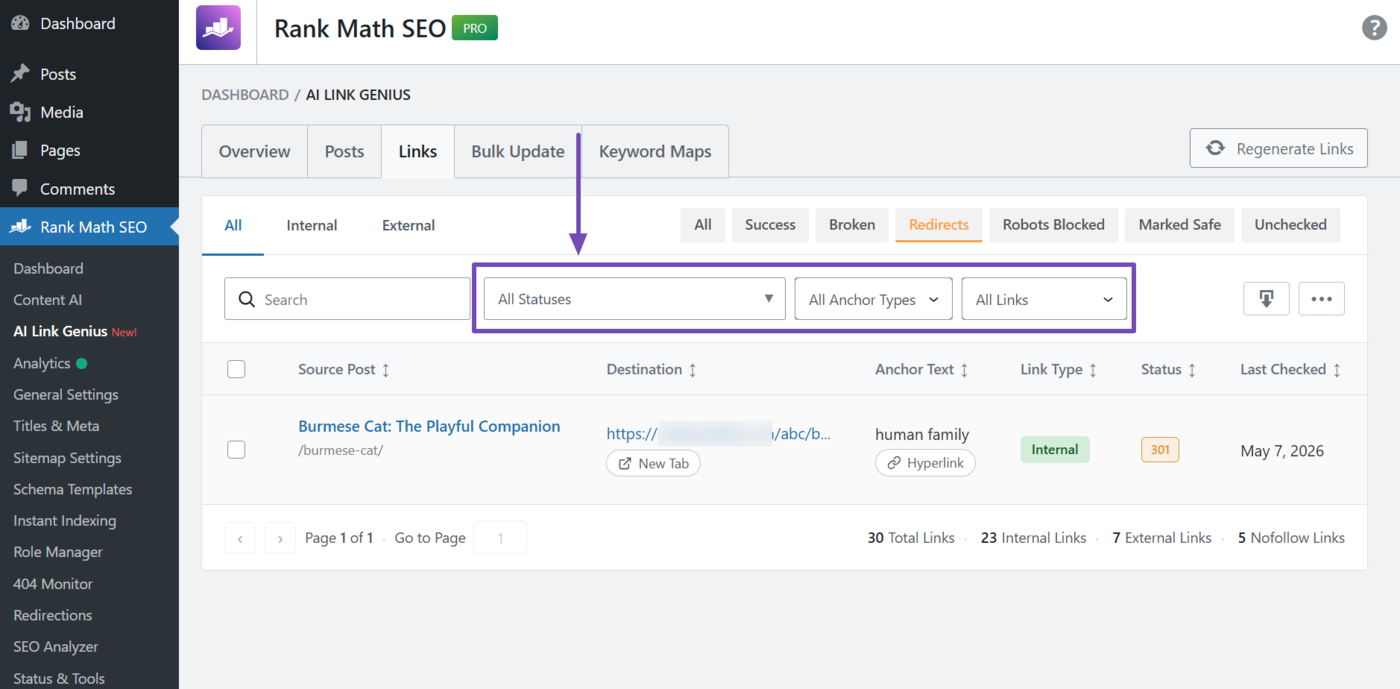
The Apply Filters button appears when you use any dropdown filter. Click on it to apply the dropdown filters you selected.
7 Audit Your Link Coverage
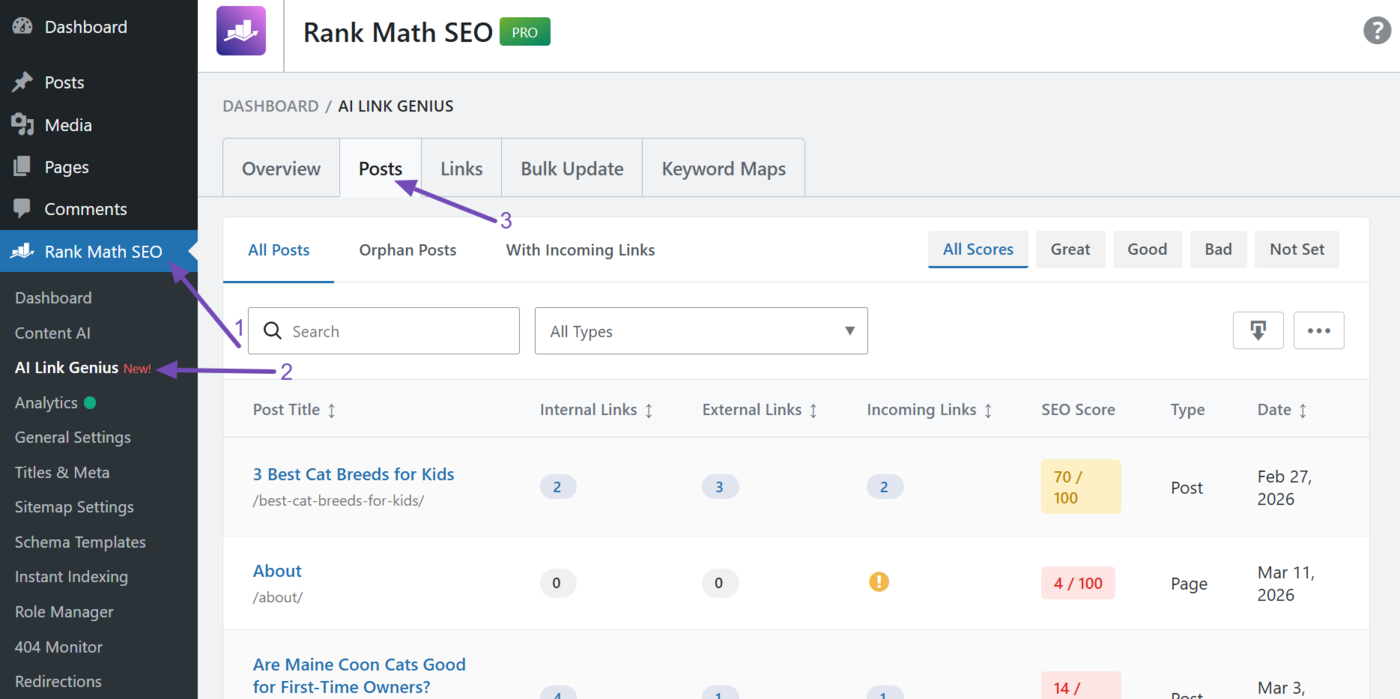
The Posts tab gives you a detailed breakdown of your site’s link coverage. This lets you discover orphan posts and view the internal, external, and incoming links for any post.
To get started, head to Rank Math SEO → AI Link Genius → Posts from your WordPress dashboard.
Once done, you can start auditing your link coverage.
- Discover orphan posts
- View post link details
- Filter your link coverage report
7.1 Discover Orphan Posts
Click the Orphan Posts filter. The posts with zero incoming links (links from other posts on your site) will be shown to you. These are your orphan posts.
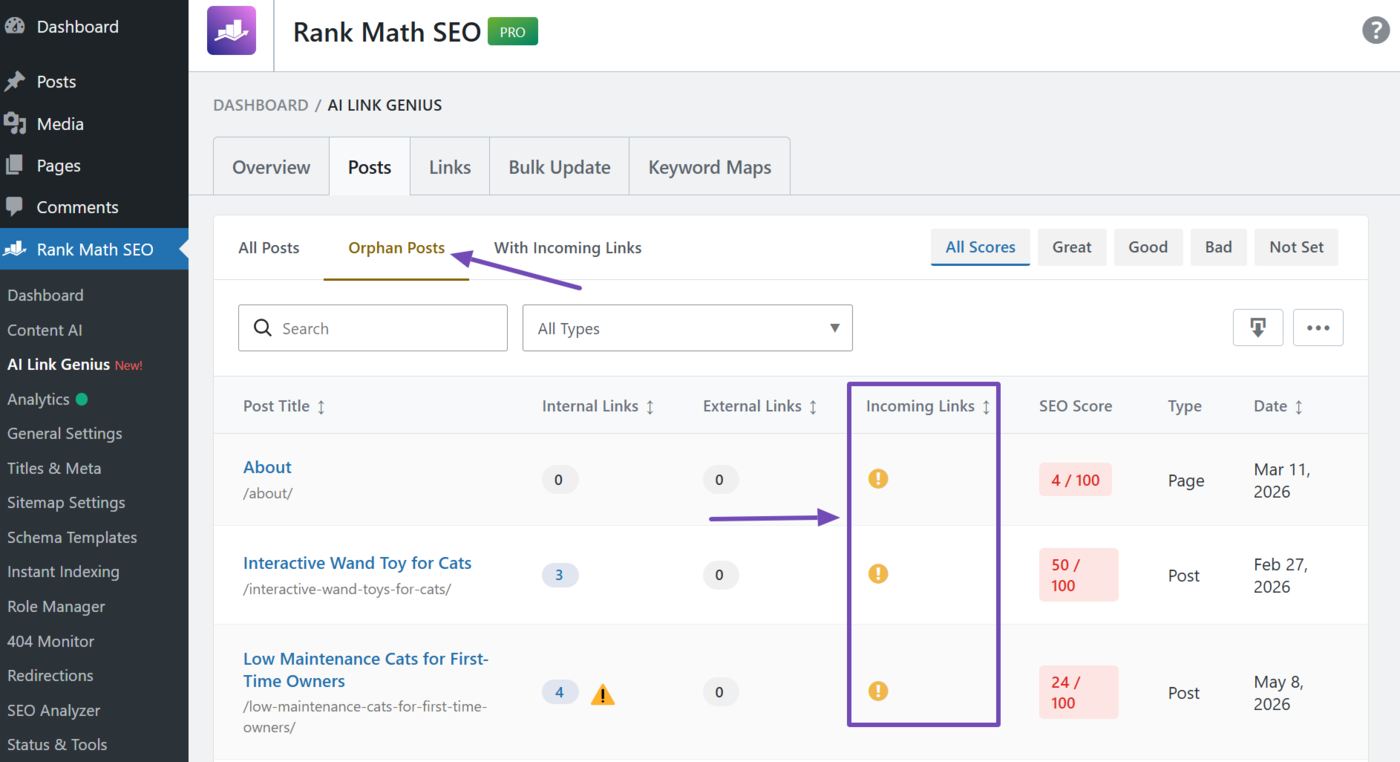
You can now proceed to fix the orphan posts using the Keyword map. This will automatically generate internal links pointing to the orphan post.
7.2 View Post Link Details
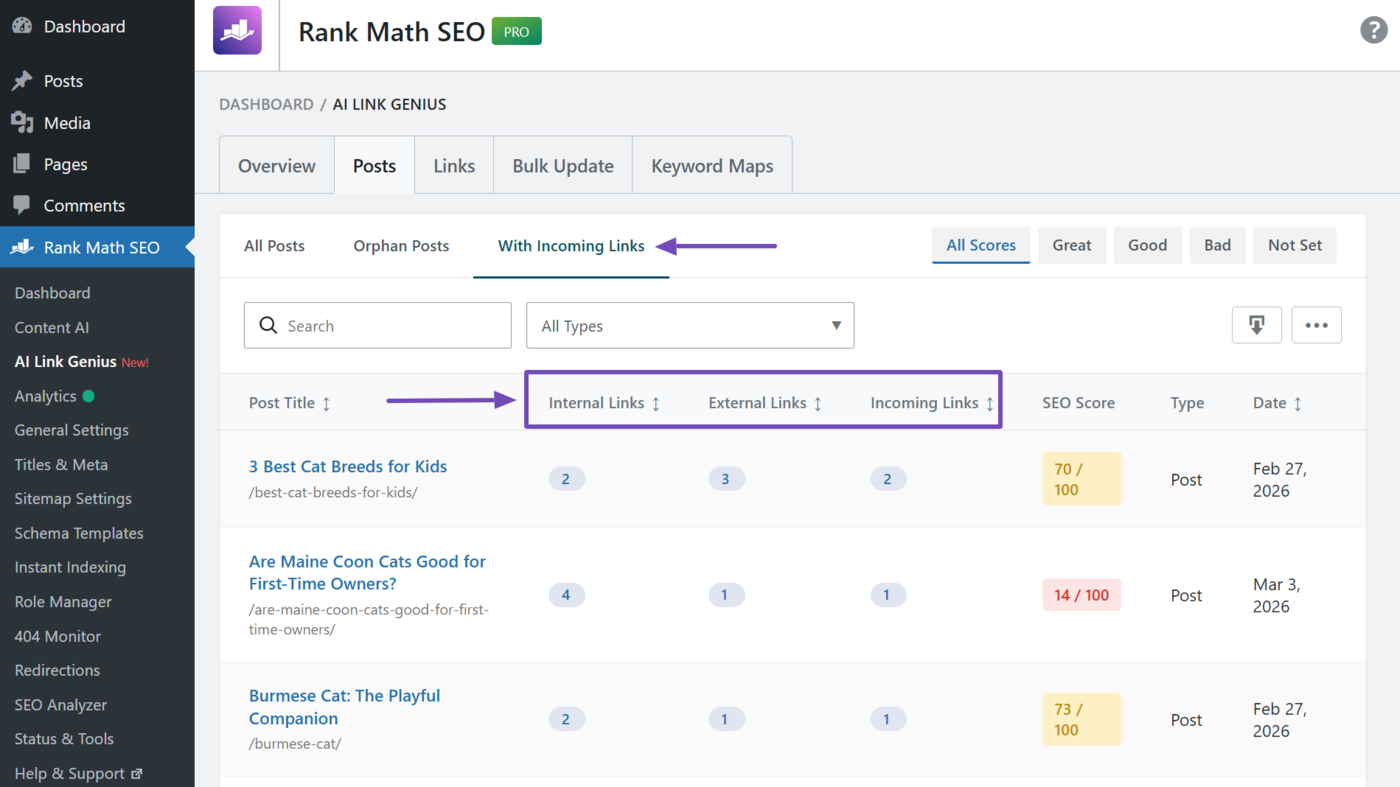
Click the With Incoming Links filter. AI Link Genius will then display the internal, external, and incoming links to your posts and pages.
- Internal Links: Links from the post to another post on your site
- External Links: Links from the post to posts on other sites
- Incoming Links: Links from other posts on your site to this post
7.3 Filter Your Link Coverage Report
The Posts tab includes filters and settings to help you narrow down your orphan posts and post-link details. They include the:
- Search bar
- Post type filter
- SEO score filter
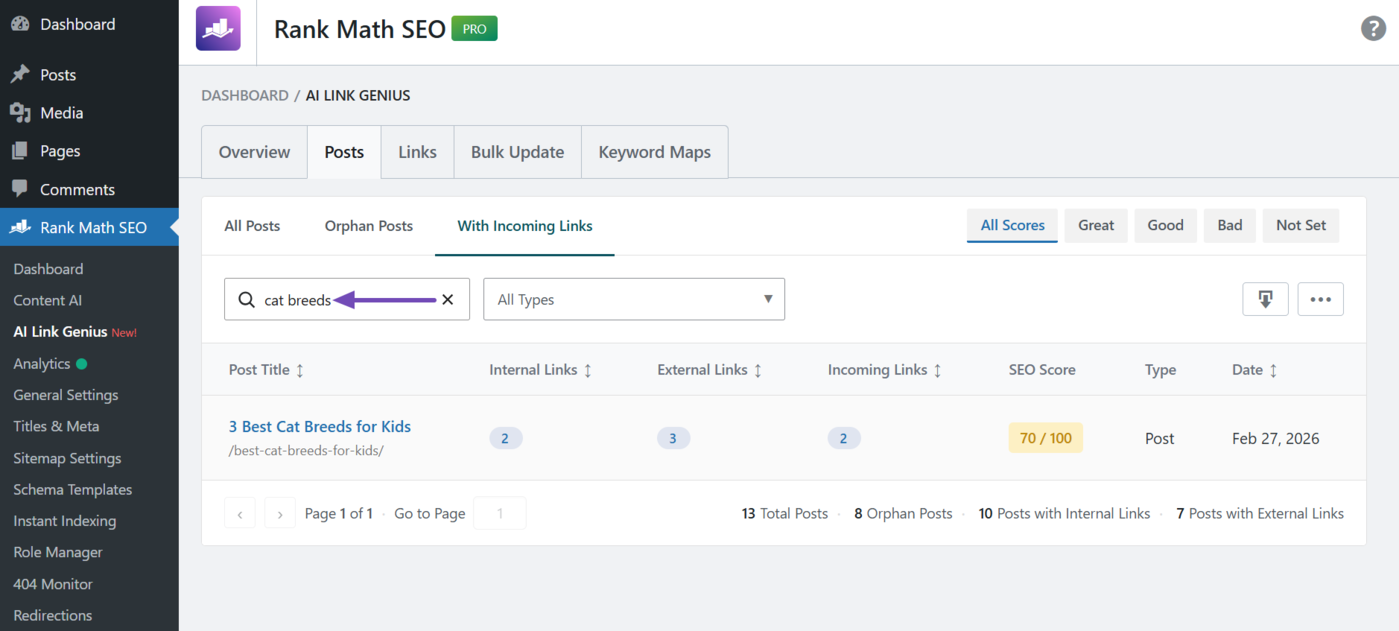
a. Search Bar
Enter a term into the search bar. Once done, the link report will only display post titles that contain that term.
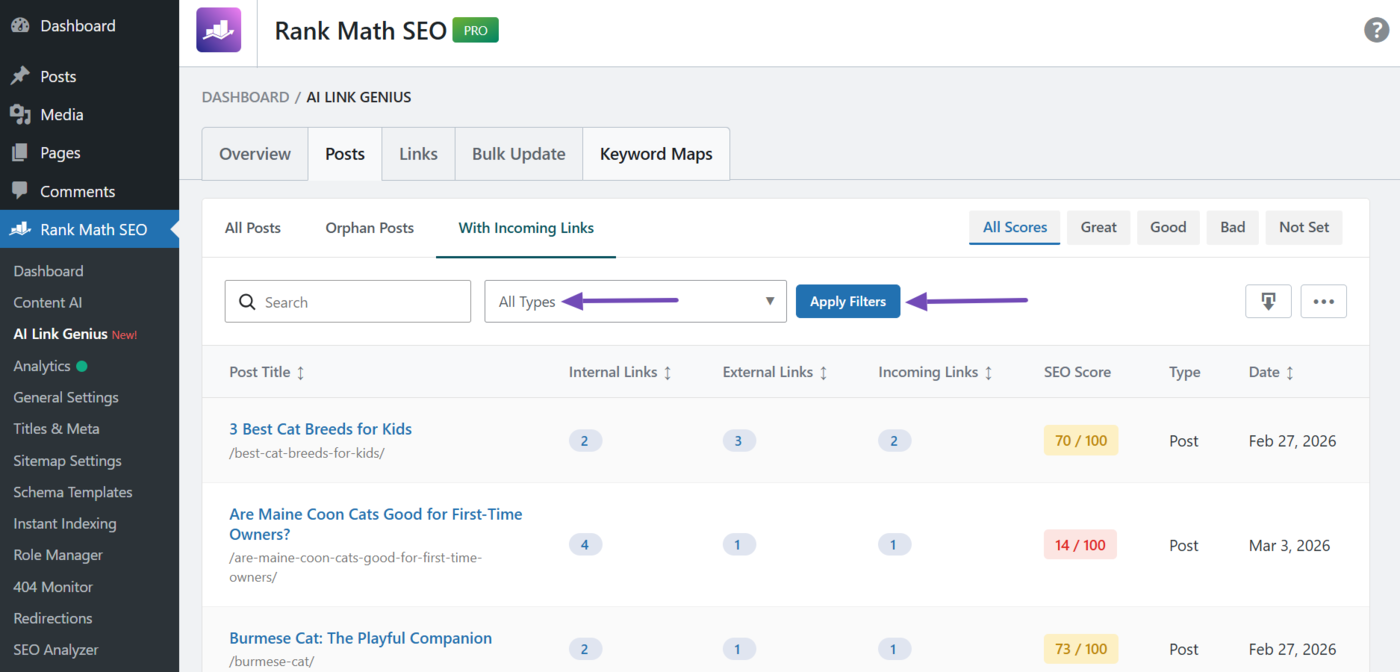
b. Post Type Filter
This lets you filter the report by their post type. The default options include:
- Posts: Shows the report for posts only
- Pages: Shows the report for pages only
An Apply Filters button will appear when you use this filter. Click on it to apply the filter.
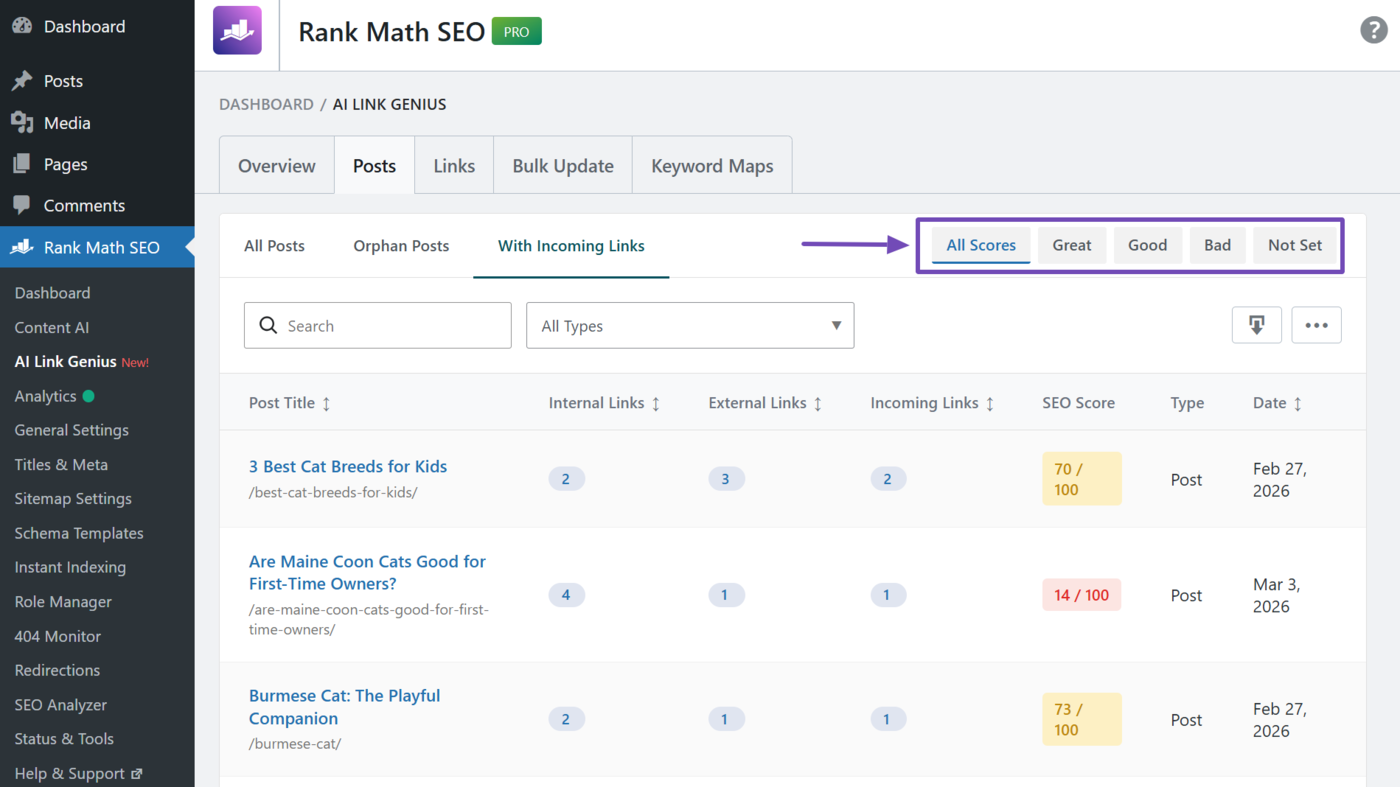
c. SEO Score Filter
This lets you filter the posts in the report by their Rank Math SEO score. The available options include:
- All Scores: Shows all posts regardless of their SEO score
- Great: This only shows posts with an SEO score of 81 and above
- Good: This only shows posts with an SEO score between 51 and 80
- Bad: This only shows posts with an SEO score below 50
- Not Set: This only shows posts without an SEO score
8 Update Multiple Links at Once
The AI Link Genius bulk update feature lets you create multiple internal and external links on your site at once, without having to open individual posts one after another.
To get started, head to Rank Math SEO → AI Link Genius → Bulk Update from your WordPress dashboard.
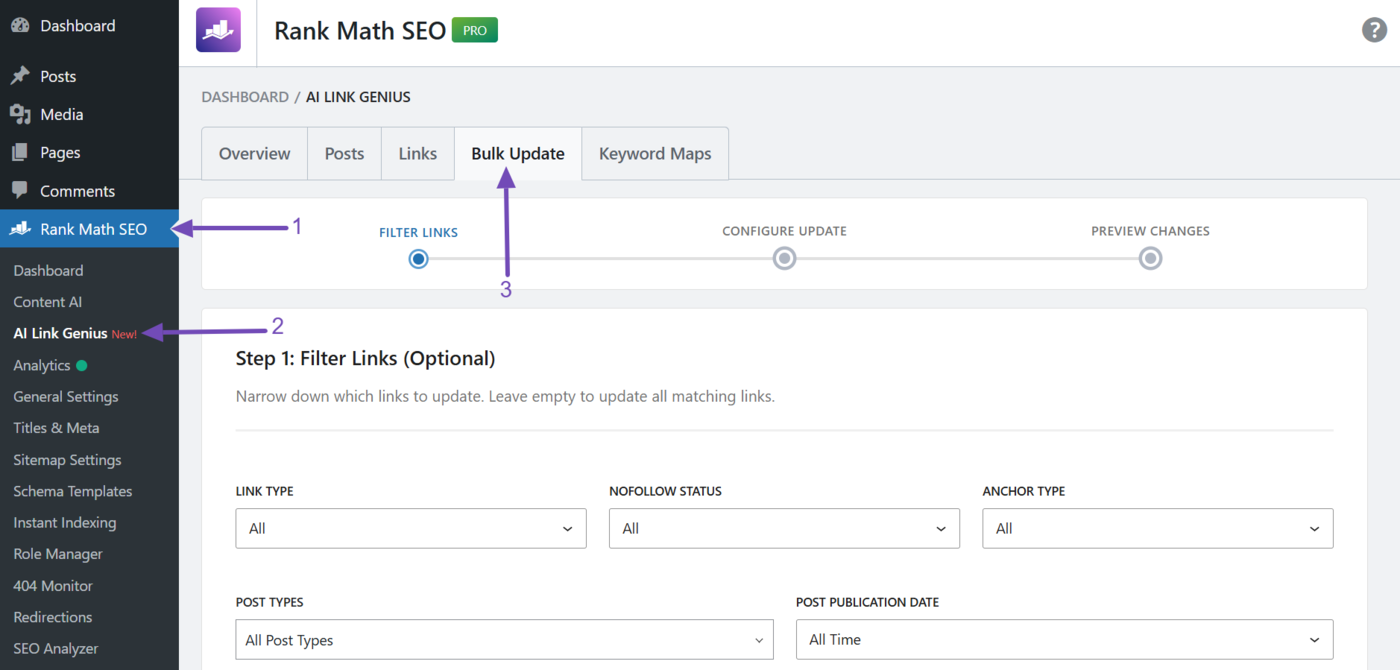
You can now proceed to create your bulk updates and, when necessary, undo them.
- Create a bulk update
- Rollback a bulk update
8.1 Create a Bulk Update
The bulk update settings are split across three steps:
- Step 1: Filter links
- Step 2: Configure update
- Step 3: Preview
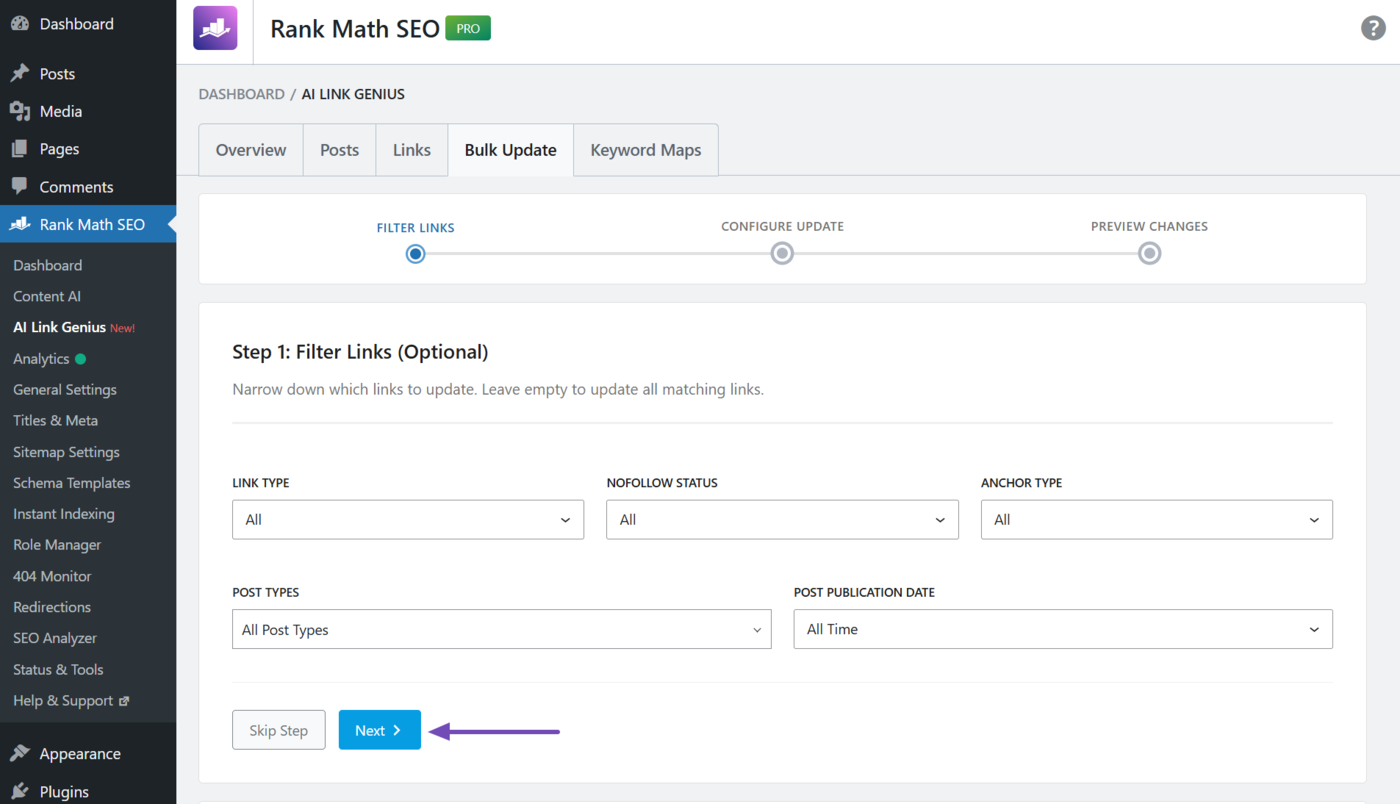
Step 1: Filter Links
The filter links settings let you narrow down on the type of links to bulk update. However, these settings are optional, and you can skip them. Otherwise, these are the available options:
- Link Type: Choose whether to update internal links only, external links only, or both
- Nofollow Status: Choose whether to update all links or only those with or without a nofollow tag
- Anchor Type: Choose whether to update image links, text links, or both
- Post Types: Choose the post types to bulk update
- Post Publication Date: Select the publish date of the bulk links to update
Make your desired selection. Once done, click Next.
Step 2: Configure Update
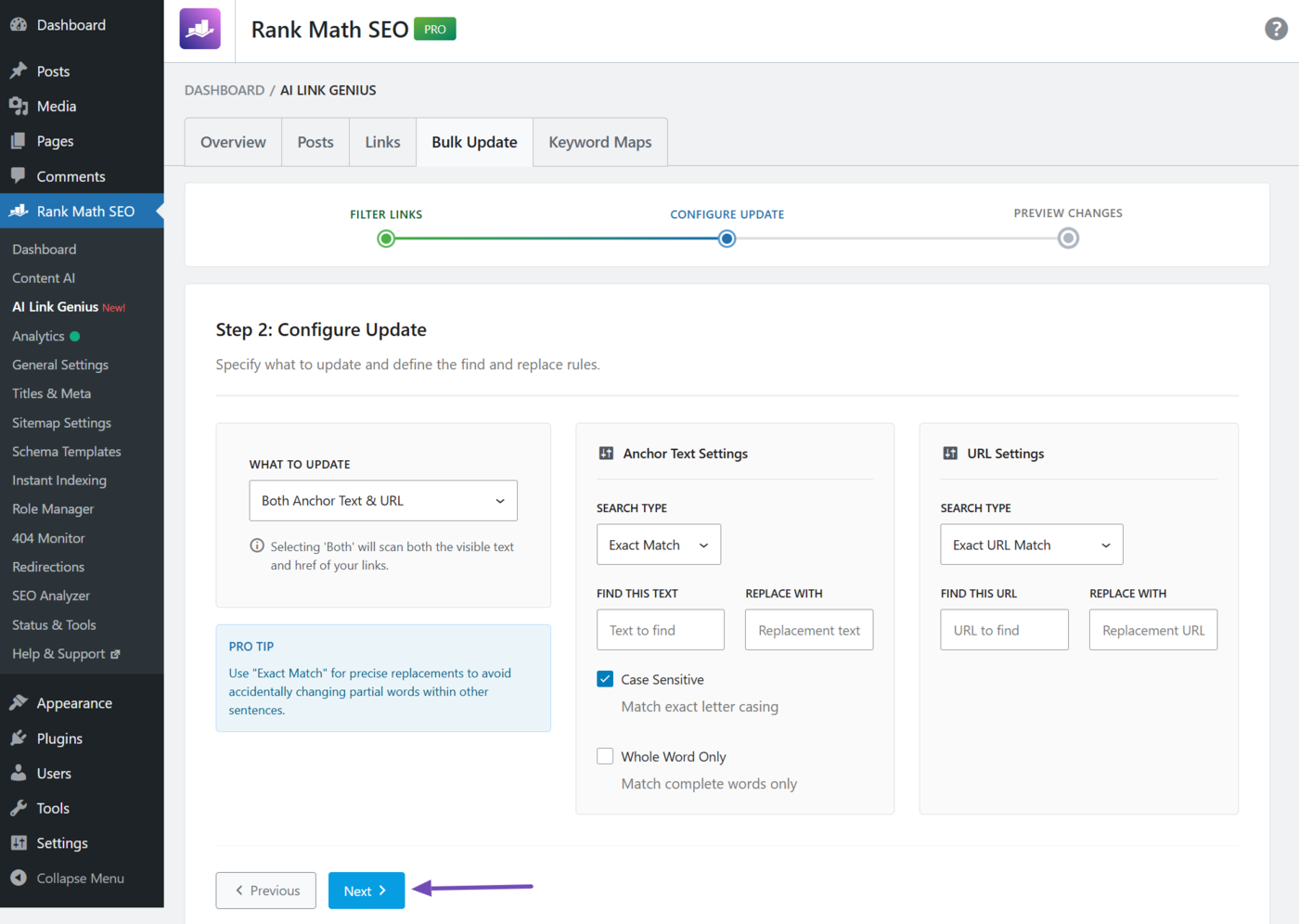
The next step is to configure the bulk update. You have three settings here:
- What To Update: Choose whether to bulk update URLs, anchor texts, or both
- Anchor Text Settings: Enter the details of the anchor text to bulk update
- URL Settings: Enter the details of the URLs to bulk update
Once done, click Next.
Step 3: Generate Preview
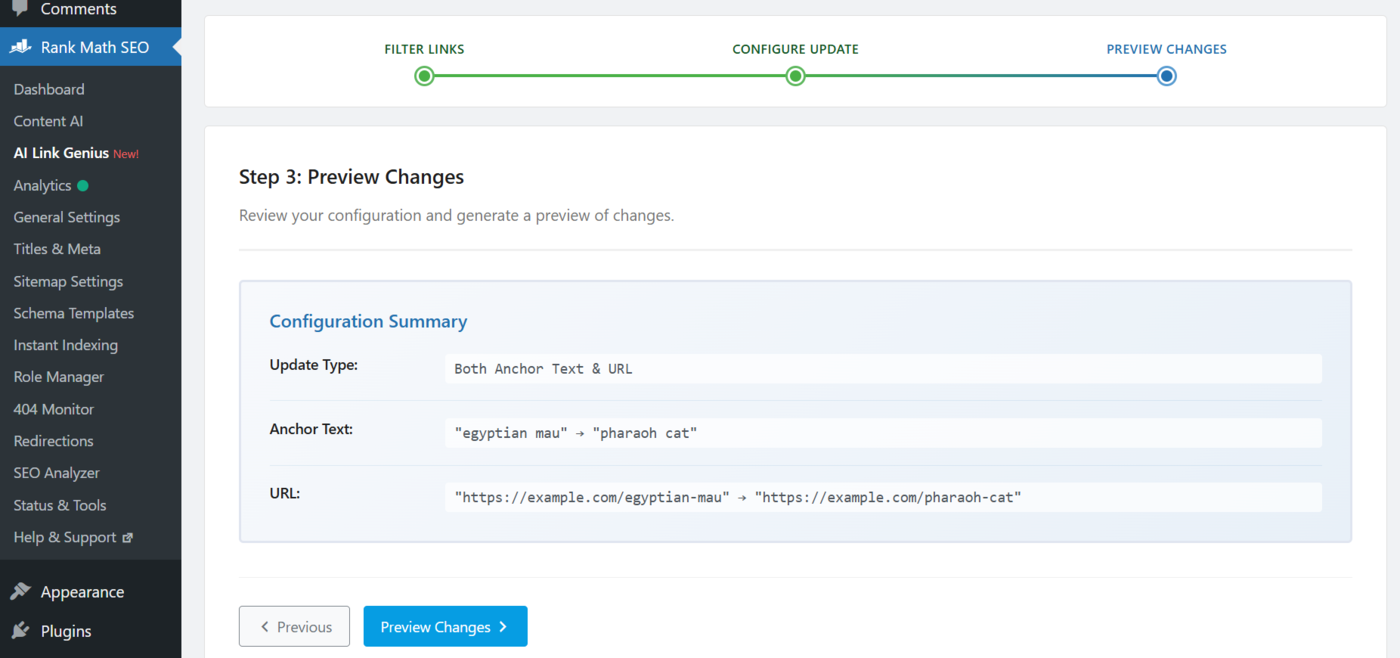
You will preview your bulk update settings here. The details displayed here depend on whether you are bulk updating anchor texts, URLs, or both. It can include:
- Update Type: Indicates whether you are updating anchor text, URLs, or both
- Anchor Text: Displays the existing anchor text and its replacement
- URL: Displays the existing URL and its replacement
If you are okay with these, click Generate Preview.
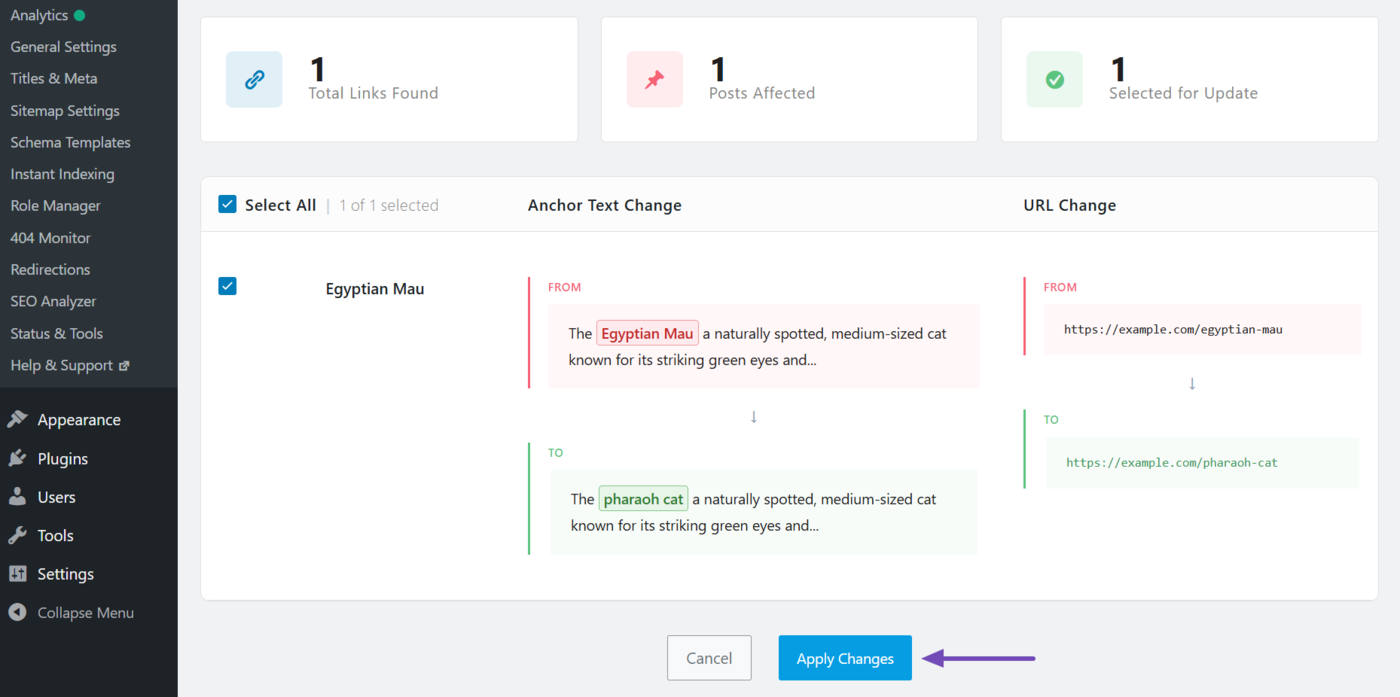
AI Link Genius will now assess your content for the posts that meet your criteria, and show you a preview. Review it and uncheck the ones you do not want to update. Once done, click Apply Changes.
Your anchor texts and URLs will now be updated in bulk.
8.2 Rollback a Bulk Update
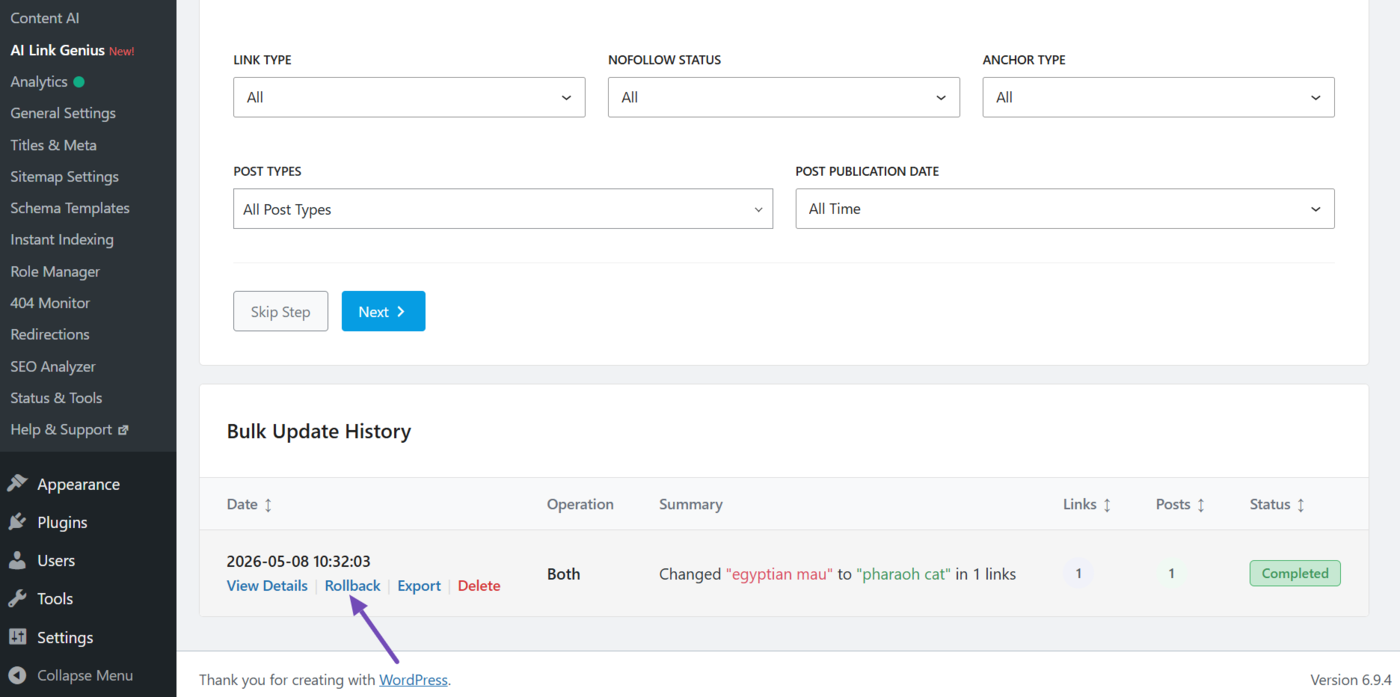
The bulk update history panel appears after you create your bulk update. From here, you can view all past bulk updates and rollback the ones you want to undo.
To undo a bulk update, hover over it and select Rollback. The updated links will revert to their previous state.
9 Auto-Link Keywords Across Your Site
AI Link Genius lets you automatically add internal or external links to specific keywords across your current and future posts. Here’s how to do that.
- Create a keyword map
- Apply a keyword map
- Rollback a keyword map
9.1 Create a Keyword Map
To get started, go to Rank Math SEO → AI Link Genius → Keyword Maps from your WordPress dashboard and click Create Keyword Map.
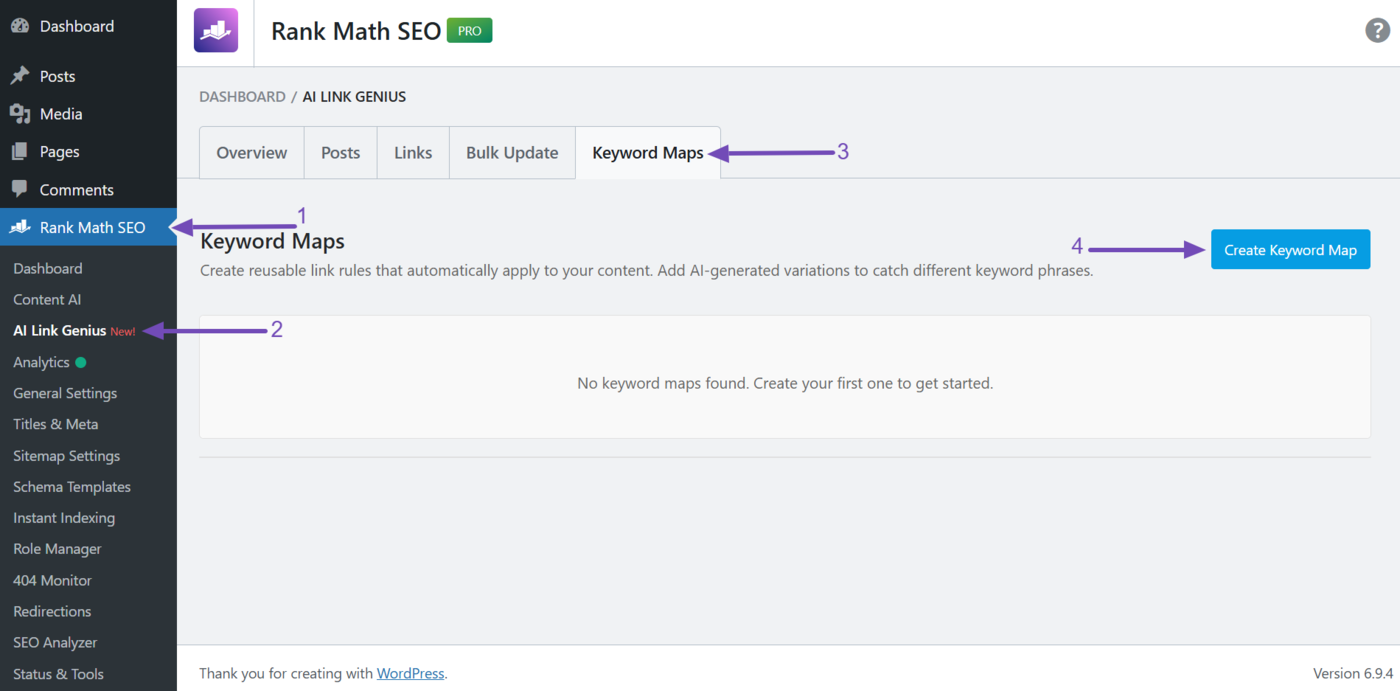
The keyword map settings will appear. The fields include:
- Name: Enter the primary keyword to use as anchor text
- Target URL: Enter the internal or external URL that the anchor text will point to
- Description: Enter a description to help you remember why you created this keyword map
- Keyword Variations: Enter additional keywords to use as anchor text
Note: The Keyword variations field only appears after you enter a name into the NAME field.
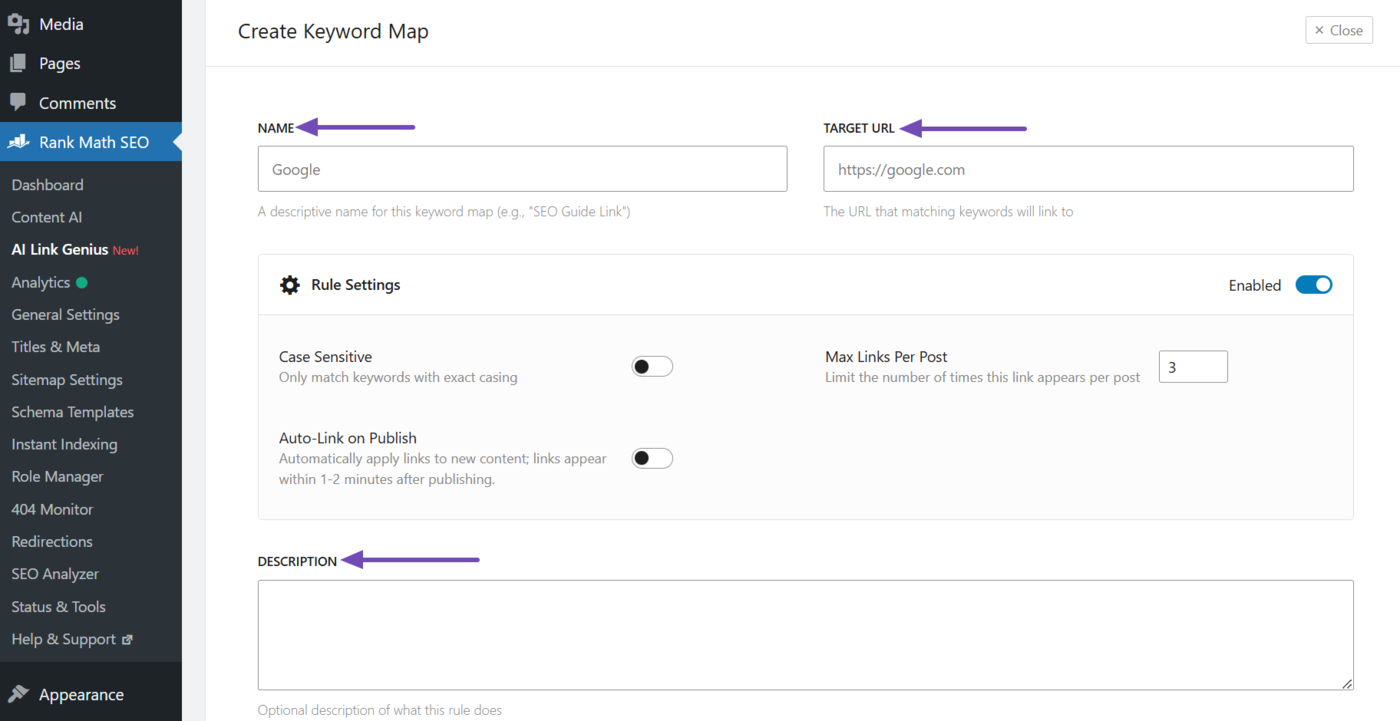
The keyword map also includes rule settings. The available rules include:
- Enabled: Toggle on to enable the keyword map or off to disable it
- Case Sensitive: Choose whether to match the keyword’s letter case
- Auto-Link on Publish: Apply the keyword map to future posts automatically
- Max Links Per Post: Set the maximum number of links per post (1–100)
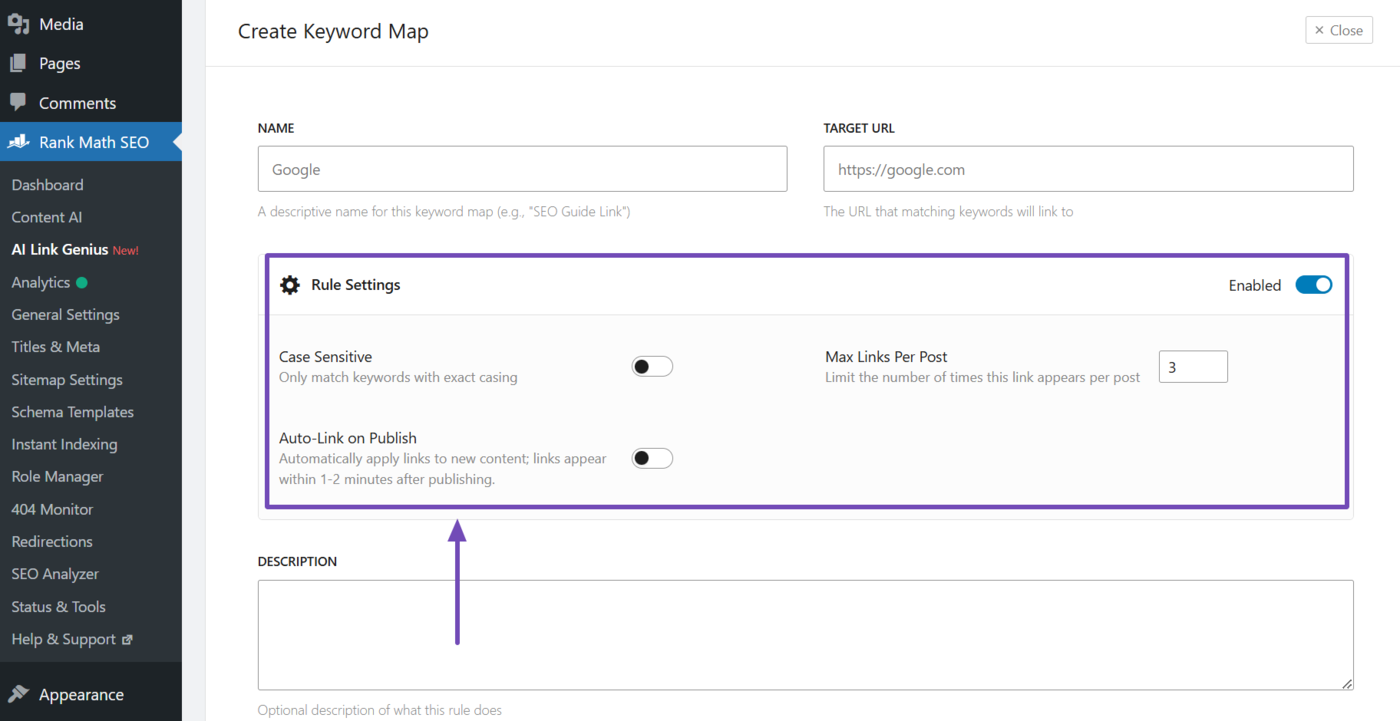
You can also get AI Link Genius to generate variations of your keywords. To do that, click Generate AI Variations.
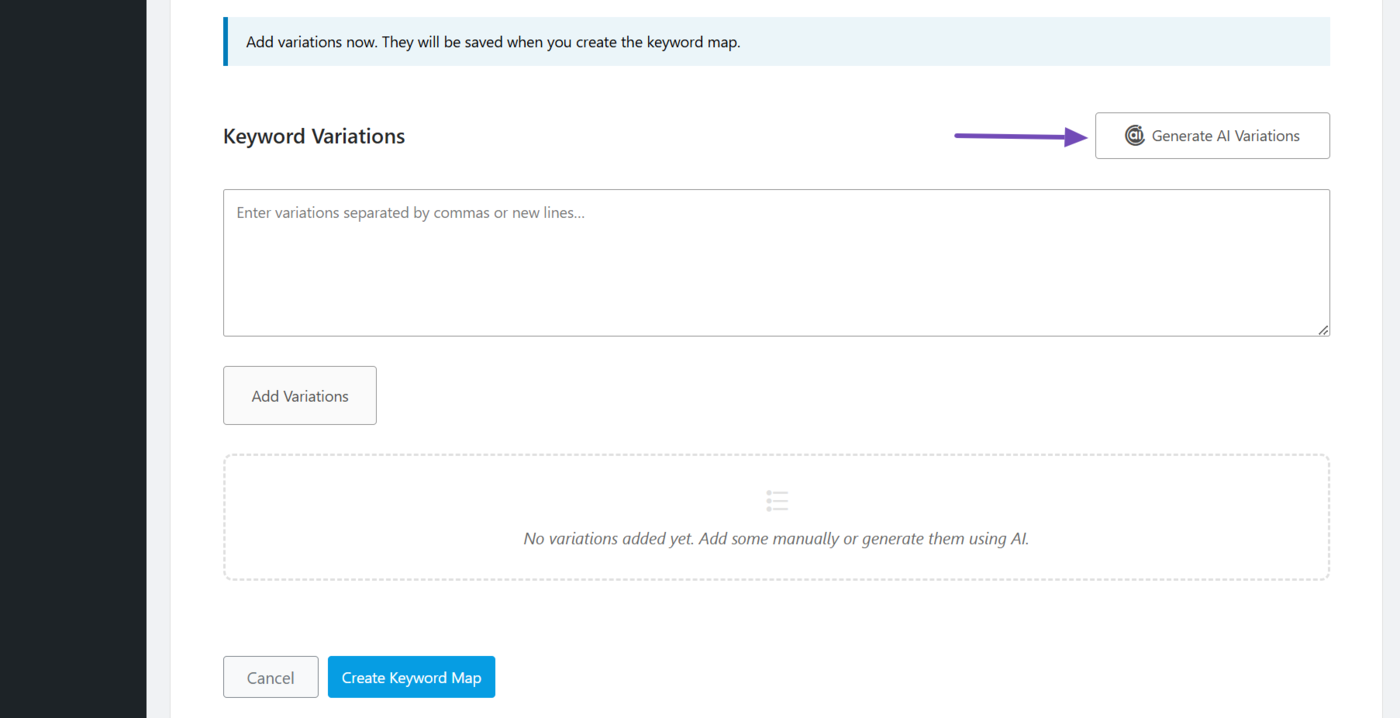
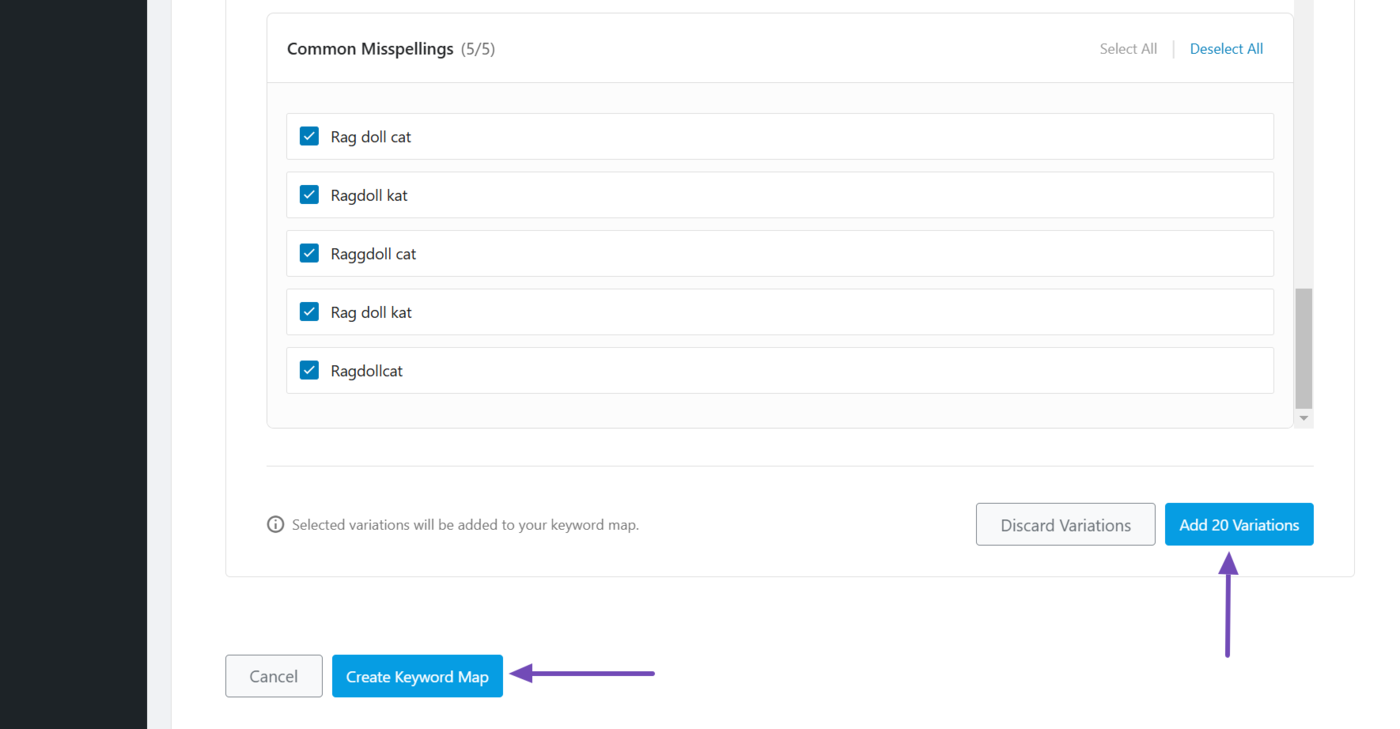
AI Link Genius will generate variations of your keywords. Review it and uncheck the ones you do not want. Then click Add [Number] Variations.
Once done, click Create Keyword Map. The keyword map will be created, but it has not been applied to your site.
9.2 Apply a Keyword Map
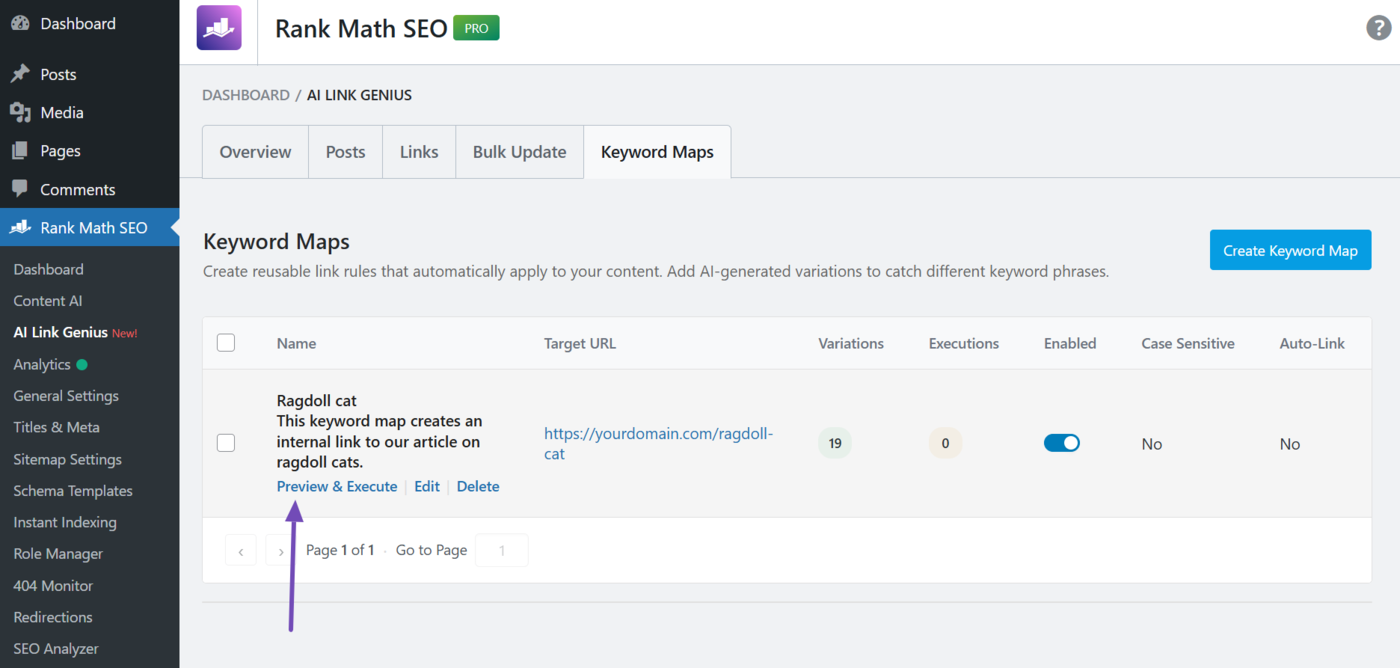
Once you have created a keyword map, hover over it and click Preview & Execute.
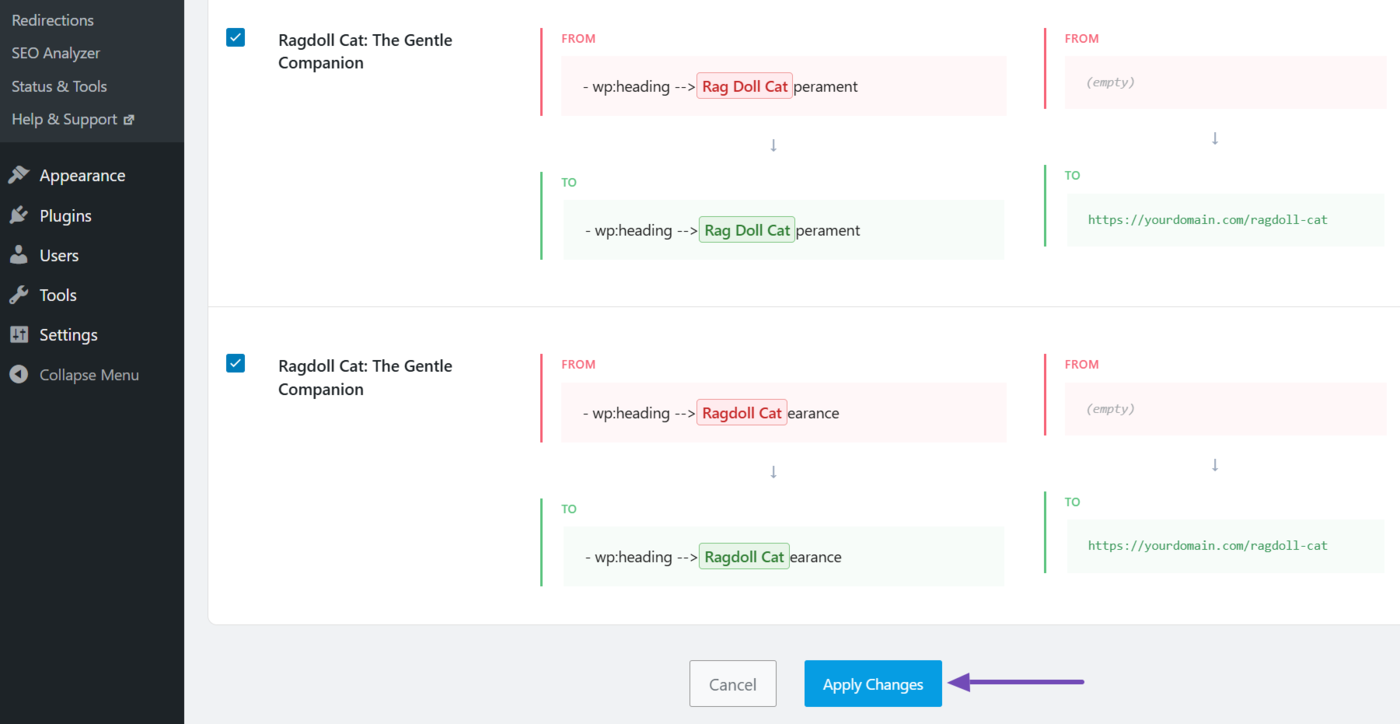
AI Link Genius will display a preview. Review it and uncheck the changes you do not want. Once done, click Apply Changes.
The keyword map will be applied to your site, and your links will be updated.
9.3 Rollback a Keyword Map
The keyword map history panel appears after your keyword map has been executed. Hover over any entry and click Rollback to undo it.
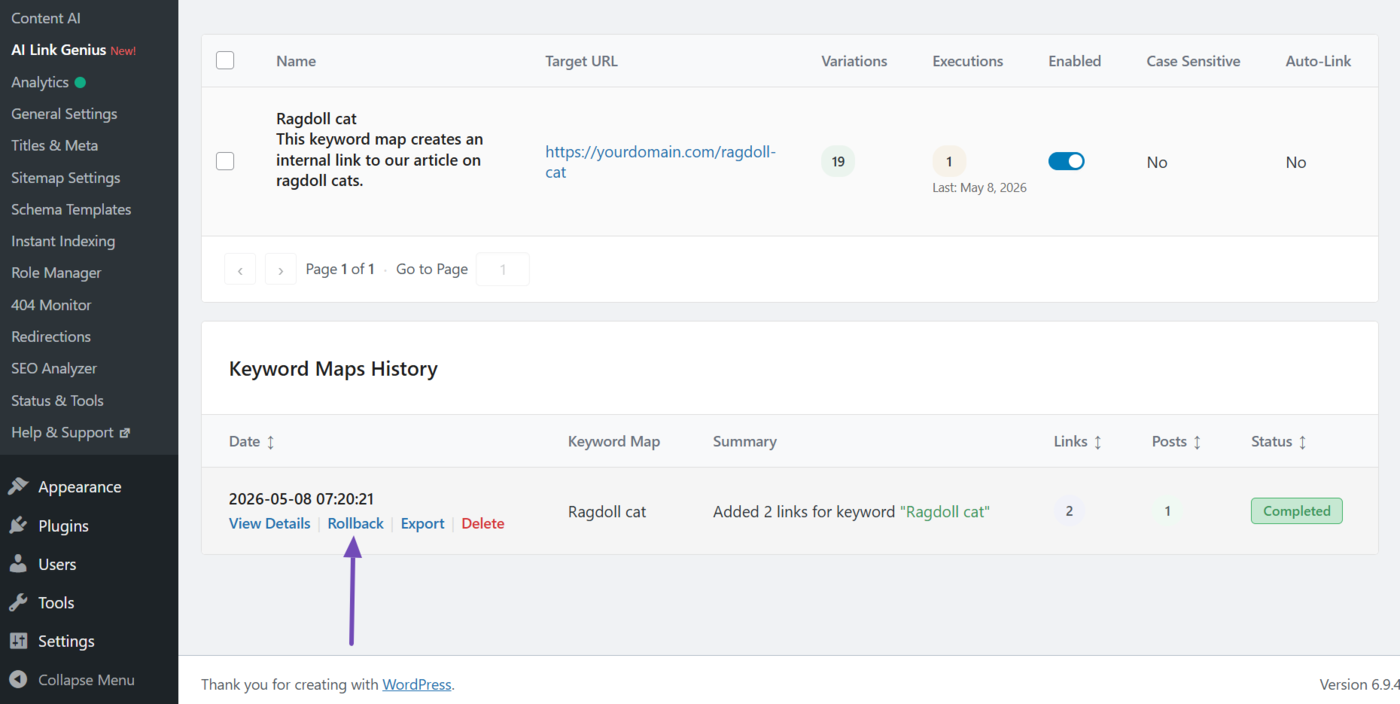
The links generated by the keyword map will be removed, and your content will revert to its previous state.
That is all on using AI Link Genius. If you have any questions, you’re always more than welcome to contact our dedicated support team, who are available 24/7, 365 days a year.