
AI Link Genius allows you to find and replace multiple links on your site at once, all without opening the individual posts or pages.
Instead of visiting your posts and pages to change the URLs or anchor texts one after another, enter them into the bulk update tool, enter their replacements, and Link Genius will find those URLs or anchor texts (or both) and automatically replace them across your site.
We will now show you how to do that.
In this article, we’ll cover:
1 Enable AI Link Genius
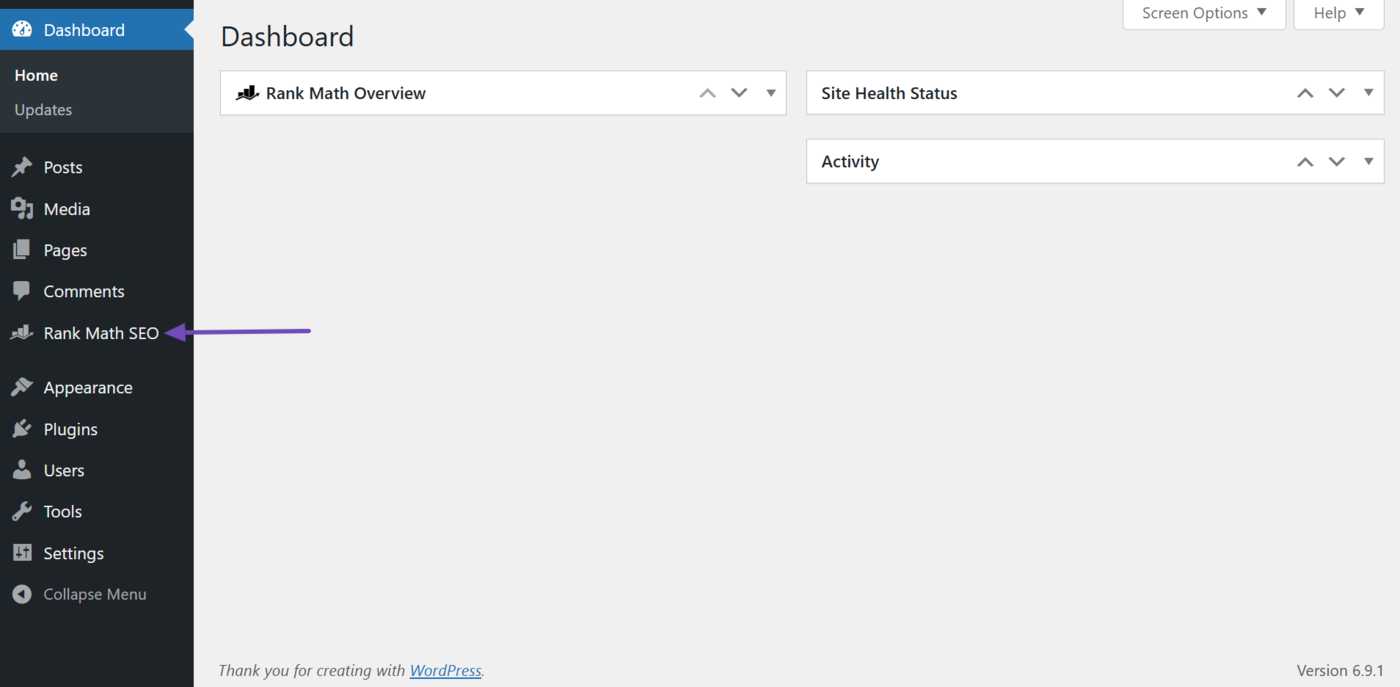
To get started, we have to make sure we have enabled the AI Link Genius module. To do that, click Rank Math SEO from your WordPress dashboard.
You need AI Link Genius to update your URLs and anchor texts in bulk. Head to the AI Link Genius page to get started.
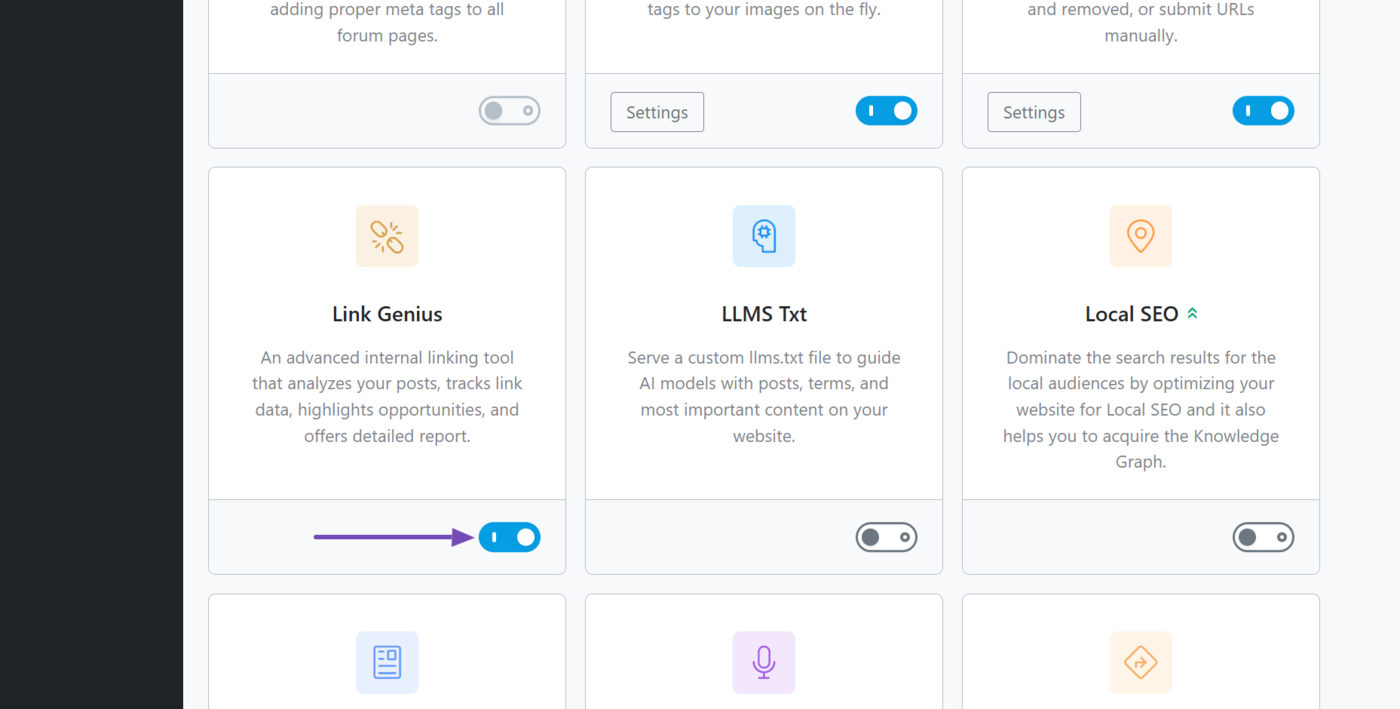
Once done, scroll down and enable Link Genius, as shown below.
2 Head to the Bulk Update Tool
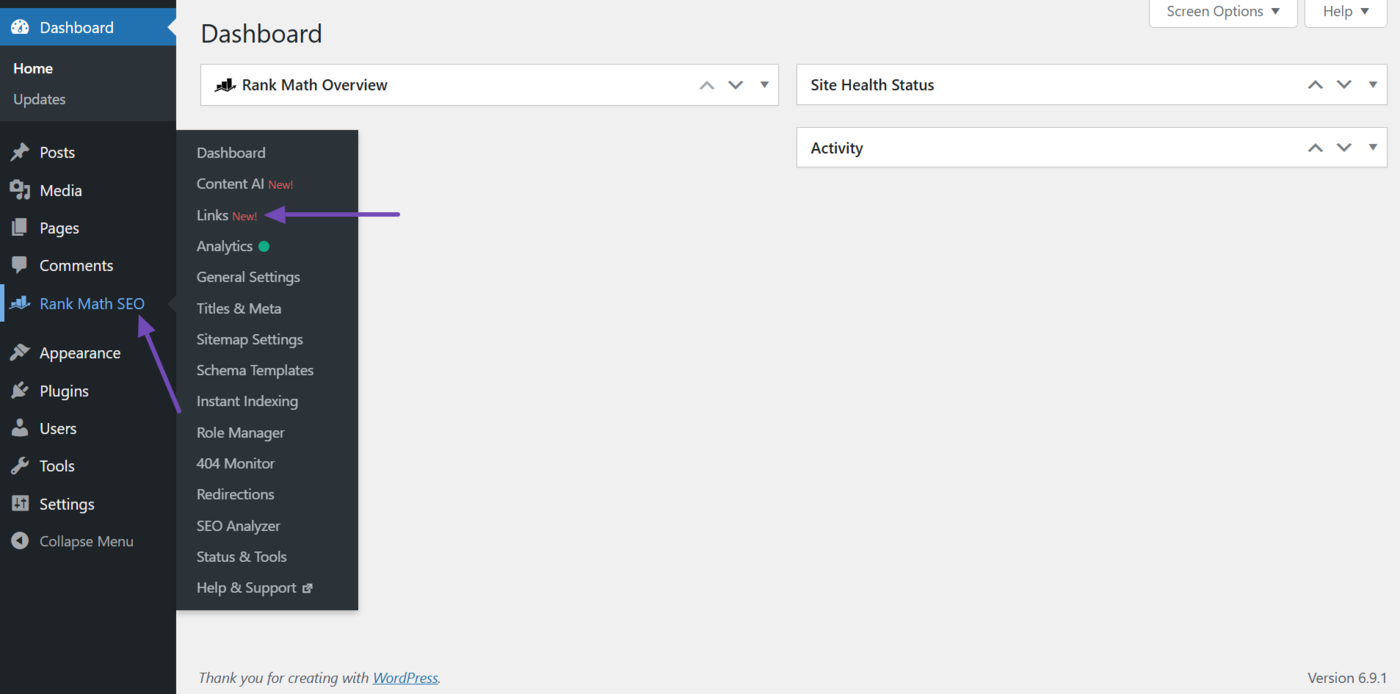
You will now head to the bulk update tool in Link Genius. To do that, head to Rank Math SEO → Links, as shown below.
Then click Bulk update.
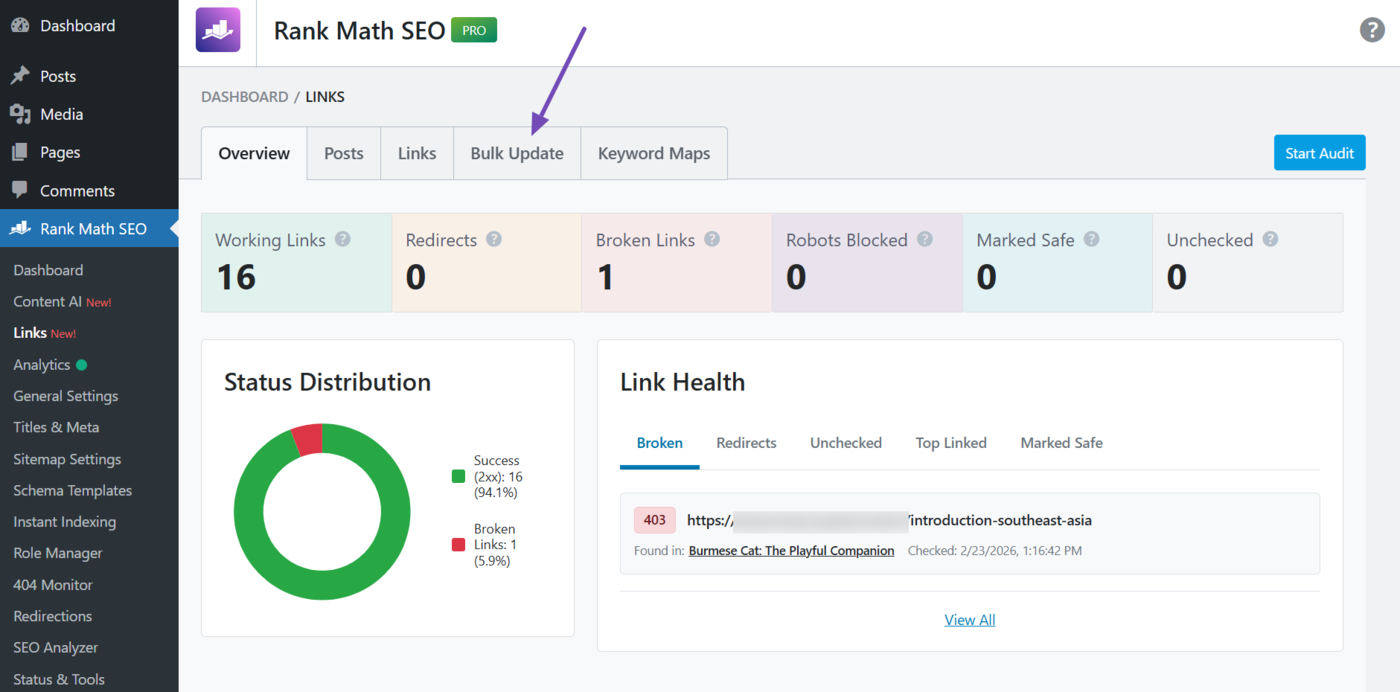
You will now be presented with the bulk update tool. Let us show you how to use it.
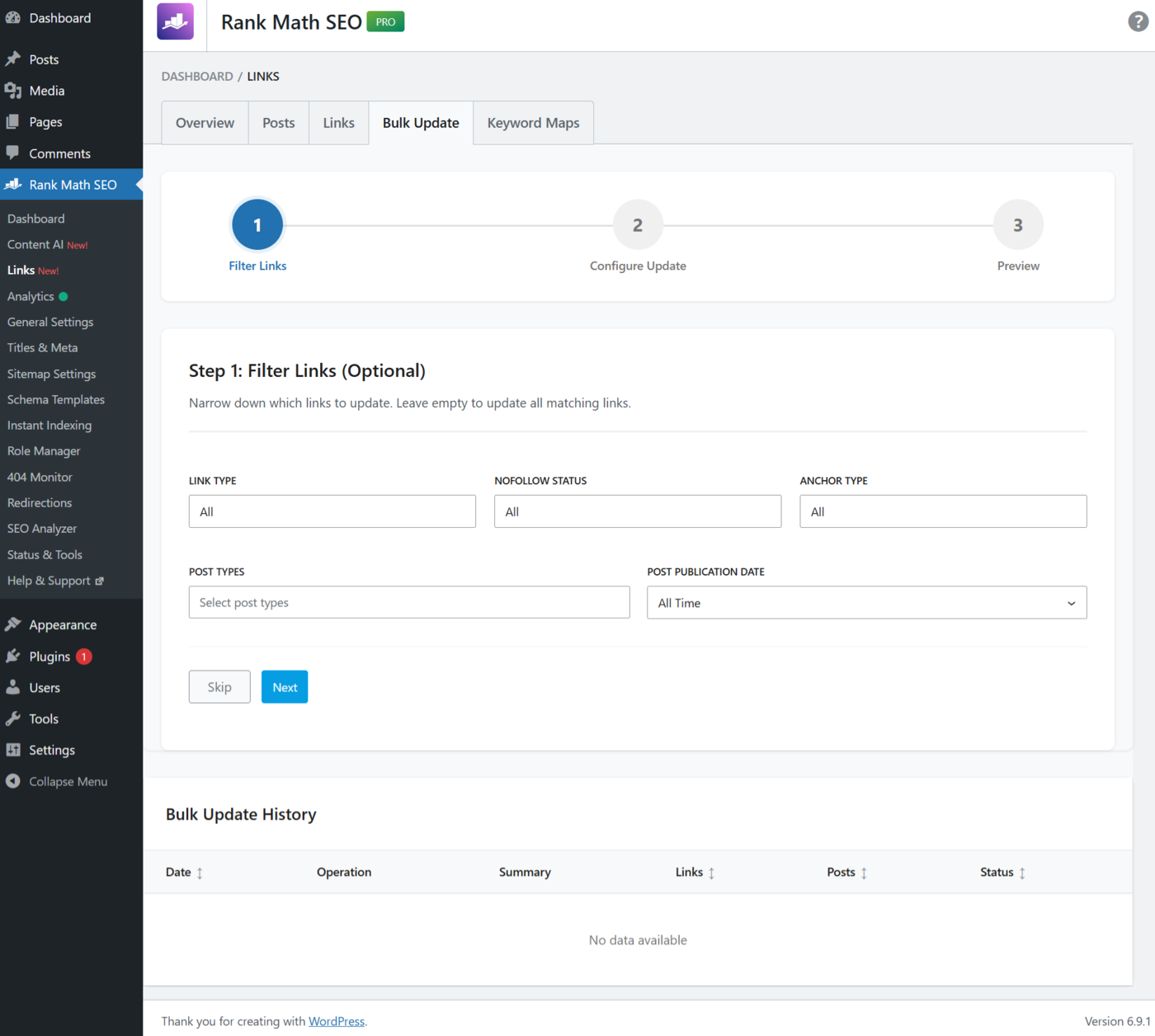
3 Filter Links Settings in the Bulk Update Tool
The filter links setting is the first step in the bulk update tool. It lets you narrow down on the links you will later update. For example, you can set it to only update links that appear on your posts, or to only update internal links.
Note: This setting is optional, and you can click Skip to ignore it if you want to update all URLs or anchor texts that match the conditions you will set in the upcoming settings.
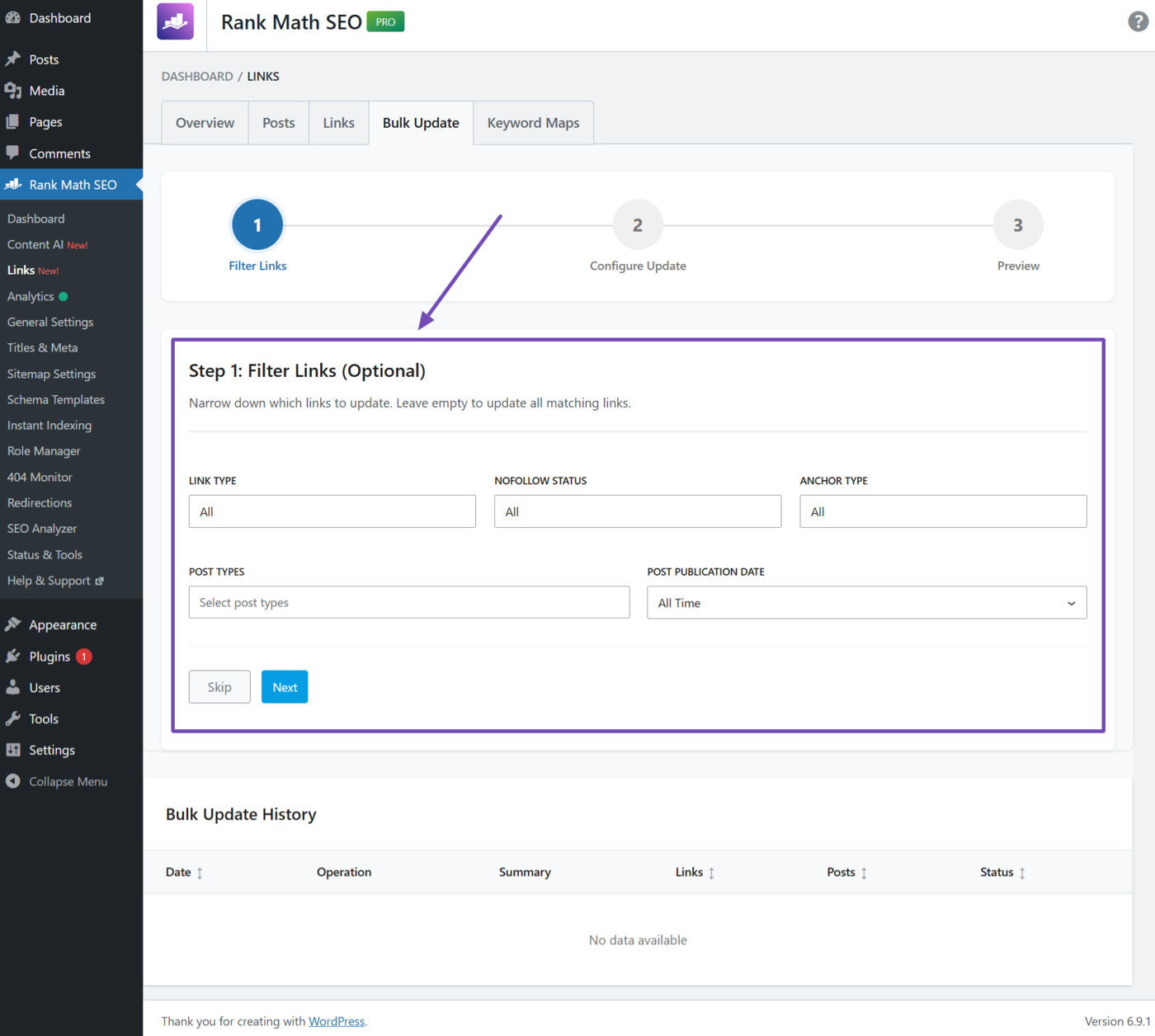
The available options in the filter links settings include:
- Link type
- Nofollow status
- Anchor type
- Post types
- Post publication date
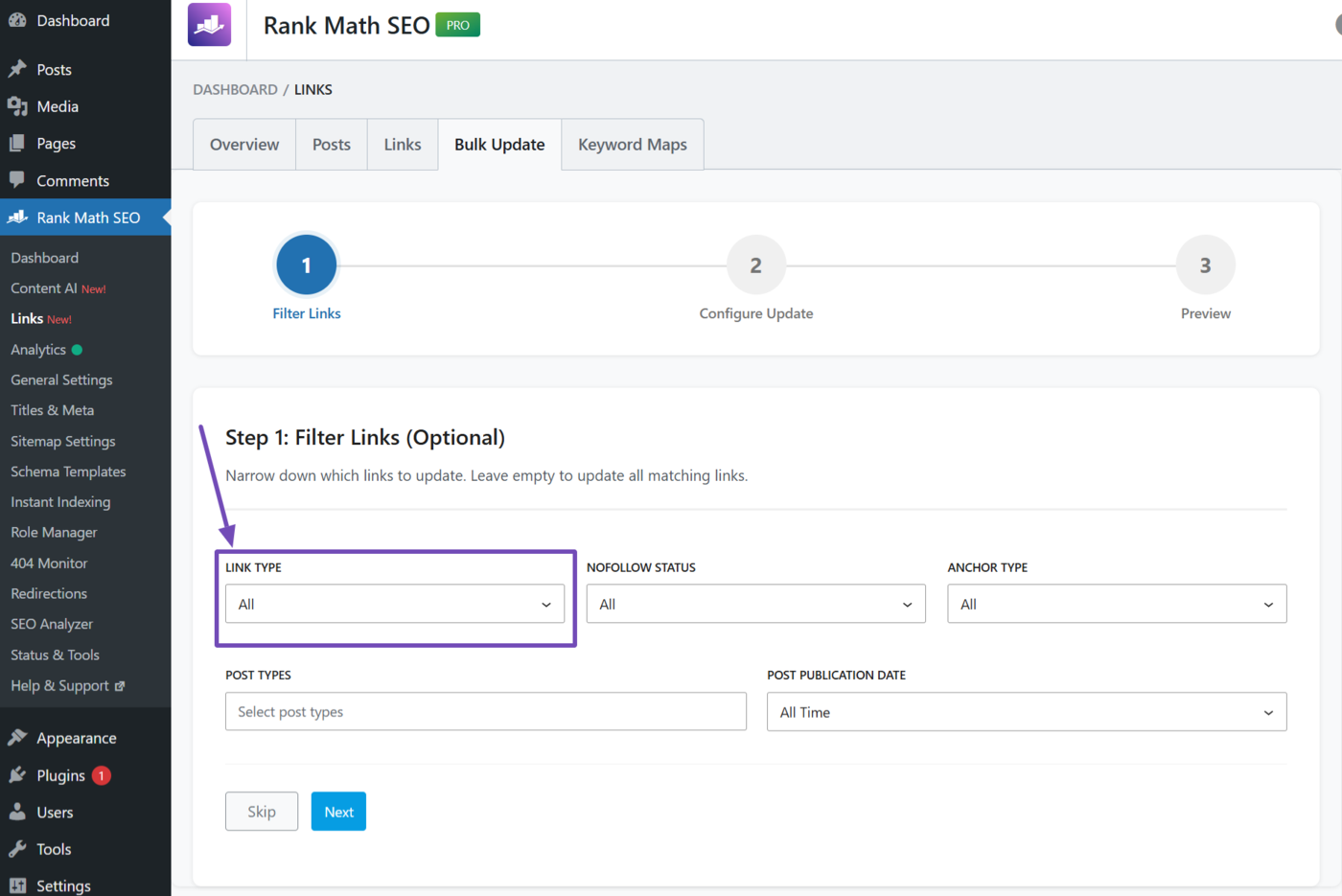
3.1 Link Type
Identify the type of links to show. The available options include:
- All: Identify both internal and external links
- Internal: Identify internal links only (These links point to other pages on your site.)
- External: Identify external links only (These links point to other pages on another site.)
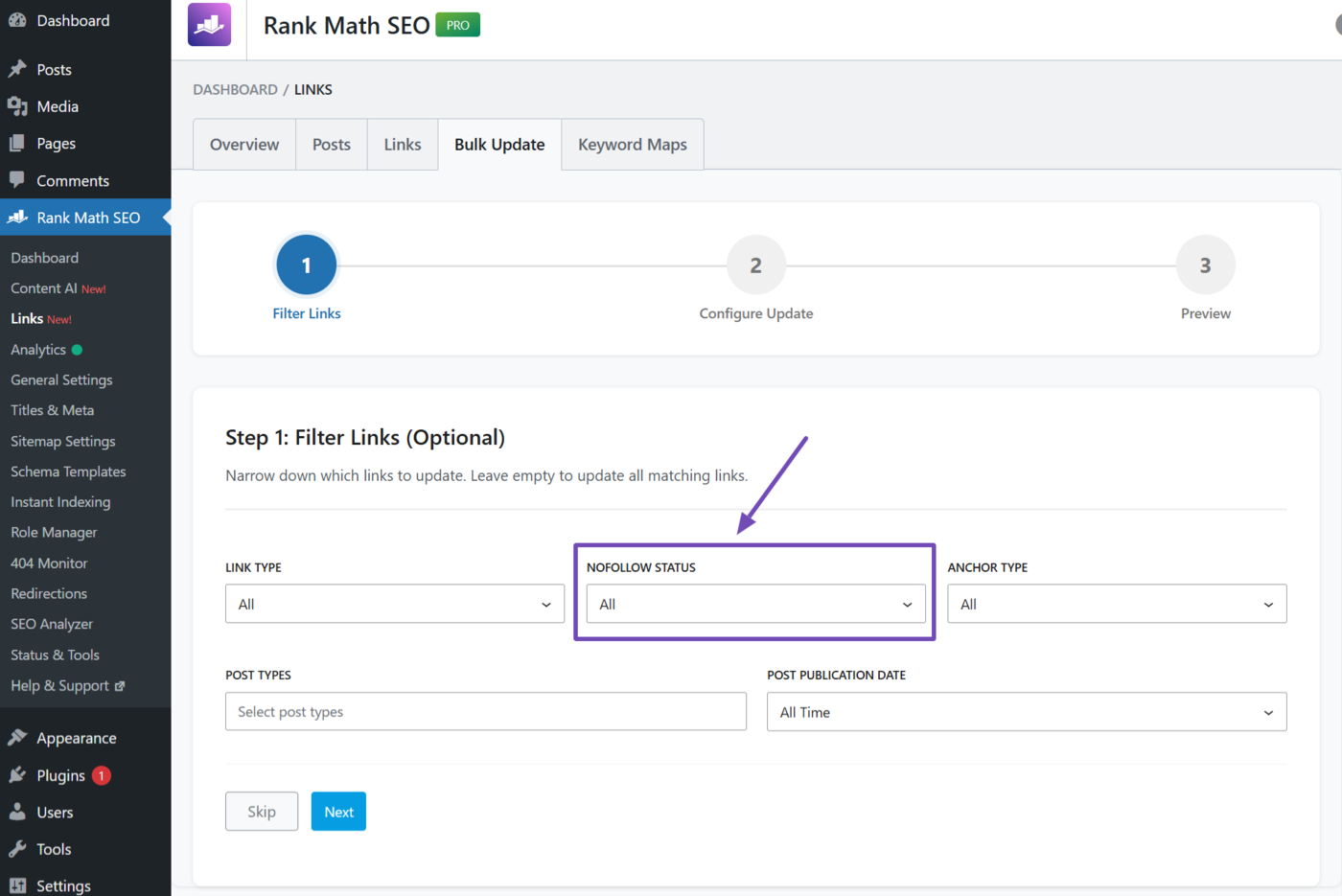
3.2 Nofollow Status
This option lets you filter links based on their follow status. The available choices include:
- All: Identify all links regardless of their follow status
- Nofollow: Only identify links with a nofollow tag
- Dofollow: Only identify links without a nofollow tag
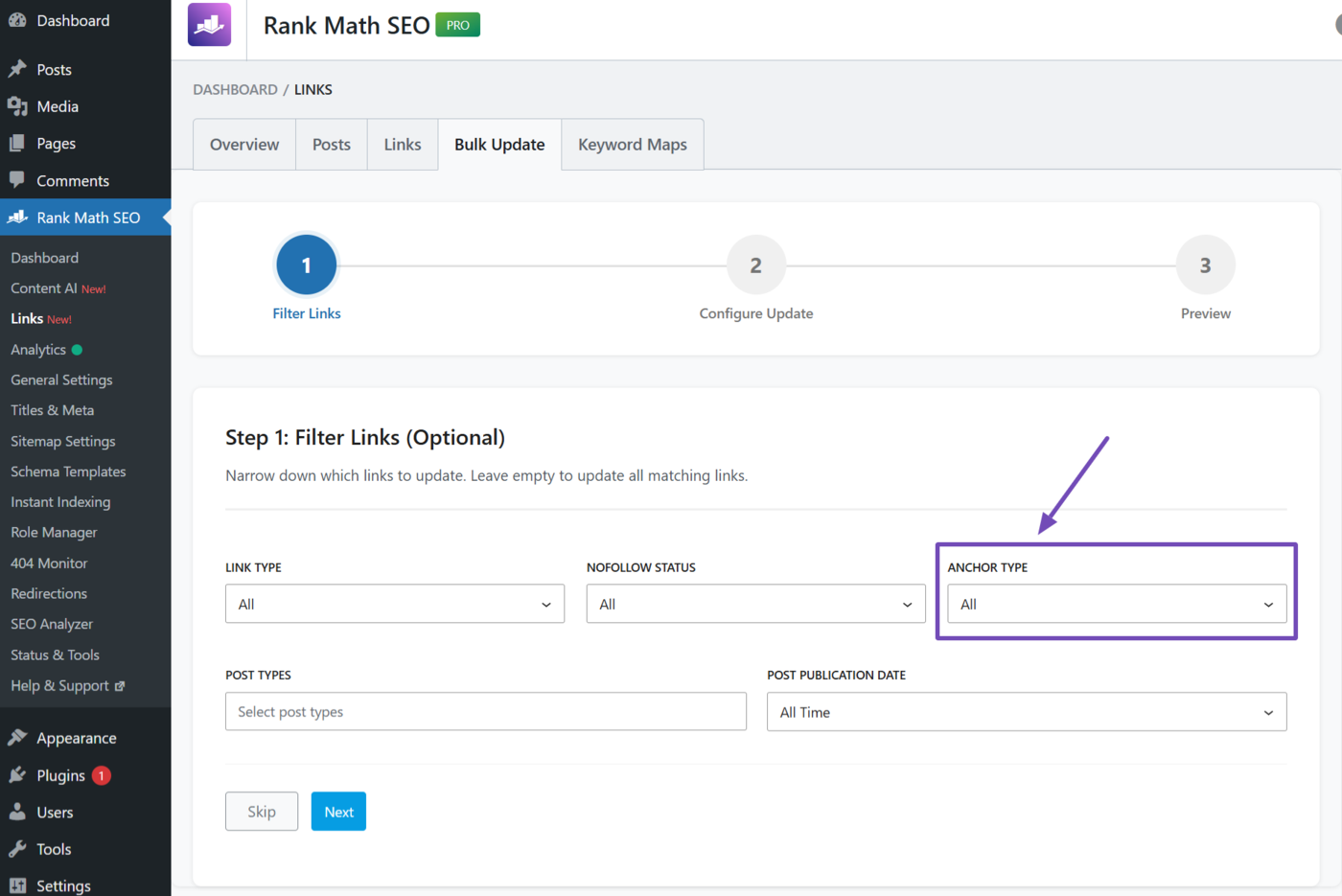
3.3 Anchor Type
This lets you filter links based on their anchor type. The available options include:
- All: Identify all relevant links, regardless of their anchor type
- Text: Only identify links with text anchors
- Image: Only identify links with image anchors
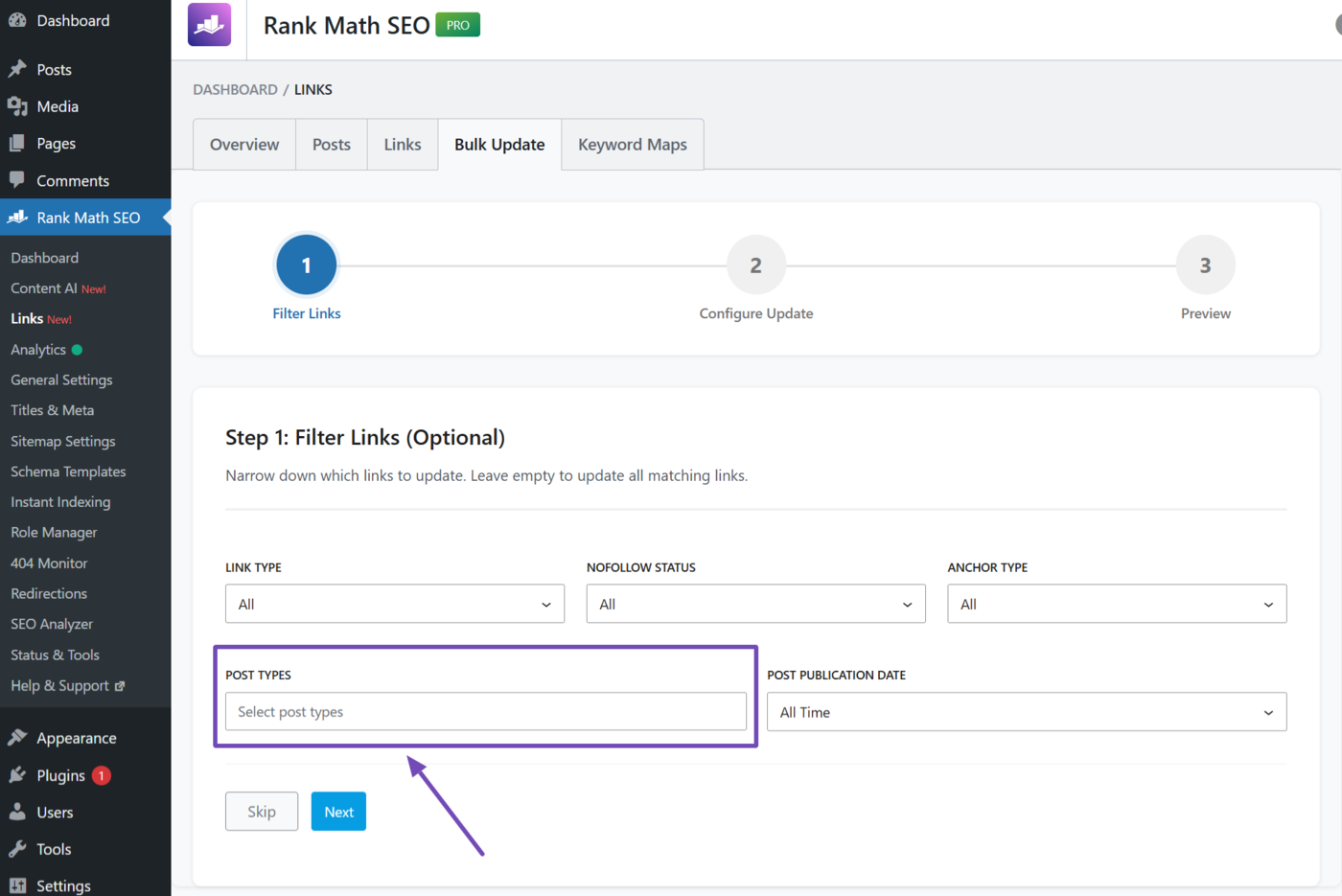
3.4 Post Types
Select the relevant post types you want to work with. The available options depend on the content on your site. Some possible options include:
- Posts: Identify links in posts only
- Pages: Identify links in pages only
- Products: Identify links in product pages only
You can select multiple options. If you will update all post types, leave this field blank.
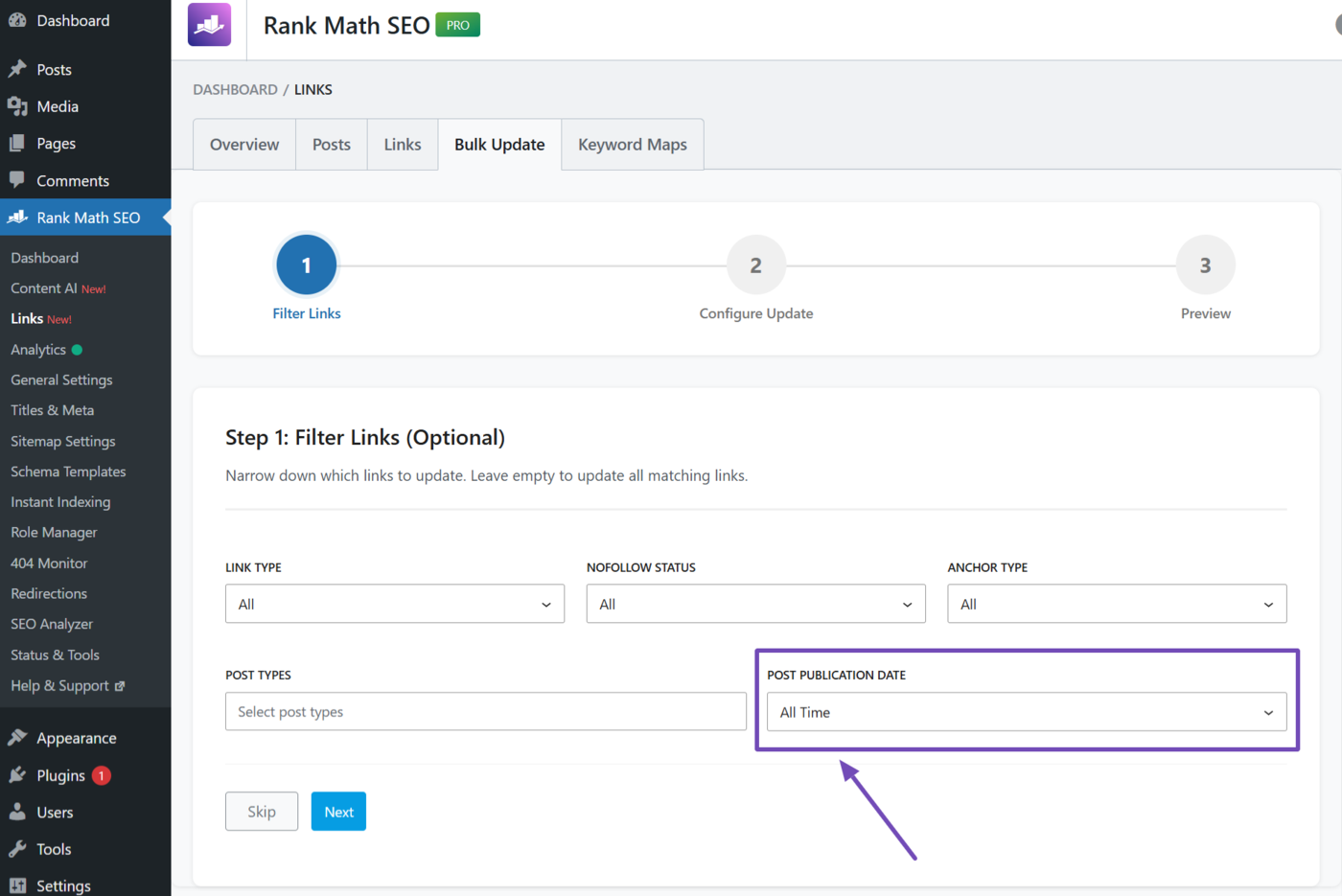
3.5 Post Publication Date
Select the timeline of the posts to evaluate. The available options include:
- All time: Identify all posts regardless of when they were published
- Last 30 days: Identify posts published in the past 30 days
- Last 6 months: Identify posts published in the past 6 months
- Last year: Identify posts published in the past year
- Custom range: Identify posts published within a specific timeframe
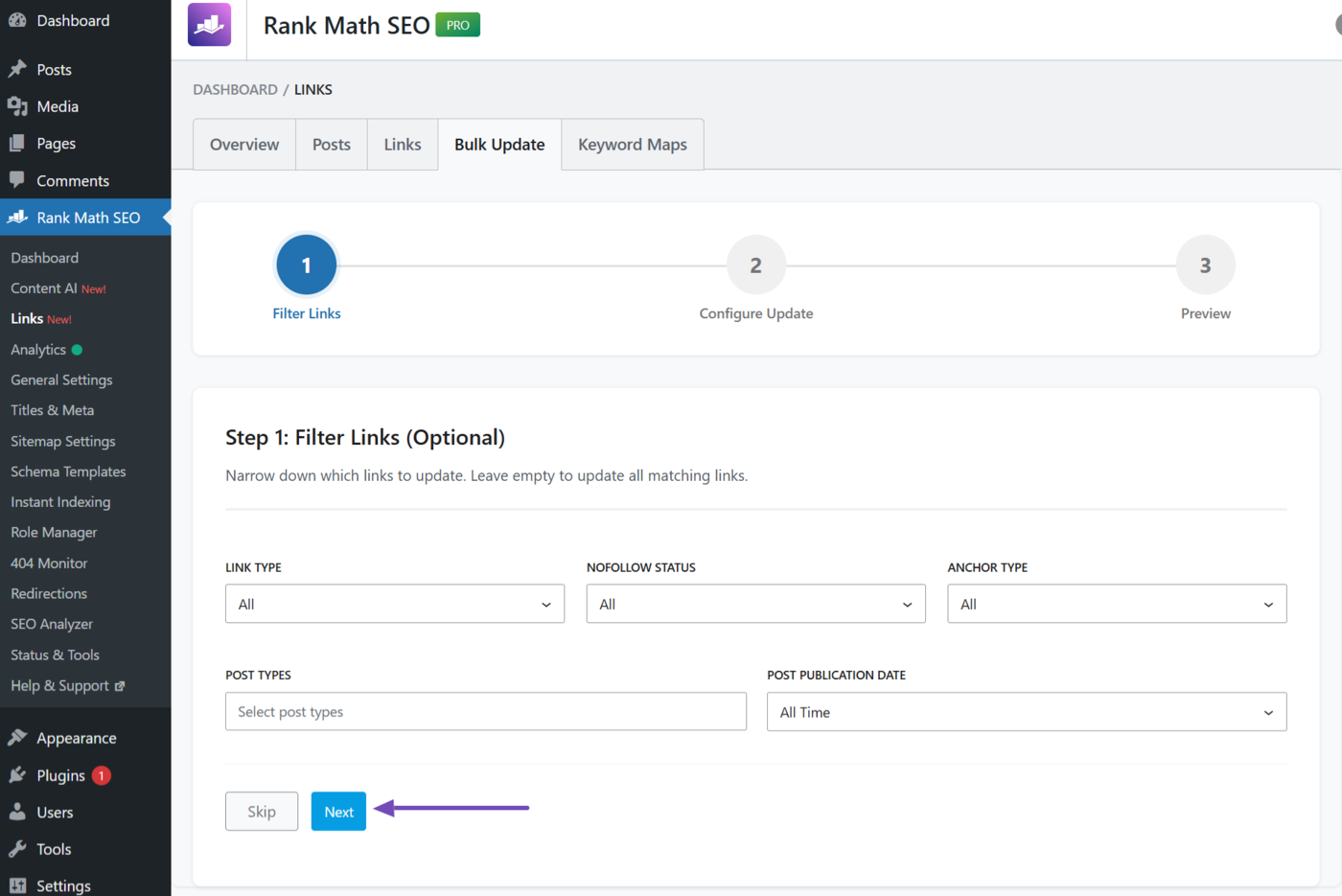
Once done, click Next, as shown below.
4 Configure Update Settings in the Bulk Update Tool
The next step is to configure the links to bulk update. Here are the available settings.
- What to update
- Anchor text settings
- URL settings
Let us explain them.
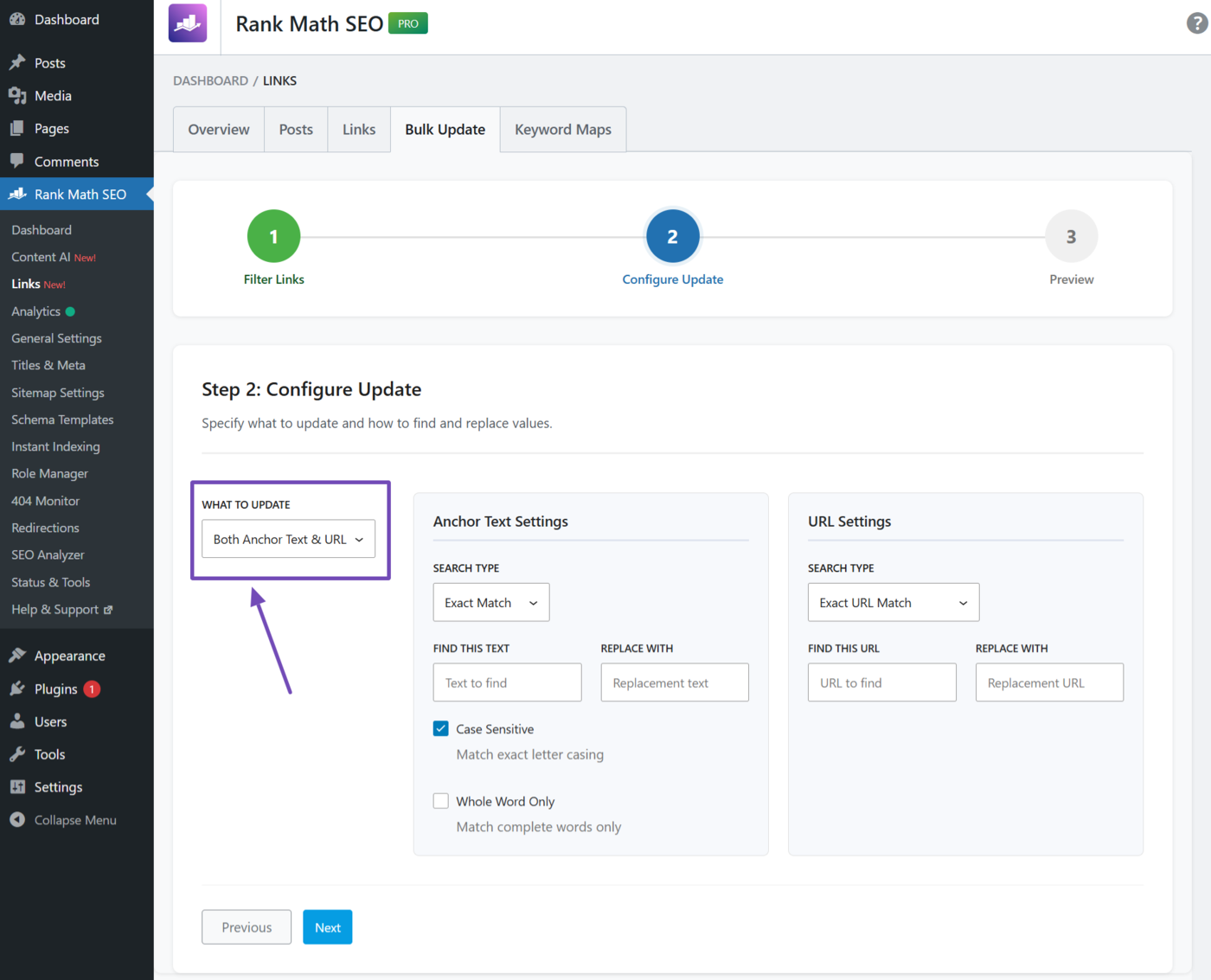
4.1 What to Update
This allows you to specify the matching conditions of the links to bulk update. There are three options here:
- Both anchor text & URL: Bulk edit links that match both your anchor text and link settings
- Anchor text only: Bulk edit links that match your anchor text settings only
- URL only: Bulk edit links that match your URL settings only
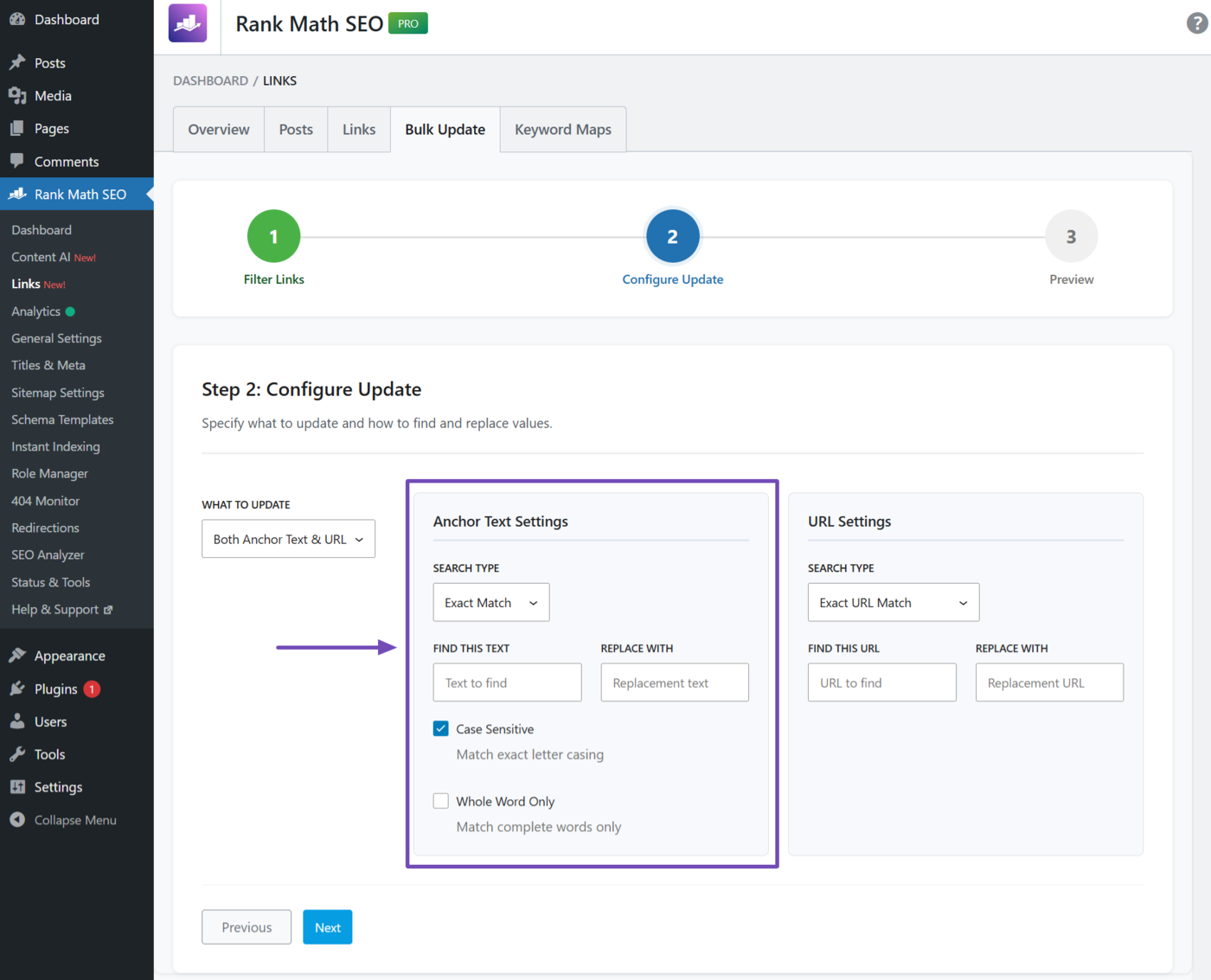
4.2 Anchor Text Settings
The anchor text allows you to specify the attributes of the anchor texts to bulk update.
Note: This setting will not show if you selected “URL only” in the “What to update” dropdown.
The dropdowns, fields, and checkboxes available in the anchor text settings include:
- Search type
- Find this text
- Replace with
- Case sensitive
- Whole word only
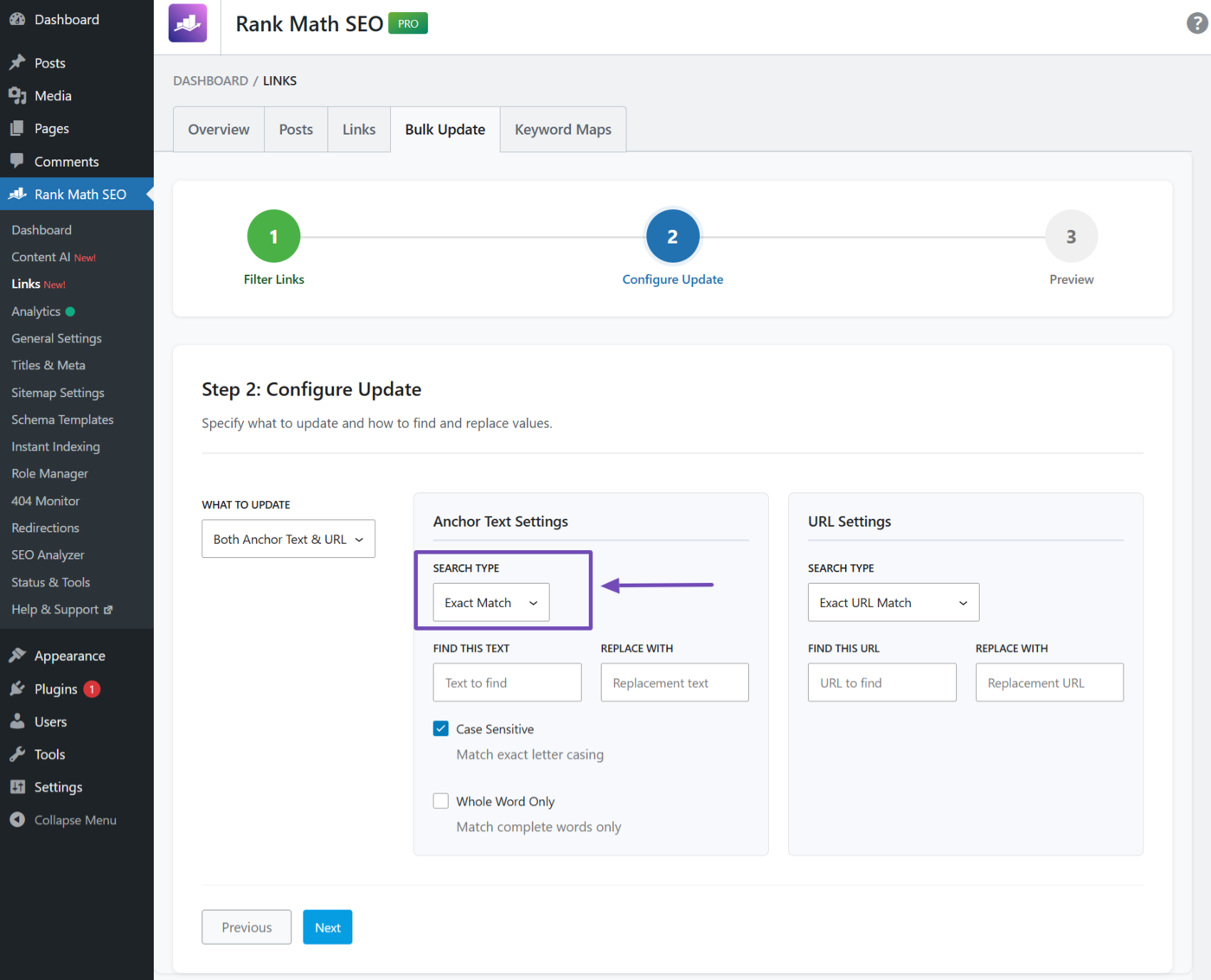
a. Search Type
Select the type of anchor text to match. The available options include:
- Exact match: Only update anchor texts that match your exact words in the “Find this text” field
- Contains: Only update anchor texts that contain the words in the “Find this text” field
- Regex: Only update anchor texts that match the regex in the “Find this text” field
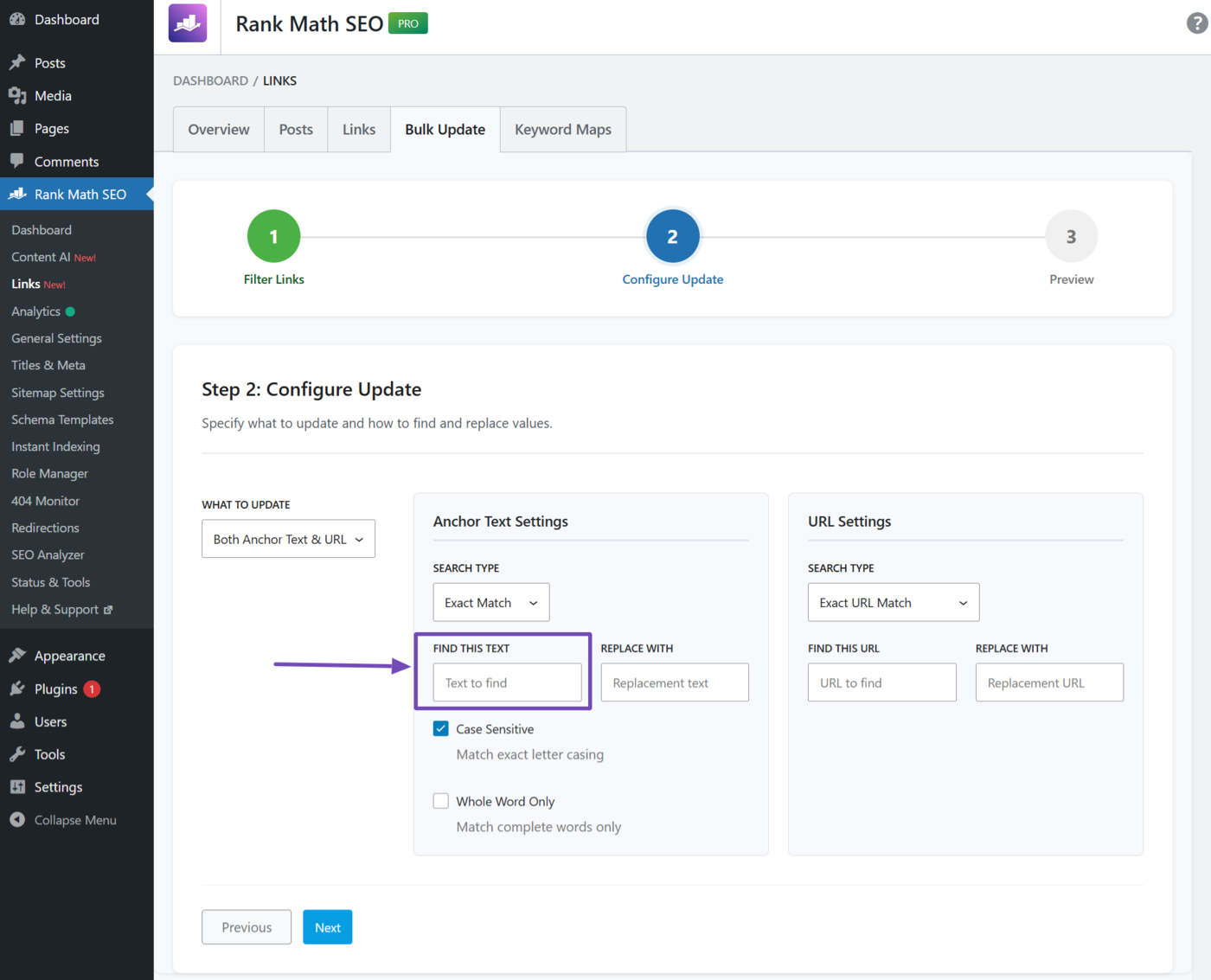
b. Find This Text
Enter the anchor text you want to bulk update here. Make sure they match the option you selected in the “Search type” field.
c. Replace With
Enter the new text to replace the previous anchor text.
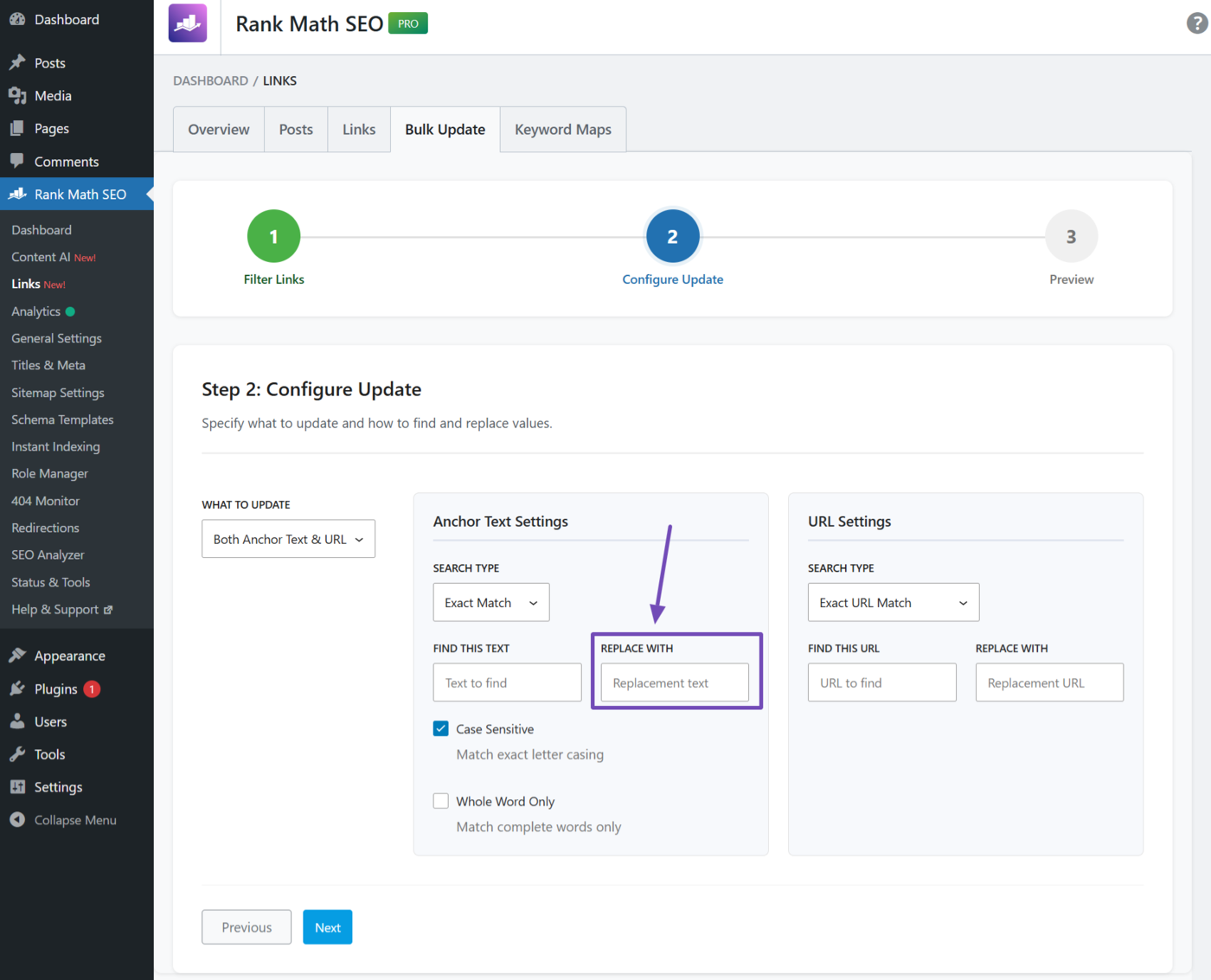
d. Case Sensitive
Enable this option if you want the anchor text to match the exact letter casing used in the “Find this text” field.
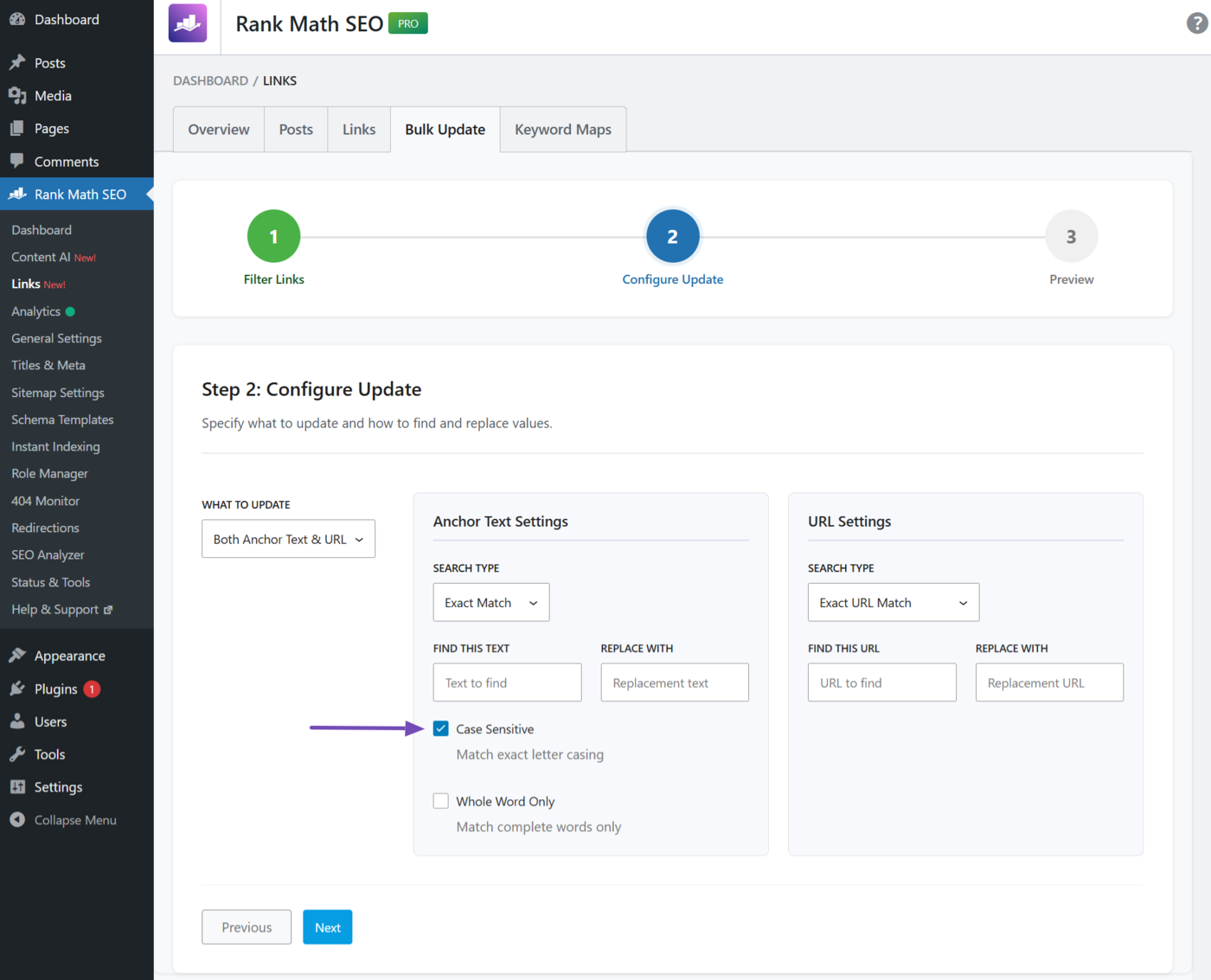
e. Whole Word Only
Enable this option if you want the text in “Find this text” field to only match the complete word.
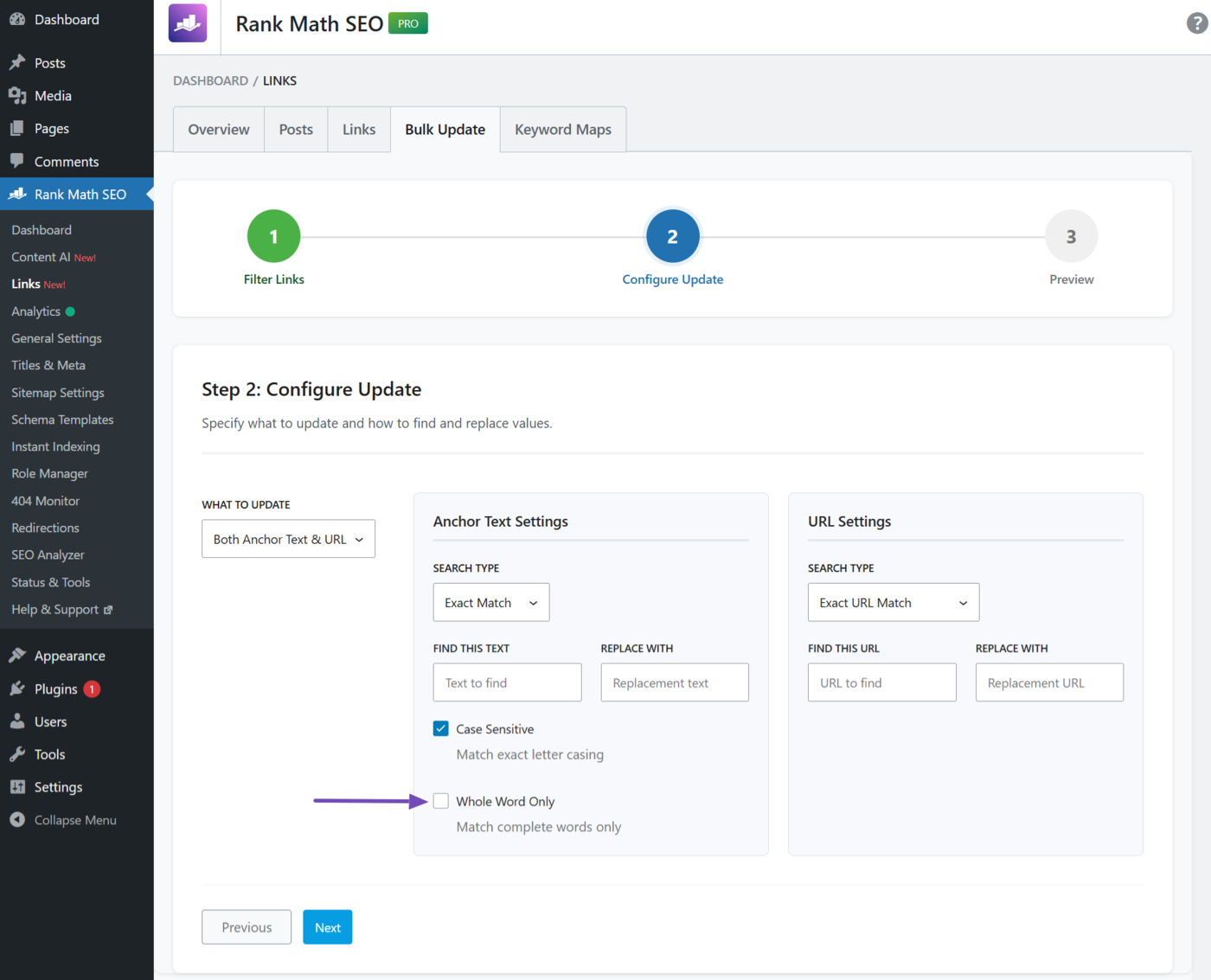
4.3 URL Settings
The URL settings allows you to specify the attributes of the URLs to bulk update. The dropdown and fields available here include:
Note: This setting will not show if you selected “Anchor text only” in the “What to update” dropdown.
- Search type
- Find this URL
- Replace with
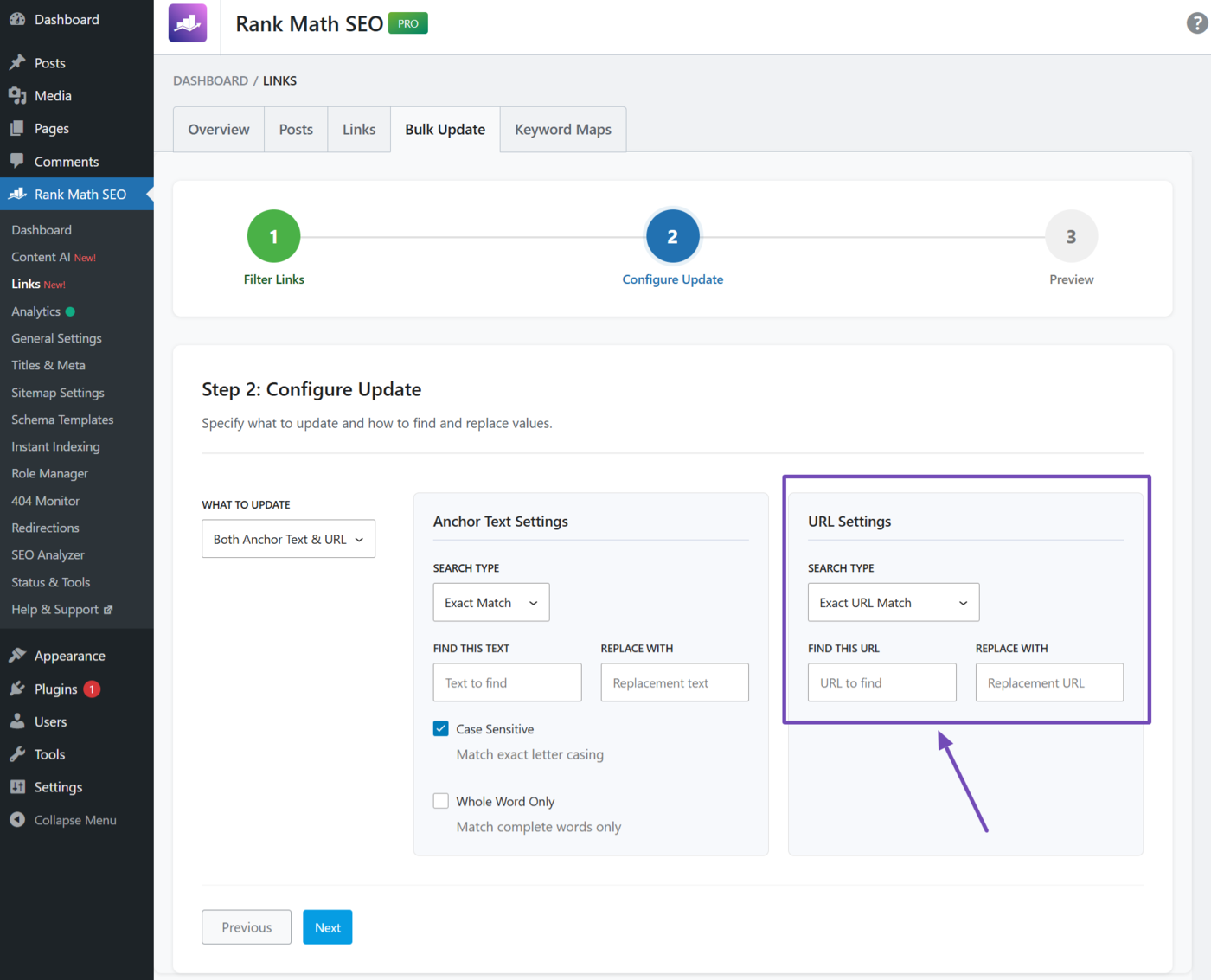
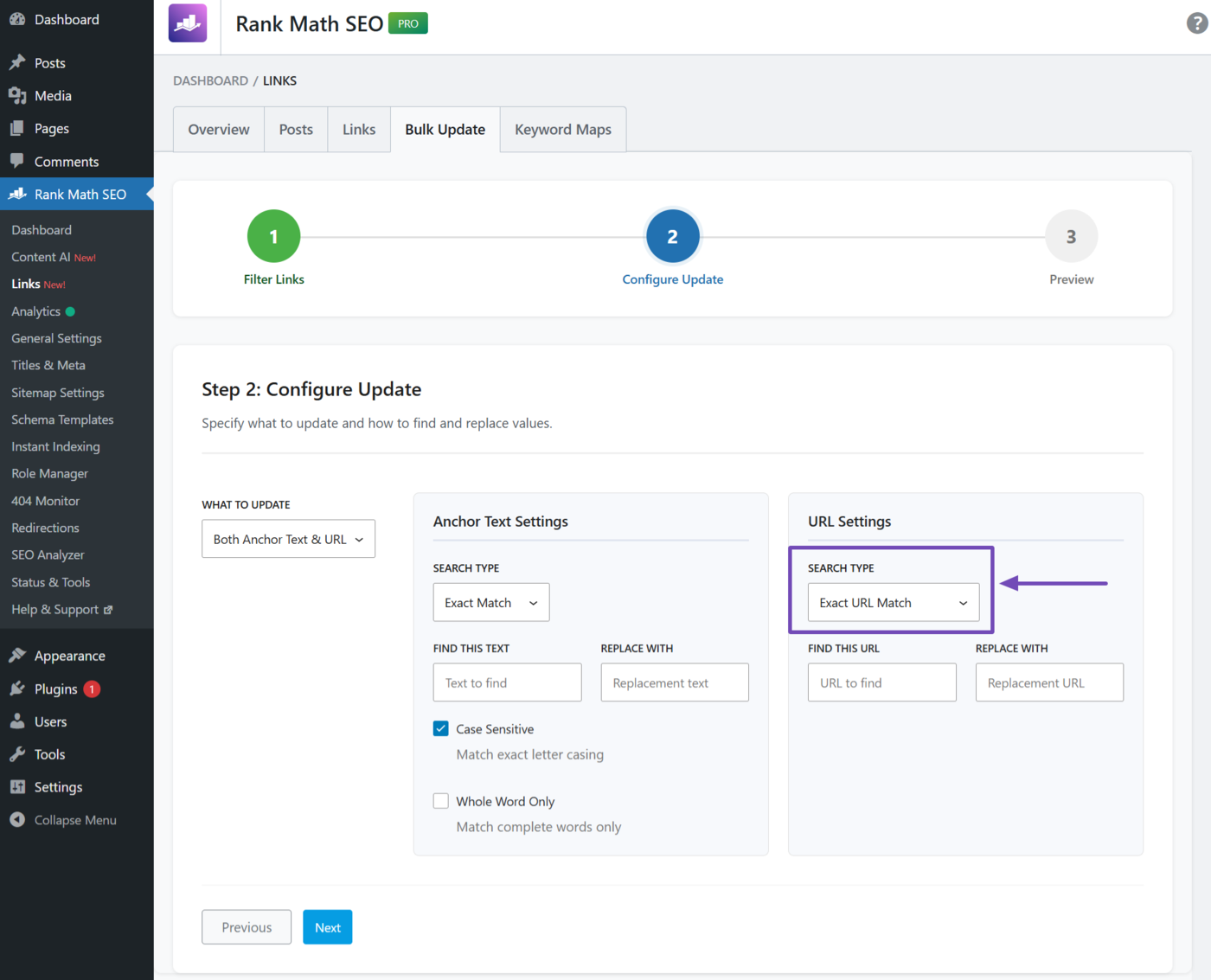
a. Search Type
Select the type of URL to match. The available options include:
- Exact URL match: Only update URLs that match the exact URL in the “Find this URL” field
- Partial match (Contains): Only update URLs that contain the text entered in the “Find this URL” field
- Domain match: Update all URLs that match the domain in the “Find this URL” field
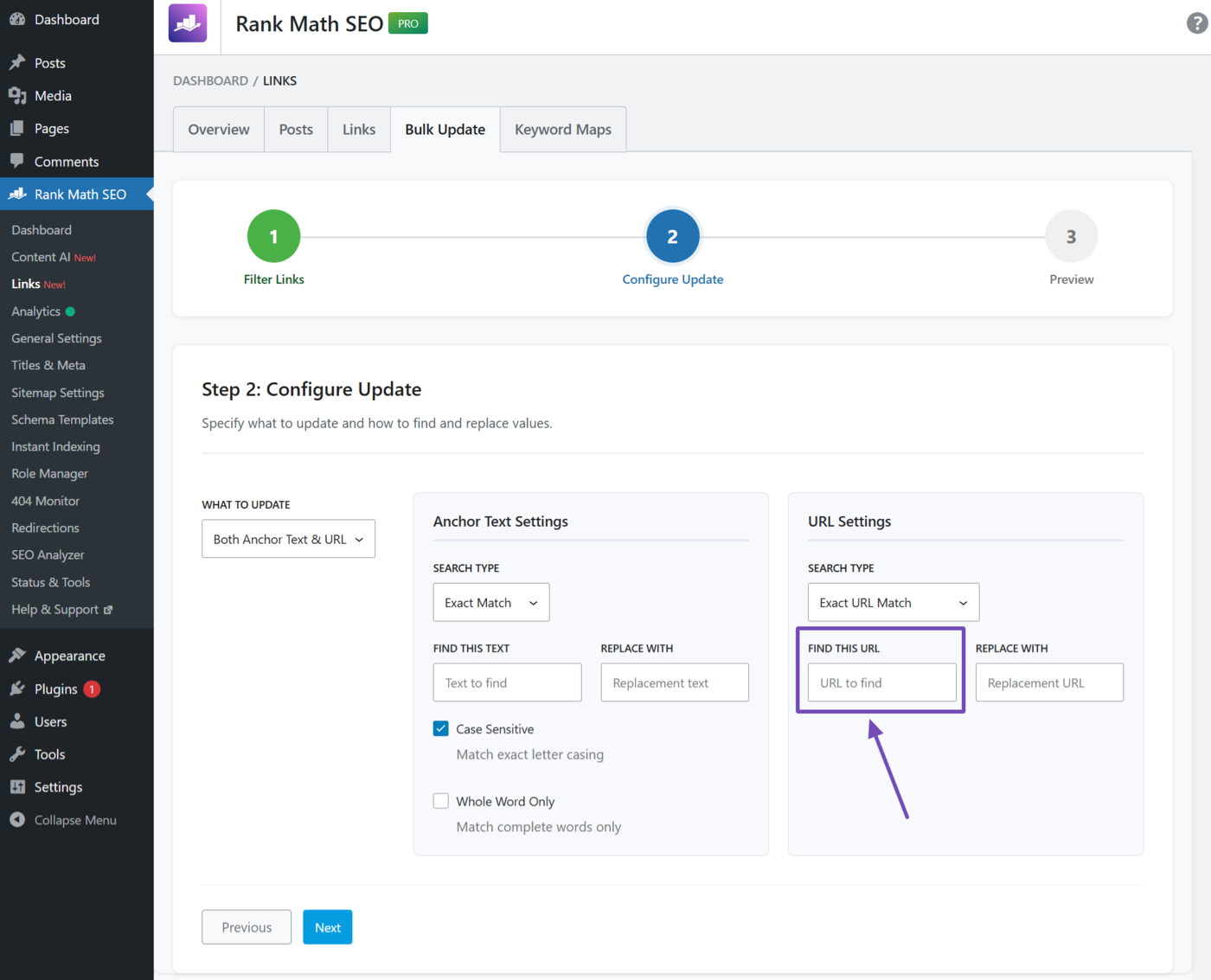
b. Find This URL
Enter the link you want to replace. This can be the full URL, parts of it, or the domain, depending on the option you selected in the “Search type” dropdown.
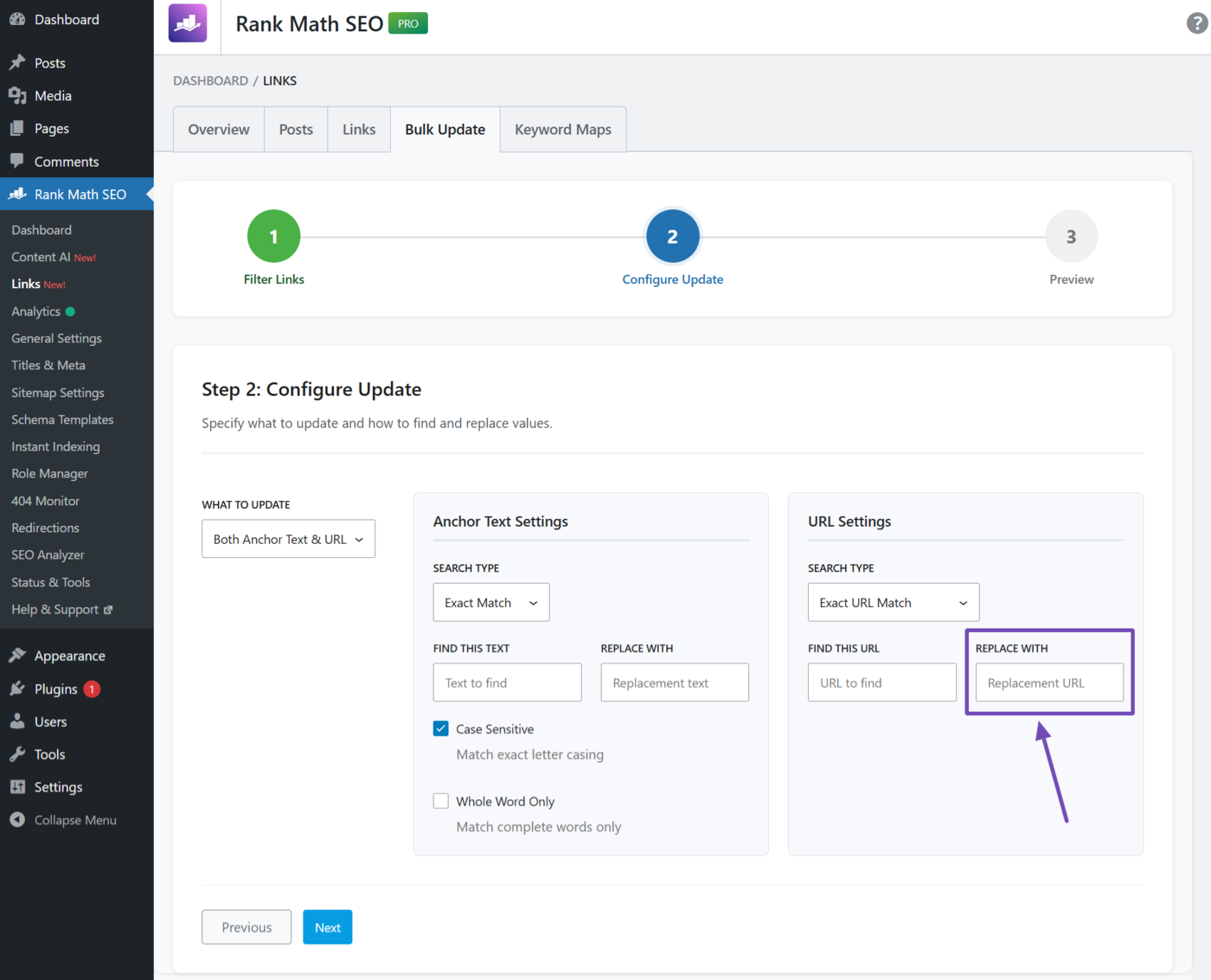
c. Replace With
Enter the link that will replace the previous link.
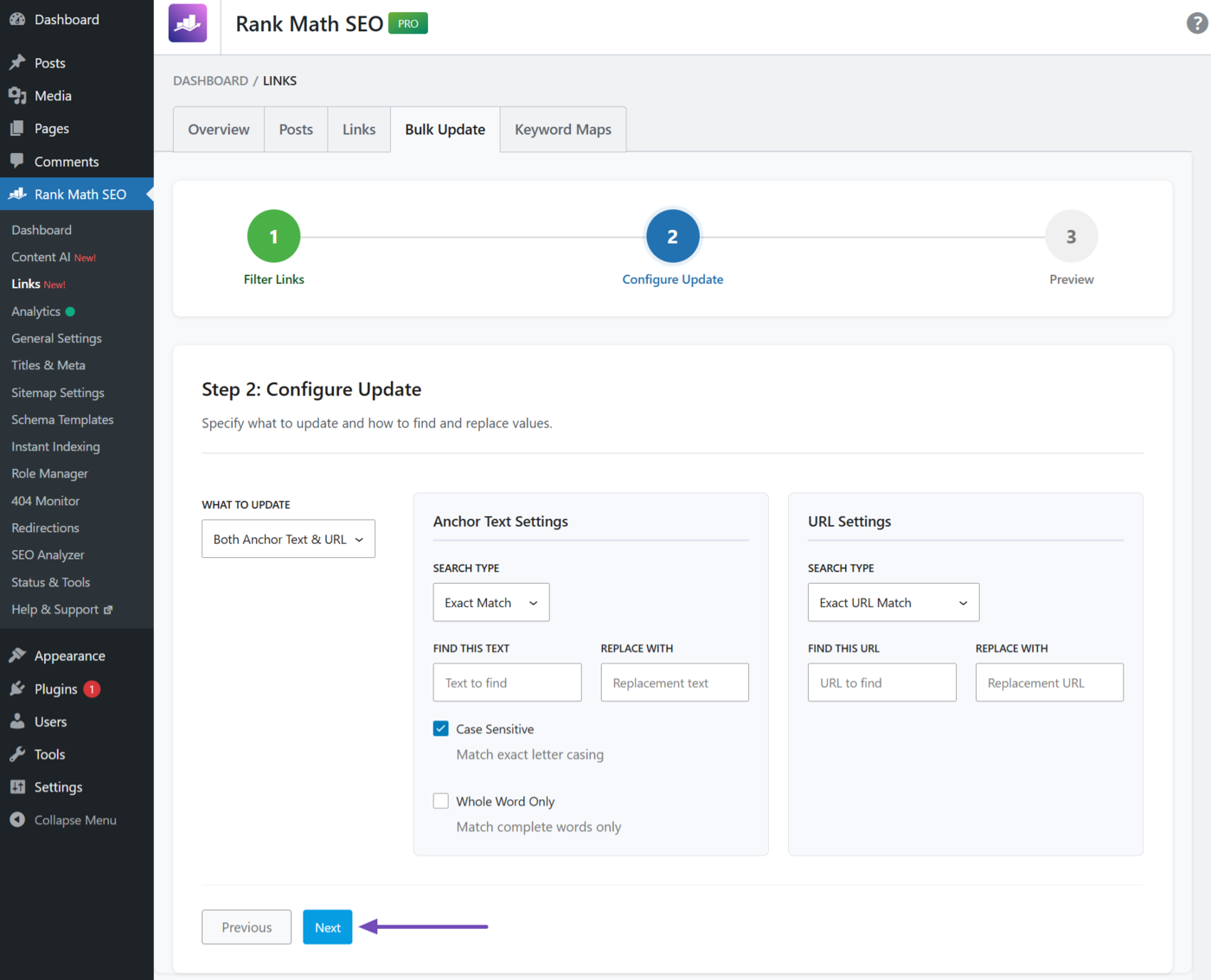
Once done, click Next,
5 Preview Changes Before Bulk Updating
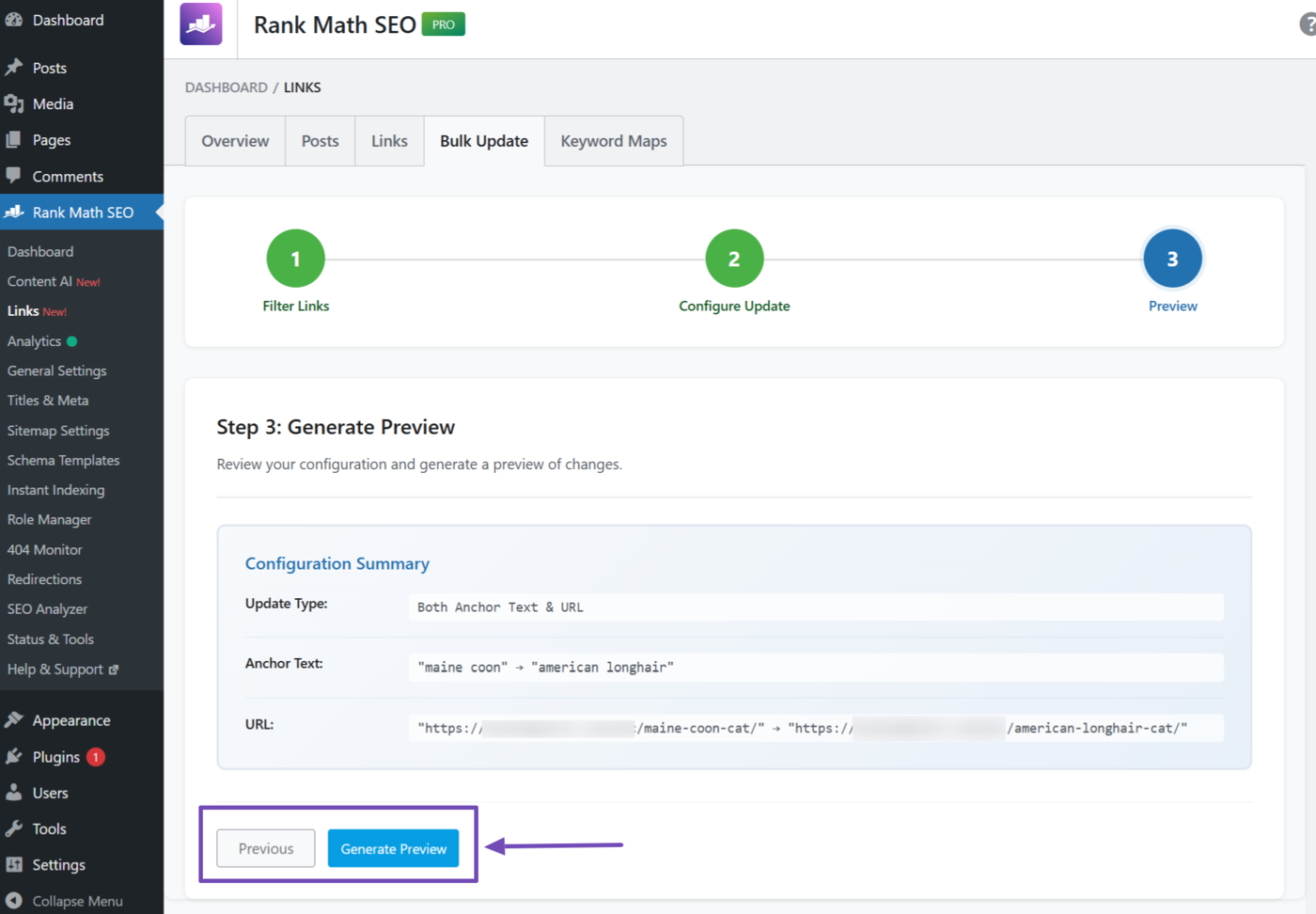
Generate preview shows you a summary of the links you are about to bulk update. The details shown here may vary depending on your settings. It can include:
- Update type: Indicates whether you are updating the anchor text, URLs, or both
- Anchor text: Shows the current anchor text and its replacement
- URL: Shows the current URL and its replacement
Review the details here. If you need to change anything, click Previous to return to the previous settings. If you are okay with it, click Generate Preview.
6 Review and Apply Changes
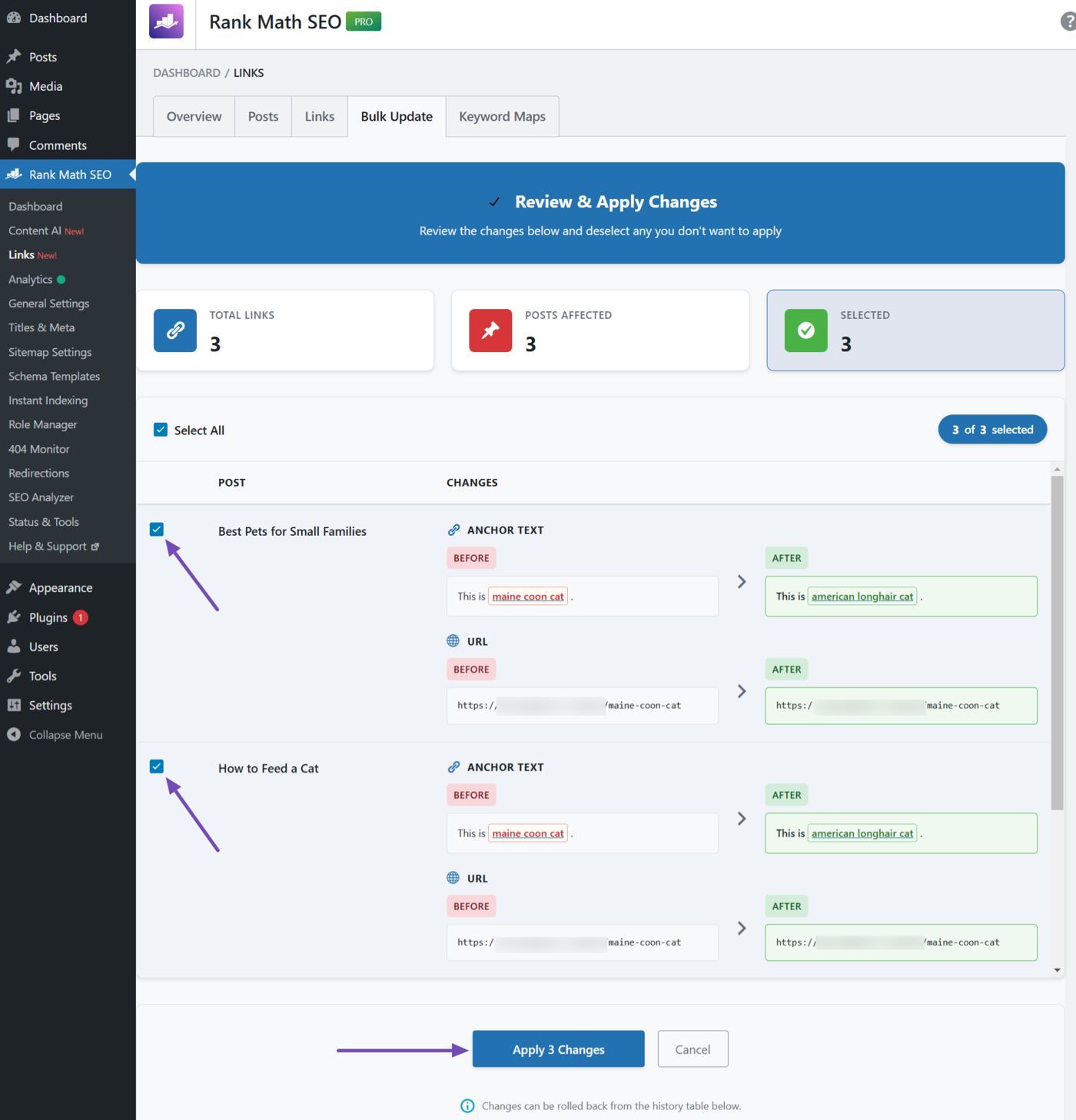
Link Genius will now access your content for the posts that meet your requirements. Once done, it will display the links for you to review. Here, you will see the post titles along with the changes that will be applied.
Review it and uncheck the ones you do not want to update. Once done, click Apply changes.
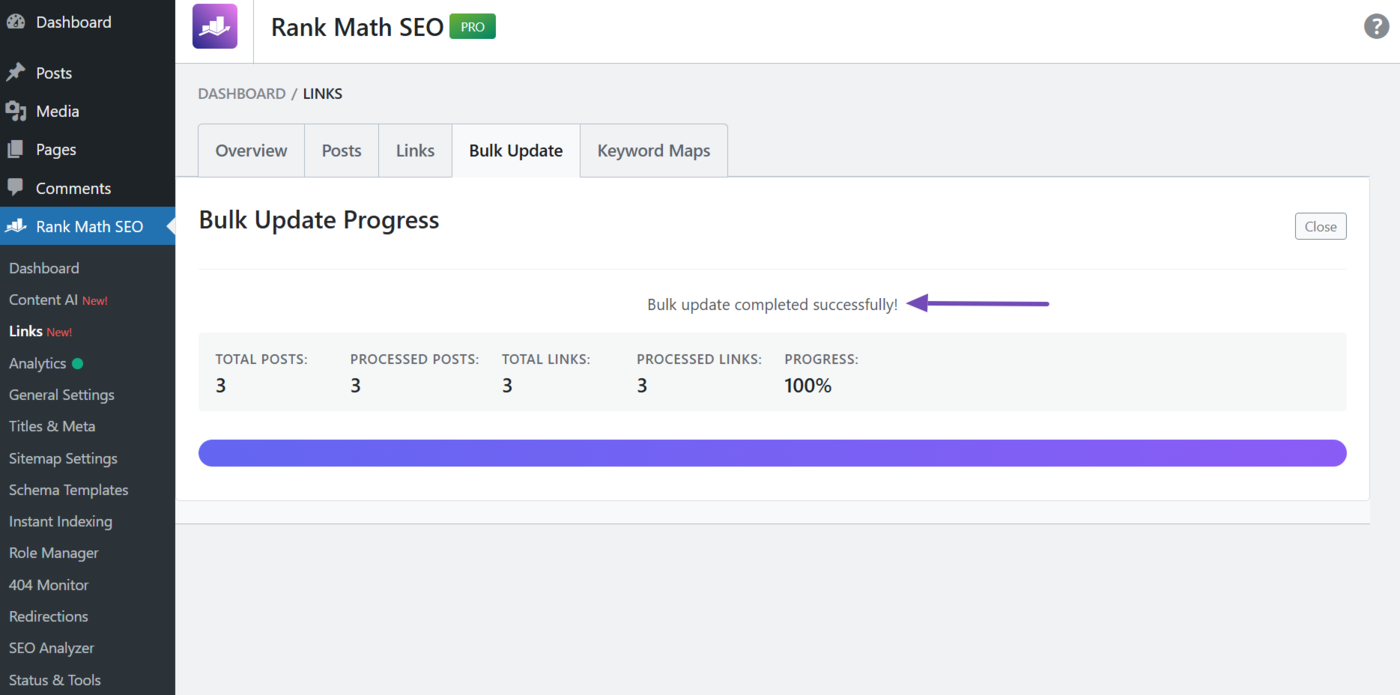
Link Genius will start updating your links (URLs, anchor texts, or both) in bulk. Once done, you will see a success message, as shown below.
7 Rollback the Bulk Update
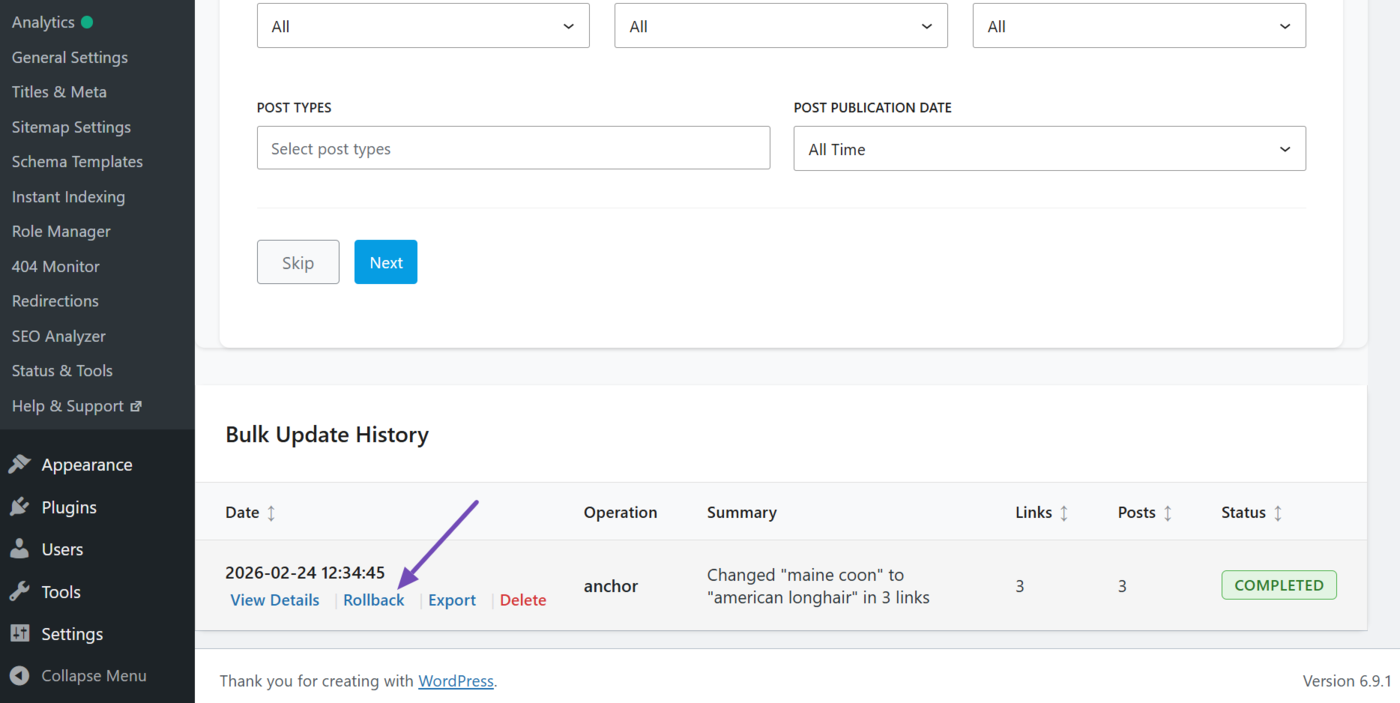
At the bottom of the bulk update tab, you will see a section called the Bulk update history. This contains every bulk update you have created on your site.
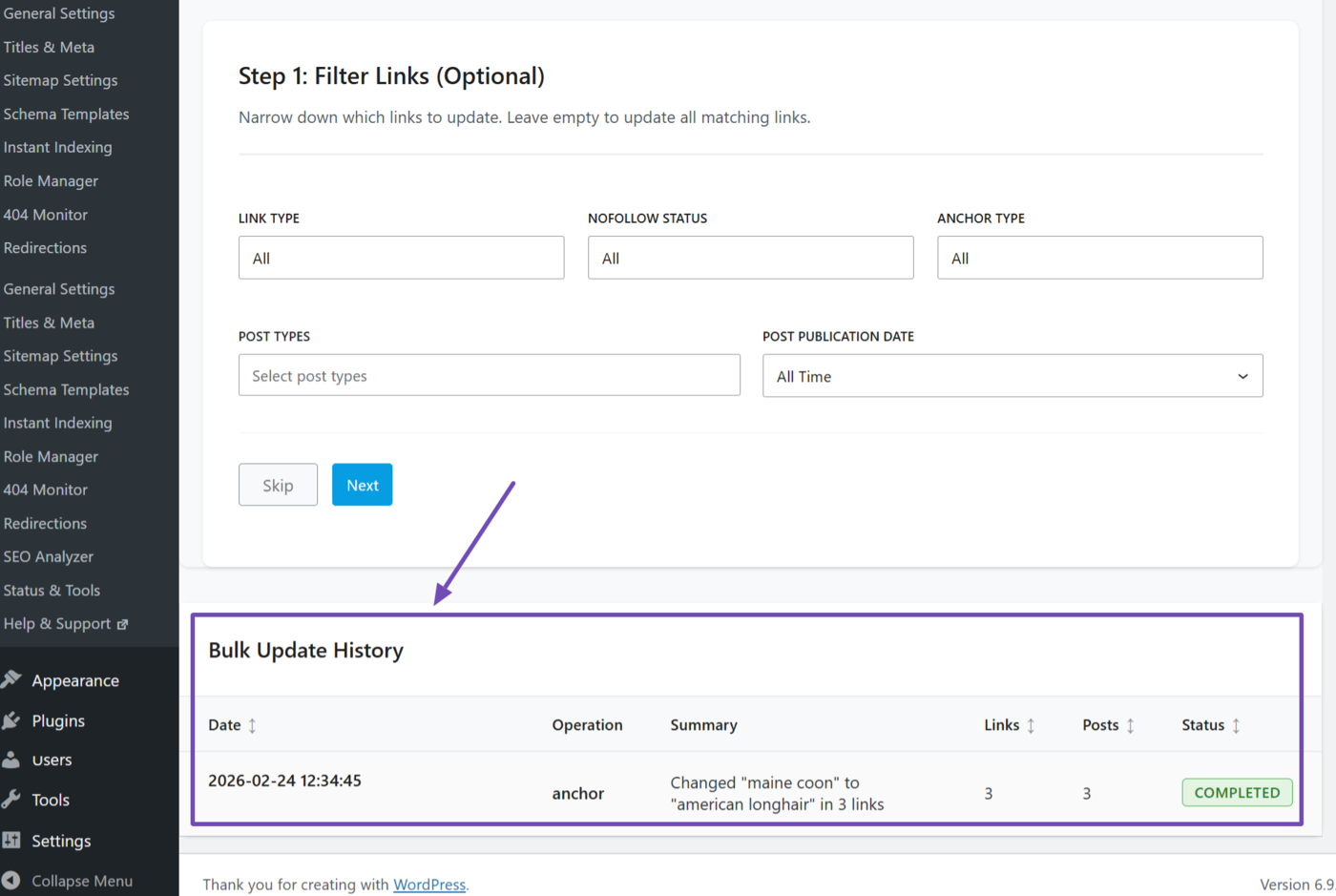
If you change your mind about a bulk update, you can roll it back from this section. To do so, hover over the link you just updated. You will see some options. Click Rollback.
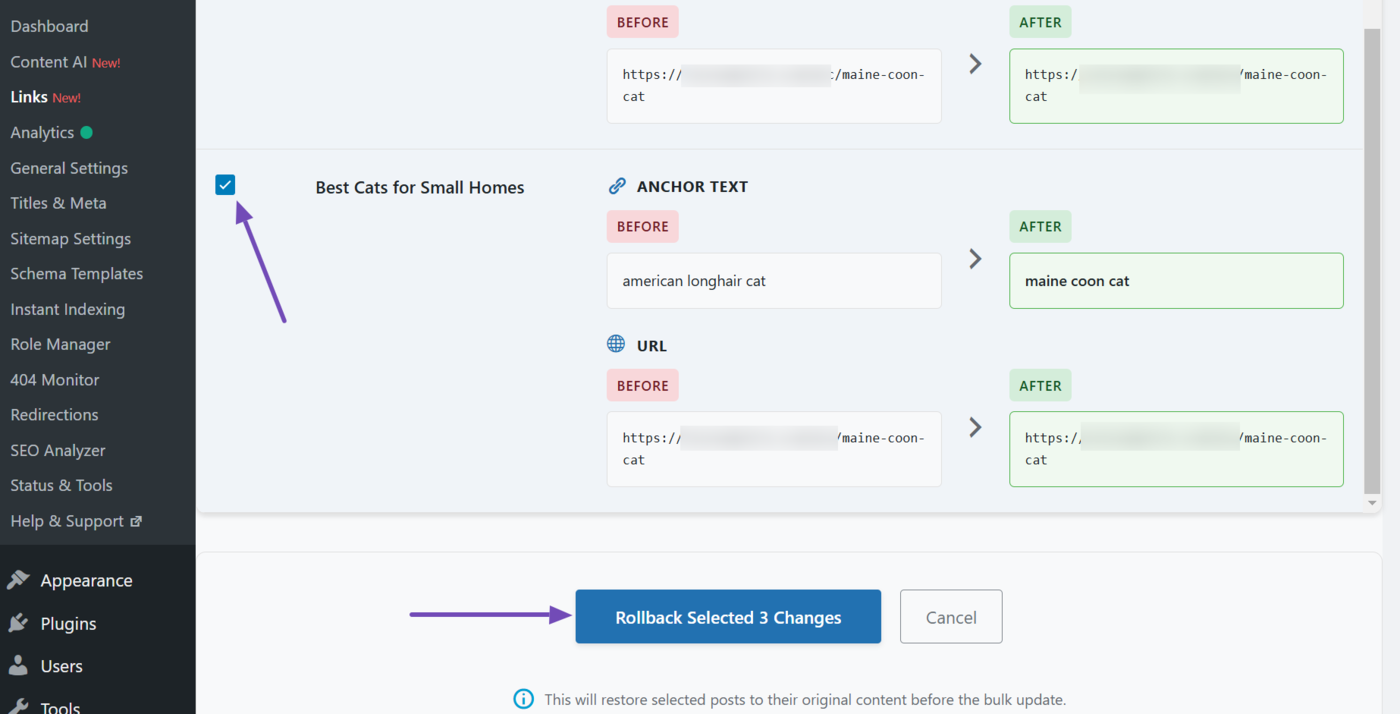
Next, you will see the post title, anchor text, and URLs of the links that will be rolled back. All links are checked by default, indicating they will be rolled back.
- Leave links checked to roll them back
- Uncheck the links you do not want to roll back
Once done, click Rollback selected changes.
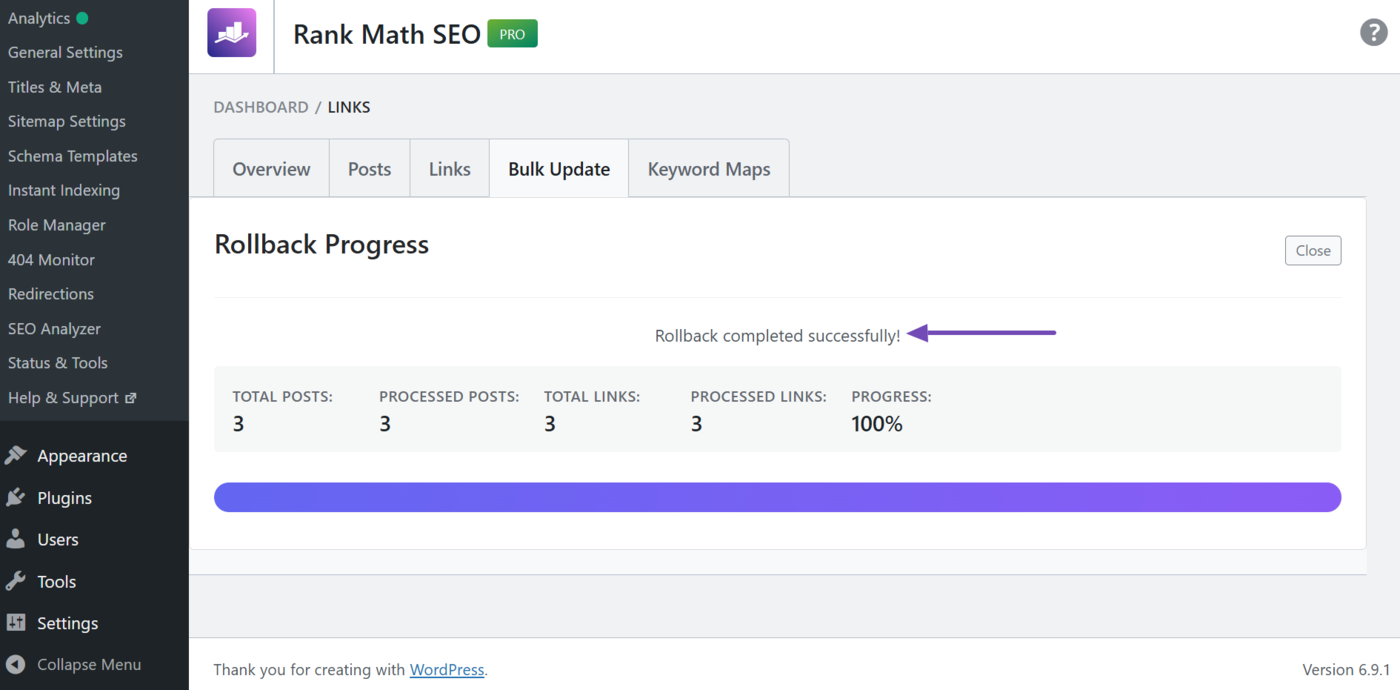
The rollback will be effected, and you will see a success message, as shown below.
This is how to bulk update your links using the Bulk update tool in Link Genius. If you have any questions, you’re always more than welcome to contact our dedicated support team, who are available 24/7, 365 days a year.