Cómo conectar su cuenta de Google con Rank Math SEO
Google Analytics, Google Search Console, and Google AdSense — checking your website stats with each of these platforms and compiling the data to collect useful insights is a tedious task to be done manually. Thankfully Rank Math makes it easier to compile and present all useful insights within your WordPress dashboard itself. And to help Rank Math fetch information from these services, you will need to connect your Google Account with Rank Math.
In this tutorial, we’ll walk you through how to connect your Google Account with Rank Math SEO.
1 Enable Rank Math’s Analytics Module
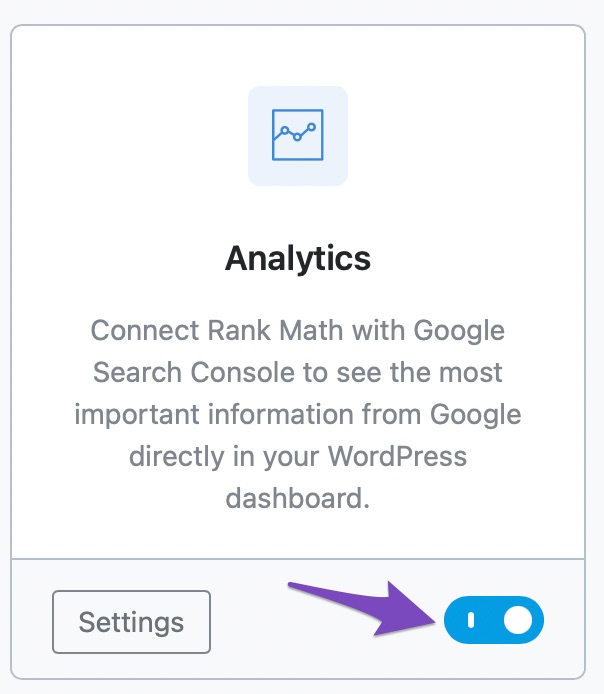
In order to connect Rank Math to Google Services, you need to enable the Analítica Module in Rank Math SEO → Dashboard → Analytics inside your WordPress dashboard.
2 Connect Your Rank Math Account
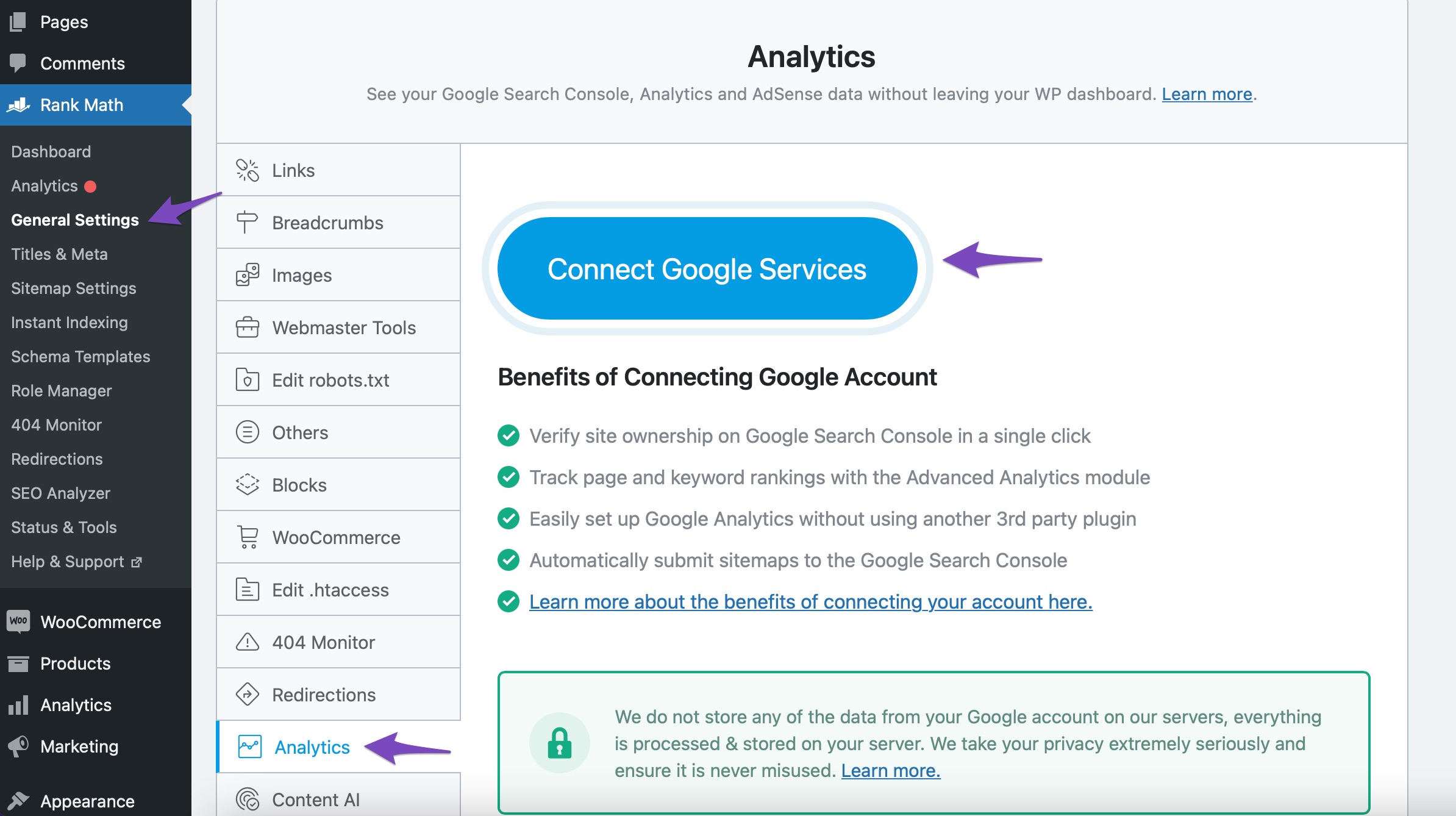
Then go to Rank Math SEO → Analytics → Connect Your Rank Math Account (if you haven’t already).
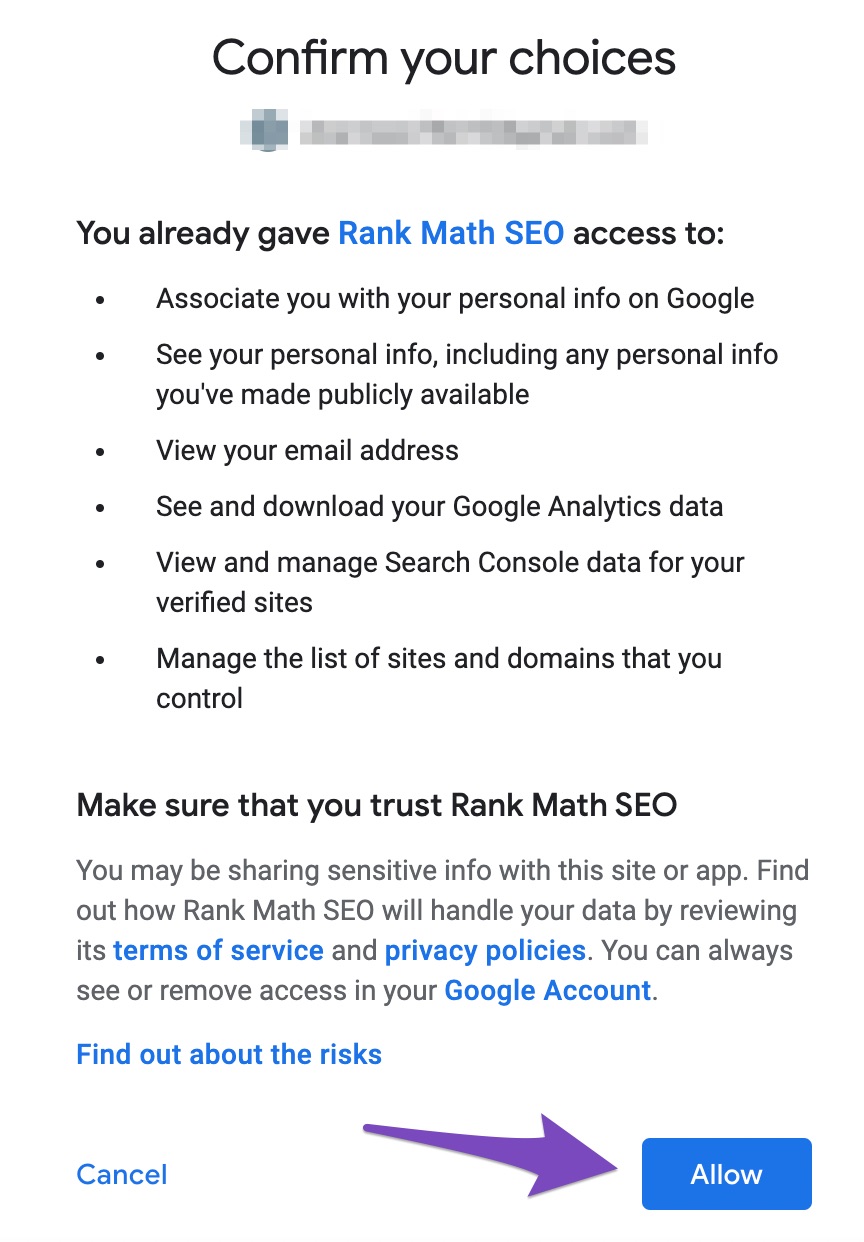
Choose the email account that you want to connect with Rank Math and grant all the permissions. Click on Allow.
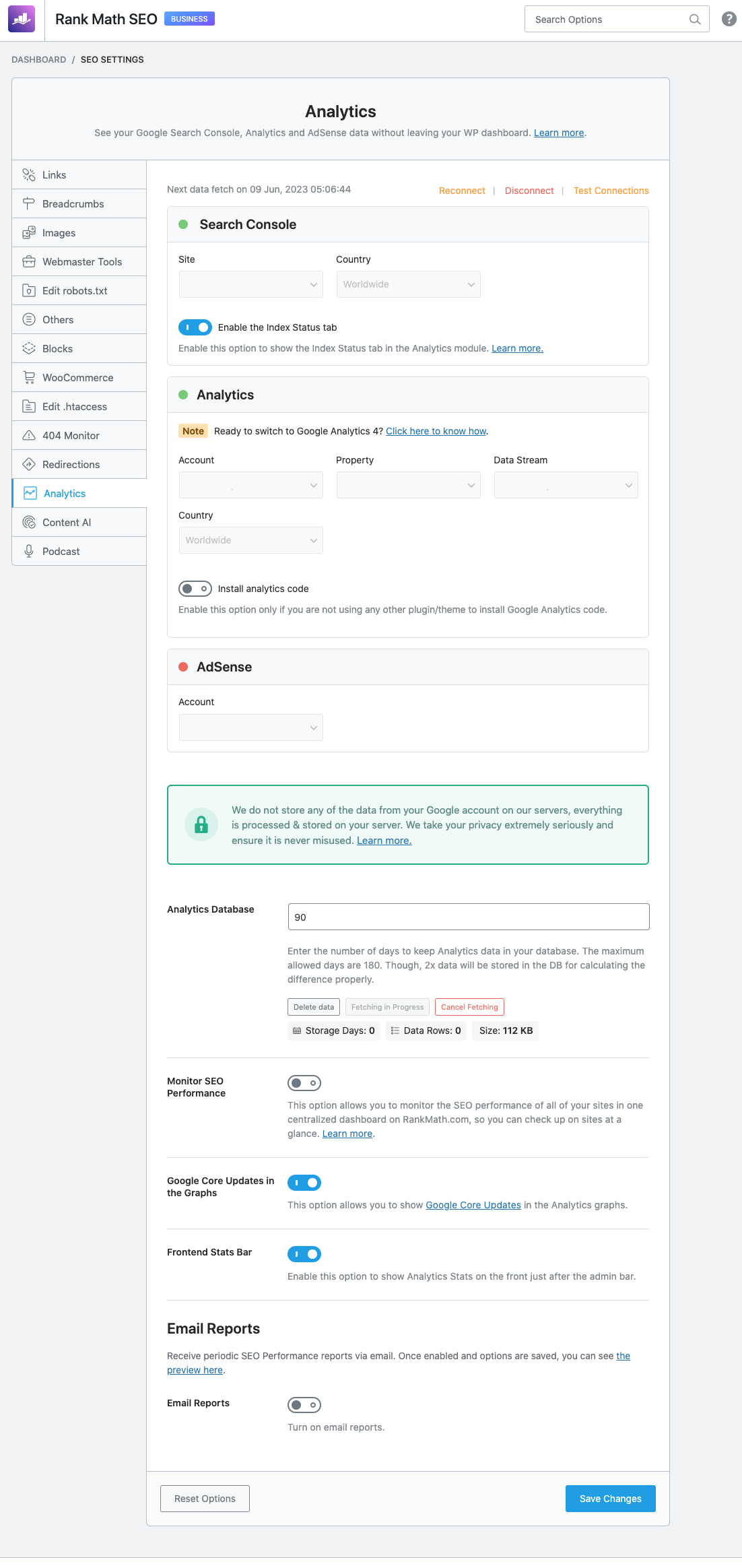
Once you have connected your account, here’s how the Analytics settings will look like:
3 Connect to Search Console
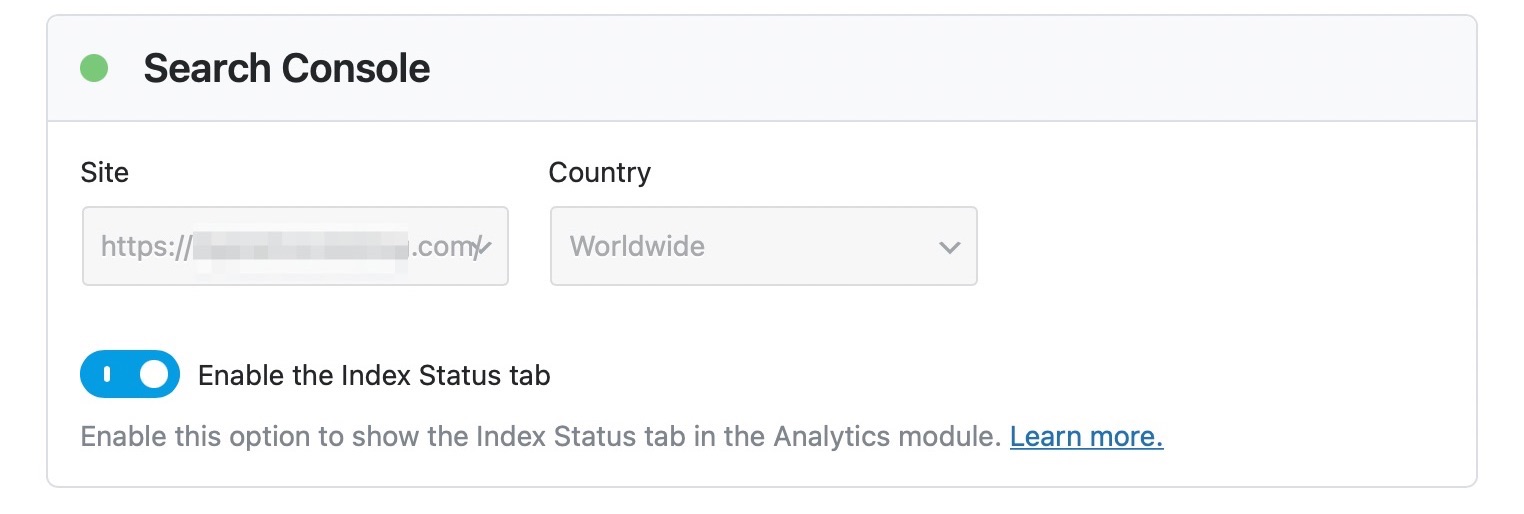
To connect Rank Math to the search console, go to Rank Math SEO → General Settings → Analytics. If you haven’t already created and verified your website property in the Google Search console, then Rank Math would get this done for you automatically, and you should be able to see your website listed under the Site drop-down list in the Consola de búsqueda sección.
Under the Site drop-down list, you can notice URL properties as well as domain properties (includes a prefix sc-domain:) connected with your Google Search Console account. We recommend you to choose the corresponding URL property for a smooth Analytics experience.
Now, select your Site y País from the drop-down lists. Click on the Guardar cambios button once you have made the changes.
Nota: The option to choose Country is available only in Rank Math PRO
4 Connect Google Analytics With Rank Math
To connect Rank Math to Google Analytics 4, navigate to Rank Math SEO → General Settings → Analytics.
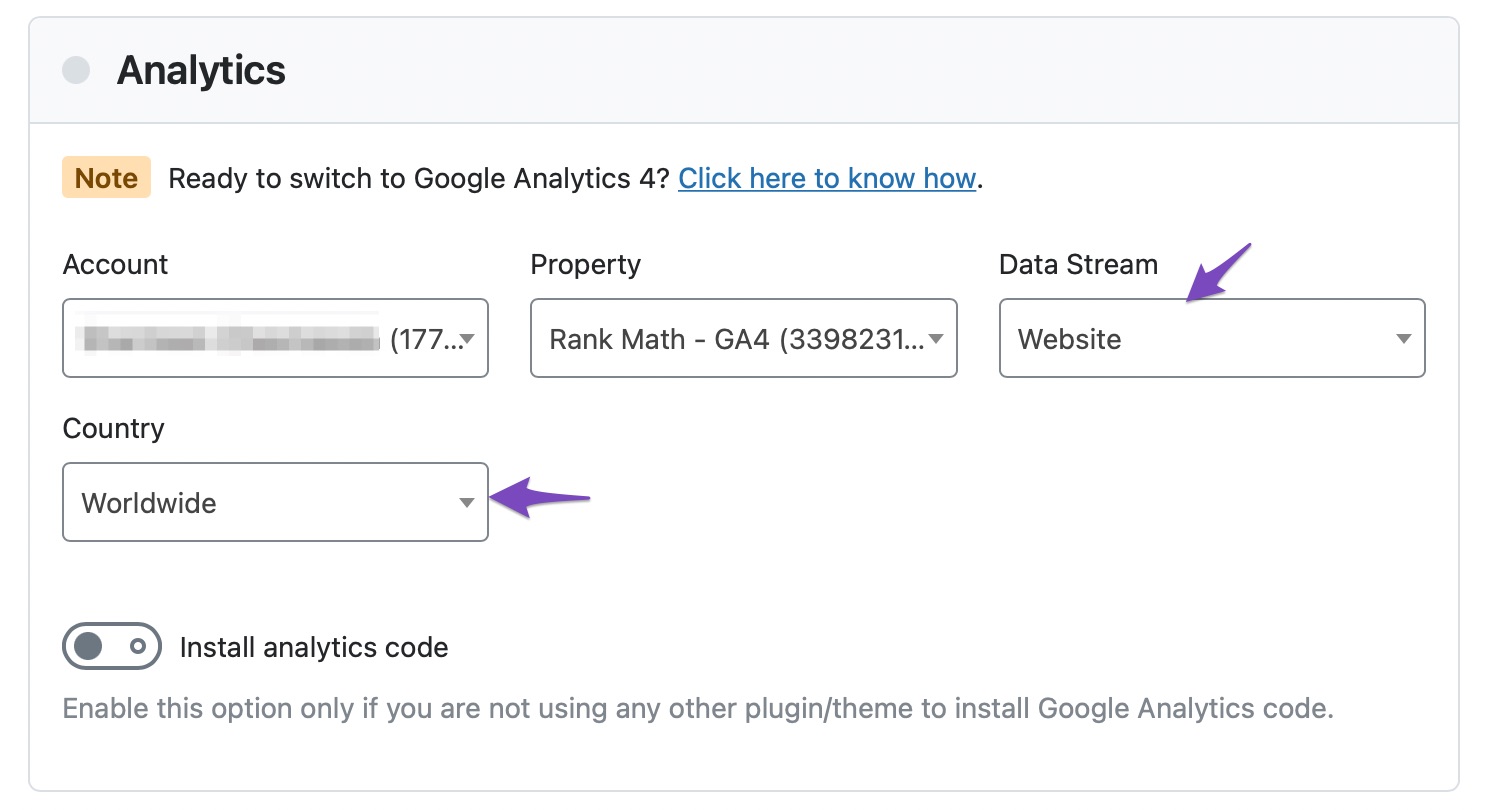
From the Analytics section here, you can select your Account and then select your Google Analytics 4 property, from the Property dropdown.
Nota: All Google Analytics 4 properties include a prefix -GA4, so you can easily identify them.
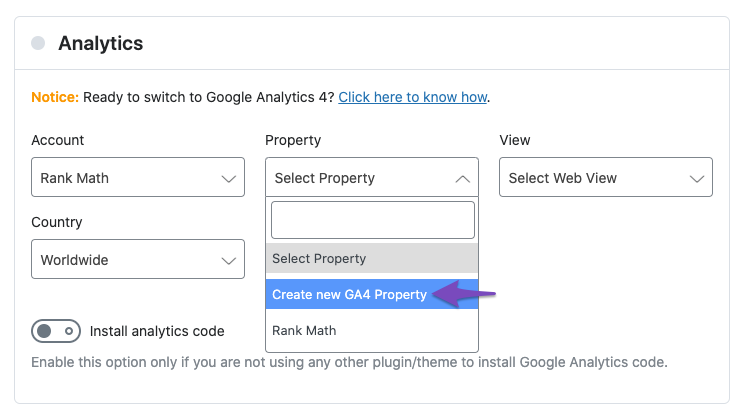
In case, you don’t have any GA4 property, you can also create one with Rank Math. Under the Property dropdown, choose the Create new GA4 property opción.
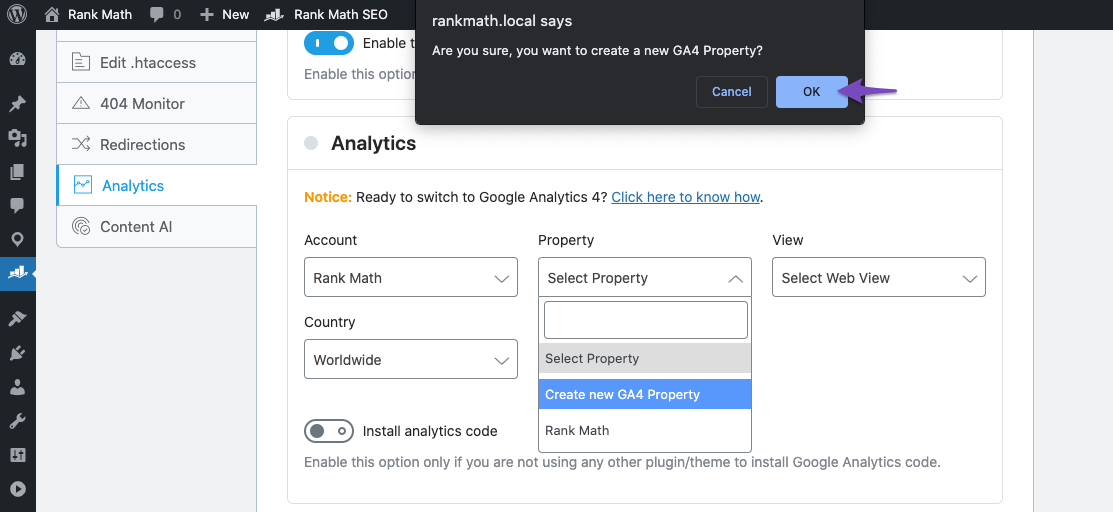
In the confirmation prompt that appears on the screen, choose DE ACUERDO.
And in a few moments, the newly created GA4 property would be selected automatically.
Then, select the Sitio web (Data Stream for Google Analytics 4). You can notice the default País is chosen as Worldwide, but you can always change it and choose the País as per your choice.
Nota: The option to choose Country is available only in the PRO version of Rank Math.
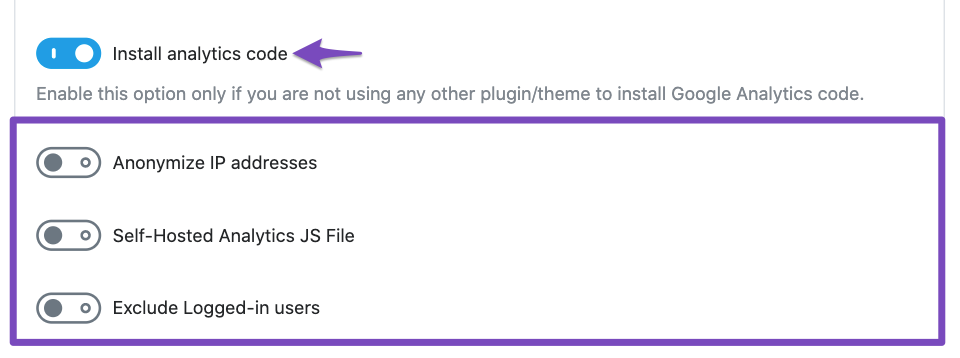
You can enable the Instalar código de análisis option if you do not use any other plugin or theme to install the Google Analytics code.
Once you have done the above-mentioned steps, click on the Guardar cambios botón.
Nota: Once the Guardar cambios button is clicked, the properties fetched from the Google account, apart from the selected one, will be removed. So if you need to change them, you’ll need to reconnect.
If your Google Analytics 4 settings disappear after you click the Guardar cambios button, consider switching to Google Chrome or another Chromium-based browser.
5 Connect Google AdSense With Rank Math
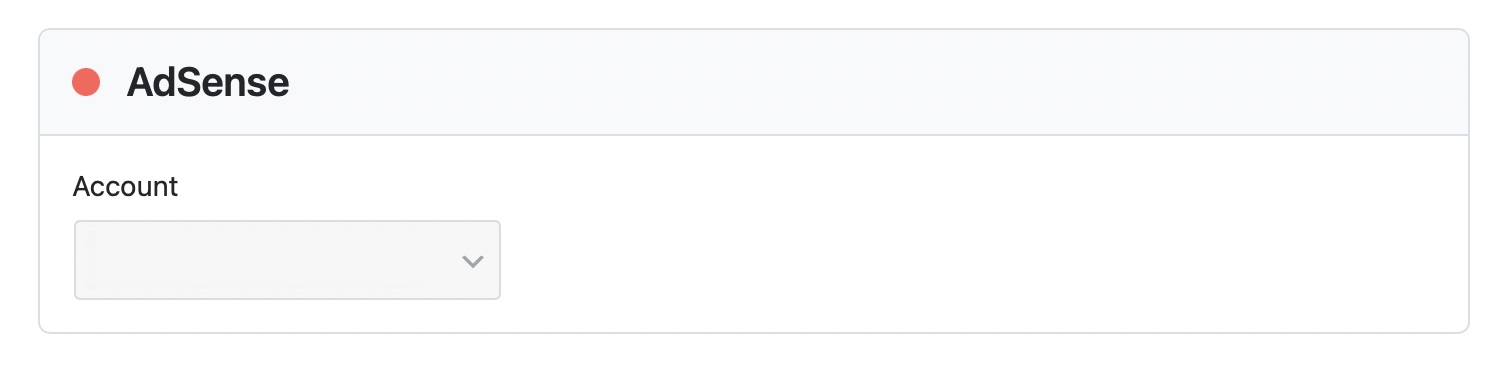
To connect Rank Math to your AdSense account, go to Rank Math SEO → General Settings → Analytics.
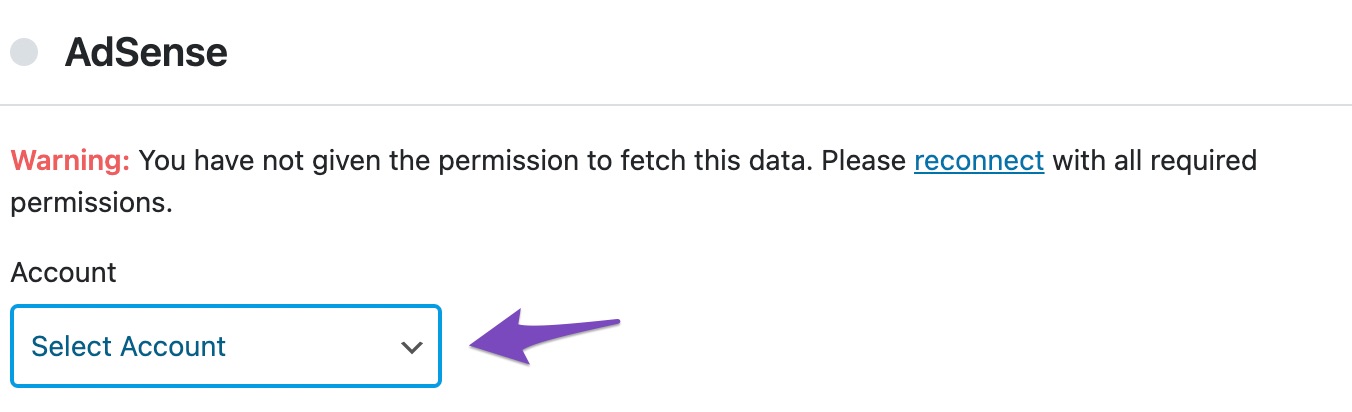
In the AdSense section, select your AdSense Account from the drop-down list. Click on the Guardar cambios button once you have made the necessary changes.
Once you’ve connected and configured the Analytics settings, Rank Math will start fetching the data.
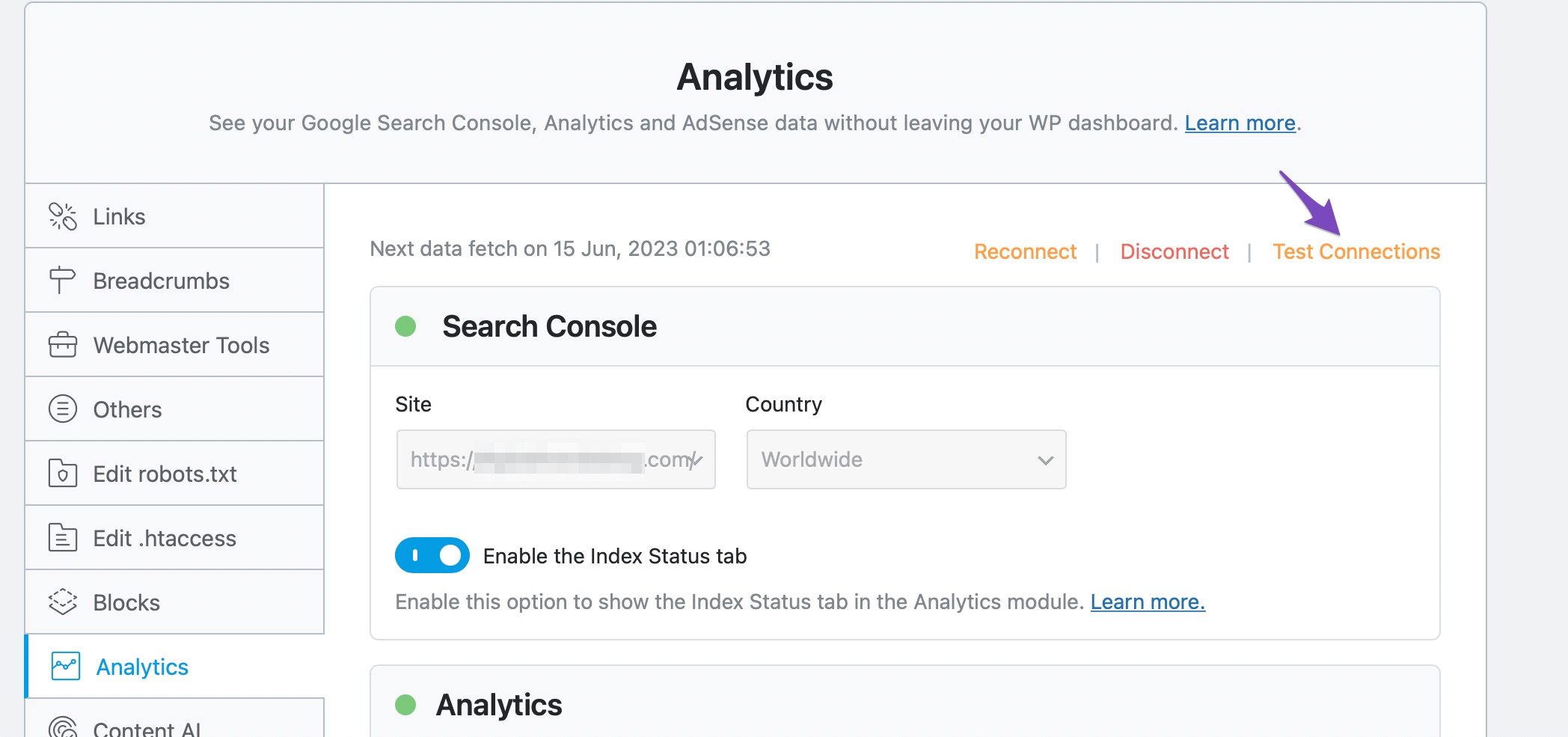
You can check the connections between Rank Math and your Google account if you notice any delays in retrieving Analytics data. To do so, click the Test Connections option located at the top right corner of the Analytics settings.
Once you click the option, Rank Math will start to validate the existing connections. A verde signal indicates a valid connection. And a red signal indicates a problem in the corresponding connection, as shown below.
To fix this, simply reconnect with your Google account by clicking the Reconnect option located at the top right of the Analytics settings.
6 Analytics Database
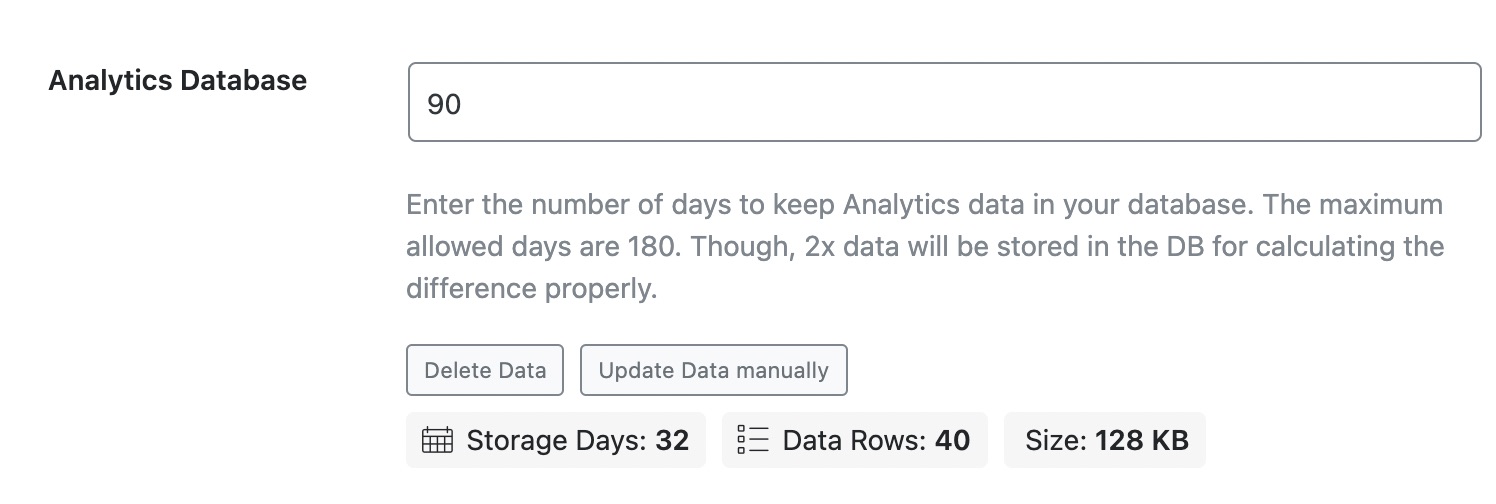
You can choose the number of days you want to keep your Analytics data in your database. The maximum number of days allowed in the Free version is 90, while the maximum allowed days in the PRO version is 180 days.
If you have a Business or Agency license, there is no limit to the number of days allowed, and you can retain your data for as long as you want.
6.1 Delete Data
In case if you find any issues with the existing analytics data, then you can choose to Delete the data by clicking on the Delete Data option. Deleting the data won’t cause any issue on your end since they are just analytics data.
Nota: If you wish to completely remove the data and stop storing further data from Google on your website, then you should also disable the Analytics module in addition to deleting the analytics data.
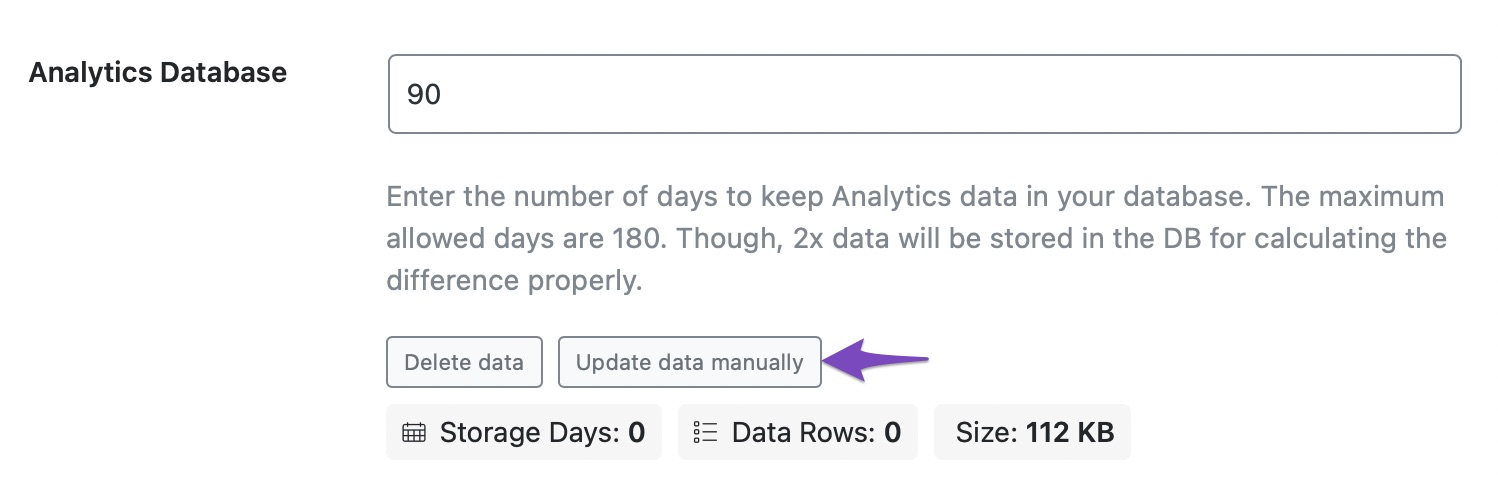
6.2 Update Data Manually
You can also update your data manually by clicking on Update data manually. If you have chosen to retain 90 days of data in your Analytics database, your data will be imported in 17 minutes. If you have more data, then it will take more time.
By default, the feature is enabled for all Business and Agency users to monitor their clients’ performance. In addition to that, Business and Agency users get the option to enable/disable the performance stats of individual sites. This can be done by toggling on/off the Monitor SEO Performance option available under WordPress Dashboard → Rank Math SEO →General Settings → Analytics.
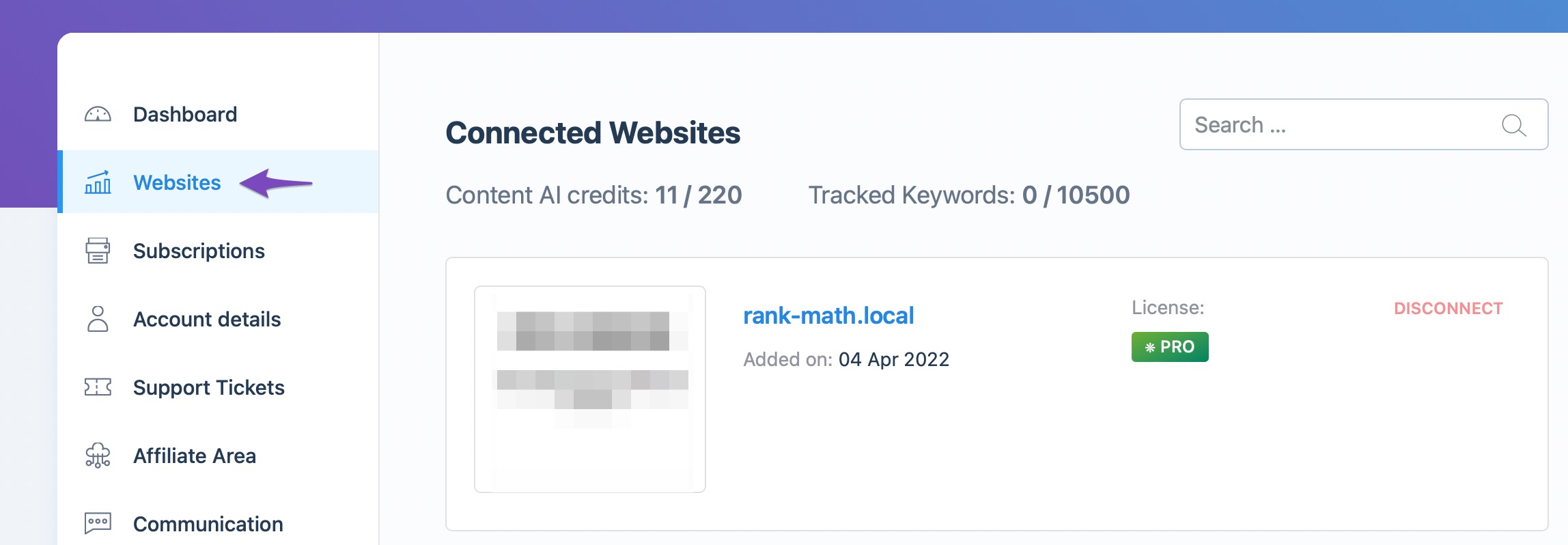
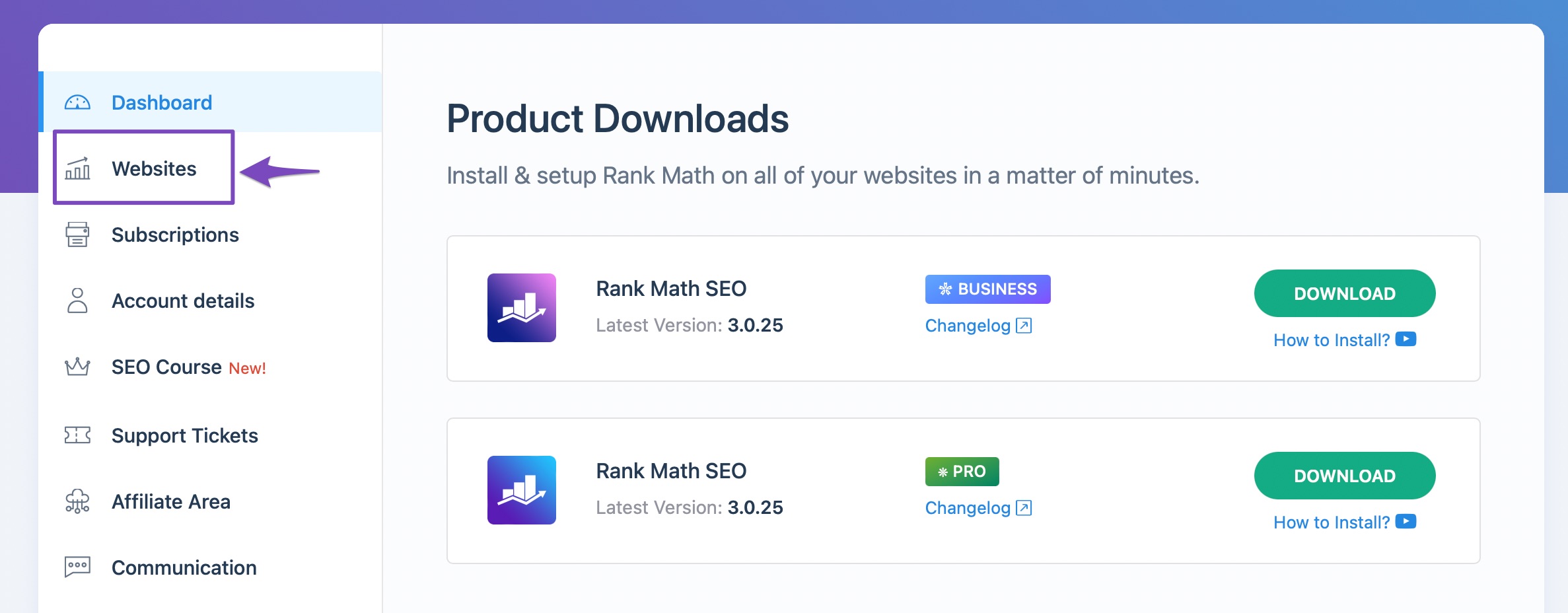
PRO users might not be able to change the setting for individual sites. But, they can enable/disable the analytics stats for all their connected websites by logging in to their Cuenta Rank Math and navigating to the sitios web pestaña.
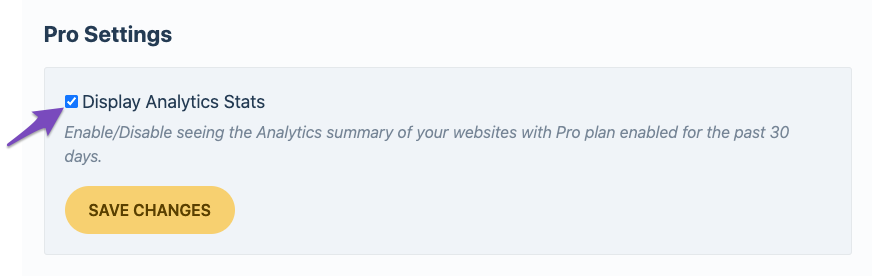
Scroll down to find the Mostrar estadísticas de análisis option under the Configuración profesional and then choose to enable/disable the option.
In this way, PRO users can check the stats of all their connected websites, while Business and Agency users can choose the websites for which they want to check the stats.
And that’s it – now that you’ve connected your Google Account with Rank Math, you can easily let Rank Math help you make the most of your analytics data! If you haven’t yet done so & are looking to get started with Rank Math today – learn more here.
If you’ve absolutely any questions or any help in connecting Rank Math with your Google Account, please feel free to reach our support directly from here, y siempre estamos aquí para ayudar.
¿Aún no utilizas Rank Math?
¡La configuración toma menos de 5 minutos, incluida la importación desde su antiguo complemento SEO!
Cómo conectar su cuenta de Google con Rank Math SEO
How to Connect Your Google Account With Rank Math SEO » Rank Math
Google Analytics, Google Search Console, and Google AdSense — checking your website stats with each of these platforms and compiling the data to collect
Equipo Rank Math
¿Cómo conectar su cuenta de Google con Rank Math SEO? -Rank Math SEO
Rank Math is the best alternative to connecting your website with Google services without installing any additional plugins. https://rankmath.com/kb/connect-...