
Orphan pages are webpages that have no internal links pointing to them. In other words, no other pages on your site link to them.
This makes orphan pages difficult for search engines to discover, which can prevent them from being properly crawled, indexed, or displayed in search results. To prevent this, you should identify orphan pages and add relevant internal links pointing to them.
In this guide, we will show you how to detect orphan pages using the orphan posts filter and fix them using the keyword maps, all within AI Link Genius.
In this article, we’ll cover:
1 Enable AI Link Genius
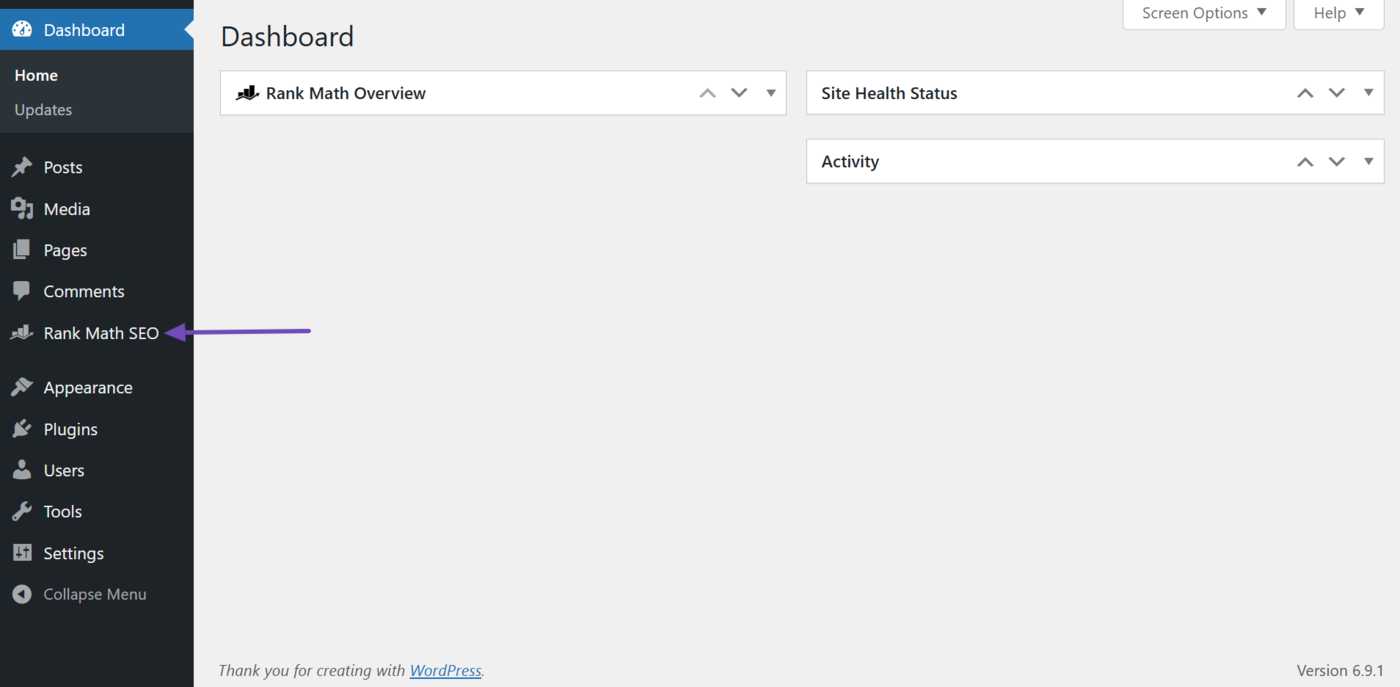
To get started, we want to be sure that you have enabled the AI Link Genius module. To do that, head to click Rank Math SEO from your WordPress dashboard.
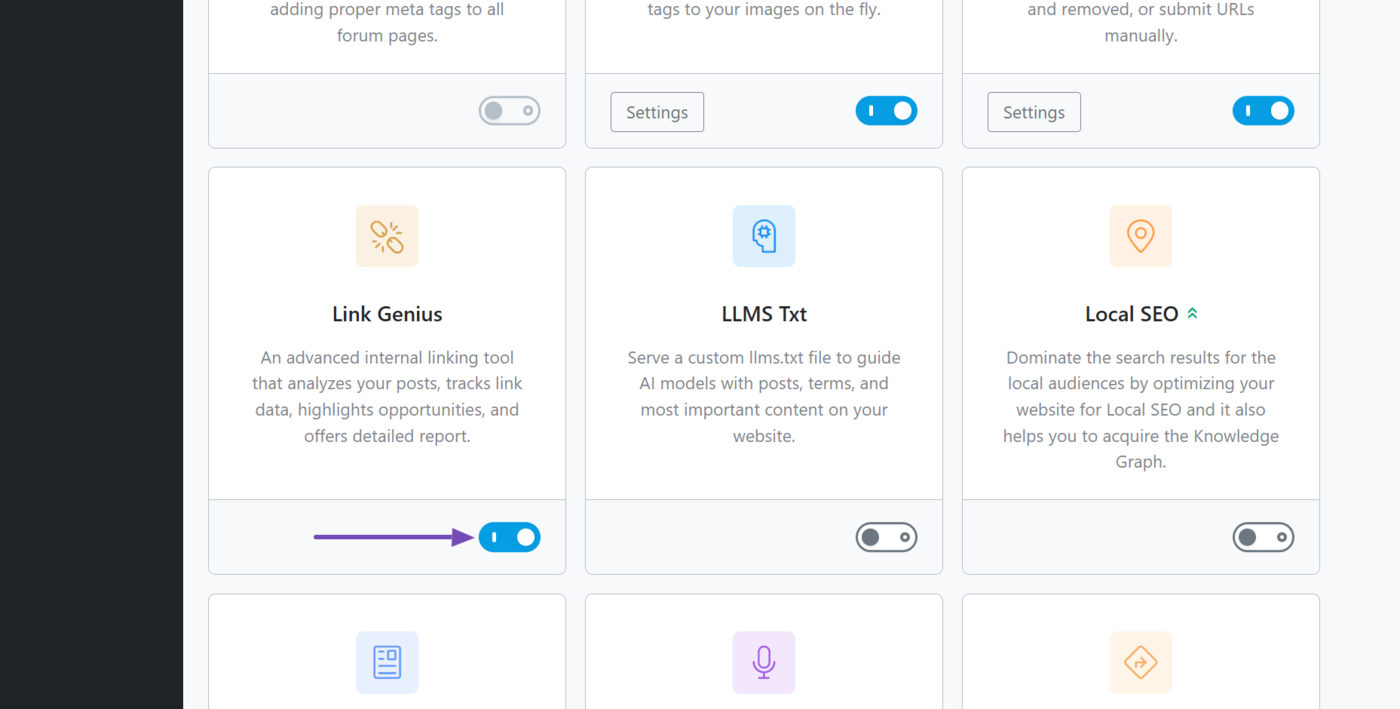
Once done, scroll down and enable the Link Genius module, as shown below.
2 Head to the Orphan Posts Tab
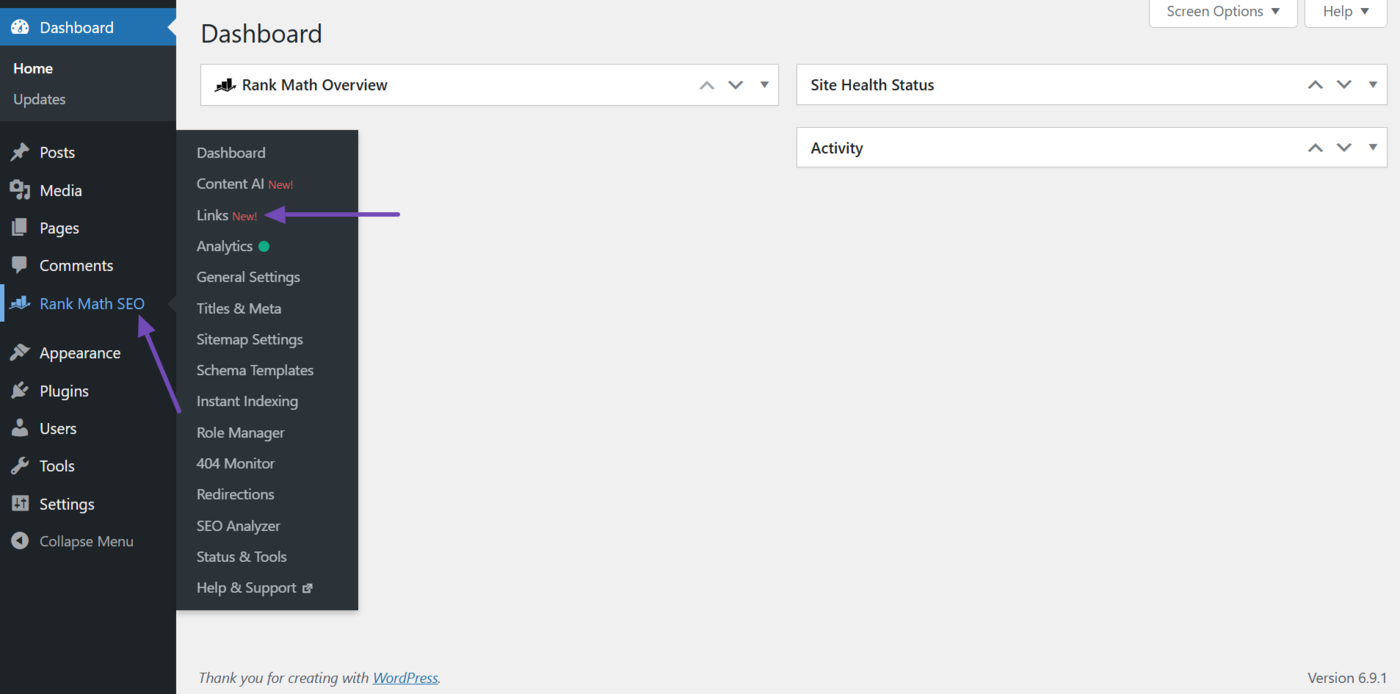
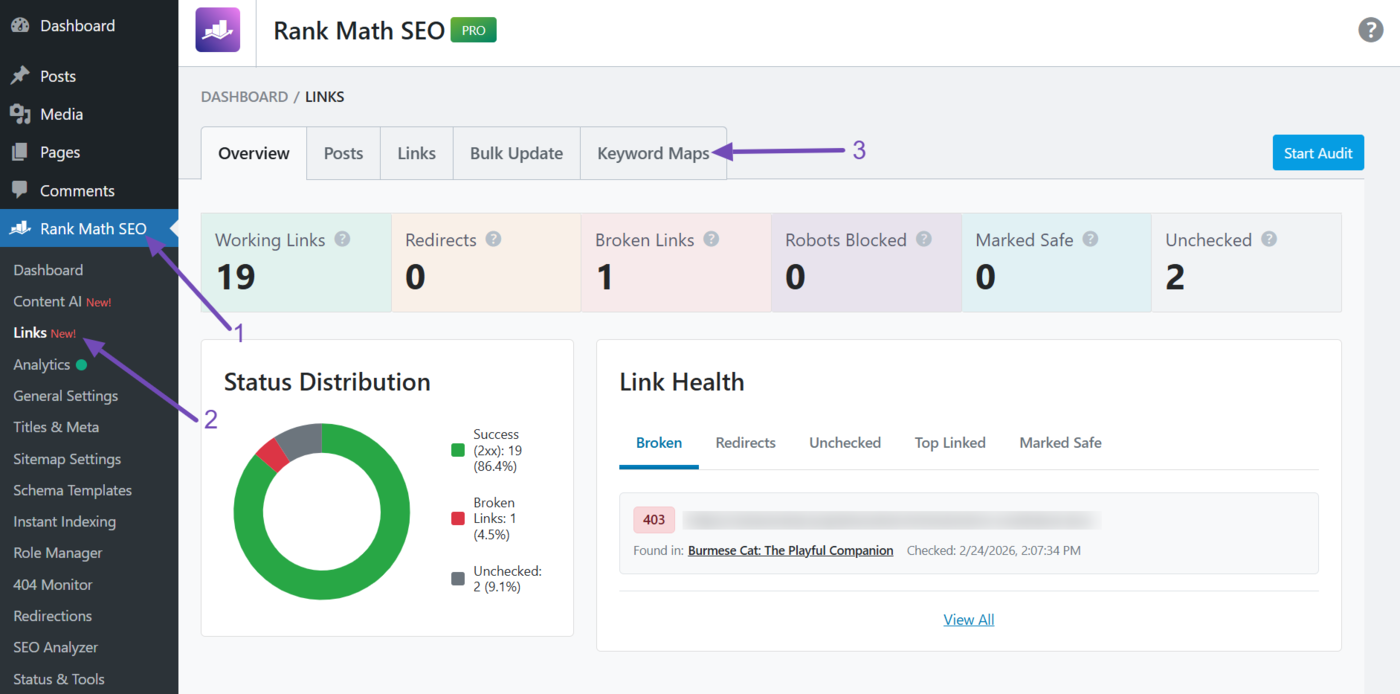
Now, head to Rank Math SEO → Links, as shown below.
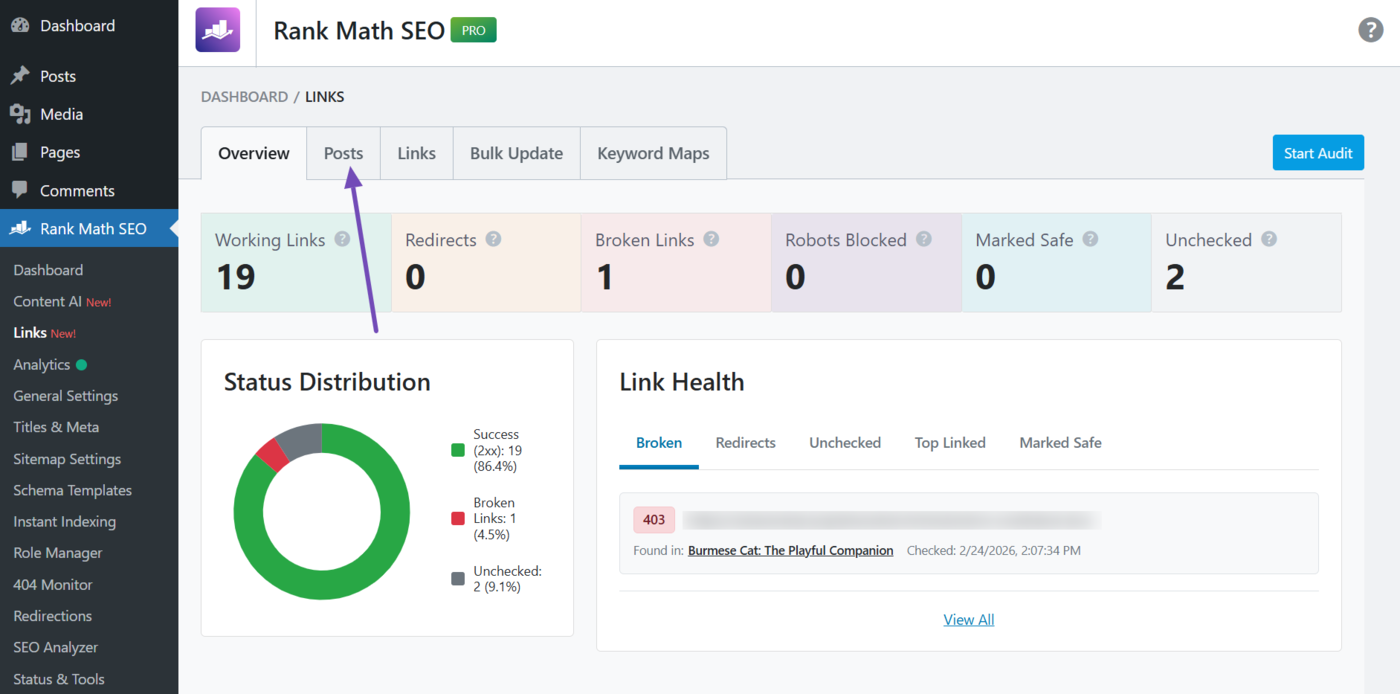
Then, click Posts.
Then, click Orphan Posts.
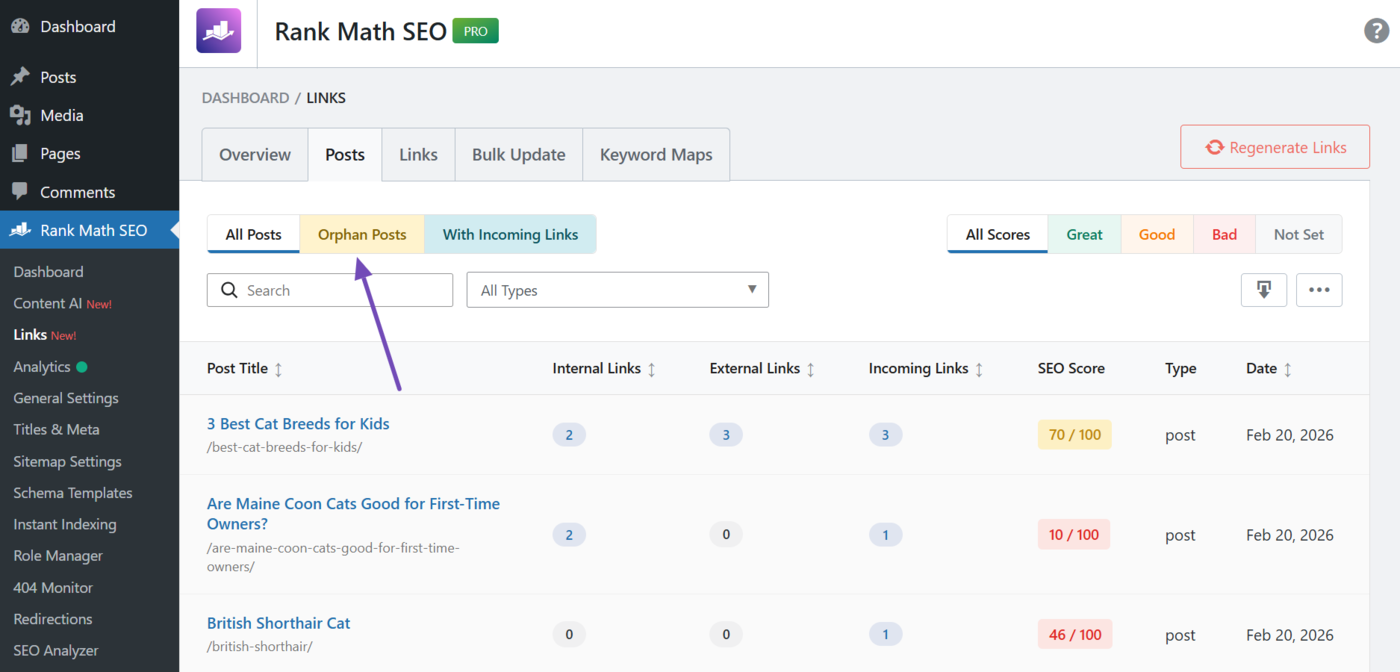
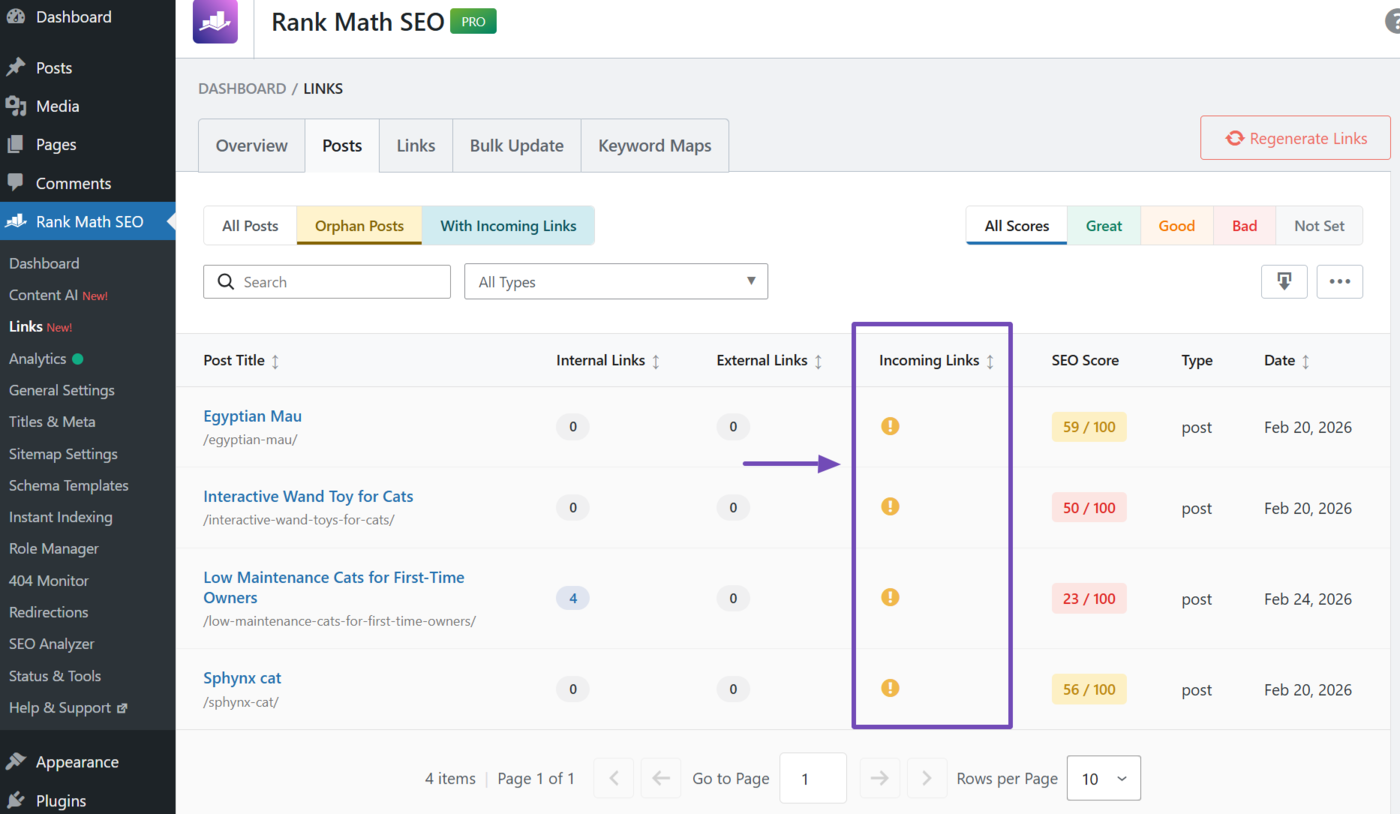
You will then be presented with the orphan posts and pages on your site. The incoming links (from other pages on the same site) to these pages will be zero and denoted with an exclamation mark icon.
3 Filter the Orphan Posts
You can now use the filters on the page to narrow down on your orphan pages. This lets you identify which orphan pages to improve and which ones to ignore. It also helps you prioritize the pages that need the most attention.
There are multiple filters and options, and you can use them alone or in combination with other filters. This includes the:
- Search bar
- Post type filter
- SEO score filter
3.1 Search Bar
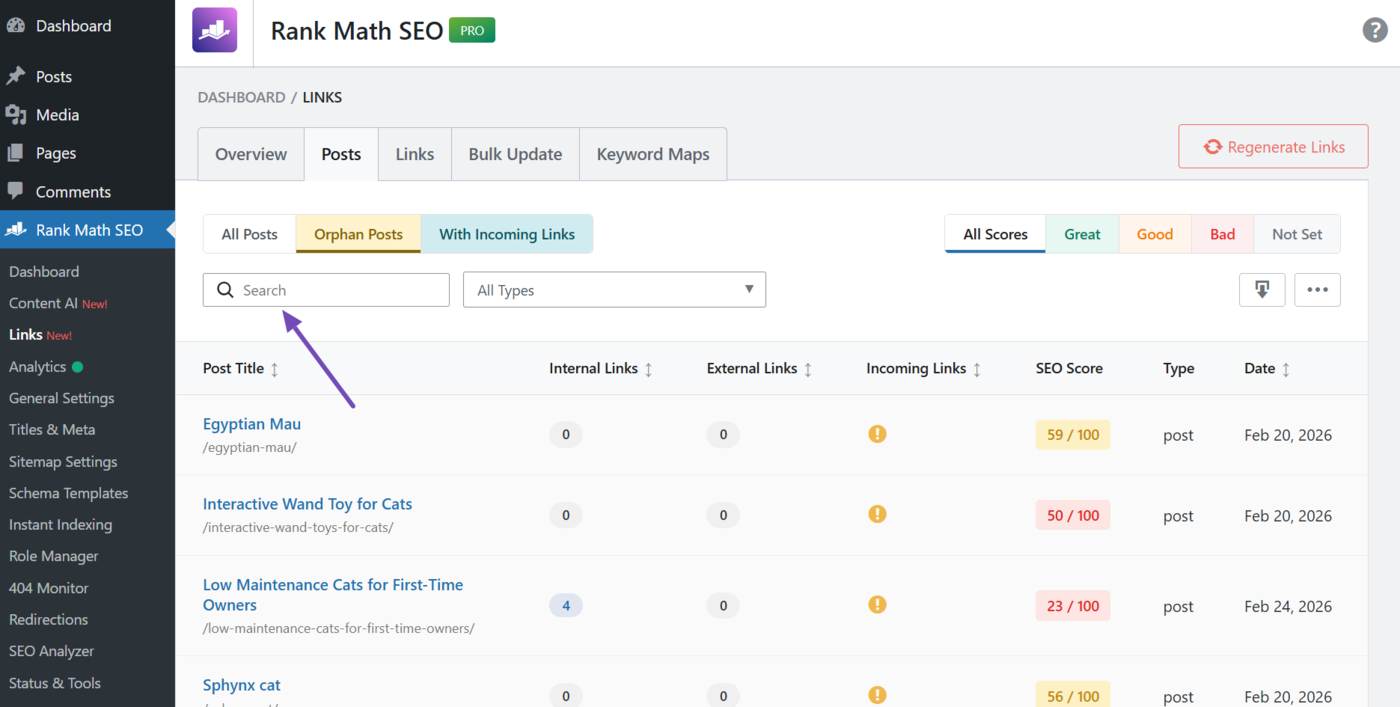
If you have a specific post (or posts containing a specific keyword) that you want to identify, enter the keyword into the search bar. Once done, the report will only display posts containing these keywords in their title.
3.2 Post Type Dropdown
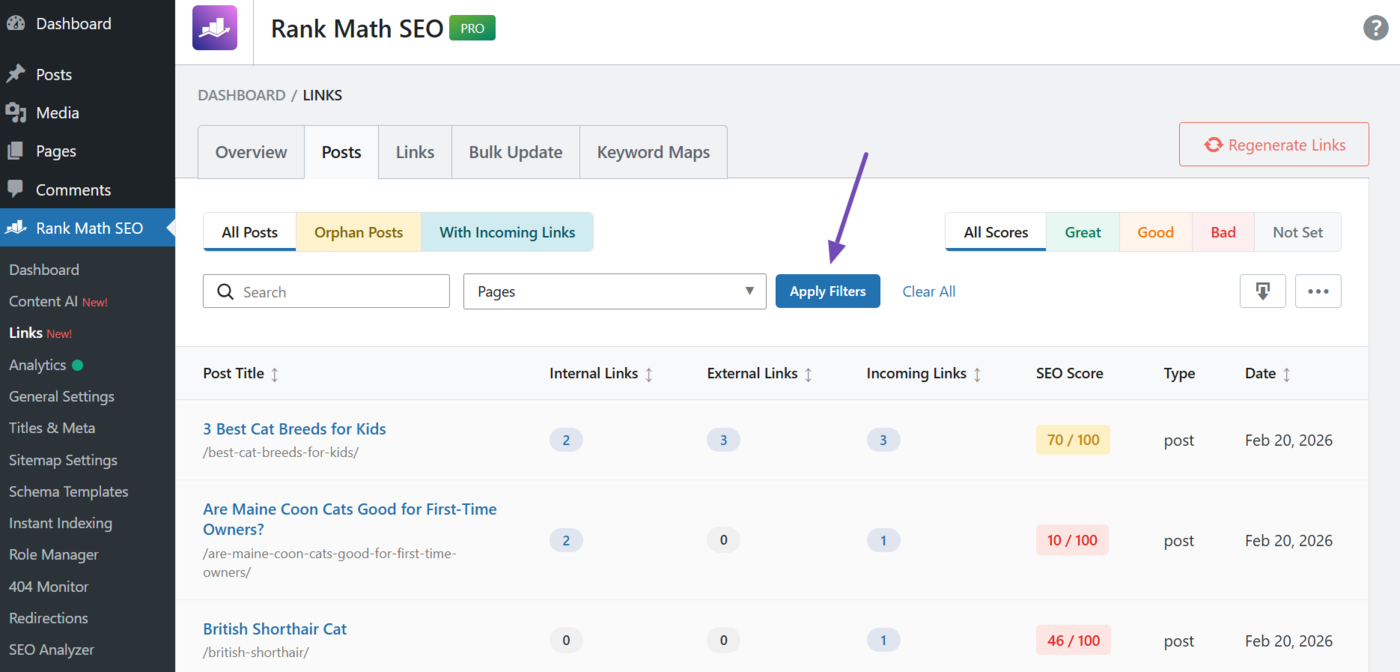
You can also filter your orphan pages by their post type. To do that, click the post type dropdown.
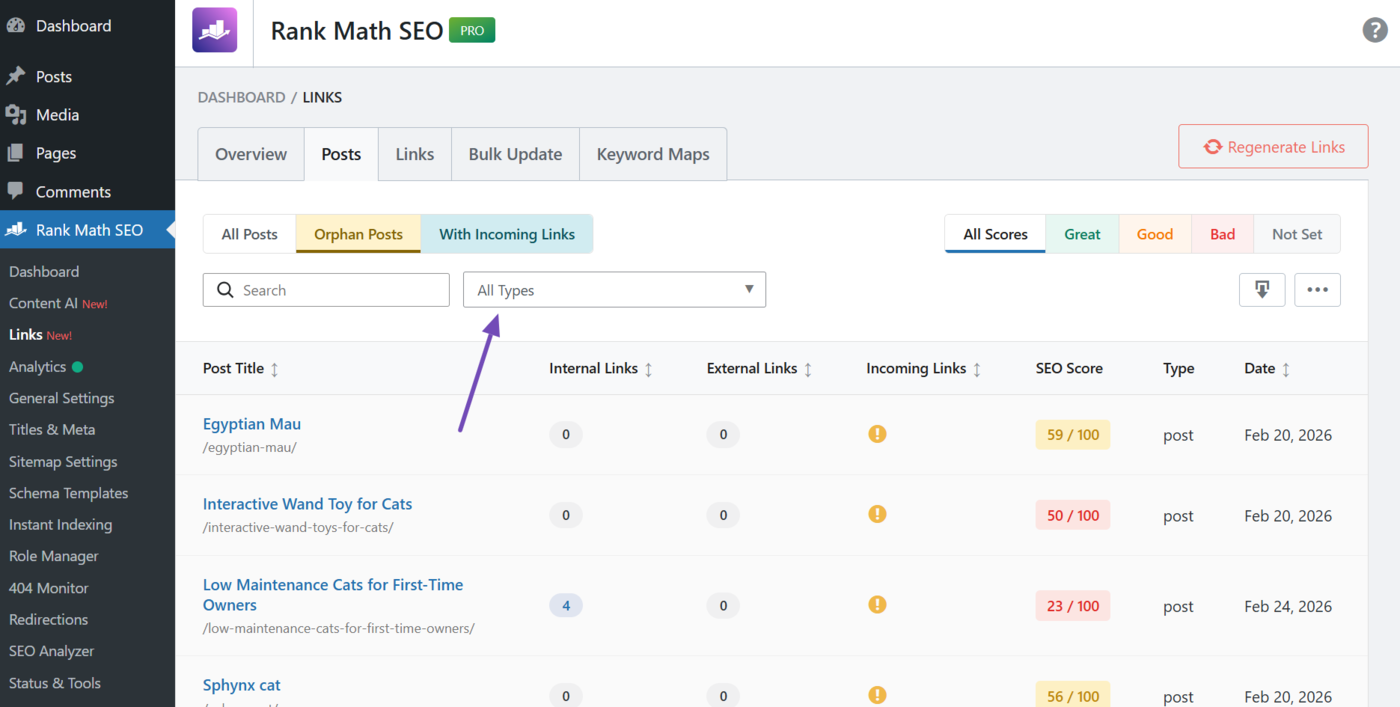
The options here will vary depending on the content on your site. Select the ones to review. (You can select multiple options.) Leave this field blank to review all post types.
Once done, click Apply filters, as shown below.
3.3 SEO Score Display
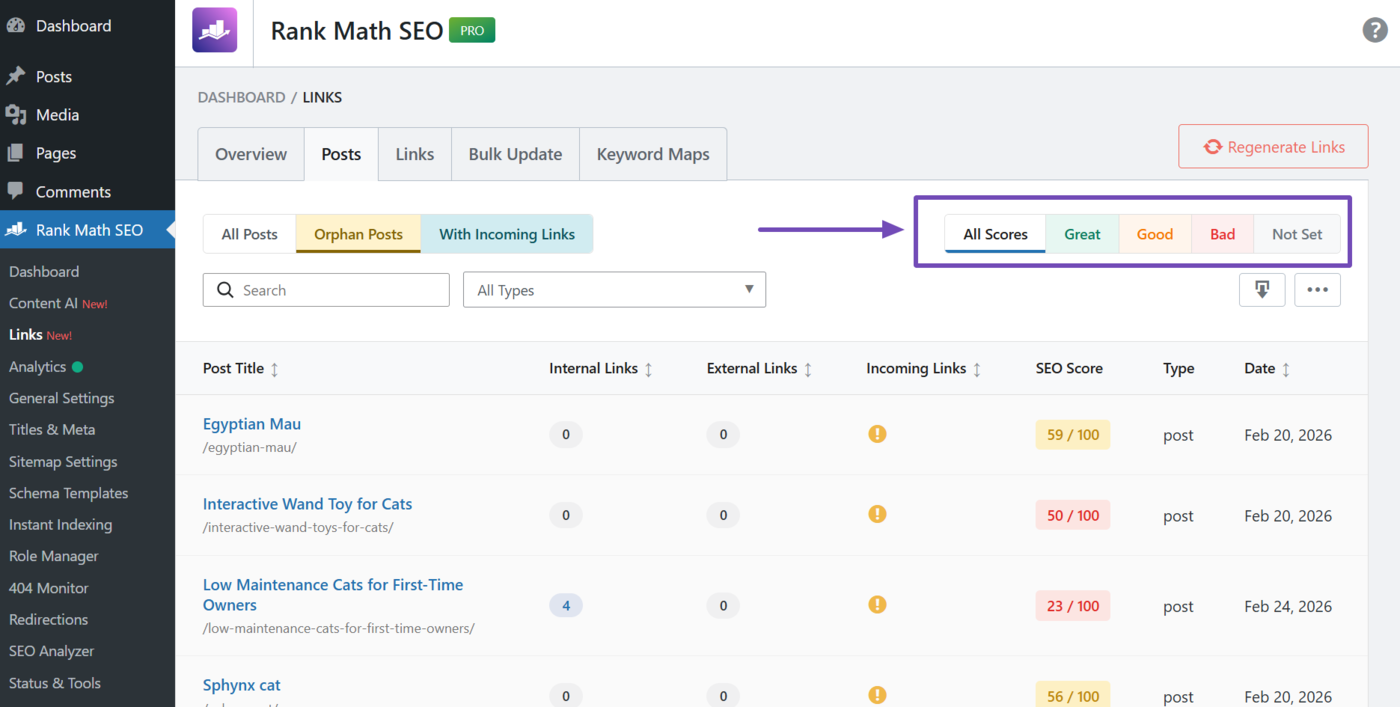
You can also use the SEO score display to further filter your report. For the SEO score, select the SEO score of the pages to assess. The available options include:
- All scores: Displays all orphan pages, regardless of their SEO score
- Great: Displays orphan pages with an SEO score of 81 and above
- Good: Displays orphan pages with an SEO score between 51 and 80
- Bad: Displays orphan pages with an SEO score below 50
- Not set: Displays orphan pages without an SEO score
4 Select the Columns to View
You will now proceed to filter the columns in the orphan page report. This helps you avoid information overload and accurately identify posts to prioritize.
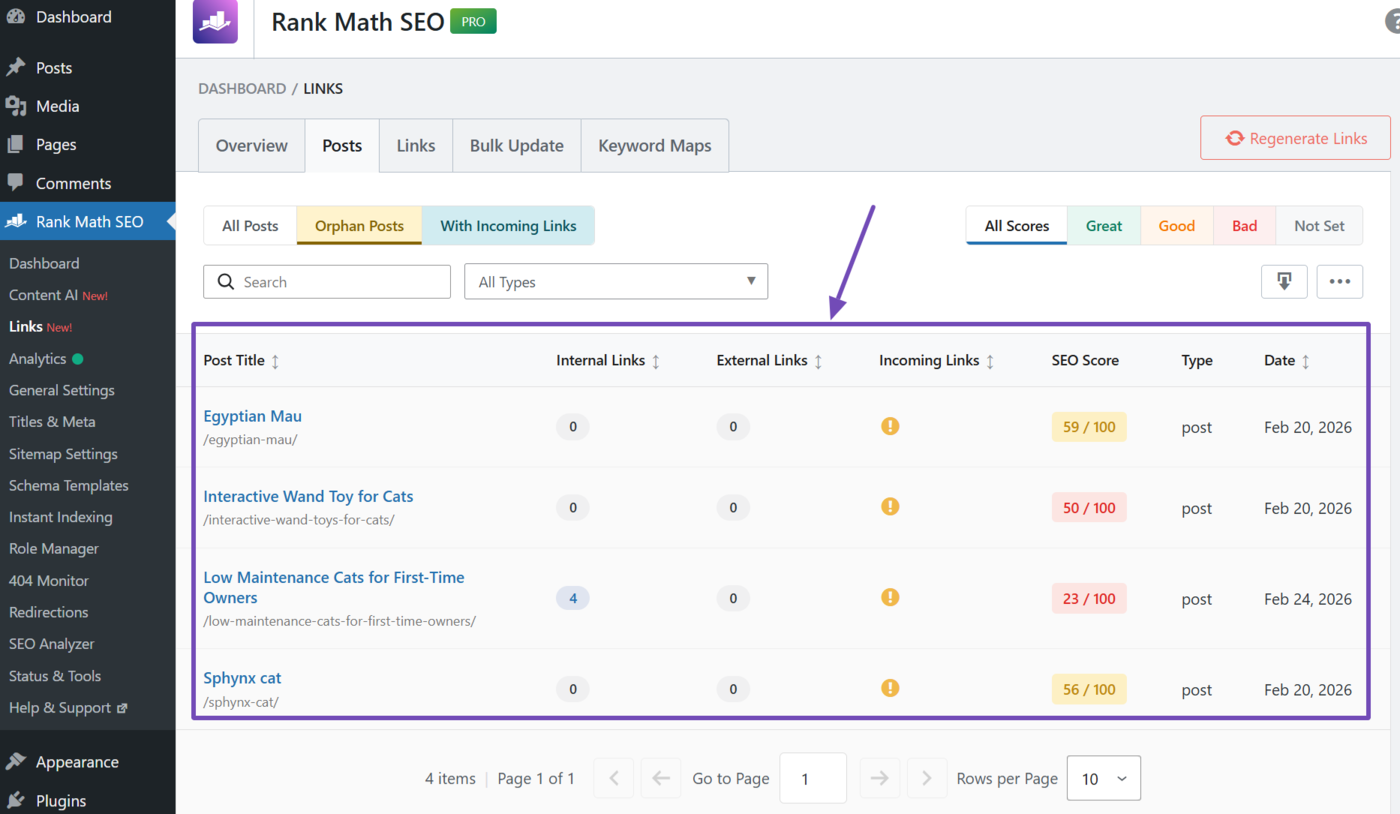
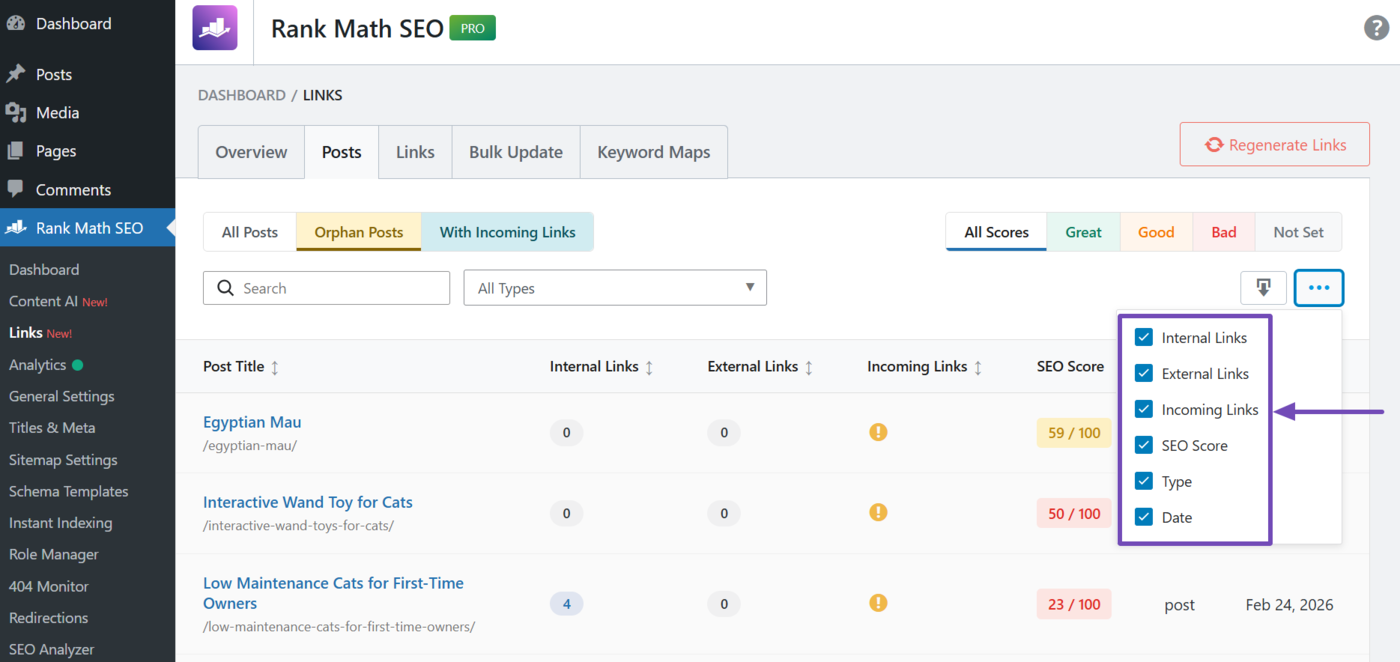
To get started, click the options menu (the one with three dots) to select the columns to display in the report.
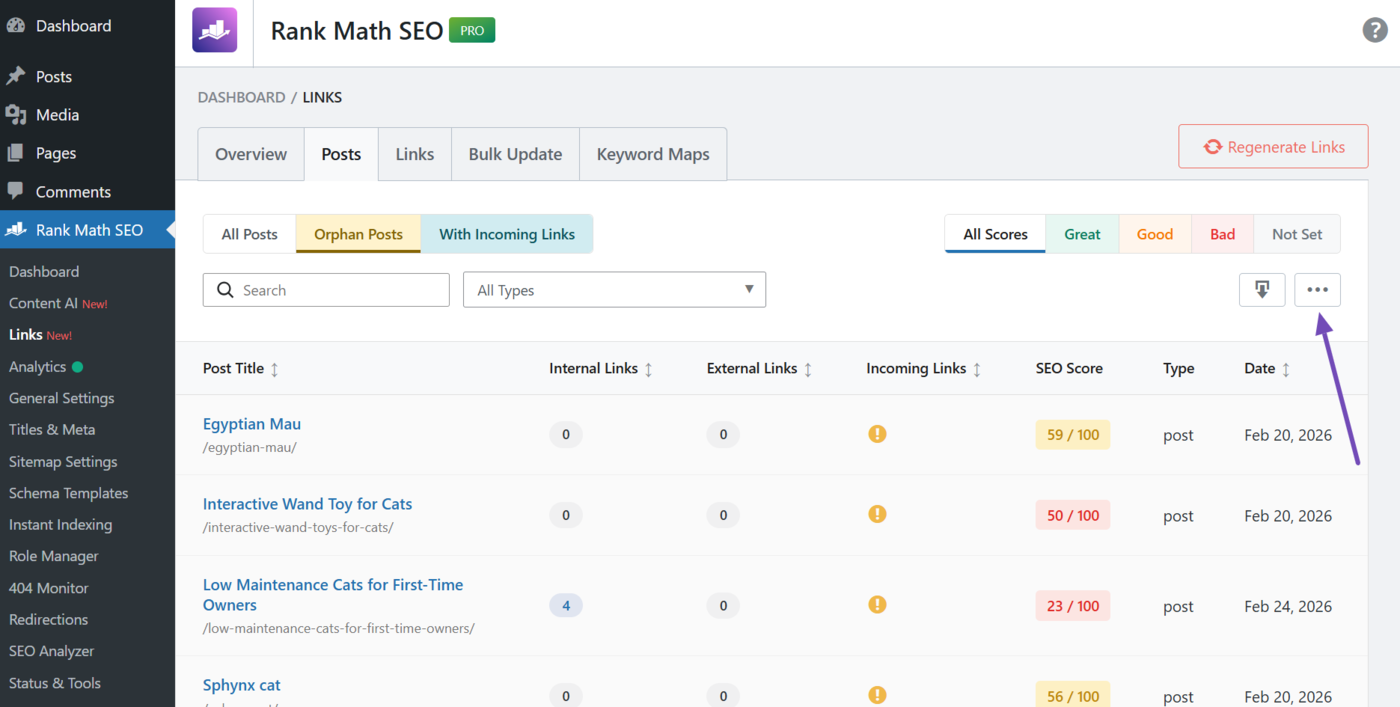
The available options include:
- Internal links: Links that originate from the orphan page and point to other pages on your site
- External links: Links that originate from the orphan page and point to pages on another site
- Incoming links: Links that originate from other pages on your site and point to the orphan page
- SEO score: Shows the SEO score of the orphan page
- Type: Indicates whether the orphan page is a post, page, or product page
- Date: Indicates the date the page was last updated
Note: The number of incoming links is always zero. Instead of a number, an exclamation mark ! is displayed to indicate there are no incoming links.
All options are checked by default. Make sure to uncheck the ones you do not want in your report.
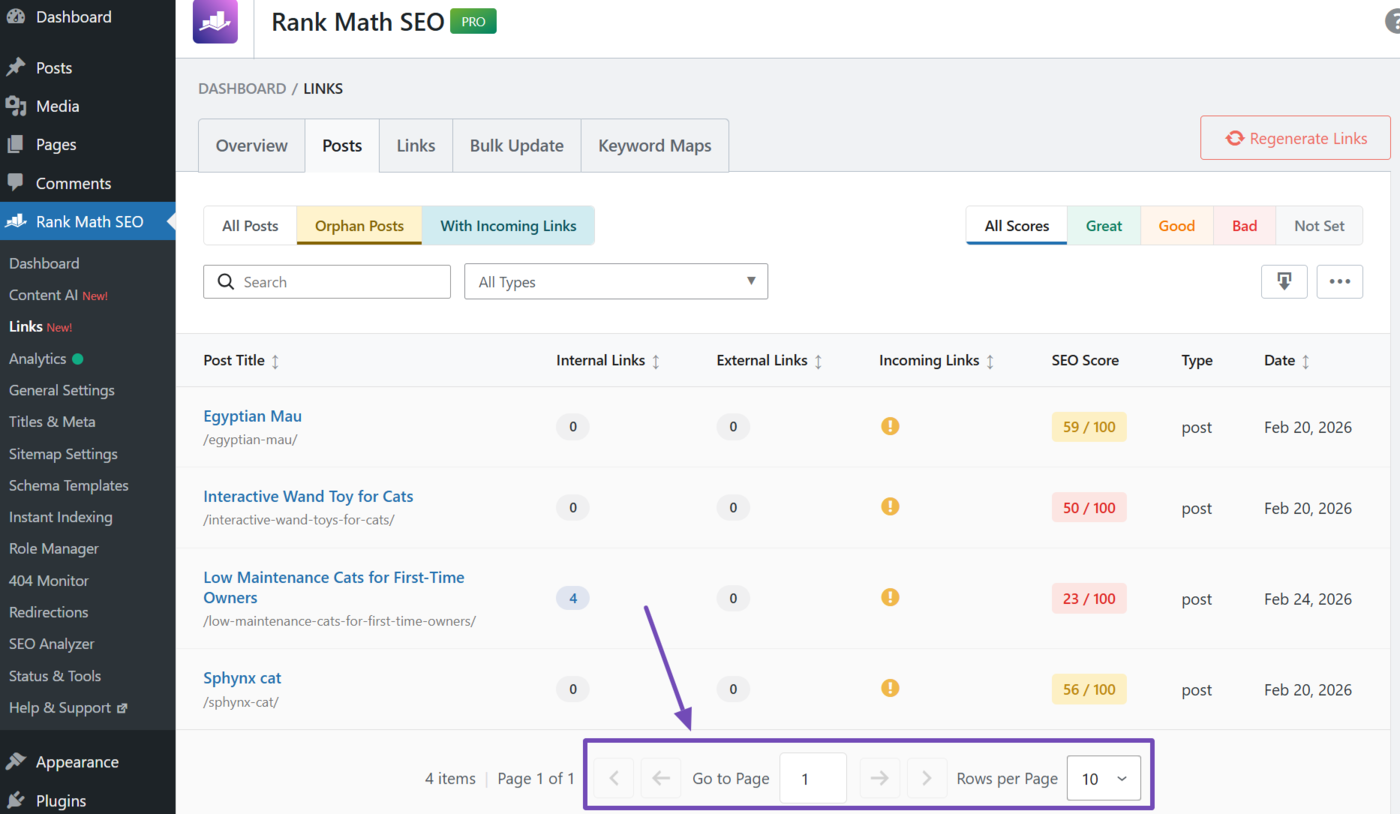
You can also use the options at the bottom of the page to navigate through the report and set the number of posts to include on each report page.
5 Fix the Orphan Posts Automatically
You now have a great overview of your orphan posts. It is now time to fix them. You can do that using the keyword map.
To do this, open your WordPress dashboard in a new tab and navigate to Rank Math SEO → Links → Keyword Maps.
Note: Do not open this in the current tab where you are viewing your orphan pages, else you may lose the filters you already applied to the orphan page report.
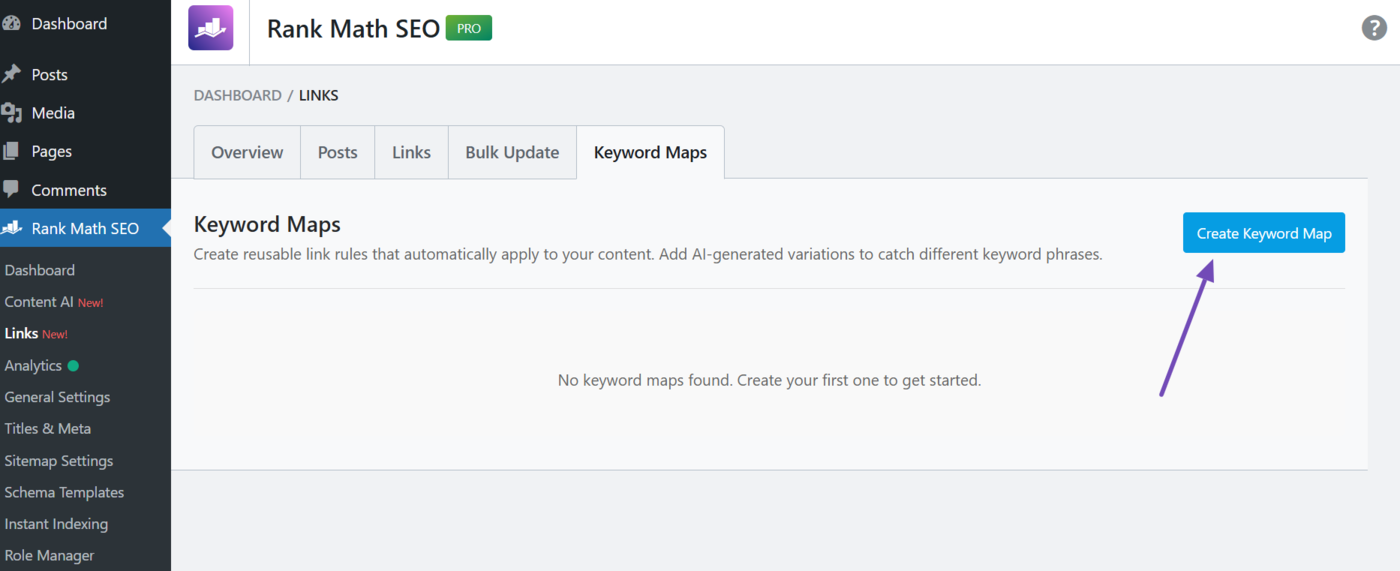
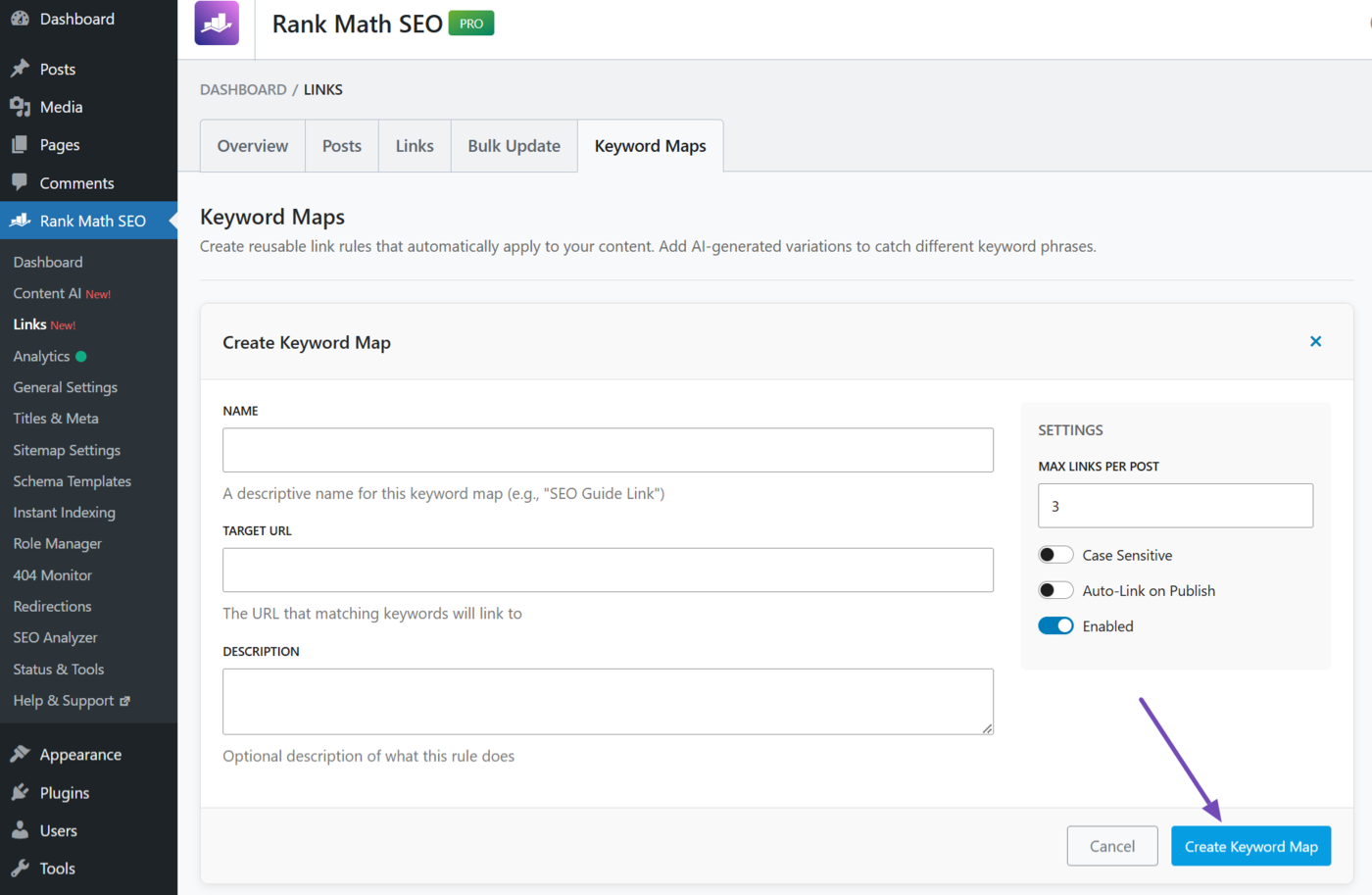
Once done, click Create Keyword Maps.
You will be presented with a few options:
- Name
- Target URL
- URL description
- Keyword variations
- Keyword map settings
- Create keyword map
Note: The Keyword variations field only shows after you have entered a keyword into the Name field.
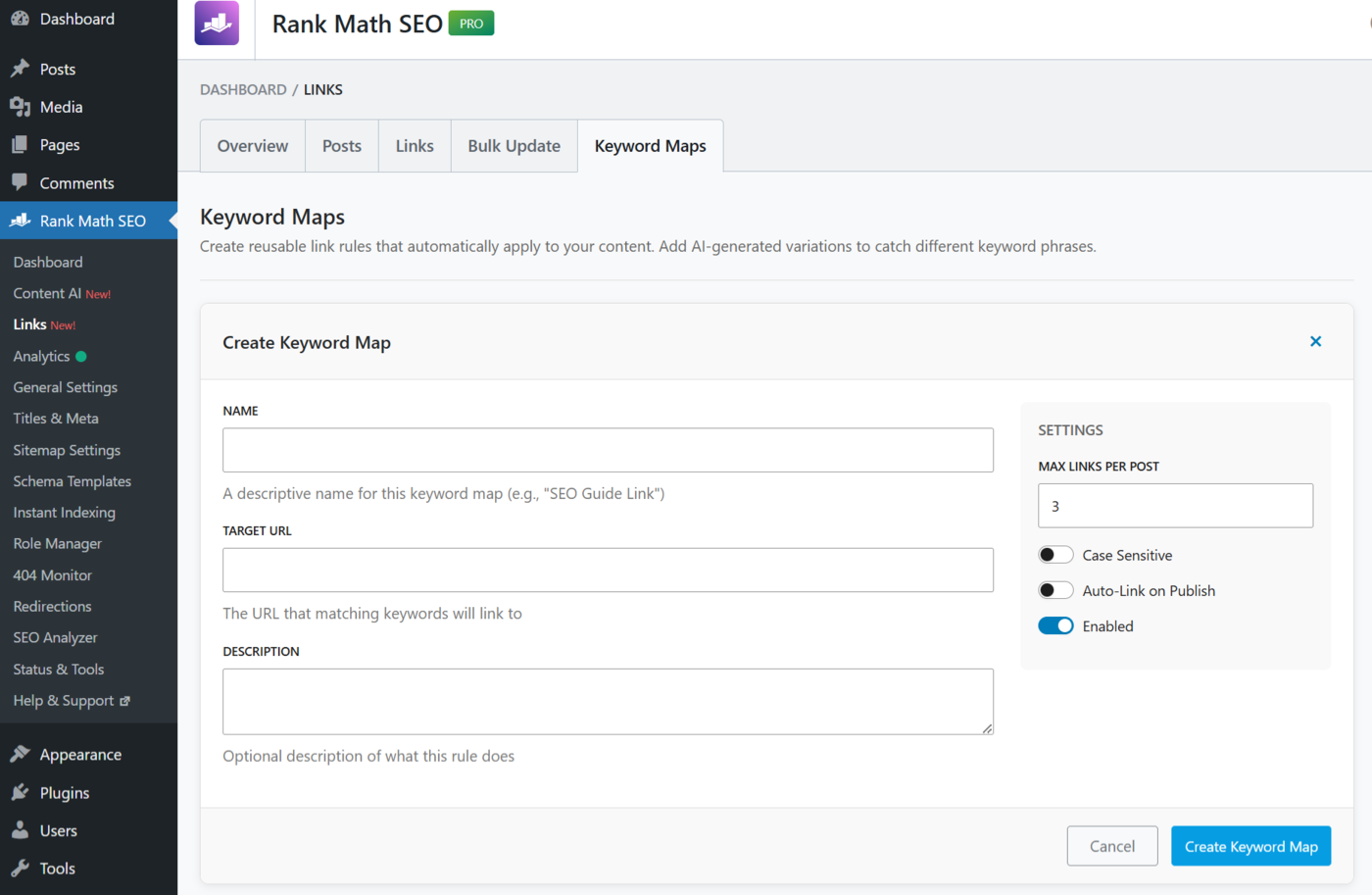
Let us show you how to fill them.
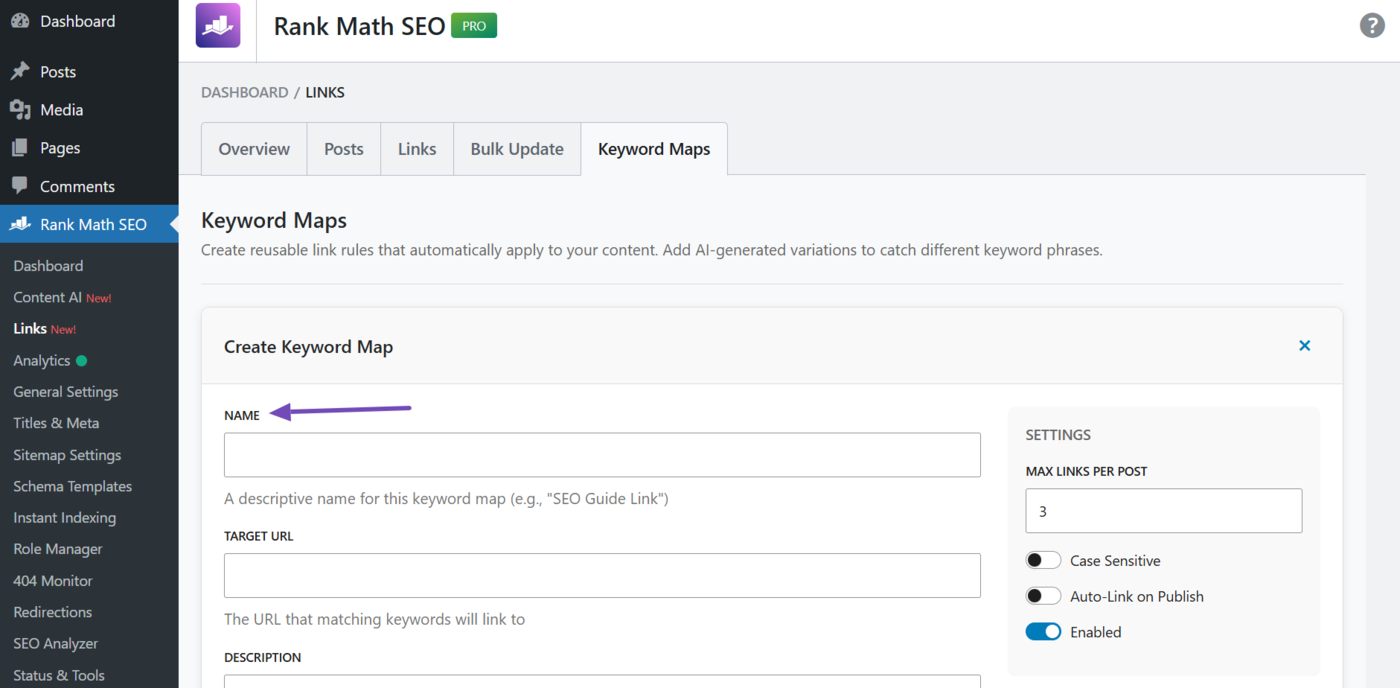
5.1 Name
Enter the main keyword for which you want to optimize the orphan page. This will be used as the anchor text of the link.
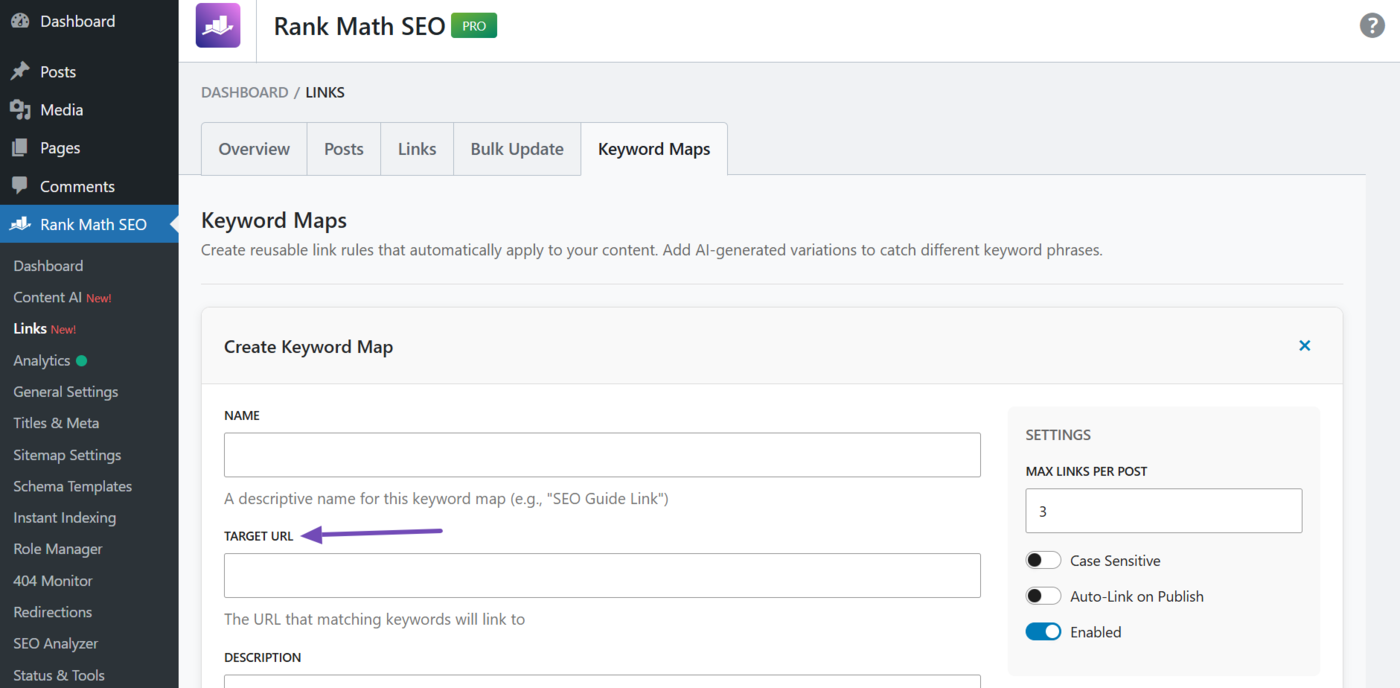
5.2 Target URL
Enter the URL of the orphan page here. Make sure to enter the full URL. For example, https://yourdomain.com/most-popular-cats.
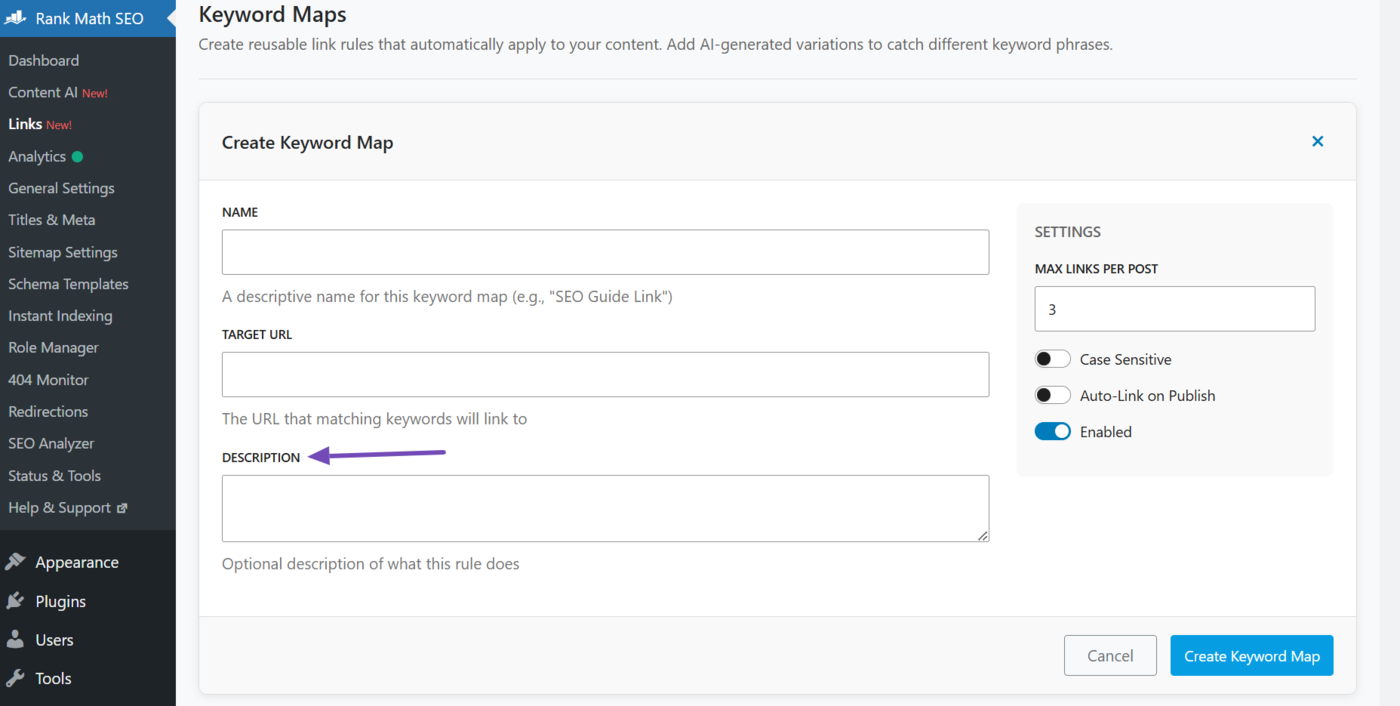
5.3 URL Description
Enter a brief description so you remember why you created this keyword map. This is optional and is not included in the link created for the orphan page.
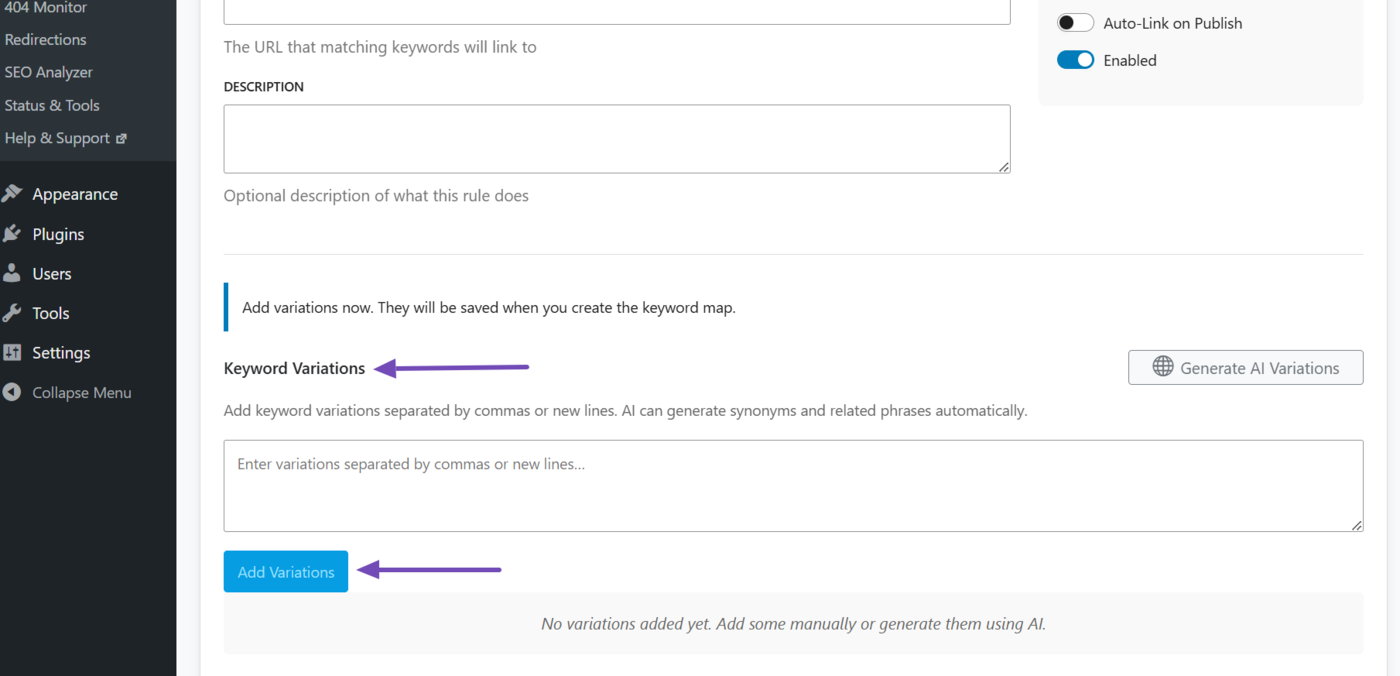
5.4 Keyword Variations
Enter additional (secondary) keywords for which you want to optimize the orphan page. These keywords will also be used an anchor texts for the link. Once done, click Add variation.
Note: Make sure to enter each keyword into a separate line. And if you enter them in the same line, make sure to separate them with a comma.
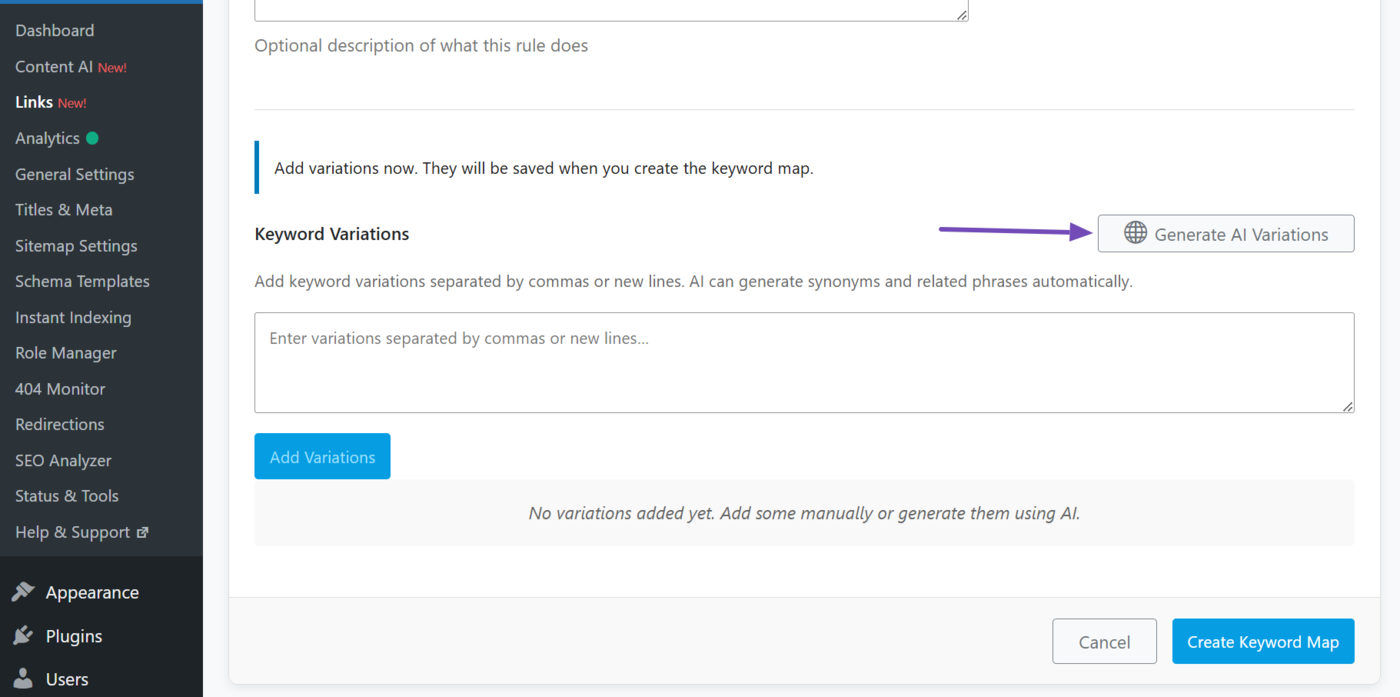
You can also get Link Genius to generate some additional keywords. To do that, click Generate AI variations.
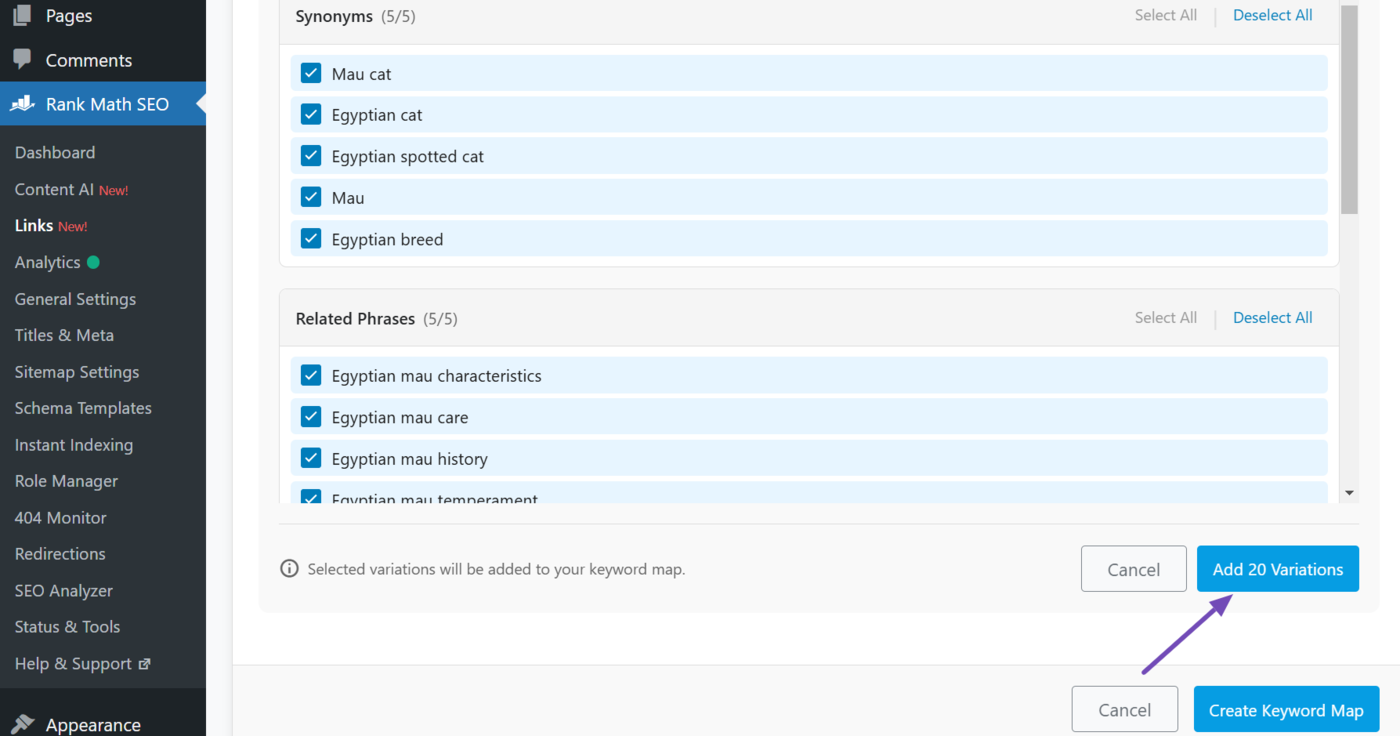
Once done, review the keywords. Uncheck the ones you do not want and click Add variations.
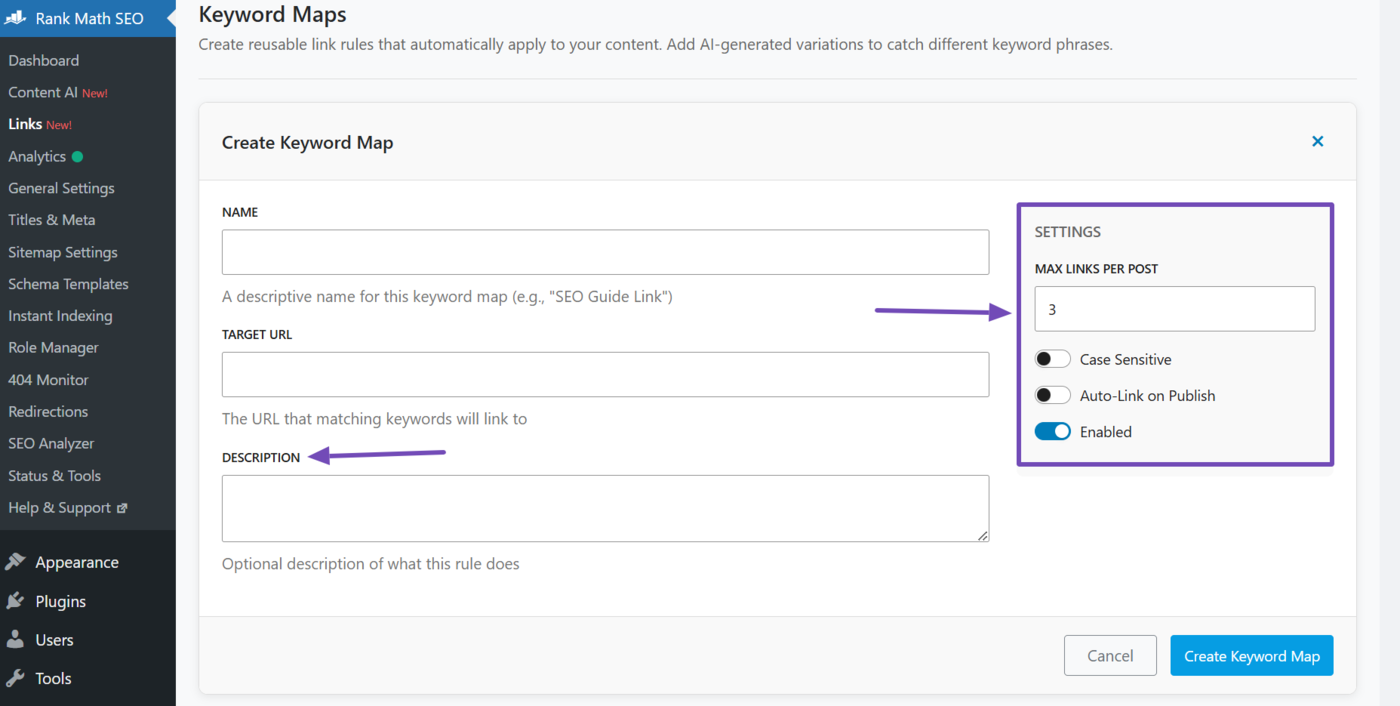
5.5 Keyword Map Settings
The keyword map also includes additional settings, such as:
- Max links per post: Set the maximum number of links that can point from a page to the orphan page.
- Case sensitive: Determines whether links are created only when the keyword matches the exact letter case you used in the “Name” and “Keyword variation” fields
- Auto-link on publish: Enable this to automatically link future mentions of the keyword to the orphan page
- Enabled: Leave this enabled so your keyword map starts working immediately
5.6 Click Create Keyword Map
Once done, click Create keyword map to create your keyword map.
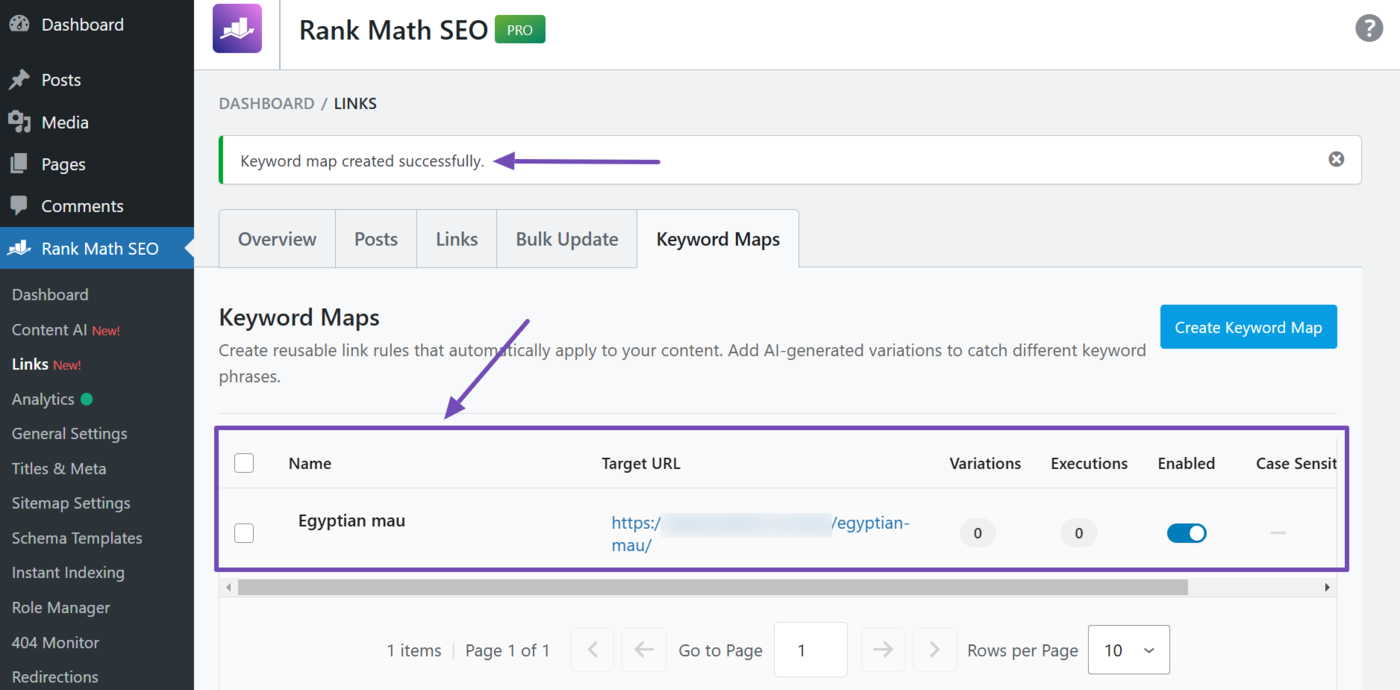
Link Genius will create your keyword map. You will see a success message, as shown below. (It will disappear after a while.)
The keyword map you just created will also be included on the page. However, the keyword map has not been applied to your site. You will do that in the next steps.
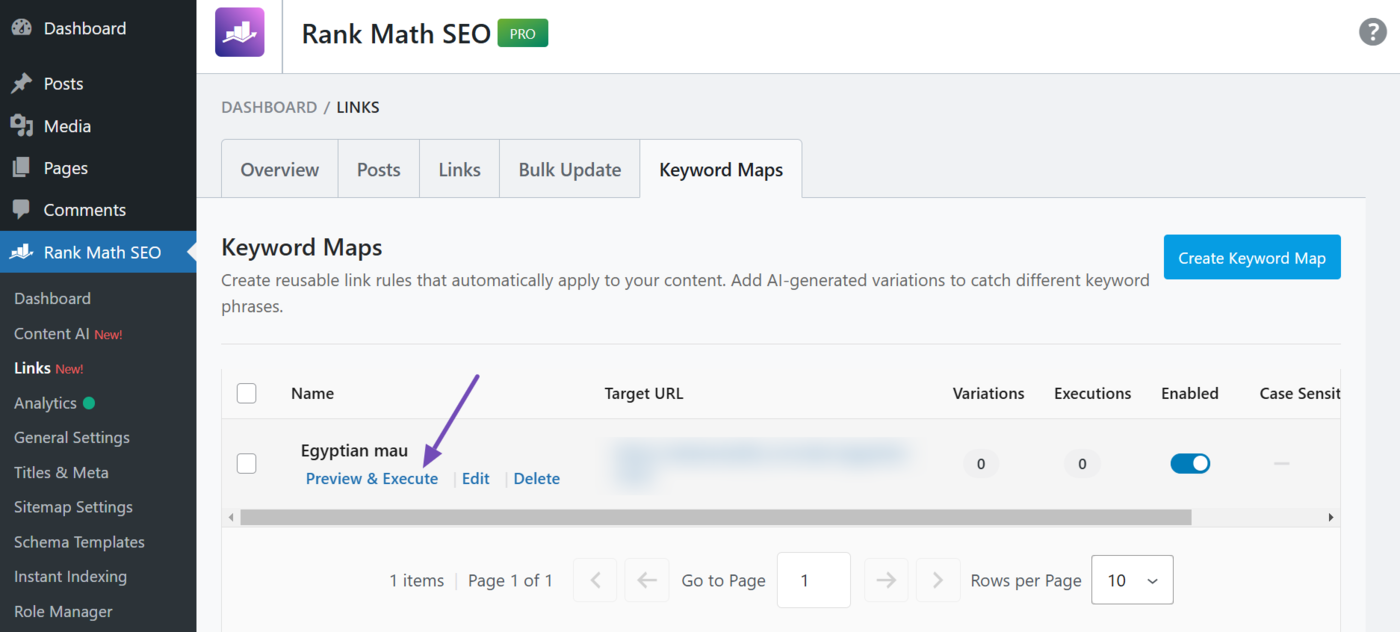
5.7 Apply the Keyword Map
Hover over the keyword map you just created. Some options will appear. Click Preview & Execute.
Link Genius will show you a preview of the internal link (URL and anchor text) that will point to your orphan page, along with the title of the post that will contain the link.
A checkbox appears before each post title:
- Uncheck it to exclude the post from linking to the orphan page
- If you want the post to link to the orphan page, leave it checked
Once done, click Add links change.
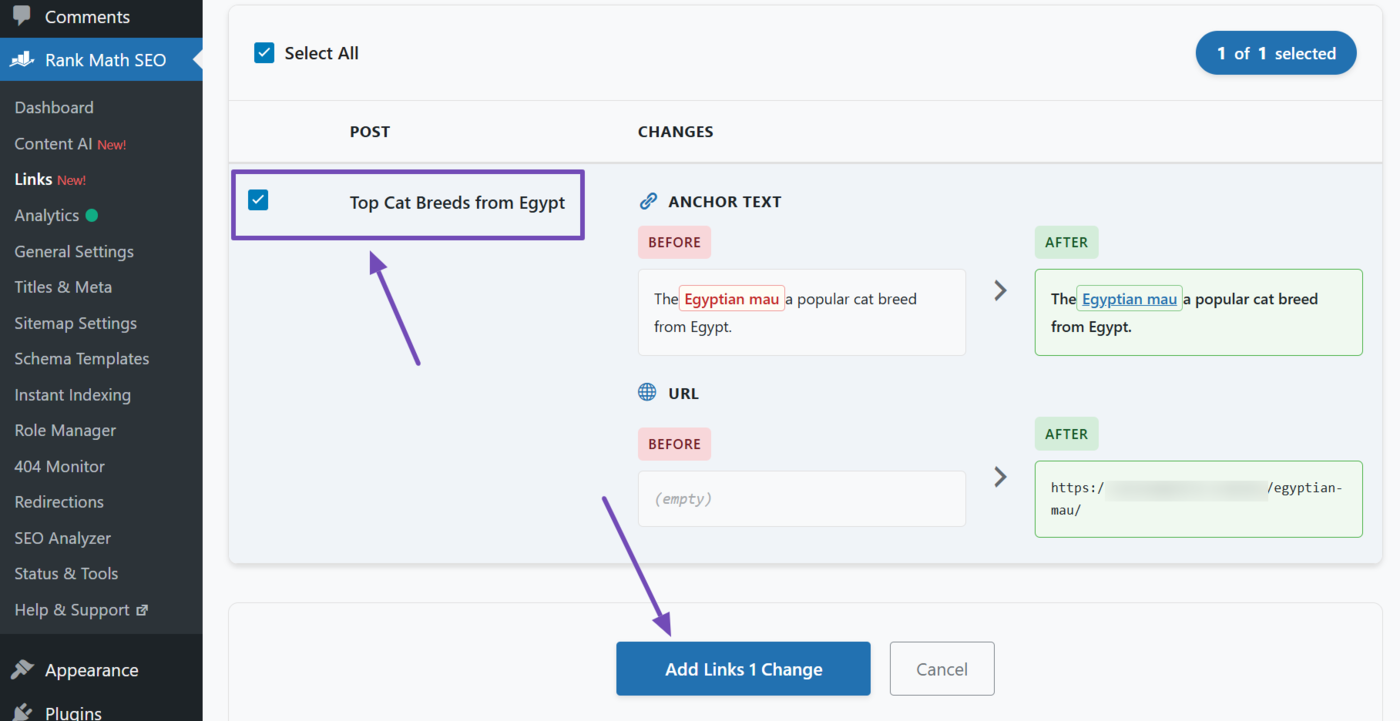
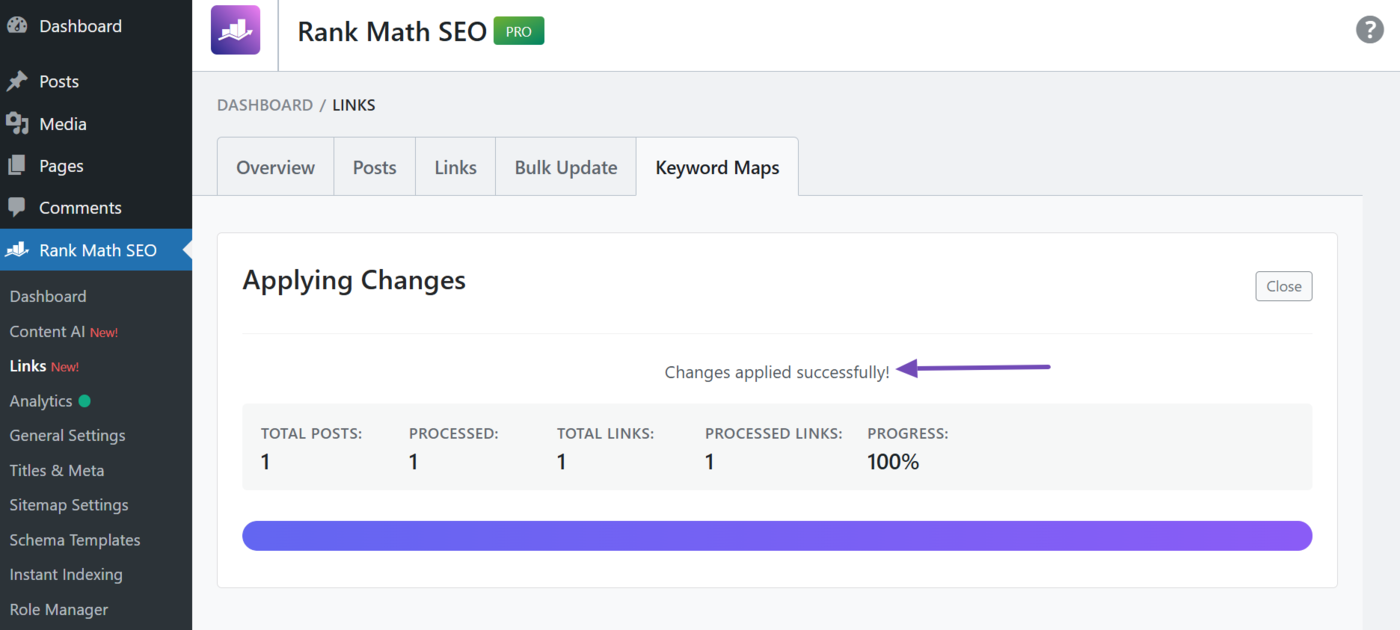
The keyword map will be applied to your site, meaning you now have one or more internal links pointing to the previously orphaned pages. You will also see a success message, indicating you have now fixed your orphan page.
That is how to fix your orphan pages using Link Genius. However, Link Genius can do more than just detecting orphan pages. It can automate your internal linking strategy and allow you to bulk edit your internal links and anchor texts.
You can refer to this guide on what Link Genius is and how it works. If you have additional questions, you’re always more than welcome to contact our dedicated support team. They are available 24/7, 365 days a year.