
It is good practice to include related posts blocks in your content. This ensures visitors who consume your content can access similar content, which keeps them on your site for longer and improves your user experience.
Conveniently, you can add related posts to your content using the related posts block or shortcode available in Link Genius. This allows you to automatically generate related posts without additional input from your end. Here’s how to do it.
How to Add Related Posts
Before we start, we want to be sure that you have enabled the Link Genius module. To do so, click Rank Math SEO from your WordPress dashboard.
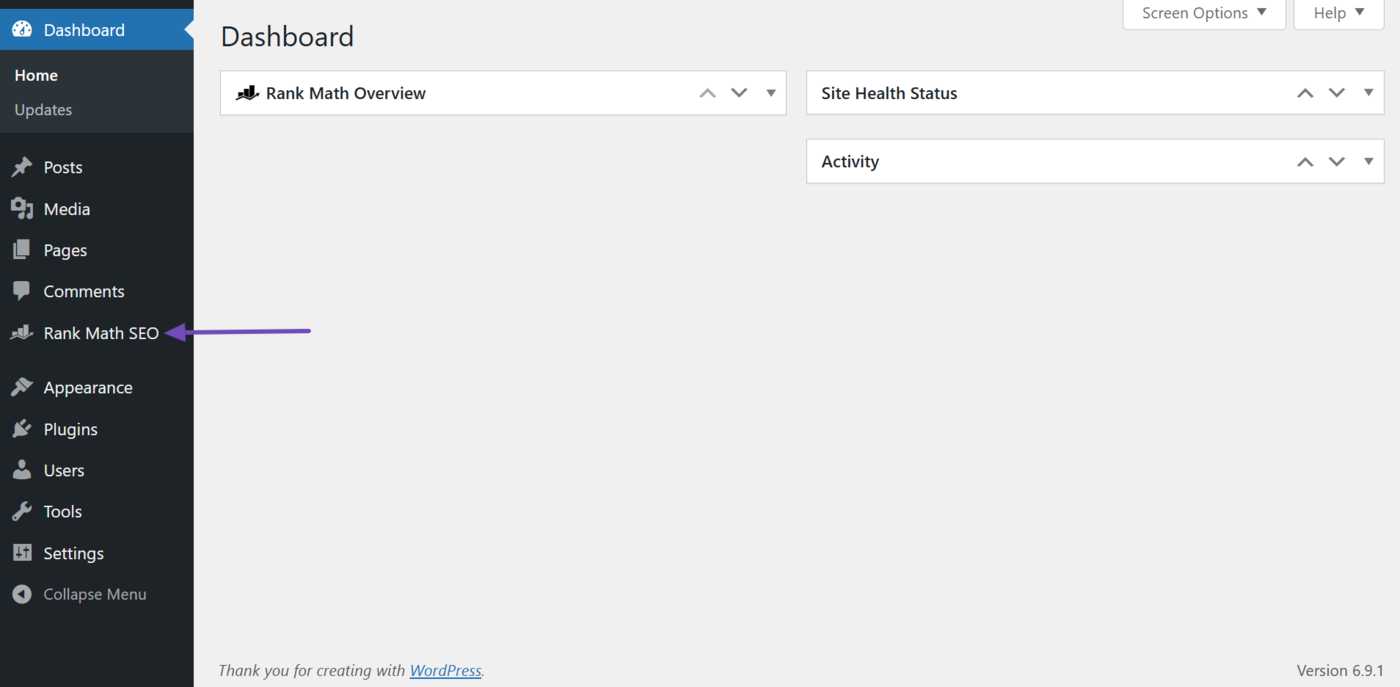
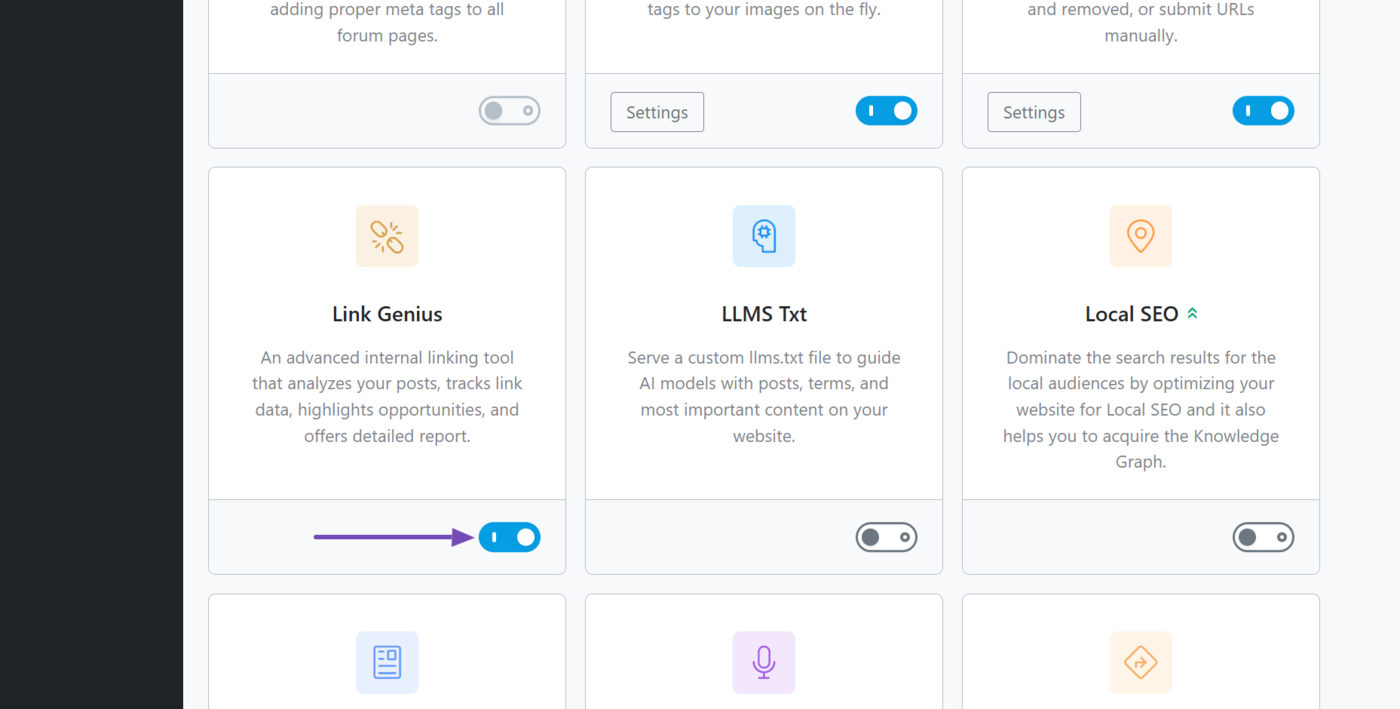
Next, head to the Link Genius module and enable it, as shown below.
1 Using the Rank Math SEO Sidebar
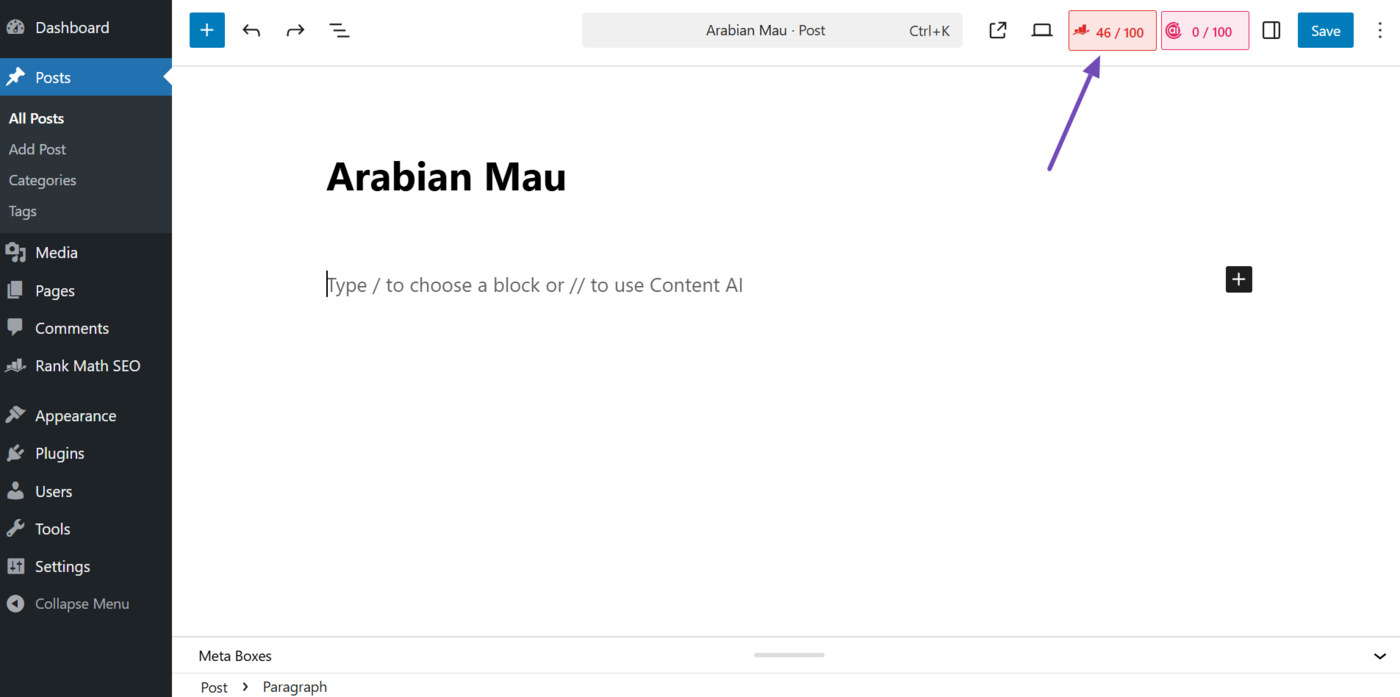
From your post editor screen, click the Rank Math SEO icon.
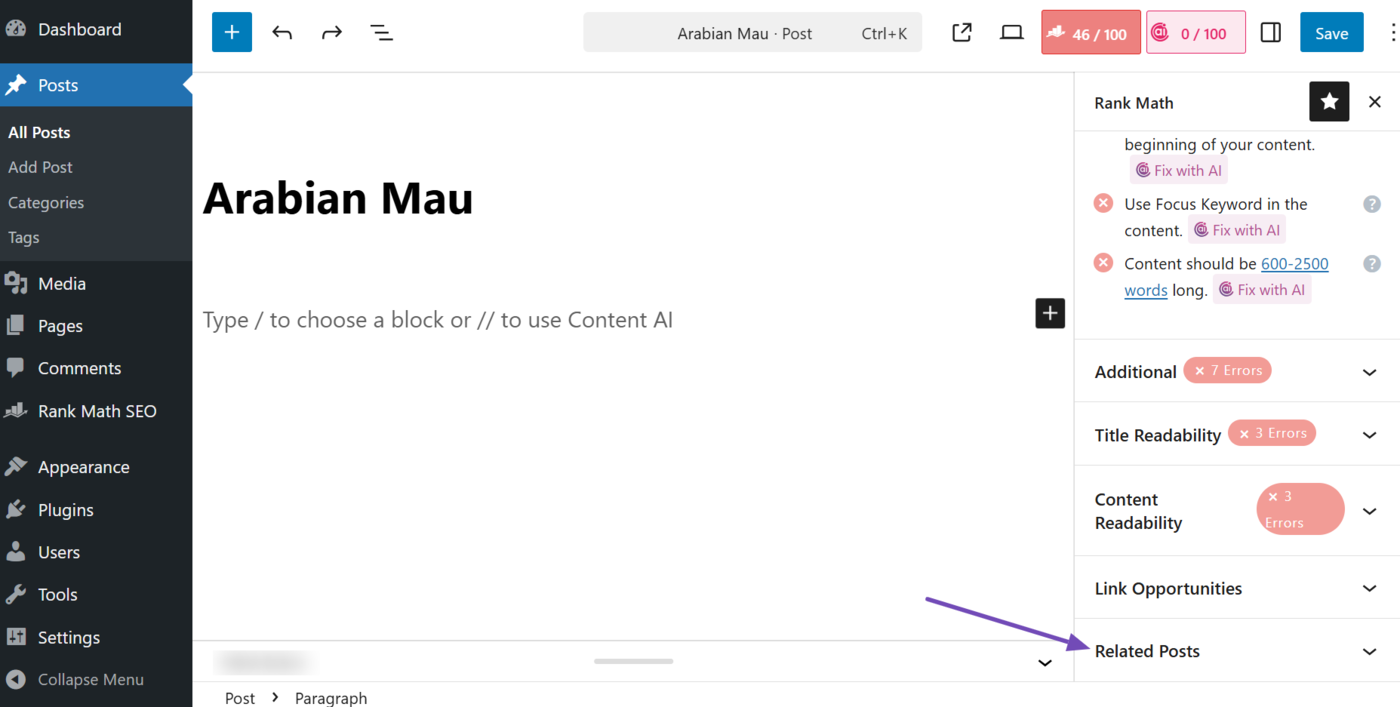
Now, scroll down the Rank Math SEO sidebar and click Related posts, as shown below.
Now, click Generate.
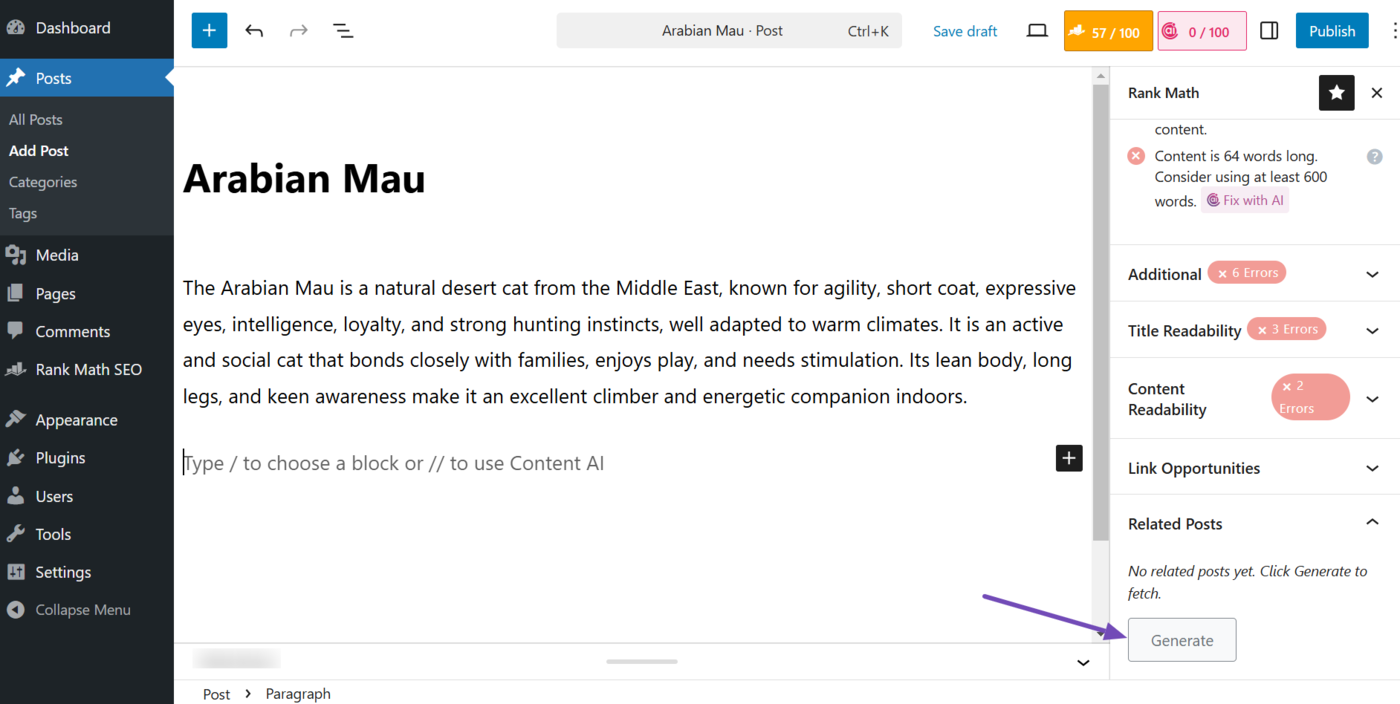
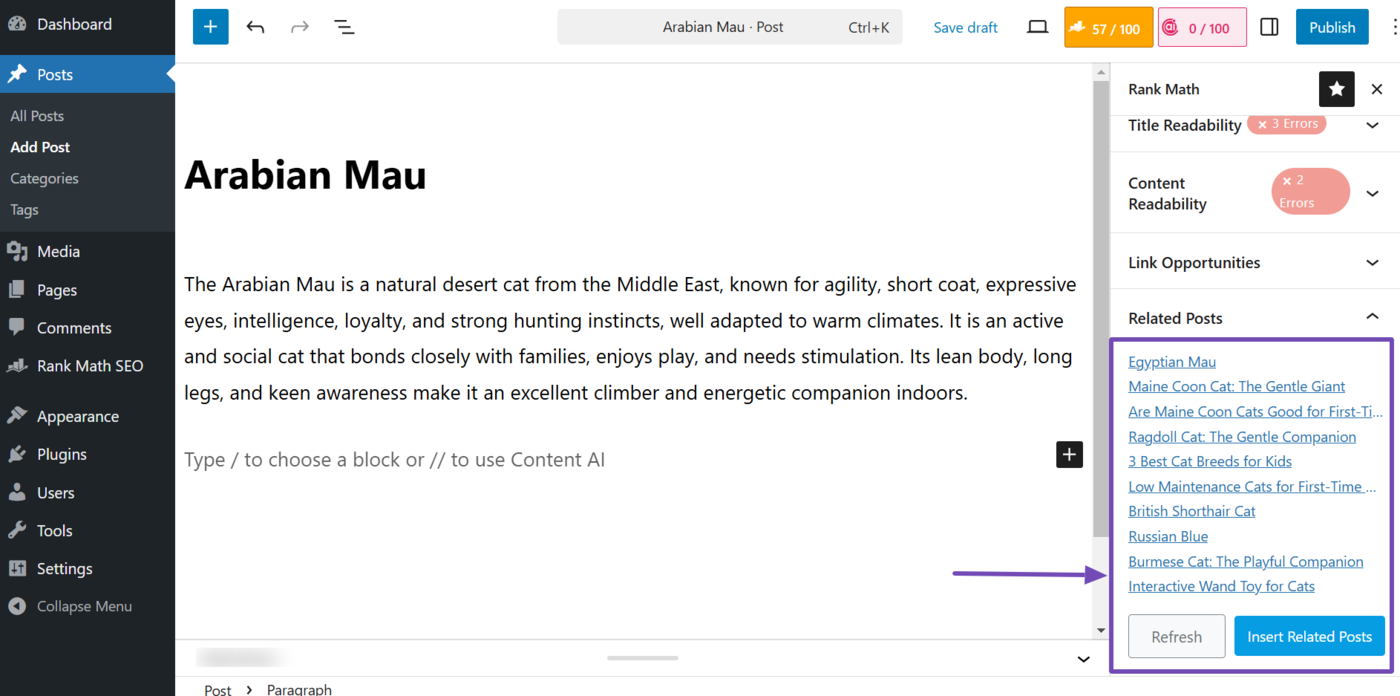
Link Genius will generate some related posts to include in your content. It will also include two options:
- Refresh: Check your content for a new set of related posts
- Insert related posts: Add the related posts to your content
Click Insert related posts.
Note: The refresh option is useful in cases where you update the current post or have published a new post. But for now, you should ignore it.
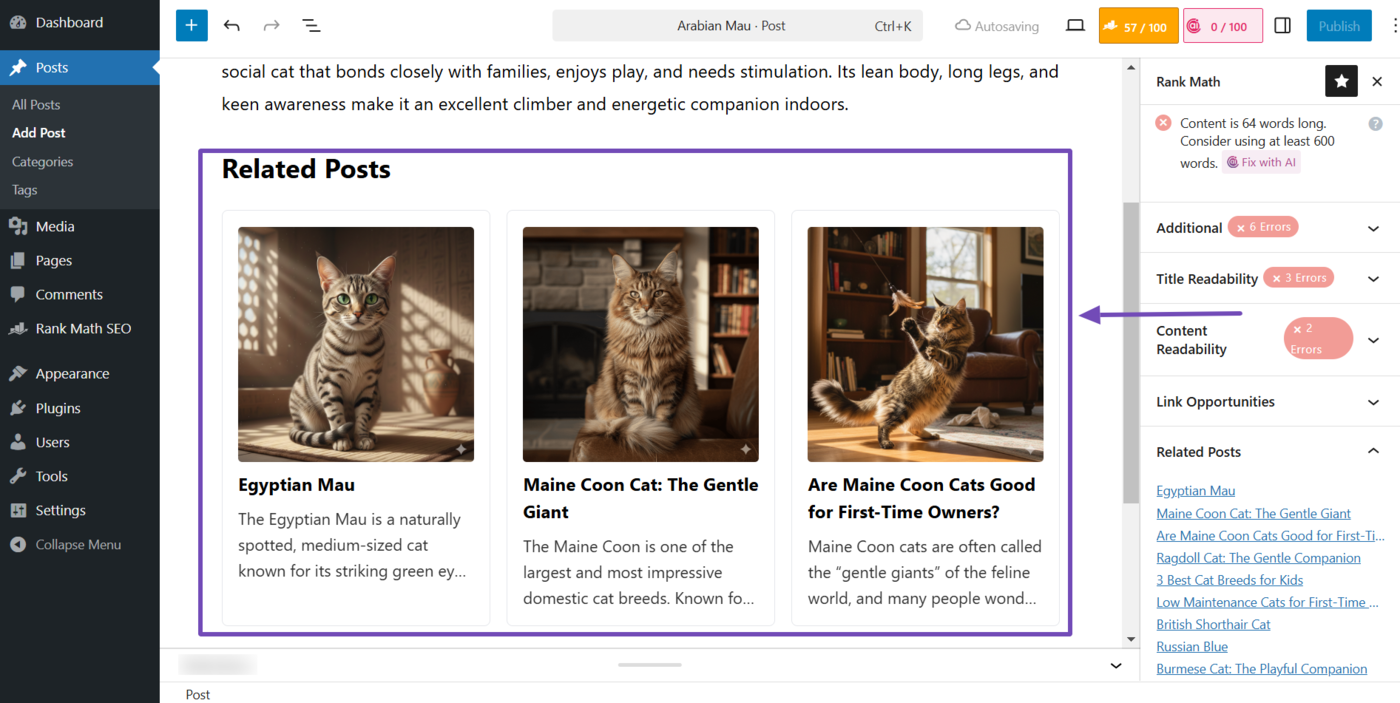
The related posts block will be added to your post, as shown below.
2 Using the Slash Command
From your post editor screen, type a forward slash / followed by related. That is, /related.
The Related Posts [Content AI] block will appear, as shown below. Click on it, and the related posts block will be added to your post.
![Click on the Related Posts [Content AI] block](https://rankmath.com/wp-content/uploads/2026/02/Click-on-the-Related-Posts-Content-AI-block.png)
3 Using the Block Inserter
To get started, click the Block inserter icon +. The button is at the top of your post editor screen. It also appears when you create a new block.
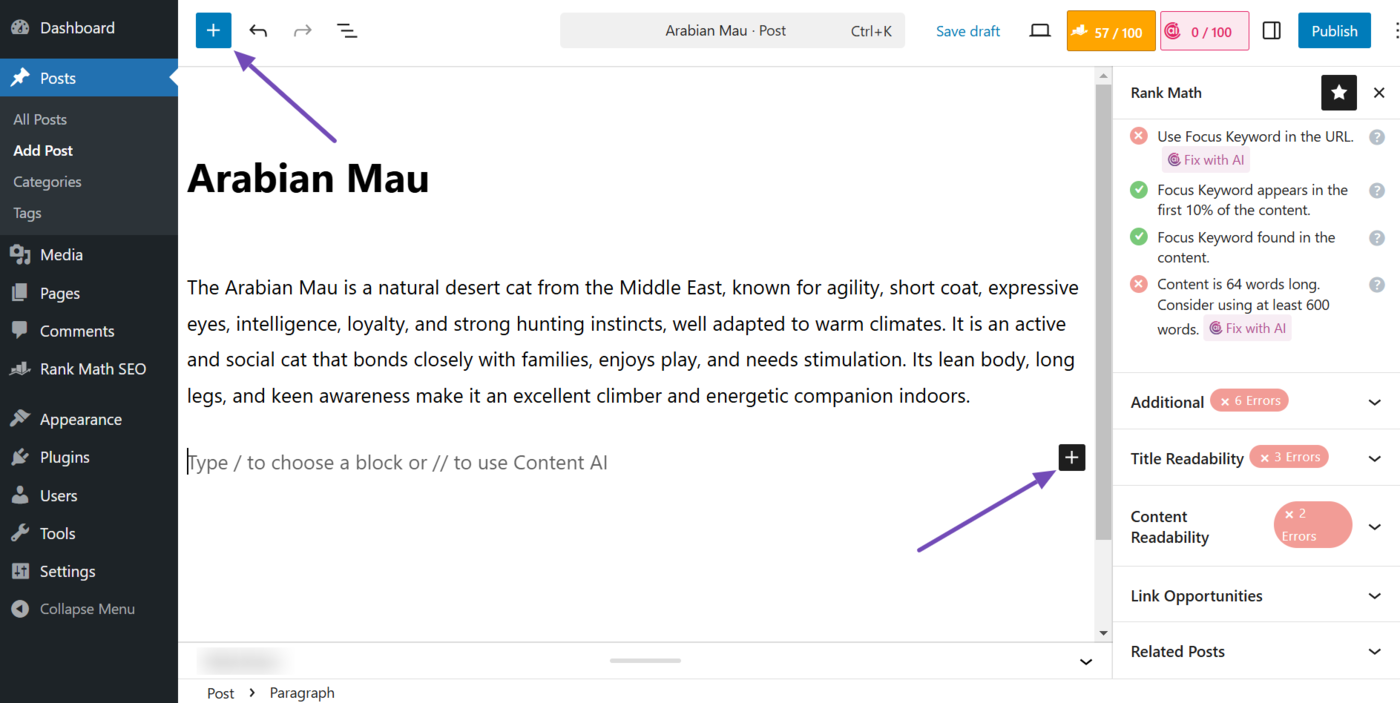
Then, type related posts into the search bar. The Related Posts [Content AI] block will appear. Select it.
![Select the Related Posts [Content AI] block](https://rankmath.com/wp-content/uploads/2026/02/Select-the-Related-Posts-Content-AI-block.png)
4 Using a Shortcode
You can also add related posts to your content using a shortcode. This option is great if you use the Classic Editor, or just prefer using shortcodes.
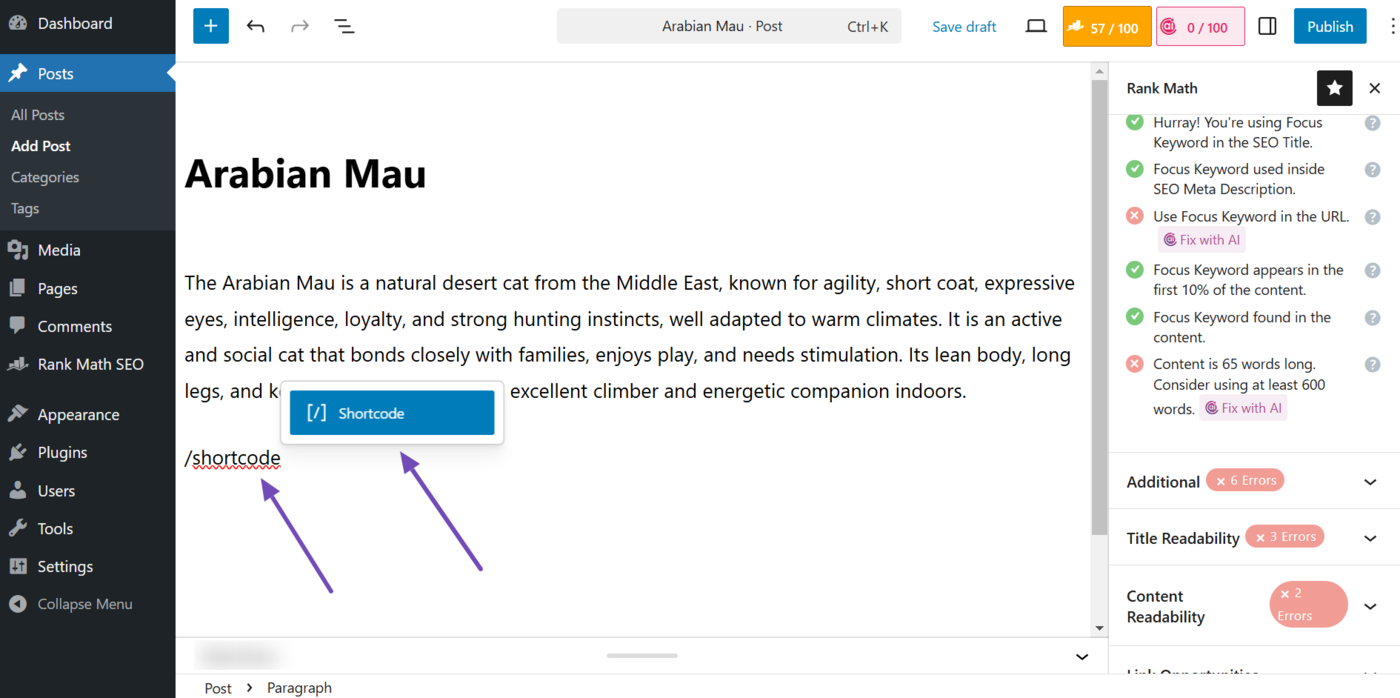
To do that, type a forward slash / followed by shortcode. (That is, /shortcode.) Then select the shortcode block, as shown below.
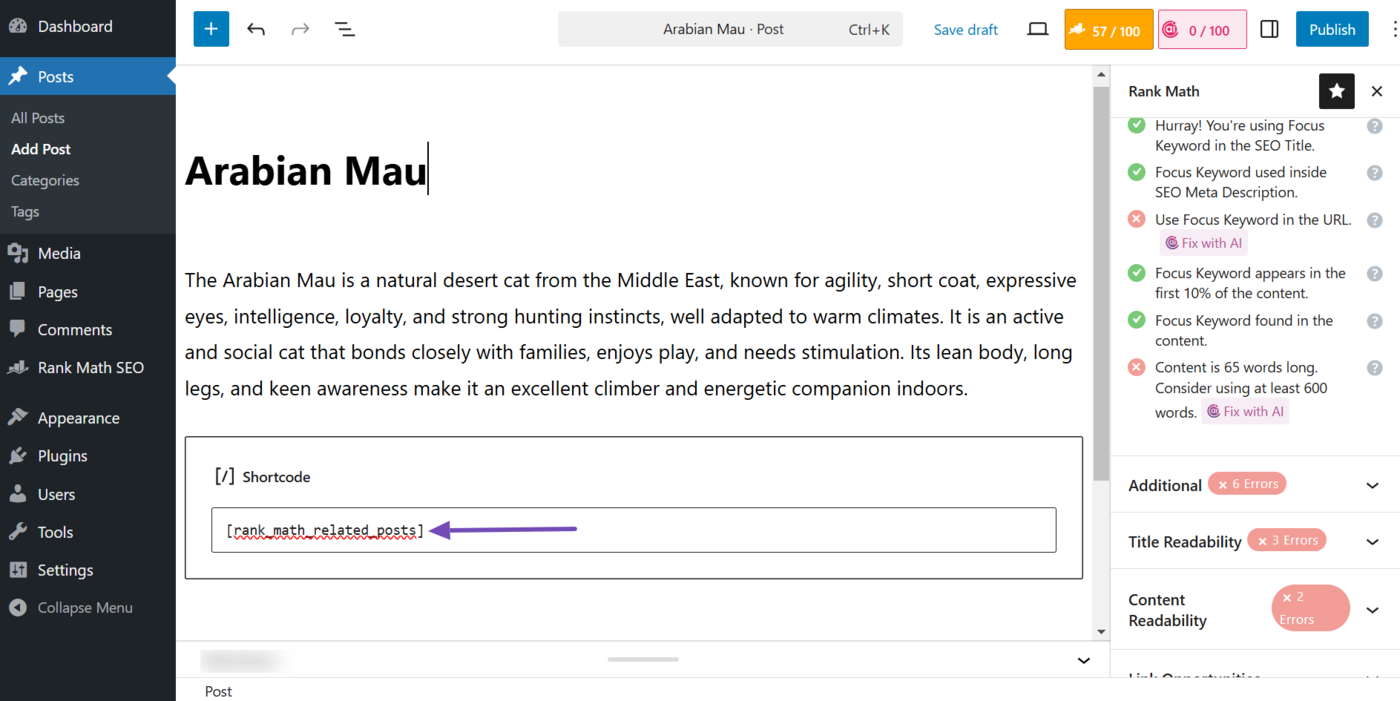
Now, paste the related posts shortcode below into the block:
[rank_math_related_posts]
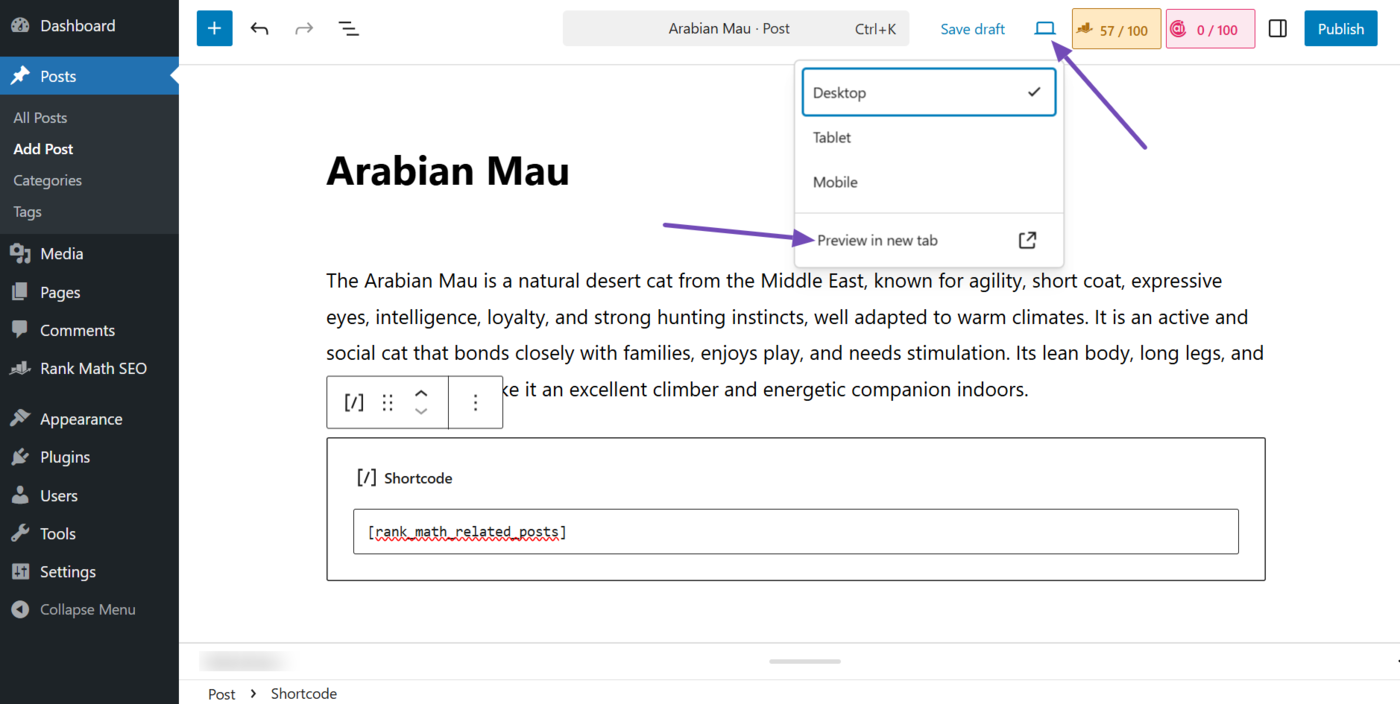
The related posts block is now added to your content. You can view it by clicking the view icon and then Preview in new tab. The related posts will be visible in your content.
That is how you can add the related posts block to your WordPress posts and pages. If you have any questions, you’re always more than welcome to contact our dedicated support team, who are available 24/7, 365 days a year.