In dit bericht gaan we kijken hoe je kunt gebruiken Google's nieuwe indexerings-APIom de pagina's en inhoud van uw website onmiddellijk te laten crawlen in plaats van te moeten wachten!
Opmerking: The process has slightly changed since the above video was recorded, so feel free to refer to the up-to-date written tutorial below in the meantime.
Here’s why this is de extra inspanning waard.
Rang sneller (vooral belangrijk voor tijdgevoelige inhoud)
Vergroot je kansen op ranking boven uw concurrentie
Houd zoekresultaten up-to-date voor higher-quality gebruikersverkeer
Dankzij de Indexing API van Google, Rank Math SEO voor WordPress, en deze gids die we voor u hebben samengesteld, is het nu mogelijk voor u om uw website naar sneller rangschikken.
Met deze methode kunt u: blijf uw concurrentie een stap voor by ensuring that your site is crawled and has the opportunity to rank before their site does, which is extremely important when it comes to time-sensitive, competitive content.
Het proces om dit in te stellen is meestal niet erg eenvoudig, maar als je dit volgt stap-voor-stap handleiding, you’ll be up and running (or, I guess, you could say up and ranking) in no time! So, without further ado, let’s jump right in and take a look at how to set this up.
Opmerking: Google beveelt aan using the Indexing API ONLY for JobPosting or BroadcastEvent embedded in VideoObject websites. During our tests, we found that it worked on any website with great results, so we created this plugin for testing.
If you are not sure whether you want to use this or not, please stop reading and don’t proceed further. Though the Indexing API isn’t against Google AdSense Policy and Terms of Service, we do not recommend using it on money websites. Please proceed at your own risk.
We begrijpen dat dit niet voor iedereen is
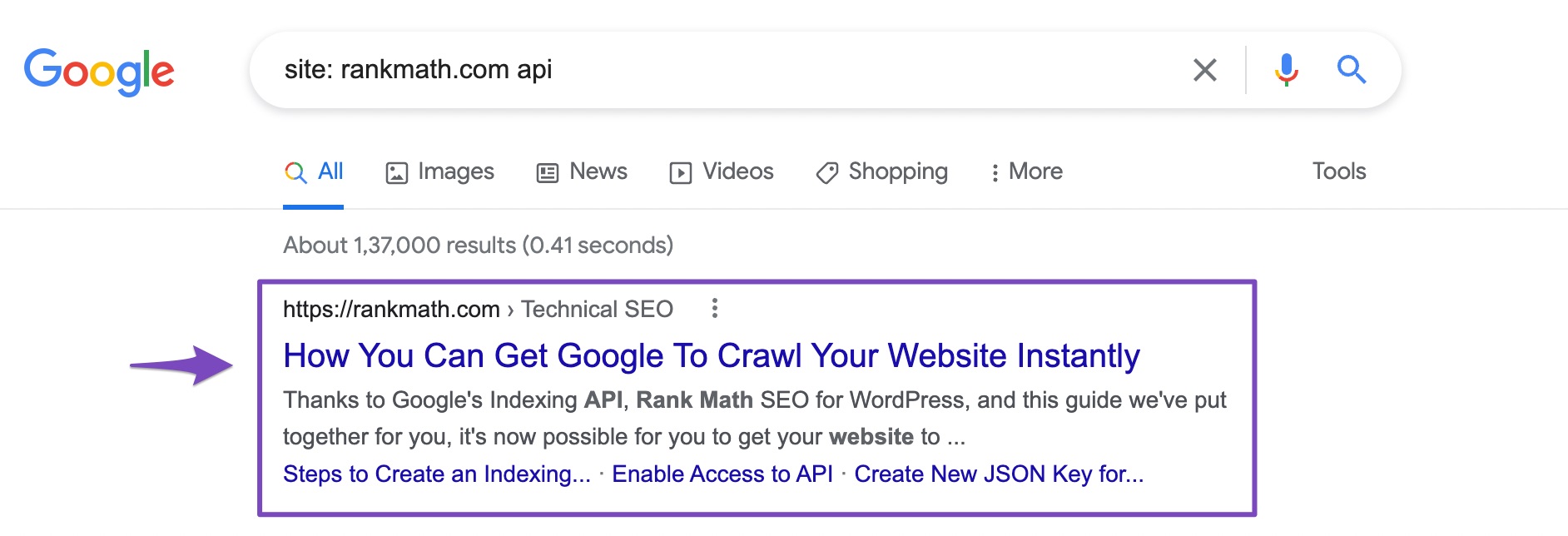
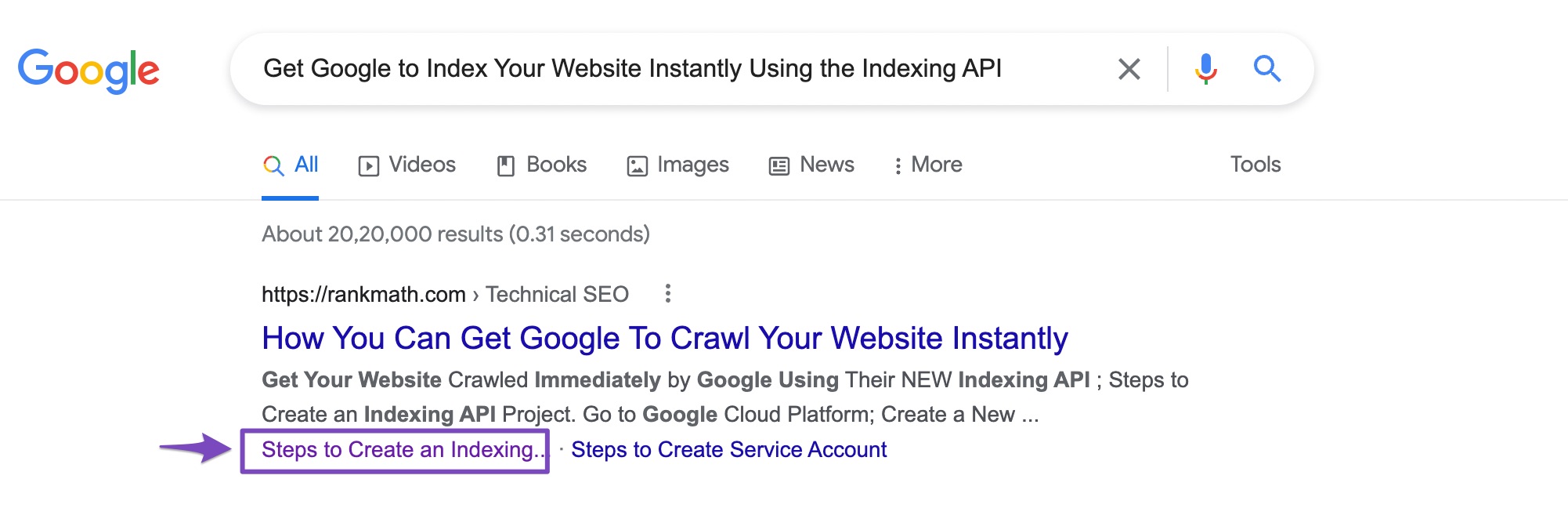
BEWIJS: Zo reageerde Google op ons verzoek
In het 1e uur na publicatie van dit artikel:Na een paar uur gaf Google ons een featured snippet voor de zoekterm
Laat uw website onmiddellijk door Google crawlen met behulp van hun NIEUWE indexerings-API
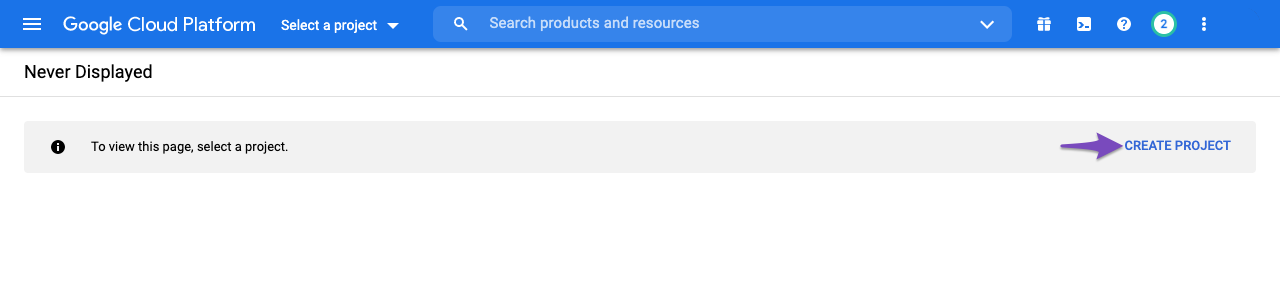
Ensure you create a new IndexerenAPI project door te klikken op de Project maken optie.
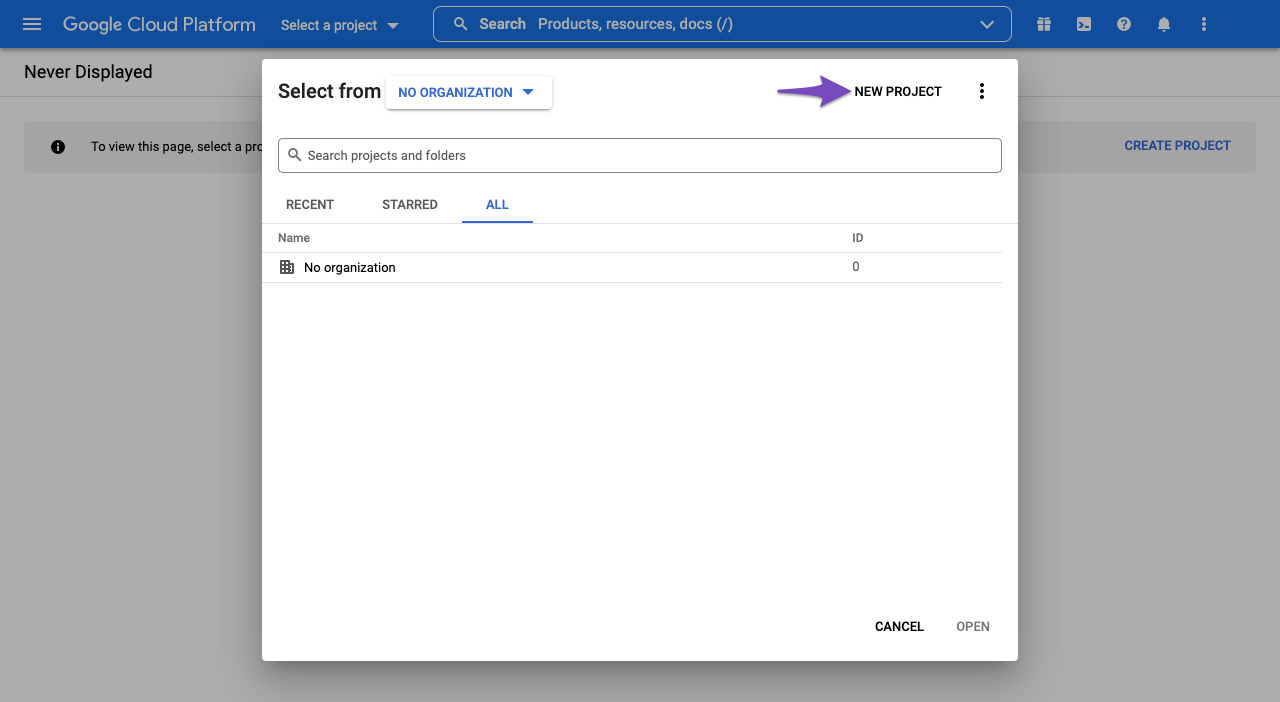
U kunt ook op de klikken Selecteer een project vervolgkeuzelijst en kies Nieuw project from the pop-up that appears on the screen.
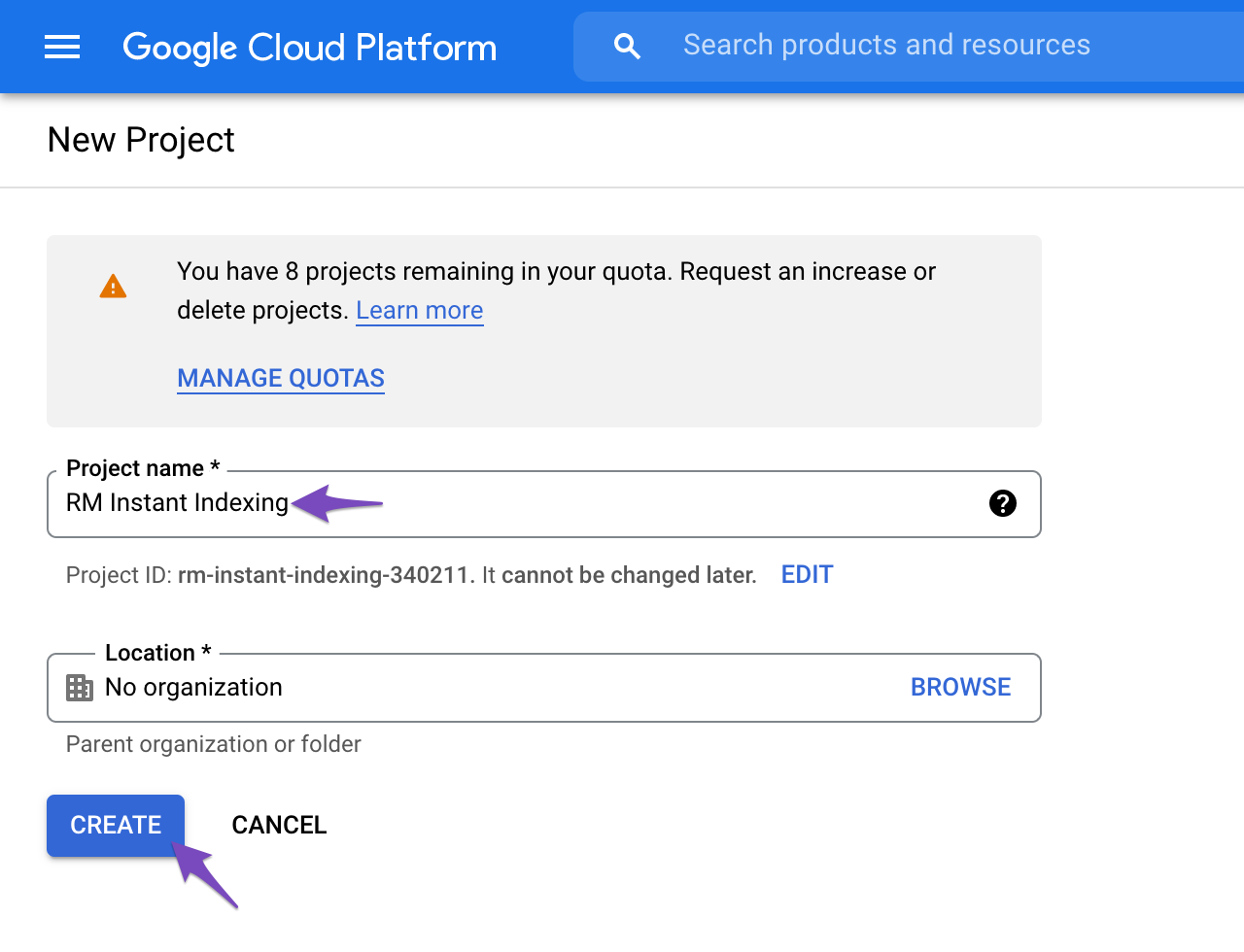
Voer in het volgende scherm een projectnaam in die je later kunt herkennen. En klik dan op Creëren.
2.3 Toegang tot API inschakelen
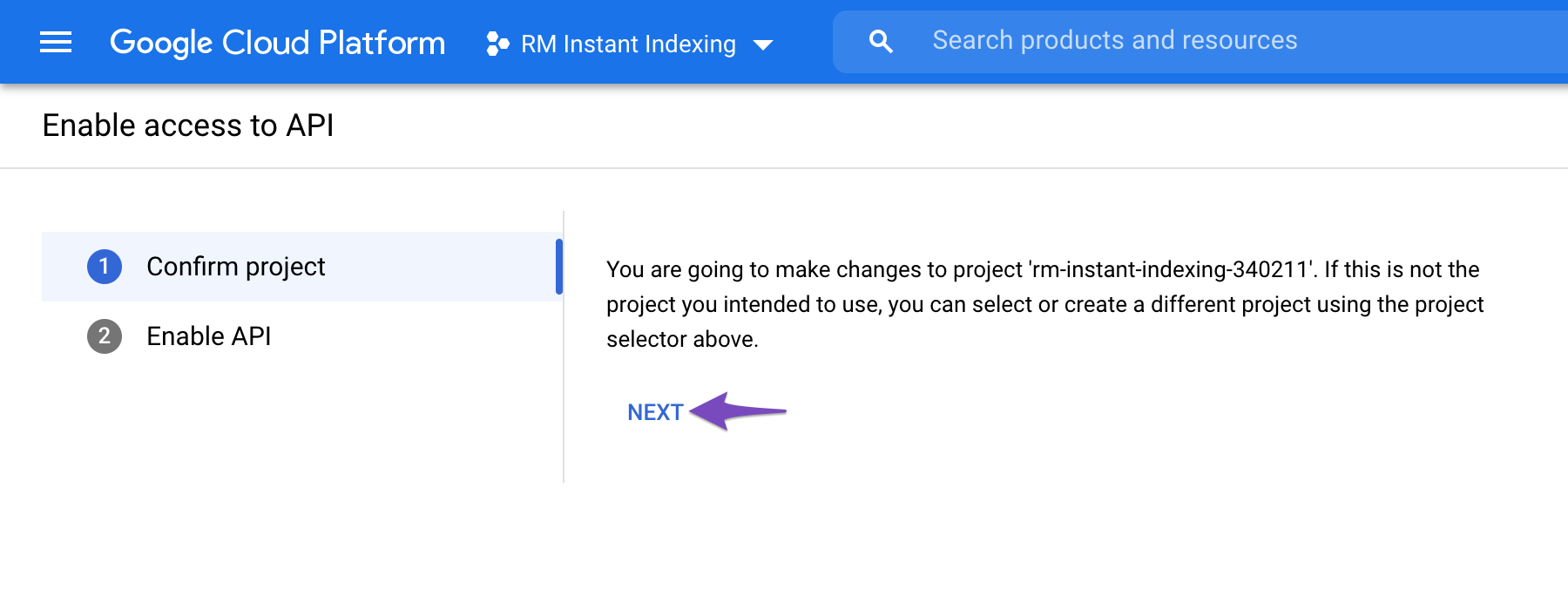
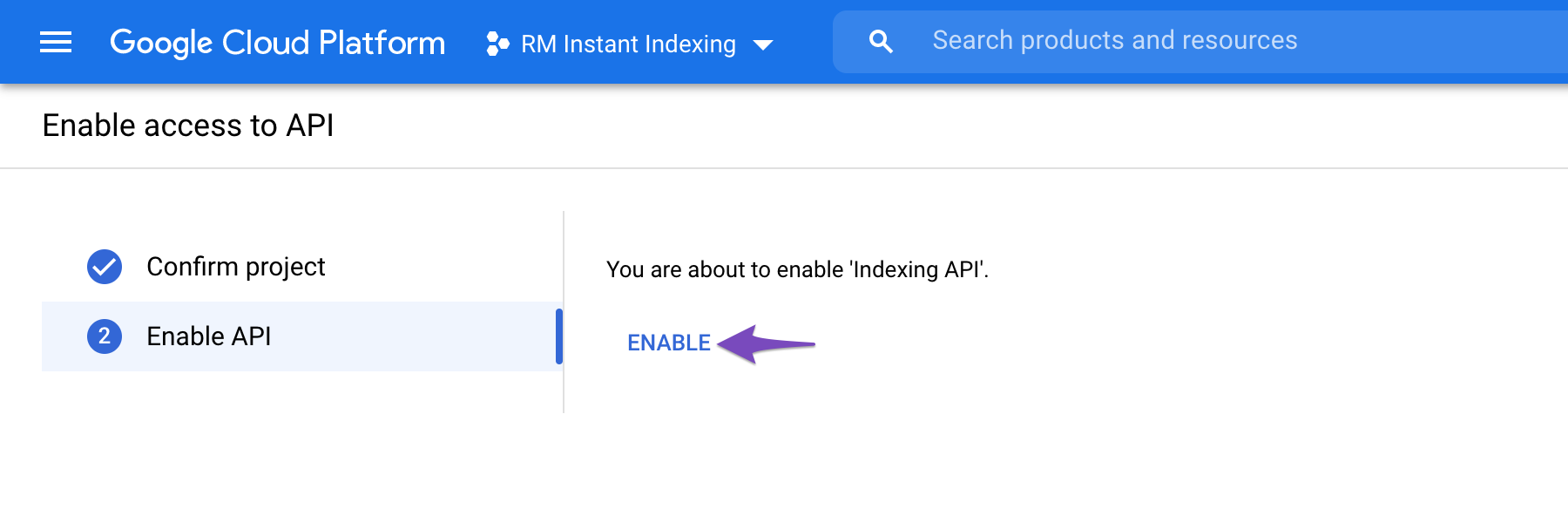
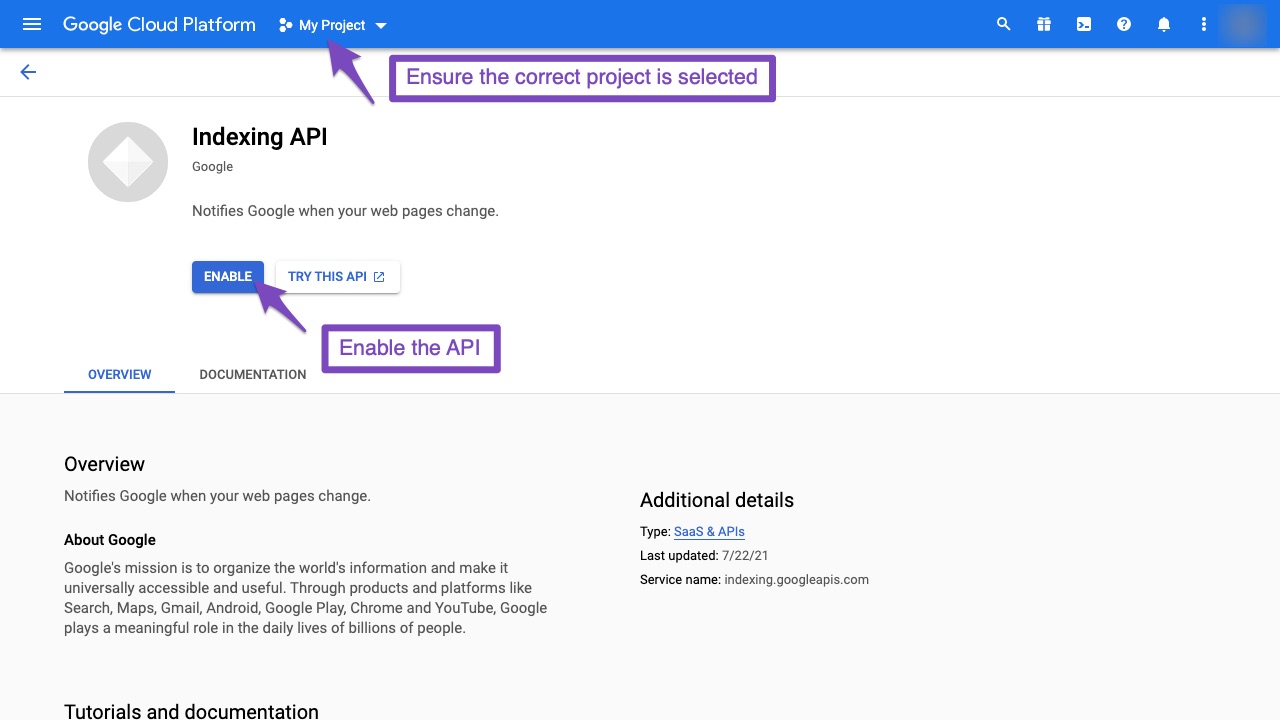
Once you create the project, you’ll need to enable the project to access the API. In the next step, you’ll see a screen, as shown below. Confirm if the selected project is the one we’ve created for Instant Indexing API; otherwise, select the drop-down at the top to change the project. Once you’ve selected the project, click Volgende.
Klik in de volgende stap op de Inschakelen optie om het project toegang te geven tot de Instant Indexing API.
Zodra je het hebt ingeschakeld, kun je dit tabblad sluiten.
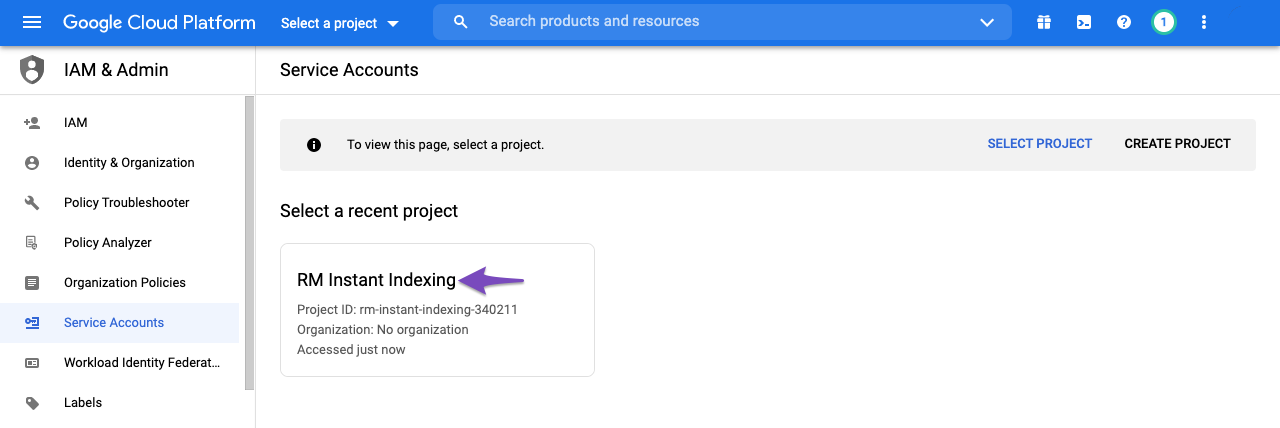
You will first be prompted to select the API project for which you wish to create this service account (the one created in the previous step).
3.2 Serviceaccount maken
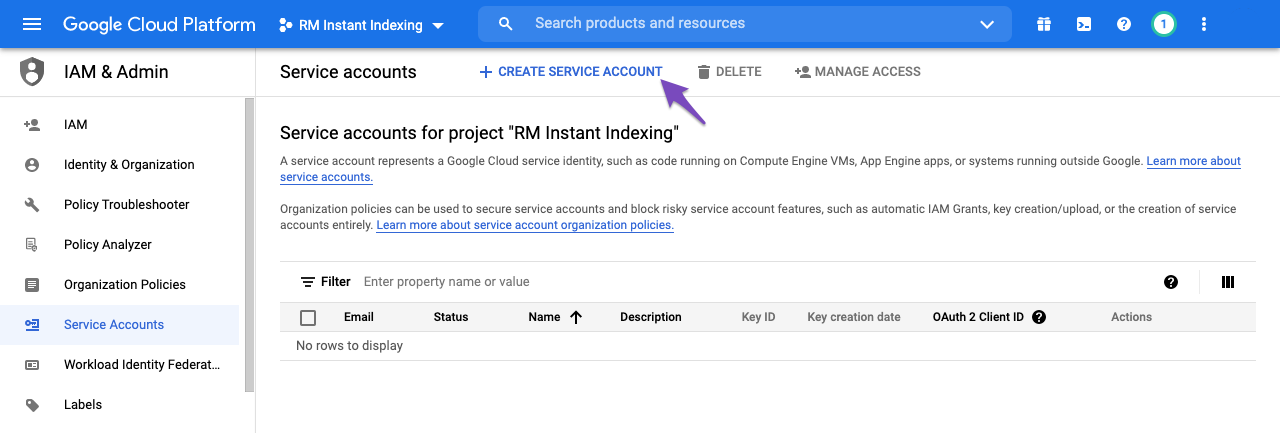
Nadat u het project hebt geselecteerd waarvoor u een serviceaccount wilt maken, wordt u naar de volgende pagina geleid, waar u gewoon op de knop Serviceaccount maken knop hieronder gemarkeerd:
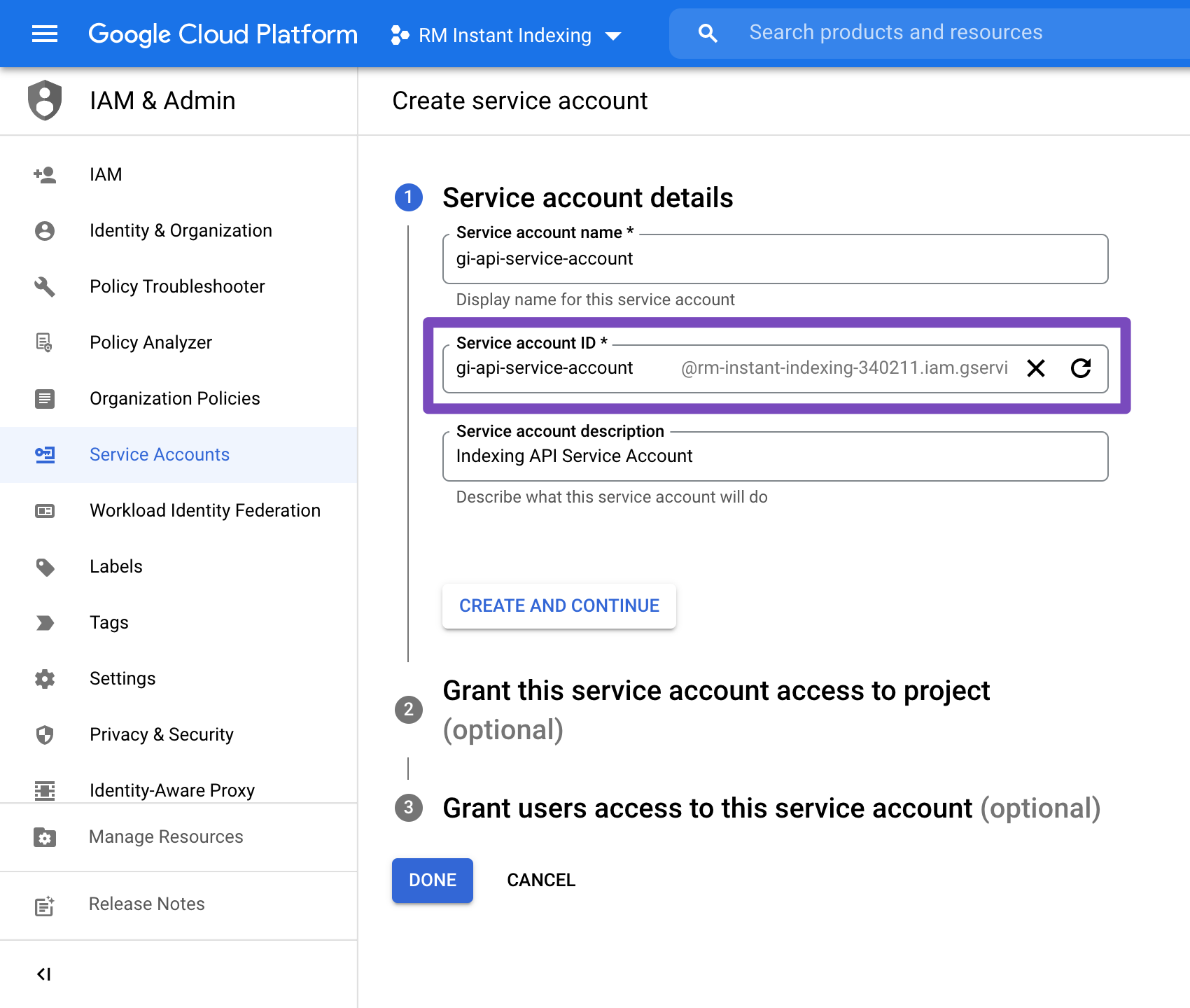
Op de Serviceaccount maken scherm, voer een naam en beschrijving in voor het nieuw aangemaakte serviceaccount.
Selecteer en kopieer het geheel Serviceaccount-ID (degene die eruitziet als een e-mailadres) omdat je het later nodig hebt. Klik vervolgens op de Klaar knop onderaan:
3.3 Sleutels voor serviceaccount beheren
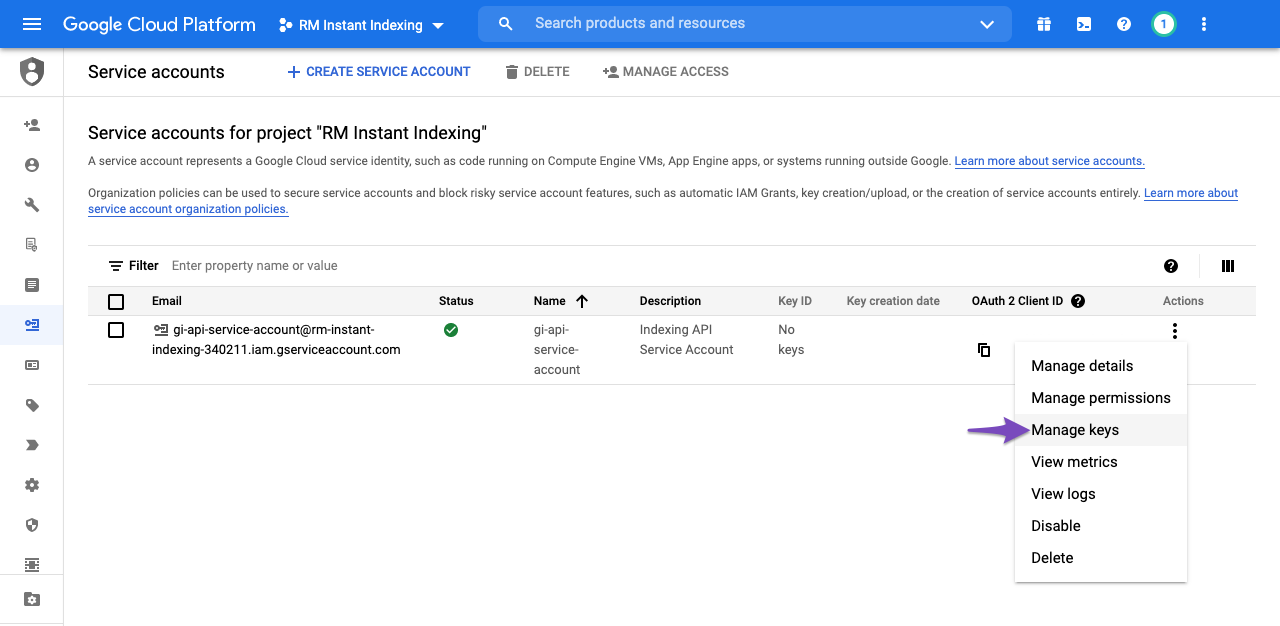
U kunt dan het bestand downloaden dat uw APIsleutel. Om dit te doen, klikt u eenvoudig op de drie verticale stippen in de Actiescolumn and then select the Sleutels beheren zoals hieronder weergegeven:
3.4 Nieuwe JSON-sleutel maken voor serviceaccount
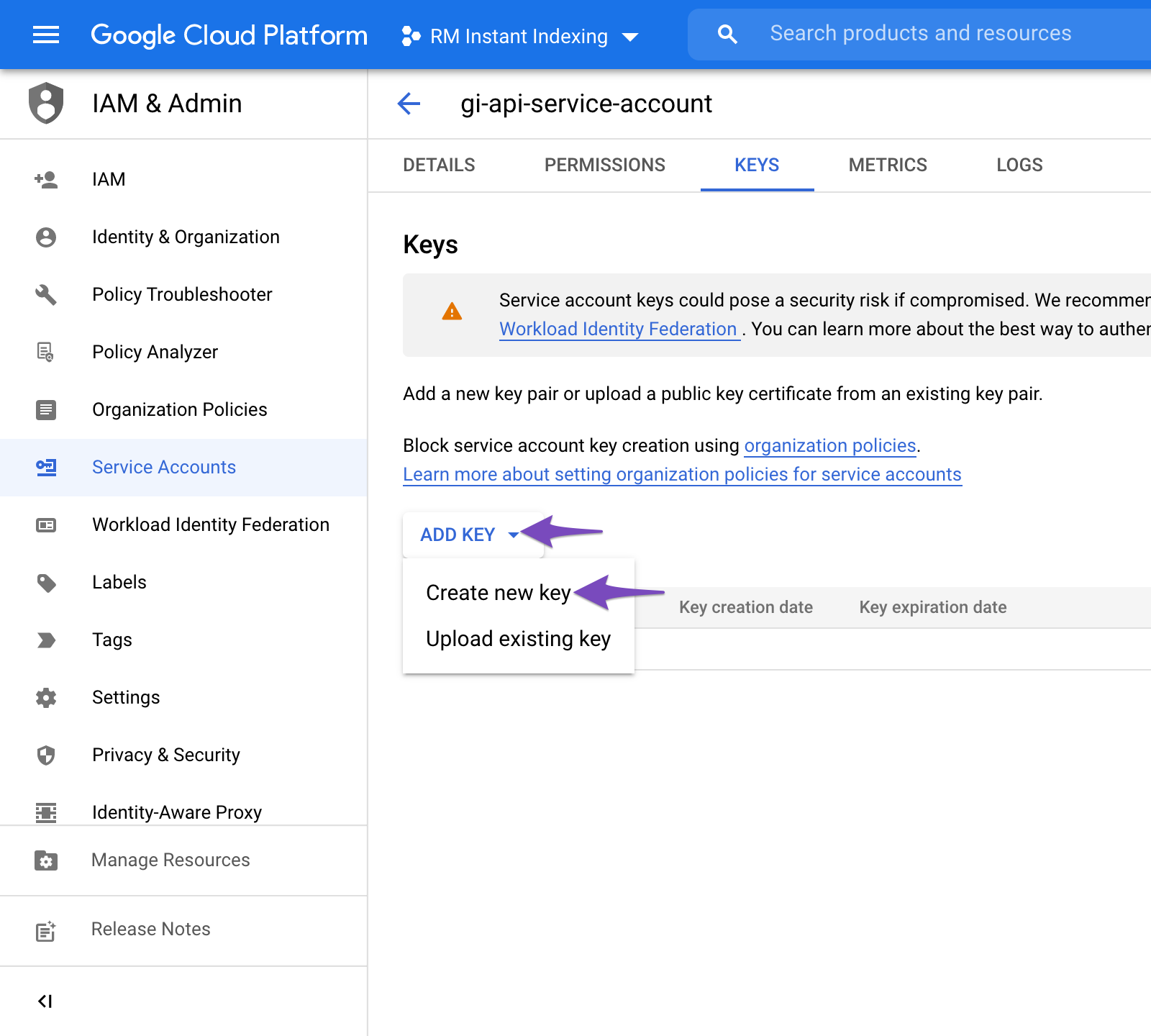
You will then be taken to the following page, where you can click Sleutel toevoegen en selecteer vervolgens de Nieuwe sleutel maken optie, zoals hieronder weergegeven:
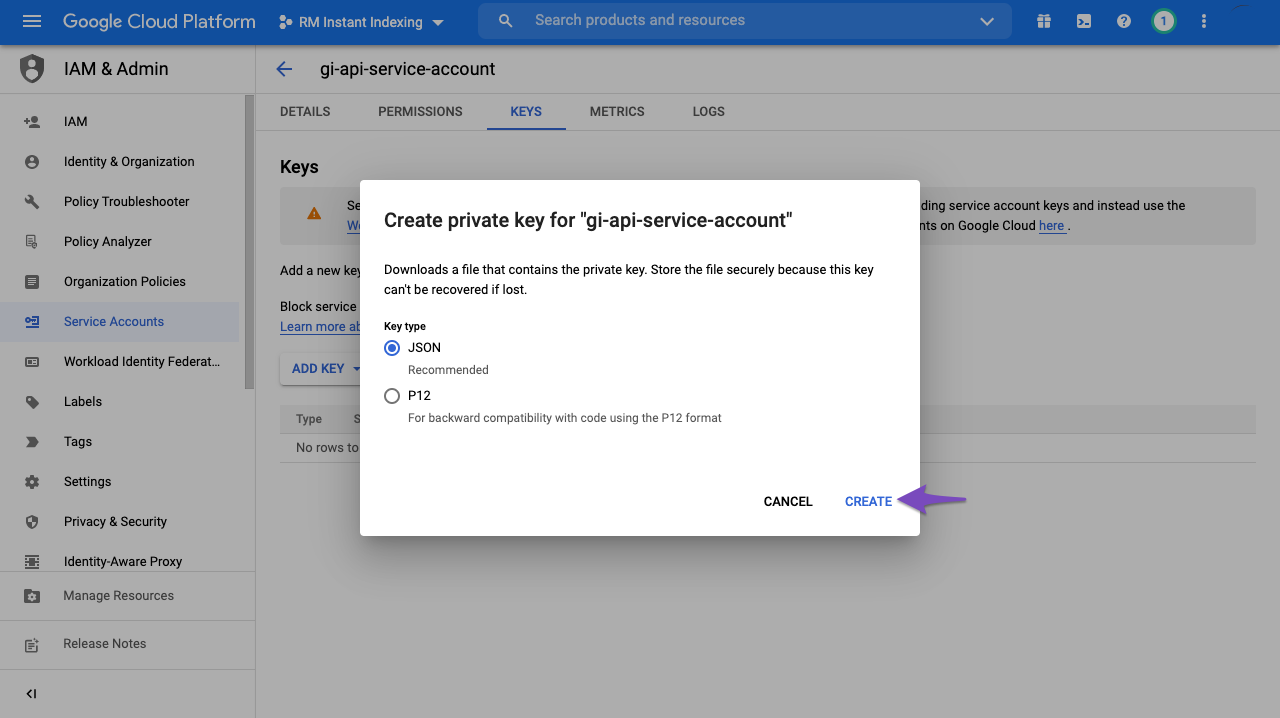
Kies de standaard JSON formatteren wanneer daarom wordt gevraagd in de overlay, en klik op Creëren:
Bij het klikken op Creëren, wordt het .json-bestand automatisch gedownload in uw browser, wat betekent dat u met succes de API-sleutel hebt gemaakt en kunt doorgaan naar de volgende stap...
4 Voeg het serviceaccount toe als eigenaar van uw Google Search Console-property
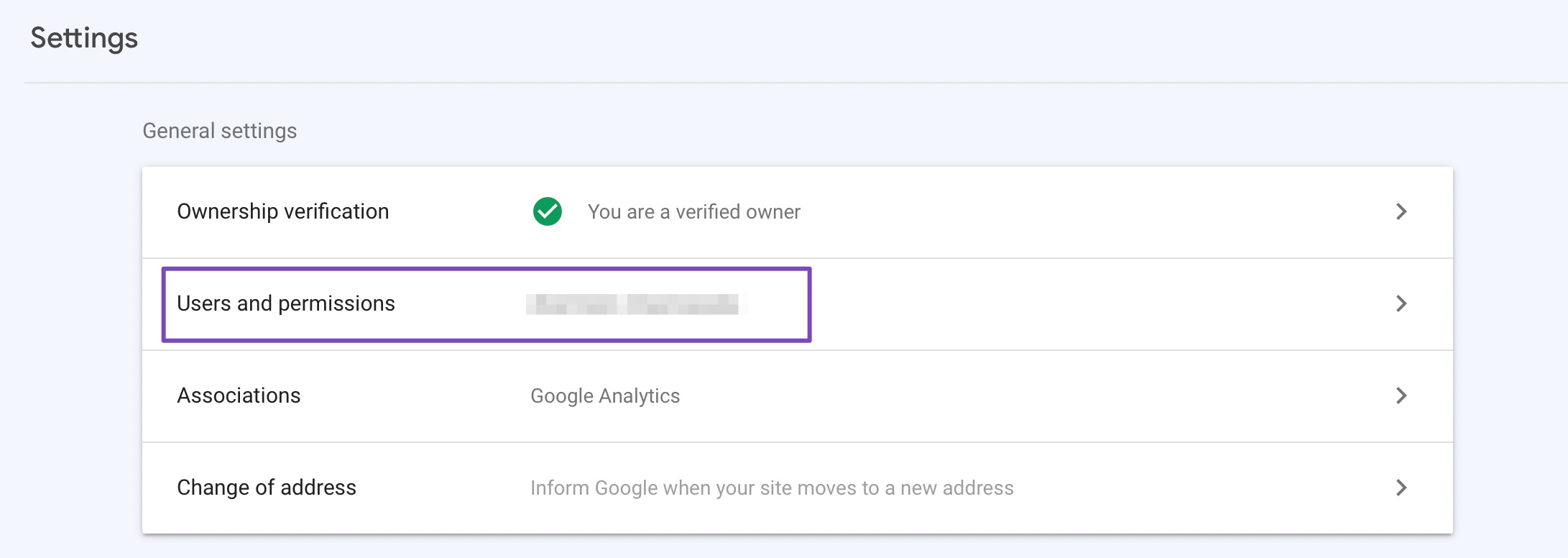
4.1 Navigeer naar Gebruikers en machtigingen in de instellingen van Google Search Console
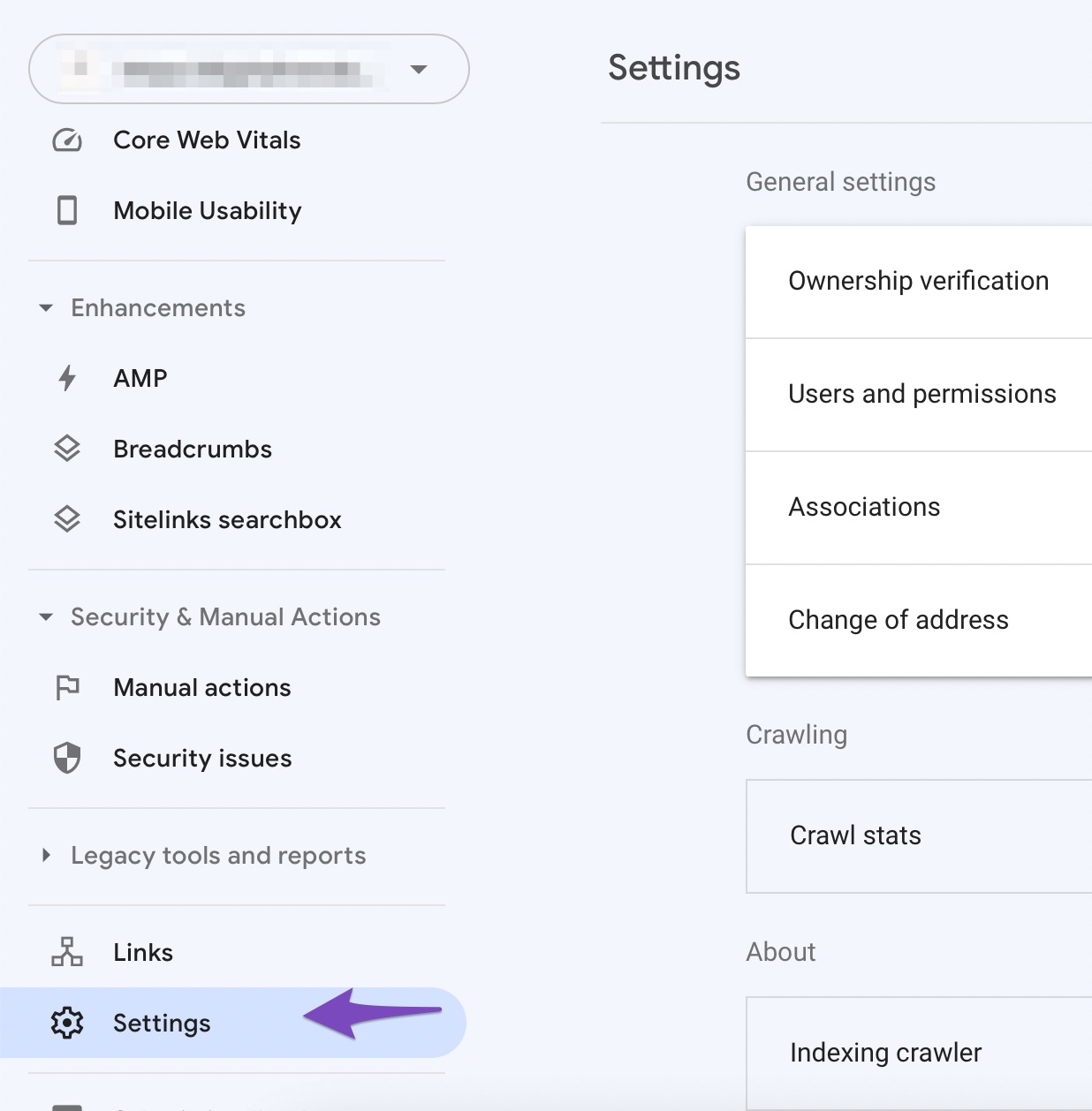
Nadat u uw eigendom heeft geverifieerd, opent u de Google Search Console, selecteer uw woning aan de linkerkant (indien gevraagd) en klik vervolgens op Instellingen bijna onderaan:
Opmerking: If you’re configuring for a subdomain WordPress Multisite, then ensure that you’ve chosen the domain-level property in Google Search Console. Otherwise, you’d have to add the service account as the owner separately for each subdomain property.
Klik op Gebruikers en machtigingen:
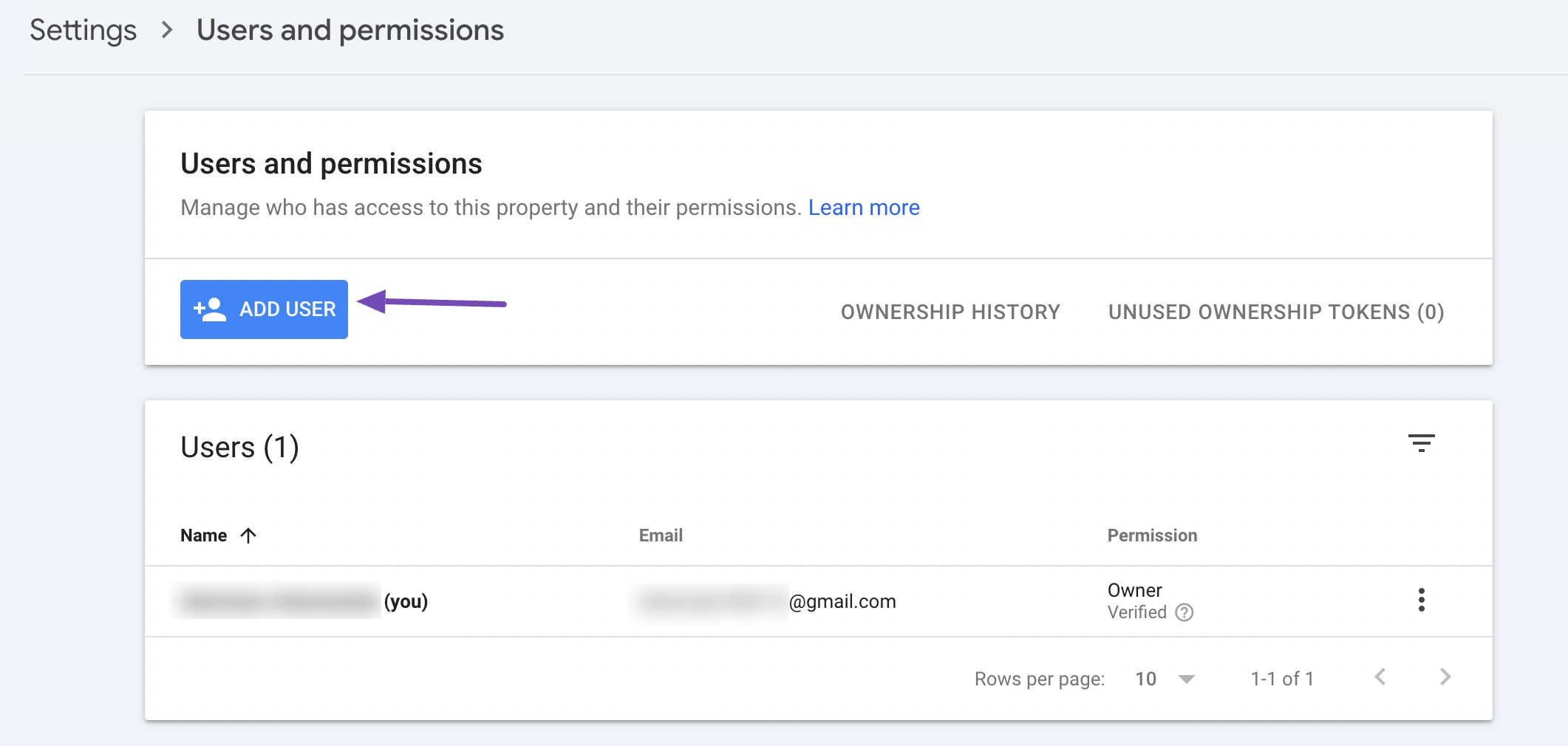
4.2 Gebruiker toevoegen aan uw Search Console-property
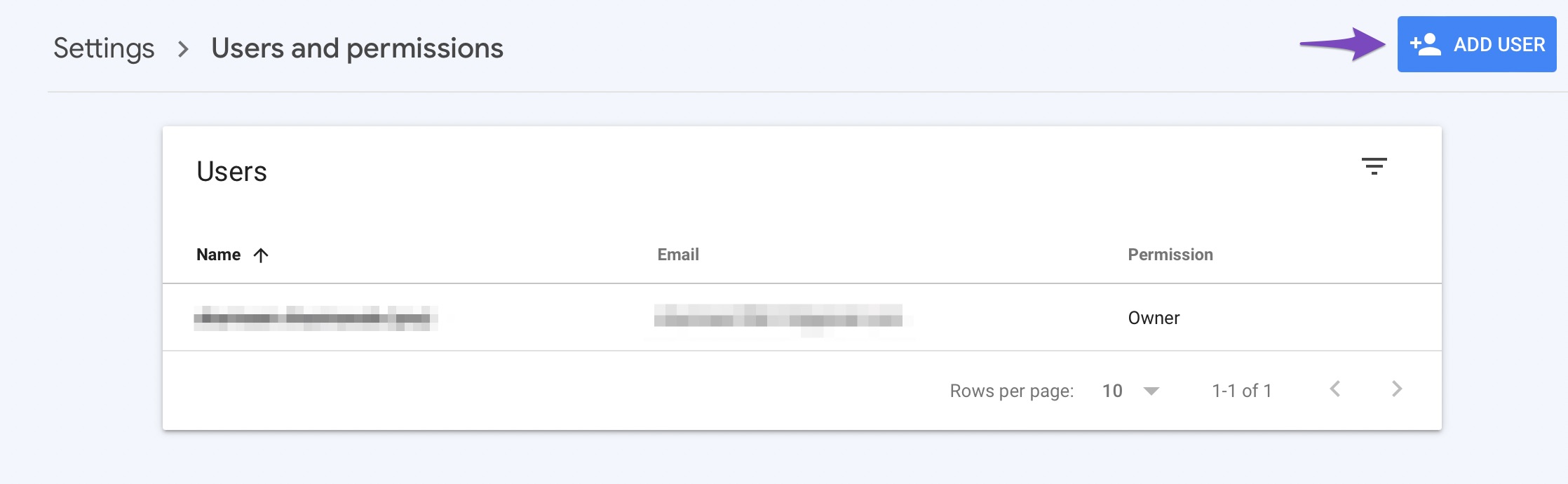
Klik op de drie puntjes naast uw account en klik vervolgens op Voeg gebruiker toe.
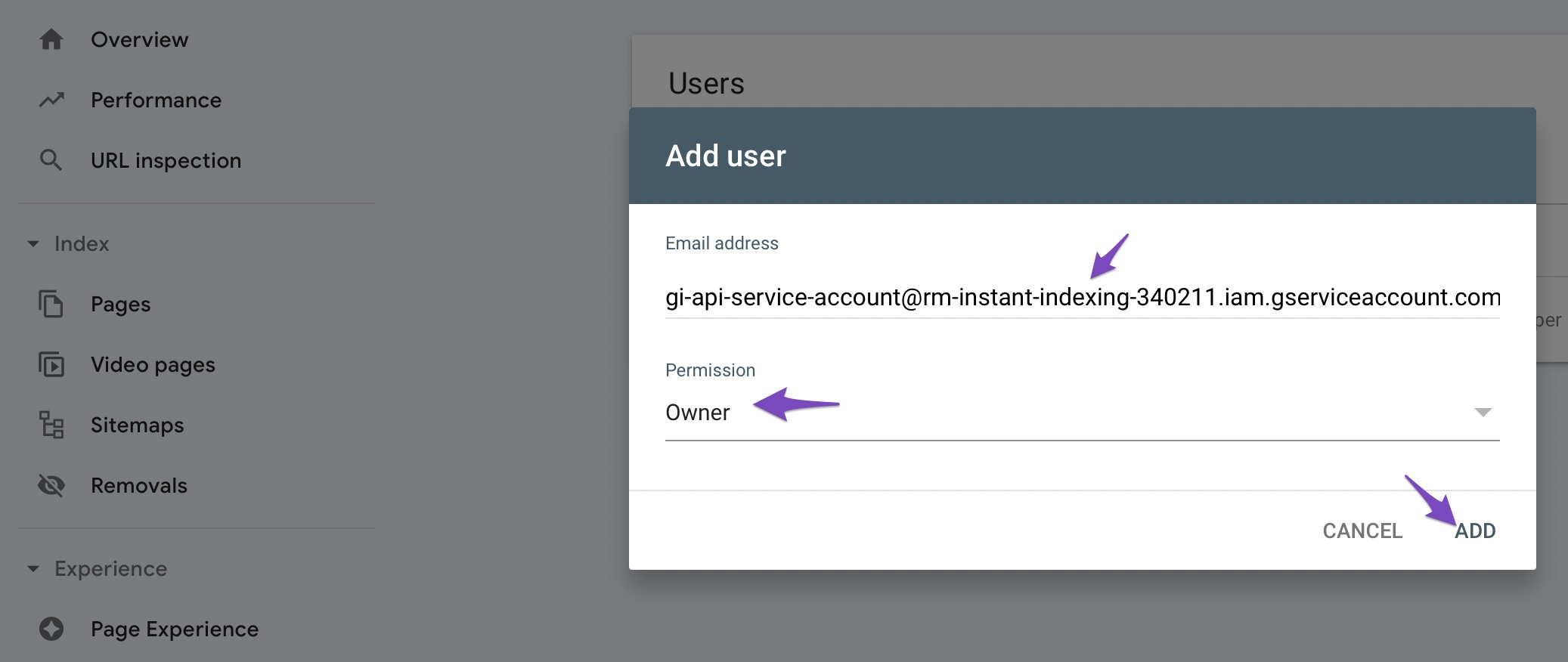
4.3 Serviceaccount-ID delegeren als eigenaar
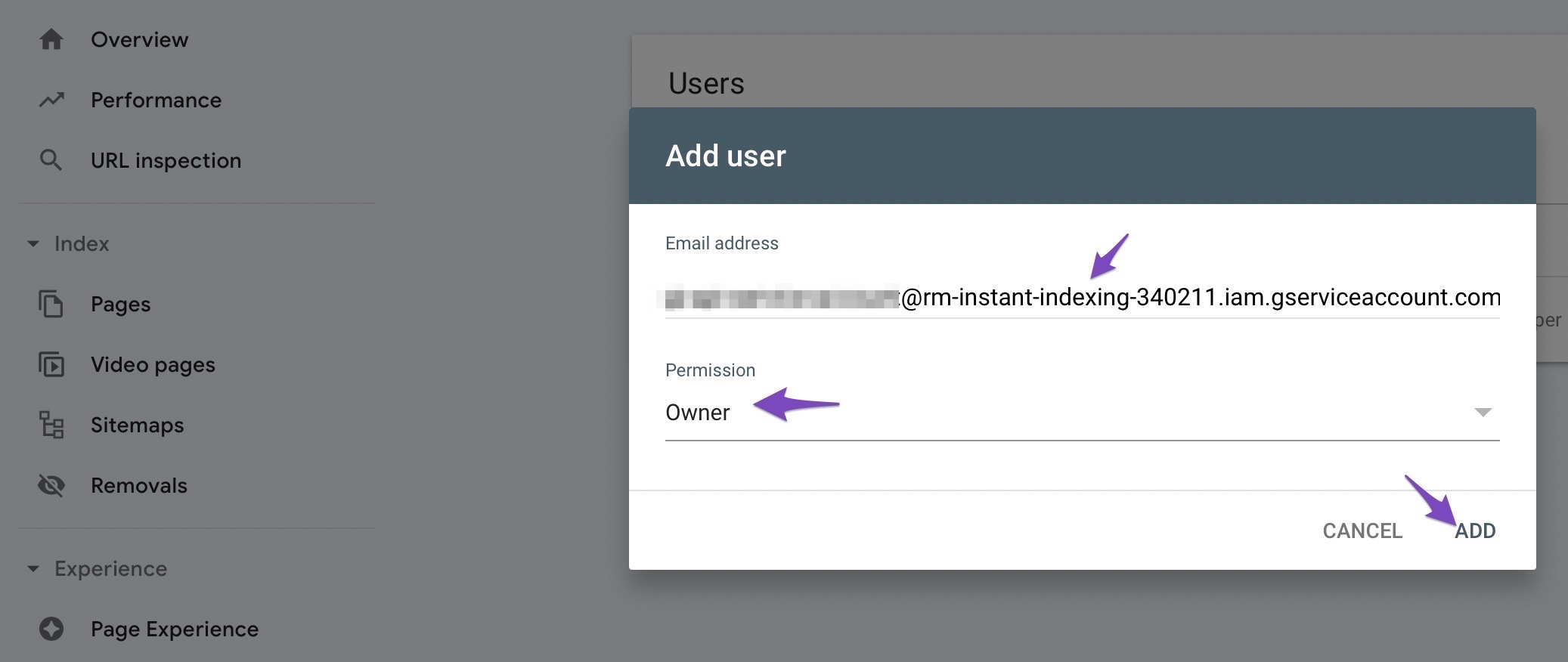
Er verschijnt nu een pop-up. Voer de in Serviceaccount-ID (degene die je eerder hebt gekopieerd) in de E-mailadres veld. Zorg ervoor dat u heeft verstrekt Baasje peil Toestemmingen klik vervolgens op Toevoegen.
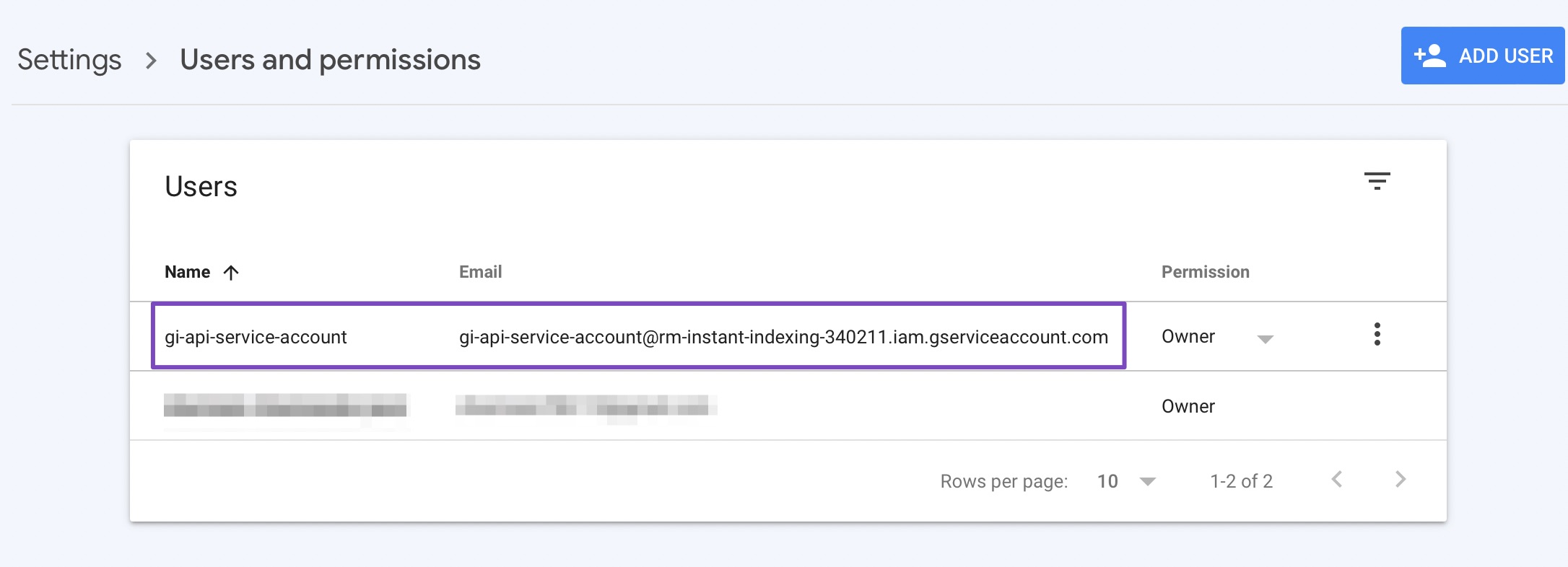
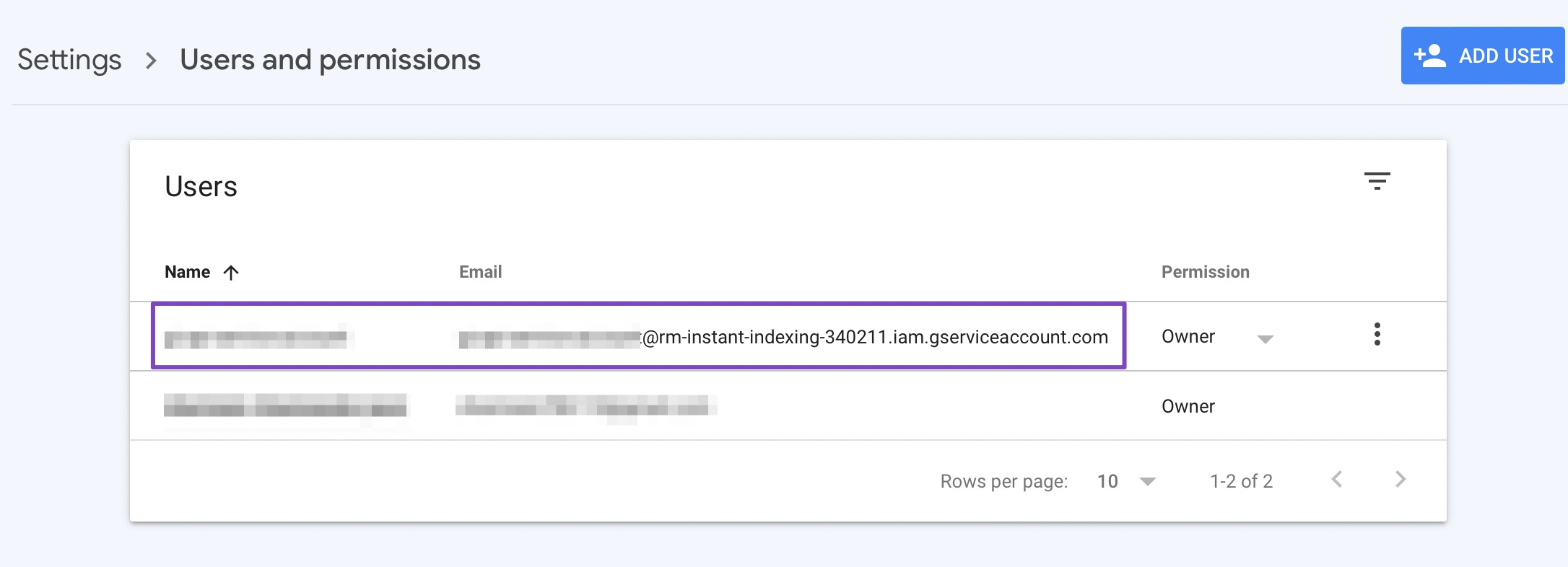
Now, in a few moments, you should see the Service account listed as a new Owner.
You can use a single Project, Serviceaccount, en JSON API Key across multiple sites; just make sure that the Service Account is added as Owner for all the sites in the Search Console.
5 Configureer de plug-in
Now that you’ve created the API key and added the service account to your search console property, you’re only left with configuring the Instant Indexing plugin on your WordPress site.
5.1 Installeer de plug-in voor directe indexering
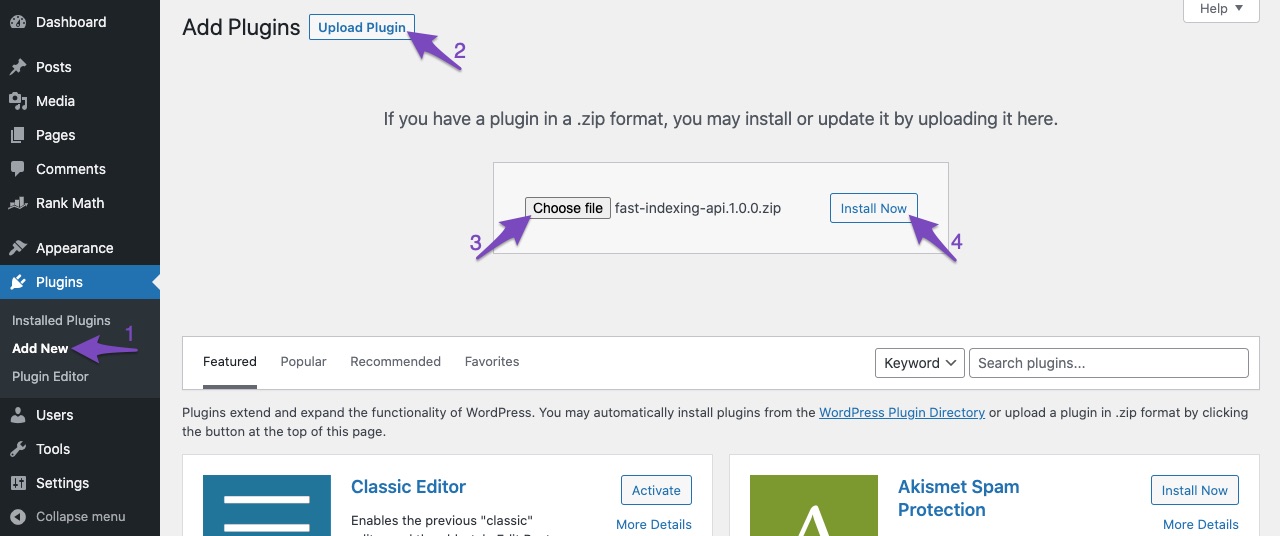
You can get the Instant Indexing plugin installed by uploading the plugin (you’ve downloaded in step 1) through the WordPress dashboard.
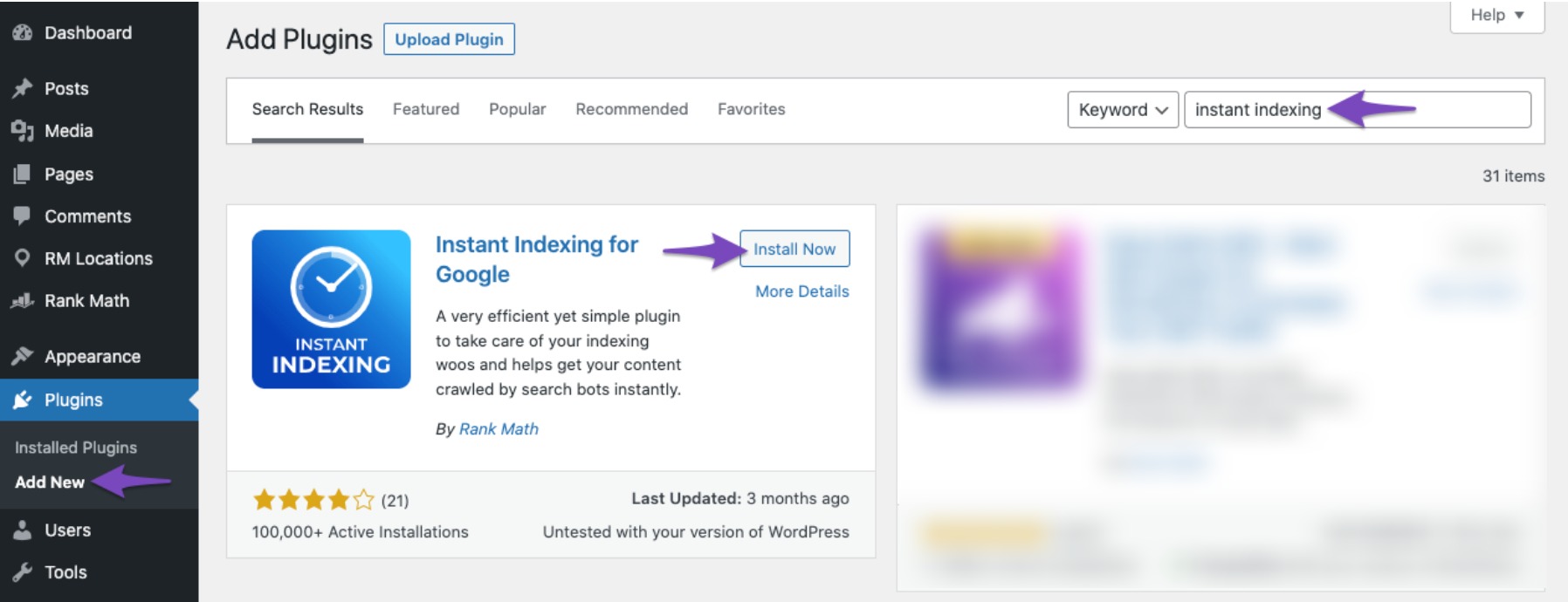
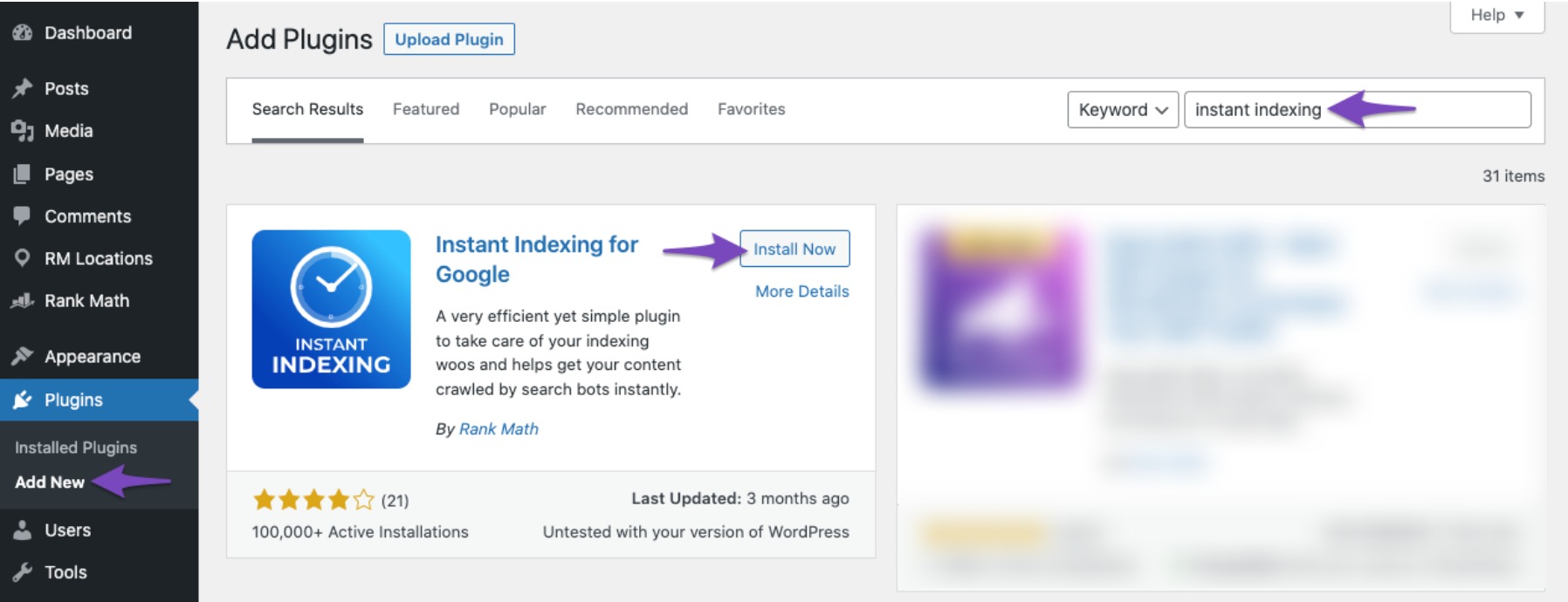
Alternatively, you can install it through the WordPress Admin panel by navigating to Plugins → Add New. Search and install the Instant Indexing plugin, as shown below.
5.2 Plaats uw API-sleutel in de plug-in-instellingen
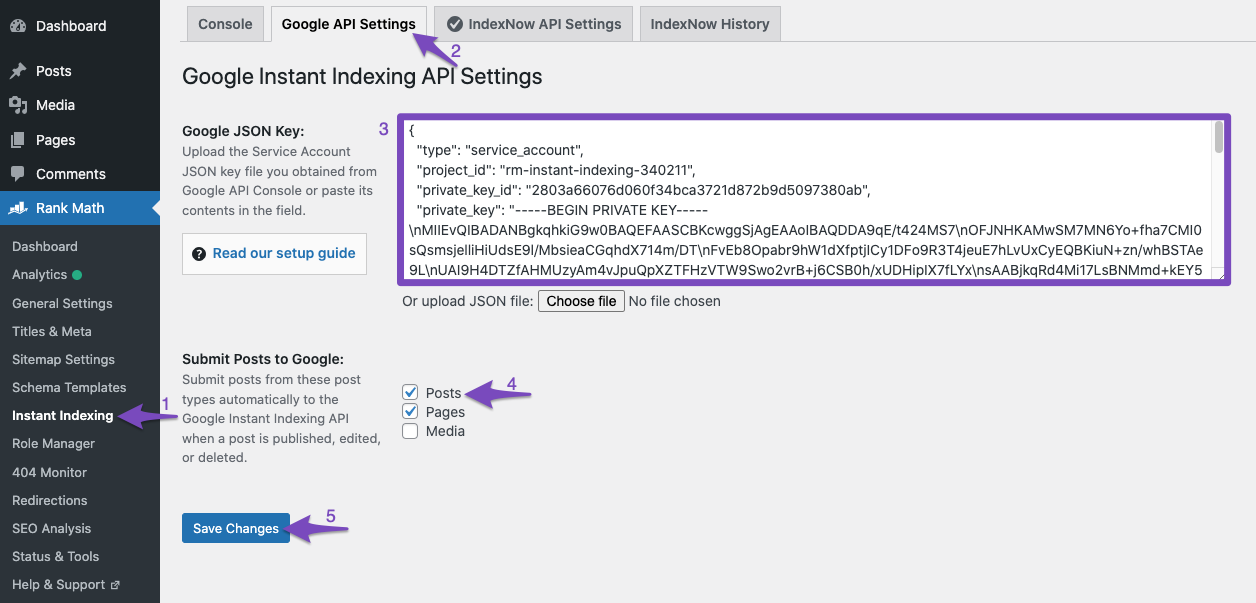
Na installing and activating the plugin, just navigate to Rank Math SEO → Instant Indexing Settings in your WordPress admin area, and under the Google API Settings tab, paste in the contents of your JSON file or just upload the file.
Select the Post Types where you want the Indexing API to ping Google to crawl your website as soon as a post is published, updated, or deleted, and click on Wijzigingen opslaan.
Opmerking: If you’re using WordPress multisite, then you need to configure the Google API Settings separately on each individual subsite.
5.3 Now it’s time to use Google’s indexing API to get any post or page on your site indexed almost instantly.
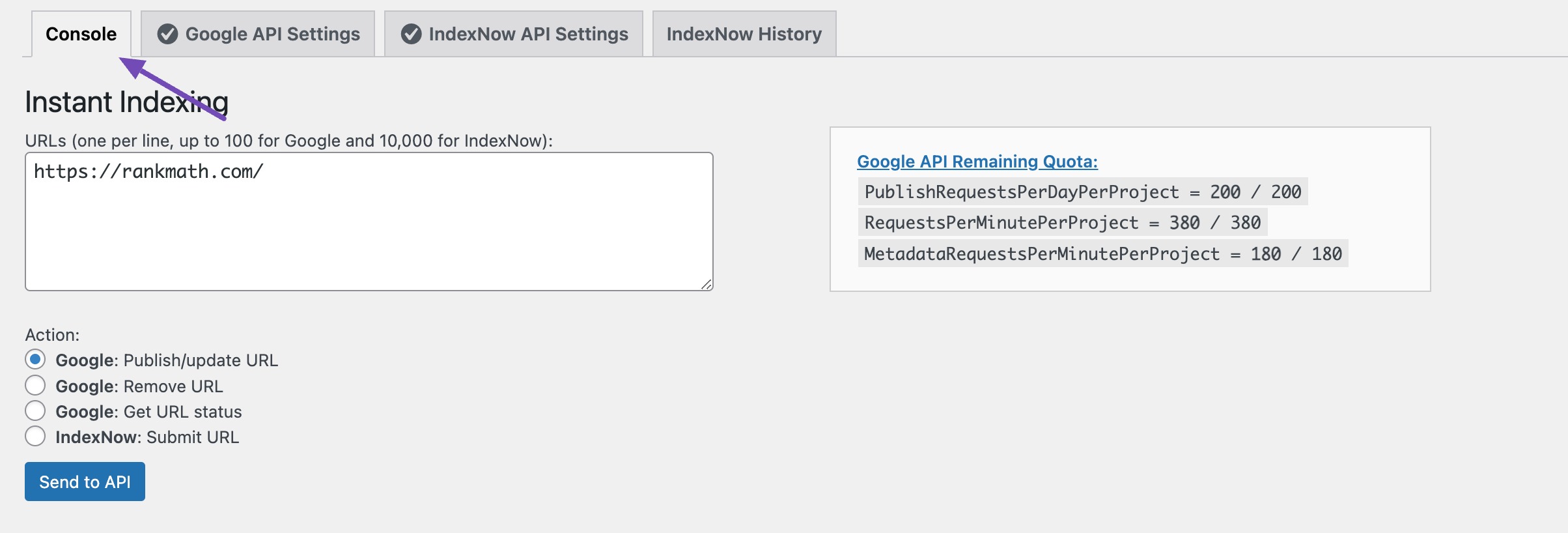
Head over to the Console tab at the top of the page. The screen should appear similar to the one below.
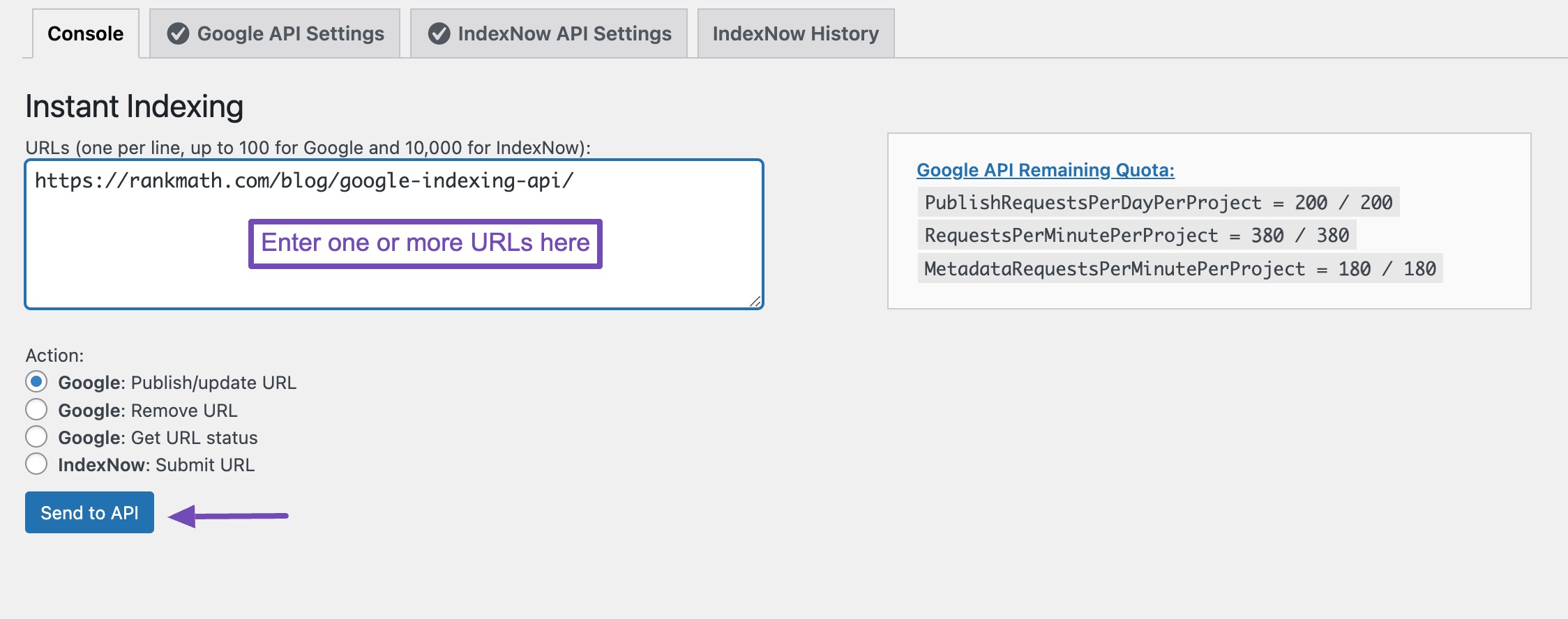
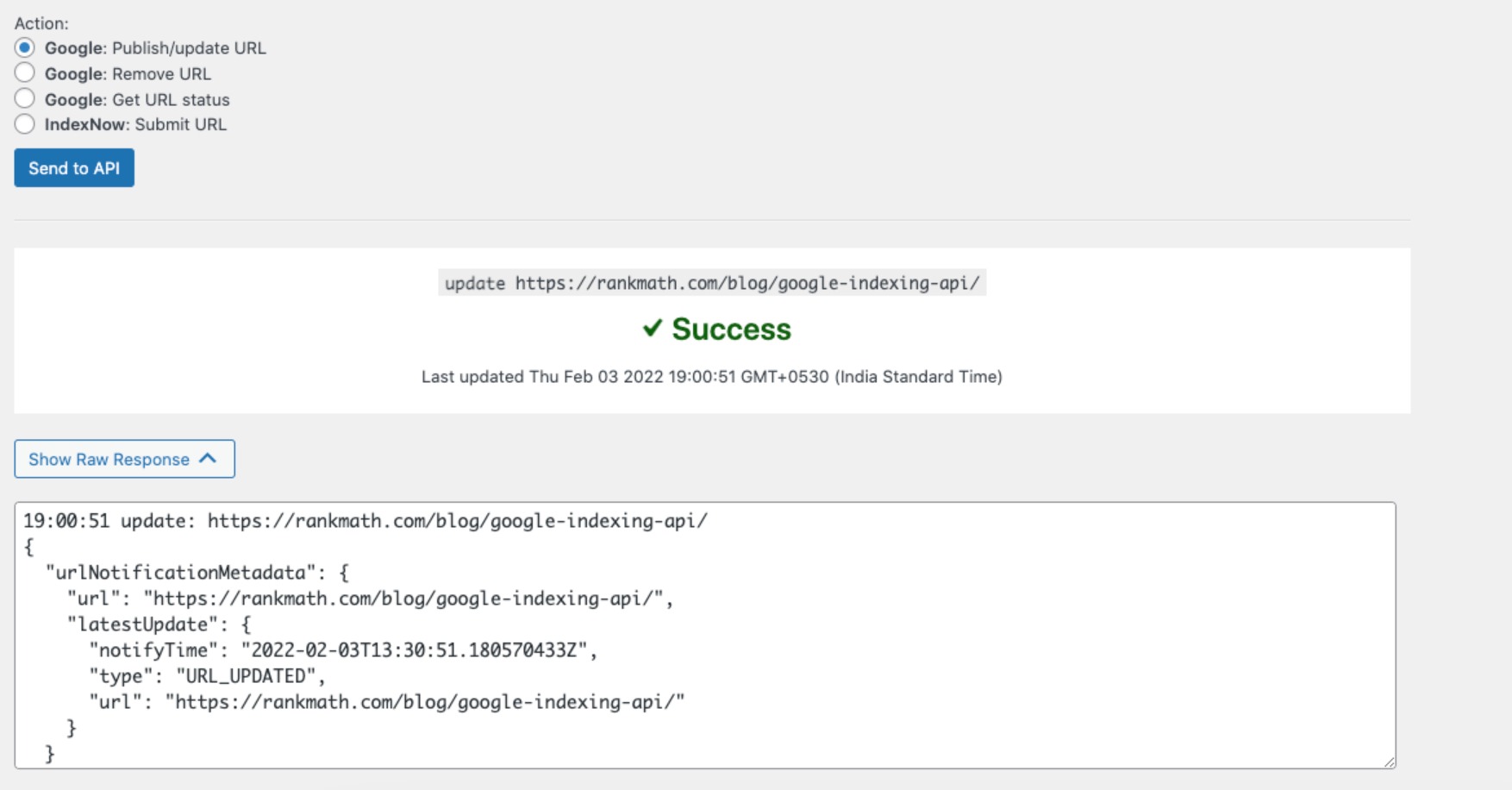
Enter a URL (or more) in the Instant Indexing section, and choose the Actie as Google: Publish/update URL. Then, click the Send to API knop.
In just a second, you should see a response from the API, similar to the one below.
You can use the Remove URL of Get URL Status actions to remove the URL from the index or get the current status of the URL.
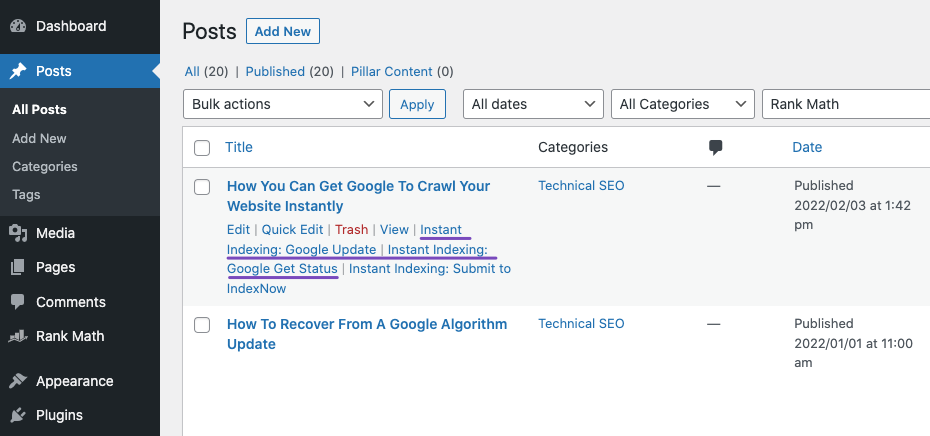
Instead of entering the URLs here and then indexing them, you can also do so from the WordPress Posts section. There, you should see an option to update a post or check its status.
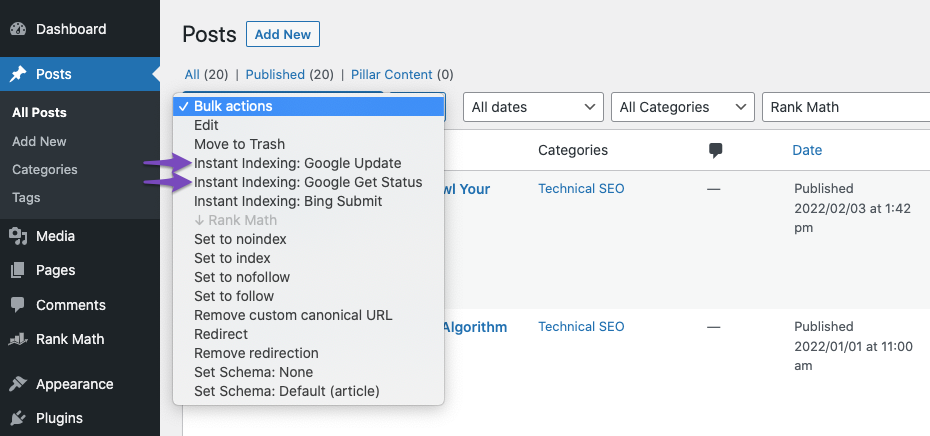
You can also use the bulk actions options to get multiple posts indexed or updated quickly.
And that’s it! We hope that you were able to make great use of this guide to help you get up and running with Google'sIndexerenAPI.
So, getting Google to index your site instantly wasn’t all that complicated after all, was it? If you have any questions, comments, or suggestions, feel free to Tweet @rankmathseo. We can’t wait to hear from you. 😅
Please Note: It will take a few minutes for your website to start crawling after successful submission. Learn more about the entire process hier.
PS: Officially, the API is for pages containing Job Posting and Livestream Structured data; however, from our internal tests and our public beta, it seems that Google will crawl and index any page type regardless of the Structured data. It is an efficient way to get the page(s) crawled quickly, rather than requesting it from inside Google Search Console.
You can install the plugin on your site like any other WordPress plugin using one of these three methods:
A) Installing through WordPress Admin Panel
Search and install the Instant Indexing for Google plugin under WordPress dashboard → Plugins → Add New.
B) Upload via WordPress Dashboard
Upload the ZIP file from your WordPress dashboard, in Plugins → Add New → Upload.
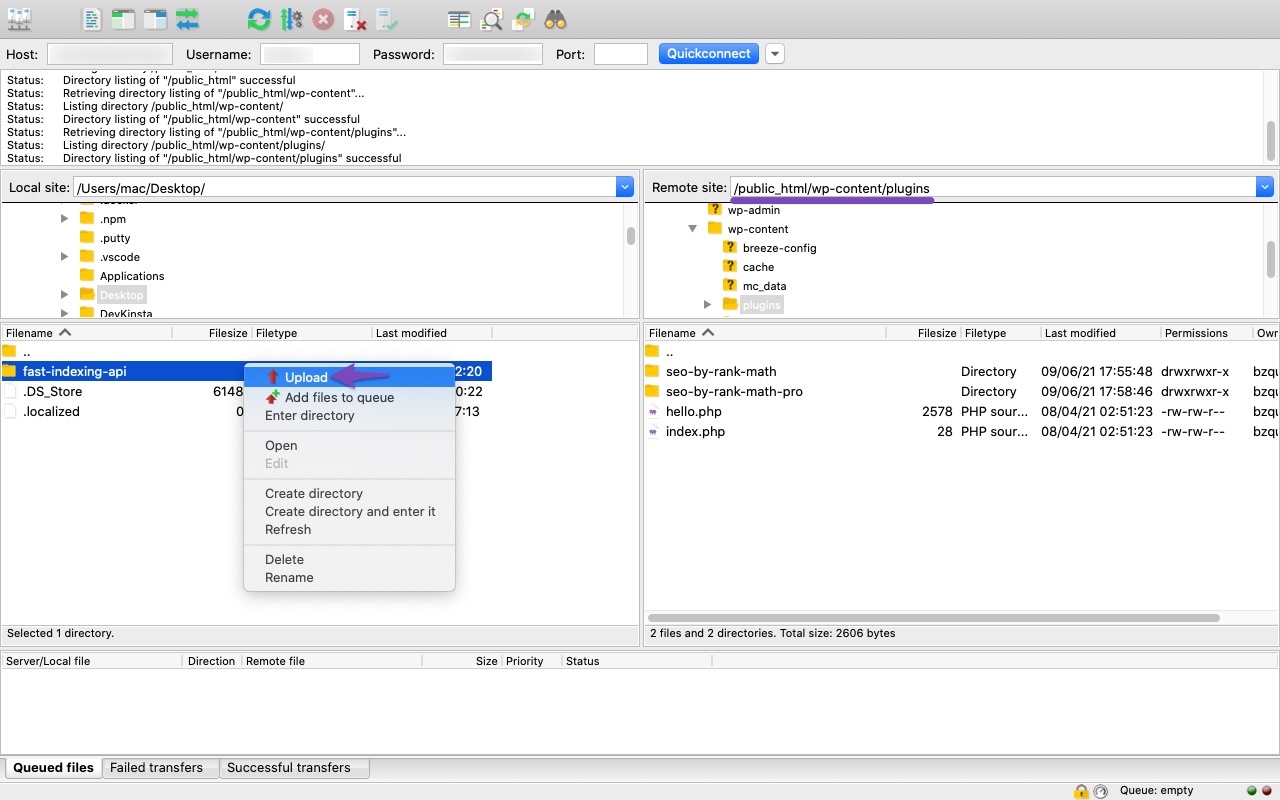
C) Upload it through FTP.
You first have to extract the zip file on your computer and then upload the new folder fast-indexing-api to your server, in the following folder: /wp-content/plugins.
6.2 403 Permission denied. Failed to verify the URL ownership.
Make sure the service account is listed as Owner for the site in Search Console:
If you don’t see it there, follow these steps:
In the pop-up that appears on the screen, add the service account as an owner:
Then refresh to confirm that the service account has been added correctly.
6.3 404 Requested entity was not found
Use the API Console to Publish/Update the page once, then use the Get status action.
6.4 403 Indexing API has not been used in the project [project name] before, or it is disabled. Enable it by visiting [URL], then retry
Copy and paste the URL in your browser to open it, or go to this page and select your project in the drop-down near the top, then enable the API:
6.5 Can I Use the Plugin Without Rank Math?
Yes, this is a standalone plugin that works independently of Rank Math. However, we recommend using it alongside Rank Math for optimal results.
6.6 Can I Use the Same API Project/Service Account/JSON API Key for Multiple Sites?
Yes, you can use the same projecteren, service account, en API keys across multiple sites; make sure to set the service account as the Baasje of all the sites in Search Console.
6.7 Can I Request Indexing of Pages From Different Websites From Just One Website?
No. You can only request indexing for URLs in a domain from the domain itself, not other websites, even if they are verified with the same Service Account. For example, if you use the same service account on website A and website B, you cannot request the indexing of URLs of website B from website A. You would have to do it from website B itself.
6.8 Can I Submit Pages That Do Not Have Job Posting or Livestream Structured Data?
The API officially supports pages containing Vacature en Livestream structured data, and it is recommended to use it only on such websites.
However, from our internal tests and our public beta, it seems that Google crawls, indexes (if the content is original, new, and helpful), and follows links on any page you submit through the API, regardless of its structured data.
6.9 It’s Been More Than 24 Hours, and Google Still Didn’t Index My Page. What to Do?
In our tests, Googlebot crawled the pages we published through the API within minutes, and you can confirm the same on your site by checking the access logs.
This, however, does not always result in the indexation of the content. It may take minutes to days or even weeks before a URL appears in the search results. Using this plugin doesn’t guarantee that your pages will show up in the search results.
6.10 I Am Getting an “Error Undefined” When I Am Trying to Get an URL Indexed
This error may occur when you try to submit URLs from another website for indexing. Make sure that you are trying to update, remove, or check the status of URLs that are on the same domain as the one from which you are initiating the requests.
Get Google To Index Your Website Instantly Using the Indexing API
beveelt aan
Bhanu Ahluwalia
Take a look at how you can use Google's new indexing API & to get your website's pages and content crawled instantly instead of waiting for Google to index you.
Get your website’s pages, and content crawled immediately! Use the Instant Indexing plugin by Rank Math to beat your competition and rank higher.Full tutoria...