Your website’s logo is one of the most important elements of your brand identity; it’s often the first thing visitors notice.
If you’re running a WordPress site, changing your logo is simple and doesn’t require advanced technical skills.
You might want to update your existing design, rebrand with a fresh look, or make small adjustments, and WordPress gives you several easy options to upload and customize your logo.
So, are you ready to change the logo and make a long-lasting impression? Let’s get started.
Your logo is more than just a graphic; it’s the face of your brand online.
When visitors land on your website, your logo is often one of the first things they notice, and it instantly communicates who you are and what your brand represents.
A well-designed logo helps you:
Build trust: A professional logo makes your website look credible and reliable.
Create recognition: When visitors see your logo, they immediately connect it with your business, products, or services.
Stand out from competitors: A unique logo helps you differentiate your brand in a crowded market.
Strengthen consistency: Displaying your logo across your site and other platforms builds your brand identity.
By giving your website a clear and memorable logo, you make it easier for visitors to remember you and come back in the future.
2 How to Change the Logo in WordPress
You can easily change the logo in WordPress, which gives your site a fresh, professional look. You can do this using the default WordPress theme or through the Customizer if you’re using a different theme.
2.1 Adding a Logo to WordPress Default Theme
WordPress has a default theme, the one you’ll see once you’ve installed WordPress.
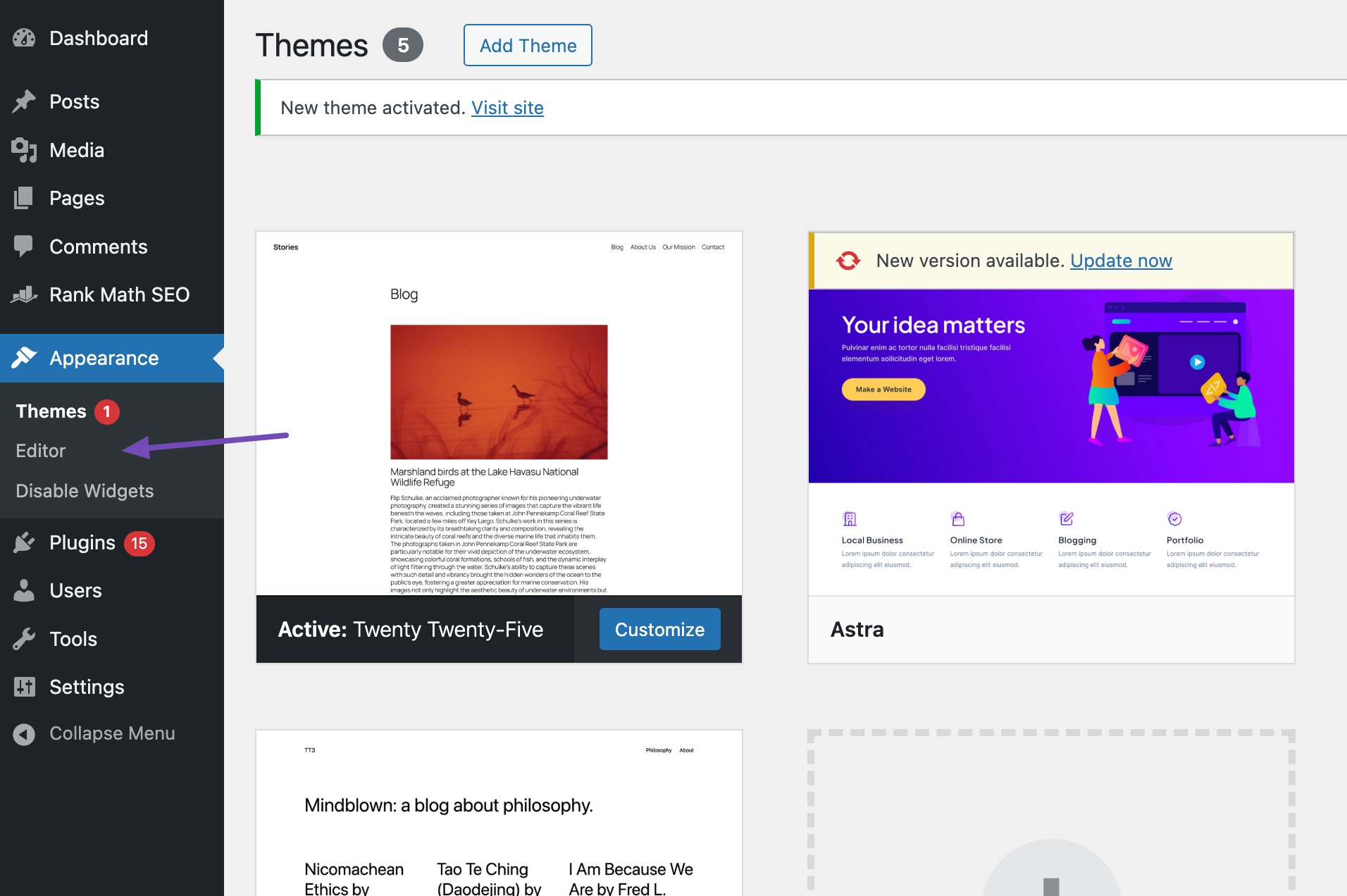
To add a logo to the default block based theme, navigate to Appearance → Editor vanuit uw WordPress-dashboard, zoals hieronder weergegeven.
The editor will redirect you to your website homepage. It’ll also display the design templates you can customize on the left side of the screen.
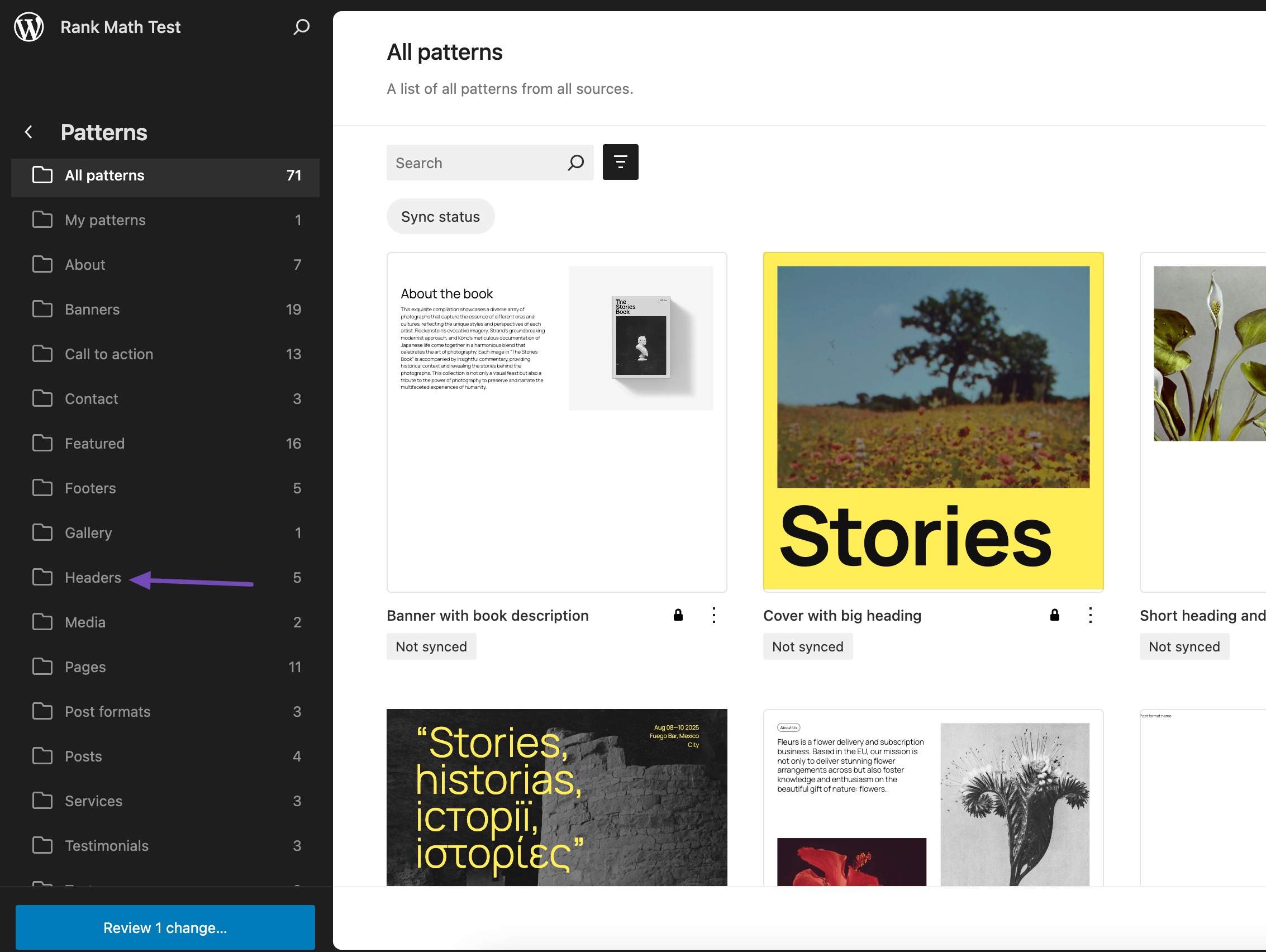
Navigeer vervolgens naar Patterns → Header, zoals hieronder weergegeven.
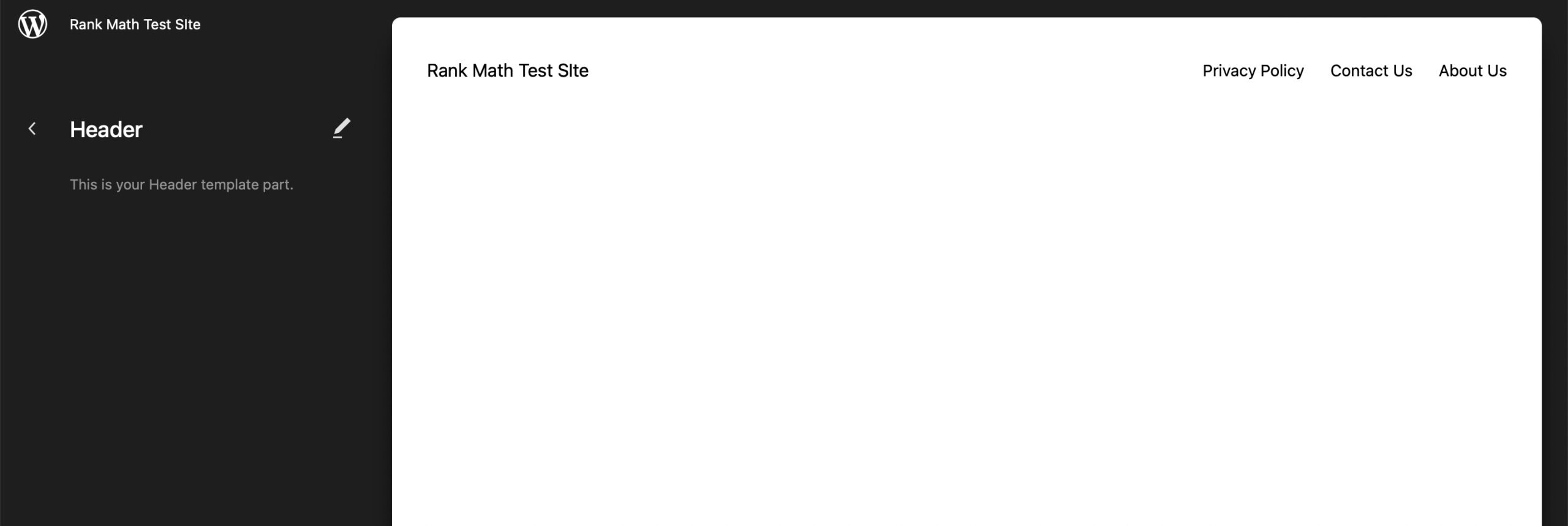
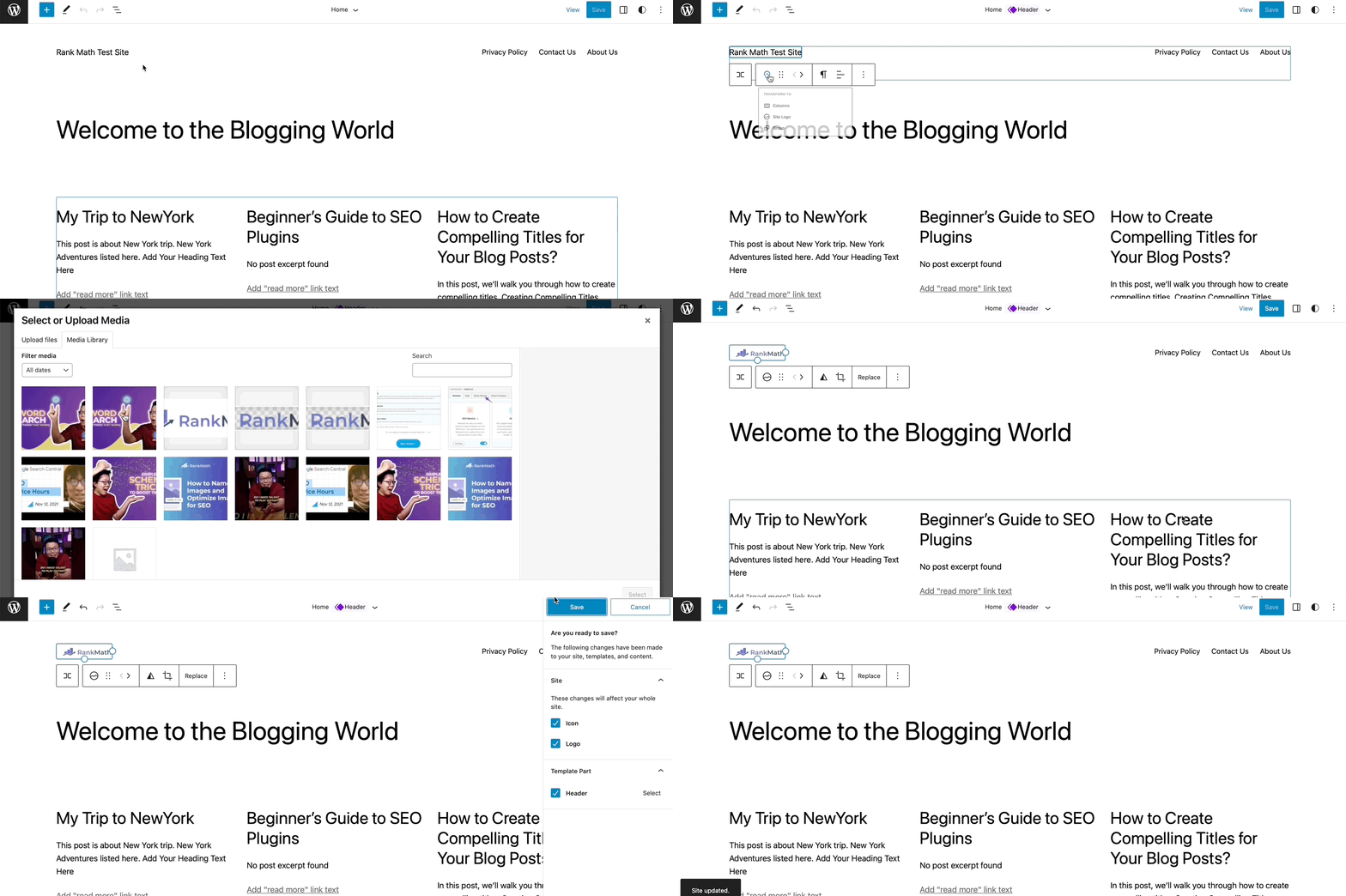
It will open your header as a standalone element in the block editor.
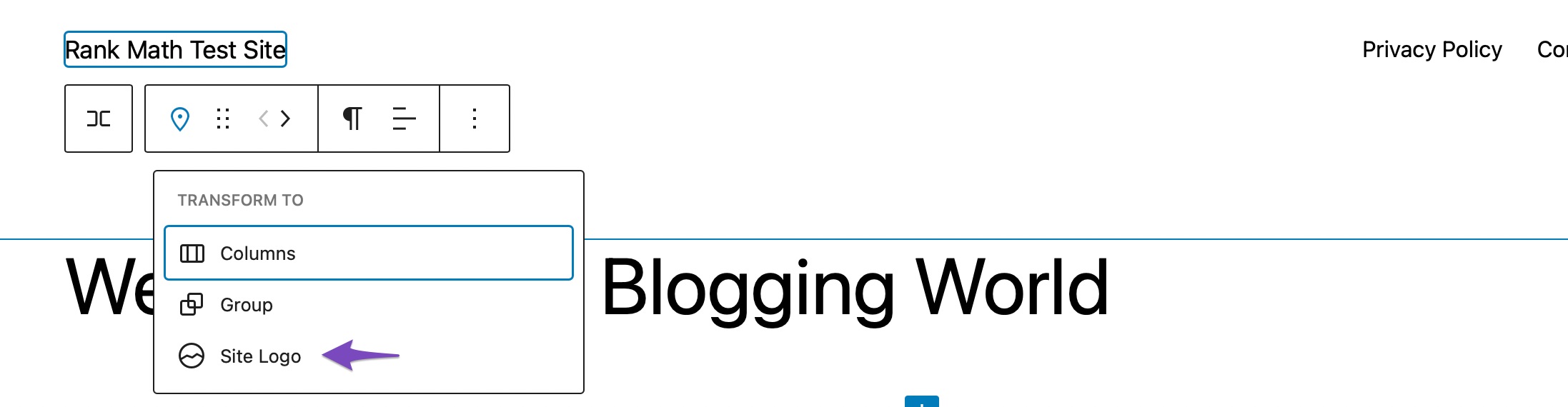
To add a logo, click on your site title and click on the location icon, as shown below.
Proceed and select the Site Logo block.
Next, click the upload icon to upload your site logo from your media or local computer files. By default, the WordPress editor will crop your logo if it is not square and link it to your home page.
Als u klaar bent, klikt u op de Opslaan button to update the changes.
2.2 Change the Logo Using WordPress Customizer
If you do not wish to use the default WordPress themes, install and activate a WordPress theme that supports Customizer via the WordPress dashboard.
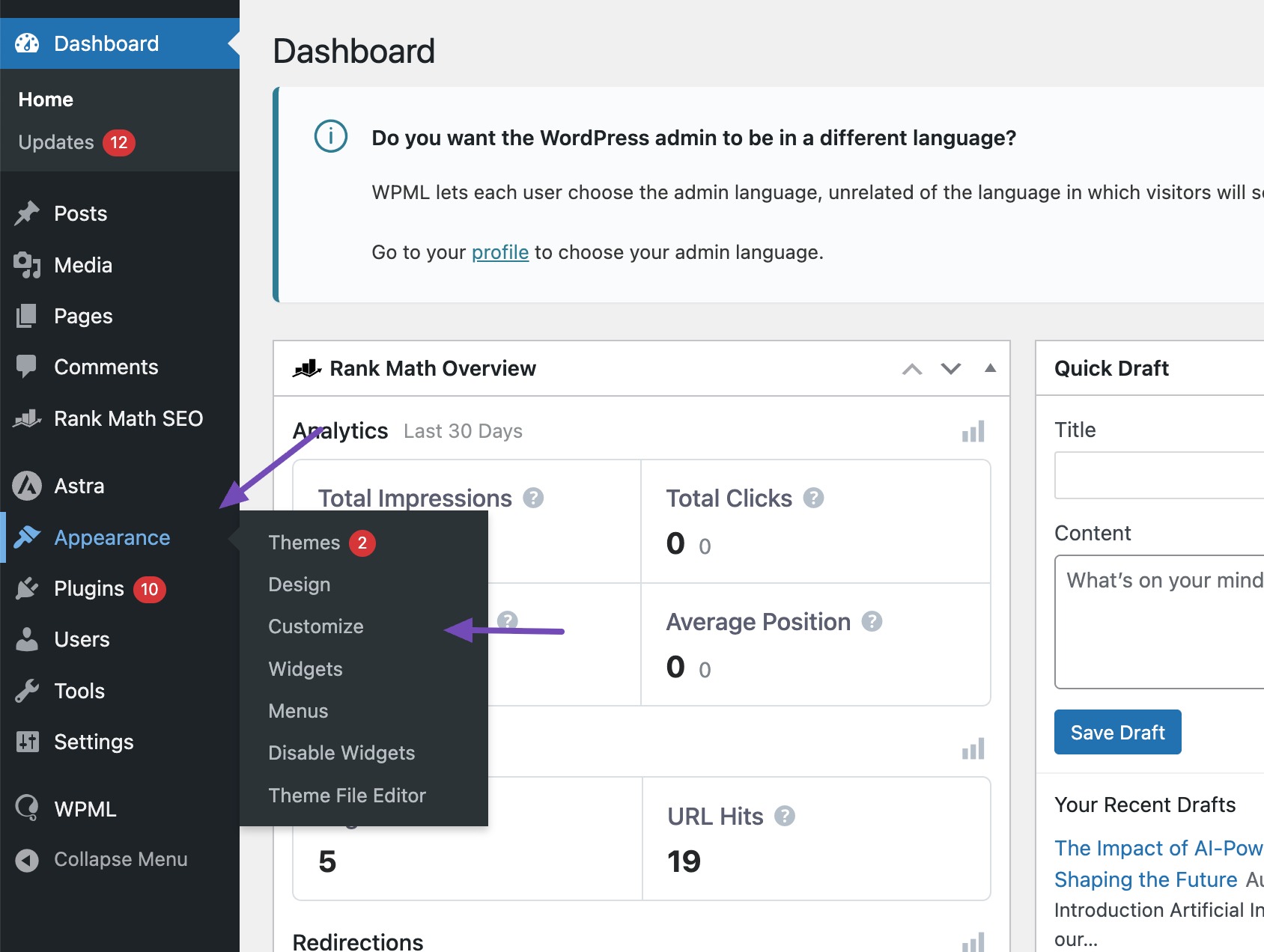
Navigeer vervolgens naar Appearance → Customize vanuit uw WordPress-dashboard, zoals hieronder weergegeven.
This will launch the WordPress Customizer.
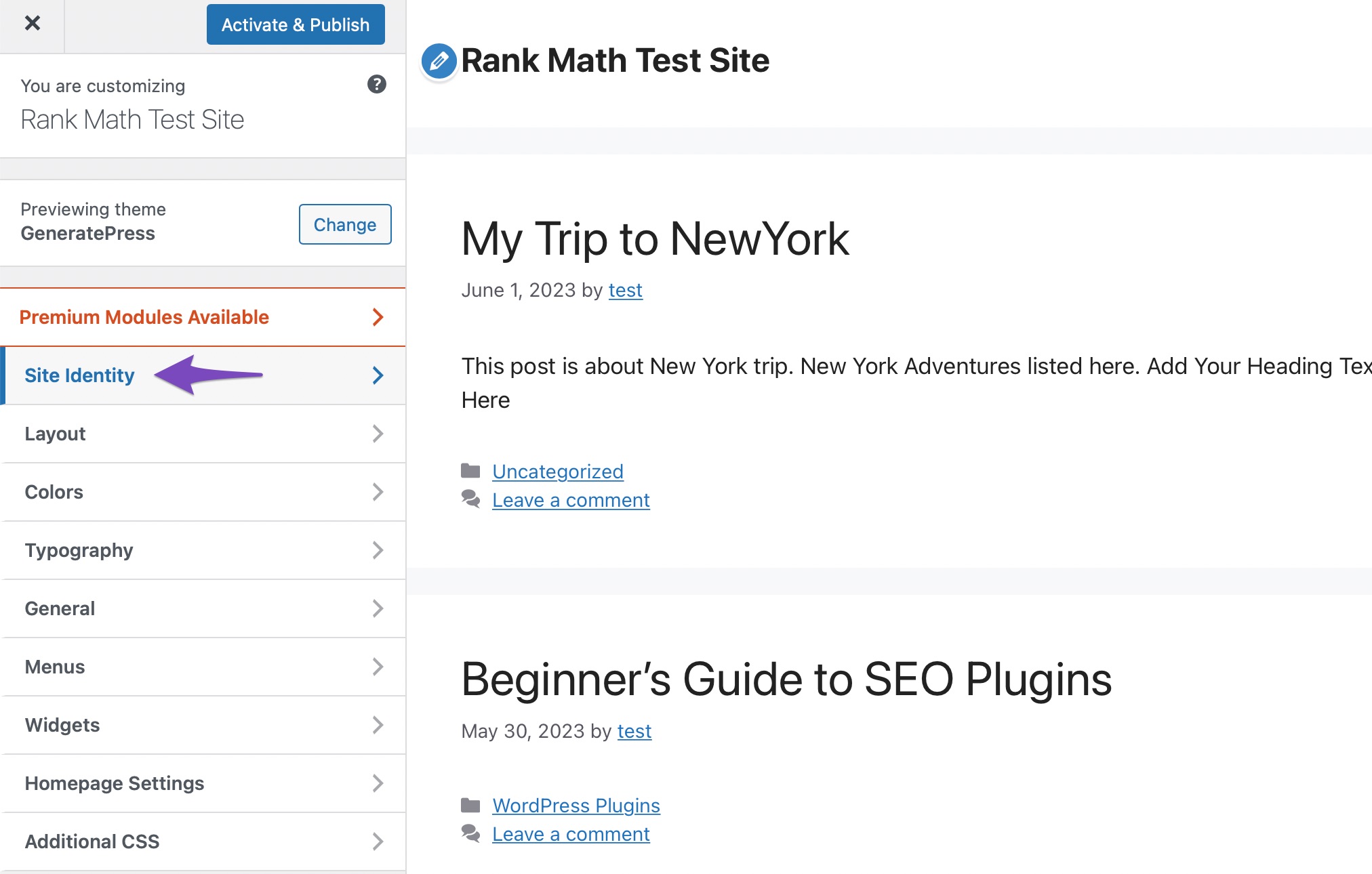
Next, look for the Site Identity or the Logo option in the Customizer menu. This may vary depending on your theme.
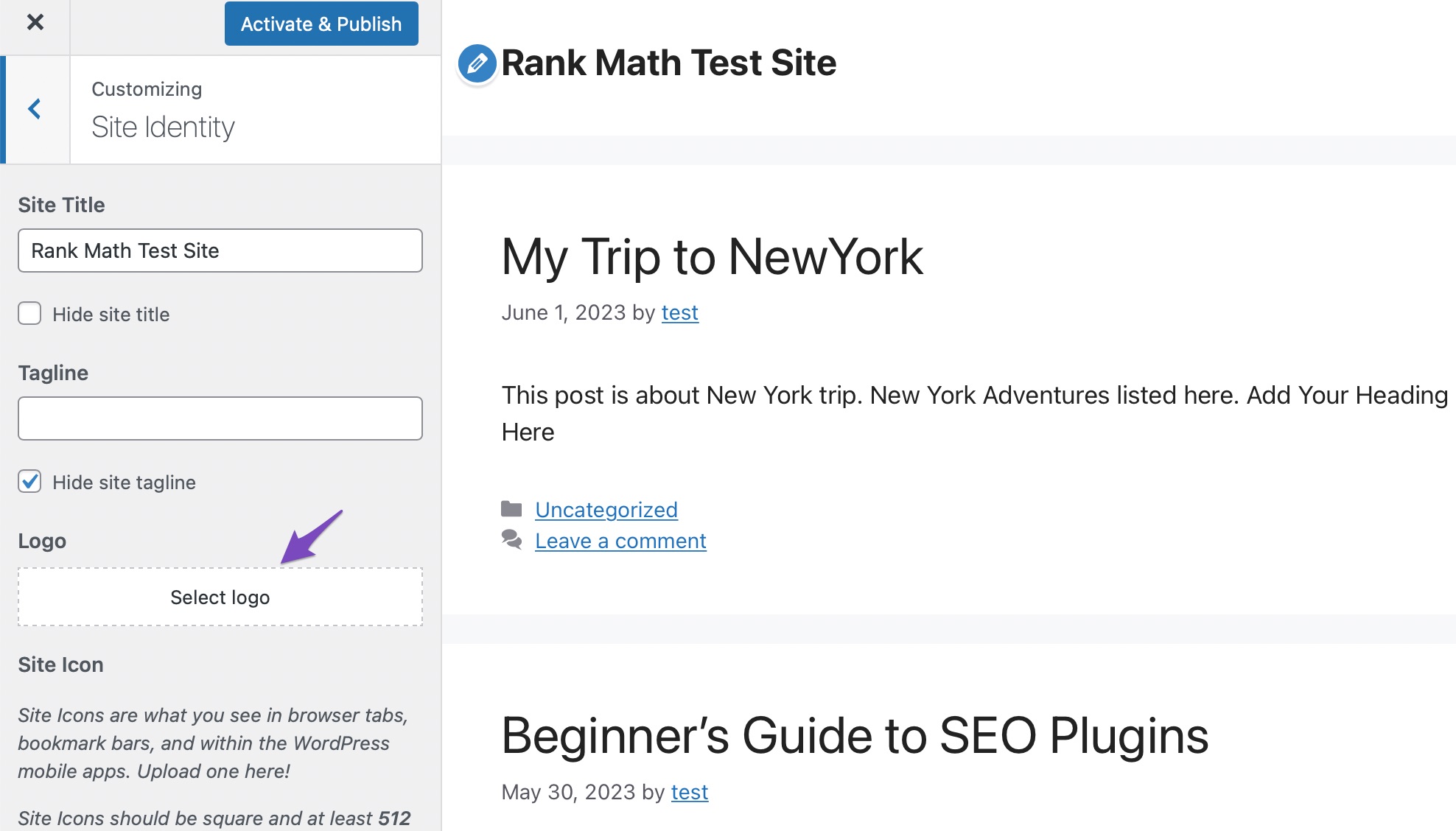
Klik op de Logo section, and you’ll be presented with an option to upload a new logo image.
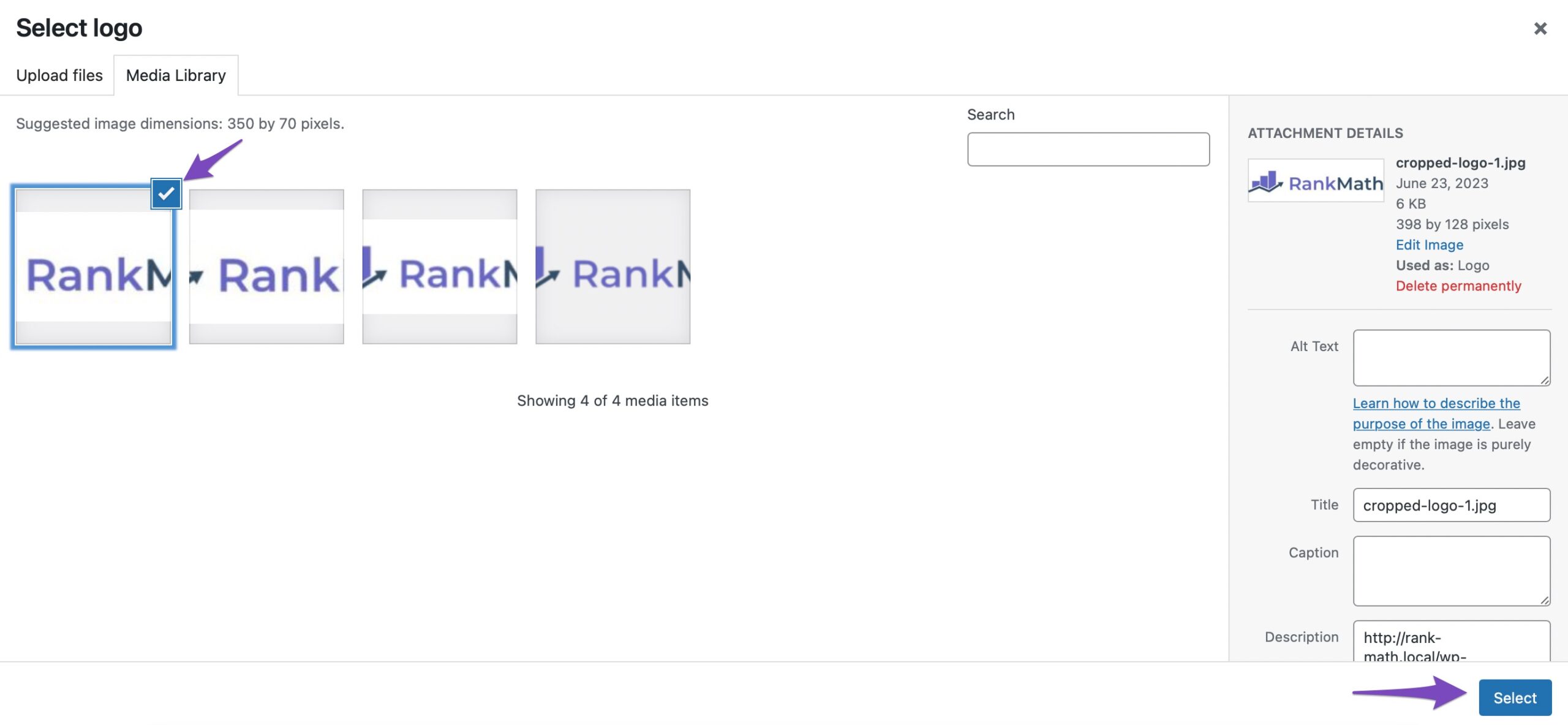
Choose the logo from your computer and click on the Selecteer button, as shown below.
Once the logo is uploaded, you may have additional customization options, such as adjusting your logo size or placement depending on your theme.
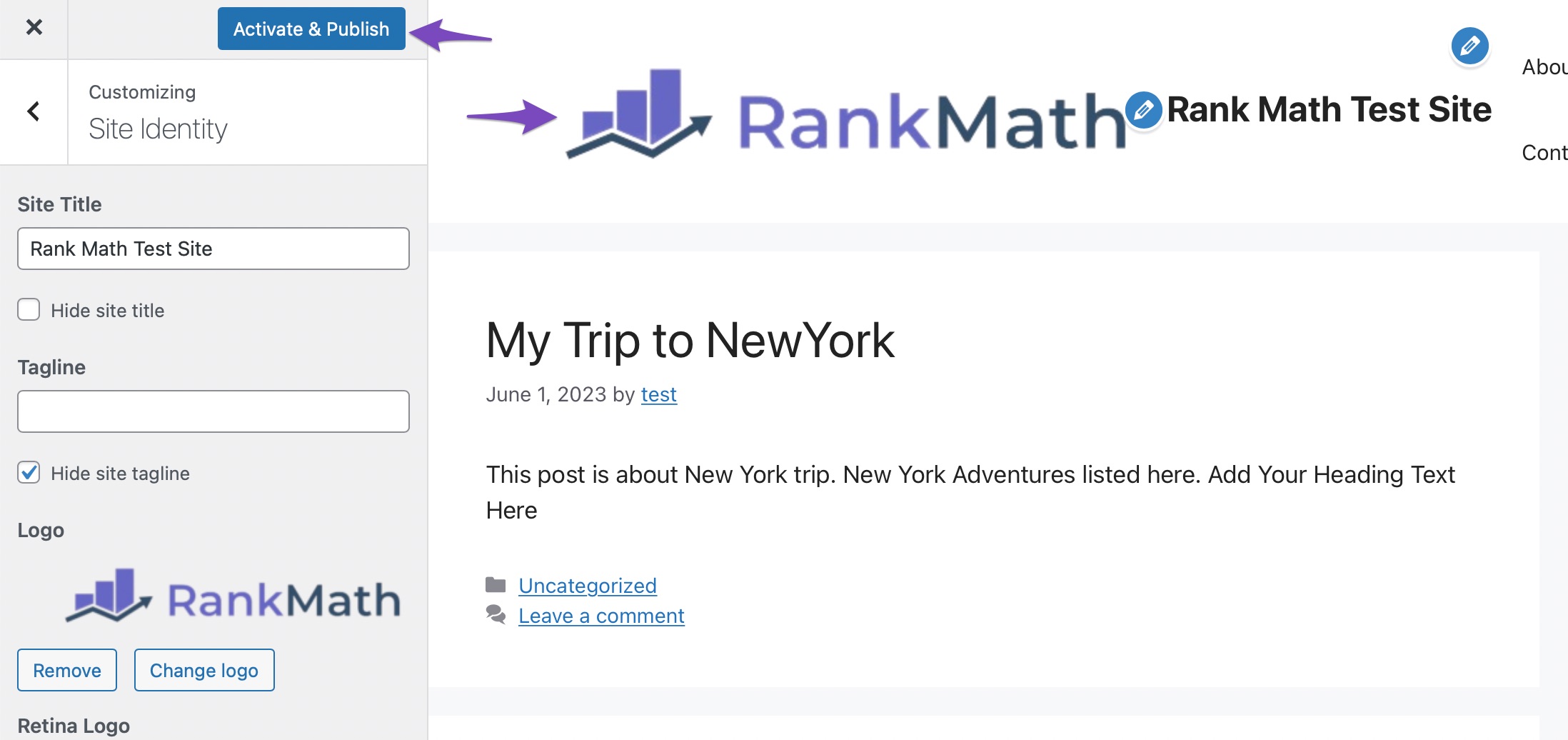
Preview the changes and click on the Activate & Publish button if you’re satisfied with the logo for your site. The logo should now be predominantly displayed, enhancing your site’s visual branding.
To further strengthen your WordPress site’s identity, you can use the logo as the site’s favicon.
2.3 Change the Logo by Adding Custom HTML/CSS Snippets
WordPress logo styles can further be customized or altered using additional CSS.
Note: It’s recommended to create a backup of your website before making any changes so that you can restore it if something goes wrong. Refer to our dedicated tutorial on backing up the WordPress site.
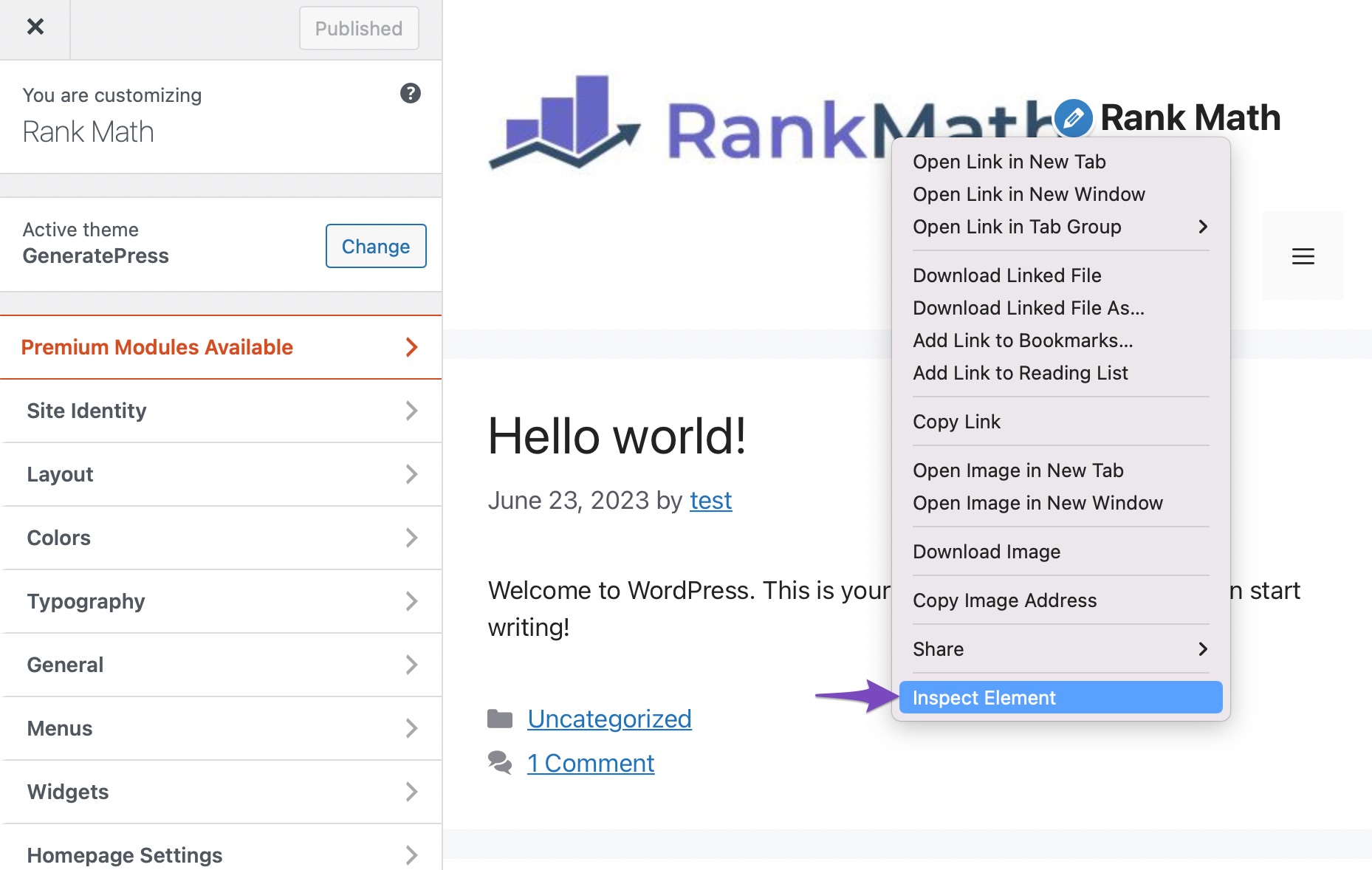
To change the logo as per your needs, navigate to Appearance → Customize from the WordPress dashboard. Right-click on your logo image and select the Inspect/ Inspect Element option, as shown below.
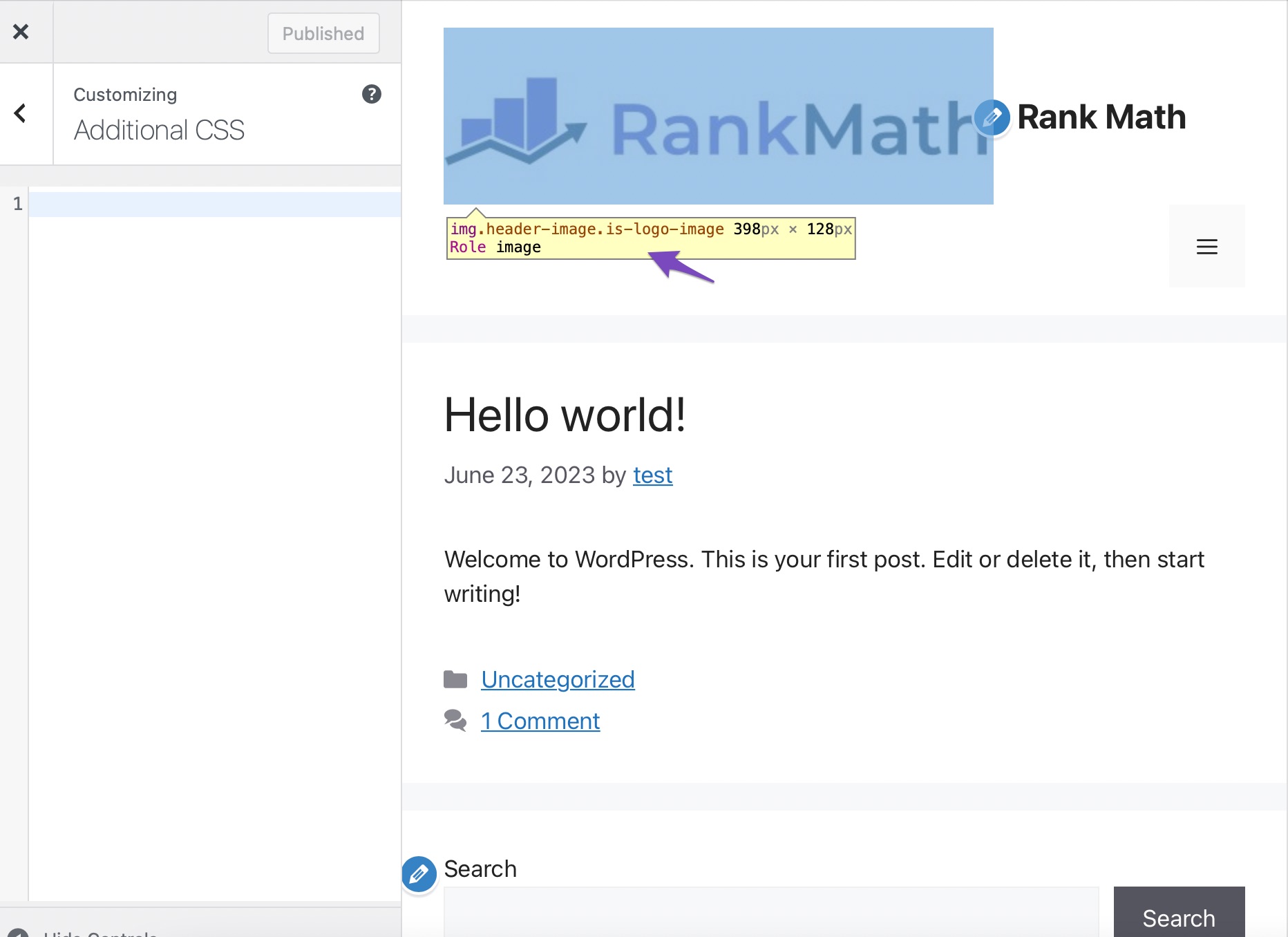
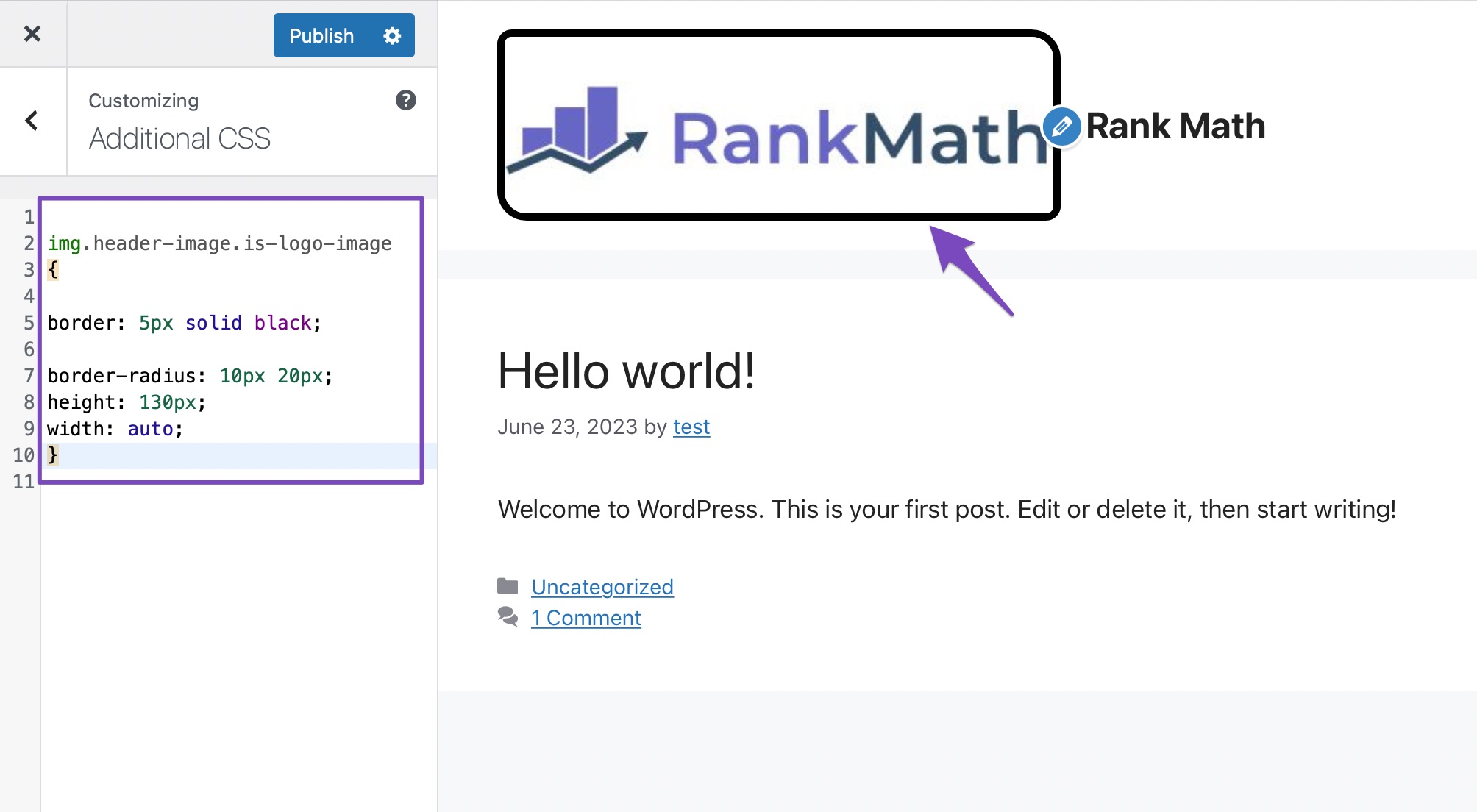
Hover over the highlighted HTML tag and locate the CSS class, as shown below. In our case, it is img.header-image.is-logo-image.
Next, add your own CSS properties to customize your logo. Here’s an example: