Setting up a homepage in WordPress is one of the first steps to giving your website a clear identity and making a great impression on your visitors.
Wenn Sie erwägen, Ihre Homepage in WordPress zu ändern, machen Sie einen wesentlichen Schritt zur Verbesserung des Benutzererlebnisses, zur Einbindung Ihres Publikums und zum Erreichen der Ziele Ihrer Website.
In this post, I’ll walk you through the process step by step, so you can easily set the homepage that fits your website’s goals.
Lassen Sie uns eintauchen und Ihre Homepage in eine überzeugendere Darstellung Ihrer Marke oder Ihres Inhalts verwandeln.
Your WordPress homepage is the main page of your website, the first page visitors see when they visit. It’s where you introduce your website, share important information, and guide visitors to other parts of your site.
You can choose to show your latest blog posts or create a static page with key information about your business or content. You can also add images, text, videos, and links to make it more engaging.
Your homepage sets the tone for your site, so setting it up thoughtfully helps visitors understand what your website is all about.
2 Why Change Your WordPress Homepage?
You might want to change your WordPress homepage for several compelling reasons.
Firstly, the content and design of your homepage should align with your changing goals and objectives. As your website grows, you may need to update the homepage to reflect these changes.
User engagement is important; an outdated or uninspiring homepage can deter visitors. By periodically changing your homepage, you can maintain user interest and provide a fresh experience for returning visitors.
Additionally, for SEO (Search Engine Optimization) purposes, a well-optimized homepage can improve your site’s visibility in search engine results. By targeting specific keywords and keeping your content up to date, you can enhance your site’s search engine rankings, driving more organic traffic.
3 How to Set a Static Homepage
In most WordPress themes, your homepage displays your latest blog posts by default. You can set a static homepage if you don’t want to display your blog posts on your front page.
Setting a static homepage in WordPress involves designating a specific page as the front page of your website rather than displaying your most recent blog posts on the homepage.
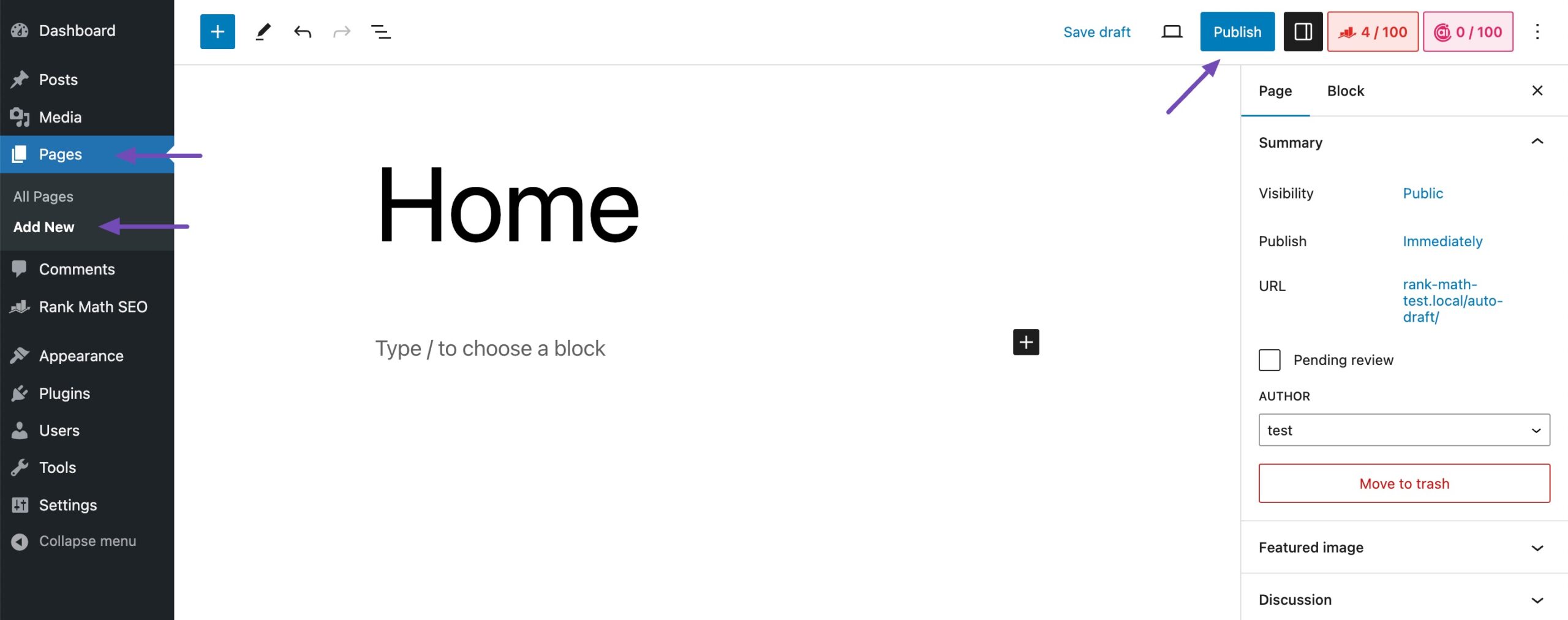
In your WordPress dashboard, navigate to Seiten und klicken Add New.
Create a new page that you want to set as your static homepage. You can title it something like Zuhause oder Herzlich willkommen. Once done, click Veröffentlichen to publish your page.
Repeat the above steps again to create a Blog page, say Bloggen.
Once your pages are ready, you can inform WordPress what to use them for.
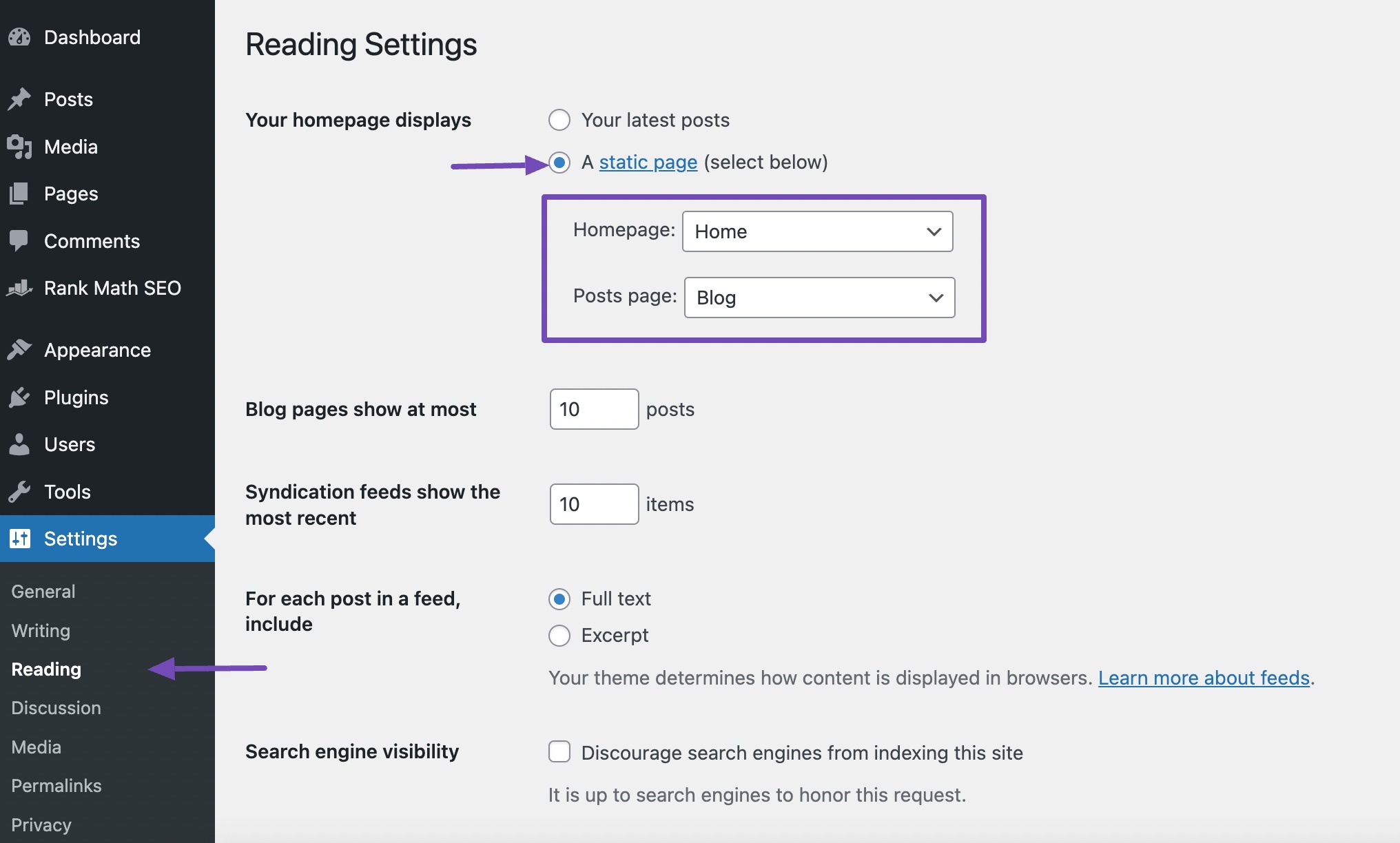
Navigieren Sie zu Einstellungen → Lesen from your WordPress dashboard. In the Your homepage displays options, select A static page. Next, use the dropdown menus to select your homepage and posts page.
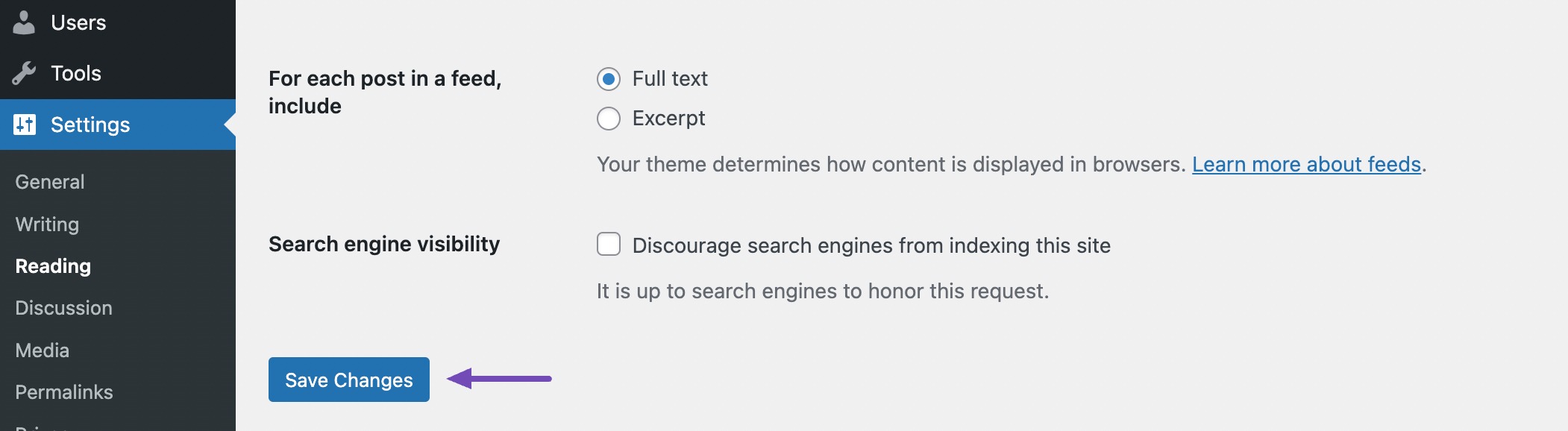
Drücke den Änderungen speichern button located at the bottom to save your settings.
Visit your website to ensure that the changes have taken effect and that your static page is now displayed as the homepage.
That’s it! Your WordPress homepage is now set to a static page of your choice. Visitors to your website will see the content of this page first when they arrive, providing you with a customized and engaging introduction to your site.
4 How to Edit Homepage in WordPress
Now that your homepage is ready, you can use the methods below to create your custom WordPress homepage.
4.1 Editing Homepage in WordPress With the Theme Customizer
You can edit your homepage using the theme customizer.
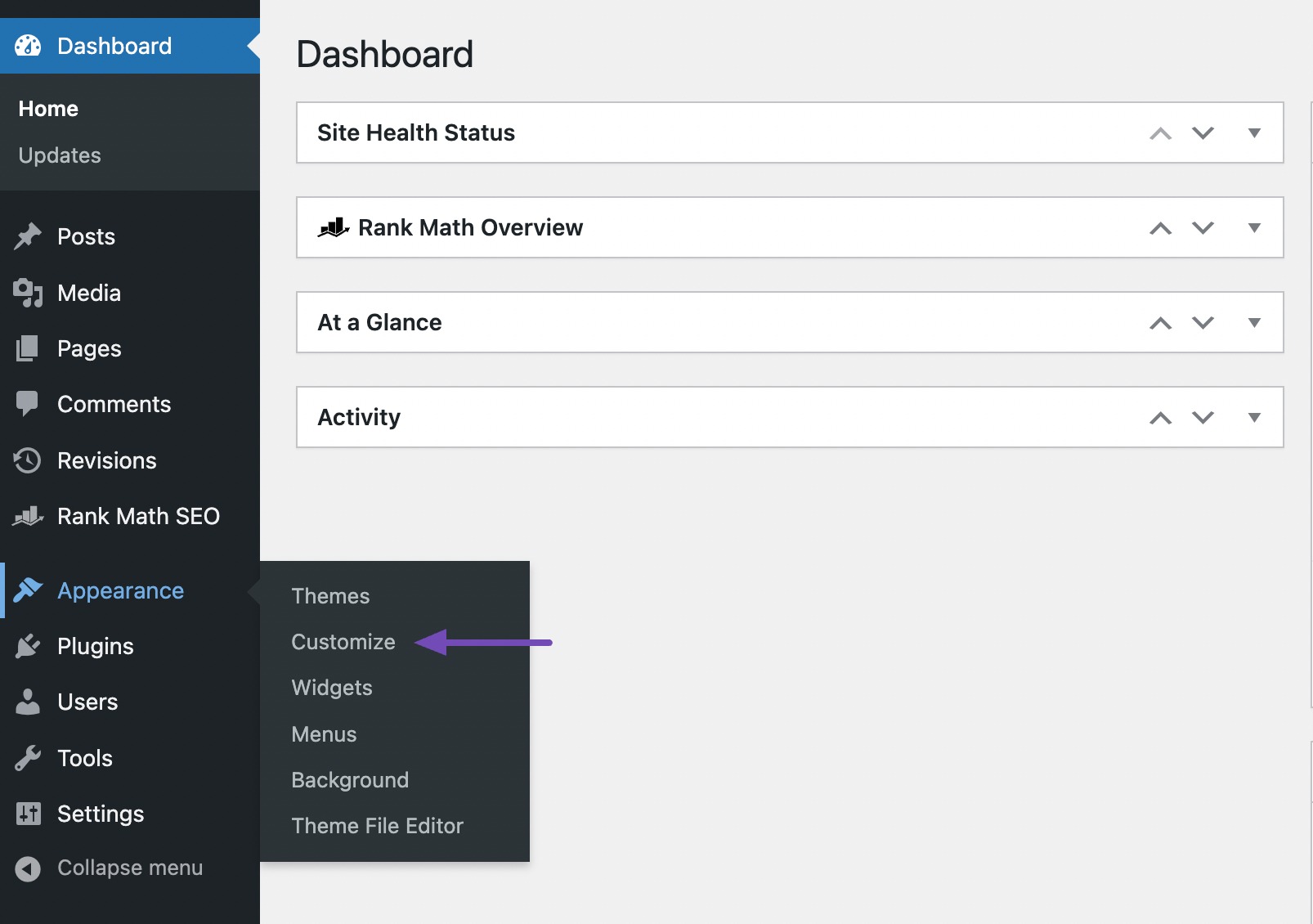
Navigieren Sie dazu zu Appearance → Customize aus Ihrem WordPress-Dashboard.
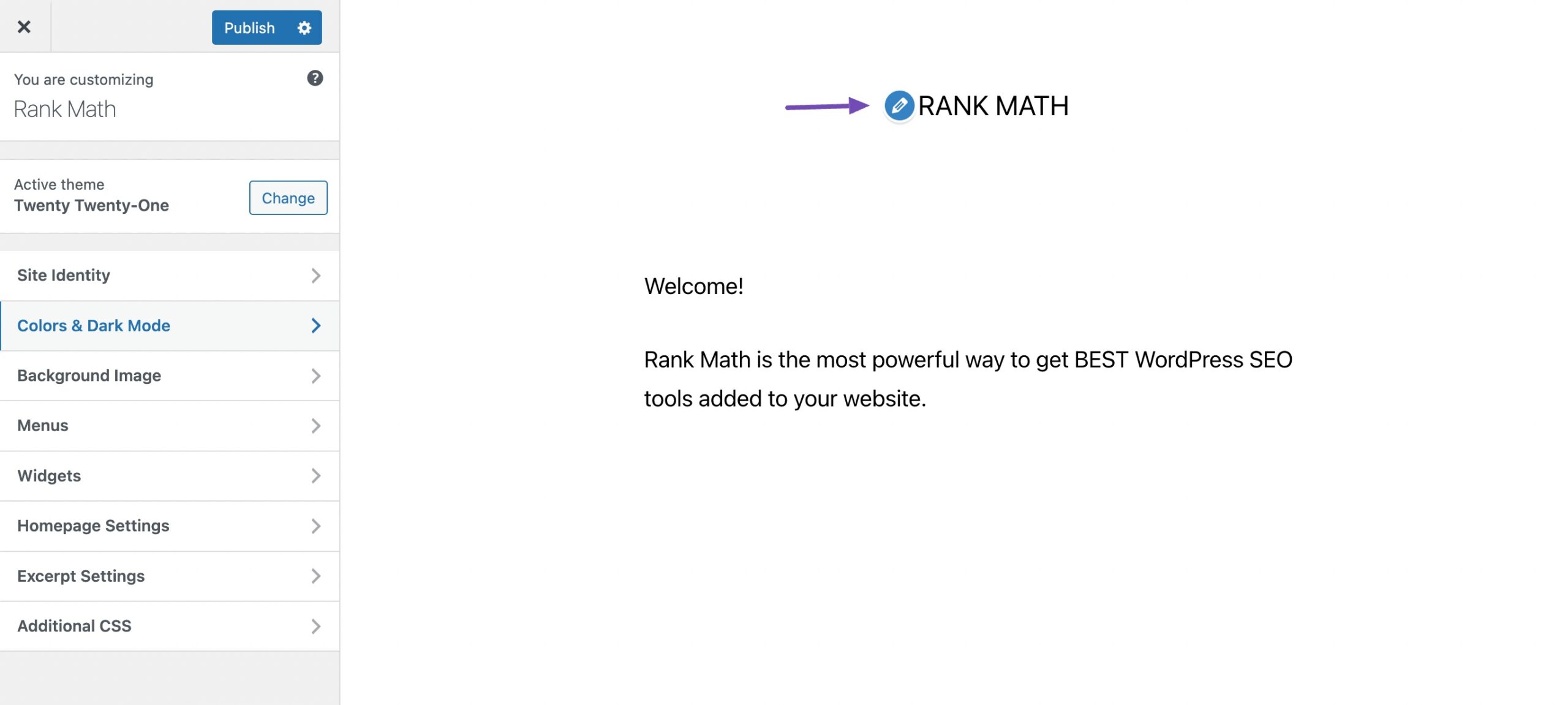
In the Theme Customizer, you’ll see a list of customization options on the left side of your screen, such as site title, header image, background image, etc. These options may vary depending on your theme.
To edit any part of the homepage, click the blue pencil icon next to it.
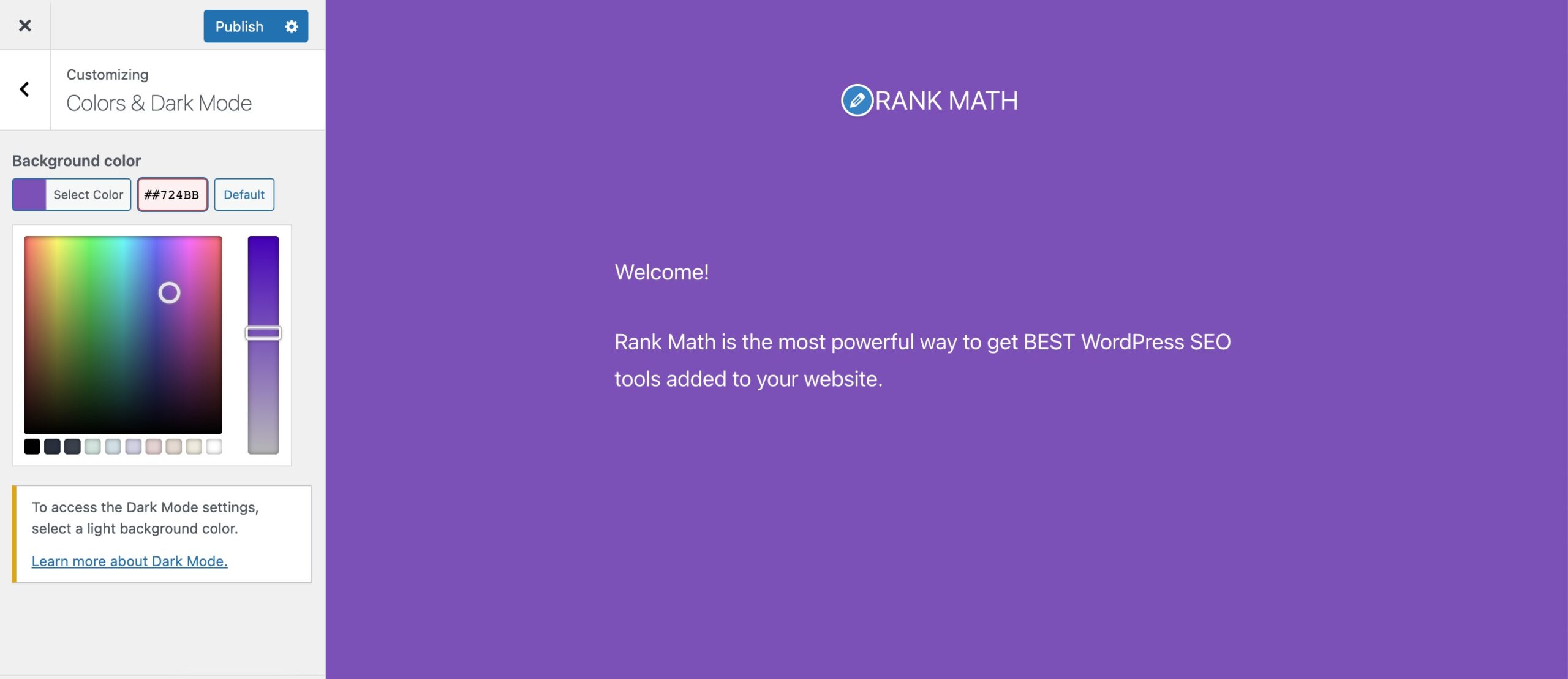
Here, we’re adding colour to our homepage.
Once you’ve made the necessary changes, click the Veröffentlichen Schaltfläche, um Ihre Änderungen zu speichern.
4.2 Editing Homepage in WordPress With the Block Editor
You can edit your homepage in the Block editor if you do not wish to use the Theme Customizer.
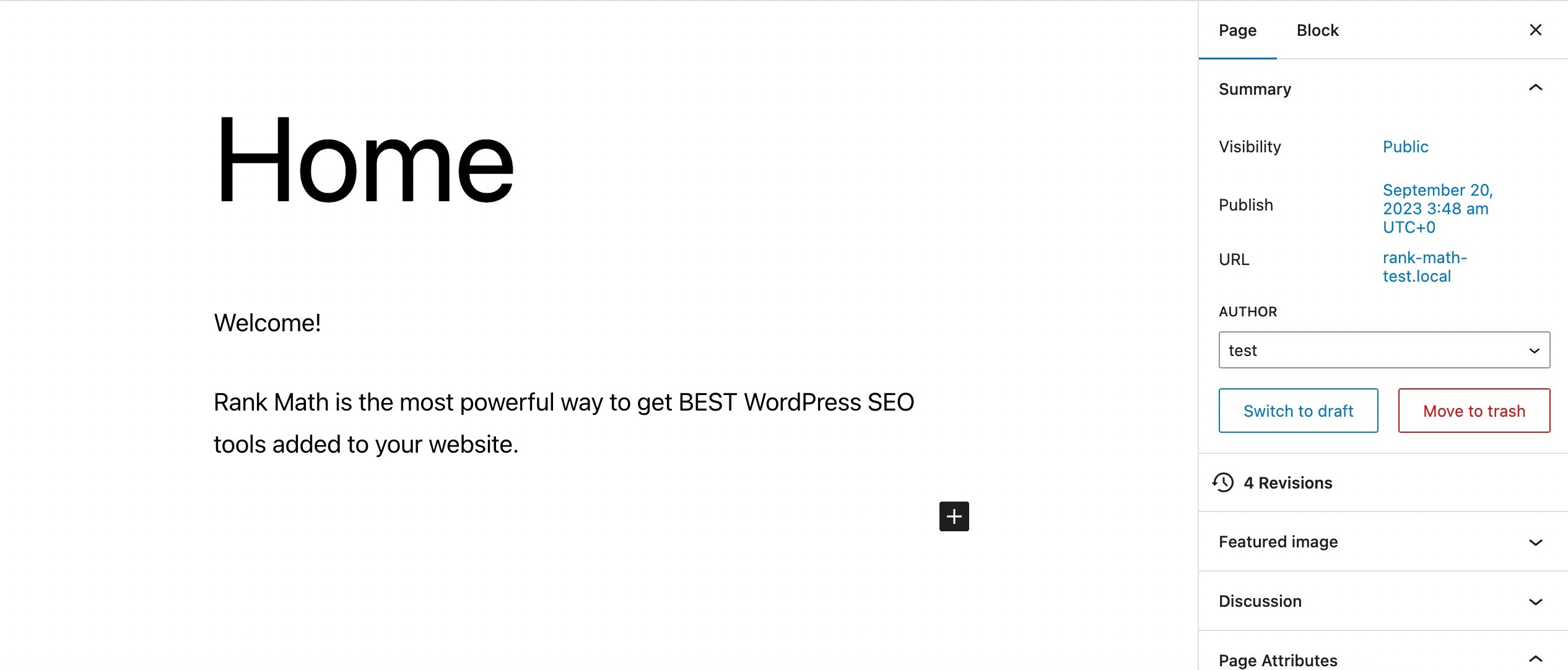
To use the block editor, go to the Pages → All Pages section from your WordPress dashboard and edit the homepage you created earlier.
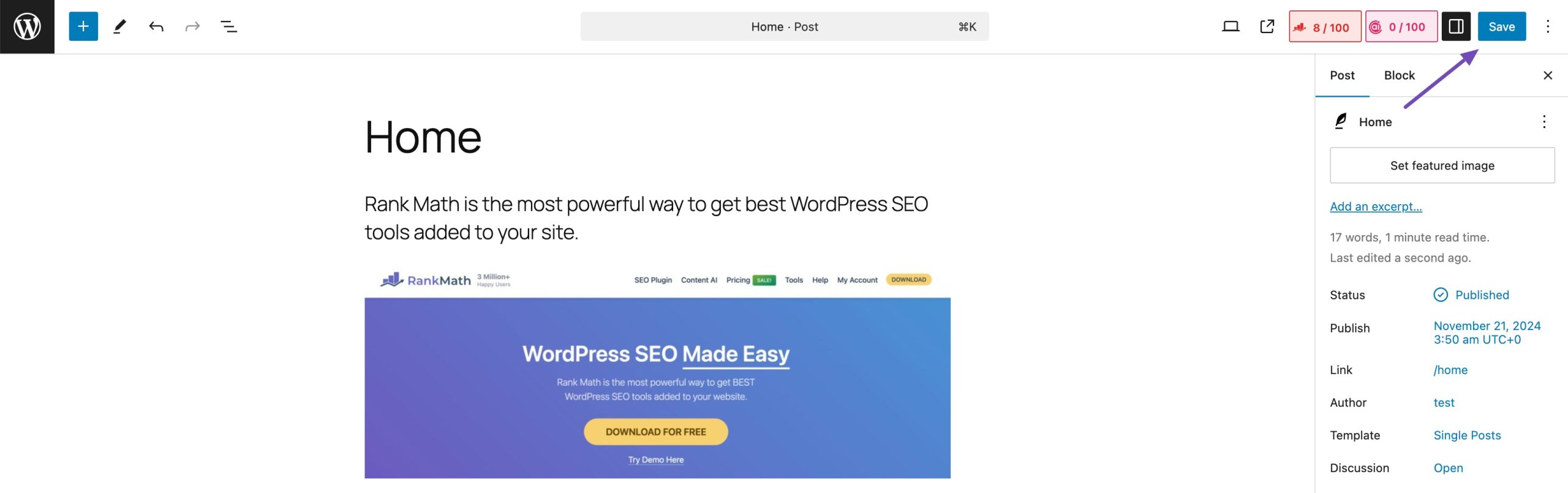
You can then use the Block editor to customize your homepage. Here, we’ll add an image to our homepage. You can do so by clicking the Plus(+) symbol and selecting the Bild Block.
Once you’ve customized your homepage, click the Speichern Schaltfläche, um Ihre Änderungen zu speichern.
4.3 Editing Homepage in WordPress With the Classic Editor
If you’re more comfortable with the Classic Editor, you can still create an impressive homepage.
Navigieren Sie zu Seiten section and choose the page you’ve designated as your site’s homepage.
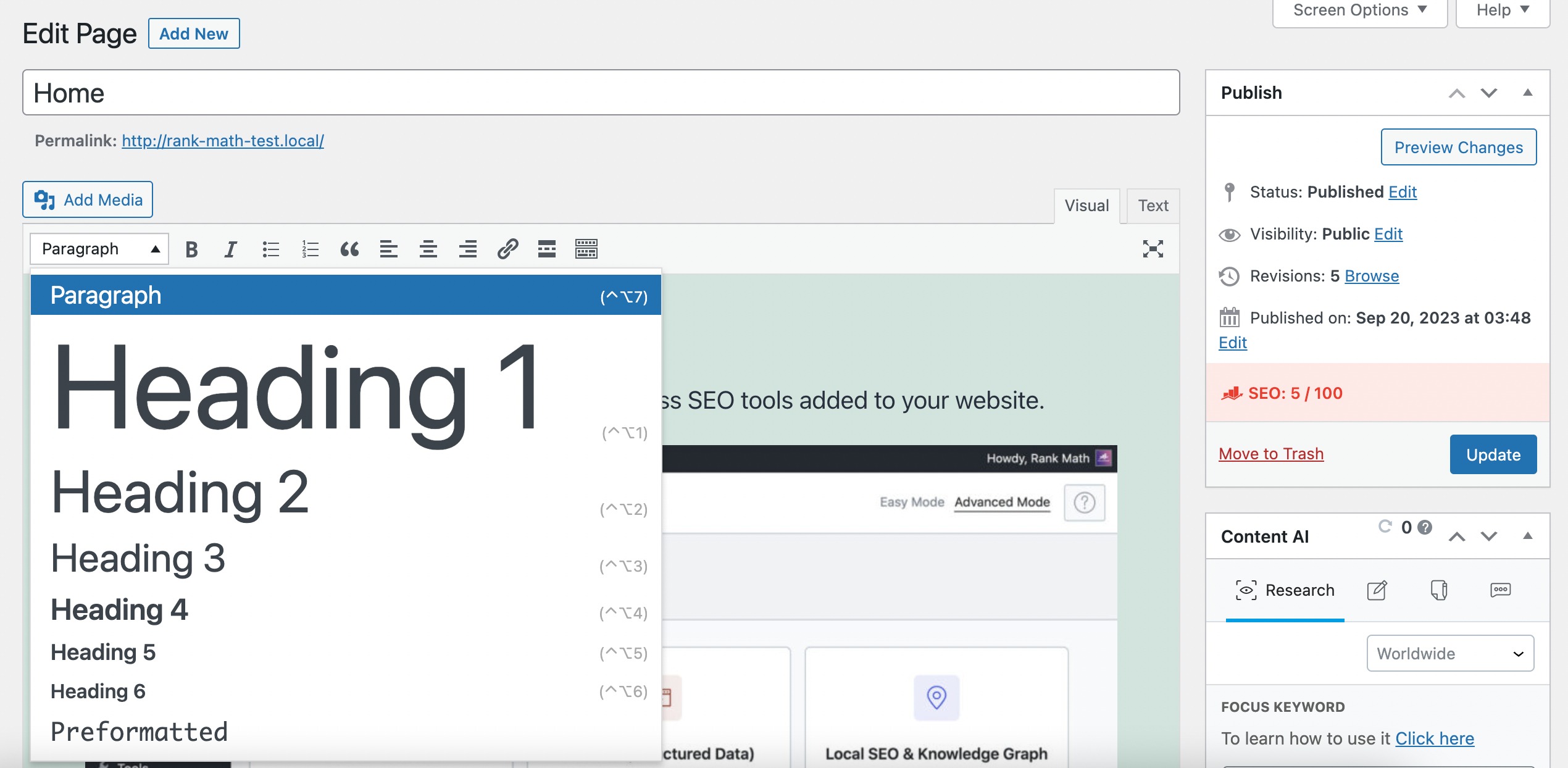
To insert text, start typing. By default, the text will be formatted as a paragraph. However, you can use the dropdown menu to format it as a title or heading.
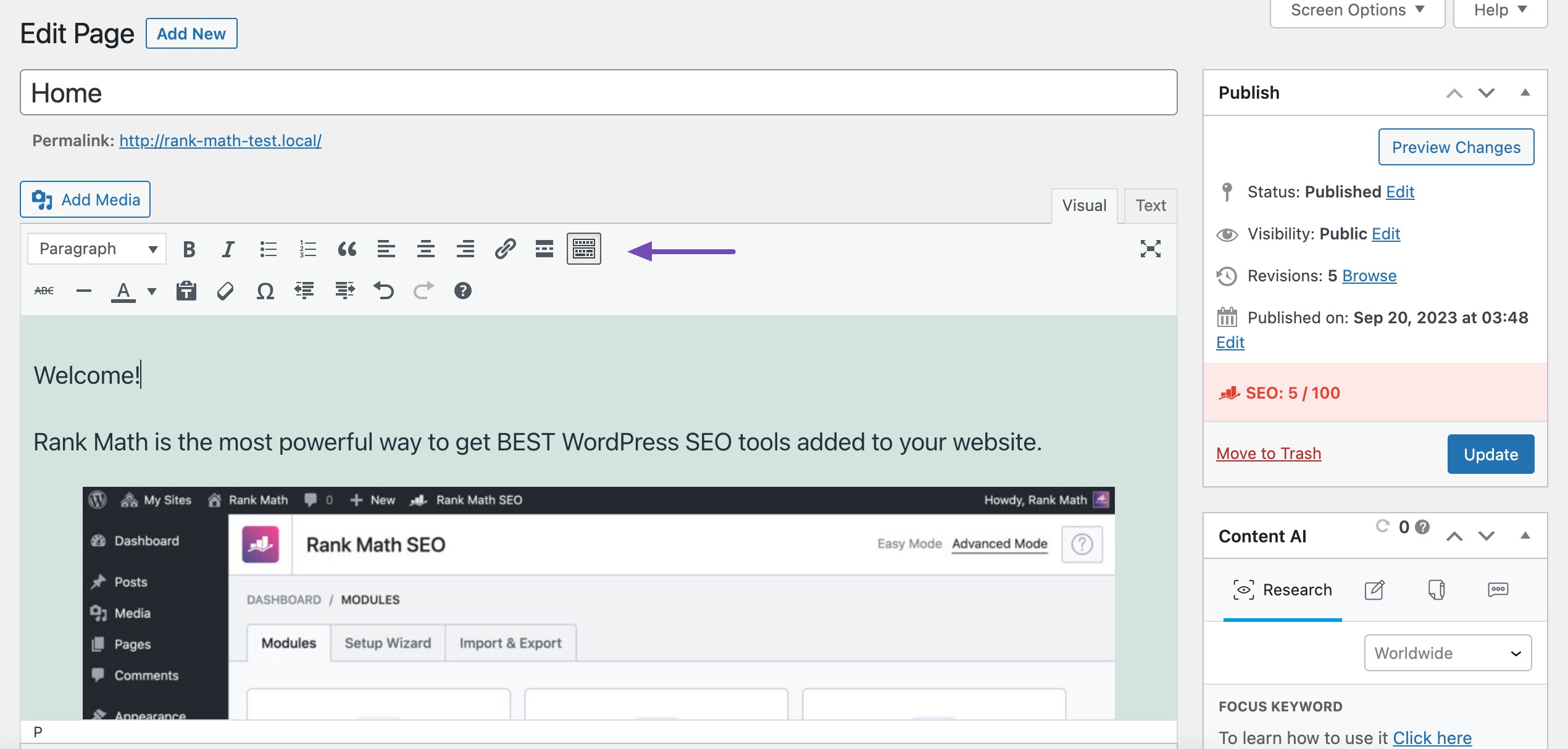
Du kannst den ... benutzen Toggle Toolbar at the editor’s top for more customization options.
Once you’ve customized your homepage as per your choice, click Aktualisieren to save the changes. You can then visit your homepage to verify that the changes have taken effect.
5 Fazit
Setting your homepage in WordPress is simpler than it might seem, and doing it correctly makes a big difference for your site.
Now that you know how to choose between a static page and showing your latest posts, you can create a homepage that fits your goals and guides your visitors exactly where you want them to go.
By taking the time to set up your homepage thoughtfully, you’re making your website more welcoming, easier to navigate, and better at showing off your content or brand. Now it’s your turn. Use these steps to create a homepage that works for you and your visitors.
Have you recently changed your homepage? Which methods did you use to edit your homepage and make it more attractive? Let us know by @rankmathseo twittern.