In WordPress, archive pages are special pages that automatically organize and display your posts by date, category, tag, or even author.
If you’re running a blog, your homepage probably already acts as an archive, showing your most recent posts in order.
But you’re not limited to just that; you can also create dedicated archive pages for specific categories or tags and link them in your menu or sidebar.
By using archive pages, you make it much easier for readers to browse your content and quickly find what interests them most, without having to scroll through an endless list of posts.
2 Warum WordPress-Beiträge archivieren, ohne sie zu löschen?
You might wonder why to archive a WordPress post instead of deleting it. The answer is simple: archiving lets you clean up your site without losing valuable content.
If you’ve been blogging for a while, chances are you have older posts that no longer fit your current direction. Instead of removing them completely, archiving hides them from your homepage or main feed while keeping them accessible for future use. That way, you can still revisit the post, move it to a different category, or even refresh it later if it becomes relevant again.
Archiving isn’t just about tidiness; it also helps with SEO. By keeping your content structured and easy to navigate, you improve user experience and maintain a stronger site architecture. Plus, it gives you a clear record of what you’ve published, so you can track your content more effectively.
And with tools like Rank MathSEO, managing your archives becomes even easier. Rank Math helps you configure SEO settings for archive pages, ensuring they’re optimized while keeping your site organized and user-friendly.
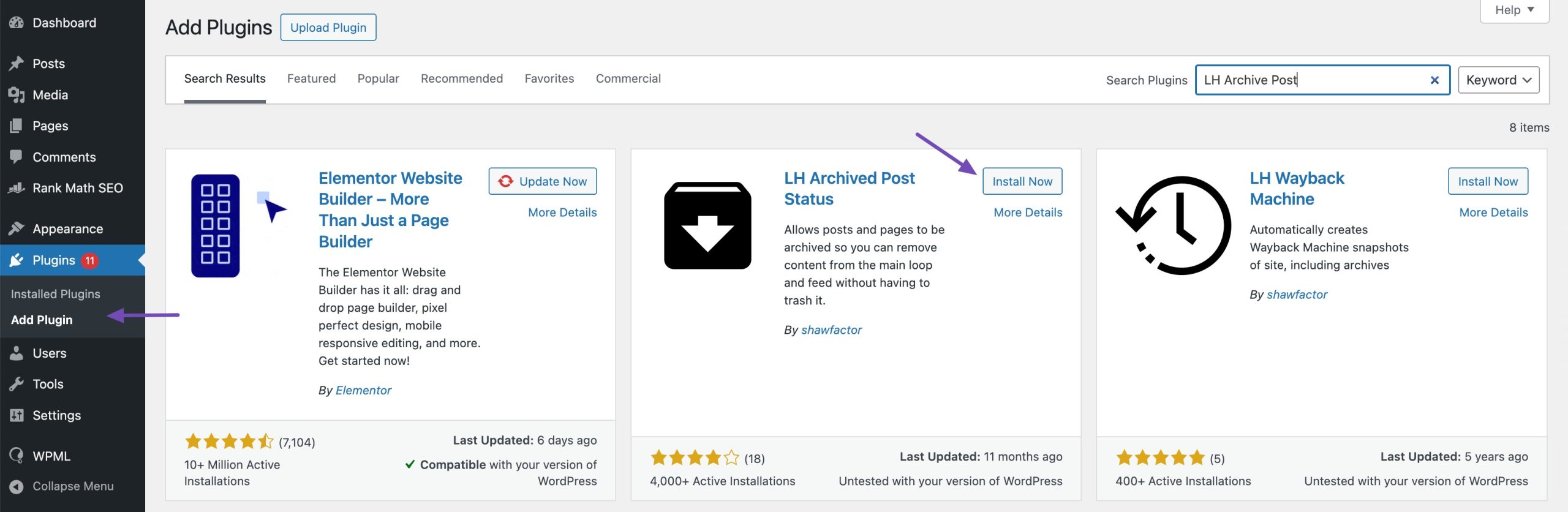
Install and activate the plugin by navigating to Plugins → Add Plugin Abschnitt Ihres WordPress-Dashboards. Suchen Sie in der Suchleiste nach dem LH Archived Post Status-Plugin, installieren und aktivieren Sie es wie unten gezeigt.
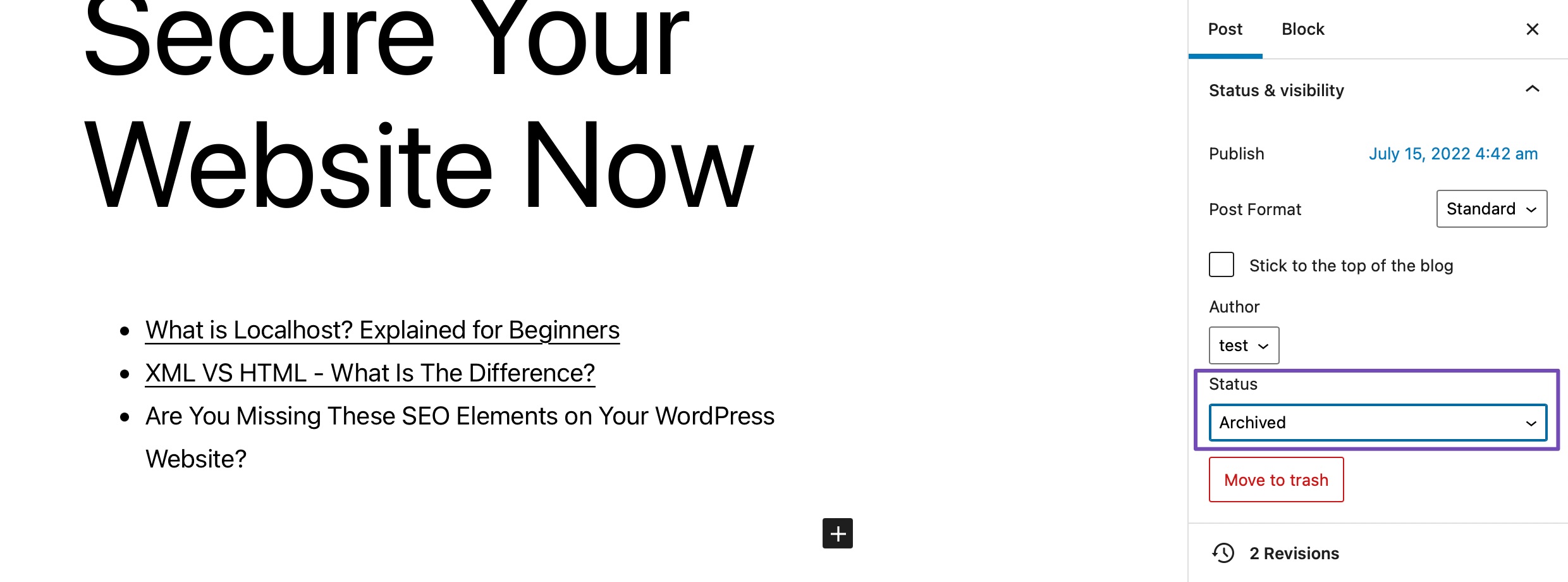
Sobald das Plugin aktiviert ist, fügt es einen benutzerdefinierten Beitragsstatus hinzu Archiviert zu Ihren Beiträgen, Seiten und benutzerdefinierten Beitragstypen.
Um einen einzelnen Beitrag/eine einzelne Seite zu archivieren, bearbeiten Sie ihn. Wenn Sie auf das Dropdown-Menü „Status“ klicken, werden Sie Folgendes bemerken Archiviert Beitragsstatus wie unten gezeigt. Wählen Sie einfach die aus Archiviert Status, und klicken Sie auf Aktualisieren Schaltfläche oben auf dem Bildschirm.
Und das ist es! Sobald Ihr Artikel archiviert ist, wird er nicht mehr im Frontend Ihrer Website angezeigt und ist für Besucher nicht mehr sichtbar.
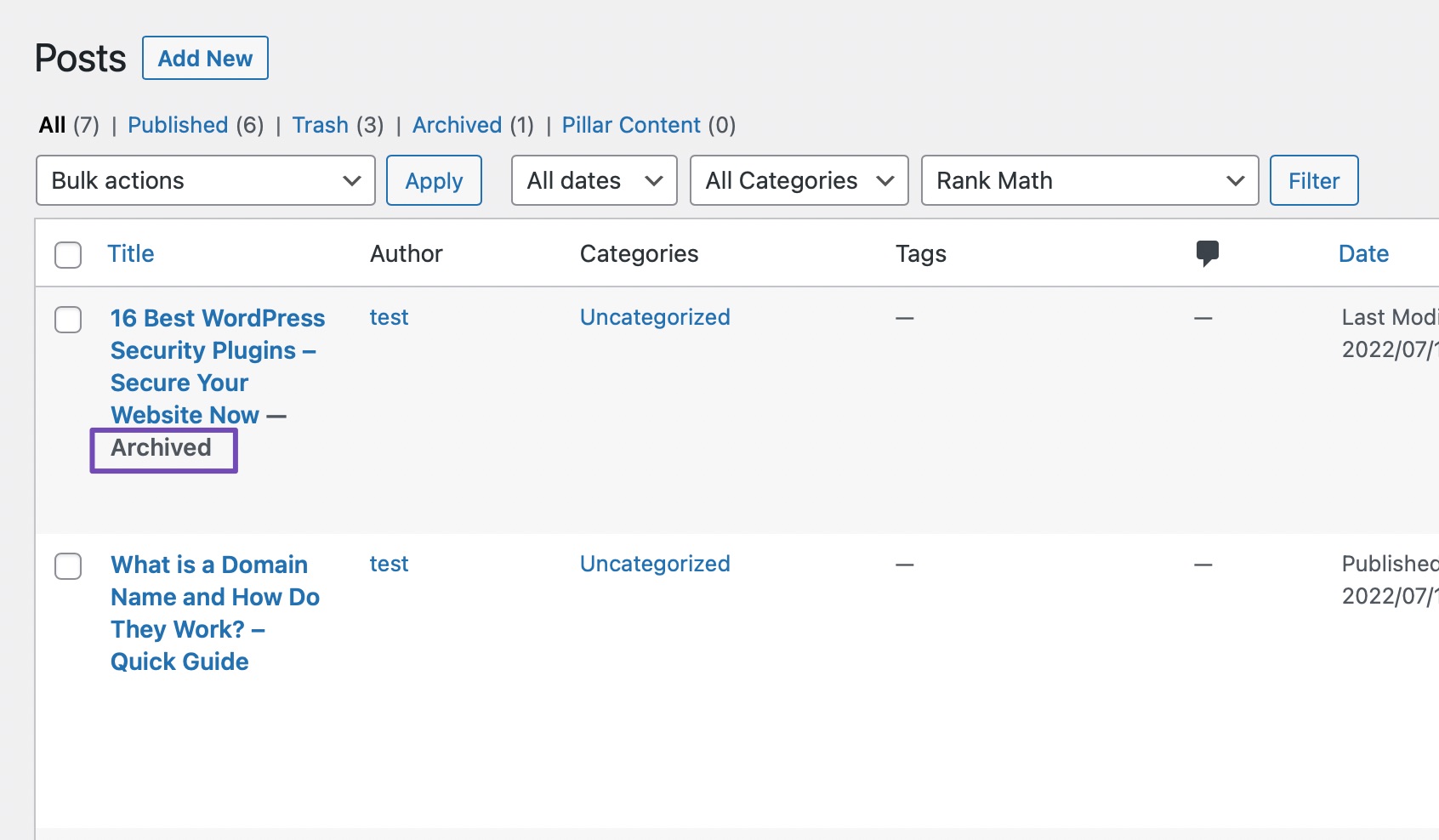
Sie können überprüfen, ob Ihr Beitrag archiviert ist, indem Sie zu navigieren Posts → All Posts from your WordPress dashboard; the post will be listed as archived.
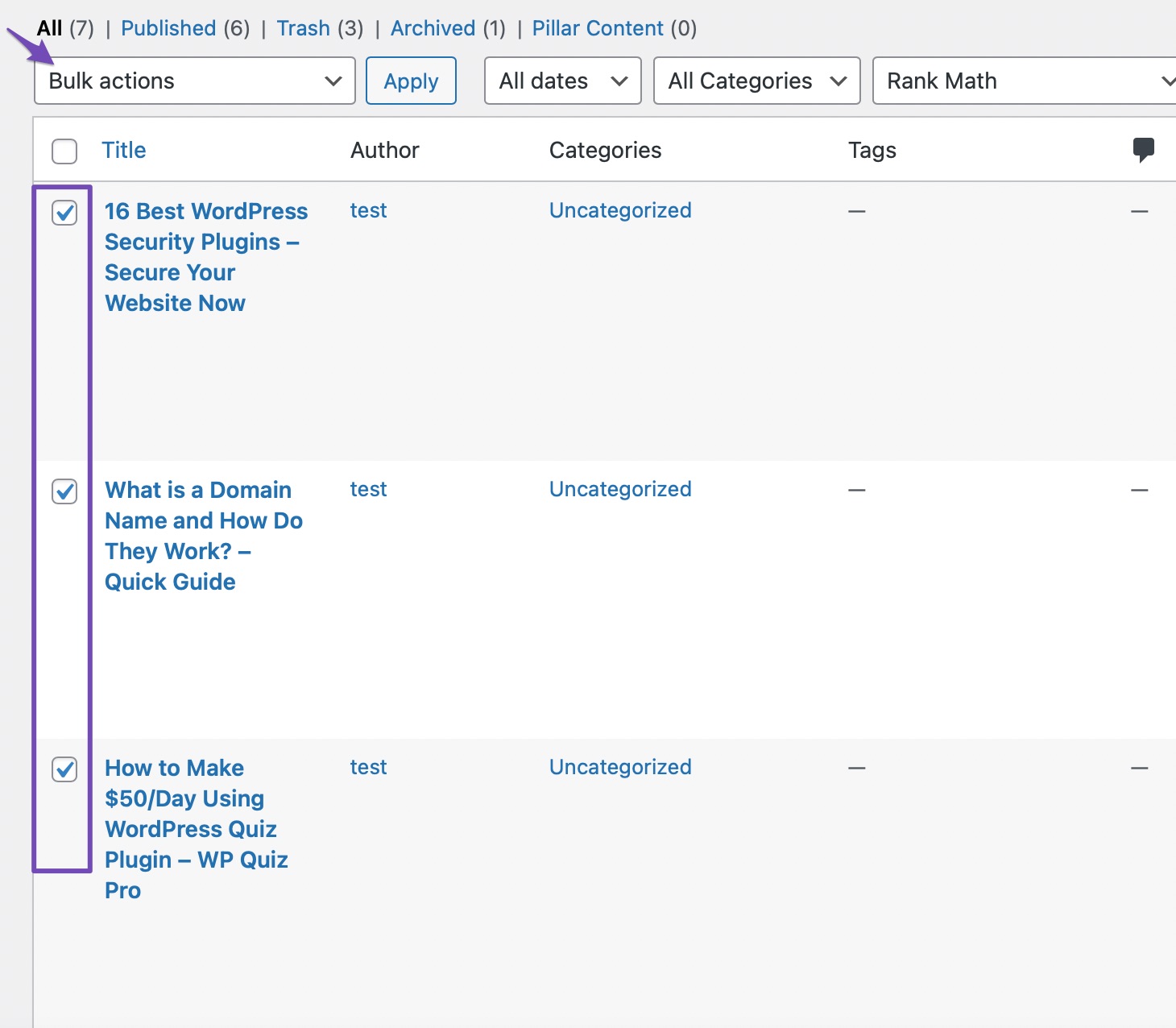
Sie können auch mehrere Beiträge gleichzeitig archivieren. Navigieren Sie dazu zu Posts → All Posts aus Ihrem WordPress-Dashboard. Wählen Sie alle Beiträge aus, die Sie archivieren möchten, wie unten gezeigt.
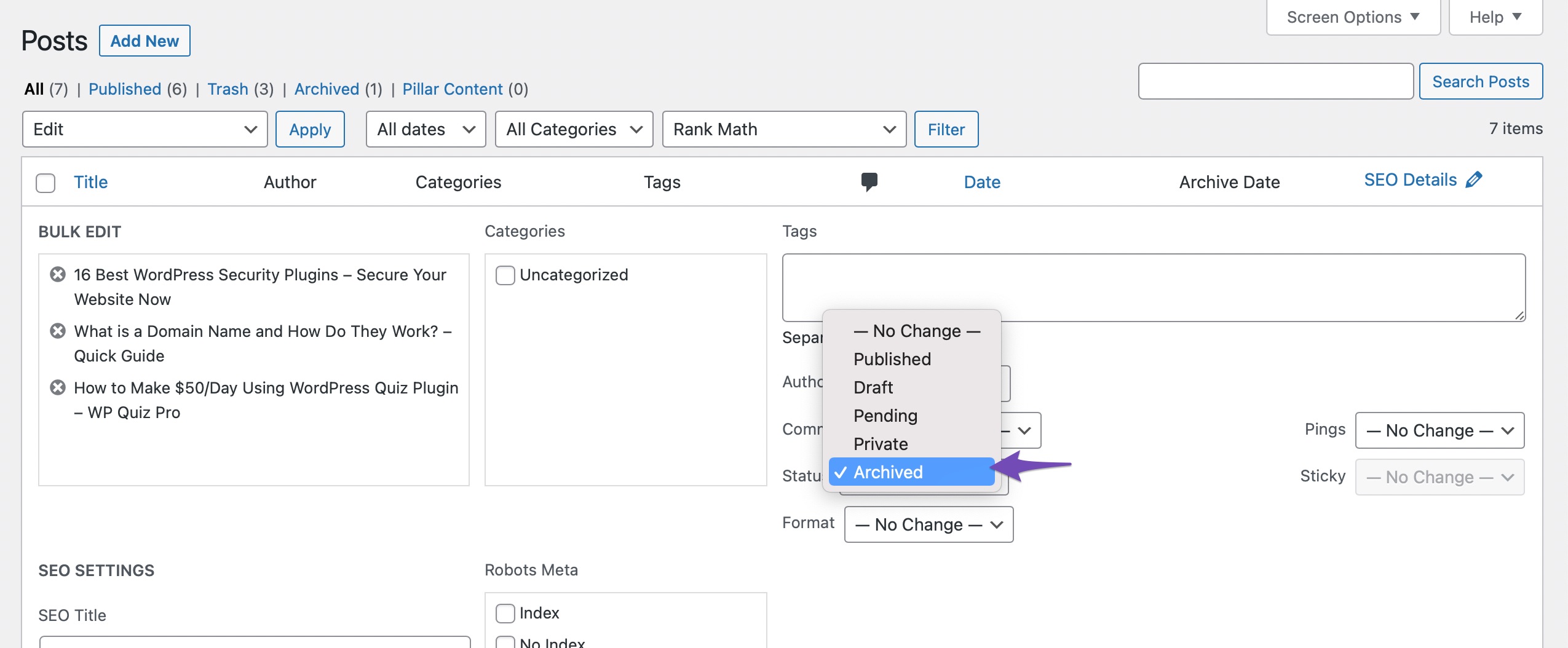
Als nächstes aus dem Massenaktionen drop-down menu, select the Bearbeiten Option und klicken Sie auf Sich bewerben Taste.
WordPress zeigt die Optionen für die Massenbearbeitung der ausgewählten Beiträge an. Wählen Archiviert aus dem Status-Dropdown-Menü und klicken Sie auf Aktualisieren Taste.
Sobald dies erledigt ist, werden die ausgewählten Beiträge archiviert und erscheinen nicht mehr im Frontend Ihrer Website.
4 Fazit
Archiving your WordPress posts and pages is a smart way to clean up older content without losing it.
It helps you keep your site organized, makes navigation easier for visitors, and supports a good SEO structure. By choosing to archive instead of delete, you safeguard your hard work while keeping your website fresh and user-friendly.
Do you already archive your content, or are you planning to start now? Share your thoughts with us on Twitter by tweeting @rankmathseo. We’d love to hear your approach!