Are you trying to figure out how to hide a page title in WordPress? Page titles are important; they give visitors a clear idea of what your page is about and help search engines understand your content.
But not every page needs its title showing. For example, if you’ve created a newsletter sign-up page, you don’t really need a big “Newsletter” heading displayed at the top. It can look repetitive or even clutter your design.
In this post, I’ll walk you through different methods you can use to hide a page title in WordPress. Before we dive into the how-to, let’s quickly look at why you might want to hide a title in the first place.
By default, WordPress displays the page title at the top of every page. It’s useful because it helps visitors and search engines understand what the page is about.
But sometimes, you may not want that title to be displayed. Here are a few reasons why you might choose to hide it:
Cleaner design: If a title doesn’t fit well with your layout, hiding it can make your page look more polished and visually appealing.
Landing pages: When you’re building a landing page for a campaign, you want all the attention on your content or call-to-action, not on a generic title.
Utility pages: Pages like “Thank You” or “Newsletter” don’t really need a visible title. Removing it makes the experience smoother for your visitors.
Creative freedom: Hiding the default title gives you more control over how your pages look, so you can design them exactly the way you want.
Now that you know why hiding a page title can be useful, let’s go over the different ways you can do it in WordPress.
2 So verbergen Sie einen Seitentitel in WordPress
There are a few ways to hide a page title in WordPress, including using custom CSS code or a plugin. Here are various methods that you can use to hide page titles in WordPress.
2.1 Hide a Page Title Using the Full Site Editor
If you’re using a Block theme, you can hide all your page titles using WordPress’s Full Site Editor.
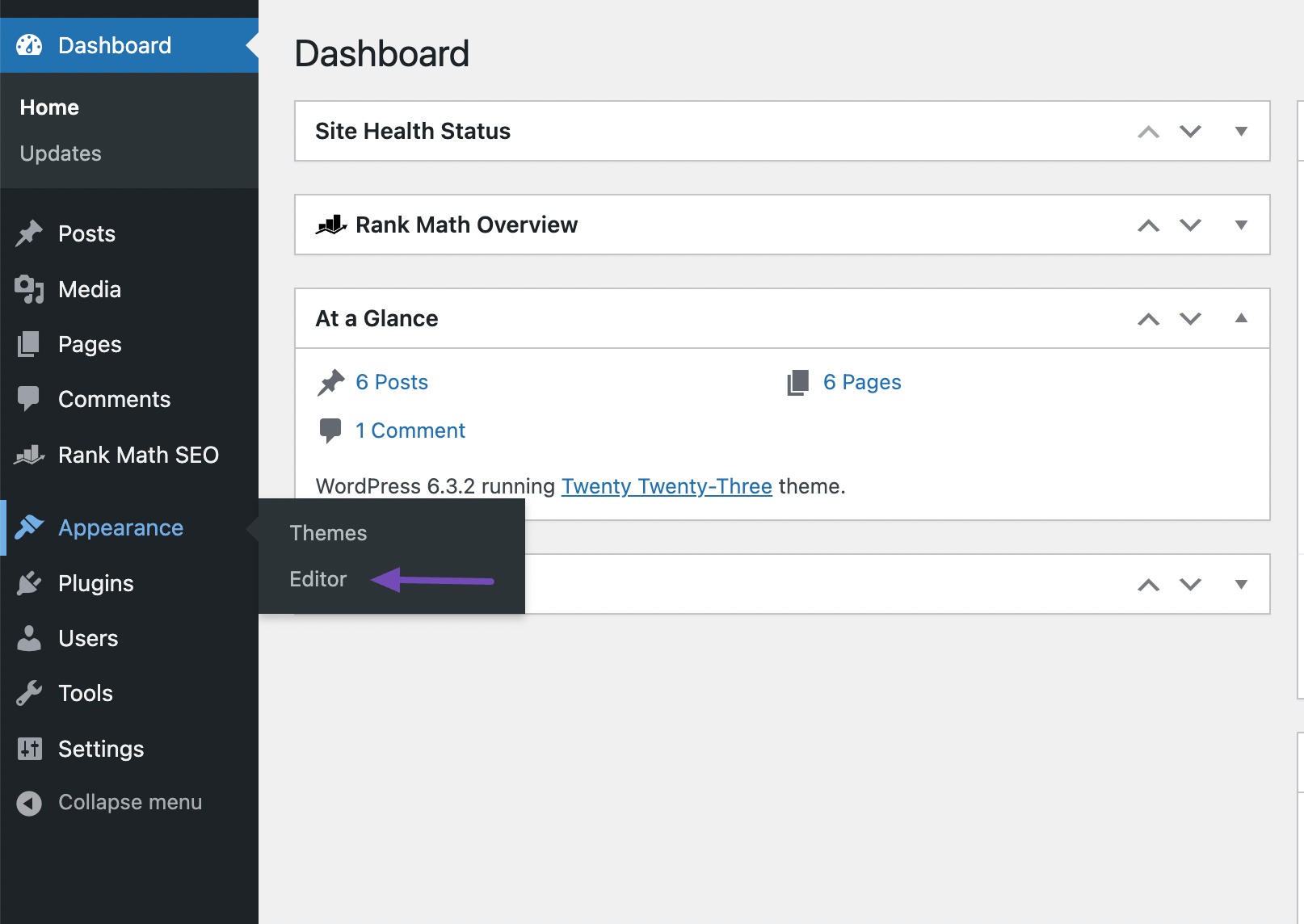
Navigieren Sie zu Aussehen menu and click the Editor option from your WordPress dashboard.
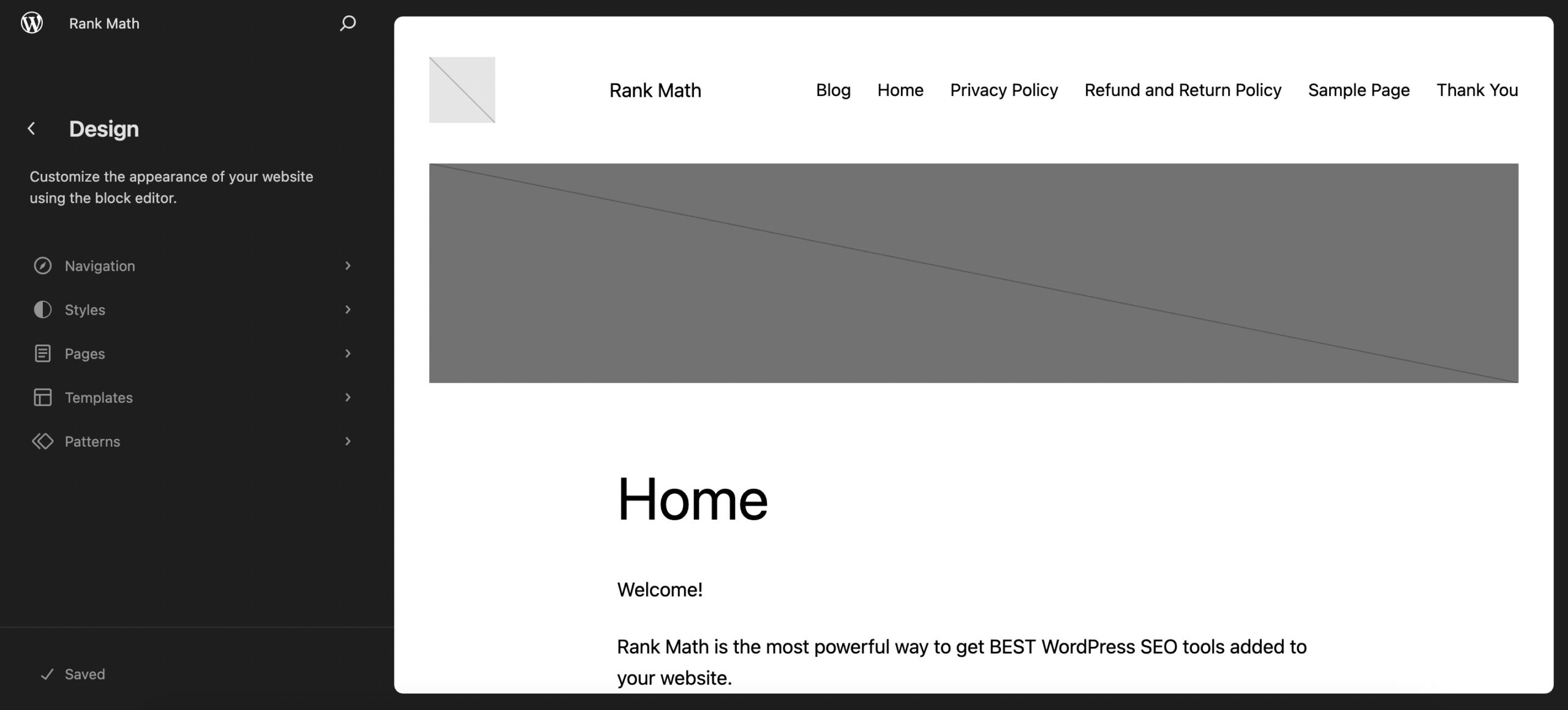
This will open your homepage in the Block Editor.
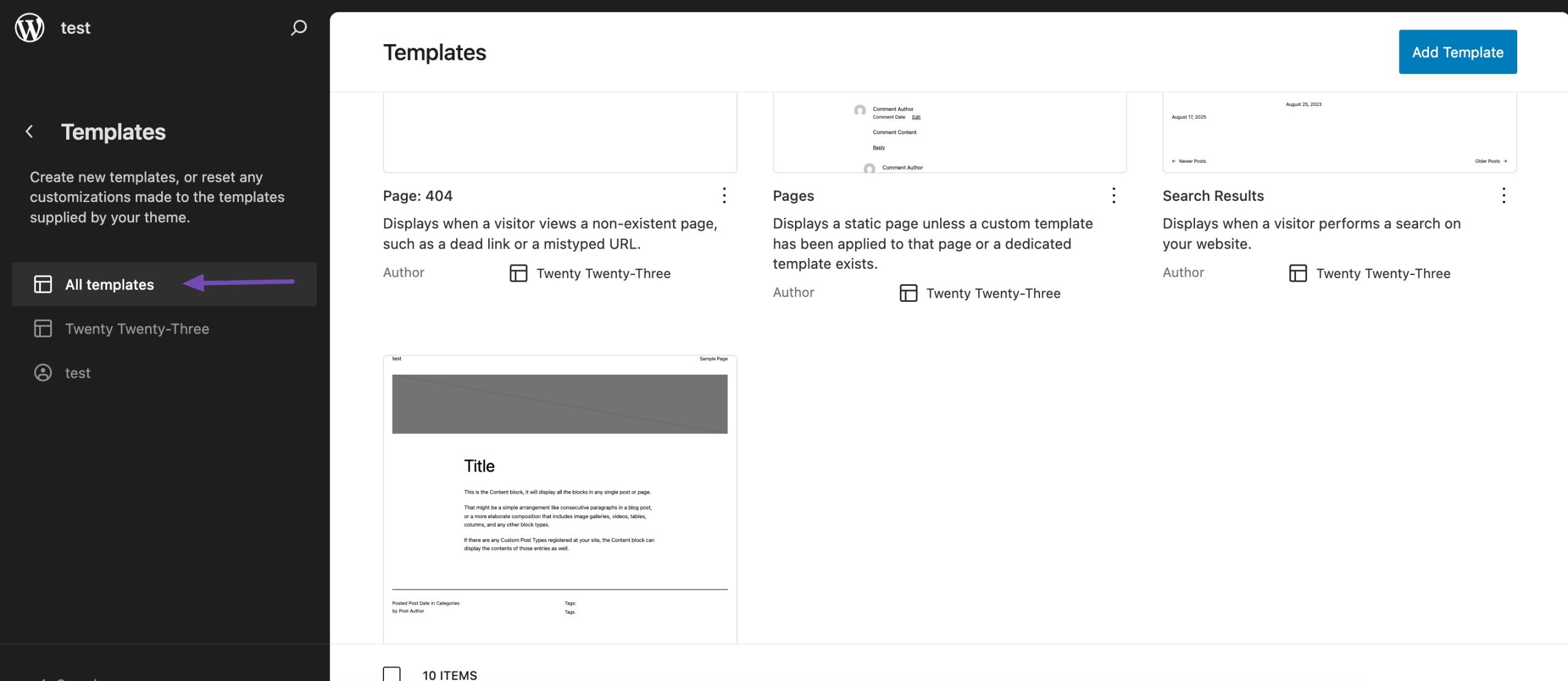
Drücke den Templates section in the left-side panel and select your page template to hide the title.
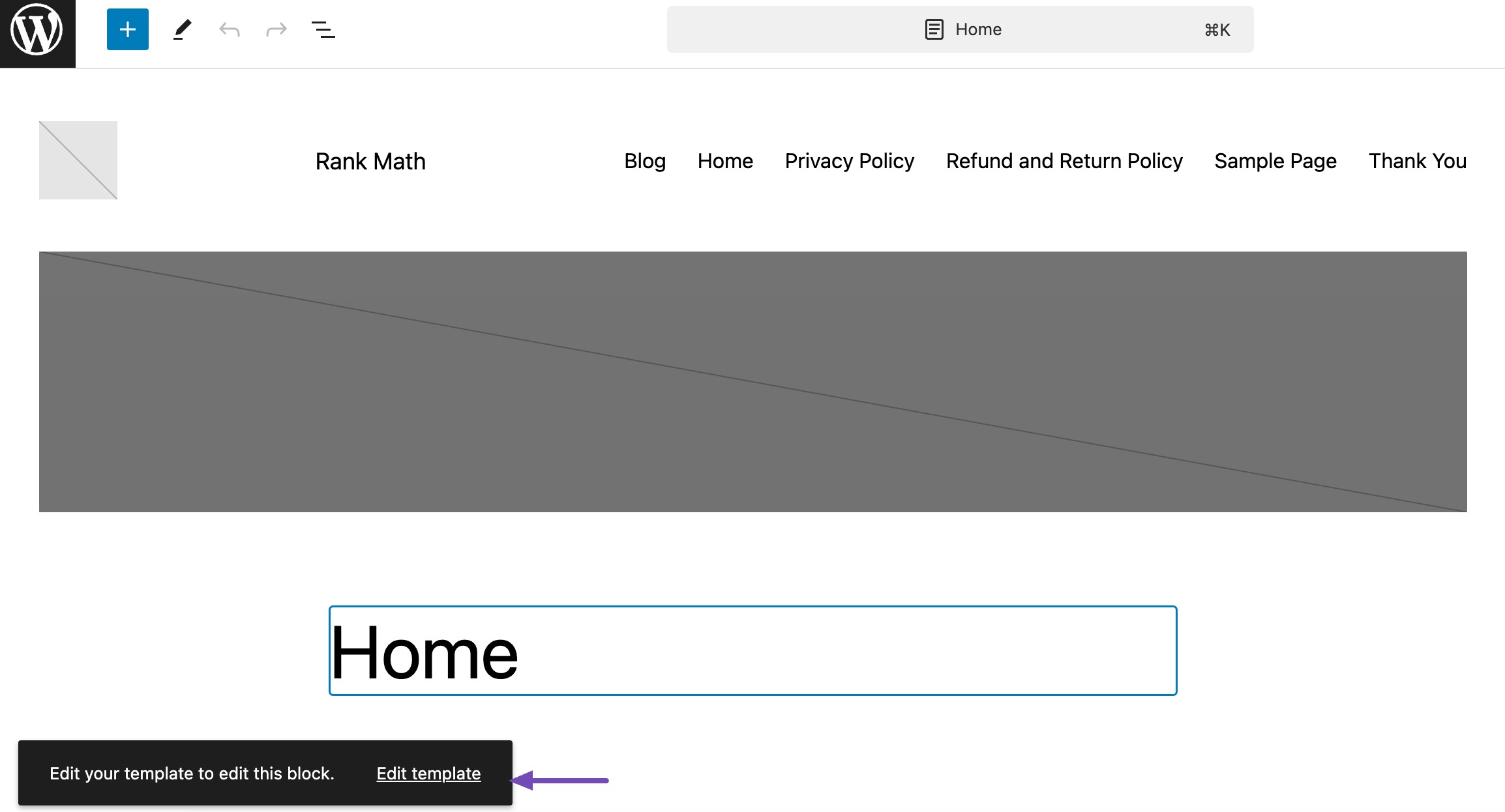
Next, you need to edit your template. To do so, click Edit template, Wie nachfolgend dargestellt.
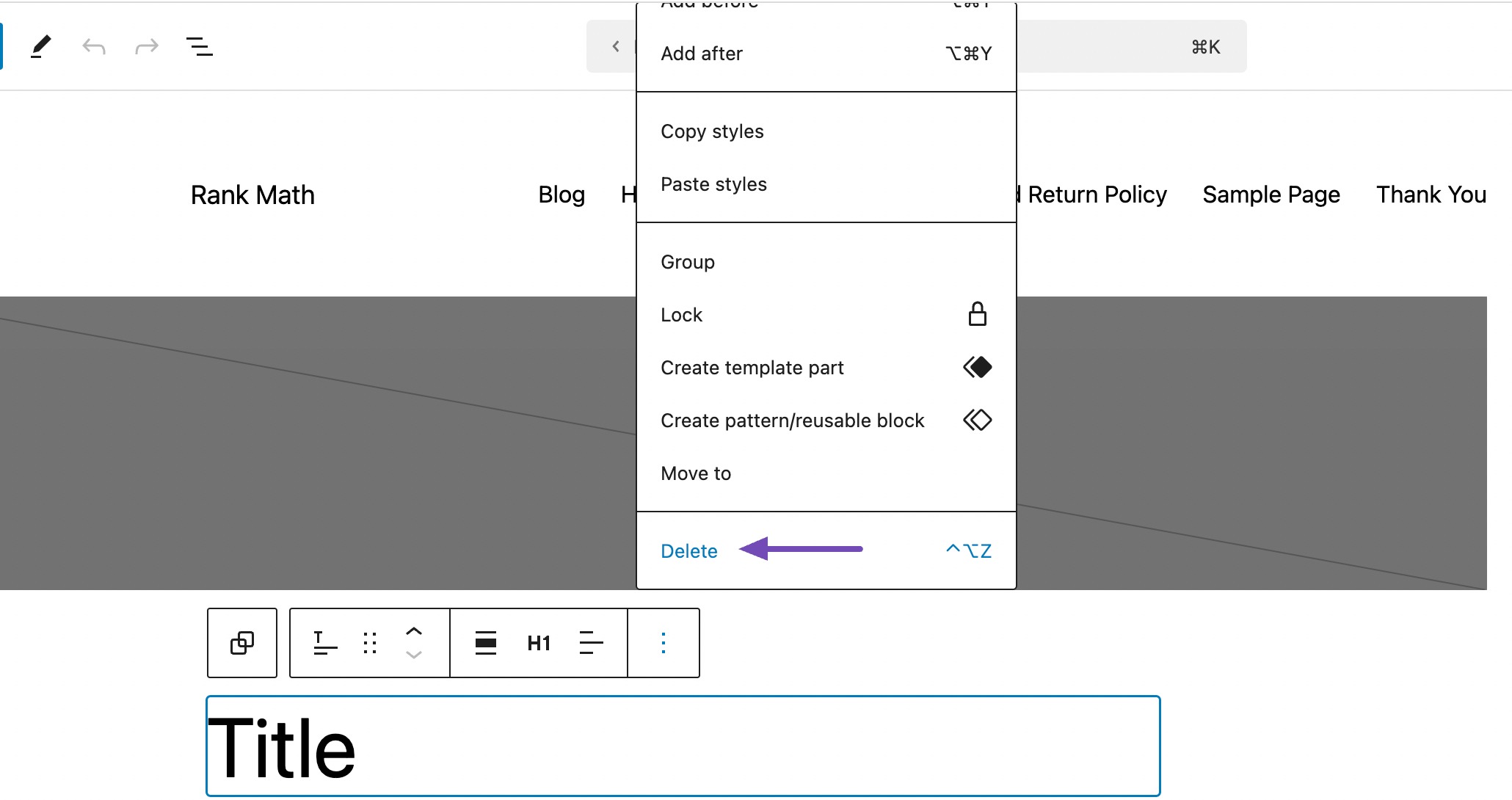
Next, click on the three dots at the right end of the block’s toolbar and click Delete oder Entfernen.
Wenn Sie fertig sind, klicken Sie auf Speichern button at the top of the page. This will hide all WordPress page titles.
2.2 Hide a Page Title Using a Custom CSS Code
Using a custom CSS code is another method to hide a page title in WordPress. The best thing about this method is that it gives you more control over which page title to hide.
Follow the steps below to hide your page title using custom CSS code.
Identify Your Theme’s CSS Class for Page Titles
The first step in hiding a page title in WordPress is to know what CSS class your theme uses for the page titles.
Different WordPress themes can have other CSS classes for page titles, so identifying the correct class for your theme ensures that your custom CSS code will work as intended.
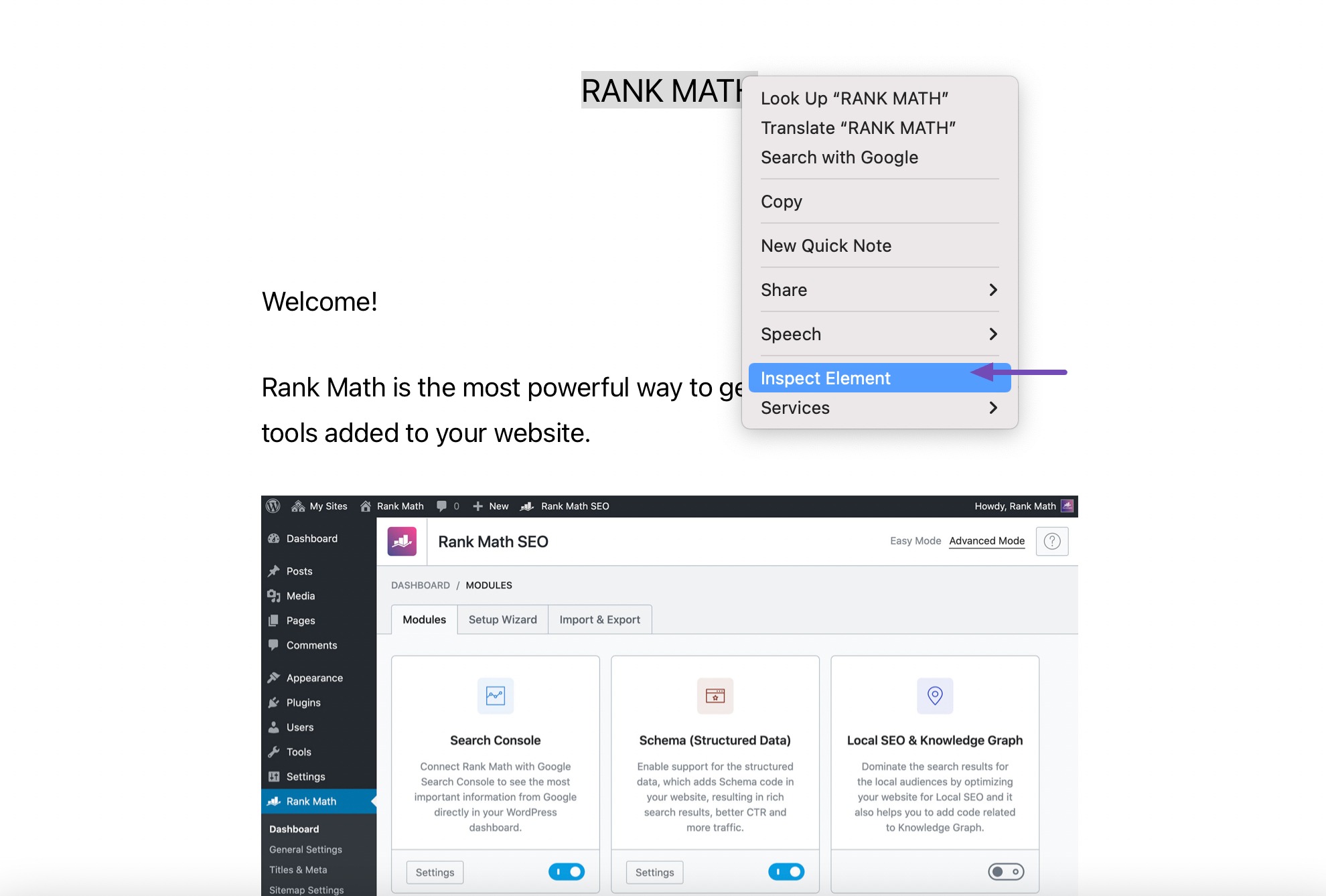
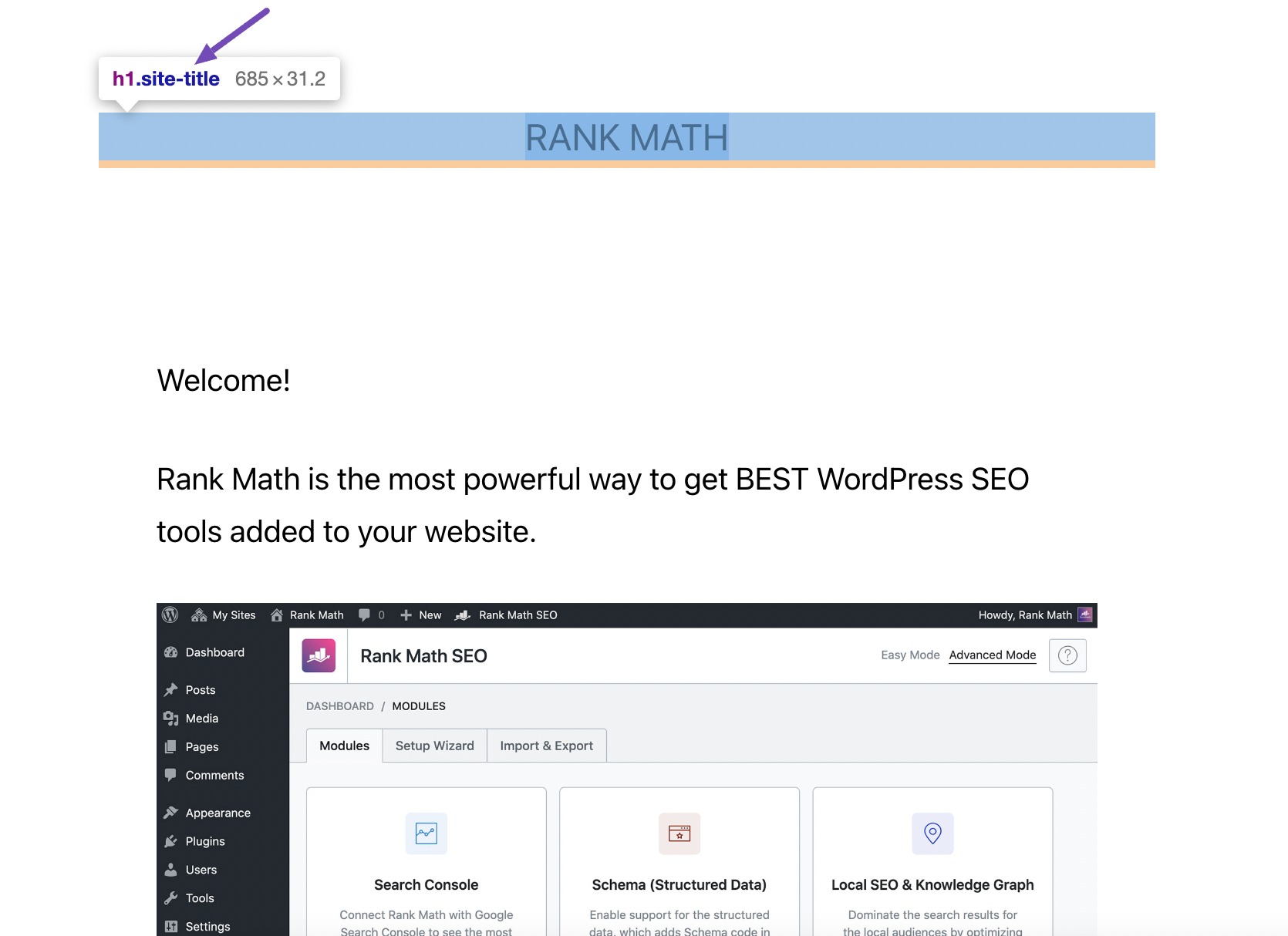
To identify the CSS class for your page, right-click on the page title element and select Inspect oder Element prüfen, Wie nachfolgend dargestellt.
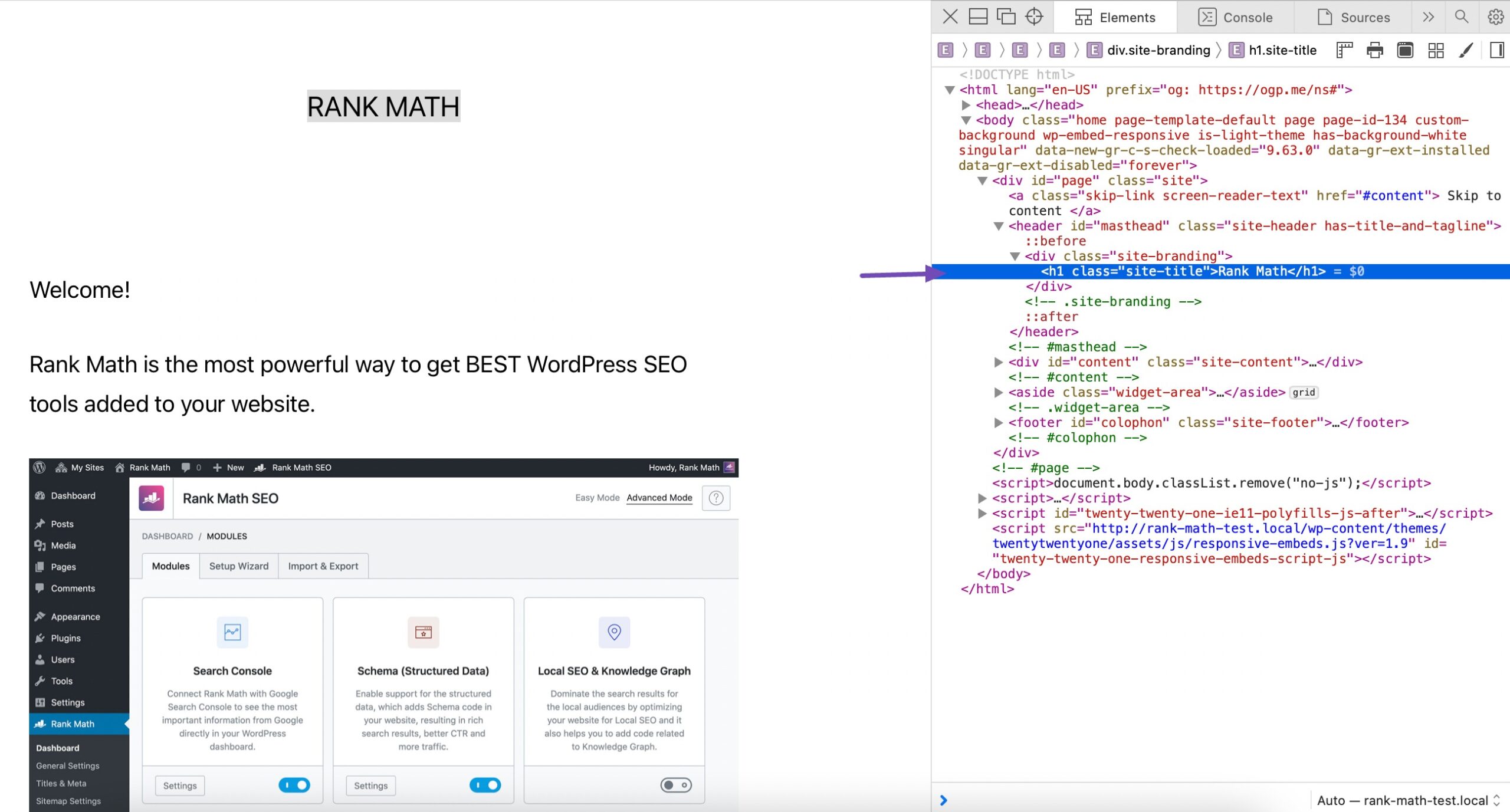
This will open the Developer tools as a new panel on the right side of the screen, highlighting the page’s title CSS code snippet.
The class will vary differently depending on the theme that you are using. For example, you’ll likely see the h1.wp-block-post-title in block themes, h1.site-title, h1.page-title, or something completely different.
Hide All Page Titles
If you want to hide all the page titles, use the following CSS code template and add it to your WordPress site.
.page .entry-title {

display: none;

}
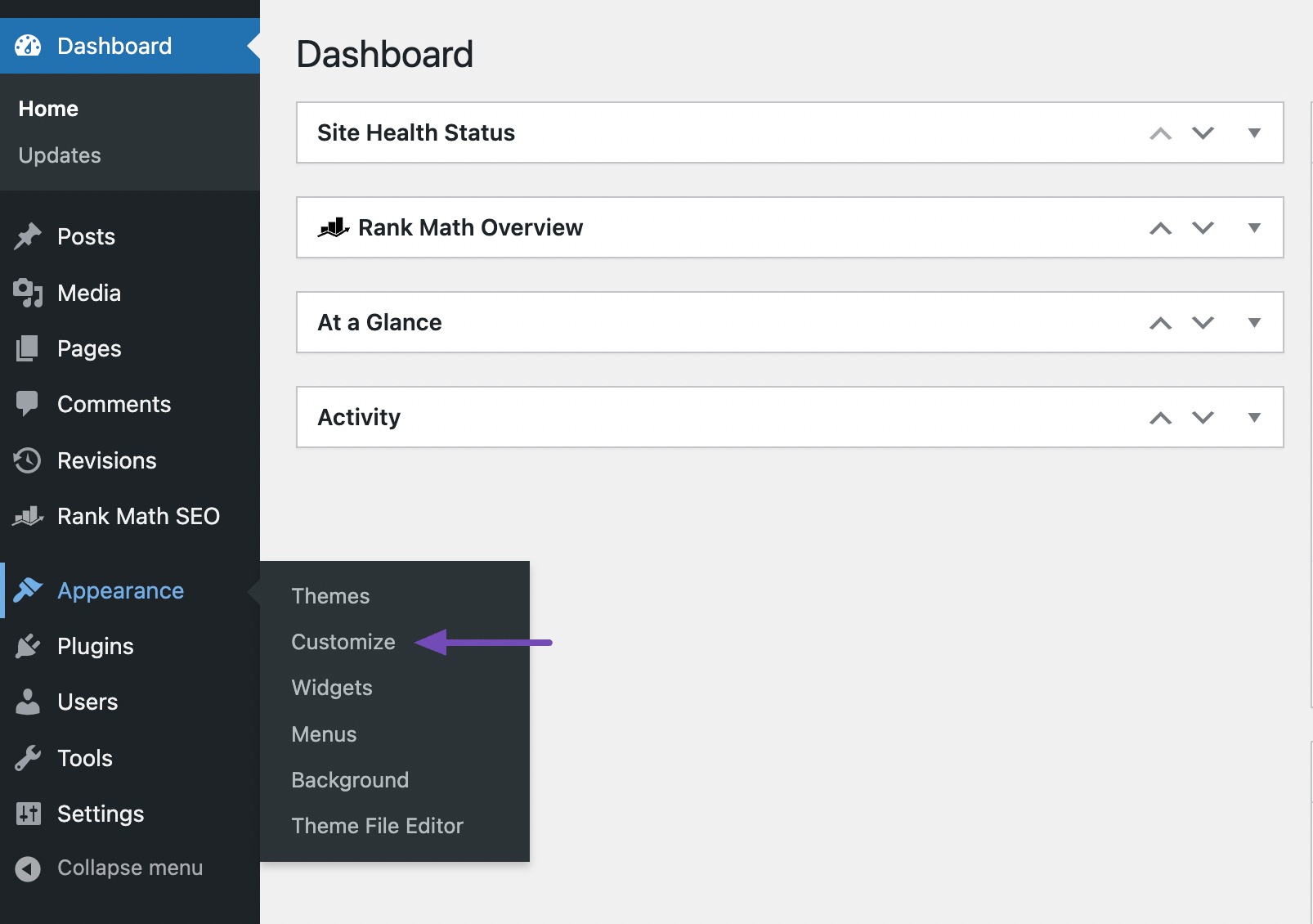
To do so, login to your WordPress dashboard and navigate to Aussehen → Anpassen. Depending on your theme (block or classic), this option may look a little different.
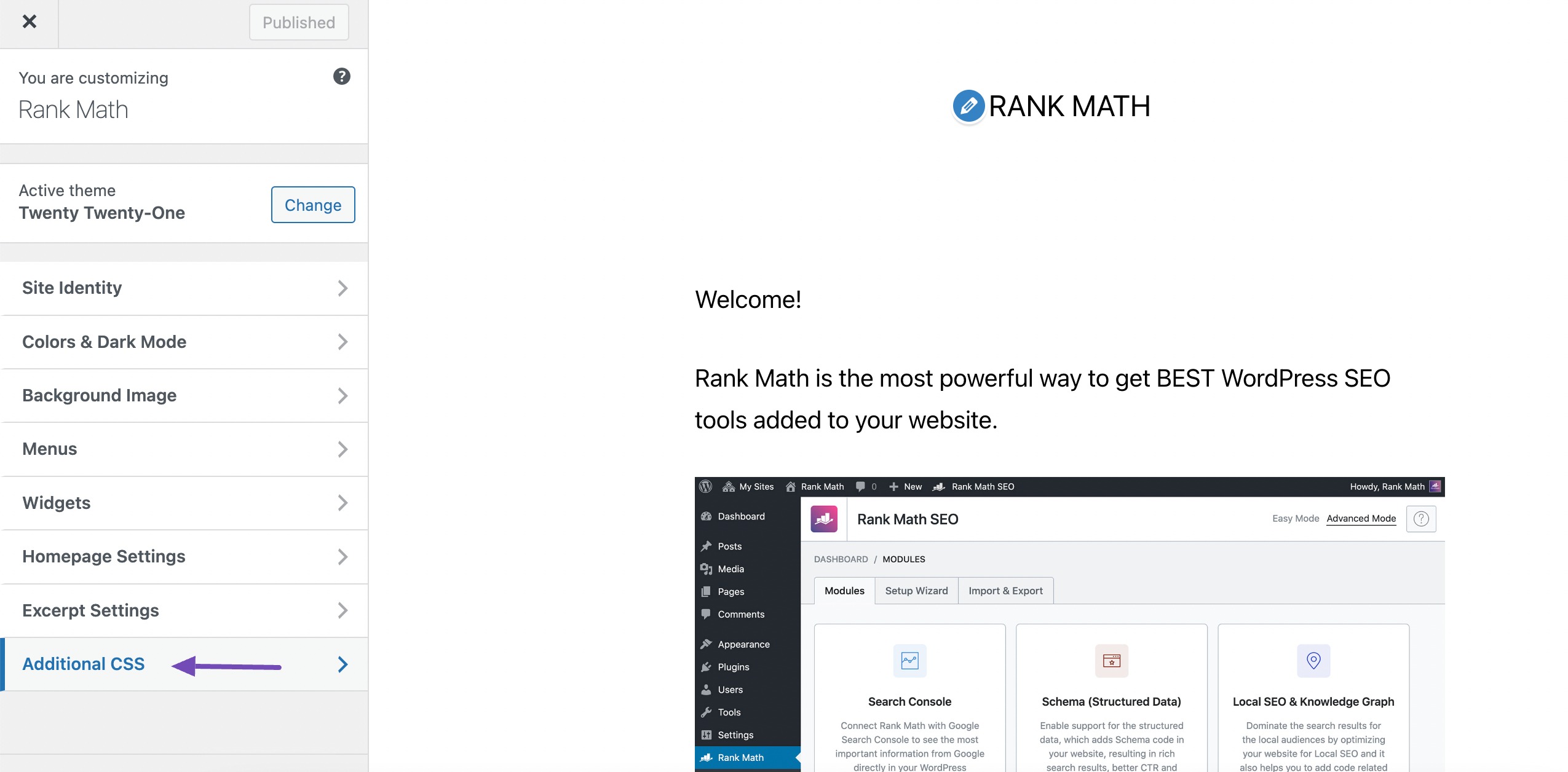
Next, navigate to the Zusätzliches CSS section, as shown below.
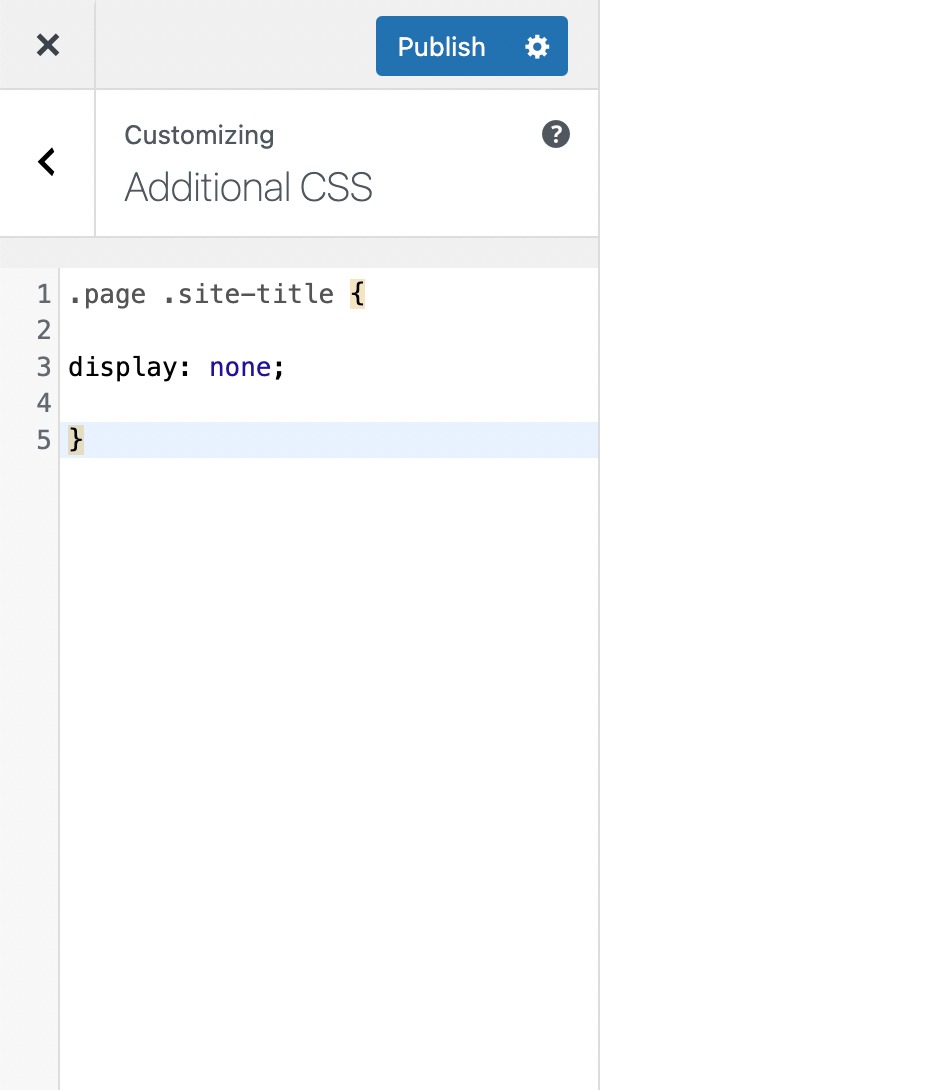
Now paste the code as shown below.
Remember to replace the .entry-title with your theme’s actual page title CSS class.
Wenn Sie fertig sind, klicken Sie auf Veröffentlichen button to save the changes made.
Hide the Title for a Specific Page
If you want to hide the title of a specific page, add the following code snippet to your theme’s CSS file.
.page-id-0 .entry-title {

display: none;

}
For the .page-id-0, you must replace the digit with the ID whose page’s title you want to hide.
Here’s how to get your WordPress page ID.
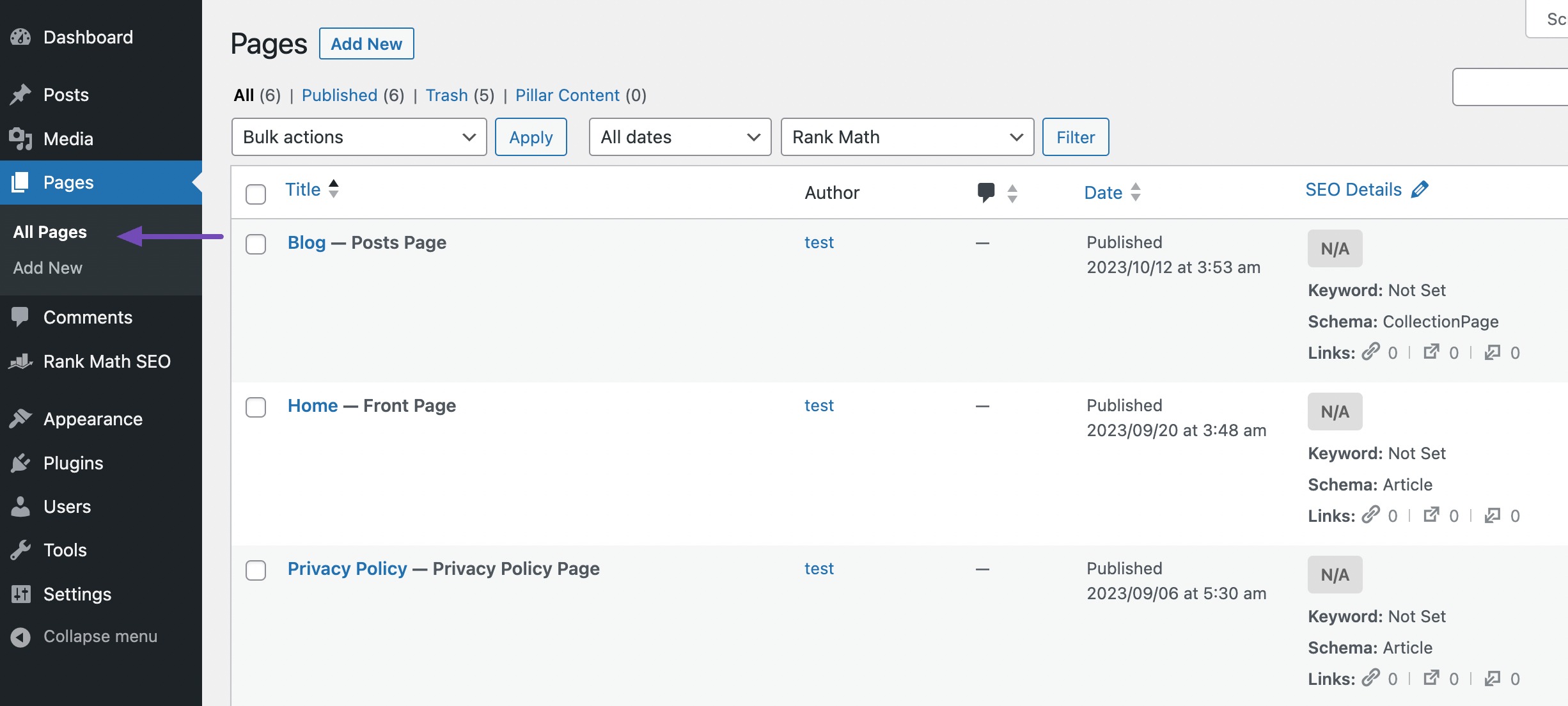
Navigieren Sie zu Seiten→ All Pages, then locate the page that you want to hide the title.
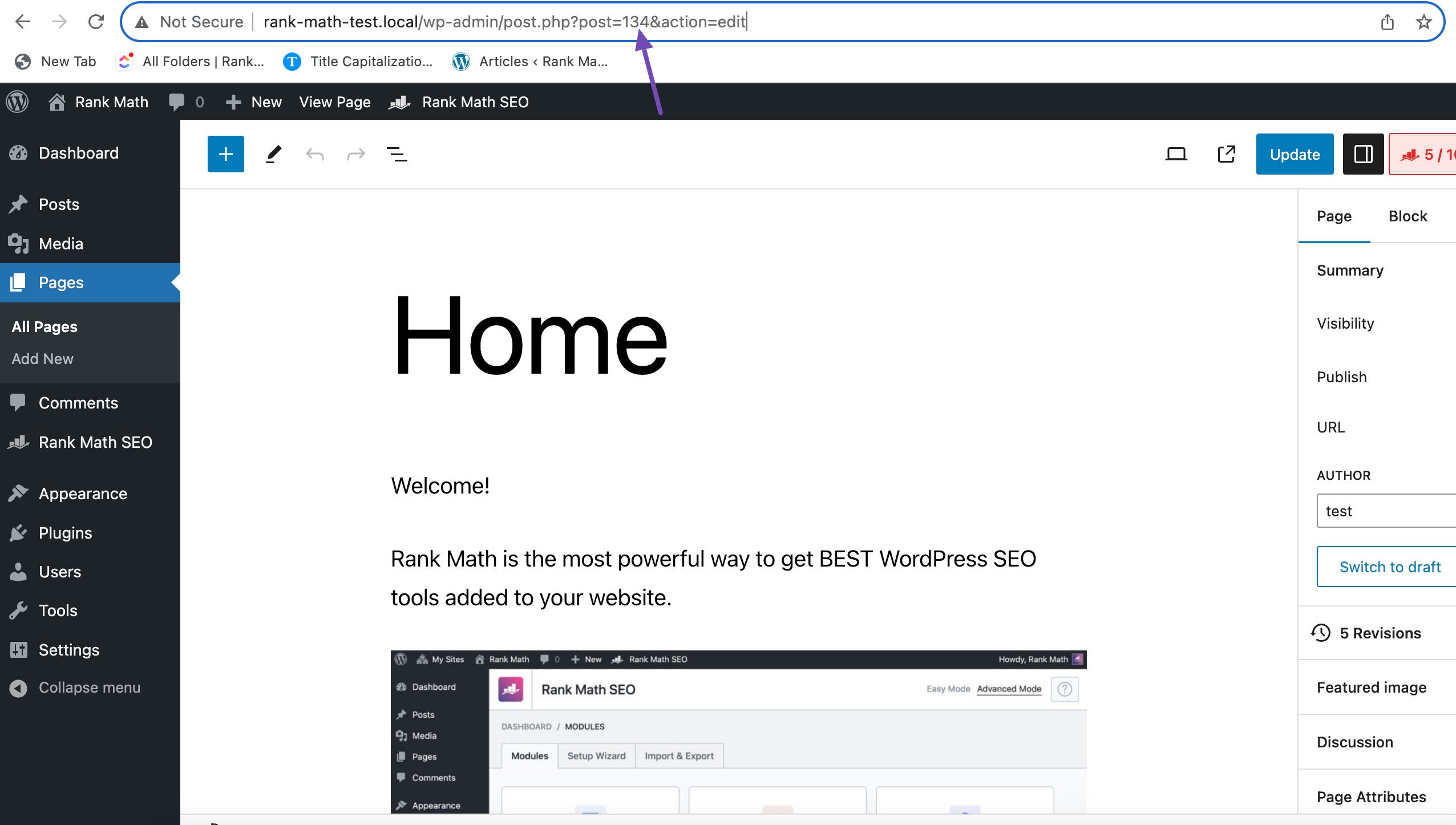
Proceed and open the page using the WordPress editor. Pay attention to the URL in your browser’s address bar, and you should see a ‘post=’ section followed by a number.
Copy the post number and add it to the CSS code snippet. For example:
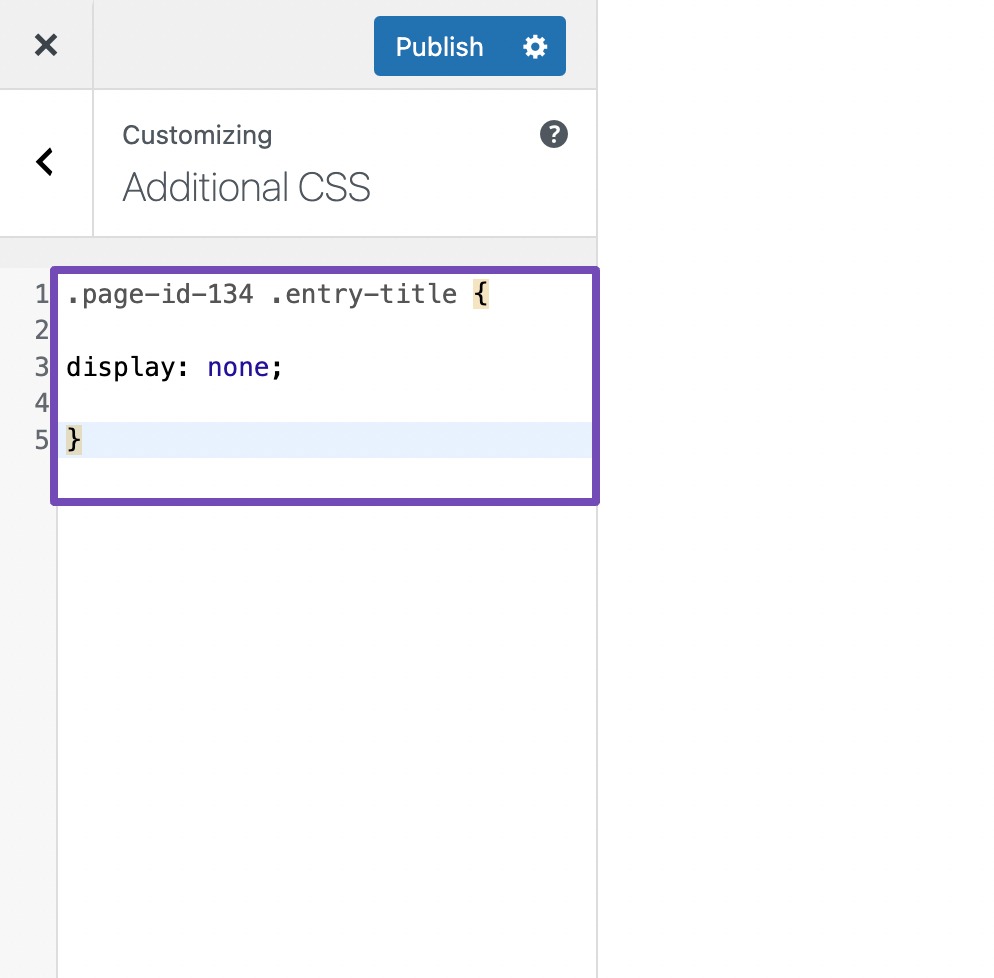
.page-id-134 .entry-title {

display: none;

}
Once done, add the code snippet in your customizer Zusätzliches CSS Sektion.
Continue and click the Veröffentlichen button to save the changes.
Now, if you’re using a block theme as the standalone theme, you’ve probably noticed that it doesn’t support the customizer tool. To add custom CSS code, you need to access your theme style.css file from your WordPress core files and add the code from there.
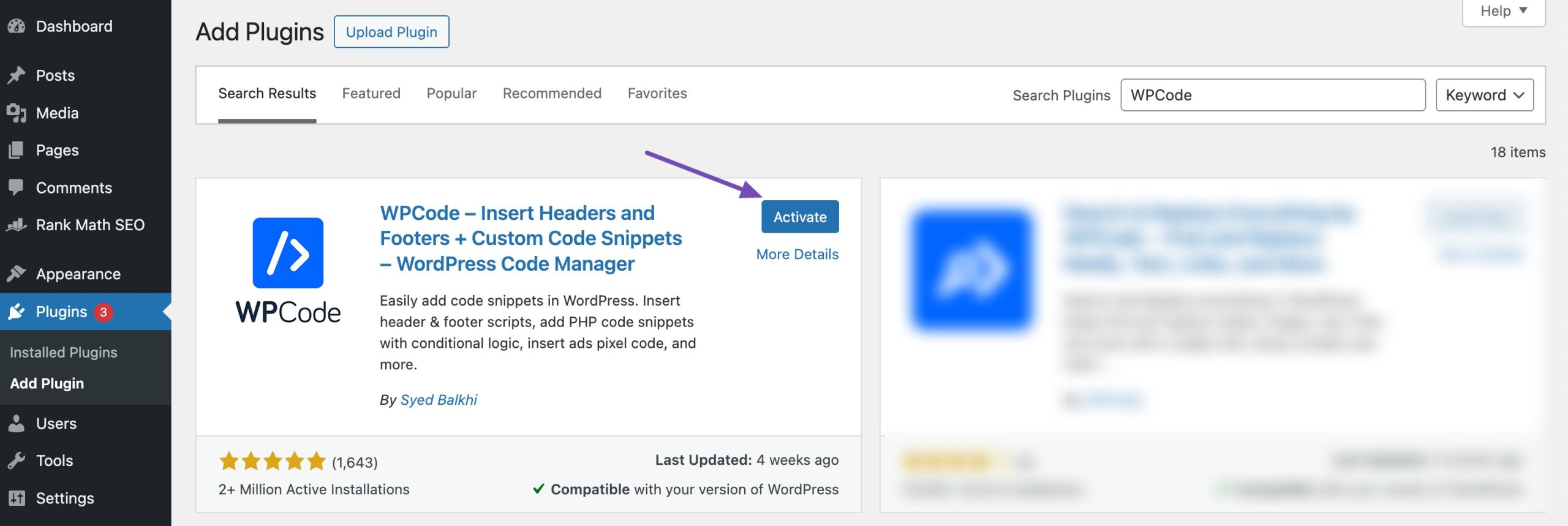
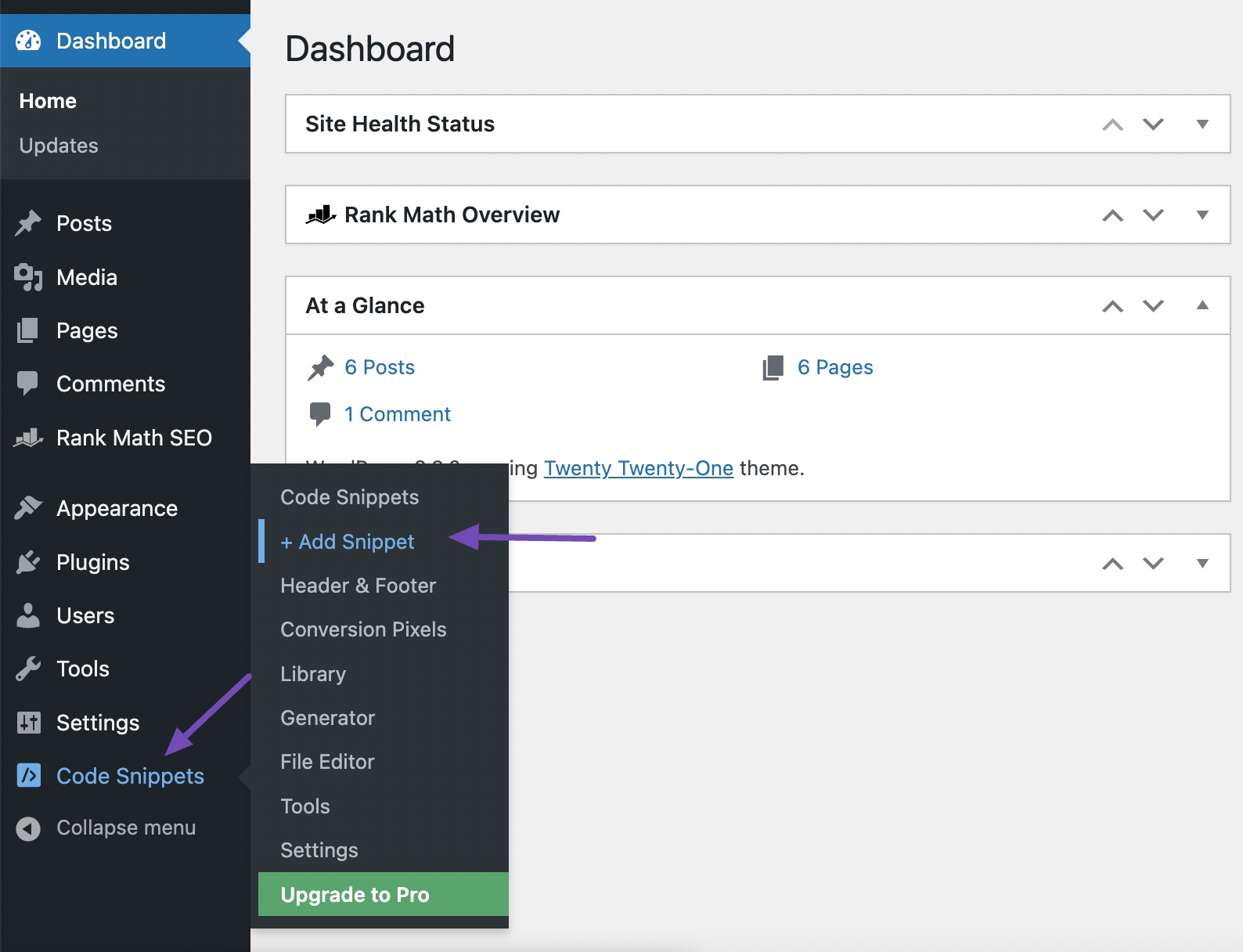
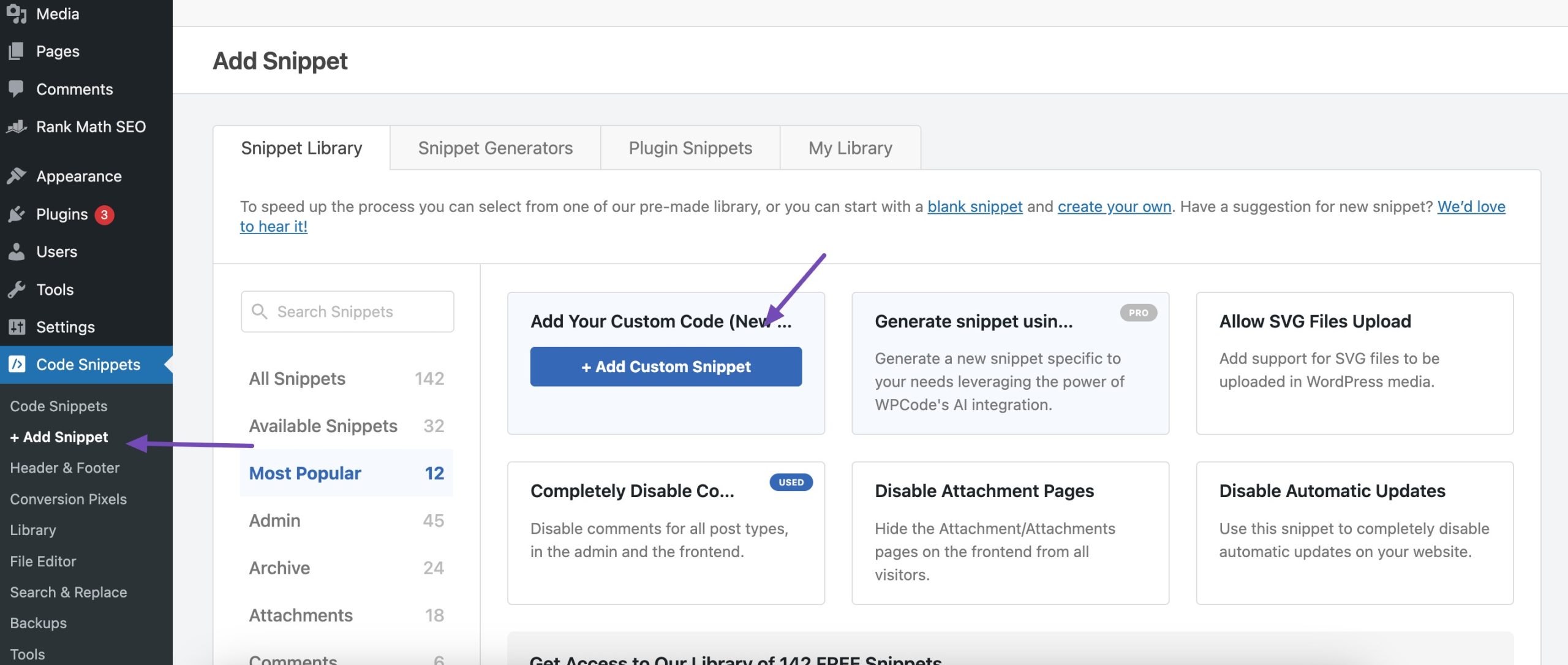
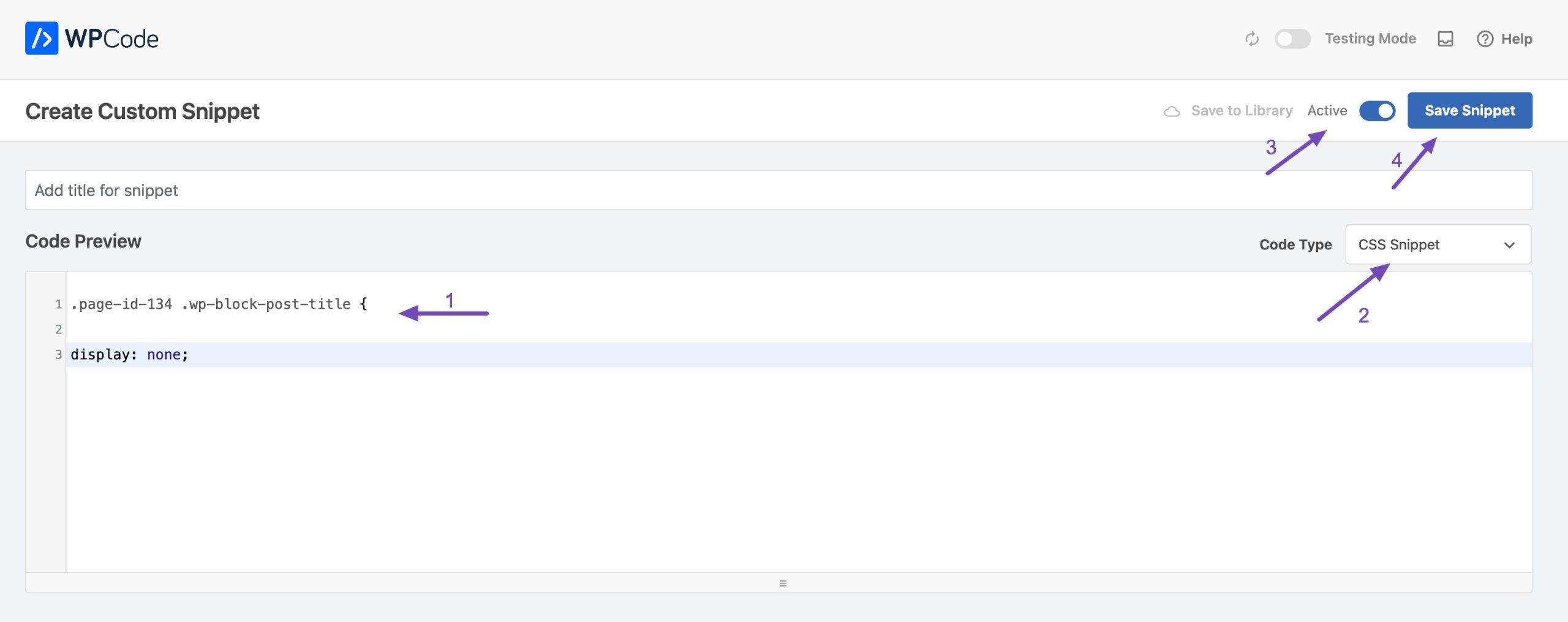
This can be challenging for beginners as they don’t have prior coding experience. But you can use a code snippets plugin like the WPCode to add the CSS code.
After that, select the Code Type als CSS Snippet, activate the code snippet and once done, hit the Save Snippet Taste.
This will hide the WordPress page title for the page with the page ID 134.
2.3 Hide a Page Title Using a Page Builder
If you’re using a page builder to build your WordPress website pages, you can also hide your WordPress page titles.
With page builders, you can only hide the specific page you’re building. We’ll show you how to hide a page title using the Elementar page builder.
Navigieren Sie zu Seiten → All Pages and locate the page that you want to hide the title.
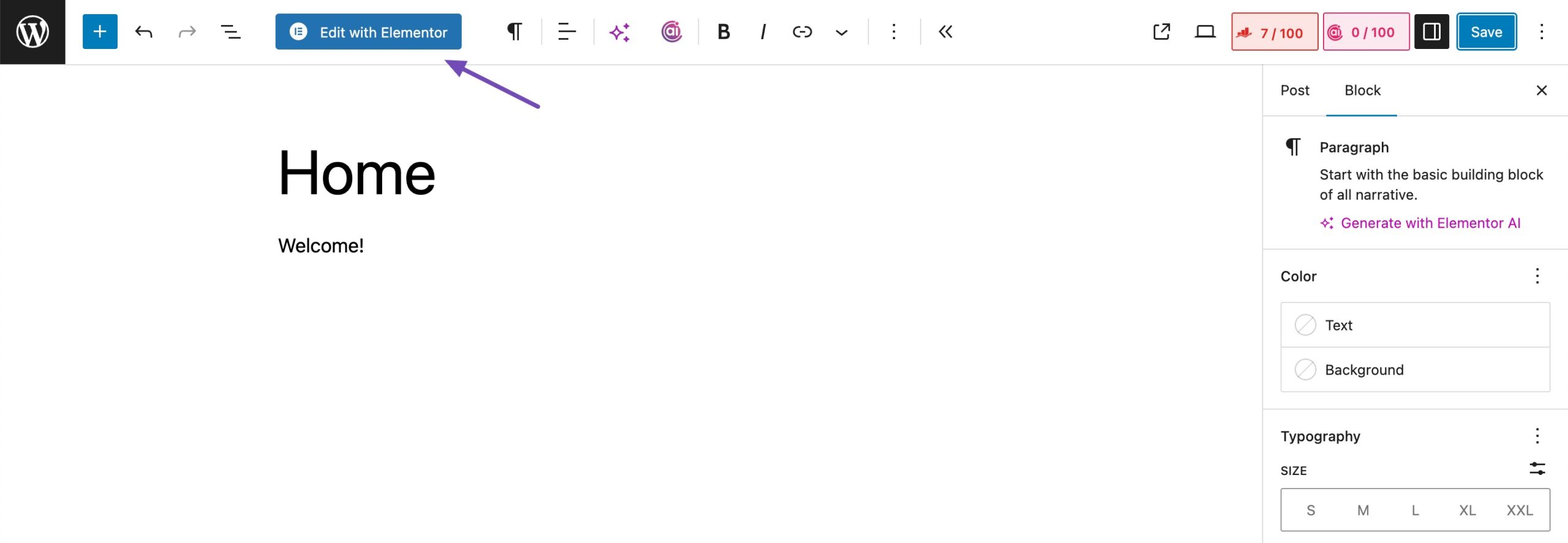
Now, open the page by clicking the Bearbeiten mit Elementor button on the top toolbar in the Block Editor.
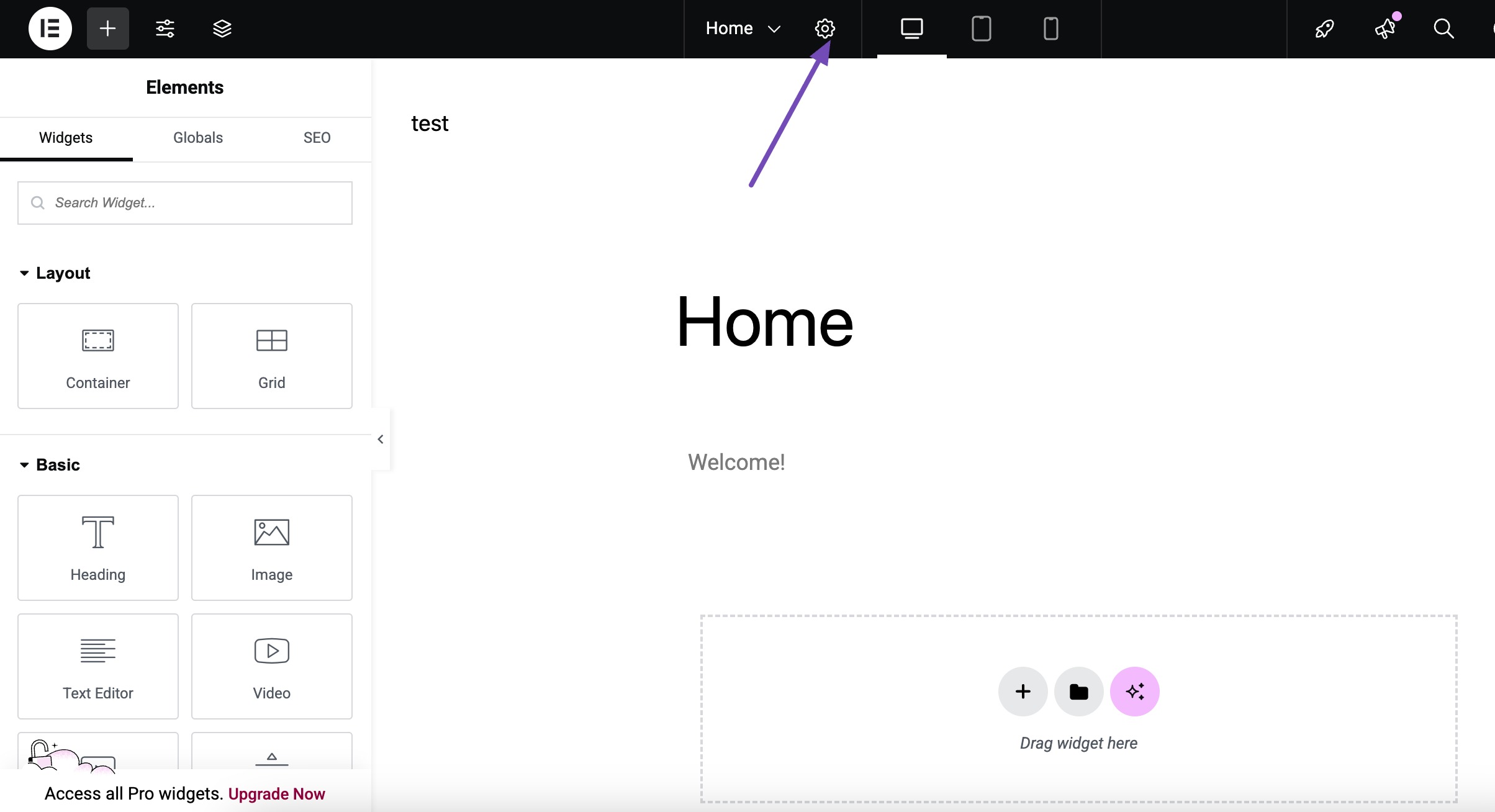
In the Elementor page builder, click the Einstellungen icon located at the top of the page.
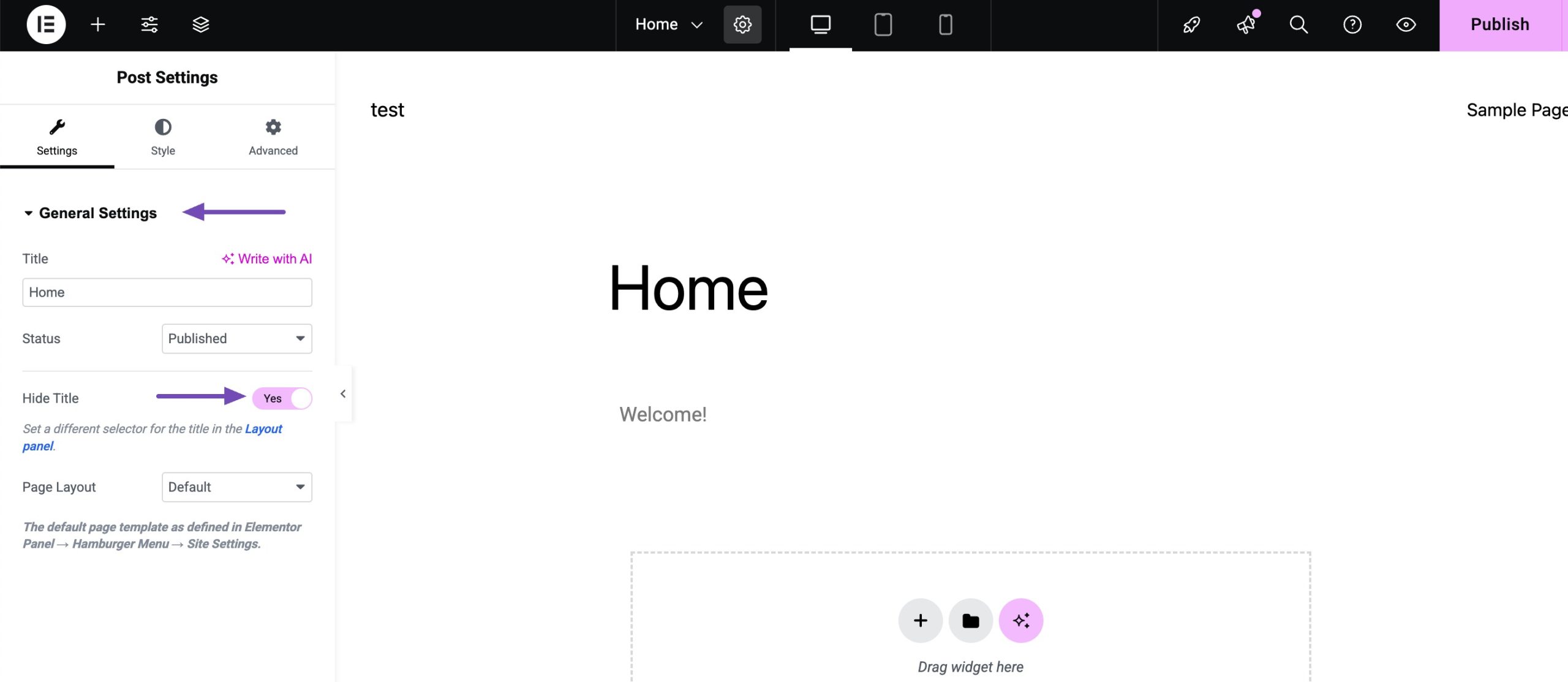
Im Allgemeine Einstellungen section in the Einstellungen tab, locate the Hide Title option and enable the toggle button.
Wenn Sie fertig sind, klicken Sie auf Aktualisieren button to save the changes made.
2.4 Hide a Page Title Using a Plugin
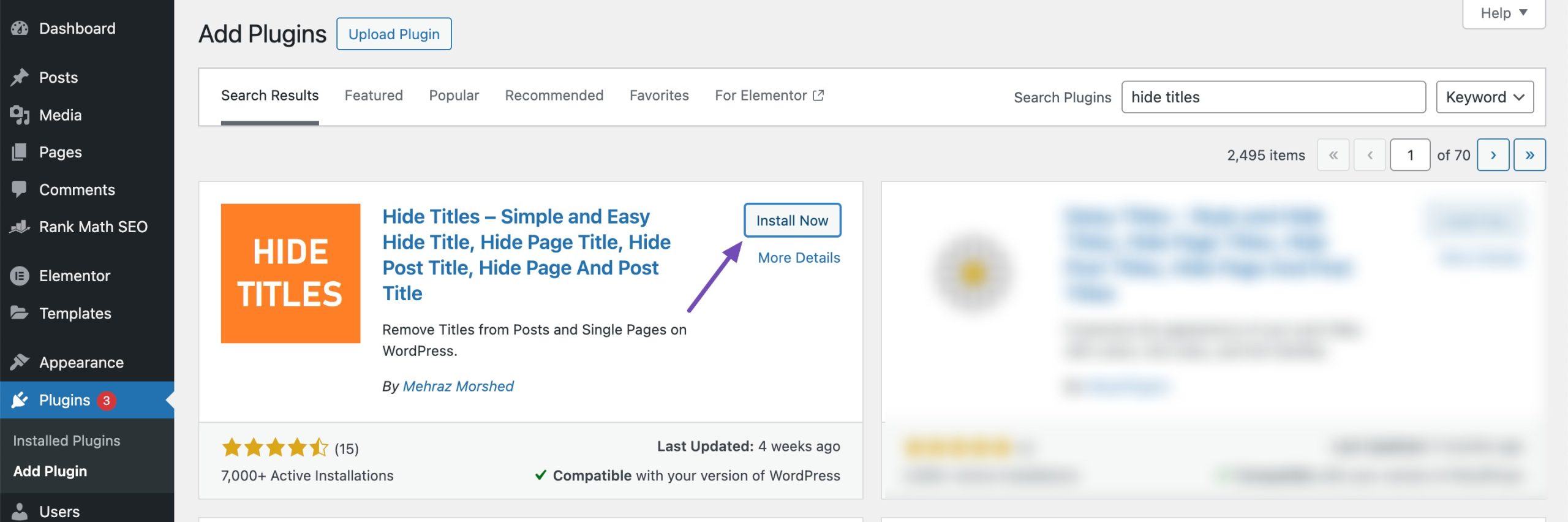
You can also hide titles with the help of the Hide Titles Plugin.
To get started, log in to your WordPress dashboard and navigate to Plugins → Add Plugin. Search for Hide Titles, then install and activate the plugin.
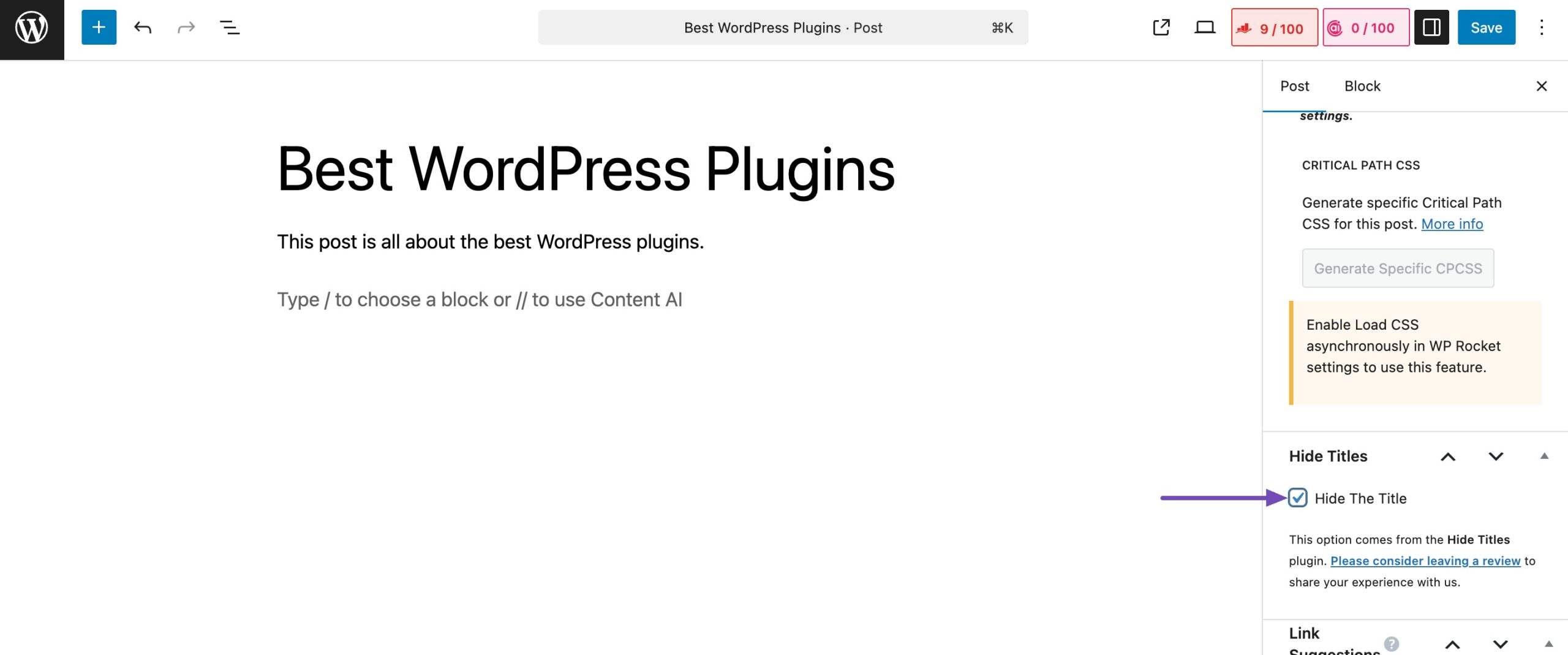
Once it’s active, open the post/page where you’d like to hide the title.
When you scroll down on the editor screen, you’ll see a new option labeled Hide Titles. Simply check the box to hide the title on that page, then click Speichern (or Veröffentlichen if it’s a new page).
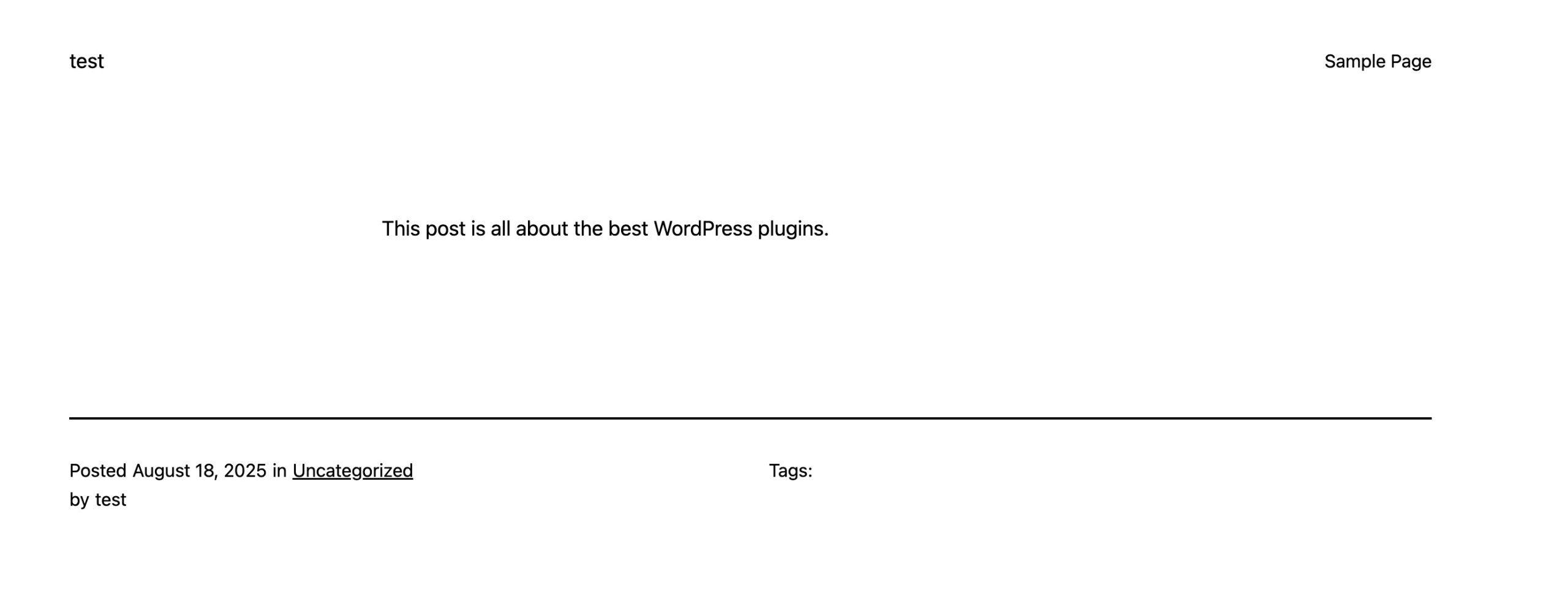
Now, when you view the page on the front end, you’ll notice the title is gone.
3 Fazit
Your page title plays an important role in helping visitors and search engines understand your content. But as you’ve seen, there are times when hiding it makes more sense.
Whether you want a cleaner layout, a distraction-free landing page, or a custom design that matches your vision, hiding page titles gives you the flexibility to shape your site the way you want. It’s a simple tweak that can make a big difference in how your website looks and feels.
Now it’s your turn, try out the methods covered in this post, and see which one works best for your theme.
Did this post help you effectively hide your WordPress page titles? Let us know by @rankmathseo twittern.